
Change access password
Aktualisiert am
2026-10-11 20:00:52
170
Besuche
In this manual, you will learn how to modify your access password for the SWPanel control panel quickly and securely.
1. Access the password change option
Follow these steps:
- Hover over your customer name at the top of the panel.
- In the dropdown menu, click on My SWPanel.
- Access the Access password change option.
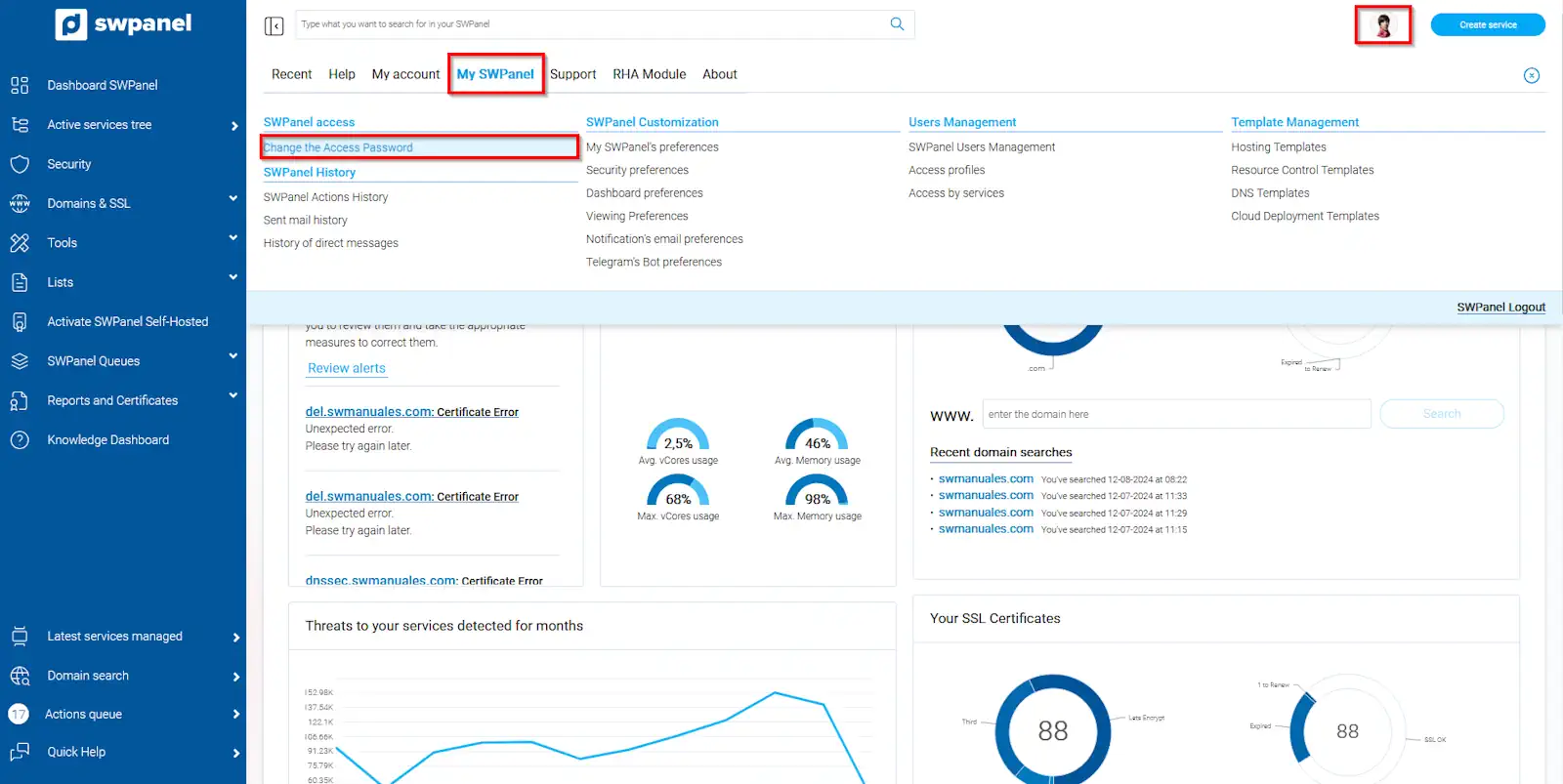
info_capture ℹ️ Note: The screenshot is for guidance, taken from version 2026.001.0026 dated 03/05/2026. It may differ from the current version of SWPanel.
2. Enter the new password
On the following screen:
- Enter your current password.
- Type your new password or generate one automatically using the magic wand icon.
- Confirm the new password if necessary.
- Click on Save new password to apply the changes.
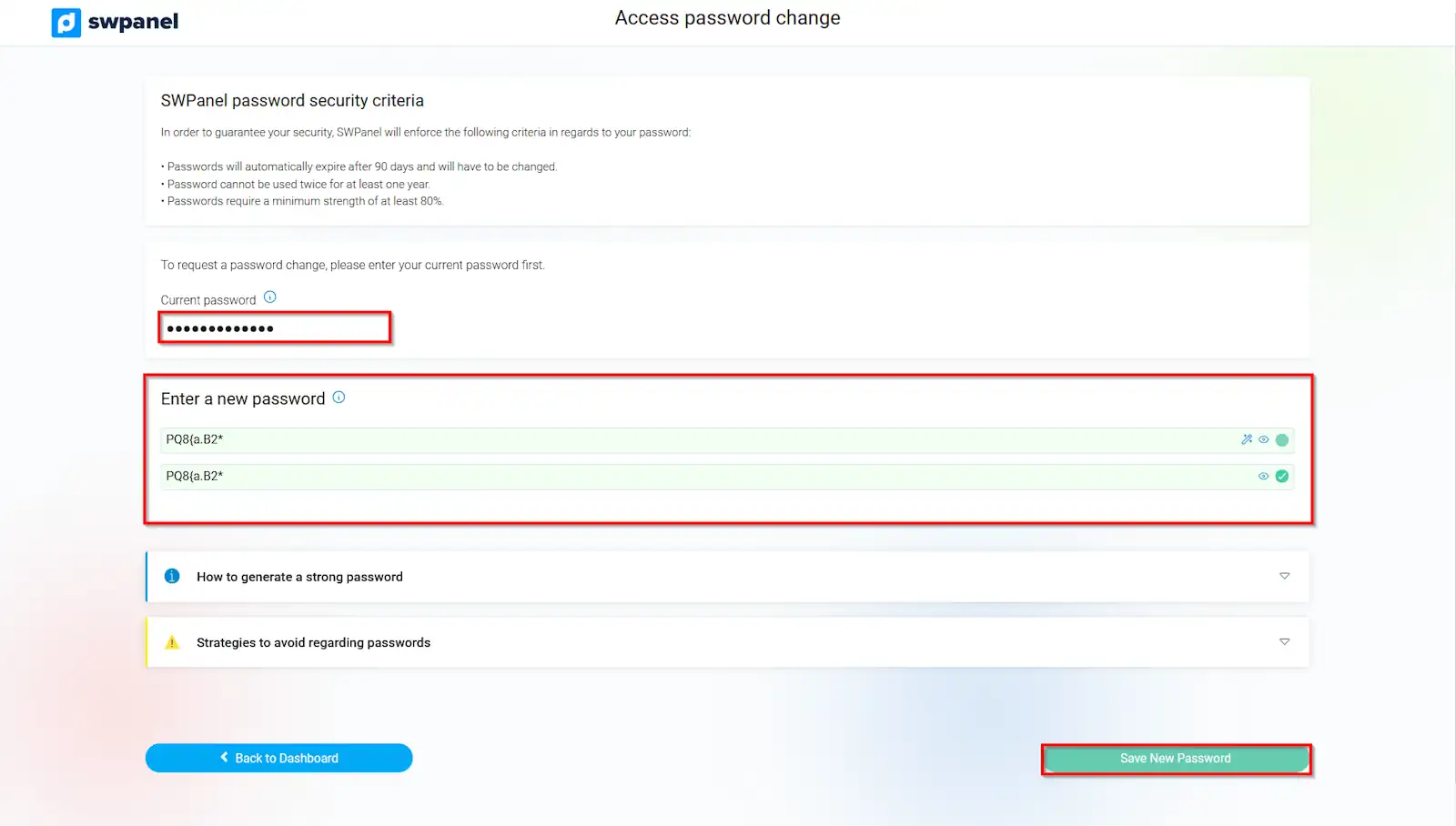
info_capture ℹ️ Note: The screenshot is for guidance, taken from version 2026.001.0026 dated 03/05/2026. It may differ from the current version of SWPanel.