
How to change the password of an email account ?
To change the password of an email account in your SWPanel, you must follow these steps.
- Access SWPanel and go to the Dashboard of the service where the email account to be modified is located, using the search bar located at the top.
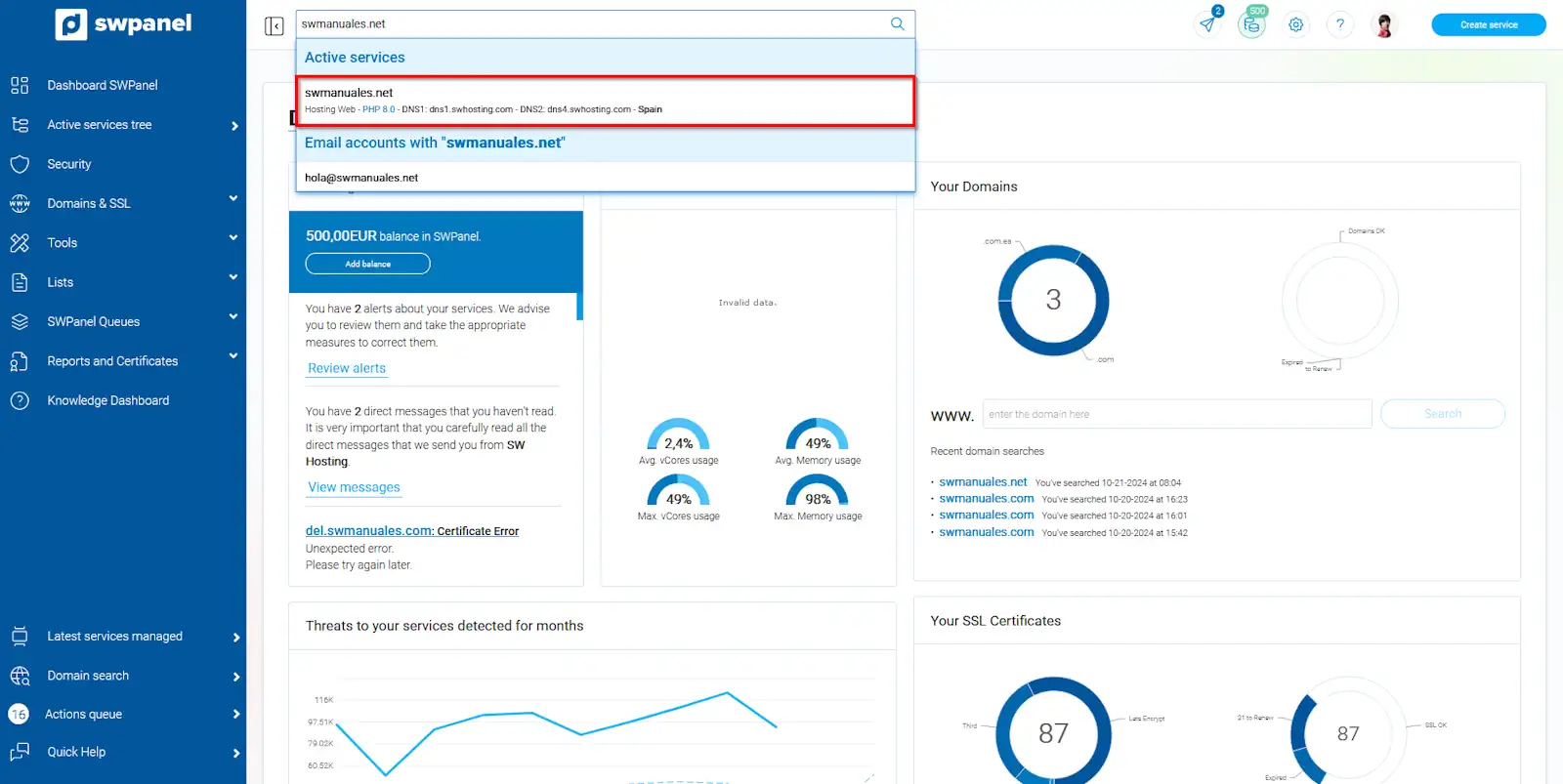
info_capture The screenshot is for guidance purposes. It was taken from version 2024.07.0123 on 24/10/2024. It may differ from what is shown in the current version of SWPanel.
danger Please note that to make any modifications to email accounts, you must ensure that the email service is activated. You can check this in the hosting dashboard under the section 'Stop/Start my services'.
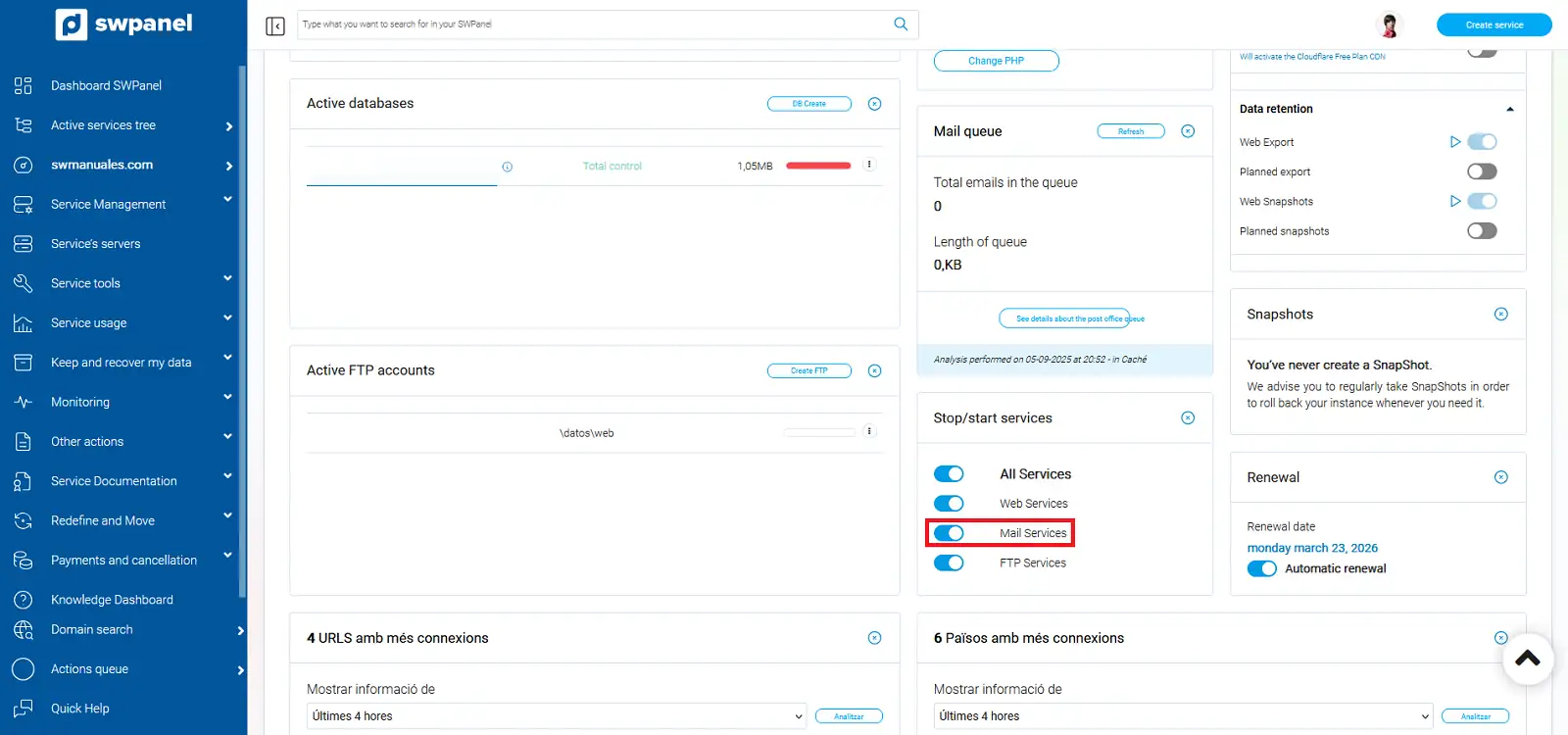
info_capture The screenshot is for guidance purposes. It was taken from version 2024.07.0123 on 24/10/2024. It may differ from what is shown in the current version of SWPanel.
- Once inside the service Dashboard, you must go to Service Management → ** Email Management** from the blue side menu.
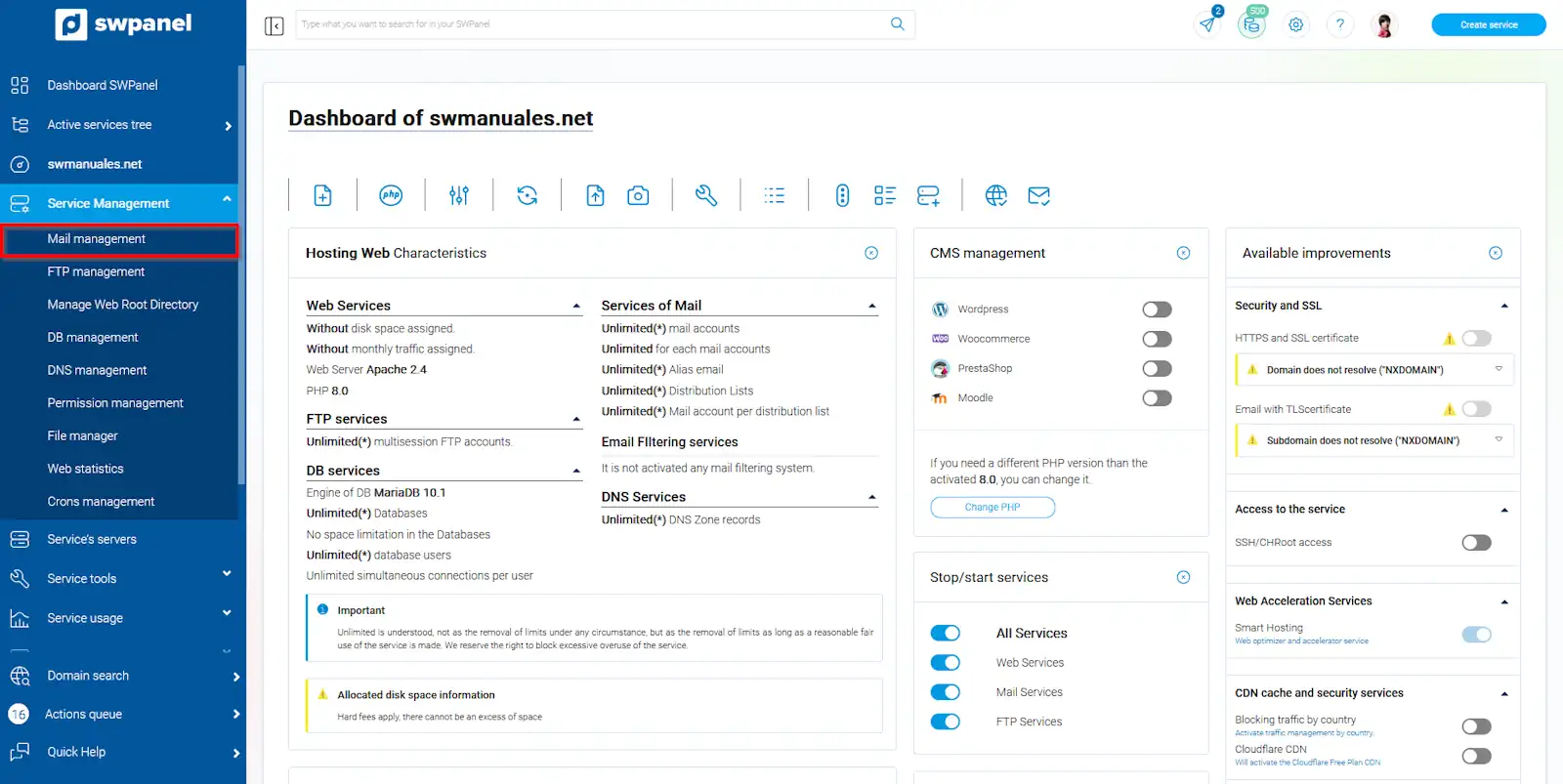
info_capture The screenshot is for guidance purposes. It was taken from version 2024.07.0123 on 24/10/2024. It may differ from what is shown in the current version of SWPanel.
- Hover over the three dots [...] to the right of your email account and click on Modify this email account.
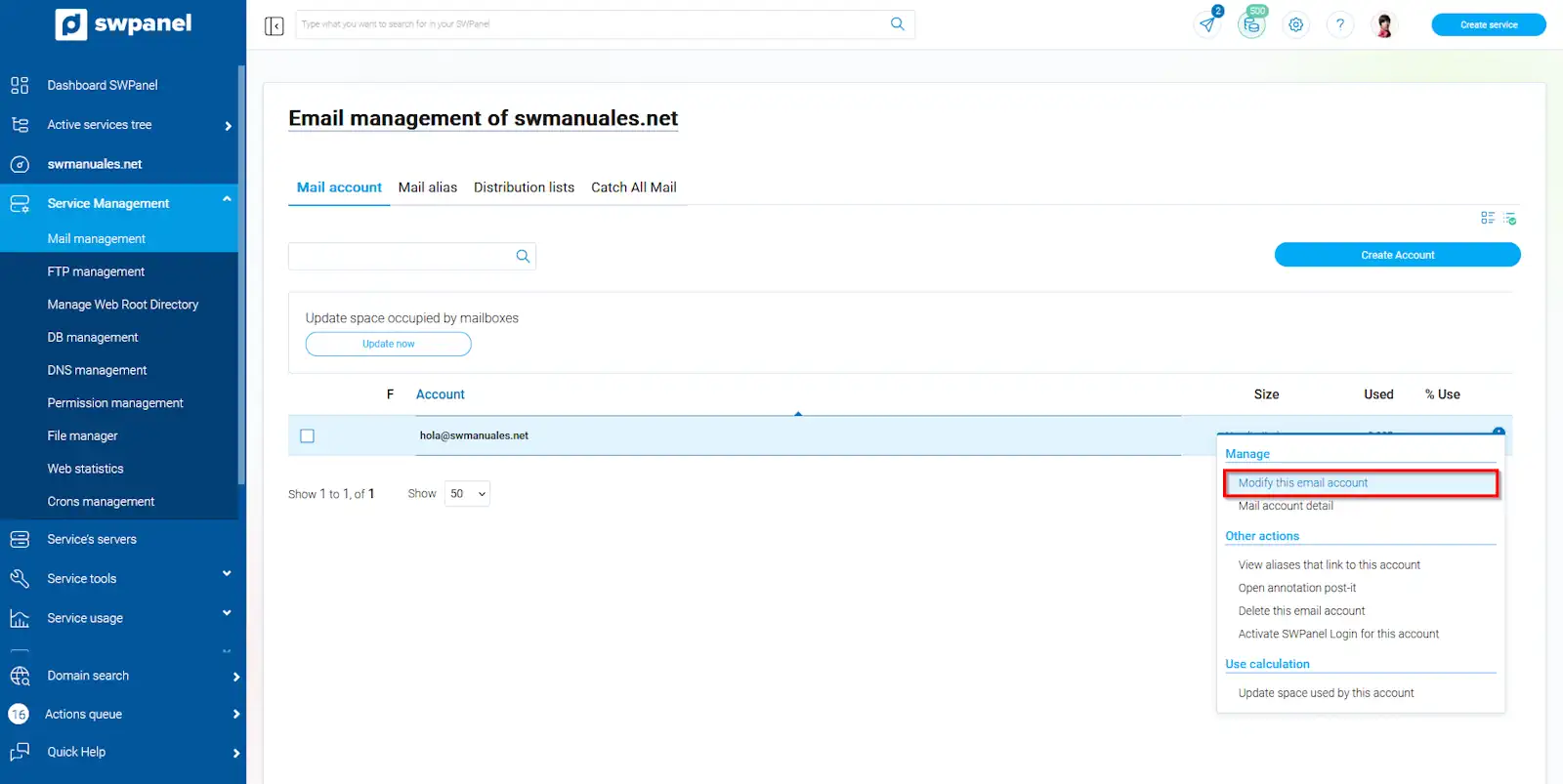
info_capture The screenshot is for guidance purposes. It was taken from version 2024.07.0123 on 24/10/2024. It may differ from what is shown in the current version of SWPanel.
- Enter your new password or generate one at random. Finally, click the green Save changes button at the bottom of the page.
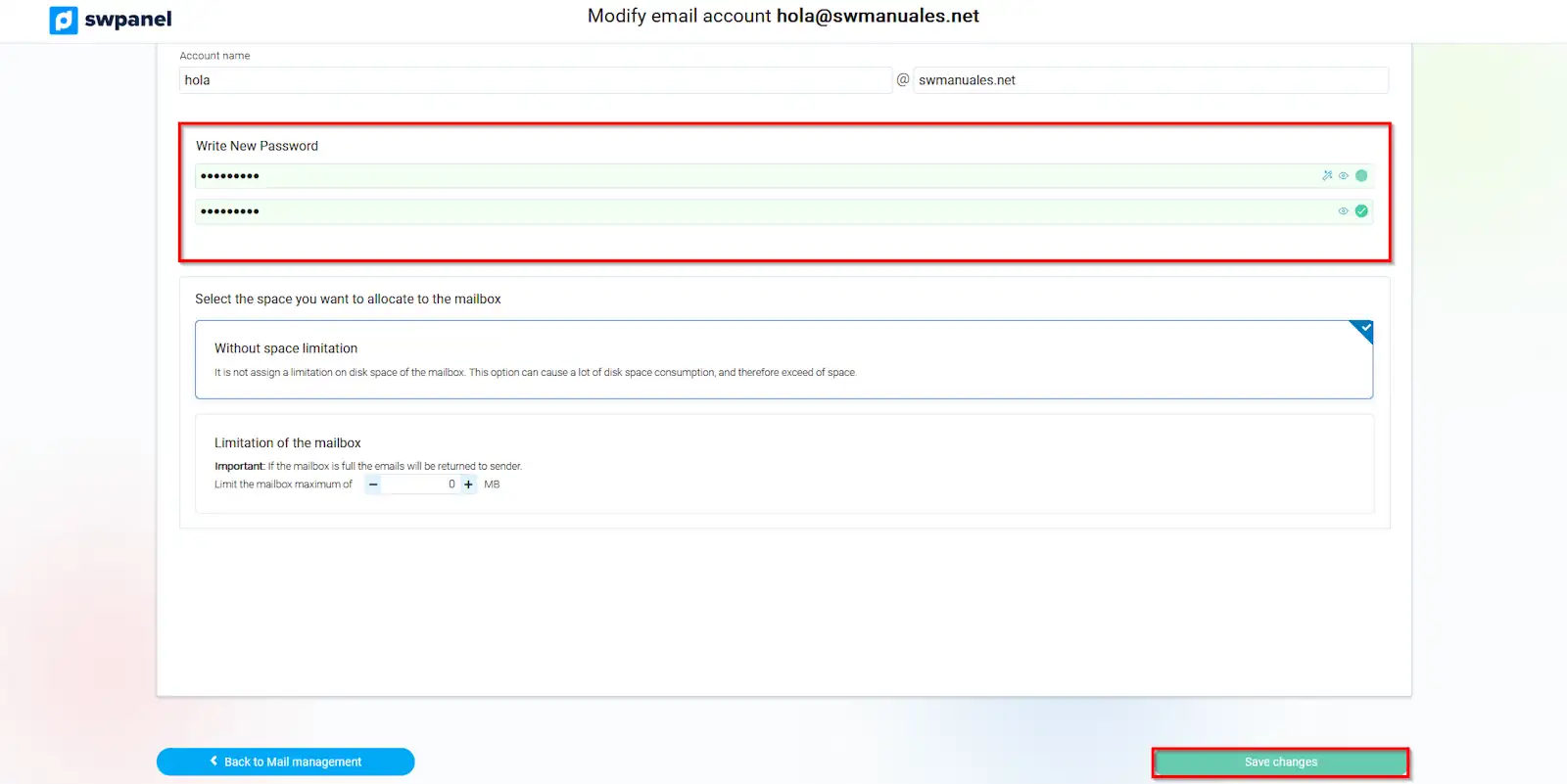
info_capture The screenshot is for guidance purposes. It was taken from version 2024.07.0123 on 24/10/2024. It may differ from what is shown in the current version of SWPanel.