
How to check the connections of your Web or Cloud
What are connection queries in Web or Server?
The connection query for a web hosting or server is a tool that can help analyze the traffic and behavior of visitors on a site. Through metrics such as IP addresses, geographic location, and the frequency of access to various URLs, you can obtain a view of how users interact with your content. This not only helps identify the most popular pages but also allows the detection of unusual traffic patterns that could indicate threats, attacks, or abuse.
The information gathered from these queries facilitates the implementation of appropriate security measures, such as firewall management and the blocking of malicious IP addresses. In this way, it helps maintain better security, integrity, and site performance.
You will be able to view the connections by accessing your hosting or Cloud Dashboard --> (side menu) Service Use --> Top Connections
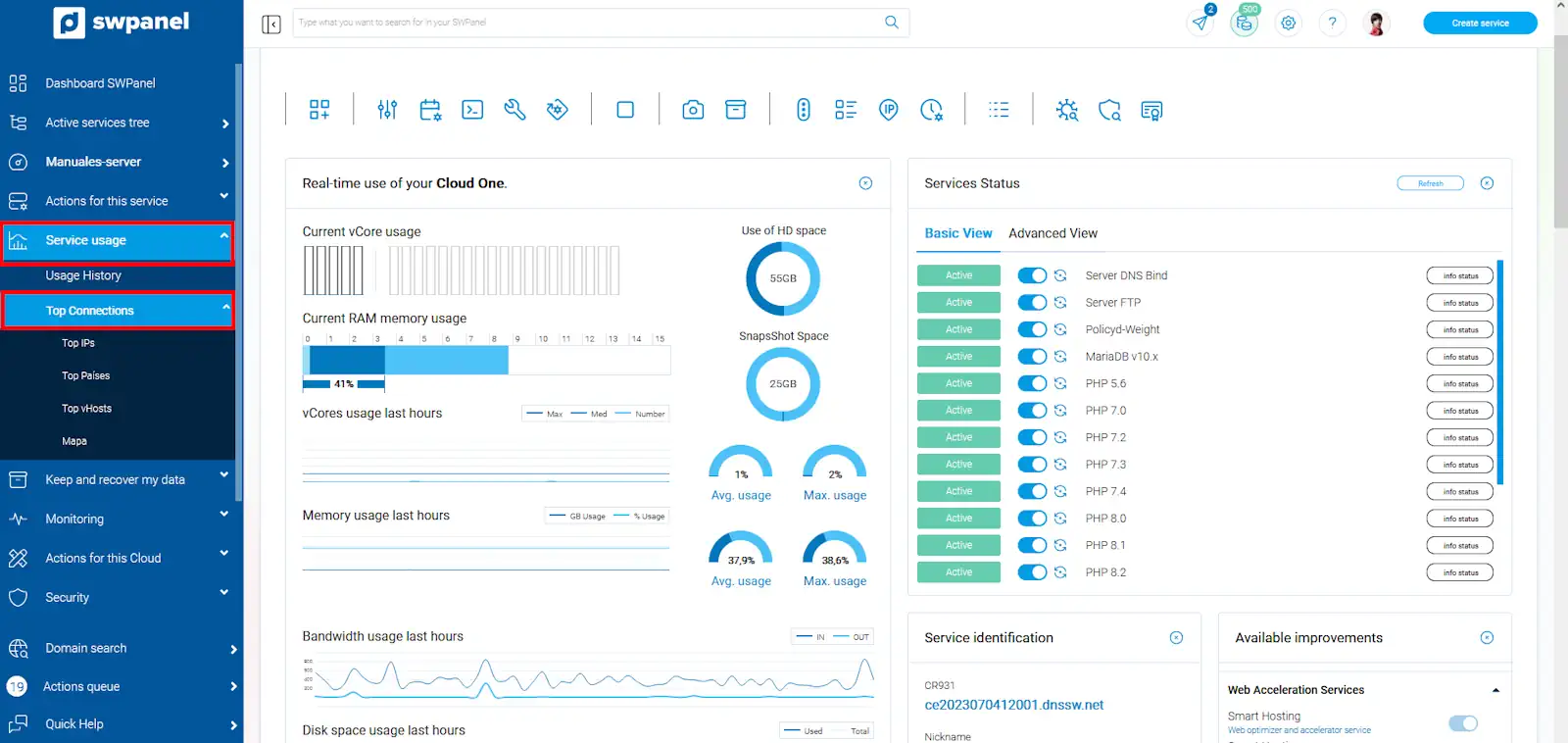
Top IPs
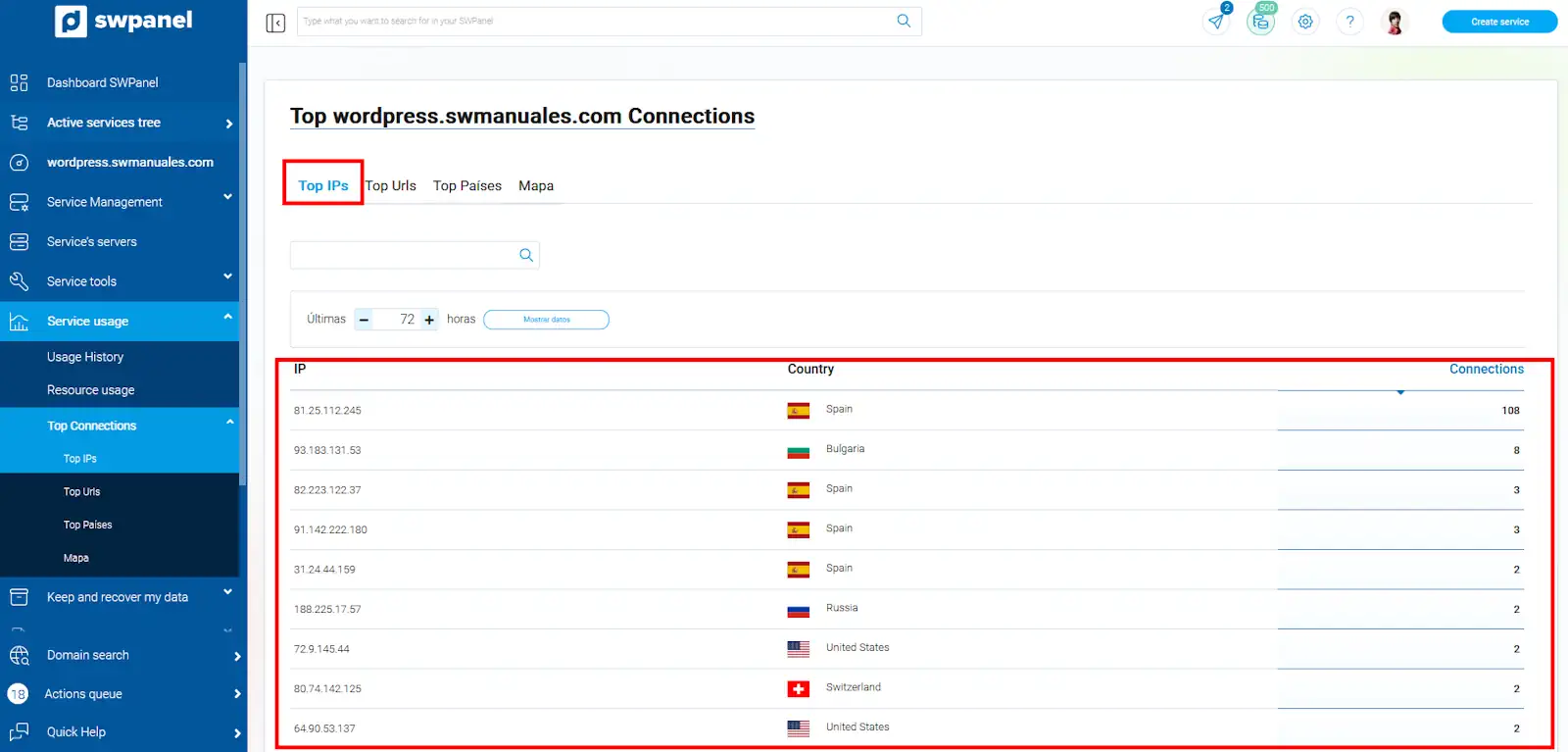
Provides a view of the IP addresses that have made the most connections to your web hosting; this functionality is useful for site traffic analysis, as it allows the identification of access patterns and possible unusual behaviors:
-
IP: Each entry includes the IP address, allowing for precise tracking.
-
Country: The country of origin for each IP is shown, which can help understand the origin of visitors and identify geographic areas.
-
Connections: Indicates the total number of connections made by each IP, providing a clear metric of the activity level.
Top URLs
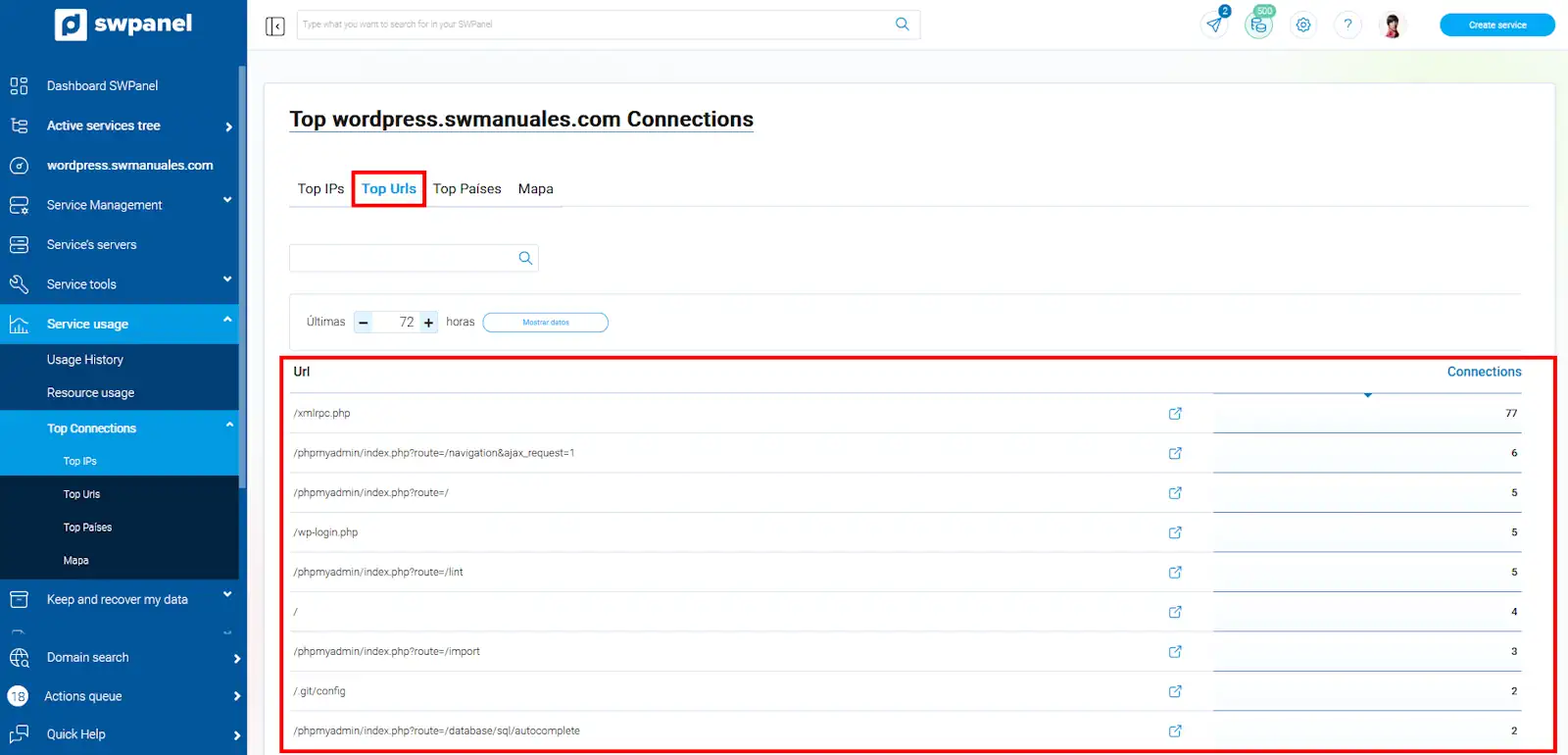
This option is only available in a Hosting; it offers an analysis of the most visited URLs on your web hosting; this functionality can be useful for reviewing the content that visitors access and how traffic is distributed on your site:
-
Url: Shows a summary of the URLs that have received the highest number of accesses, making it possible to identify the most popular and relevant pages for users.
-
Connections: Indicates the total number of connections made to each URL, providing a clear metric of visitor interest in each section of your site.
Top Countries
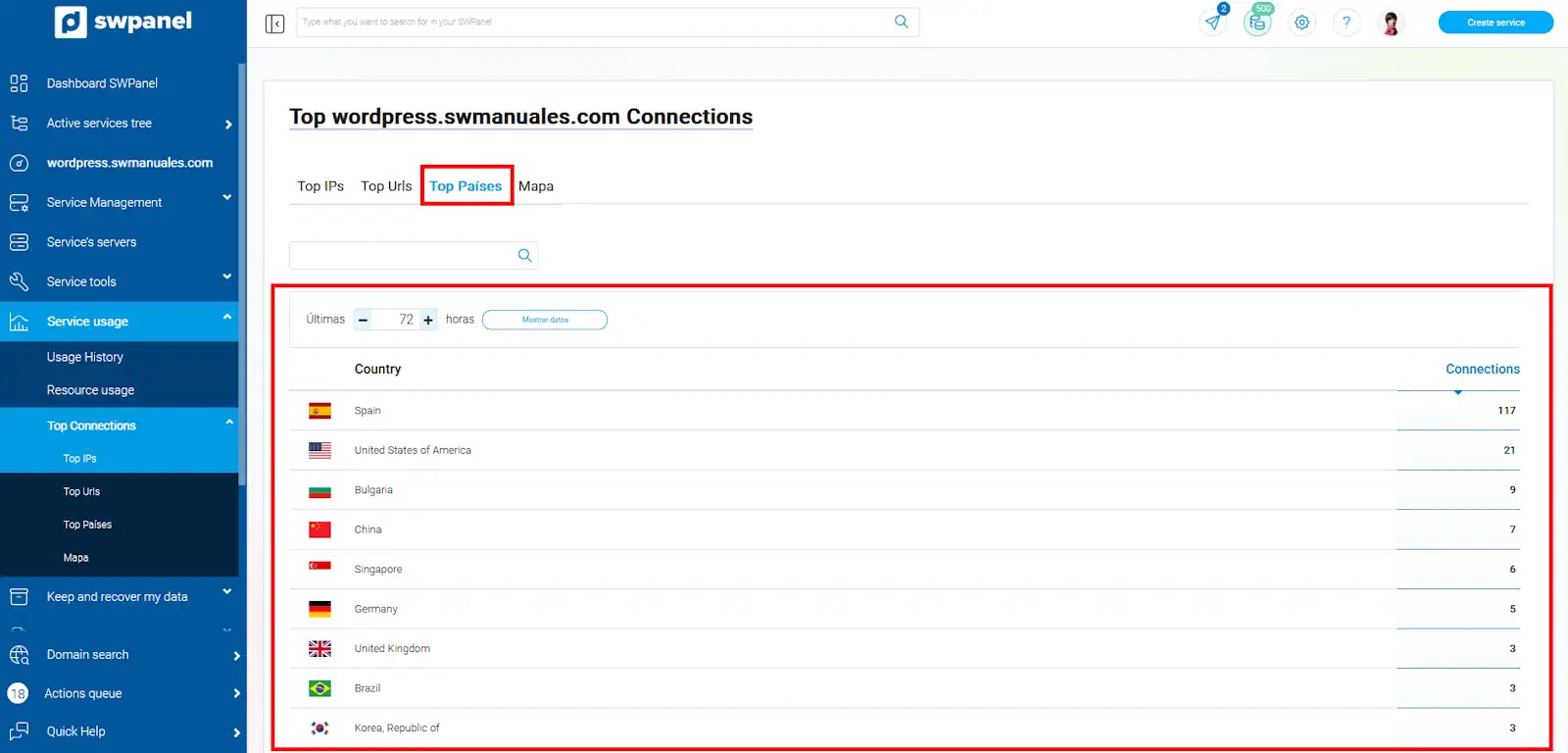
Provides an analysis of the connections to your web hosting according to the geographic location of visitors:
-
Country: Shows the origin of visitors, ordered by the highest number of visits.
-
Connections: Indicates the total number of connections made from each country
Top vHosts
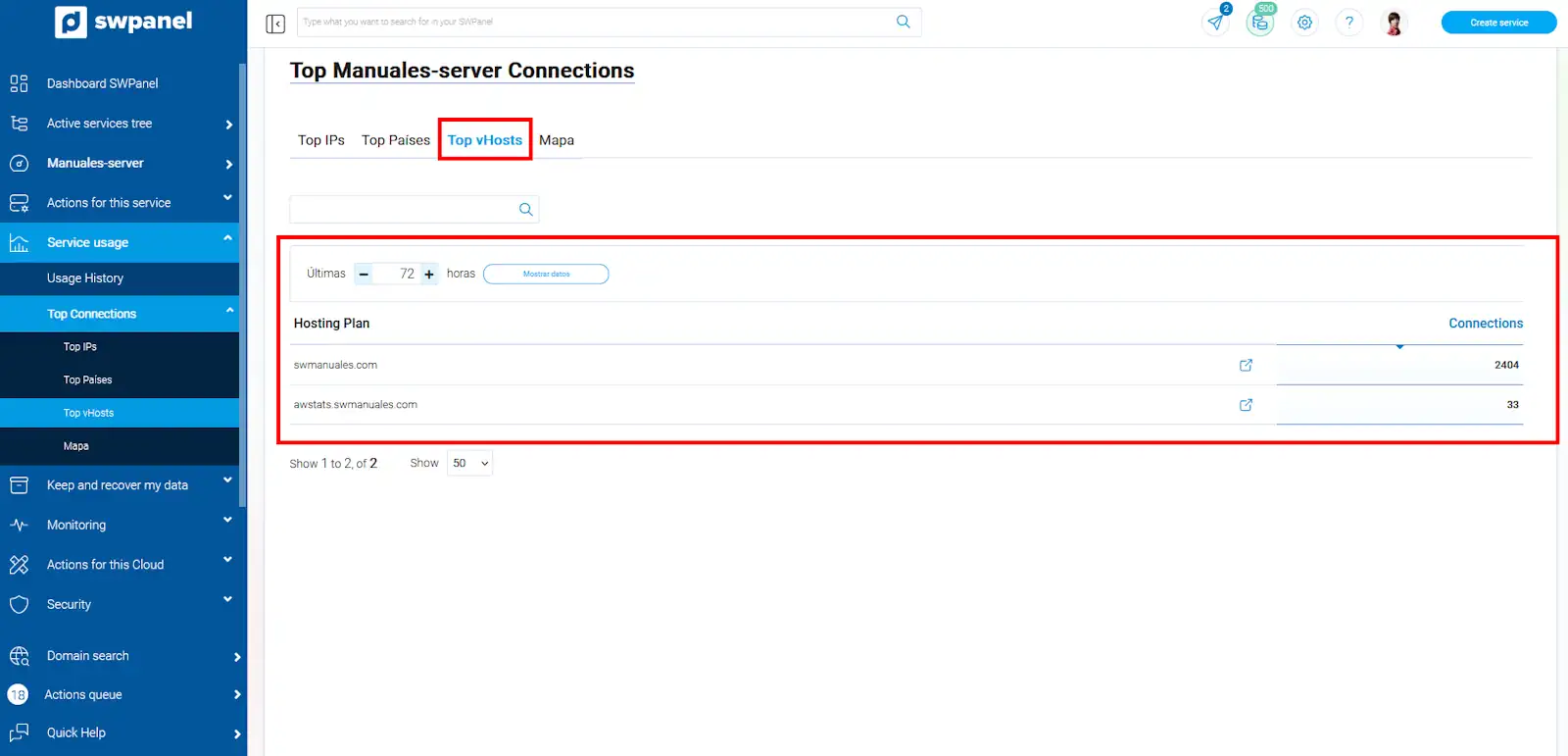
This option is only available on a server; it provides an overview of the most used virtual hosts (vHosts) on the web server:
-
vHost List: Shows all virtual hosts configured on the server.
-
Number of Connections: Provides a count of the connections established to each vHost.
Map
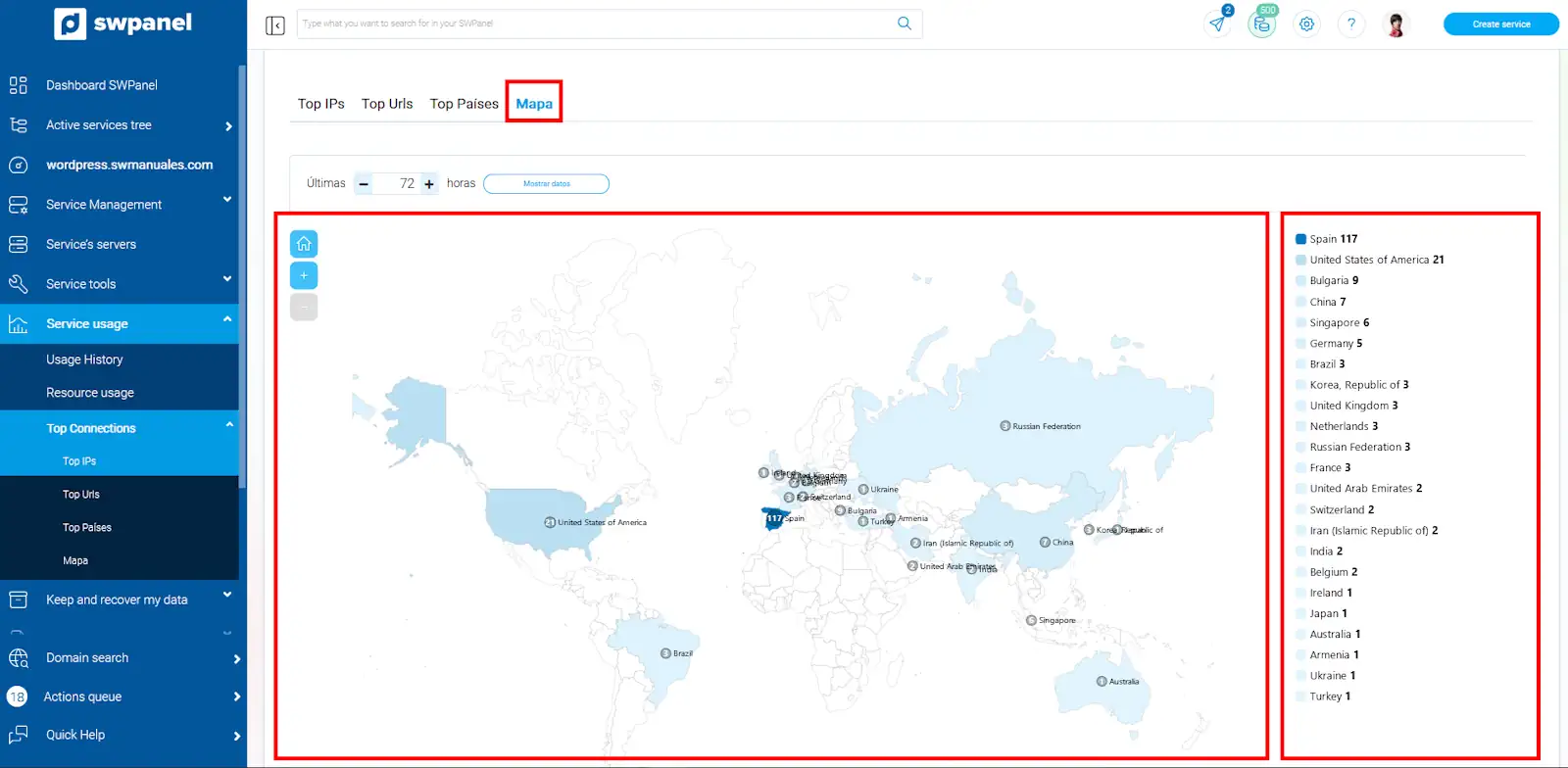
Presents an interactive map that visualizes the connections to your web hosting geographically, providing a visual representation of the international traffic of your visitors:
- The map shows countries based on the number of connections, identifying the regions with the highest activity on your site.
- A small list is shown that includes the country name and the total number of connections made from there.
Integration with Firewall Management
With the information obtained from the analysis of the number of connections for each Hosting, you can identify unusual traffic spikes; these sudden spikes in connections can be indicative of an attack, malicious behavior, IP abuse, etc.
A very useful tool in these cases is to check the reputation of the IPs, using reported IP address lookup pages, such as on the AbuseIPDB website.
Likewise, you can block IPs that exhibit anomalous or malicious behaviors, such as a high number of connections in a short period, or that have been reported as abusers. This can be achieved by creating rules in the layer 4 firewall, denying access based on IPs, which helps protect the most used vHosts.
For more information about the Manageable Layer 4 Perimeter Firewall, see the following link:
Another method is to block IPs that show anomalous or malicious behaviors, adding these IP addresses to the Fail2Ban system blacklist.
For details on how to activate and use Fail2Ban on your Cloud server with SWPanel, see the following link:
Access Profiles
The Hosting Management and Cloud Management access profiles have the option to query your web connections enabled through the "Top Connections" option:
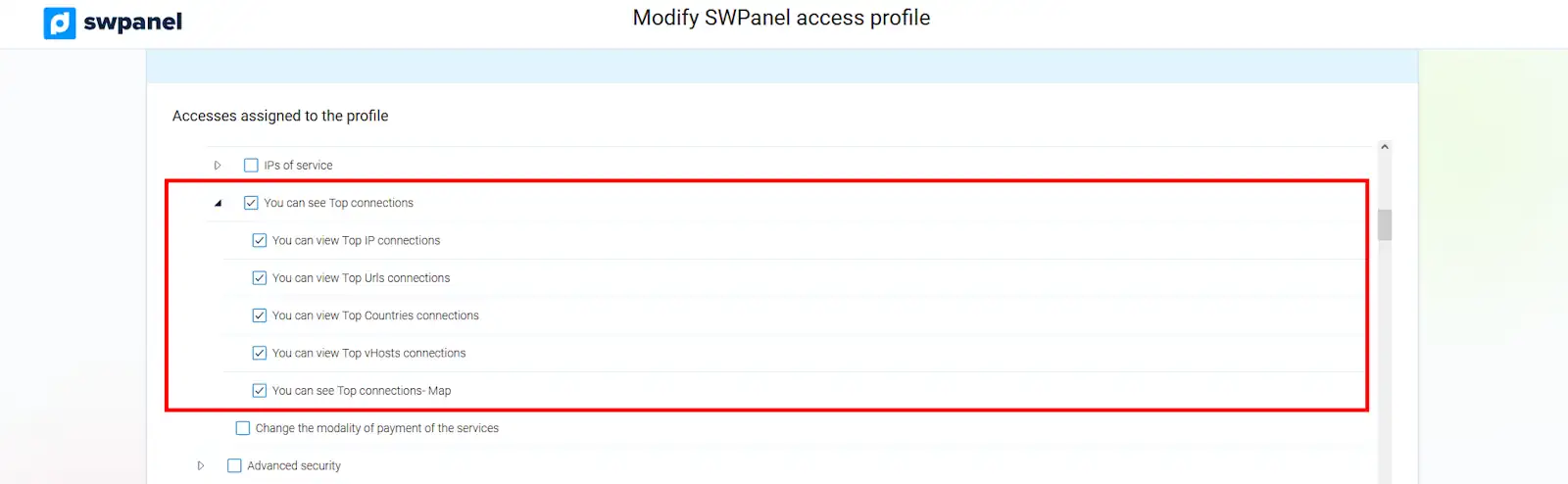
This allows administrators and users with these profiles to easily access relevant traffic information.
For more details on how to create and manage access profiles, see the following link:
success Ready! Now you know how to query connections on your web hosting or server and how you can implement them to maximize the security and performance of your site. With the tools and metrics at your disposal, you can identify traffic patterns, detect unusual behaviors, and make informed decisions.