
How to create access to the SWPanel using the service name
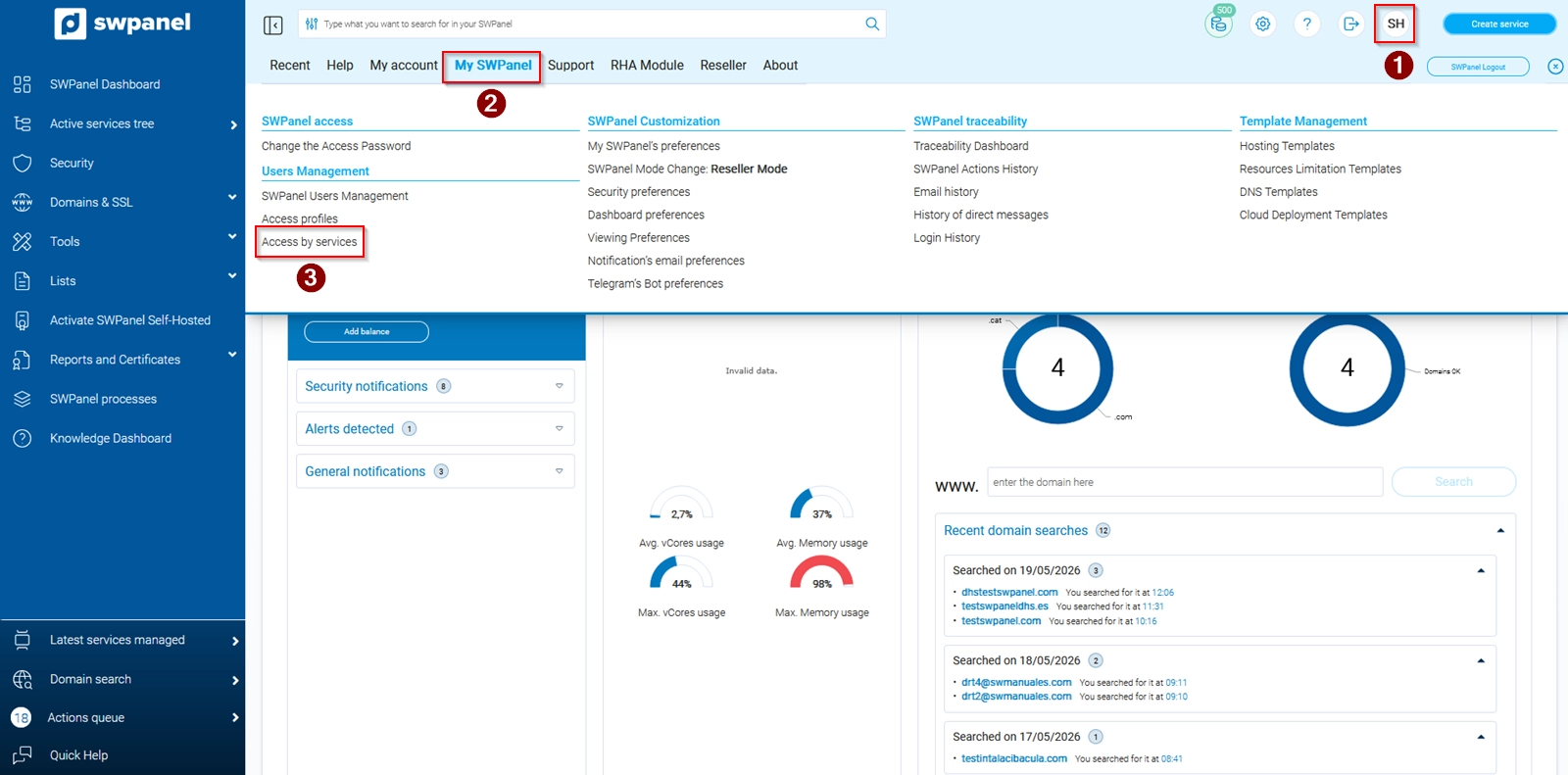
To create service access, we access SWPanel, open the top menu of our customer account and click on My SWPanel -> Service Access in the pop-up menu that appears.
info_capture The screenshot is for guidance purposes. It was taken using version 2026.001.0058 dated 20/05/2026. It may differ from what is shown in the current version of SWPanel.
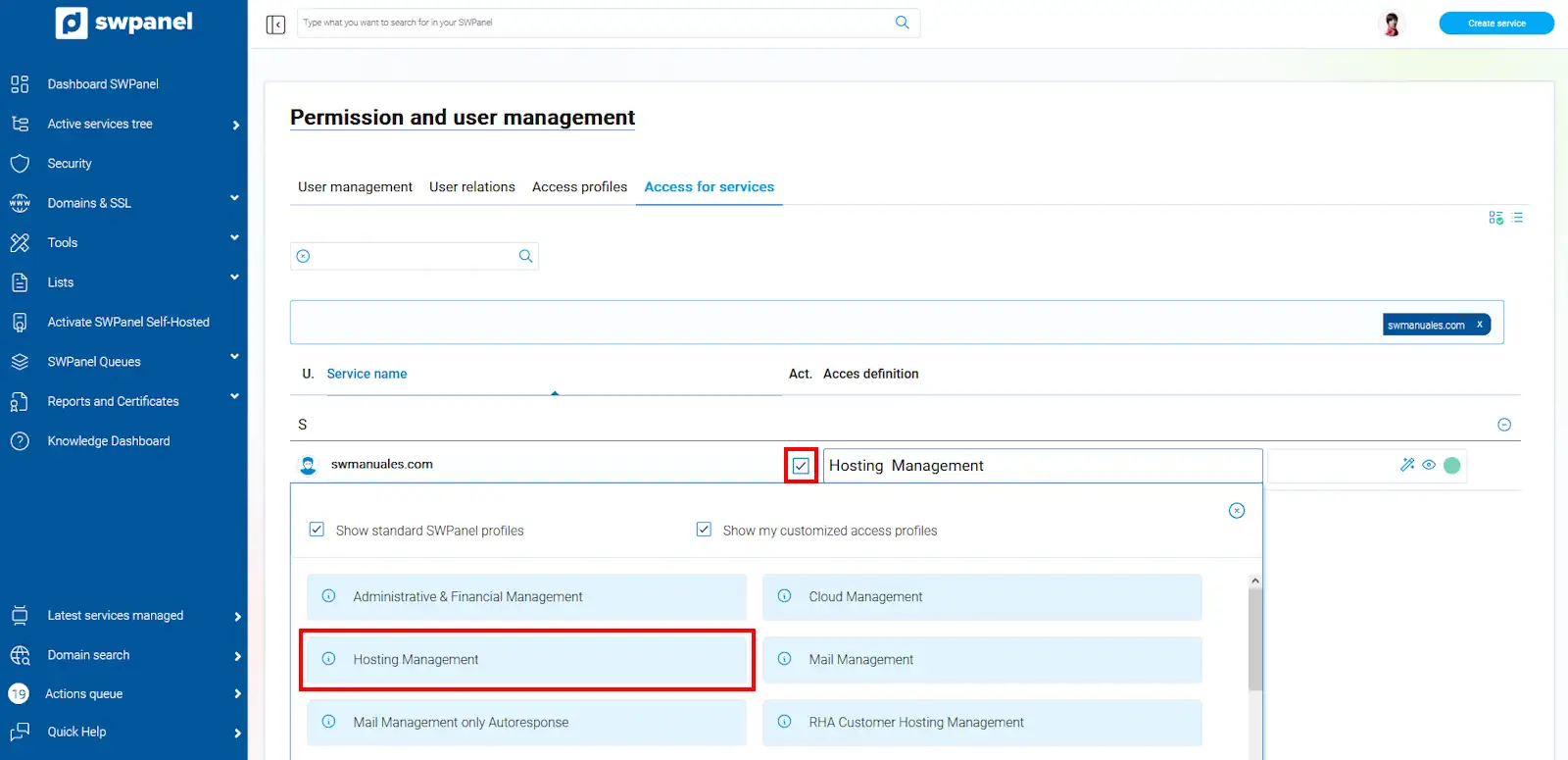
We select the service for which we want to grant login access from SWPanel and select the 'Hosting Management' profile, which has the permissions assigned to manage the entire hosting: create, modify, and delete databases, FTP accounts, email accounts, DNS management, automatic CMS installation (WordPress, PrestaShop), etc.
info_capture The screenshot is for guidance purposes. It was taken using version 2026.001.0058 dated 20/05/2026. It may differ from what is shown in the current version of SWPanel.
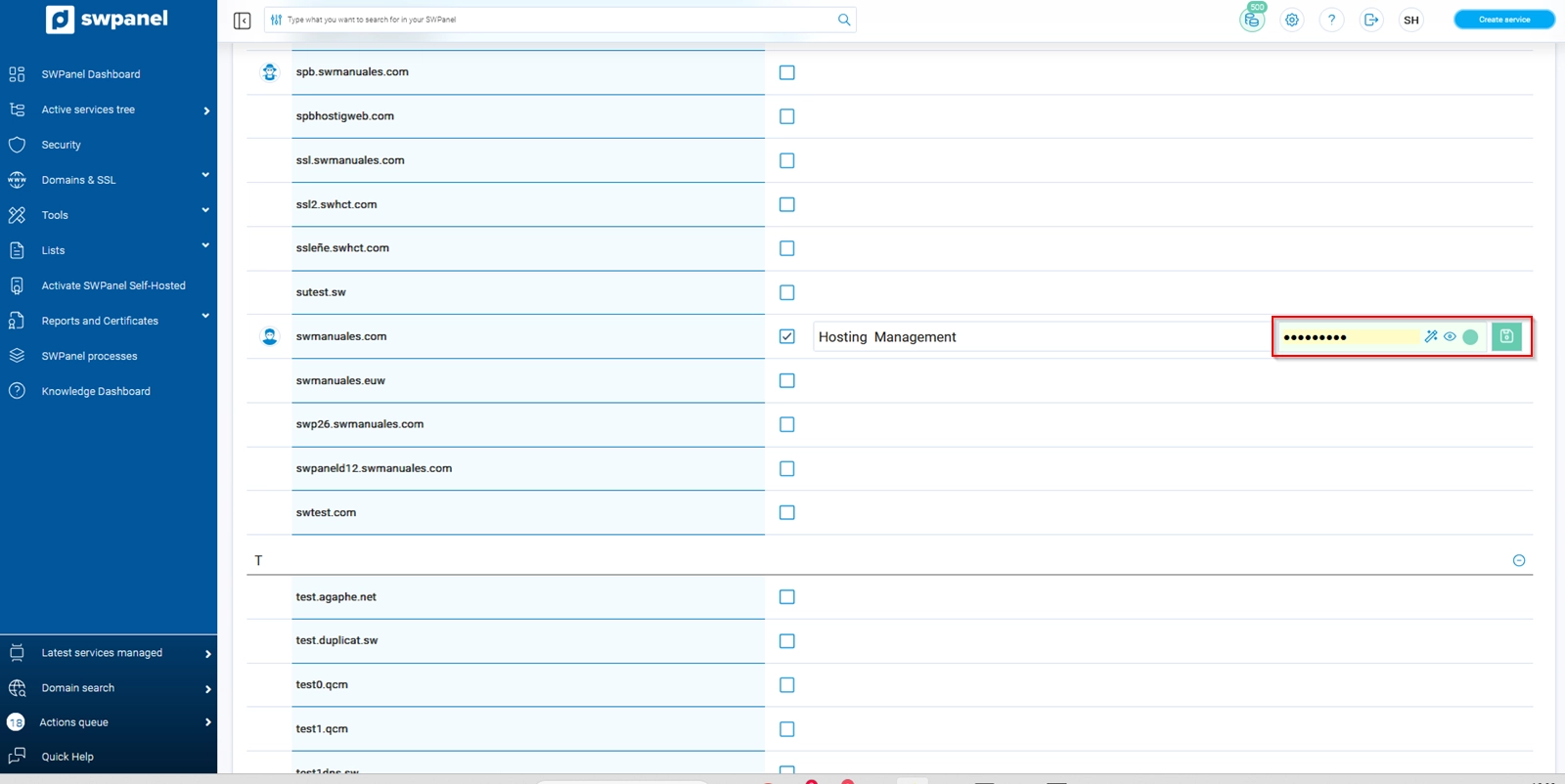
After selecting the 'Hosting Management' profile, we enter the password and save the service access by clicking on the floppy disk icon.
info_capture The screenshot is for guidance purposes. It was taken using version 2026.001.0058 dated 20/05/2026. It may differ from what is shown in the current version of SWPanel.
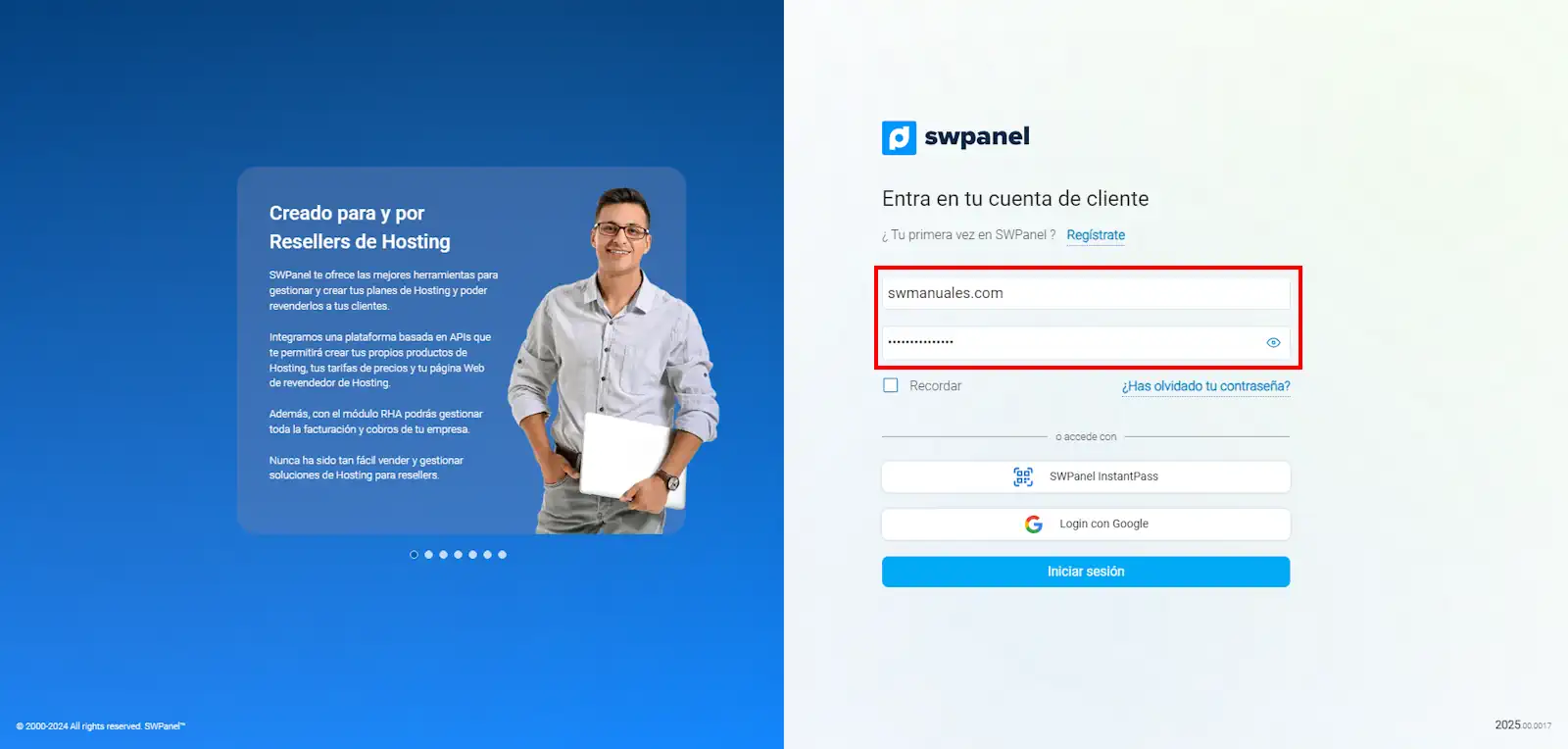
To verify the SWPanel access credentials with our new user, we go to go.swpanel.com and enter the data we have just created:
User: service name. For example, in our case: swmanuales.com Password: the one we specified previously.
info_capture The screenshot is for guidance purposes. It was taken using version 2026.001.0058 dated 20/05/2026. It may differ from what is shown in the current version of SWPanel.
Once we have logged in, we will directly see the service Dashboard with all the available actions that are predefined in the 'Hosting Management' profile.