
How to create an FTP account
FTP stands for File Transfer Protocol.
This protocol allows you to transfer files between your local computer and the server where your website is hosted. Through FTP, you can upload files to the hosting directory to publish your website, as well as download them from the server to your device.
Creating an FTP user account
Before uploading or downloading files from the FTP server, it is necessary to create a user account with access to it. This management can be easily done from SWPanel, which allows us to manage FTP users.
Step 1. Access the Dashboard of the service for which you wish to create the FTP user account. To do this, click on Active services tree (left menu) and select the corresponding service (in this case, the hosting swmanuales.com).
You can also locate the service using the SWPanel general search.
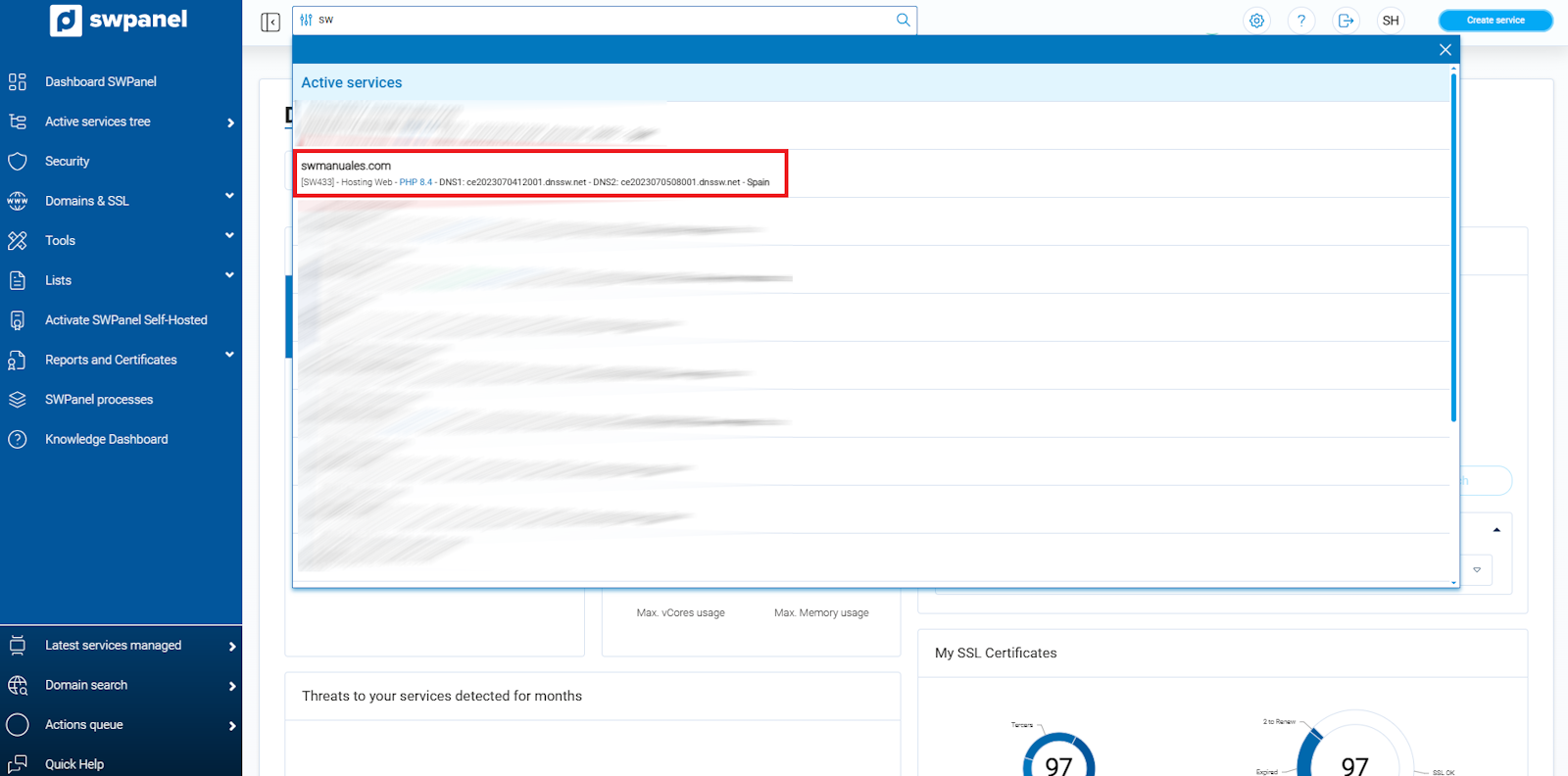
info_capture ℹ️ Note: The screenshot is for guidance purposes, taken from version 2026.000.0001 dated 01/31/2026. It may differ from the current version of SWPanel.
Step 2. Access Service management and then FTP management (left menu).
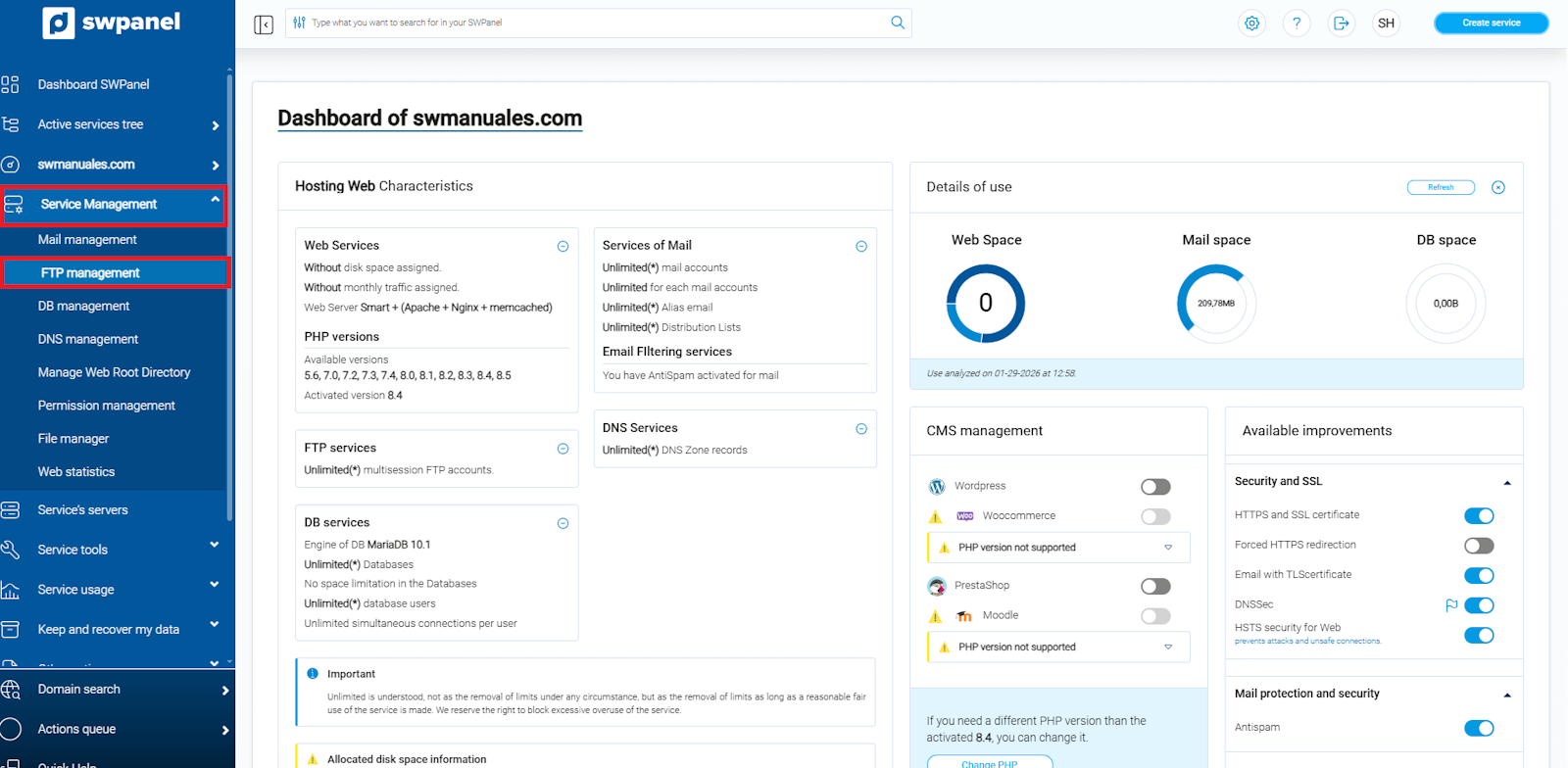
info_capture ℹ️ Note: The screenshot is for guidance purposes, taken from version 2026.000.0001 dated 01/31/2026. It may differ from the current version of SWPanel.
Step 3. Click on Create Account (located on the right) or on Create your first FTP account.
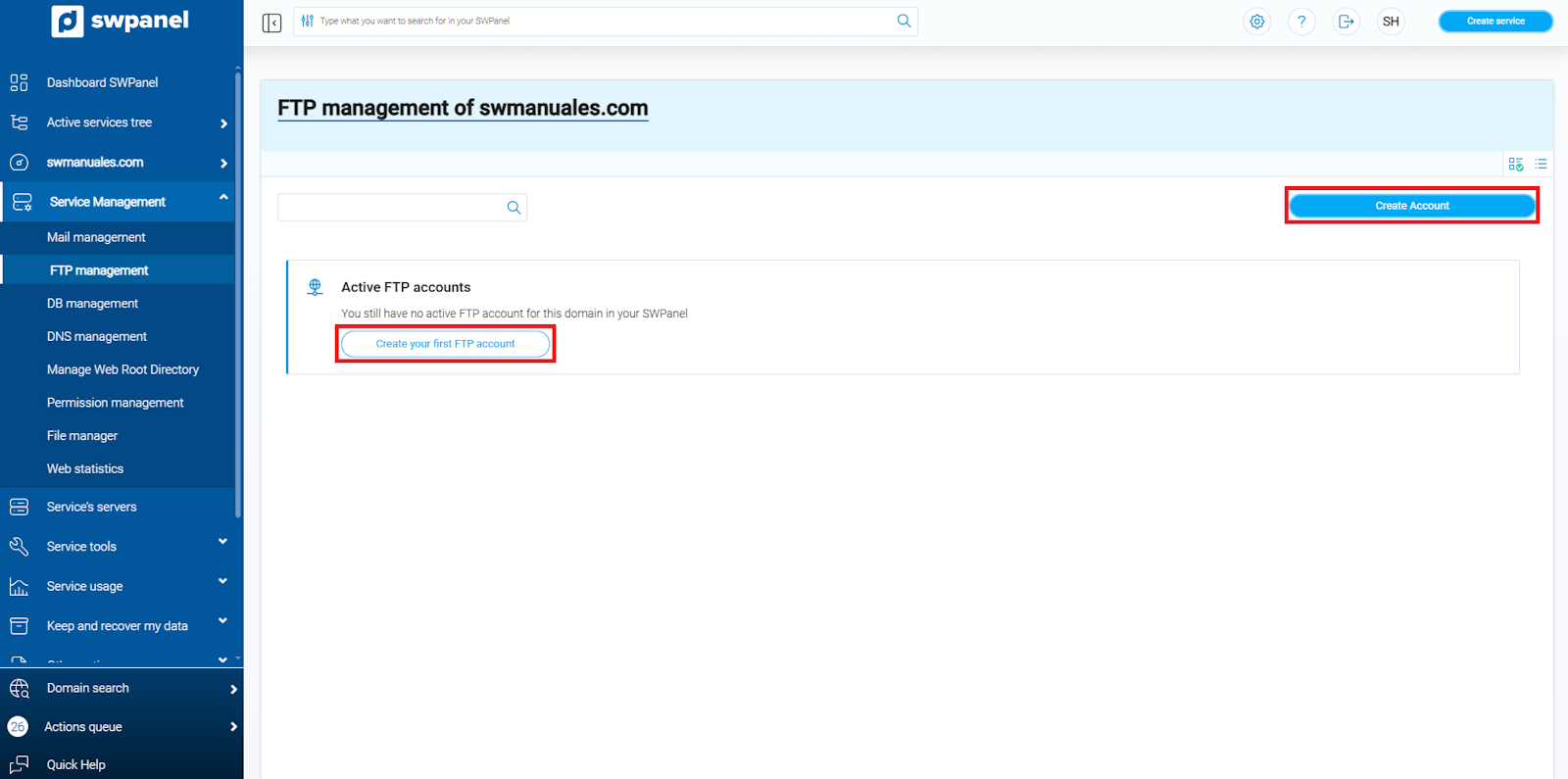
info_capture ℹ️ Note: The screenshot is for guidance purposes, taken from version 2026.000.0001 dated 01/31/2026. It may differ from the current version of SWPanel.
Step 4. Next, enter the required data:
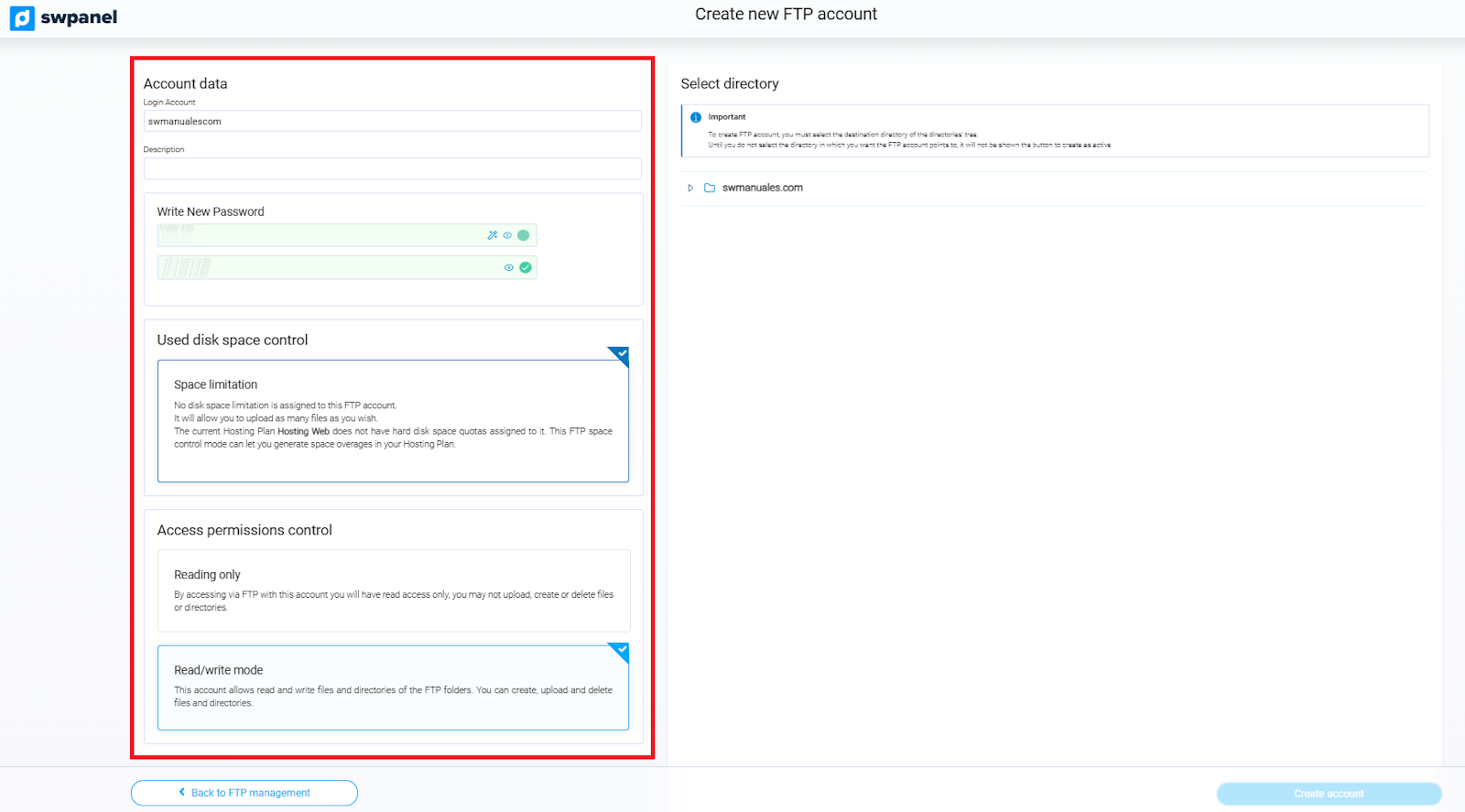
info_capture ℹ️ Note: The screenshot is for guidance purposes, taken from version 2026.000.0001 dated 01/31/2026. It may differ from the current version of SWPanel.
In compliance with the ISO 27001 information security standard, the password will only be visible at the time of account creation. Subsequently, it can only be modified.
- Account login: Username of the new account used to access the FTP server.
- Description: Optional. Field intended to add a brief description of the FTP account to facilitate internal organization.
- ☑ No space limit: The account will have unlimited disk space.
- Password: This will be used together with the username (Account login) to access the FTP server.
- ☑ Read-only: The account will have read-only permissions for files and
- ☑ Read/write mode: The account will have permissions to read, create, modify, and delete files and directories.
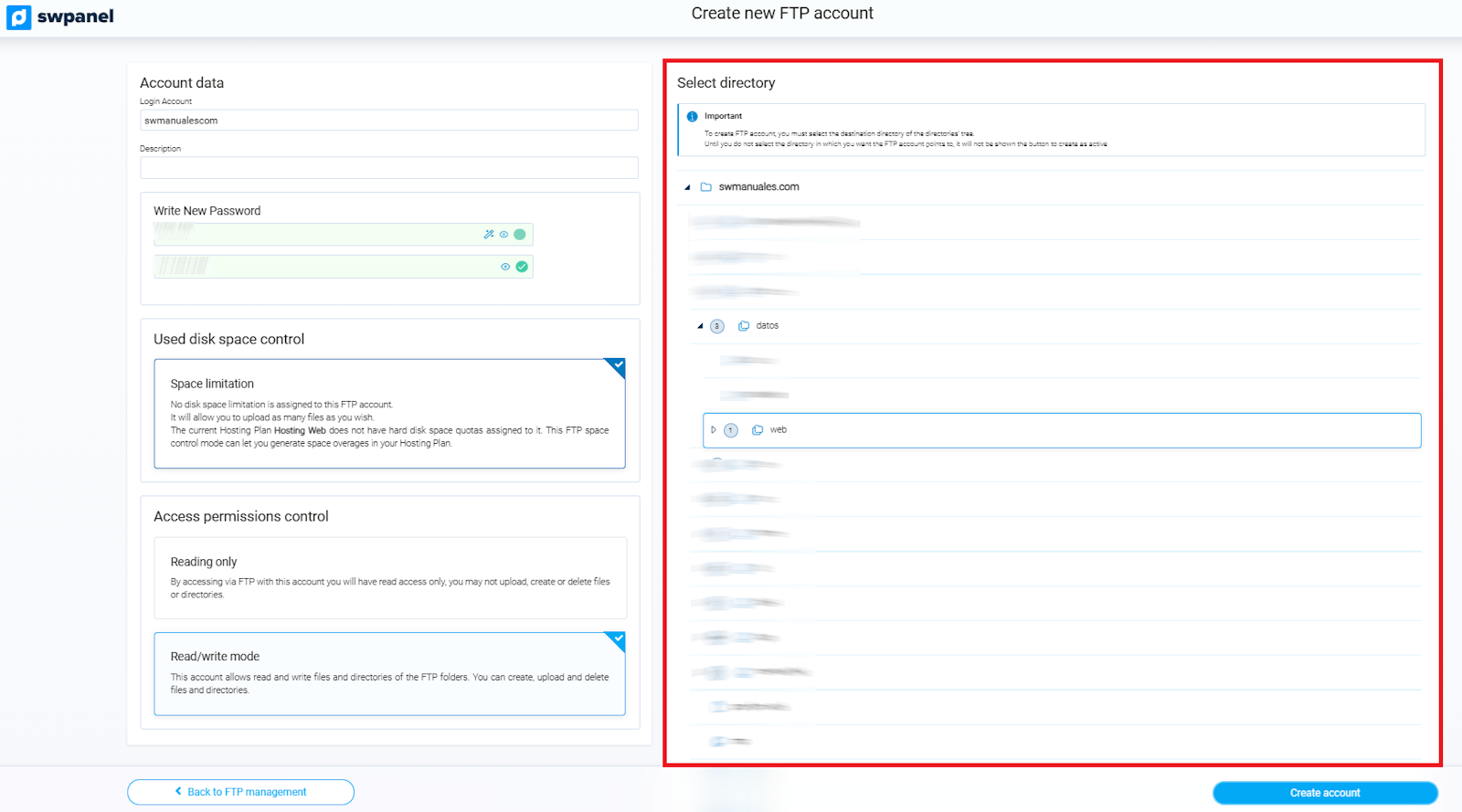
On the right side of the screen, you will find a directory tree:
info_capture ℹ️ Note: The screenshot is for guidance purposes, taken from version 2026.000.0001 dated 01/31/2026. It may differ from the current version of SWPanel.
You must select the root directory that this FTP account will have access to.
In the previous example image, the “root” directory has been selected, so the account will have access to all directories of the service.
The datos → web directory is where you should upload the files for your website, your WordPress blog, or any other content management system.
Step 5. Click on Create Account and the FTP user account will be created and ready for use.
Accessing the FTP server
To access the FTP server and transfer files, you must use an FTP client, a program responsible for connecting to the remote server and managing the sending and receiving of files.
The most widely used FTP client is FileZilla, a free and easy-to-use FTP manager, available for Windows, Linux, and macOS operating systems.
The data required to access the FTP server are as follows:
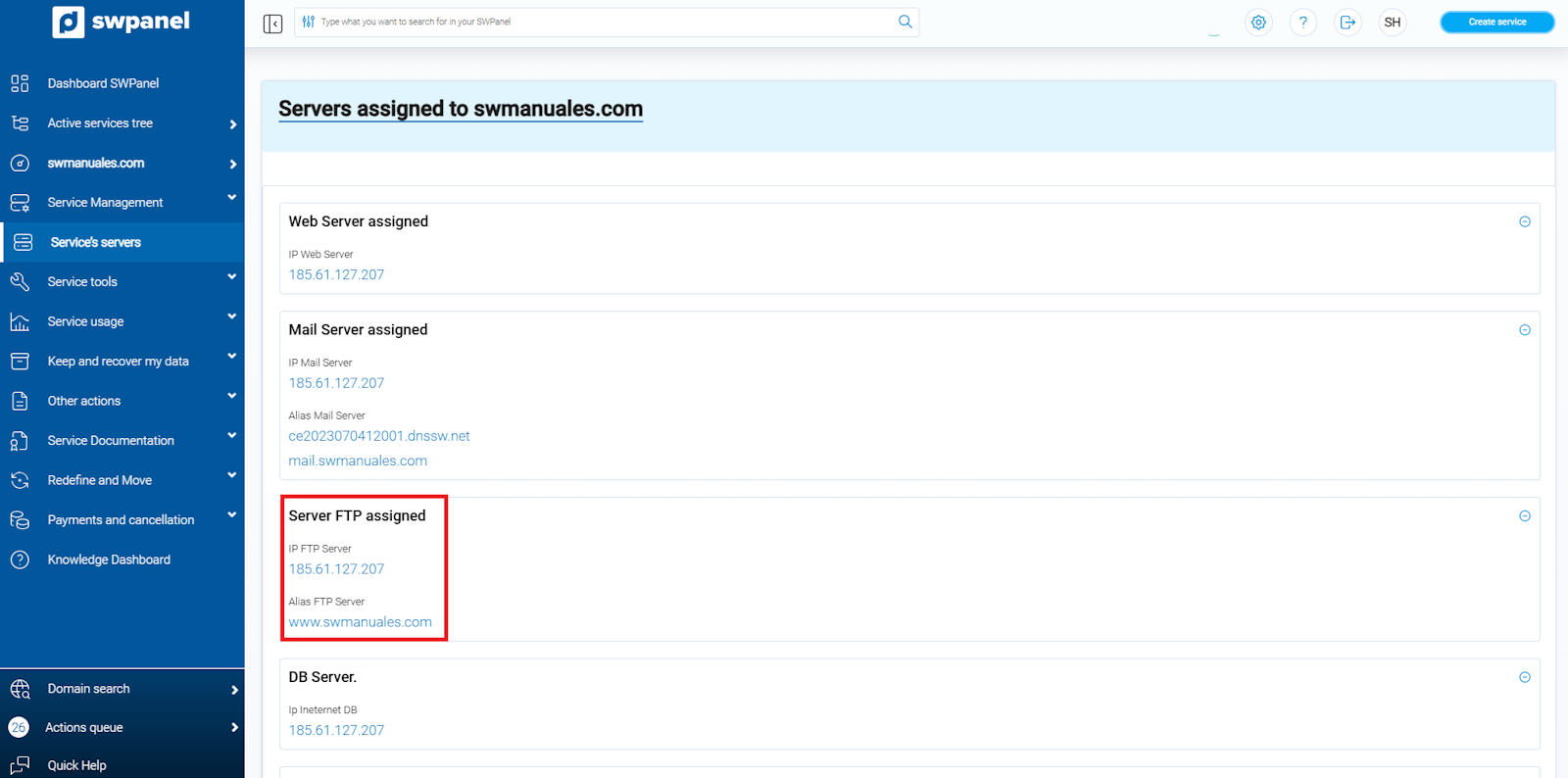
- Server: Hostname (for example, swmanuales.com) or IP address (for example, 81.25.127.77).
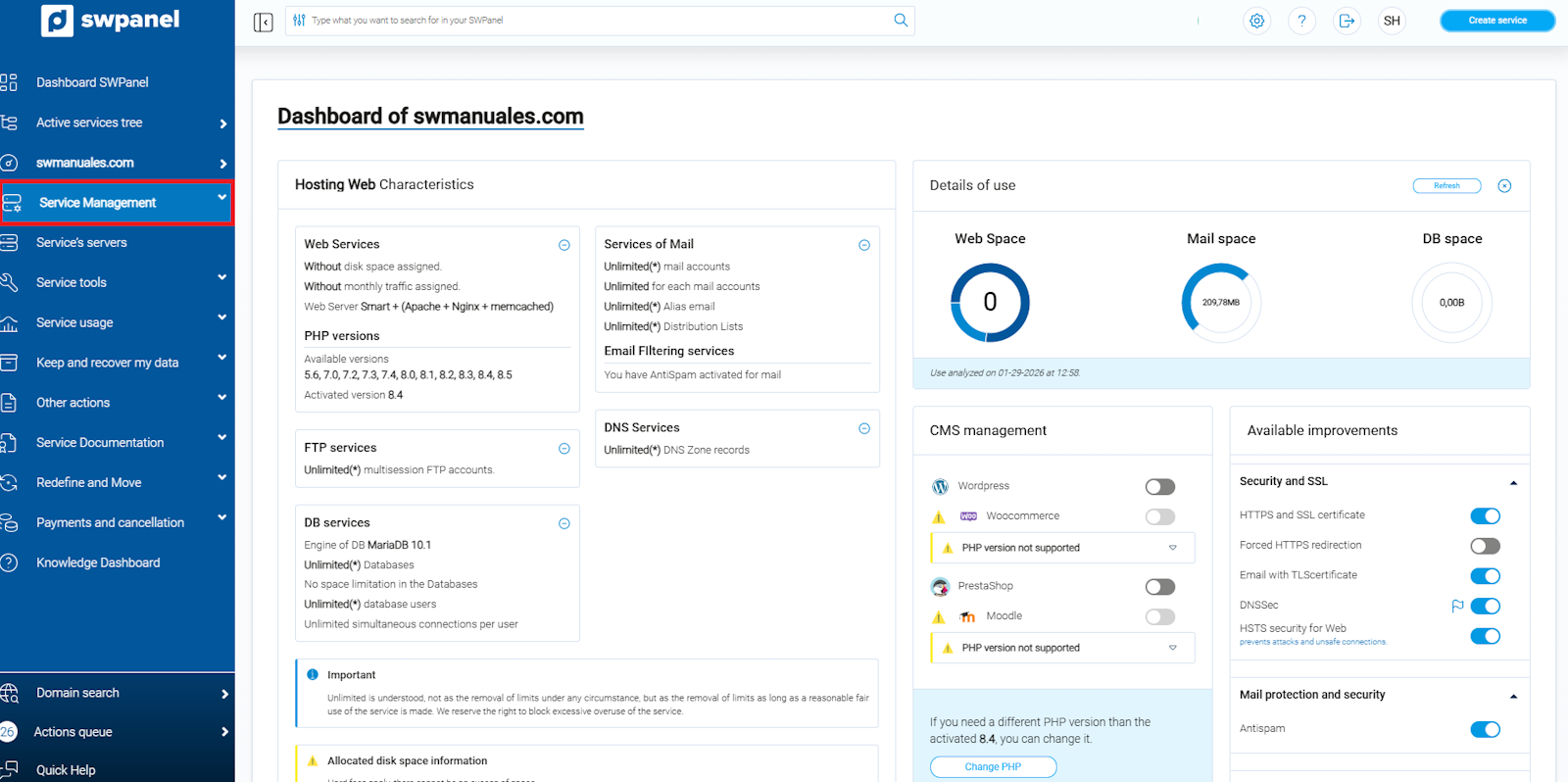
This information can be found from the service Dashboard, by accessing the Service servers section (left menu).
info_capture ℹ️ Note: The screenshot is for guidance purposes, taken from version 2026.000.0001 dated 01/31/2026. It may differ from the current version of SWPanel.
info_capture ℹ️ Note: The screenshot is for guidance purposes, taken from version 2026.000.0001 dated 01/31/2026. It may differ from the current version of SWPanel.
- Port: 21.
- Username and password: These correspond to the credentials created in the previous section for the FTP user account.