How to create an SSL VPN with my Cloud servers
A VPN, acronym for Virtual Private Network (Virtual Private Network) is a networking technology that allows a secure extension of a local area network (LAN) over a public or non-public network, such as the Internet.
It allows a device connected to the local area network to send and receive data over shared or public networks as if it were a private network, with all the functionality, security, and management policies of that private network.
Thanks to a VPN connection, we can establish contact with machines hosted on our local network - or other local networks - in a completely secure manner, as the connection established between both machines travels fully encrypted. It is as if, from our computer connected to the Internet, we established a private and secure tunnel to our home or office, allowing us to communicate without fearing that our data will be vulnerable.
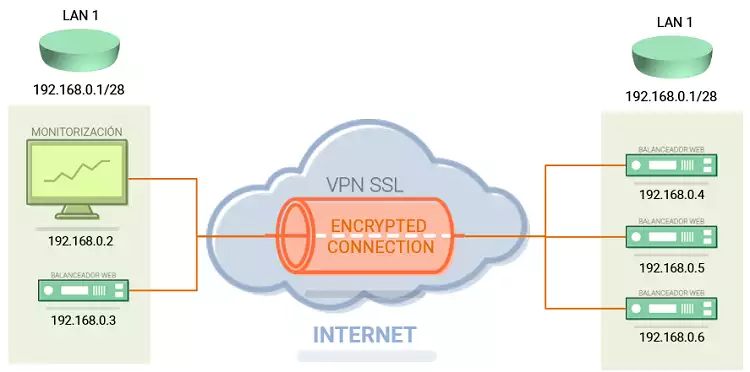
The main advantages of using VPNs can be summarized as:
- Data integrity, confidentiality, and security.
- Cost reduction and ease of use.
- Ease of communication between two users in distant locations.
At SW Hosting, you can create a VPN to communicate the various devices connected to your local area network with your Cloud servers.
To create a VPN, first, you must include your Cloud server or servers in a VLAN (Virtual Local Area Network) via SWPanel.
The steps to create a VLAN with your Cloud servers are described in the following manual:
Handbuch: How to create a VLAN with my Cloud servers
Once you have created the VLAN between your Cloud servers, you must follow these steps to create your SSL VPN:
1. Create the Networking container and add the Private VLAN to your SSL VPN.
In the upper right part of your SWPanel, you must click on the blue button "Create a Service"

Among all the possible services you can create with your SWPanel, choose "Containers"
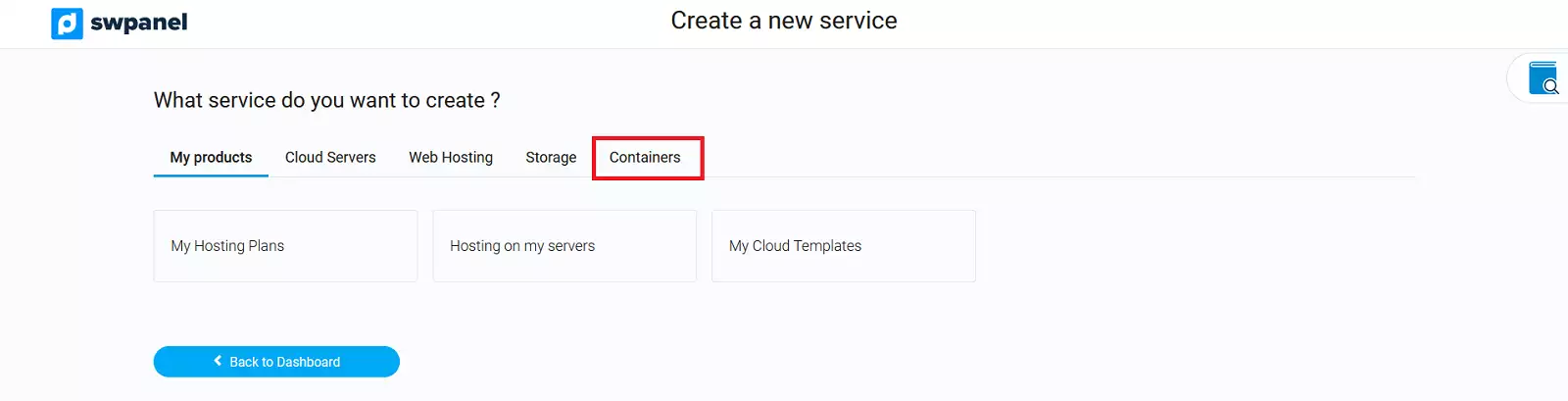
Next, click on the "Networking" option
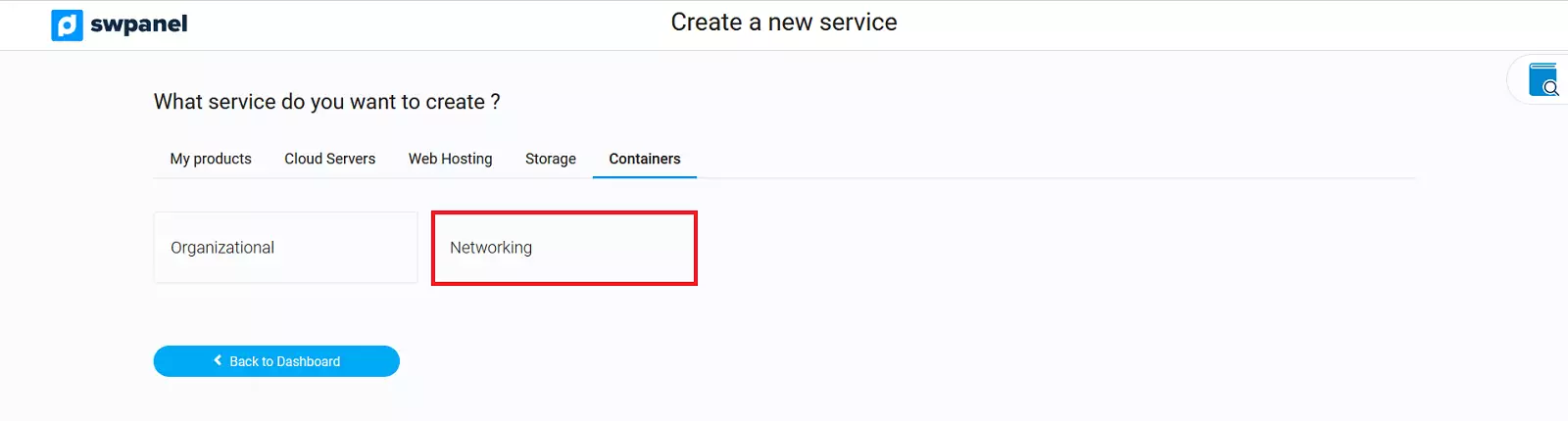
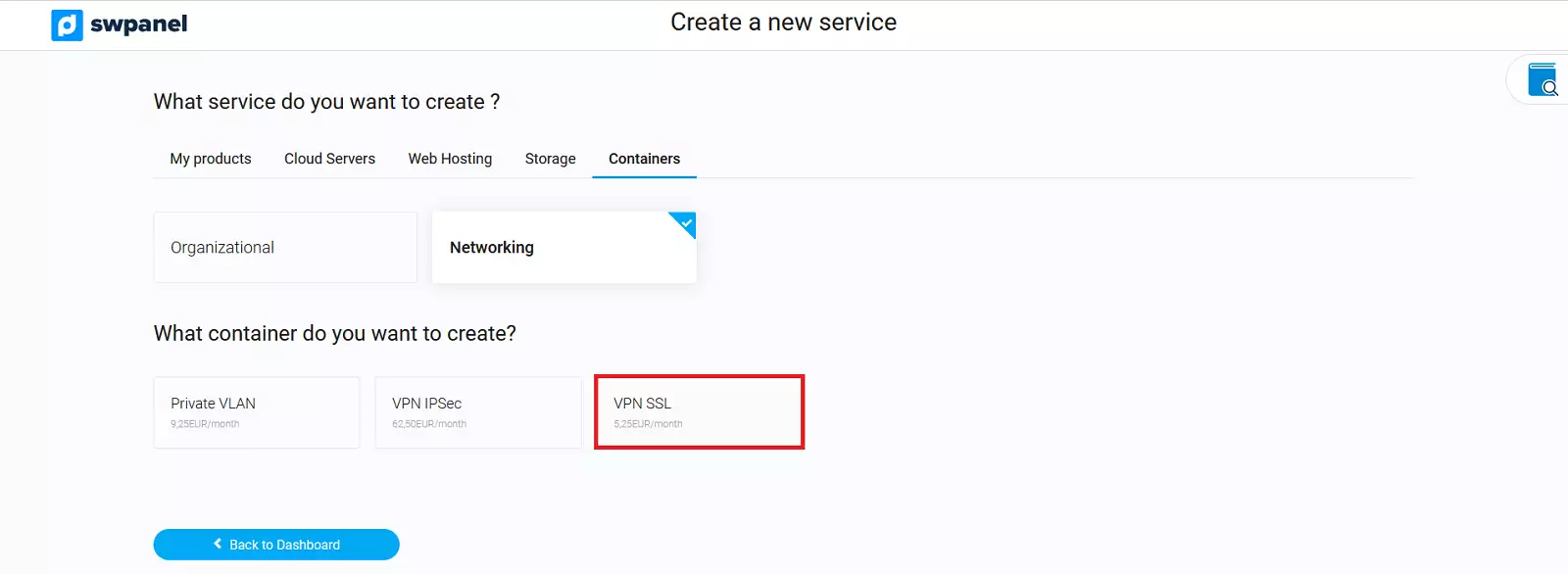
In the next window, you must choose the "SSL VPN" option
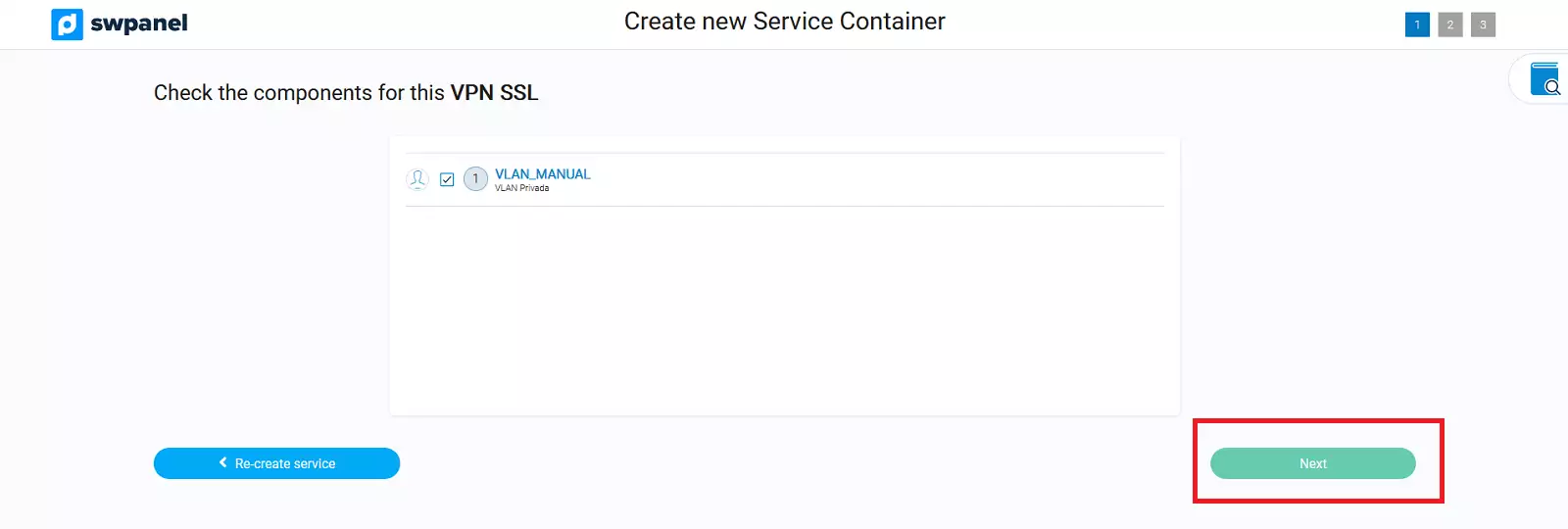
On the left side of the new window, a list of all your available VLANs will appear, where you can check the box for those VLANs you wish to use with your SSL VPN. Once the VLAN is selected, you must press the "Next" button
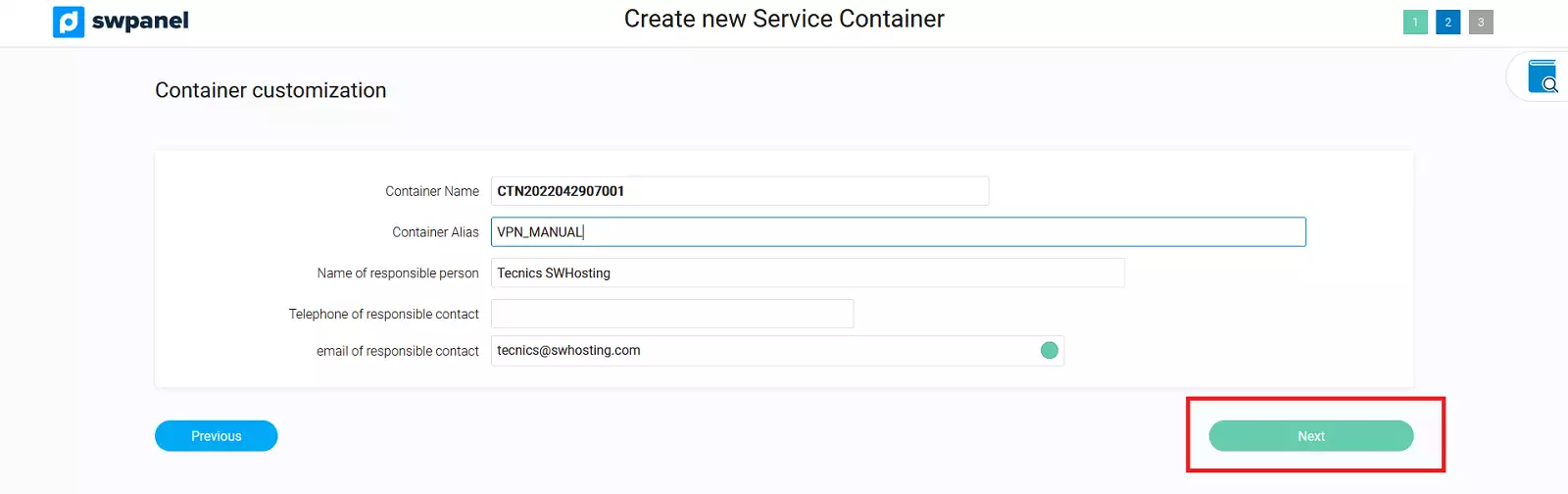
In the following window, you can define the nickname of the VPN container that will be used to identify it in your SWPanel. You can also specify the name of the person responsible, as well as their phone number and email.
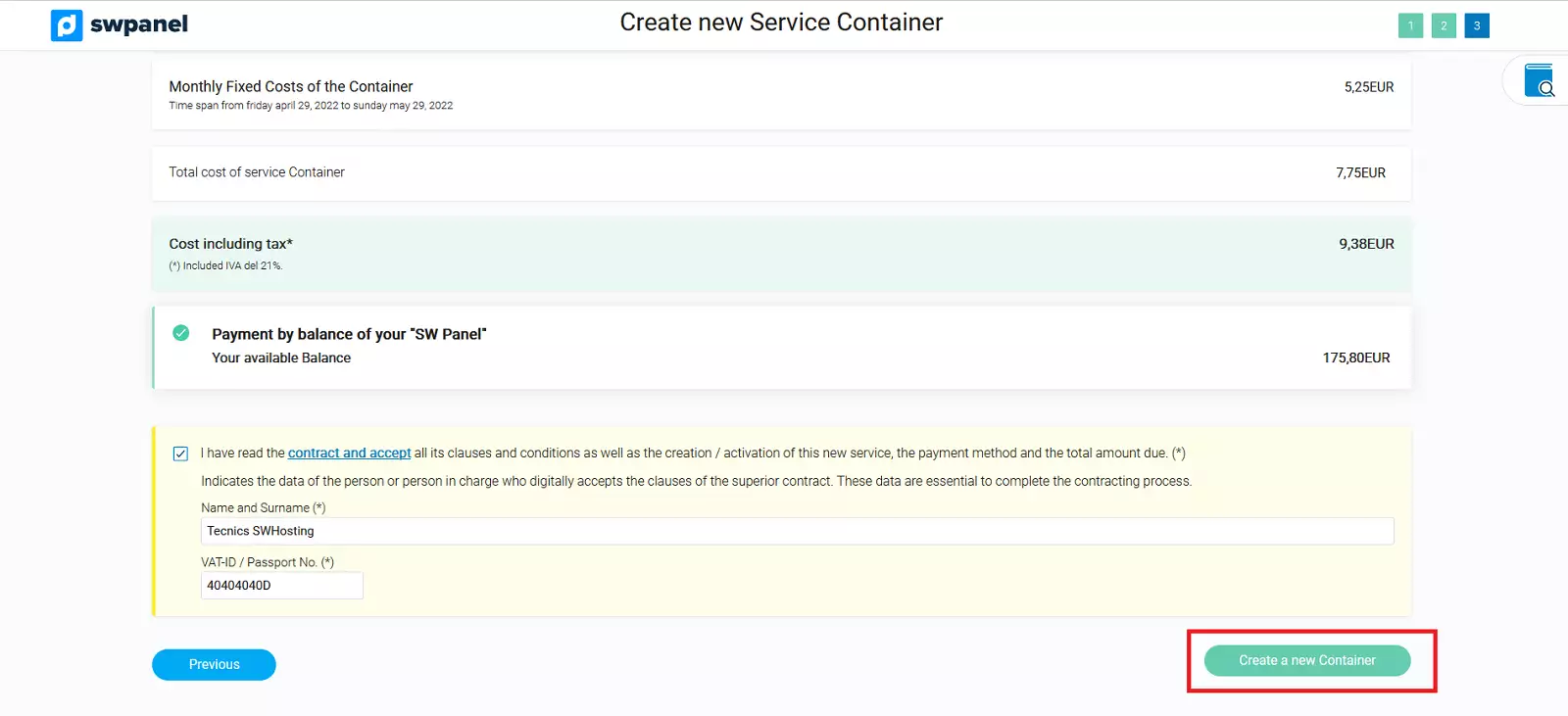
In the following window, the costs corresponding to the creation of the SSL VPN will be summarized, according to the number of VLANs you have added to it. To accept the creation of the SSL VPN, you must press the "Create New Container" button
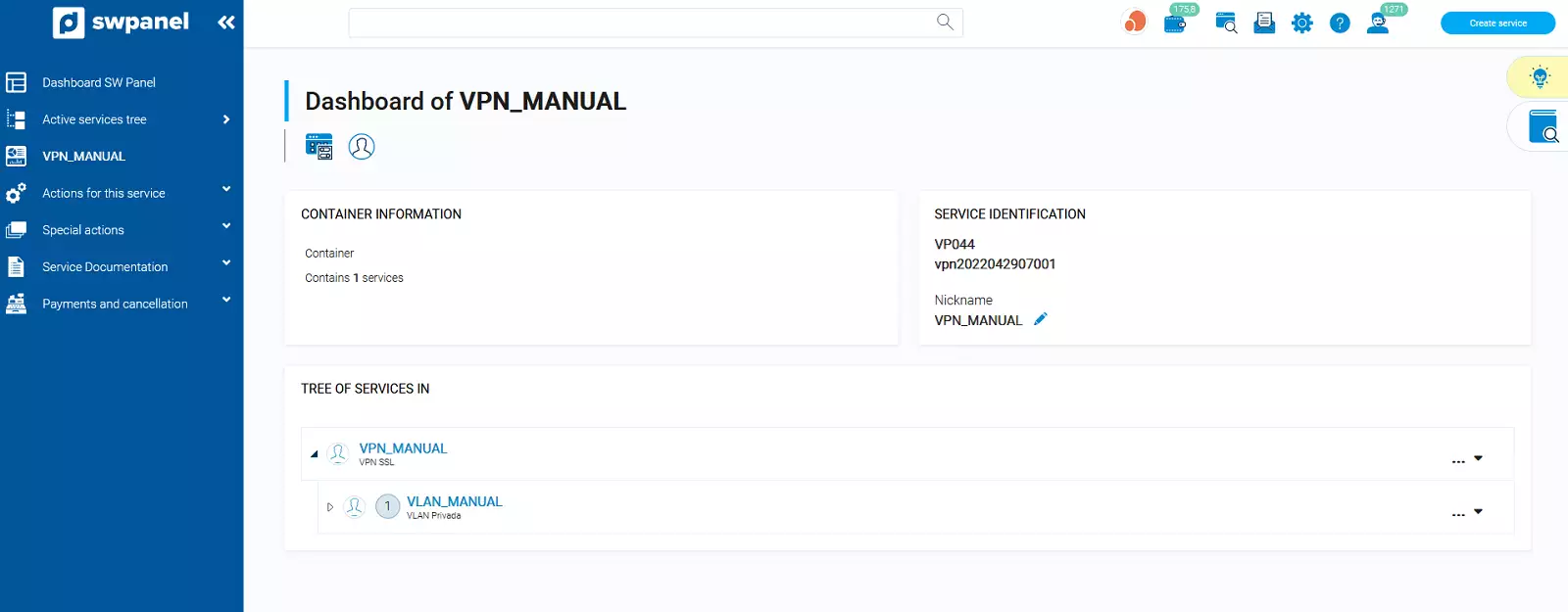
Once your SSL VPN has been created, you can manage the VLANs included in it and its access users from its Dashboard in your SWPanel.
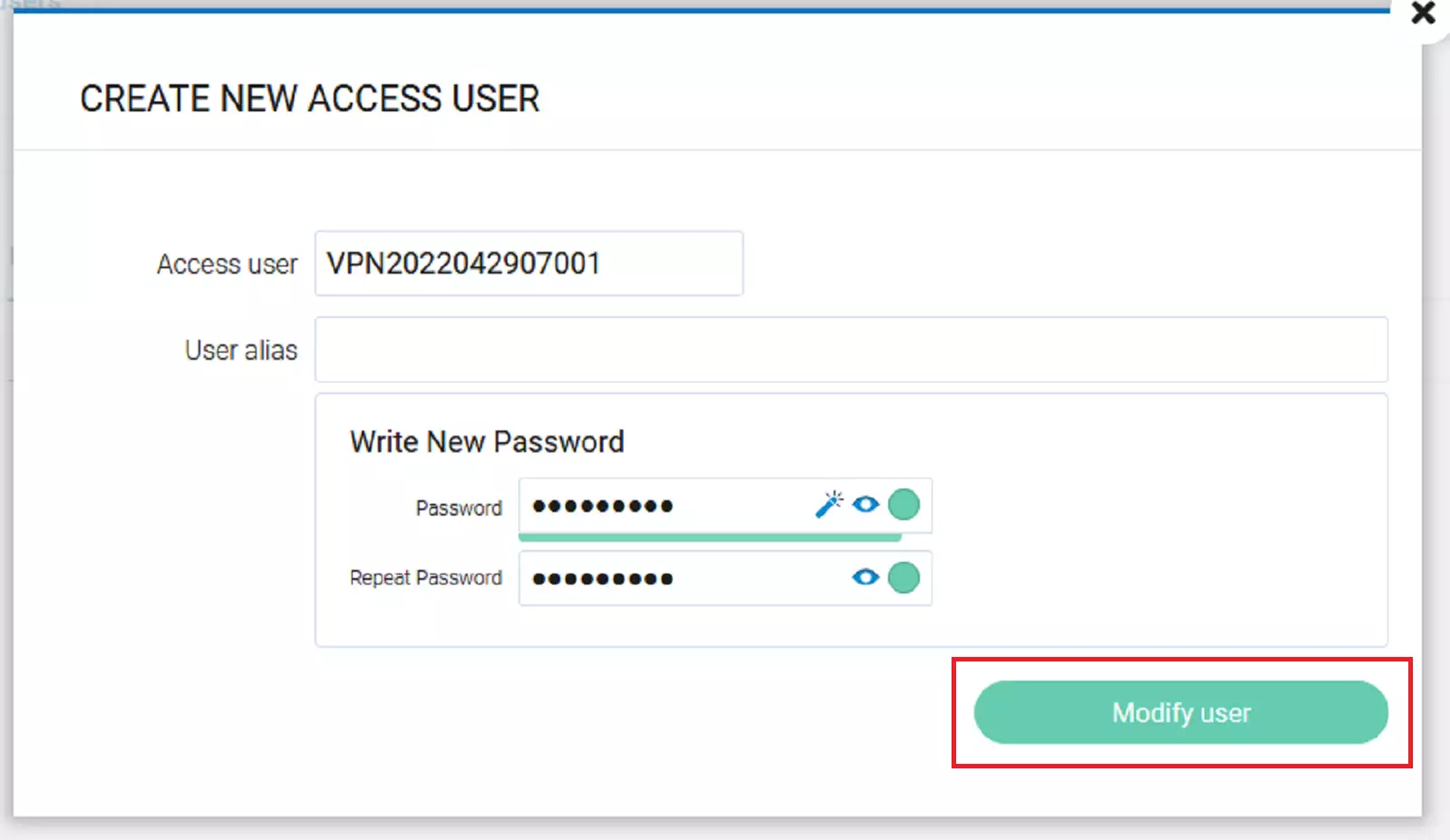
In the section corresponding to the access data, take note of the access user for your VPN and enter your preferred password. Once the data has been defined, you must click the "Next" button.


2. Configure my LAN devices to connect to my Cloud servers via the SSL VPN
We help you configure the SSL VPN connection on Windows and mobile devices (Android / iOS).
Download links
Installation and configuration on Windows
To connect to the SSL VPN from Windows, first, you must install the "Pulse Secure" VPN client (or use, if you have it, the old "Junos Pulse").
Once installed, you can now configure the SSL VPN connection:
-
Go to the Start menu and select Pulse Secure.
-
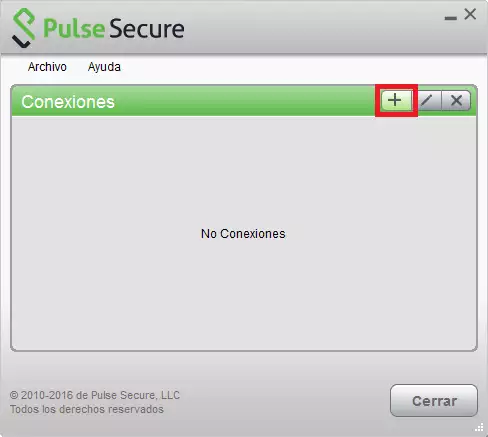
Then press the "+" button to configure a new SSL VPN connection:
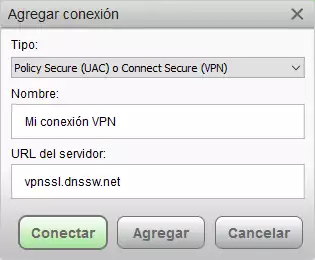
- Enter the connection data:
-
Name: Assign any name of your choice.
-
Server URL: vpnssl.dnssw.net
-
Press Connect to save changes and perform a test connection.
-
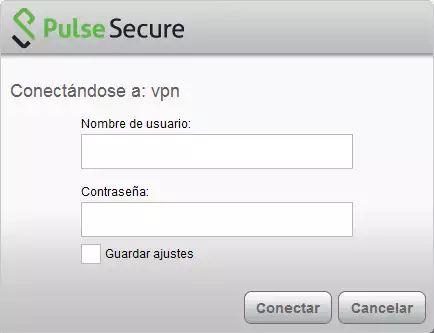
A window will appear requesting the access credentials:
-
Username: This corresponds to the one you noted in the previous section when setting up the SSL VPN.
-
Password: Enter the password chosen in the previous section when setting up the SSL VPN.
-
Save settings: Optional. The credentials will be saved, so they will not be requested from you again.
-
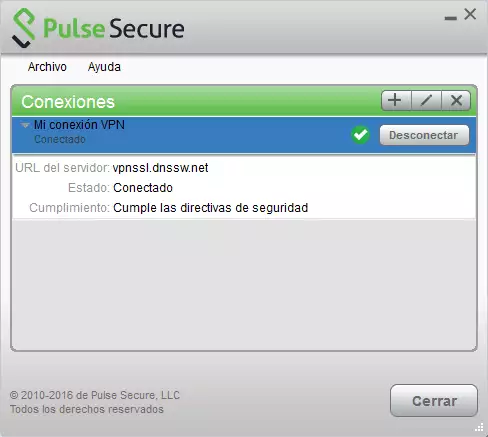
Press Connect and, if everything went well, in a few moments your new connection will appear with the status "Connected". By clicking on the "?" arrow, located to the left of the connection name, the details appear:
-
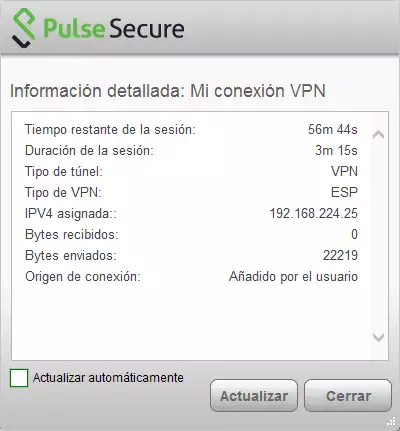
You can check the assigned IP as well as other connection data by accessing File > Connections > Advanced connection data...:
Installation and configuration on Android / iOS mobile devices
The configuration process is practically identical on Android and iOS devices:
- Go to the app store (Play Store or App Store), search for and download the Pulse Secure application.
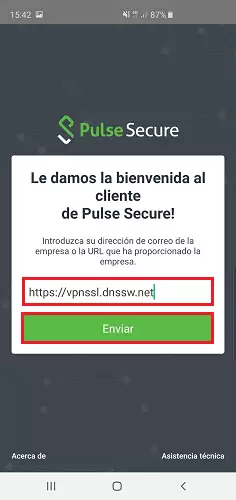
- Open the application, enter the SSL VPN server address ("https://vpnssl.dnssw.net") and press Send:
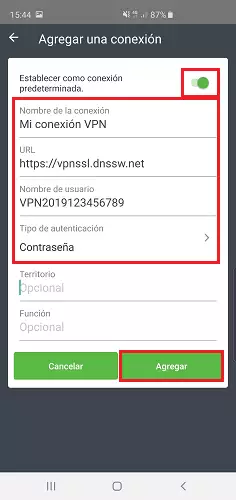
- Enter the connection data and press Add:
-
Set as default connection: If you are only going to use this SSL VPN connection, we recommend activating this option.
-
Connection name: Assign any name of your choice.
-
URL: https://vpnssl.dnssw.net
-
Username: This corresponds to the one you noted in the previous section when setting up the SSL VPN.
-
Authentication type: Leave the option that appears by default ("Password").
-
Realm: Blank.
-
Function: Blank.
-
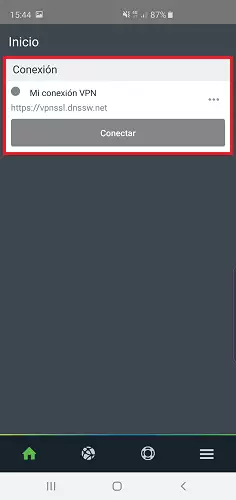
The new SSL VPN connection is created:
- Let's perform a test connection, press Connect:
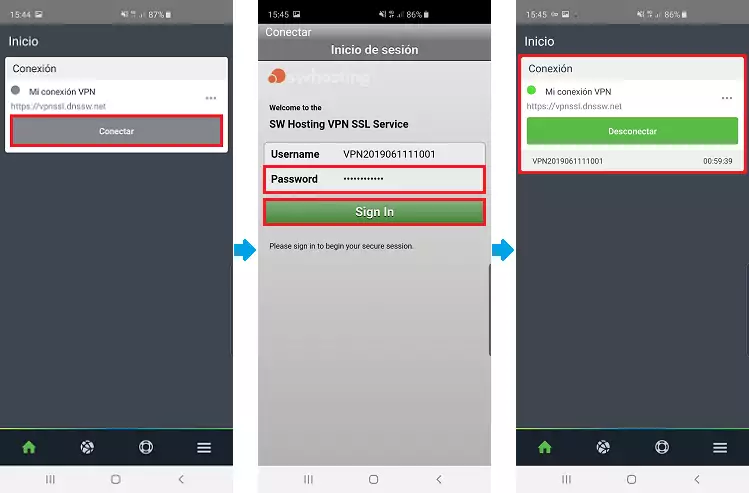
- Enter the password chosen in the previous section when setting up the SSL VPN and press Sign In.
On some mobile devices, you will be asked for permission to configure this VPN connection; you must allow it by pressing OK or the corresponding option.
-
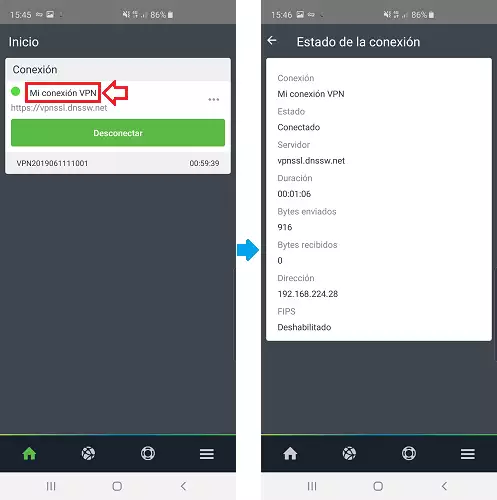
The new connection appears in green, which indicates that we are connected to the SSL VPN.
-
You can check the assigned IP as well as other connection data by clicking on the name of the connection (in this example, "My VPN connection"):