How to plan the Snapshots of your Website
How to schedule your Web Snapshots
A scheduled web snapshot is an instantaneous capture of your website's content on a specific, previously programmed date.
At SW Hosting, you can create scheduled snapshots of all your websites using the Scheduled Snapshots checkbox in your service Dashboard within the SWPanel. The steps to create a scheduled Snapshot of your website are:
1. From the search box of your SWPanel, you must locate the service where the website you want to create a Snapshot for is hosted
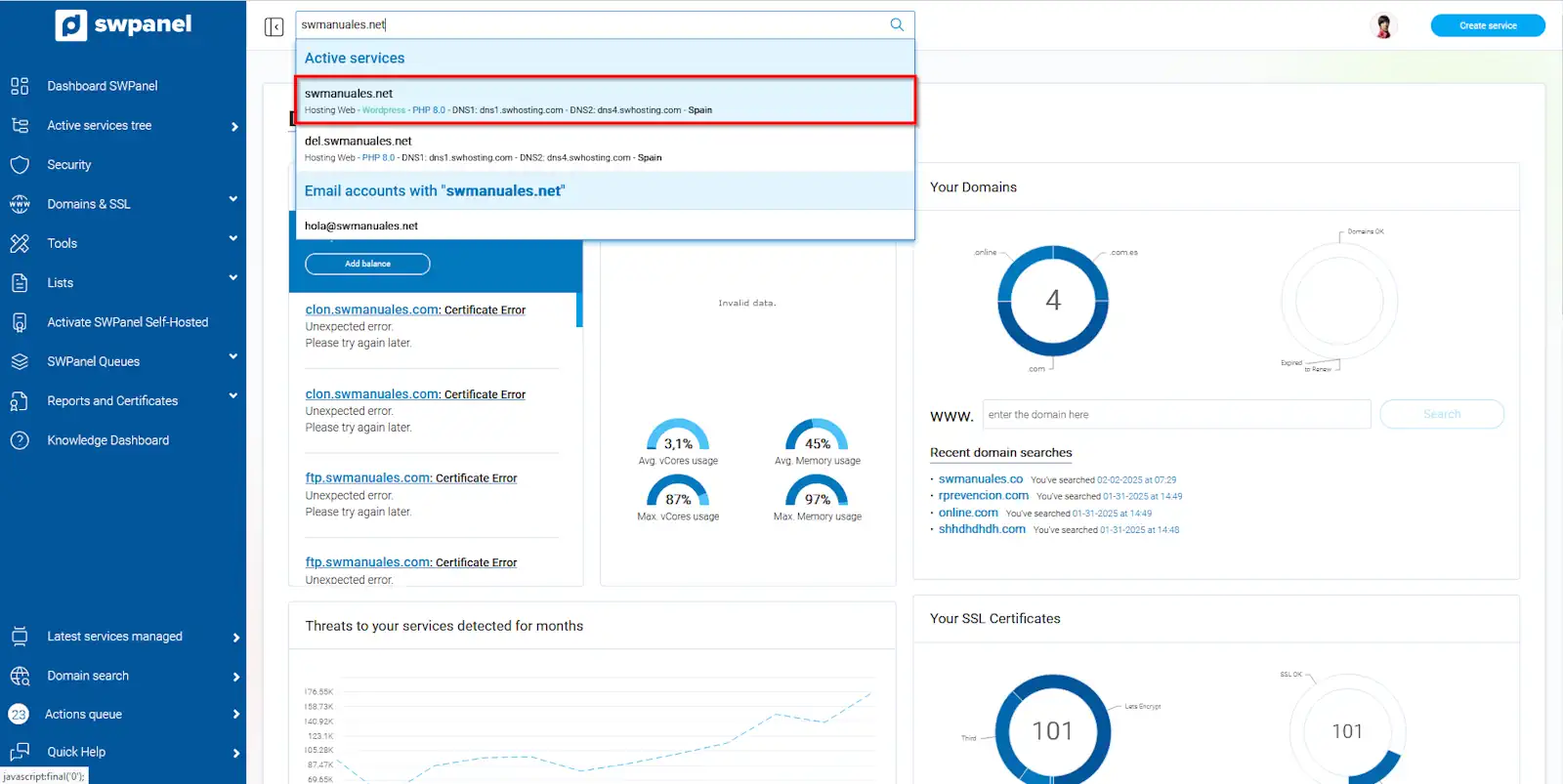
info_capture The screenshot is for illustrative purposes. It was taken using version 2025.00.0017 dated 04/02/2025. It may differ from what the current version of SWPanel shows.
2. Once in the service Dashboard, you must click on the "Scheduled Snapshots" checkbox, located in the lower right part, in the Available Improvements box
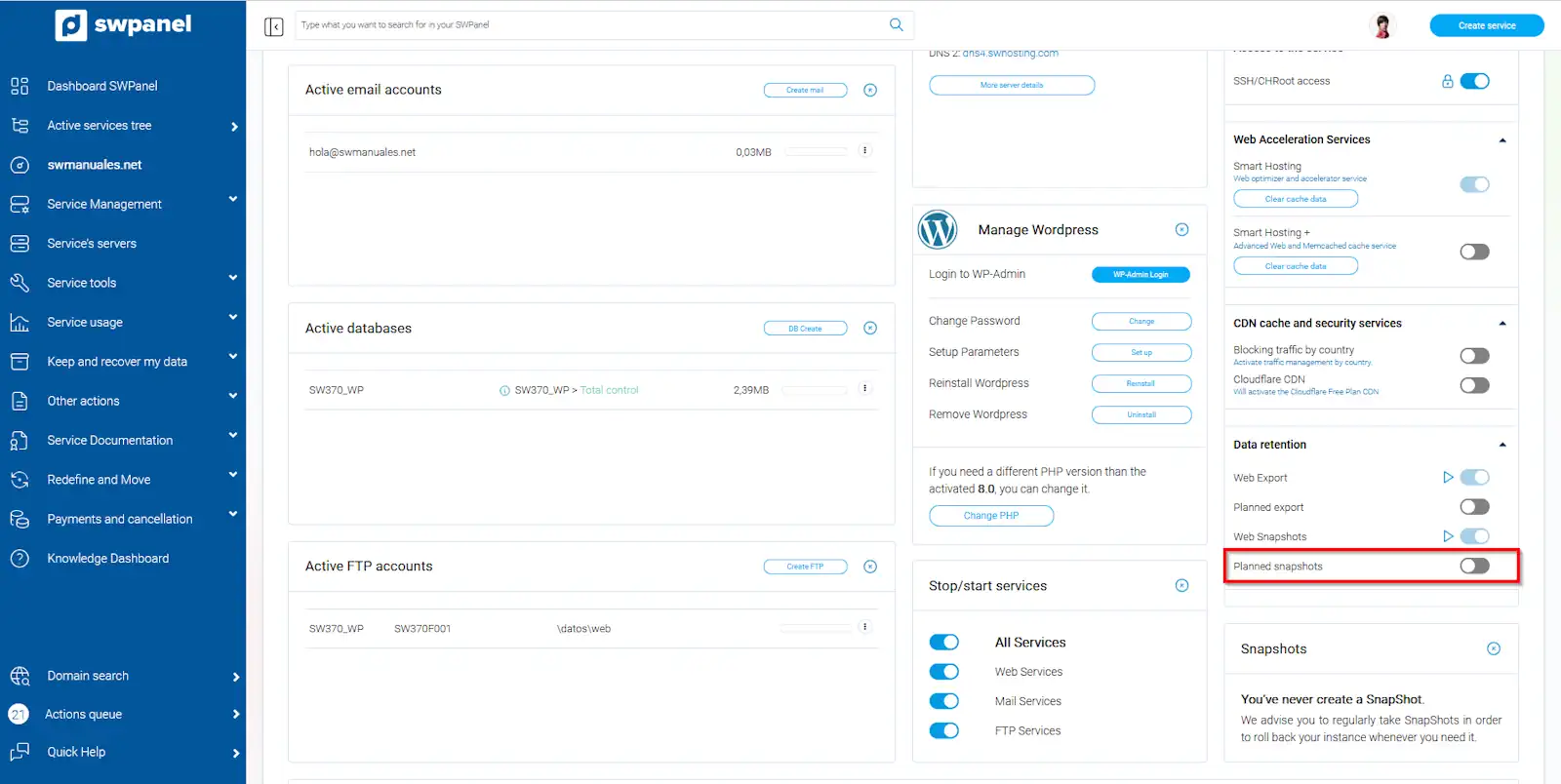
info_capture The screenshot is for illustrative purposes. It was taken using version 2025.00.0017 dated 04/02/2025. It may differ from what the current version of SWPanel shows.
3. Next, the Snapshot Scheduler menu will open in the current web browser tab, where you can choose from three options:
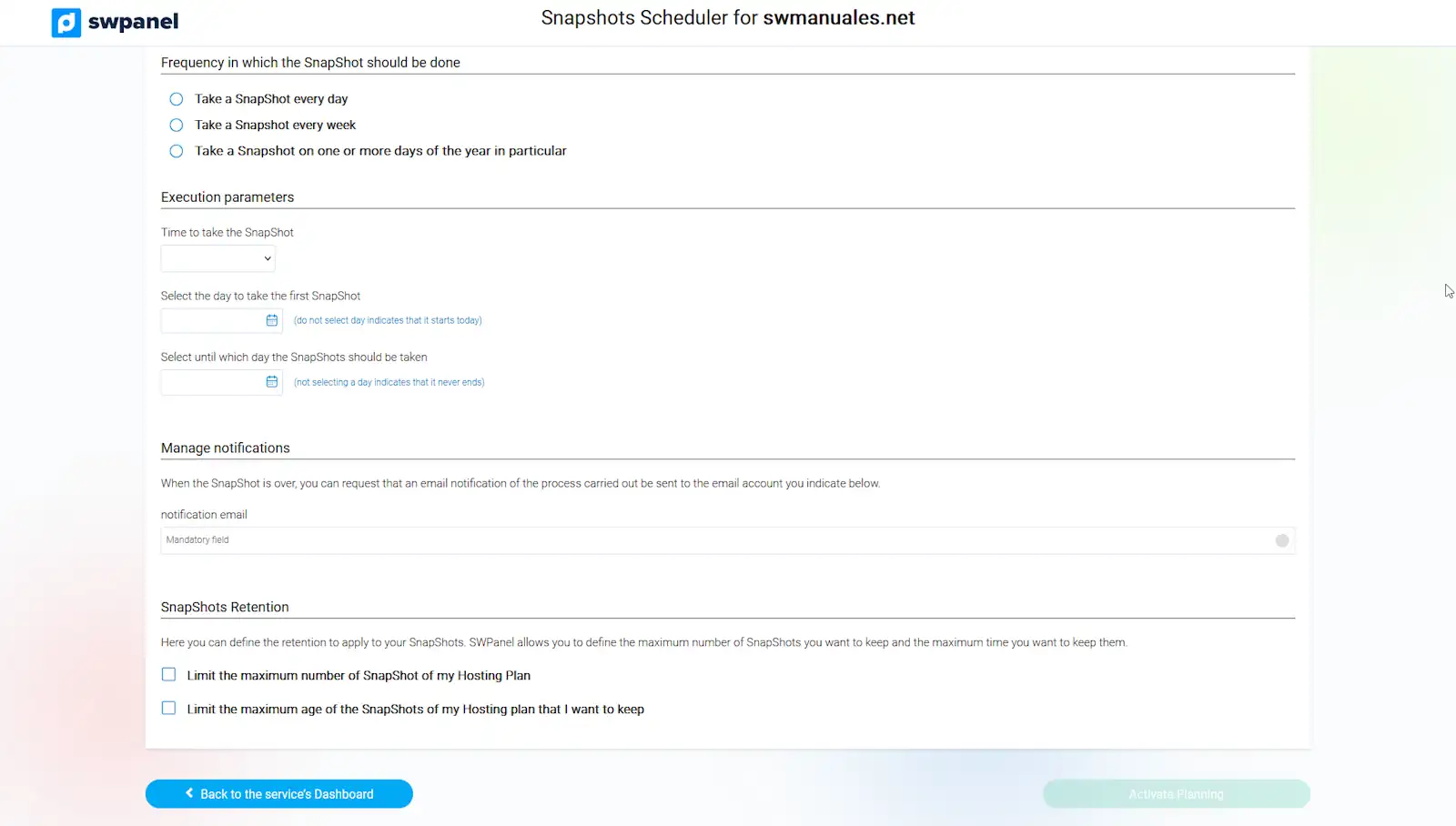
info_capture The screenshot is for illustrative purposes. It was taken using version 2025.00.0017 dated 04/02/2025. It may differ from what the current version of SWPanel shows.
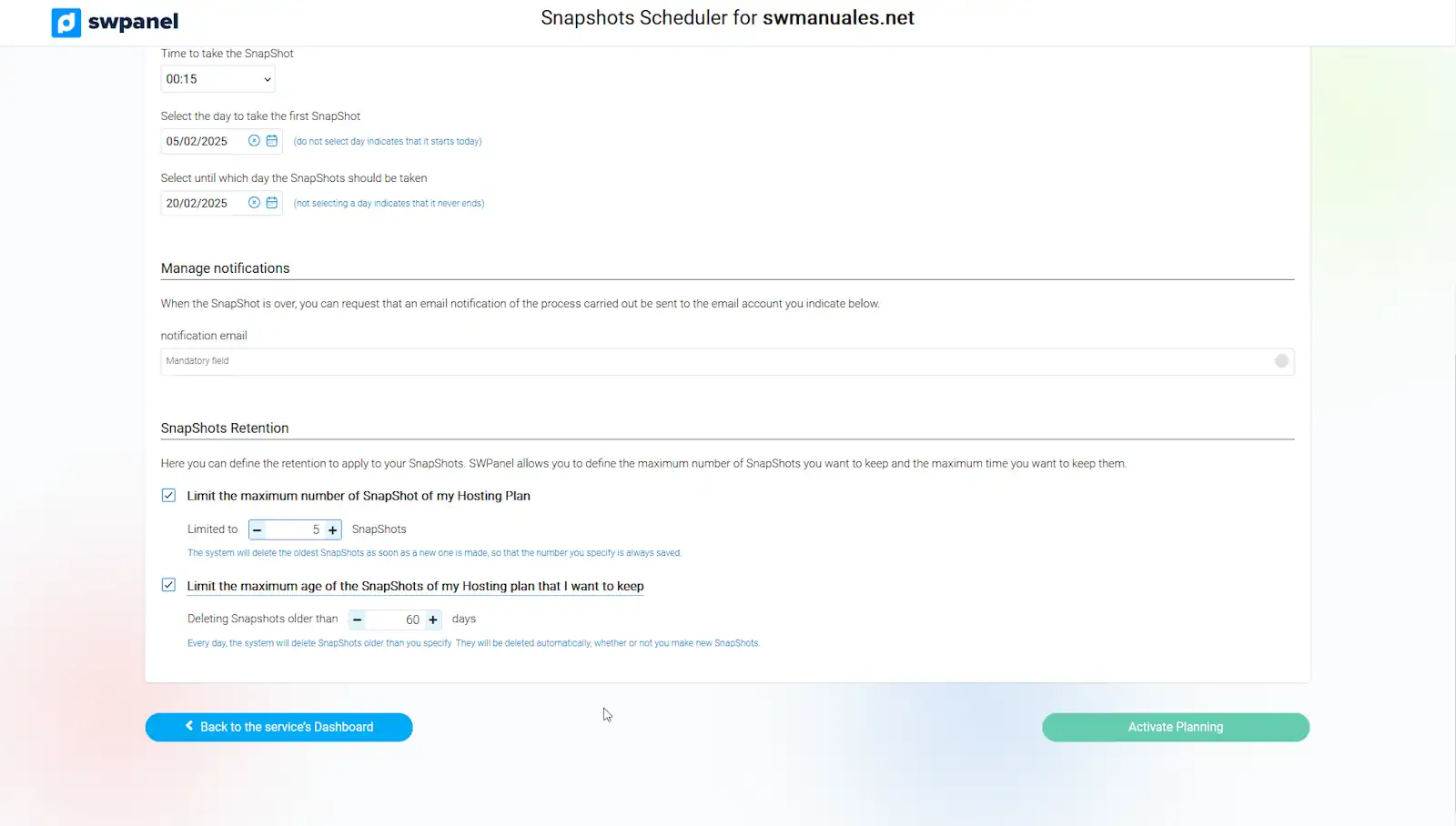
- Take a Snapshot every day: You must specify the time, day, and end date on which the Snapshot should be performed in the Execution Parameters.
If you do not specify a start date, the exports will begin instantaneously at the moment they are scheduled. Likewise, if you do not specify an end date, the exports will be performed periodically without end.
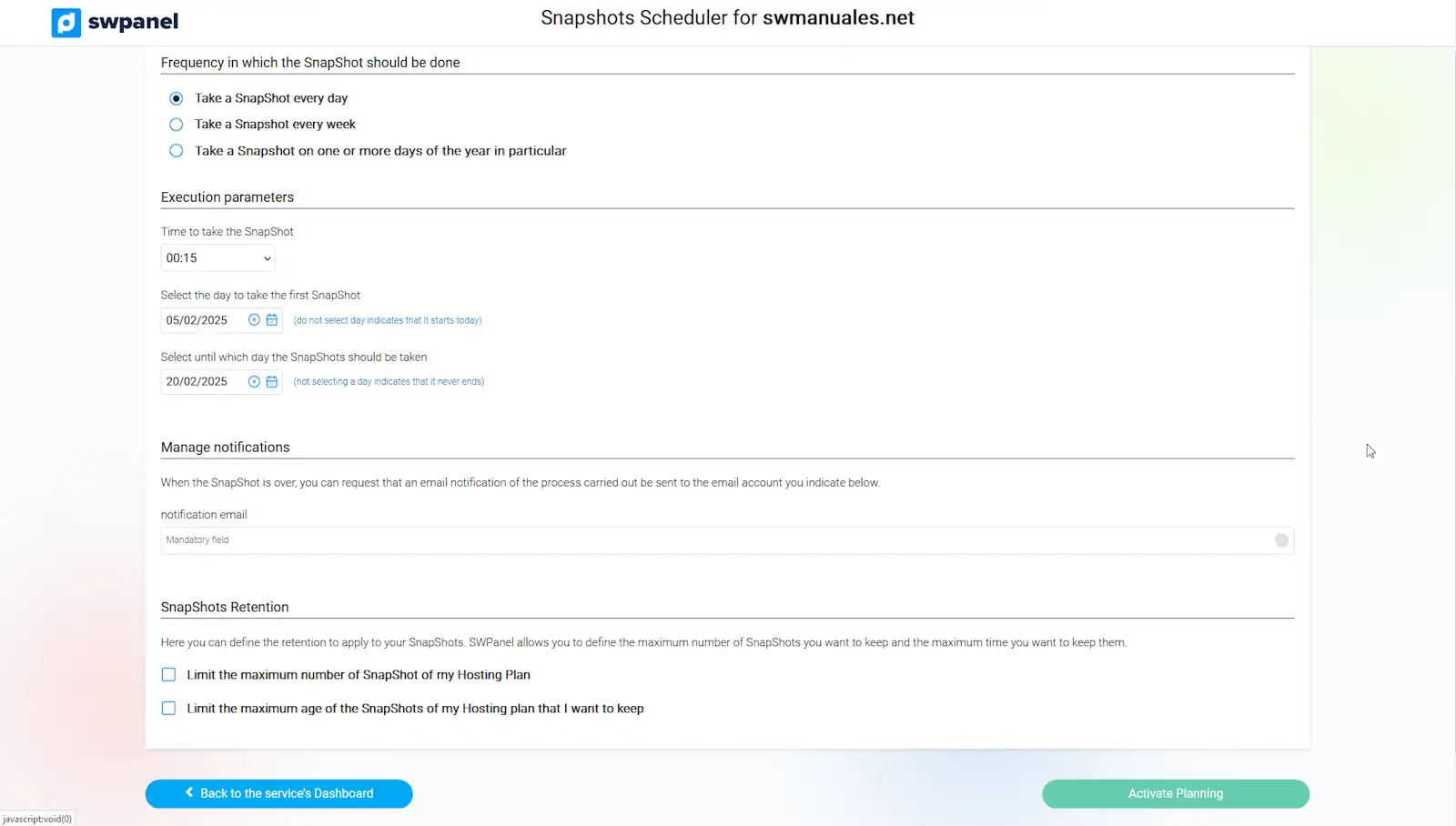
info_capture The screenshot is for illustrative purposes. It was taken using version 2025.00.0017 dated 04/02/2025. It may differ from what the current version of SWPanel shows.
- Take a Snapshot every week: You must specify the day of the week, time, start date, and end date for the Snapshot in the Execution Parameters.
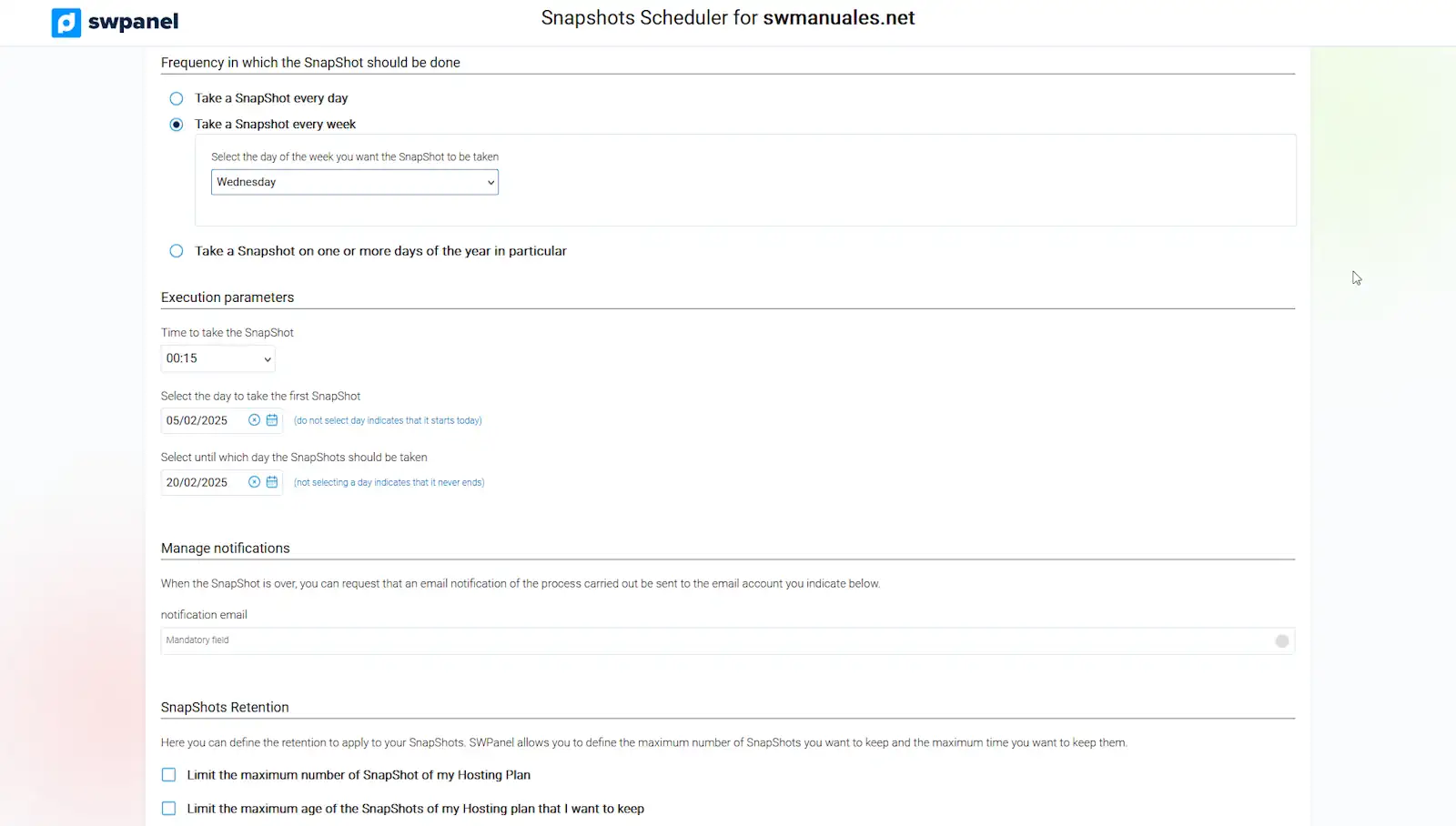
info_capture The screenshot is for illustrative purposes. It was taken using version 2025.00.0017 dated 04/02/2025. It may differ from what the current version of SWPanel shows.
- Take a Snapshot on one or several specific days of the year: This option provides a range of parameters that must be specified, including the months and the days of the month on which the Snapshot should be performed. Additionally, you must configure the time, start date, and end date for the Snapshots in Execution Parameters.
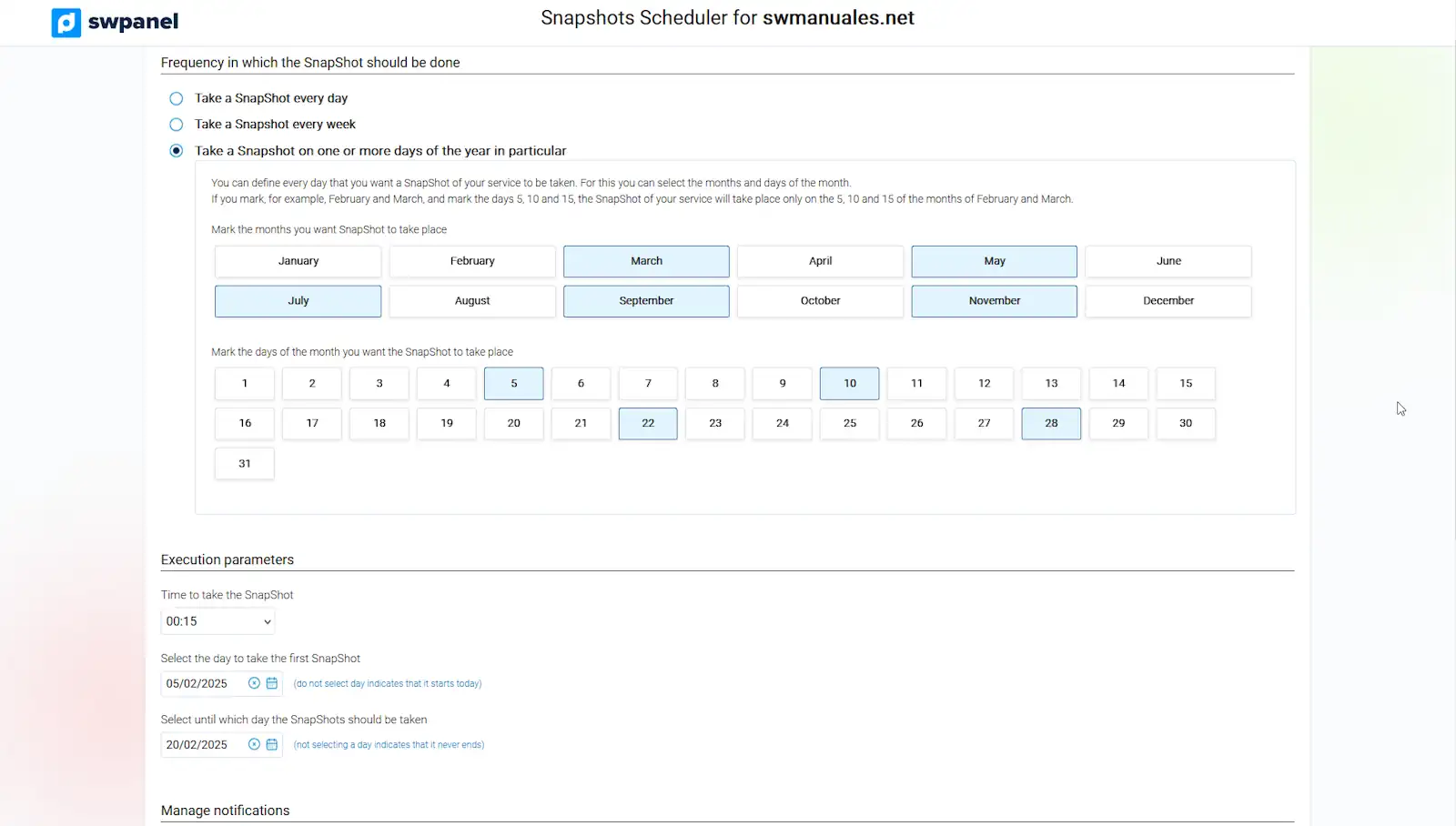
info_capture The screenshot is for illustrative purposes. It was taken using version 2025.00.0017 dated 04/02/2025. It may differ from what the current version of SWPanel shows.
Once you have configured the periodicity of the Snapshots, you can finalize the action by clicking on the green button located in the lower right part of the screen, Activate Scheduling.
Important: In the Manage notifications option, you can specify your email address to be notified when the scheduled Snapshot has been completed.
??In Snapshot Retention, you can limit the number of Snapshots and their age