How to reinstall a WordPress CMS
In this manual, we will explain how to reinstall a WordPress installation. Please keep in mind that all files from your website and the database will be deleted. Therefore, it is recommended that you make a backup of the data in case you need it in the future.
- Use the search bar in your SWPanel to access your WordPress hosting:
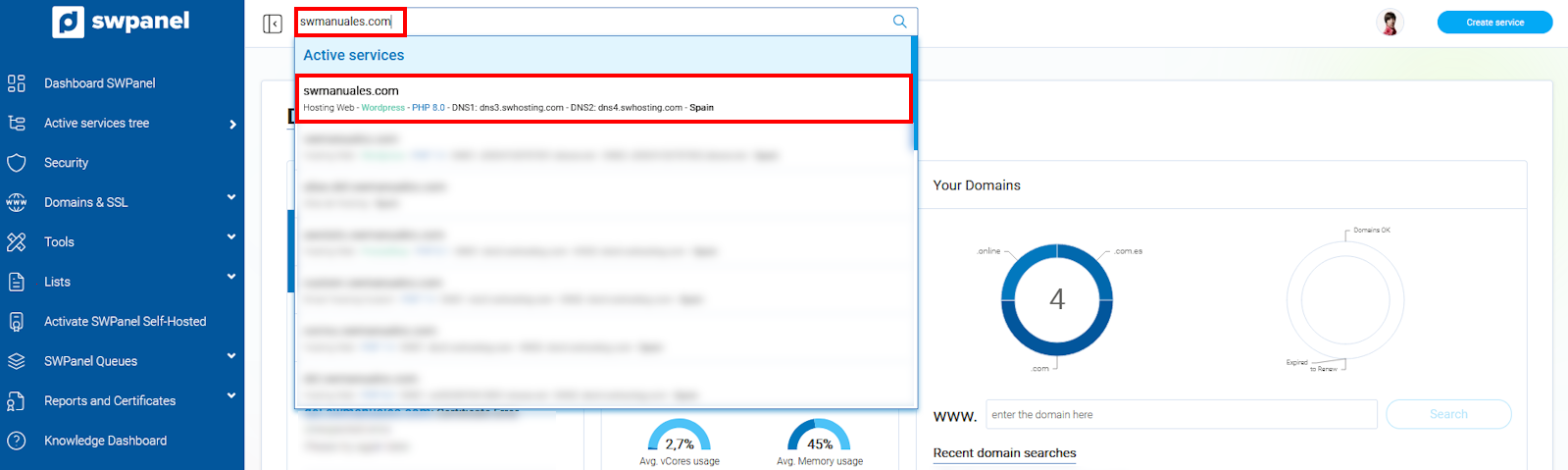
info_capture The screenshot is for illustrative purposes. It was taken using version 2025.00.0017 dated 15/12/2024. It may differ from what the current version of SWPanel displays.
- Click the button to reinstall WordPress in the 'CMS Management' section:
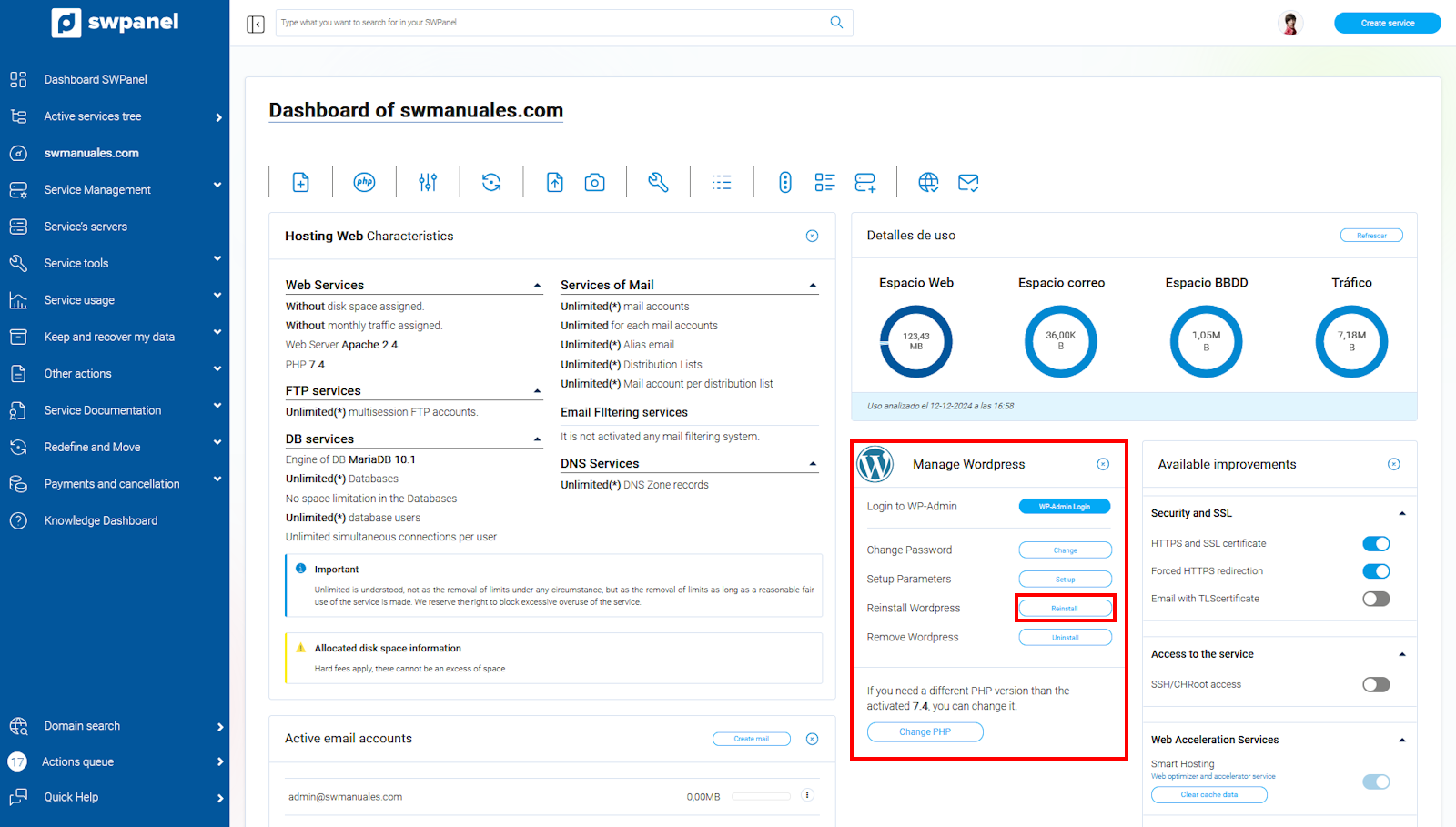
info_capture The screenshot is for illustrative purposes. It was taken using version 2025.00.0017 dated 15/12/2024. It may differ from what the current version of SWPanel displays.
- You must confirm that you wish to reinstall WordPress and accept that the content of your website will be deleted:
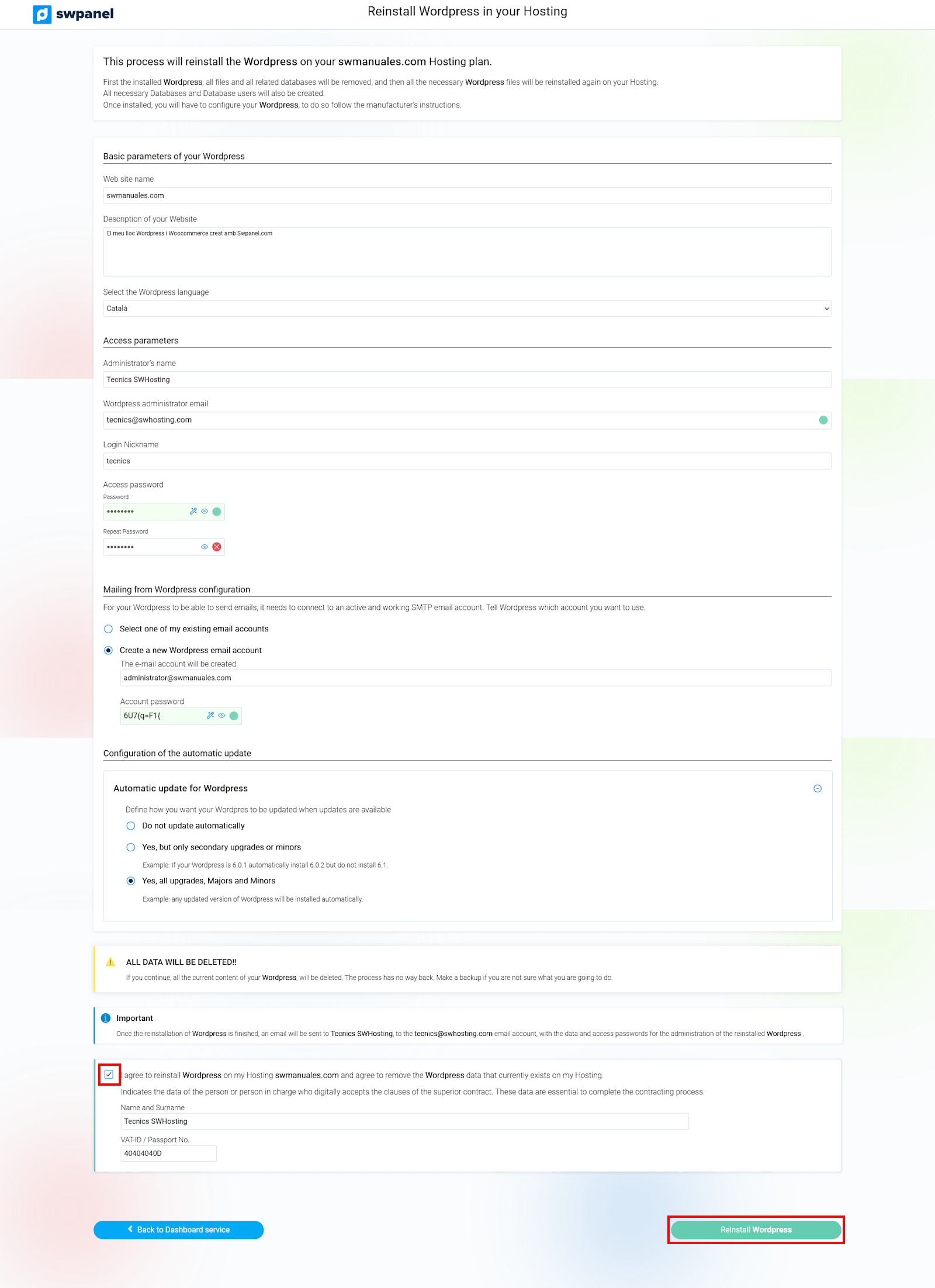
info_capture The screenshot is for illustrative purposes. It was taken using version 2025.00.0017 dated 15/12/2024. It may differ from what the current version of SWPanel displays.
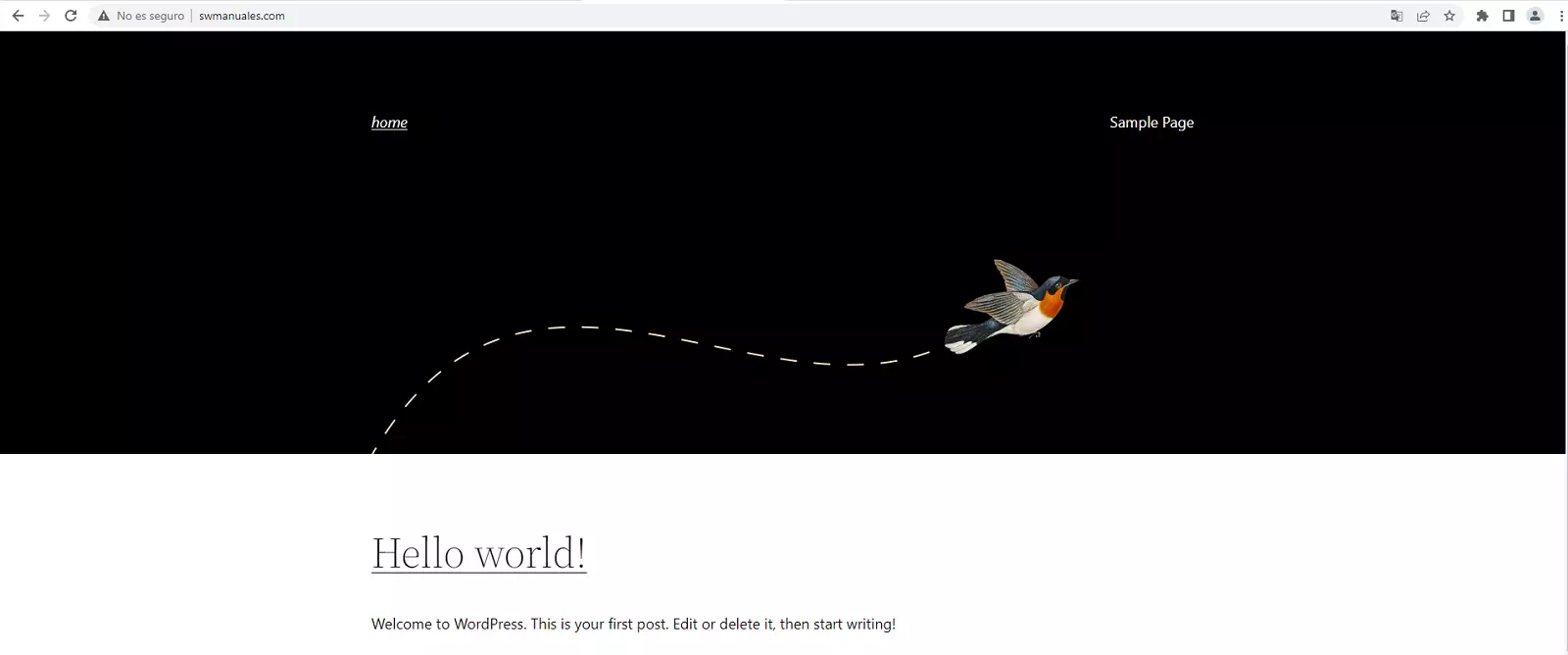
- Once the process is complete, you will be able to access a clean WordPress installation: