
How to restore Snapshots of your Web
A website snapshot is a point-in-time capture of your website's content on a specific day and time.
In SW Hosting, you can restore snapshots of all your websites through your SWPanel service management tool.
Important: Before starting the recovery action for the indicated Snapshot, ensure that you truly wish to revert the state of the website with all your data from the moment the snapshot was taken. Please keep in mind that this process is not reversible. The website will be exactly as it was at the time the Snapshot was created. Therefore, ALL your current data will be lost.
The steps to restore a snapshot are:
1. From the search box in your SWPanel, you must locate the service for which you wish to restore a Snapshot.
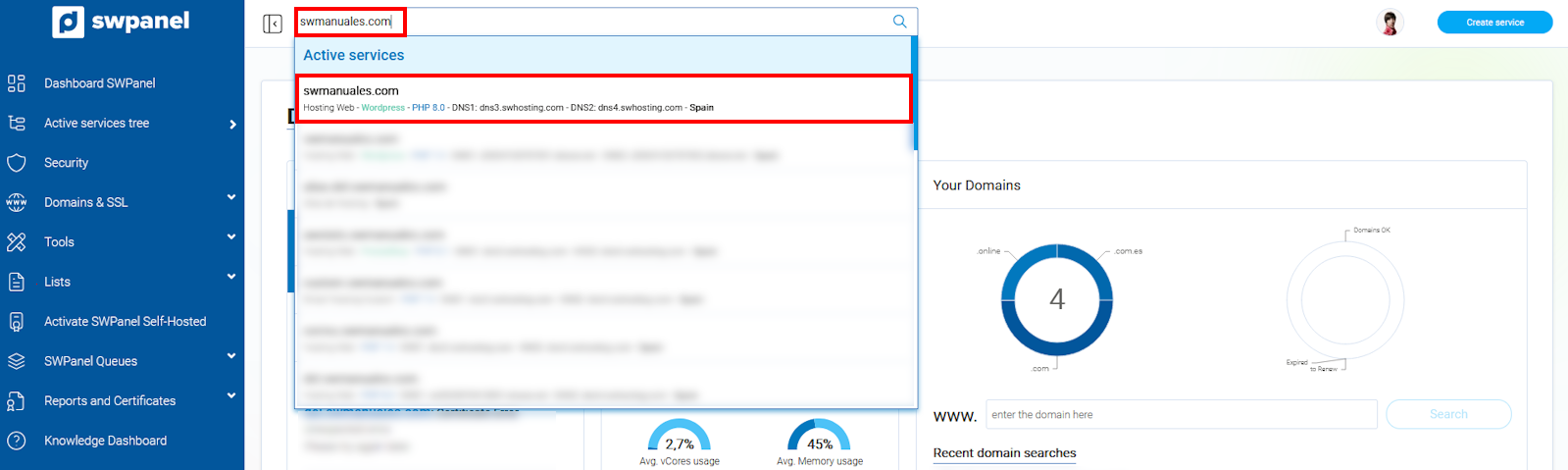
info_capture The screenshot is for guidance only. It was taken using version 2025.00.0017 dated 28/12/2024. It may differ from what is shown in the current version of SWPanel.
2. Once you are in the service Dashboard, you must click on Keep and recover my data -> Snapshots -> Snapshot Management.
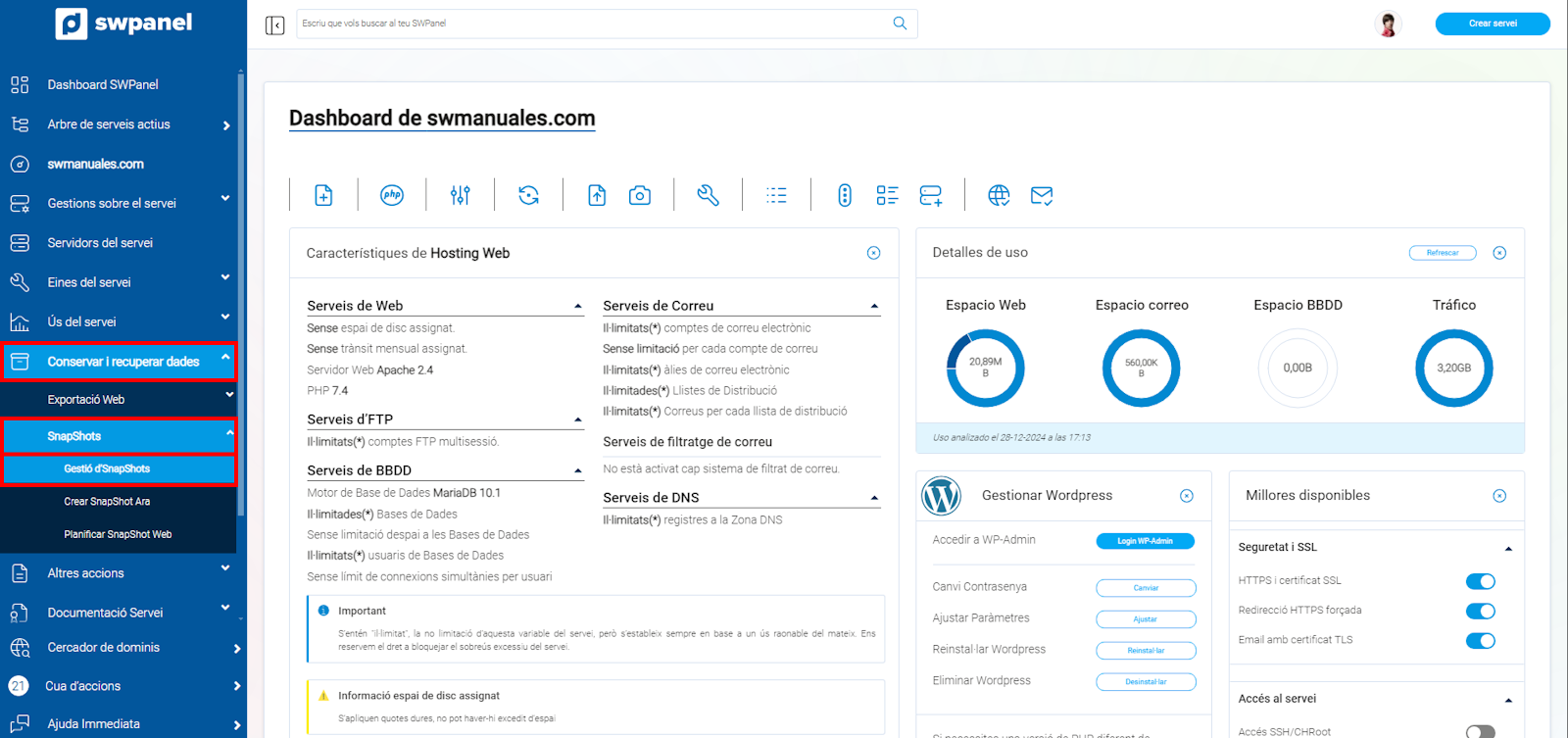
info_capture The screenshot is for guidance only. It was taken using version 2025.00.0017 dated 28/12/2024. It may differ from what is shown in the current version of SWPanel.
3. Locate the Snapshot you wish to restore and hover your mouse over the three dots to its right [ ... ]; a pop-up menu will open where you must click on the option "Restore this Snapshot"
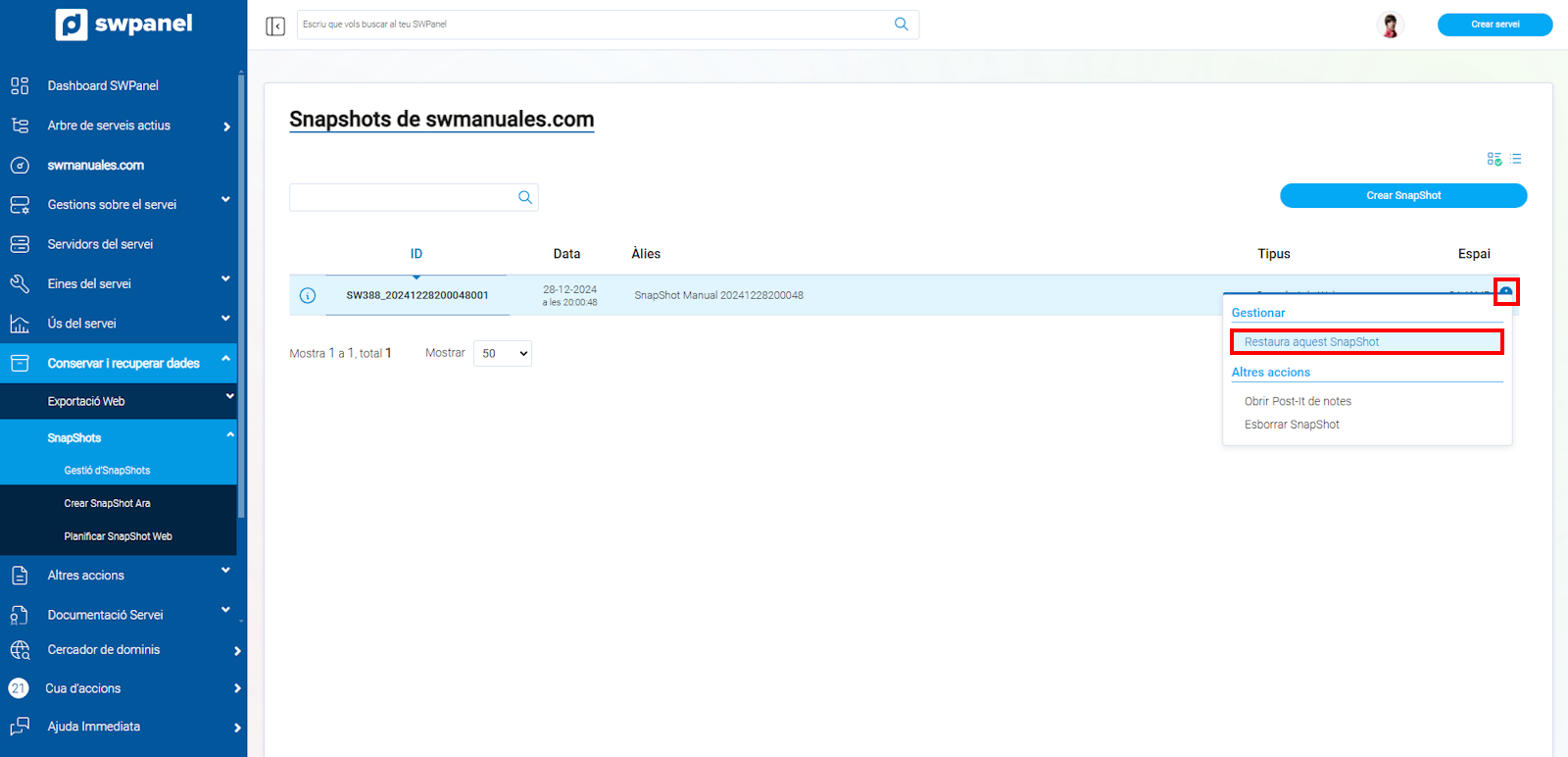
info_capture The screenshot is for guidance only. It was taken using version 2025.00.0017 dated 28/12/2024. It may differ from what is shown in the current version of SWPanel.
4. In the following window, you will be warned that the process is not reversible and you will be allowed to specify an email account to be notified upon completion of the restoration process (optional). To start the process, click the "Yes, recover now" button.
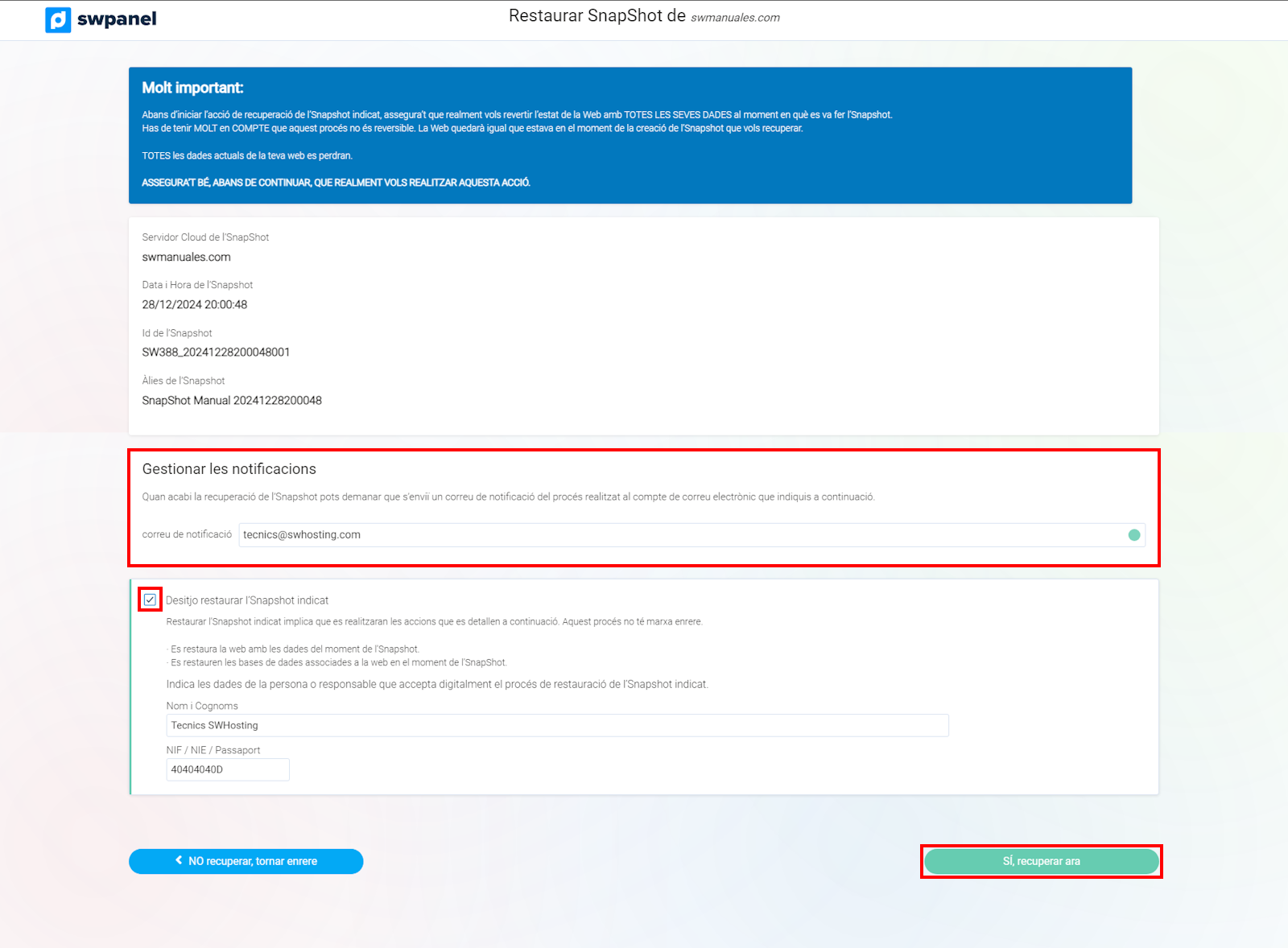
info_capture The screenshot is for guidance only. It was taken using version 2025.00.0017 dated 28/12/2024. It may differ from what is shown in the current version of SWPanel.
5. Next, the restoration process will be executed and in a few seconds your website will be exactly as it was on the day the snapshot was taken.