
How to change the assigned servers of a Hosting
Table of Contents
-
What is the purpose of changing the servers assigned to a Hosting service
1.2 Exceptions when modifying the servers assigned to a service -
Changing the servers assigned to a Hosting service
2.1 Access the service dashboard
2.2 Access the servers associated with the service
2.3 Modification of the servers associated with the service
2.4 Confirmation of the changes made
1. What is the purpose of changing the servers assigned to a Hosting service
Changing the servers assigned to a service serves to modify the servers responsible for the management of Databases, Email, or DNS of a Hosting service.
In this way, you can have another server take over said management and relieve the main server of the load that managing these services entails.
1.2 Exceptions when modifying the servers assigned to a service
You will not be able to modify servers that have active services associated with the domain, in which case a warning icon is displayed and the option to modify the server is disabled. To be able to modify the server, you must first delete all active services of this type from the domain.
For example: If there are active email accounts, you will not be able to modify the mail server associated with this domain. Or, if there are databases created on the server, you will not be able to change the Database server assigned to the domain.
In this case, if you want to modify the assigned server, you must perform a service redefinition. You can follow manual [Handbuch: How to redefine a service in a Cloud](https://www.swpanel.com/de/comunidad/manual/how-to-redefine-a-service-in-a-cloud).2. Changing the servers assigned to a Hosting service
2.1 Access the service dashboard
Access the dashboard of the Hosting service for which you want to modify the assigned servers:

2.2 Access the servers associated with the service
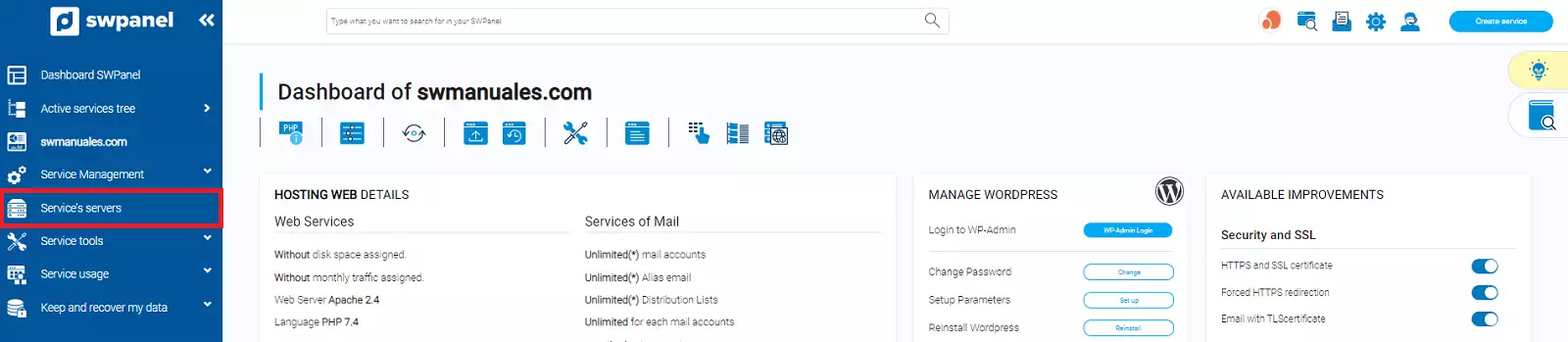
Once in the service dashboard, you must click on Service Servers in the blue side menu:
2.3 Modification of the servers associated with the service
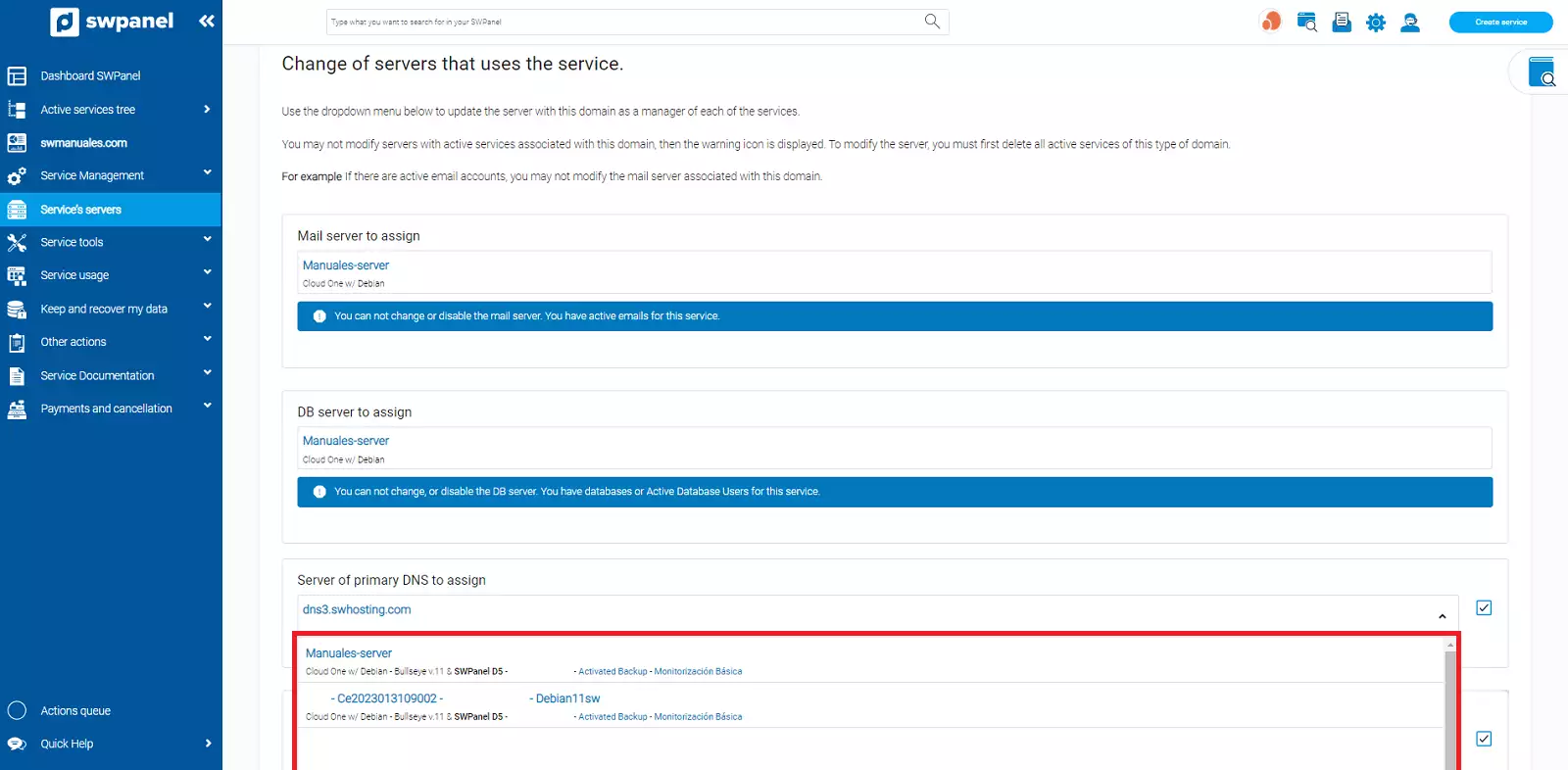
At the bottom of the window, you will see some selectable options to change the mail server, the Database server and the two DNS servers.
Using these dropdowns, select the new servers you want to manage the services.
2.4 Confirmation of the changes made
Finally, you must confirm the changes made by clicking the green button Apply Changes at the bottom of the window:
