How to convert a SWEasyWeb to Wordpress
To convert an SW EasyWeb into a WordPress, you must follow these steps:
1. Access your customer account and, in the top search bar of the SWPanel, search for the name of your SW EasyWeb and access it by clicking on its name:

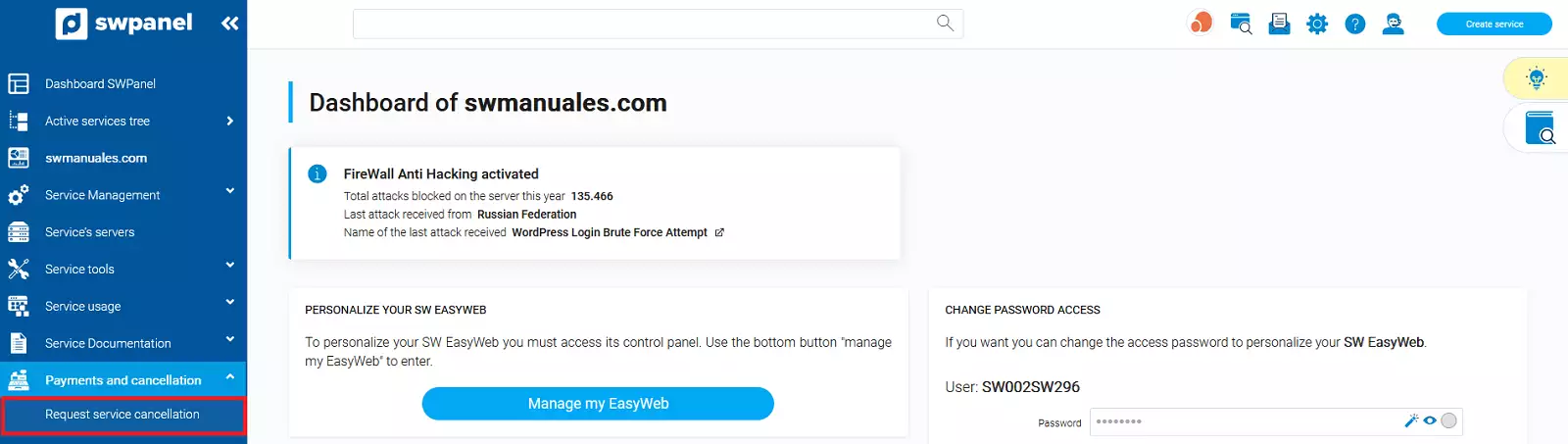
2. From the Dashboard of your SW EasyWeb, go to the left side menu in the "Payments and Cancellations" section and click on "Request cancellation"
Please keep in mind that the cancellation of your SW EasyWeb will delete any type of configured content, as well as the associated email account and all its messages. If you wish to keep the email messages from the email account associated with your SW EasyWeb, you should create a backup of them using your email client before requesting the cancellation.
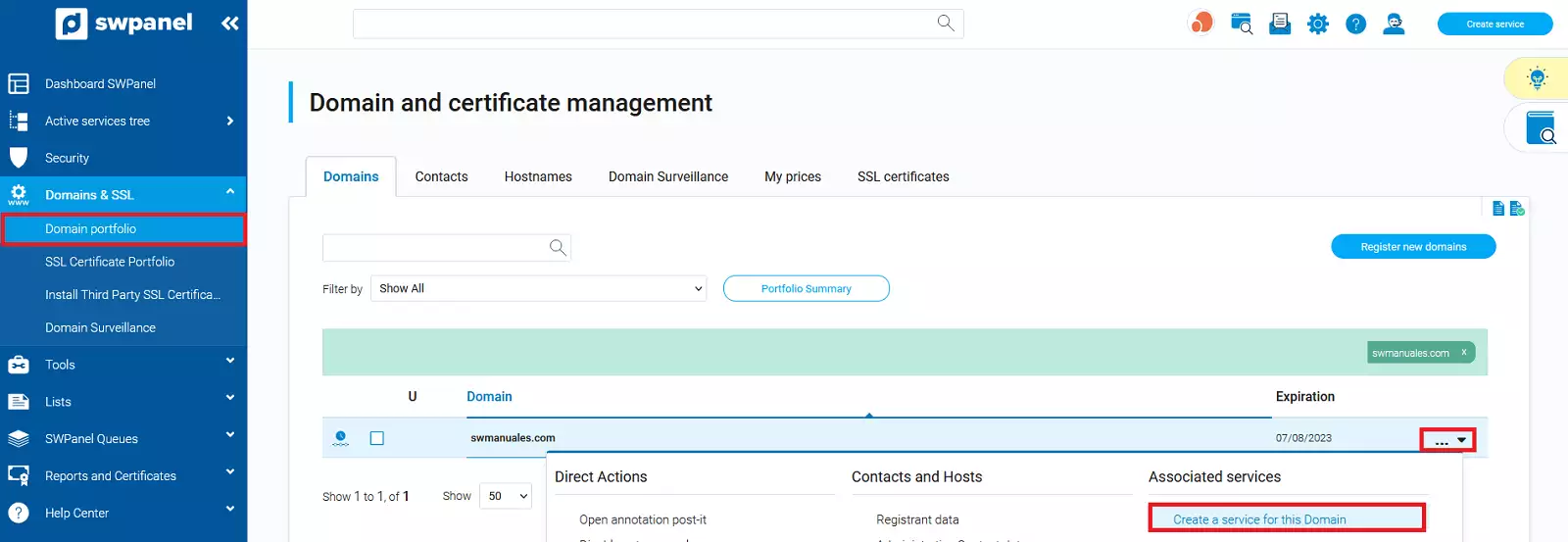
3. Once the cancellation has been carried out and your SW EasyWeb has been deleted, go to your "Domain Portfolio", locate the domain for which you want to create your new Hosting, and in the domain menu, click on the "Create a service for this domain" option
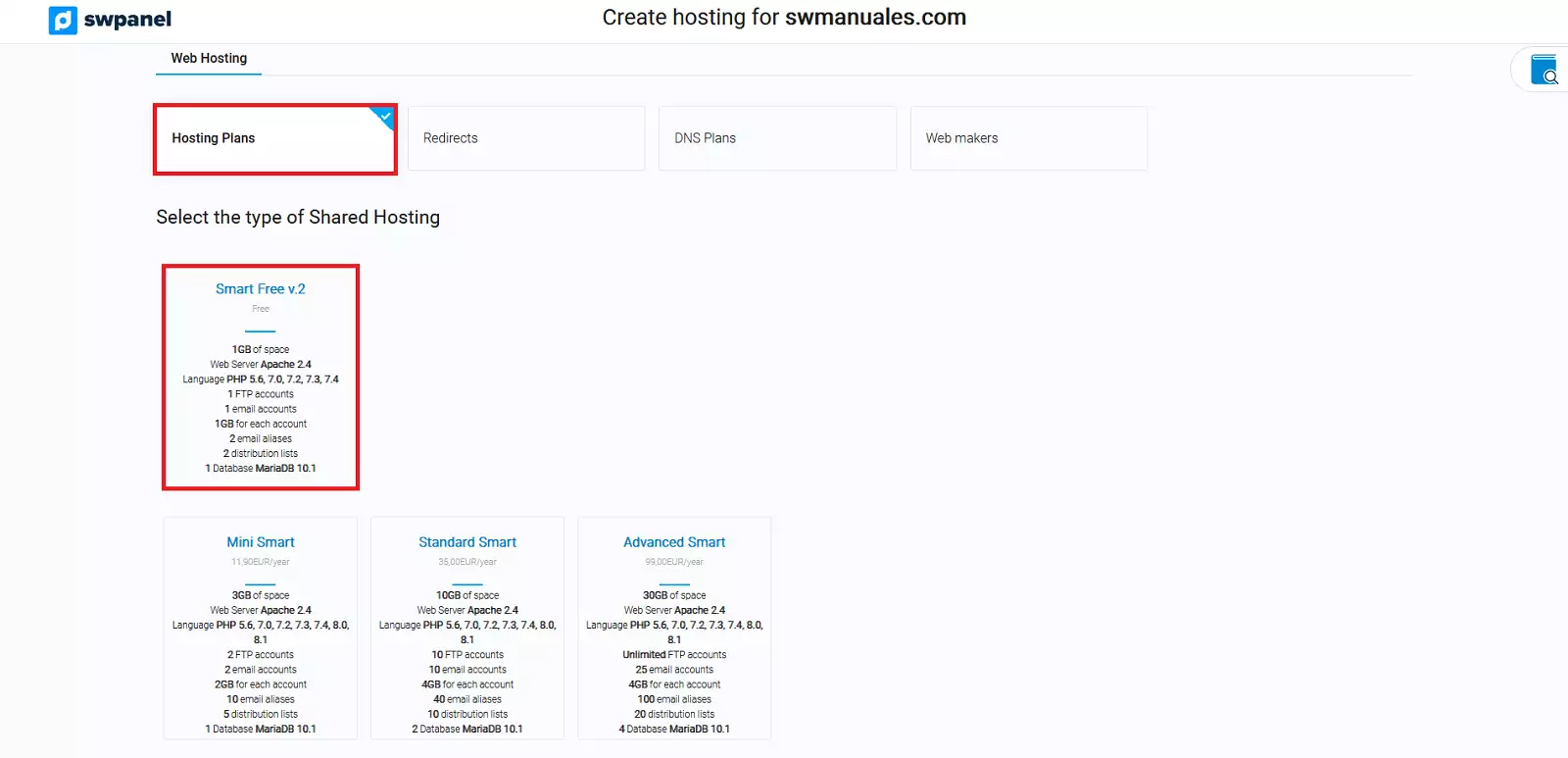
4. In the following window, select the "Hosting Plans" option and, under the Shared Hosting type, choose the Hosting modality you prefer, for example, Smart Free v.2.
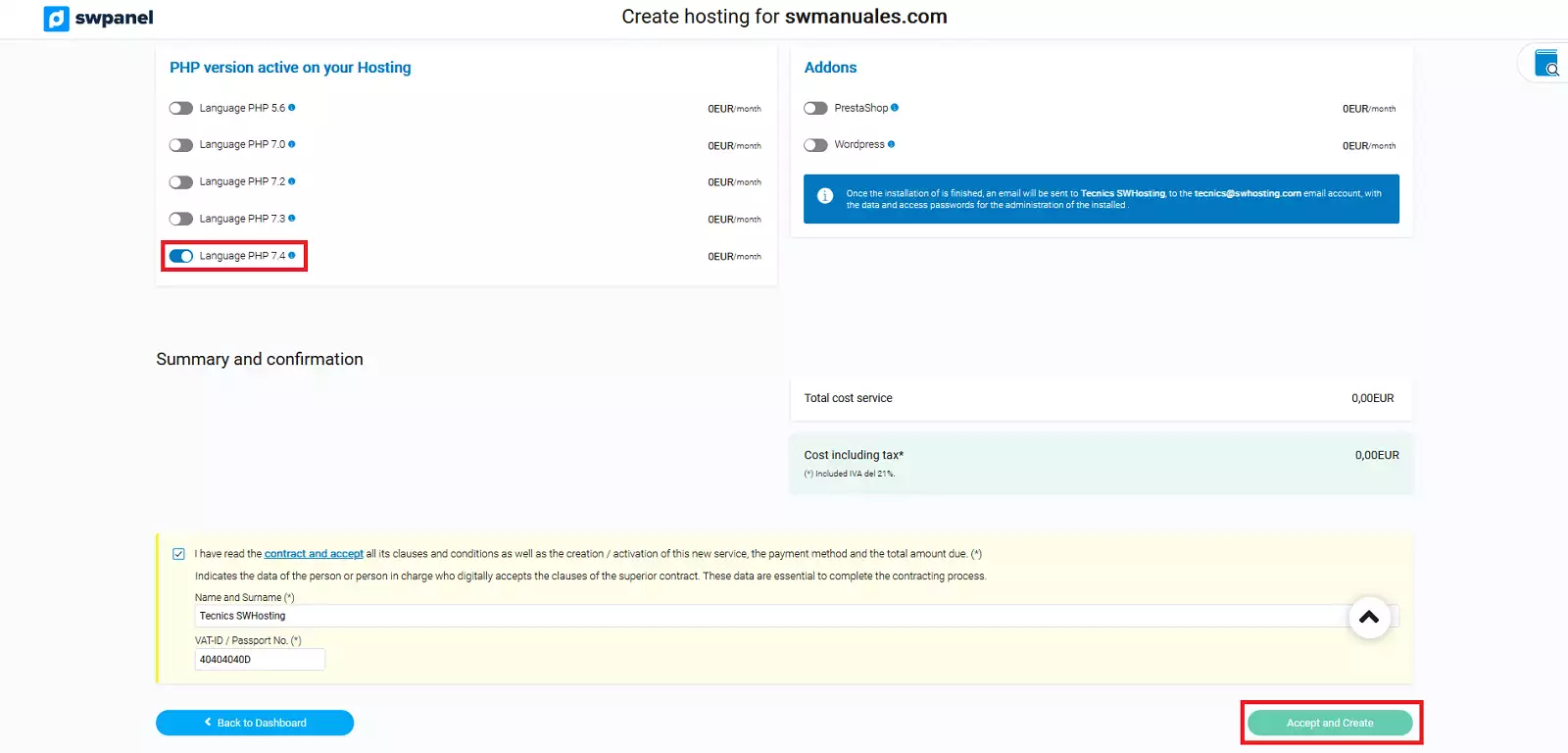
Select the PHP version you wish to activate for your Hosting and complete the creation process by clicking the "Accept and create" button
5. Once the creation of the new Hosting service has finished, access its Dashboard and click on install WordPress:
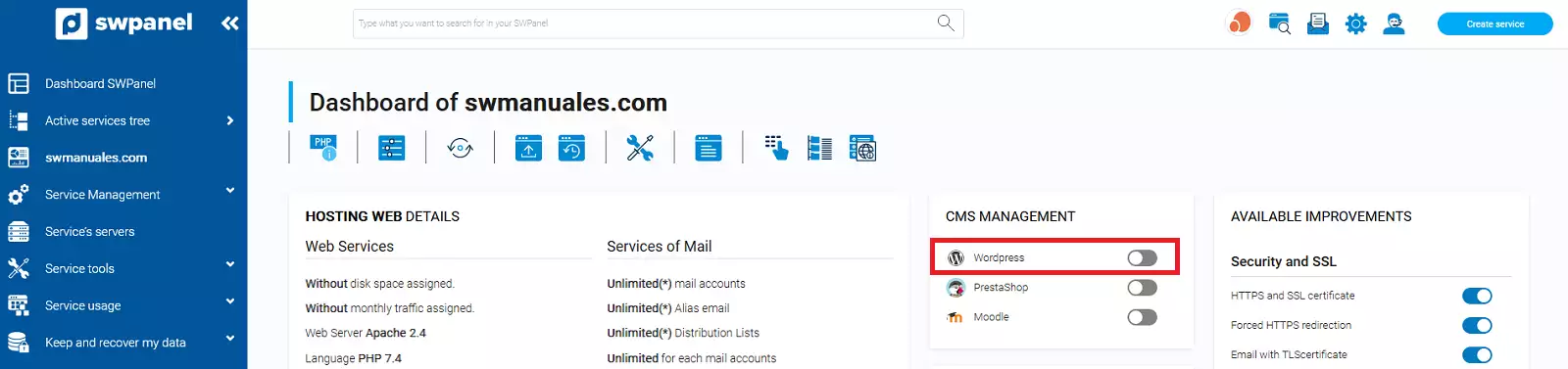
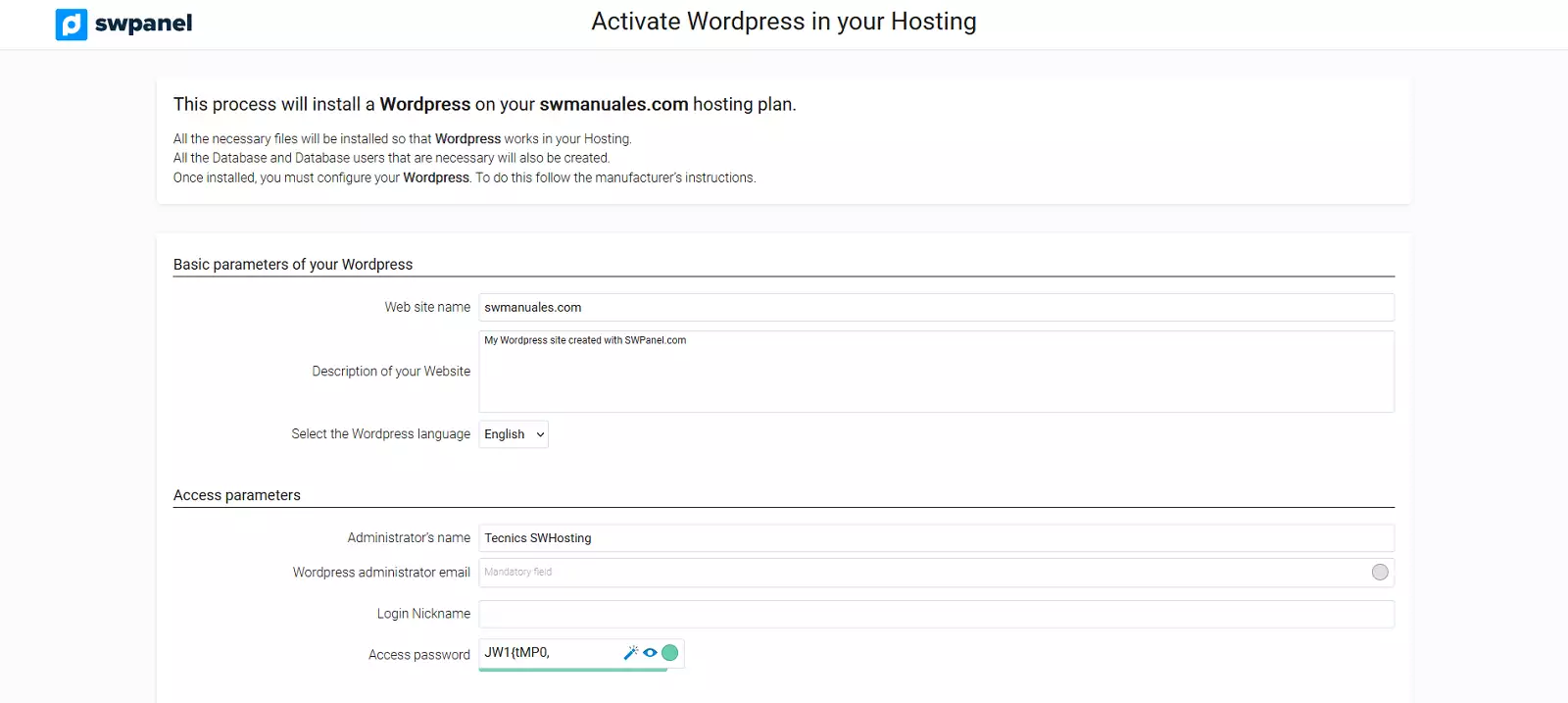
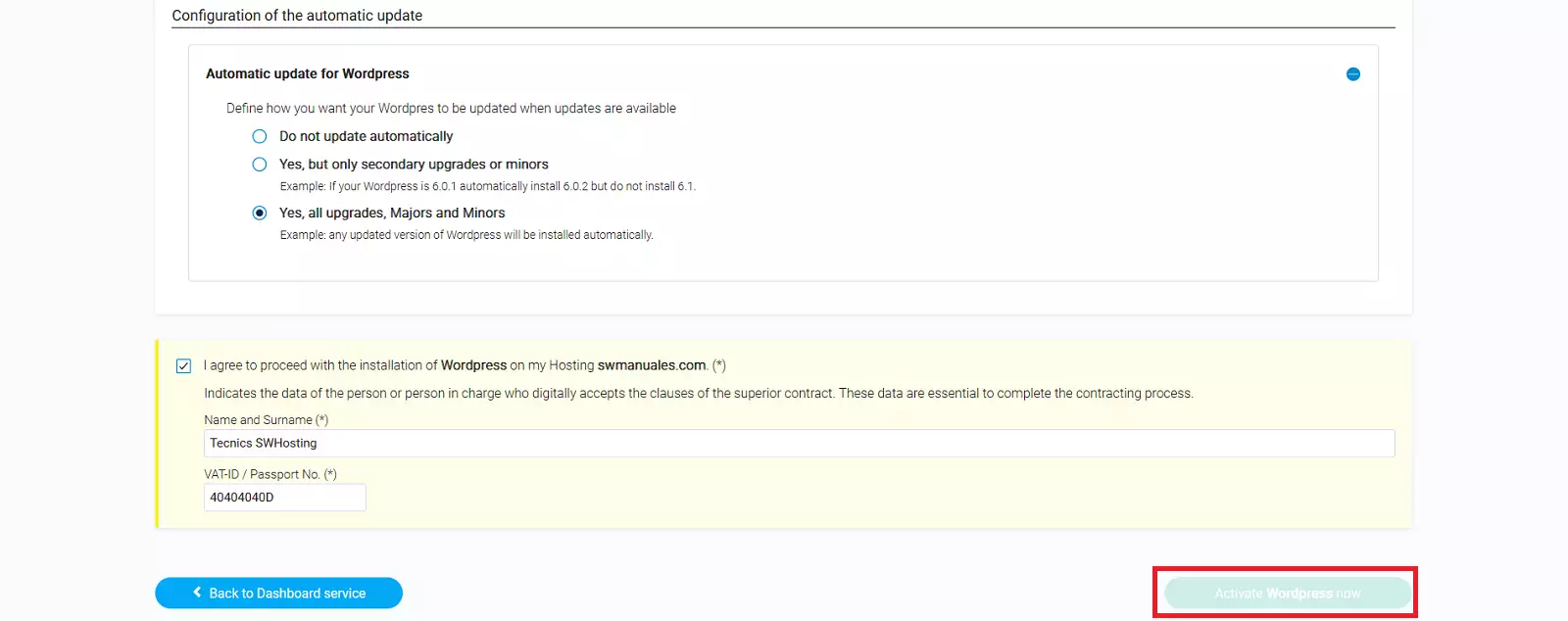
6. You will have to fill in the data with which WordPress will be deployed and finally click on the Activate WordPress now button: