How to create a MultiCloud
Multicloud is the use of multiple cloud computing and storage services in a single heterogeneous architecture. This also refers to the distribution of cloud assets, software, applications, etc., across various cloud hosting environments.
By default, MultiCloud includes the following servers:
- Database: A dedicated server for the Database.
- Web: A dedicated server for web pages.
- Mail: A dedicated server for email.
Deploying a MultiCloud in SWPanel
Access SWPanel and go to the Create Service section:
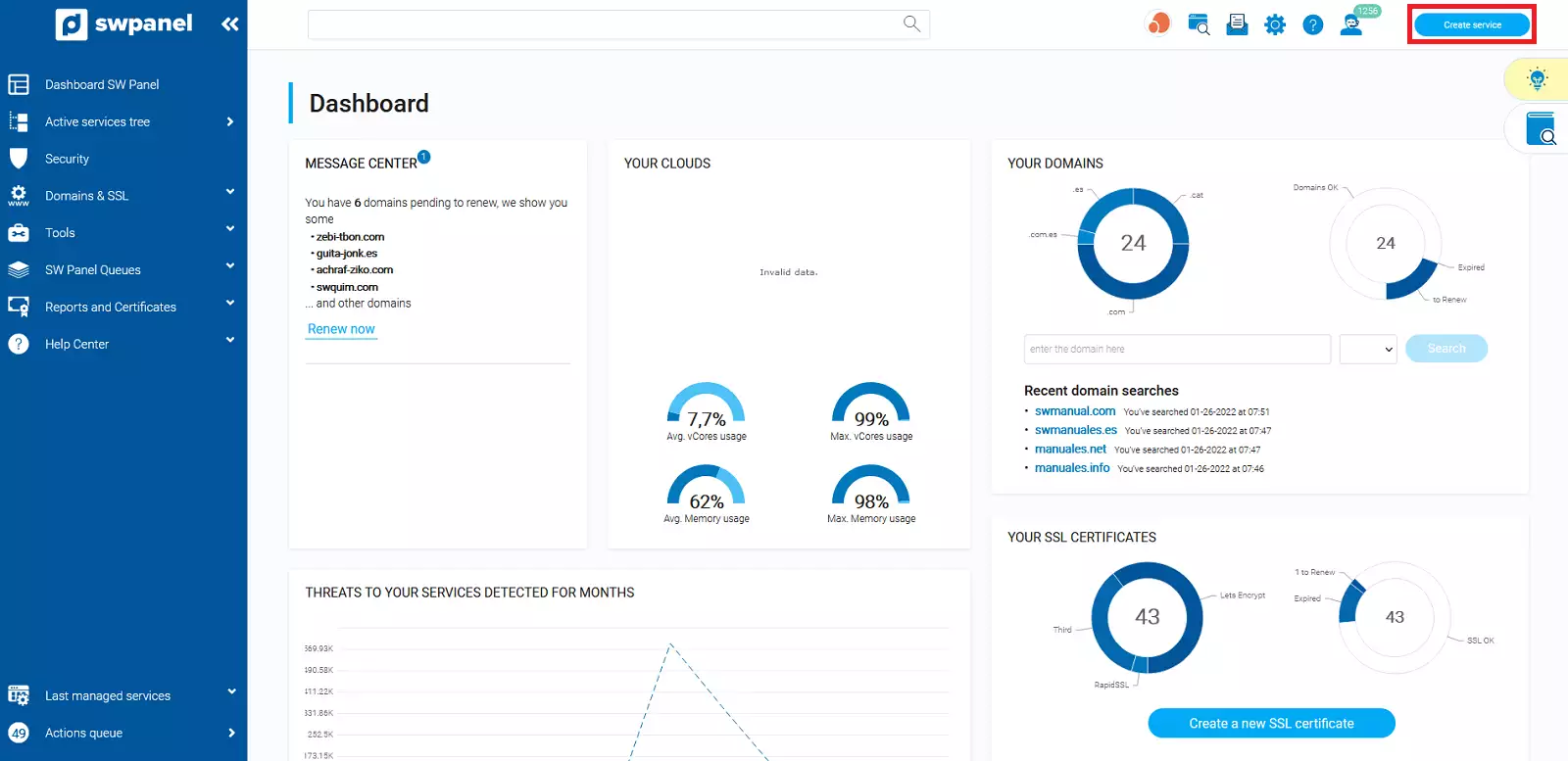
Once here, you must click on MultiCloud Hosting SWPanel:

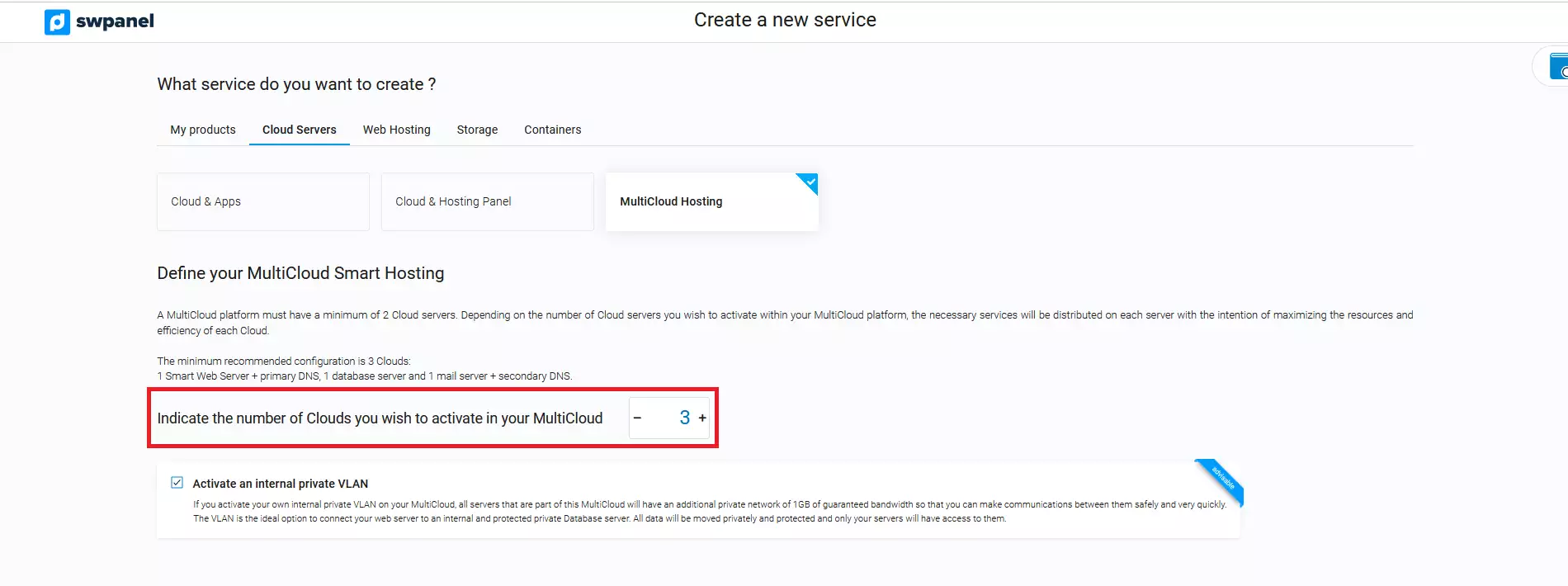
Here, you can choose the number of services you want the MultiCloud to include; the minimum is two, one for Web and the other for Database.
We recommend choosing three services, as they will be better distributed and offer optimal performance.
Next, you can choose the disk type and the Cloud type for the Database server.
We recommend choosing 'All Flash' and the 'Cloud Plus' platform; because they offer maximum performance for reading and writing to the Database Server.
You can also choose whether or not to add a private internal VLAN.
💡 A private internal VLAN allows you to have a connection between your servers. This connection is encrypted and is only accessible between those servers.
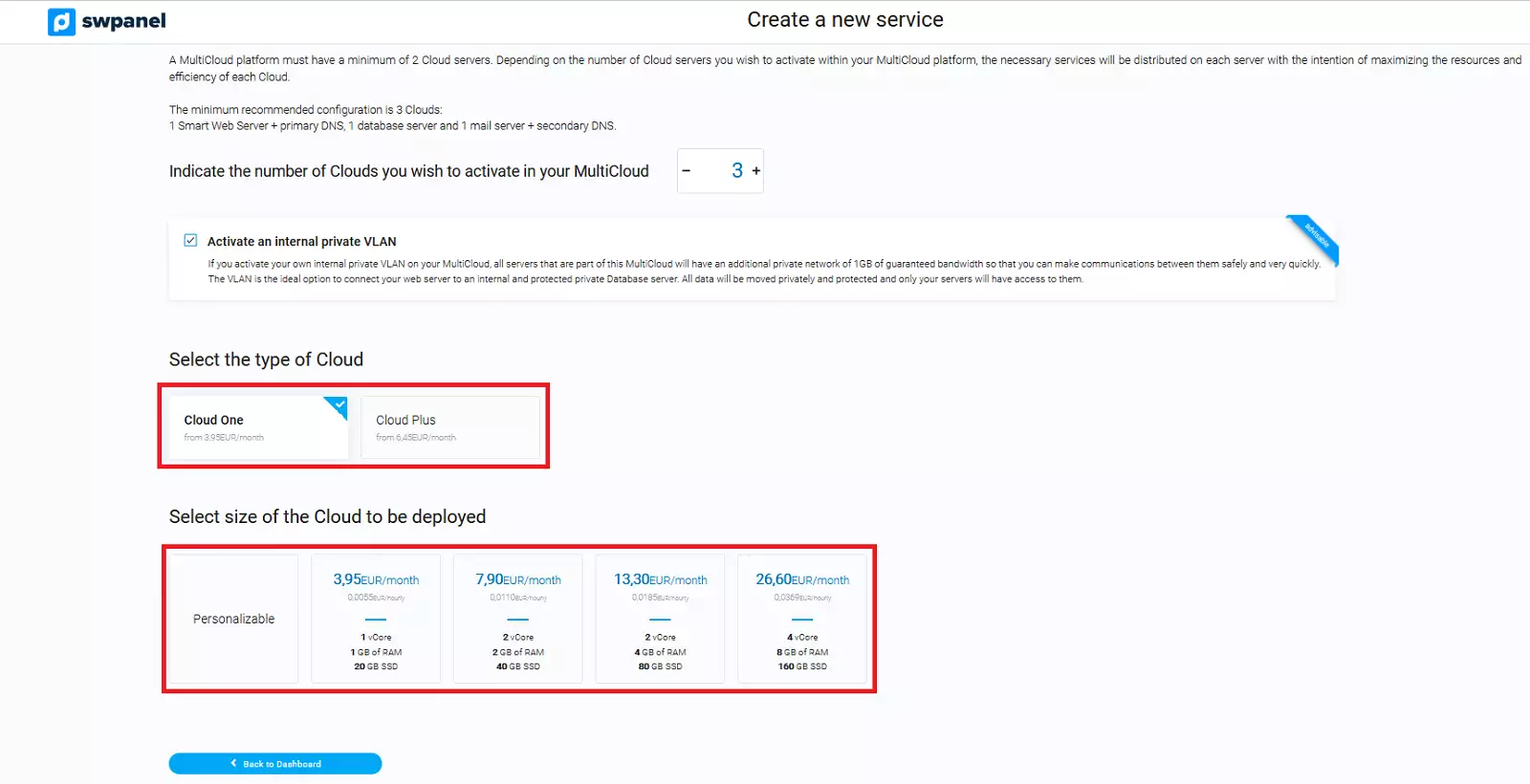
Afterwards, you can choose the Cloud type and select the Cloud size:
-
Cloud Type:
- Cloud ONE - SSD disks, sufficient for most projects with basic requirements.
- Cloud PLUS - Flash disks, offering exquisite performance for the most ambitious projects with higher requirements.
-
Cloud Size: We have preset settings available, but you can also customize your Cloud characteristics in detail. To do this, click on Customizable
To finish, you must set the customization values for your Cloud server:
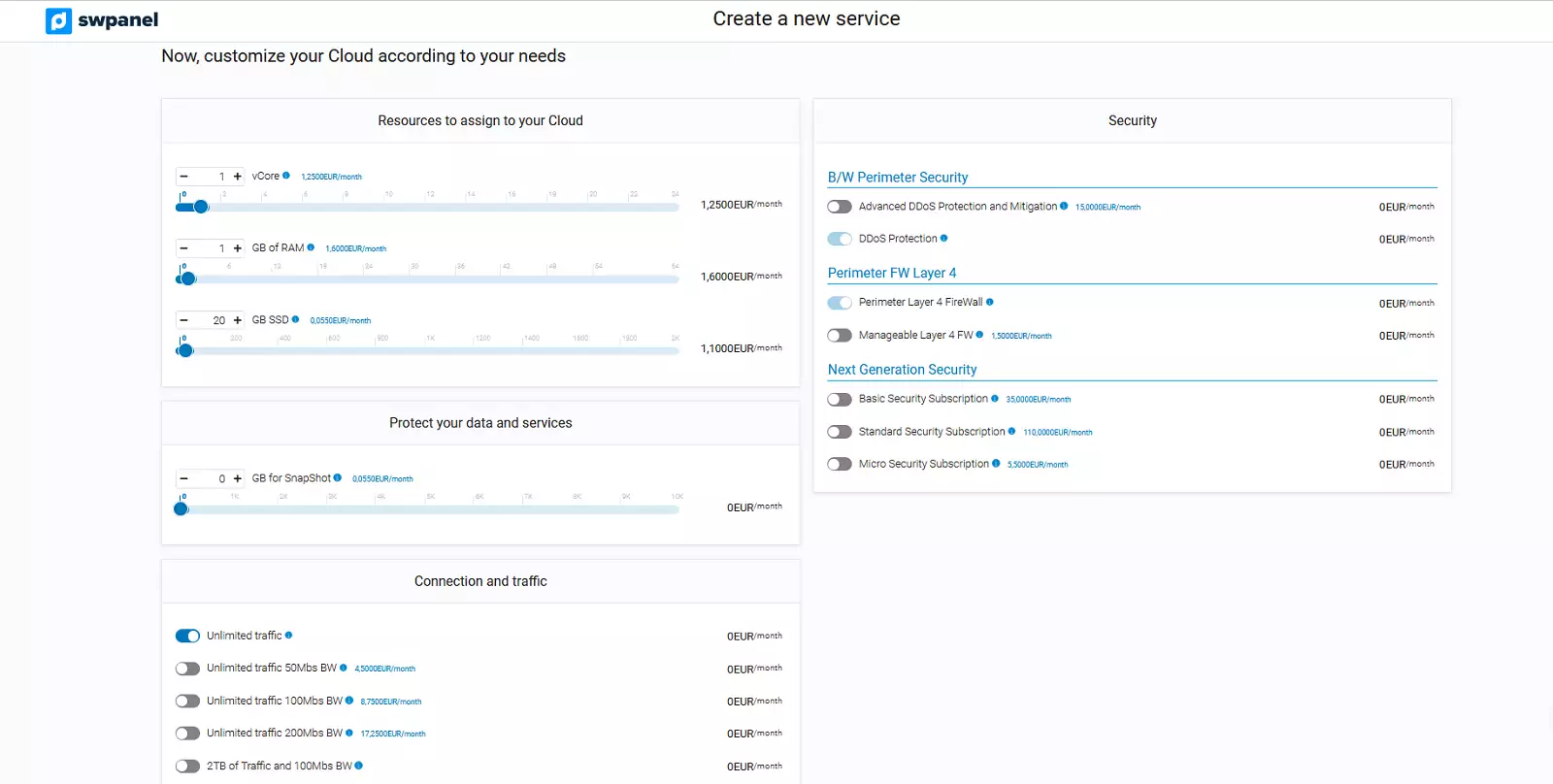
Additionally, you can choose the location of your server.
To continue, you must accept and finalize the purchase:
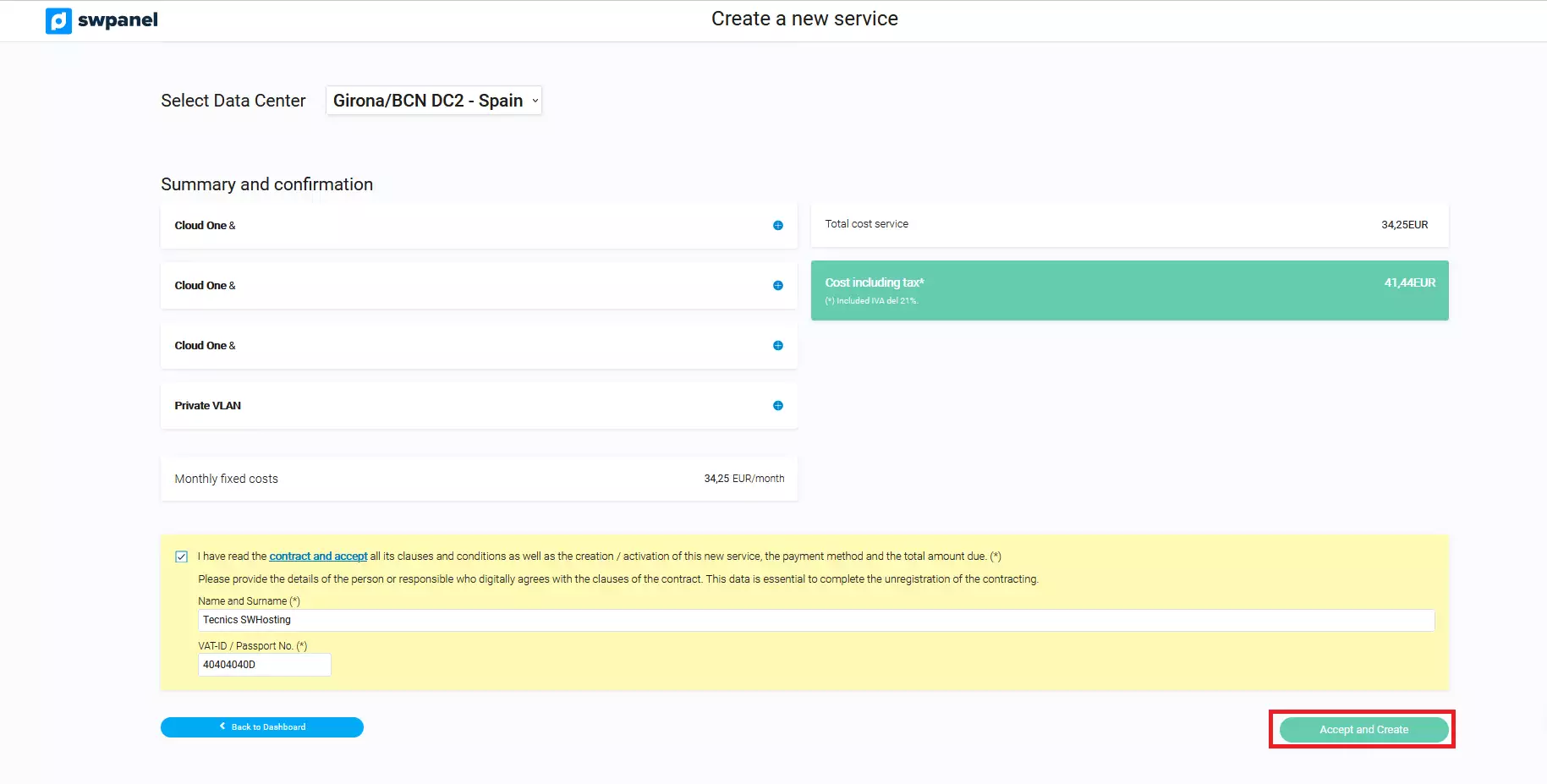
Once accepted and created, you will be sent an email with the Root access username and password for each of the created servers.
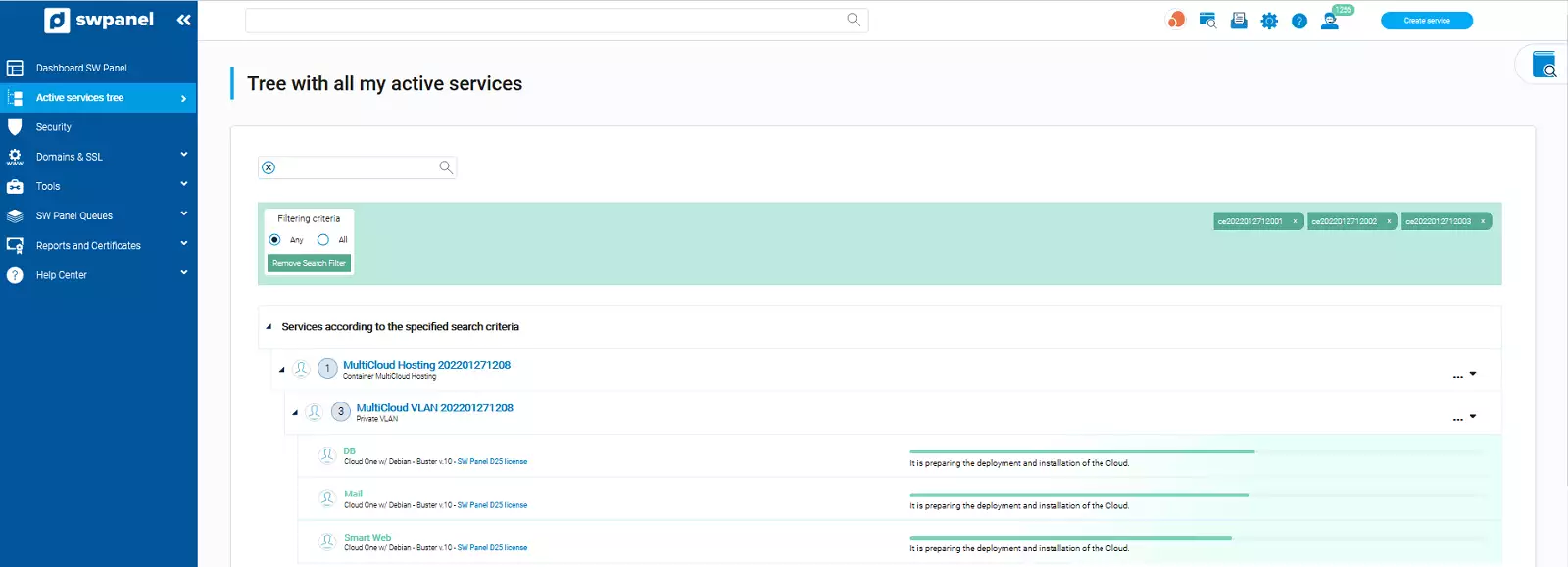
Subsequently, in the Active Services Tree section, you will see the created servers: