
How to manage the updates of my Cloud server with SWPanel
Updating a server is important in order to maintain optimal security and performance for your Cloud server.
To update the server through SWPanel, you must follow these steps:
-
Go to the Dashboard of the server you want to update:
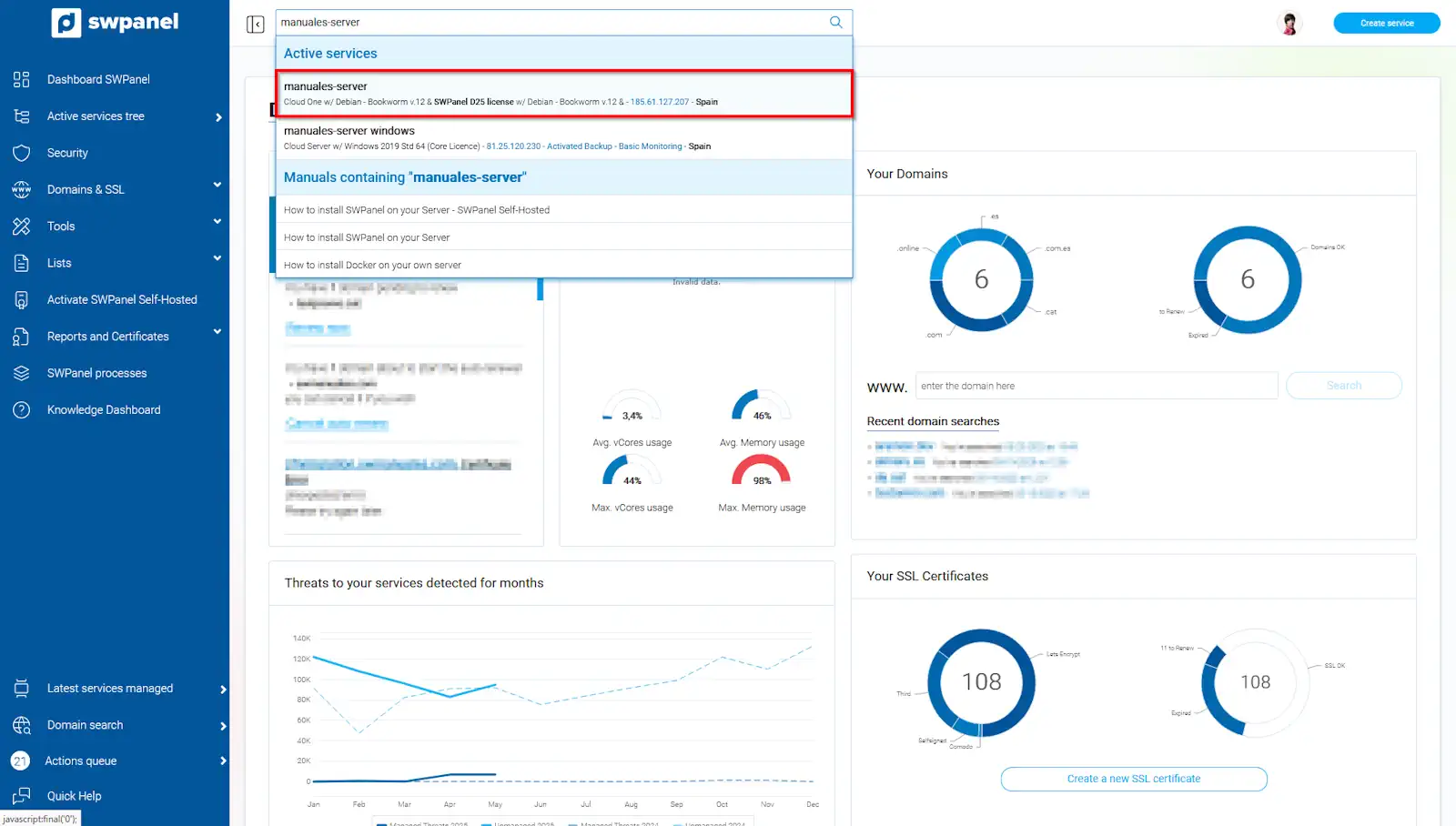
info_capture The screenshot is for guidance purposes. It was taken on version 2025.004.0002 dated 26/05/2025. It may differ from what the current version of SWPanel shows.
You can use the search bar above to get results quickly.
-
Once you are in the Dashboard, you must select the Manage updates icon:
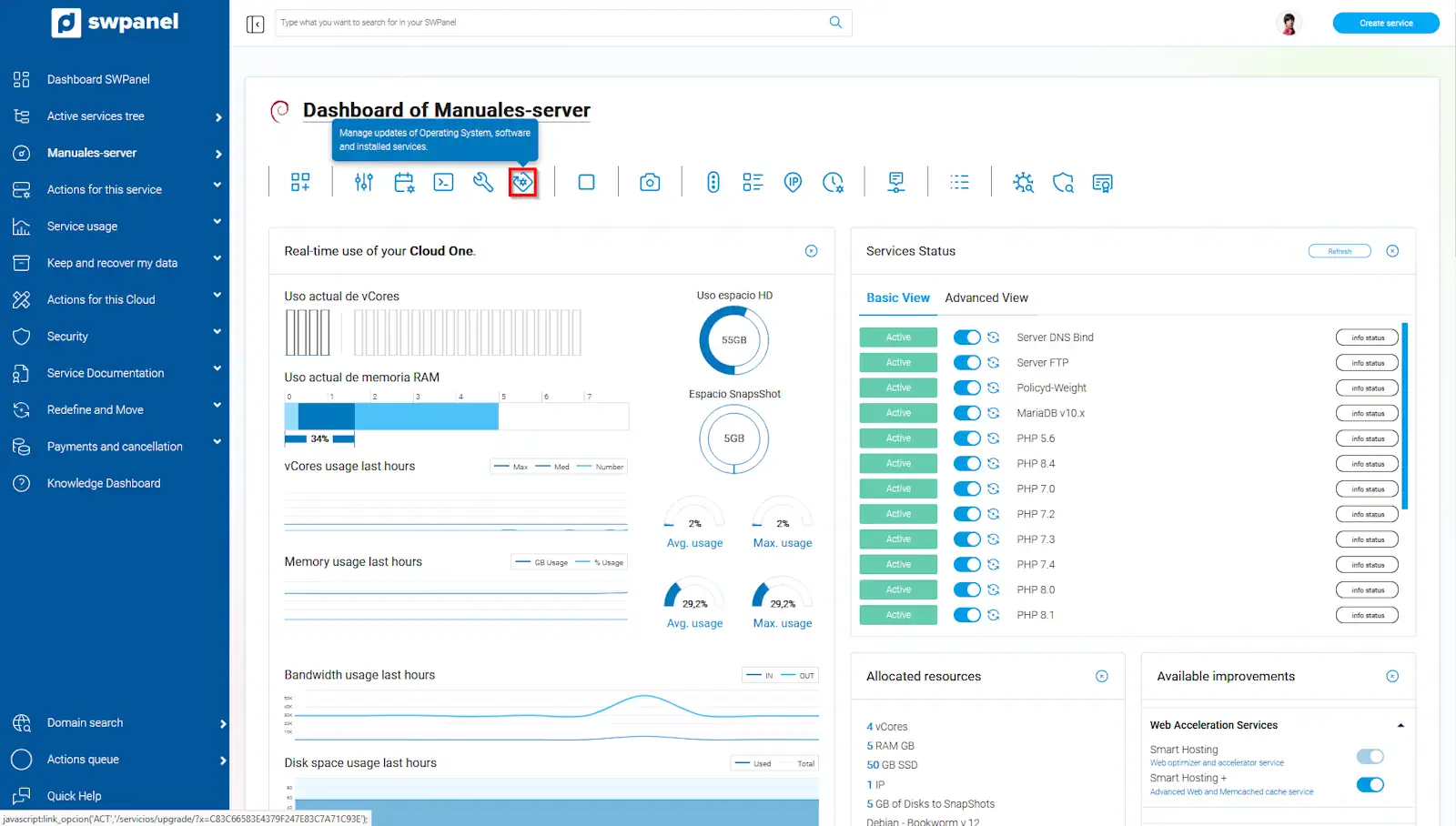
info_capture The screenshot is for guidance purposes. It was taken on version 2025.004.0002 dated 26/05/2025. It may differ from what the current version of SWPanel shows.
-
A window will now open containing three menus:
3.1 Update settings -> This menu refers to the update settings, such as whether you want the server to update automatically, whether you want to do it manually, or if you want an email to be sent once an update has been performed.
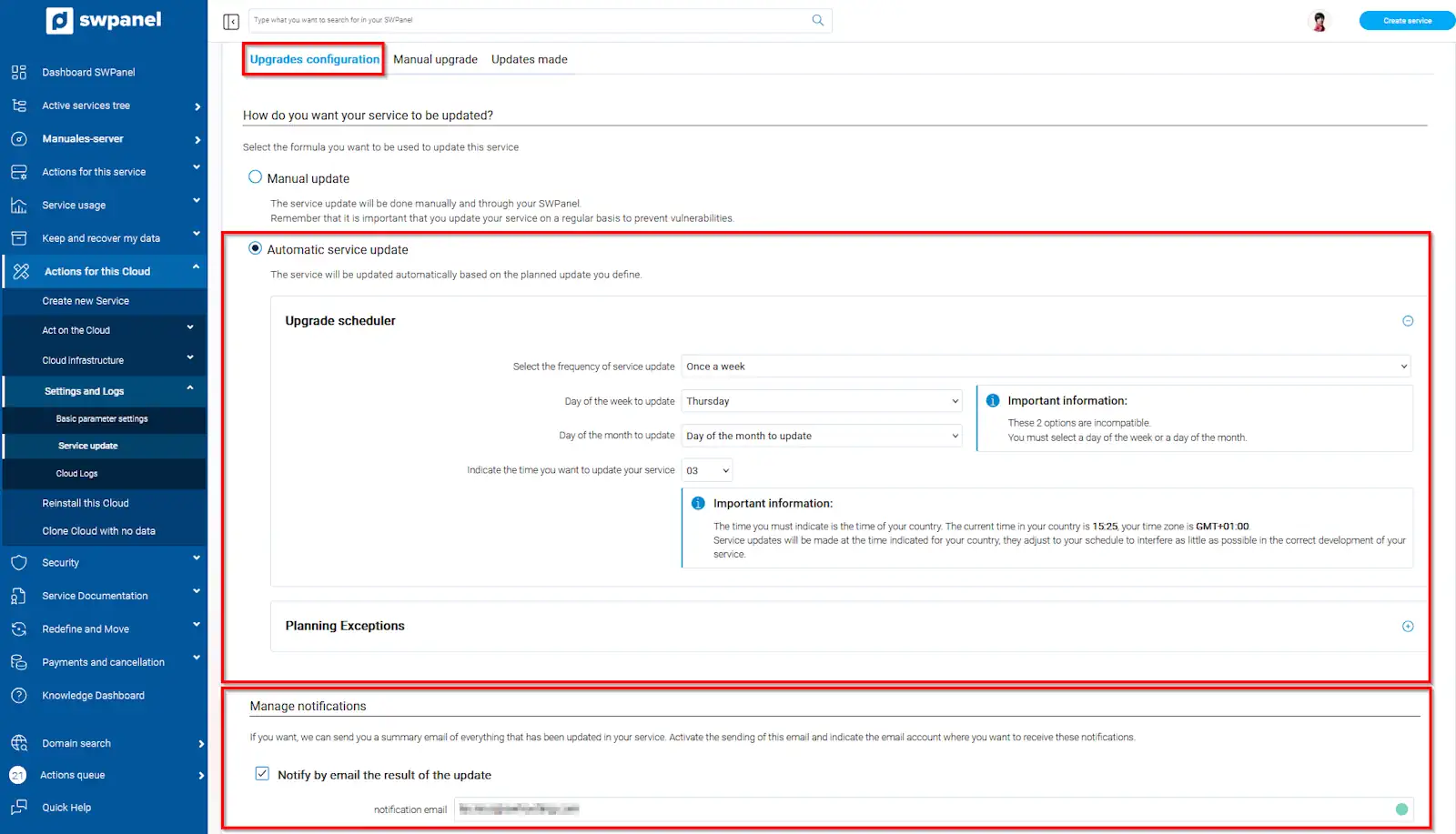
info_capture The screenshot is for guidance purposes. It was taken on version 2025.004.0002 dated 26/05/2025. It may differ from what the current version of SWPanel shows.
3.2 **Manual update** -> As the name suggests, this section allows you to view the packages pending update. To proceed with the update, you must click on **Update now**.
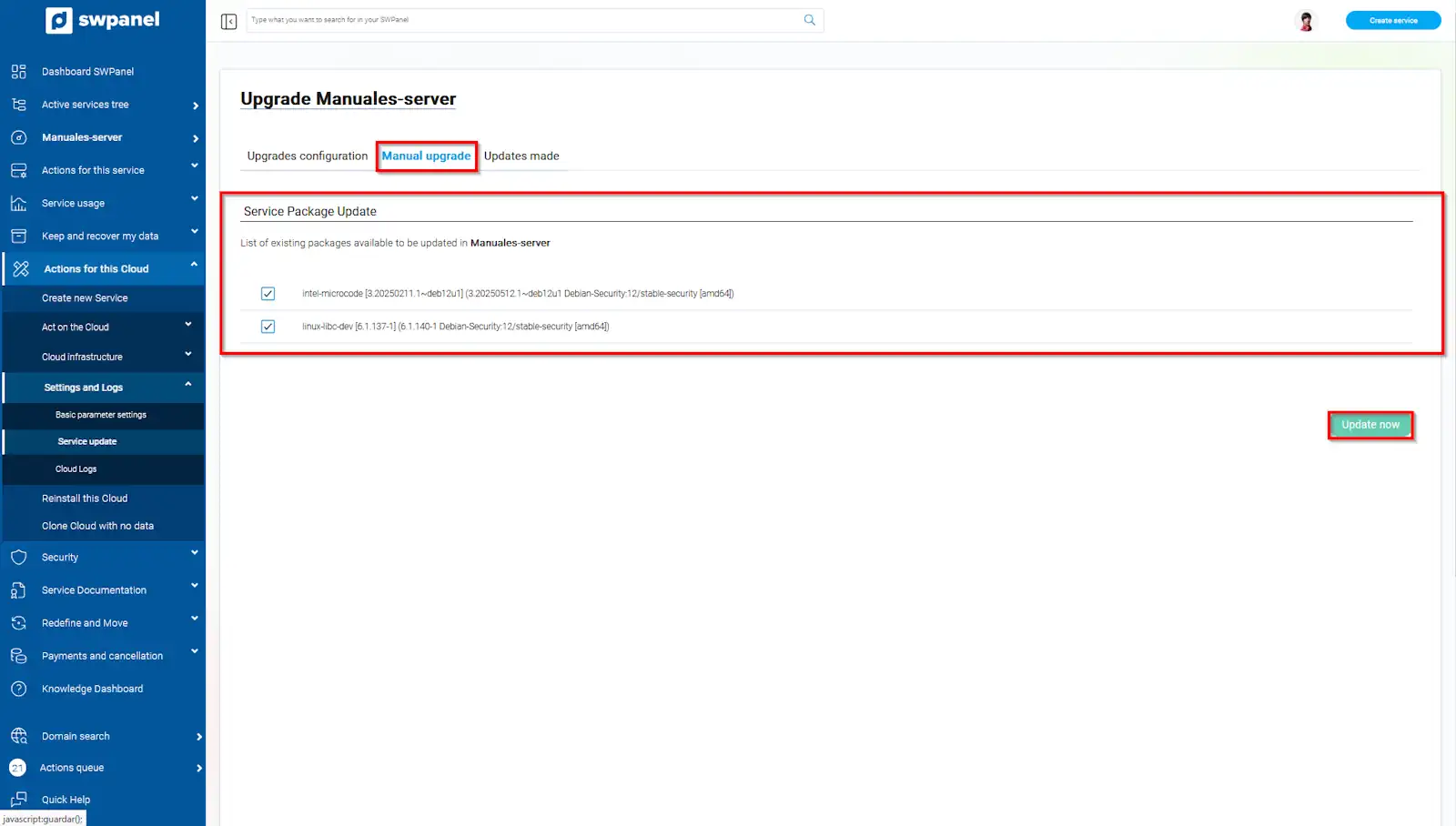
info_capture The screenshot is for guidance purposes. It was taken on version 2025.004.0002 dated 26/05/2025. It may differ from what the current version of SWPanel shows.
3.3 **Performed updates** -> This allows you to have a history of the updates that have been carried out or that are currently being performed
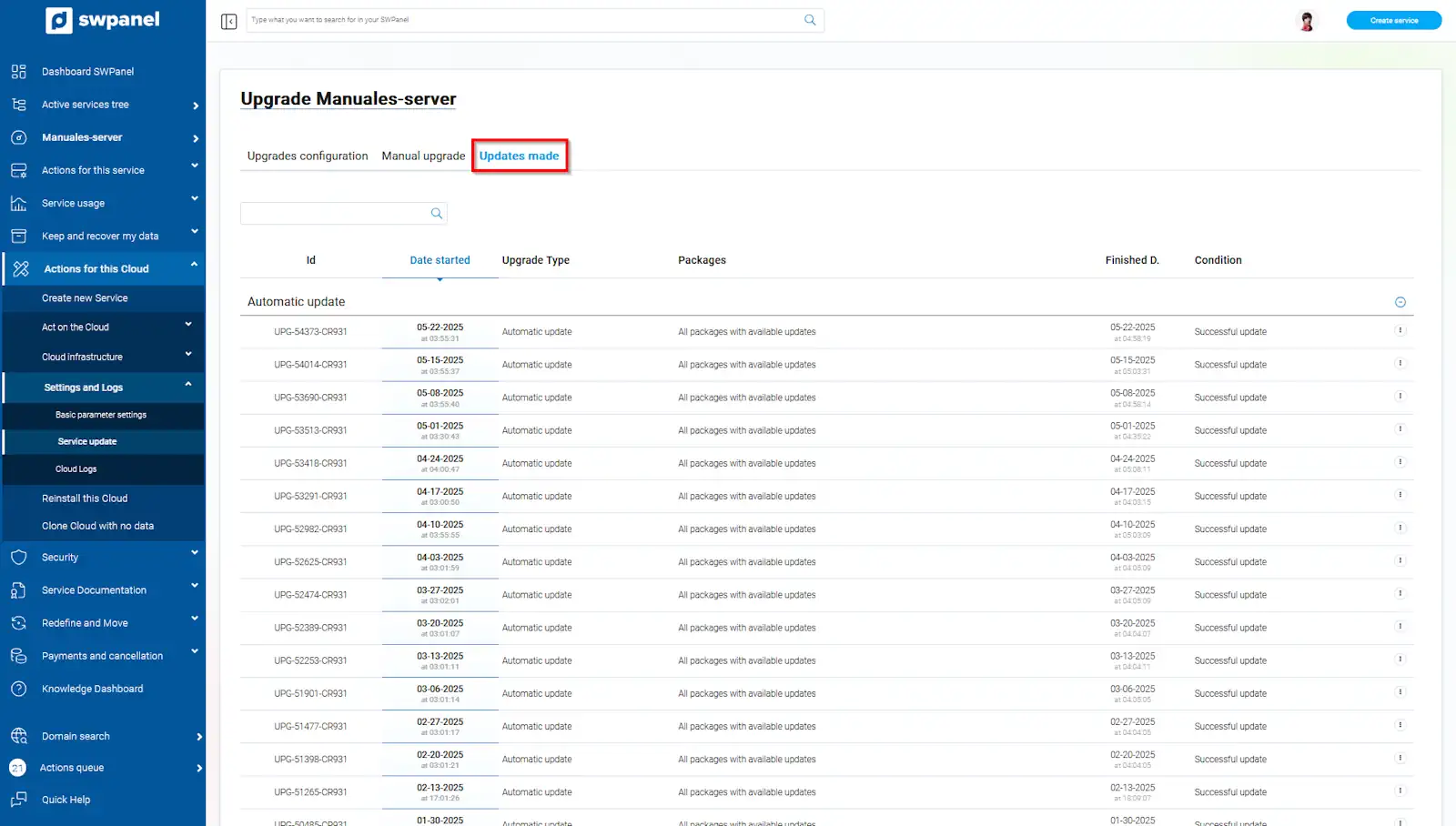
info_capture The screenshot is for guidance purposes. It was taken on version 2025.004.0002 dated 26/05/2025. It may differ from what the current version of SWPanel shows.