
Log custody
Our log custody service archives and classifies all your Mail, Web, and FTP logs for you, allowing you to recover them at any time. Offload disk space from your server. Our automatic system transfers the logs from your server to your own virtual log archive, so you don't have to worry about a thing.
Upon activating log custody, we will create an FTP account for you so that you have access to this private storage of your logs and can consult it whenever you wish. We only need you to tell us which password you wish to use for this FTP account.
The steps to follow to activate log custody for your Cloud server are as follows:
Access your SWPanel account and, in the service search window, locate the server on which you want to activate log custody.
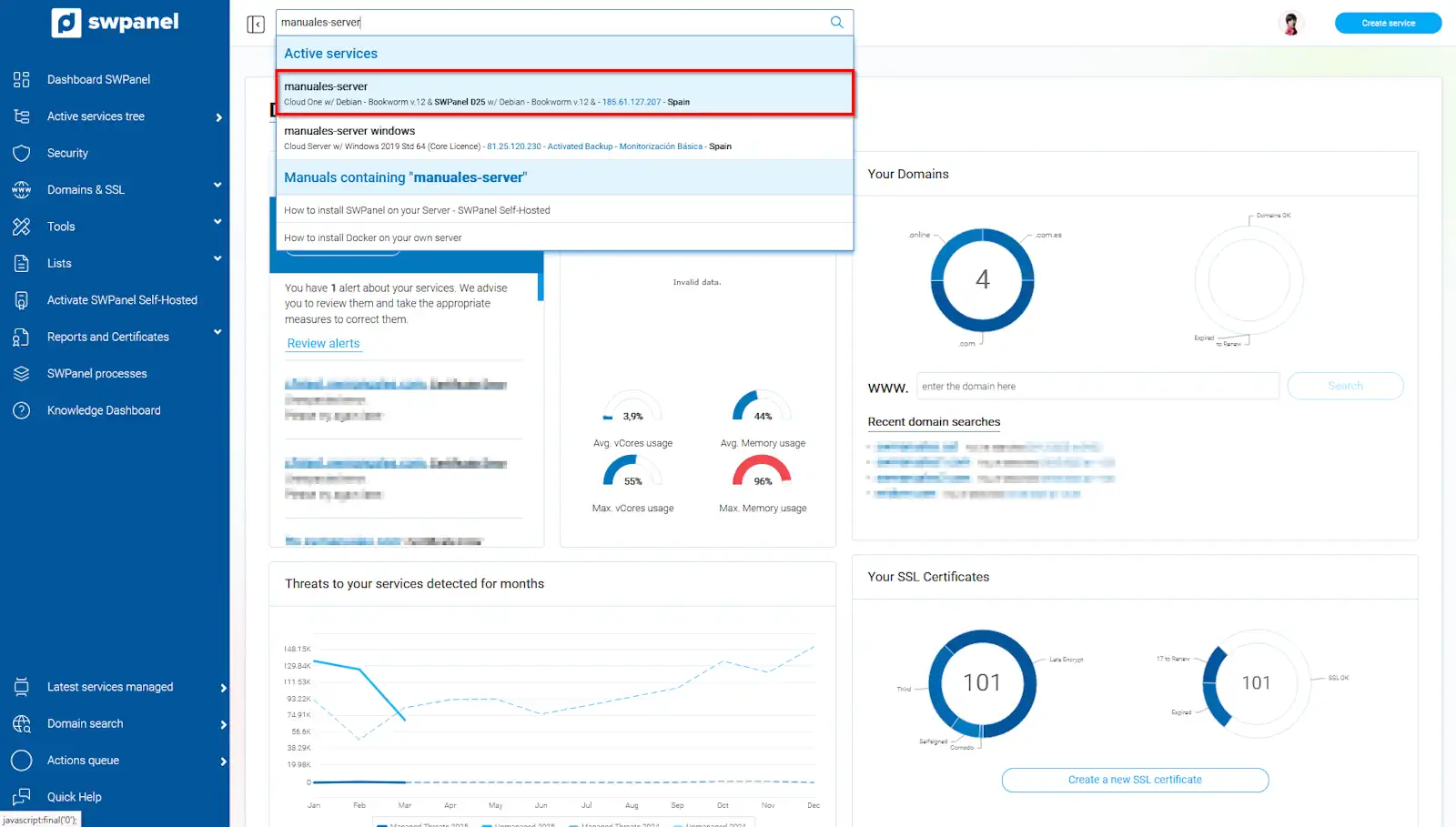
info_capture The screenshot is for guidance purposes. It was taken using version 2025.03.0001 dated 19/03/2025. It may differ from what the current version of SWPanel shows.
Once you are in your server's Dashboard, you must go to the available improvements block and activate the Log Custody improvement.
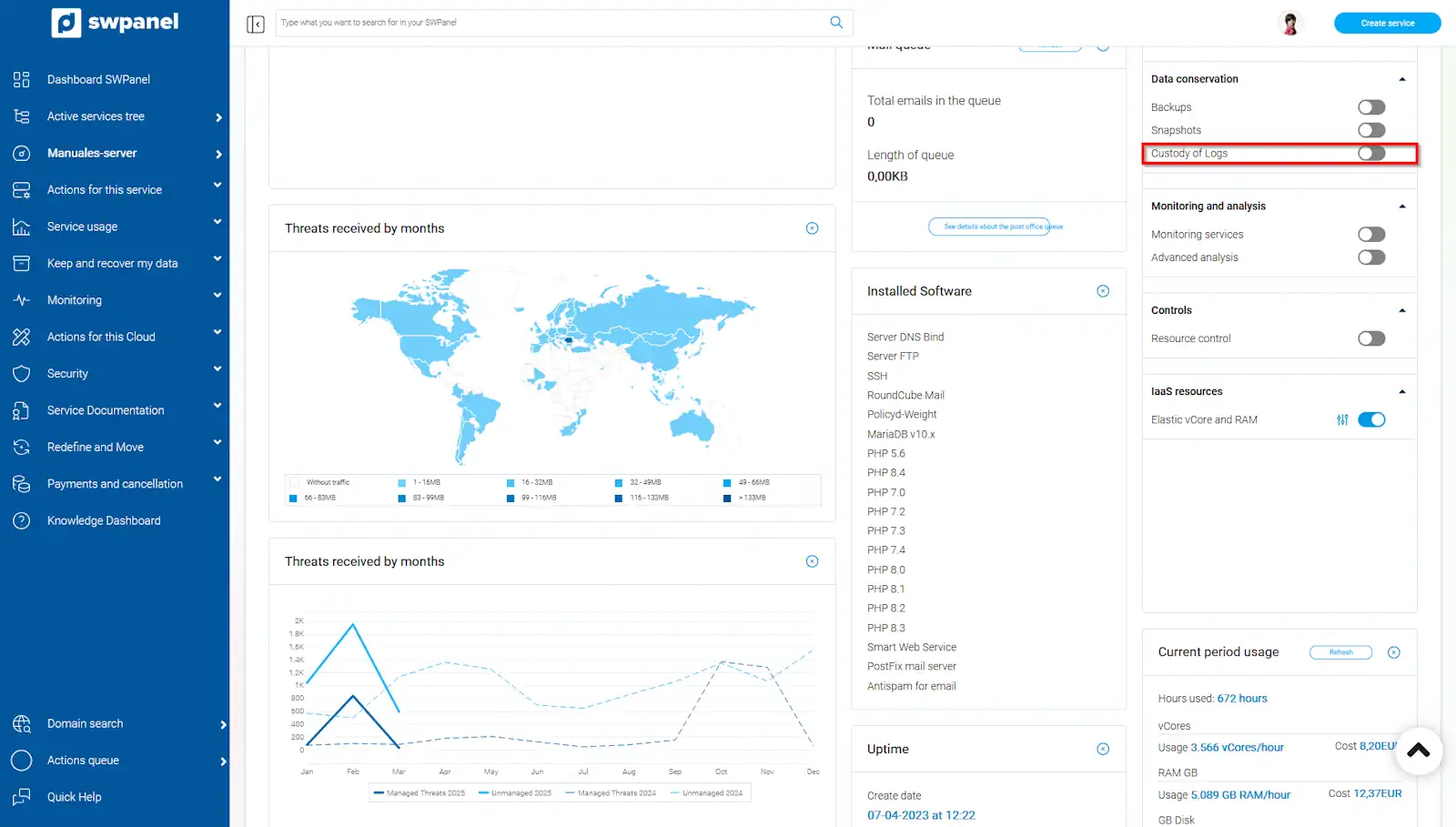
info_capture The screenshot is for guidance purposes. It was taken using version 2025.03.0001 dated 19/03/2025. It may differ from what the current version of SWPanel shows.
You must accept the activation of Log Custody by checking the "Activate Log Custody on my Cloud" checkbox.
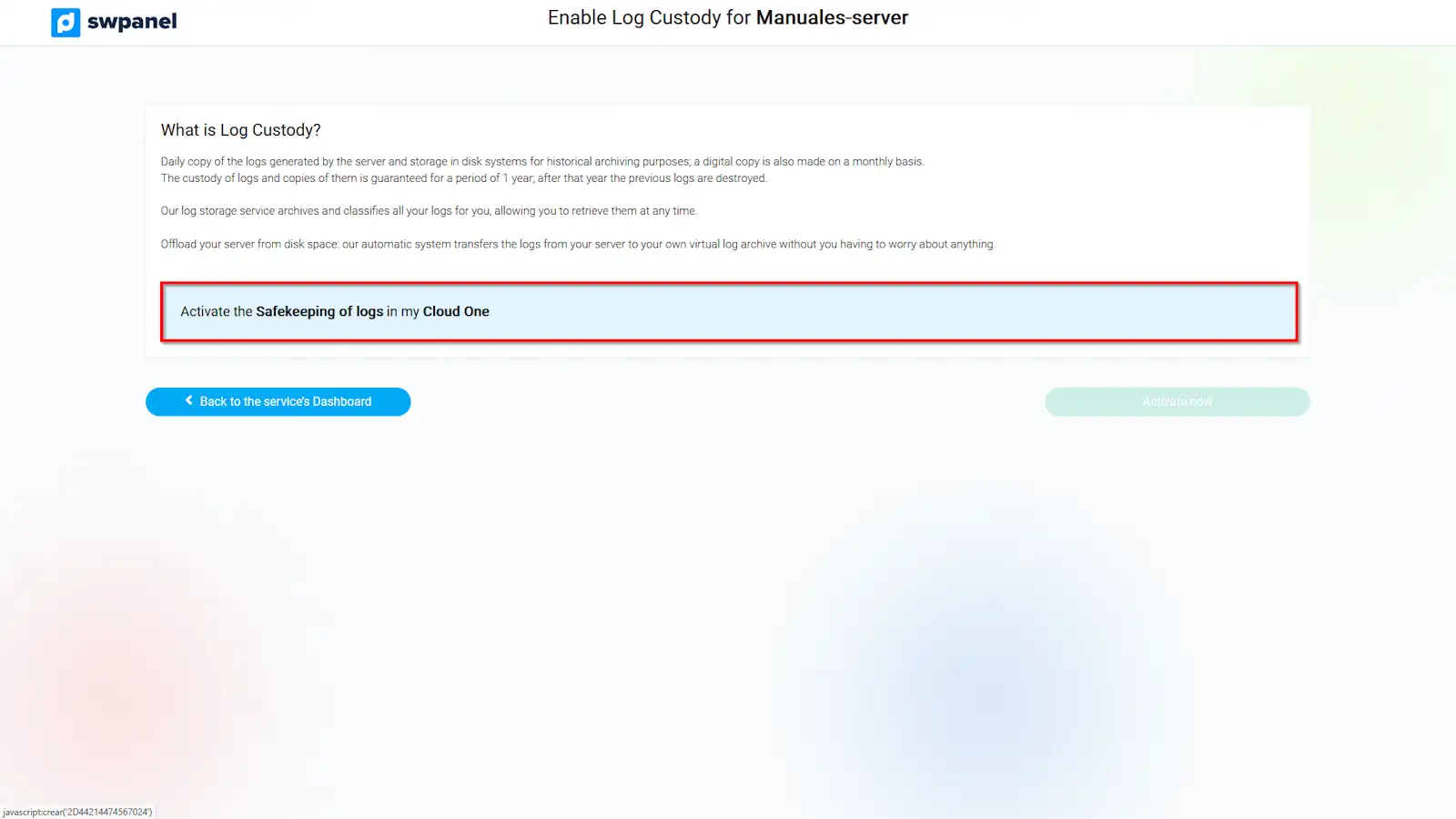
info_capture The screenshot is for guidance purposes. It was taken using version 2025.03.0001 dated 19/03/2025. It may differ from what the current version of SWPanel shows.
To access the logs stored on our centralized server, the system will create an FTP account (you will see the connection details in the text block located on the right); you only need to choose the password for this FTP account. To finish, you must accept the service hiring by clicking the "Activate now" button.
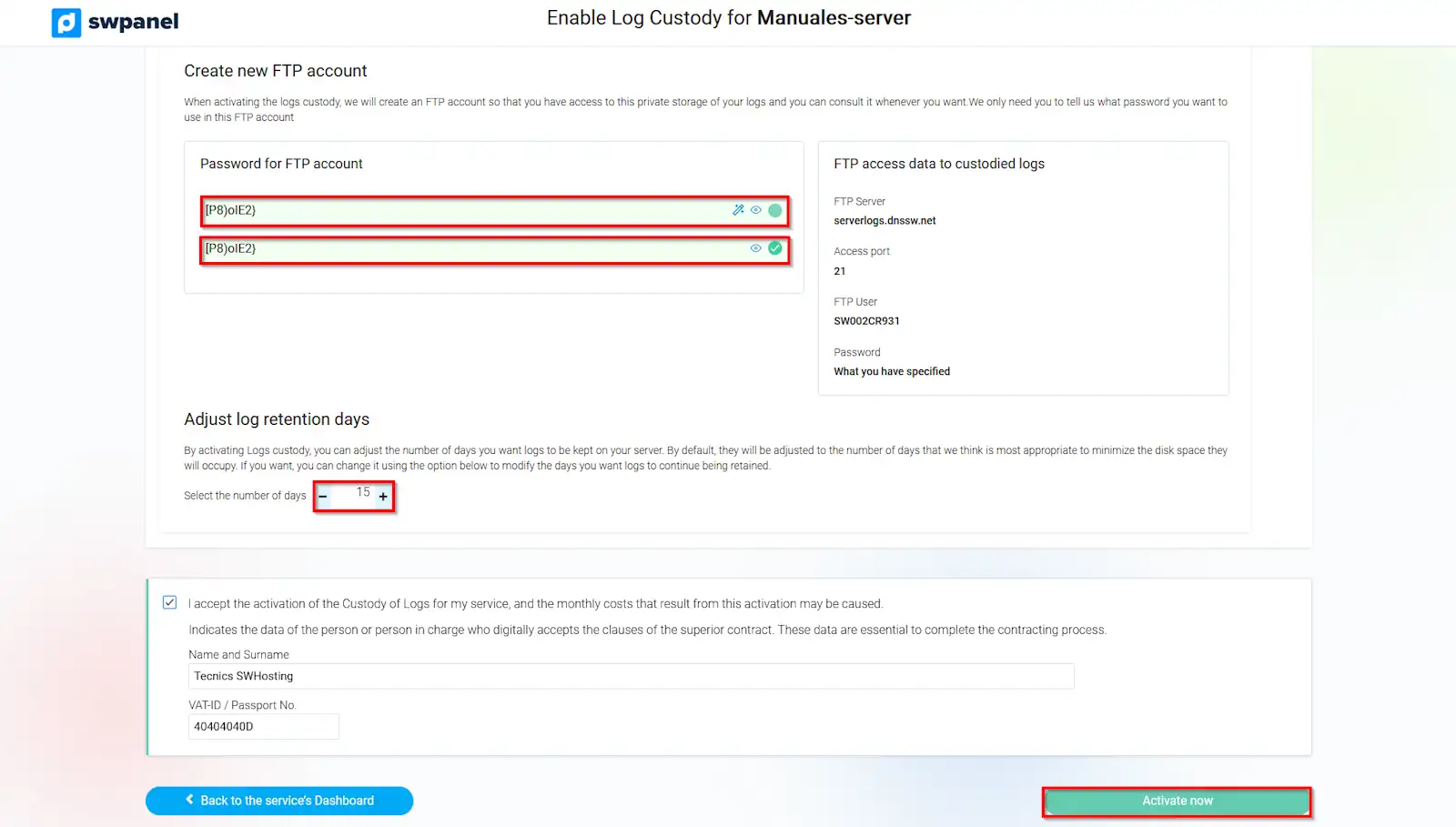
info_capture The screenshot is for guidance purposes. It was taken using version 2025.03.0001 dated 19/03/2025. It may differ from what the current version of SWPanel shows.
Once log custody for your Cloud server is activated, you can configure it to only store the logs of the last month internally, as the log custody service will be responsible for saving those of the last 365 days. In this way, you will reduce the disk space on your Cloud server occupied by logs.
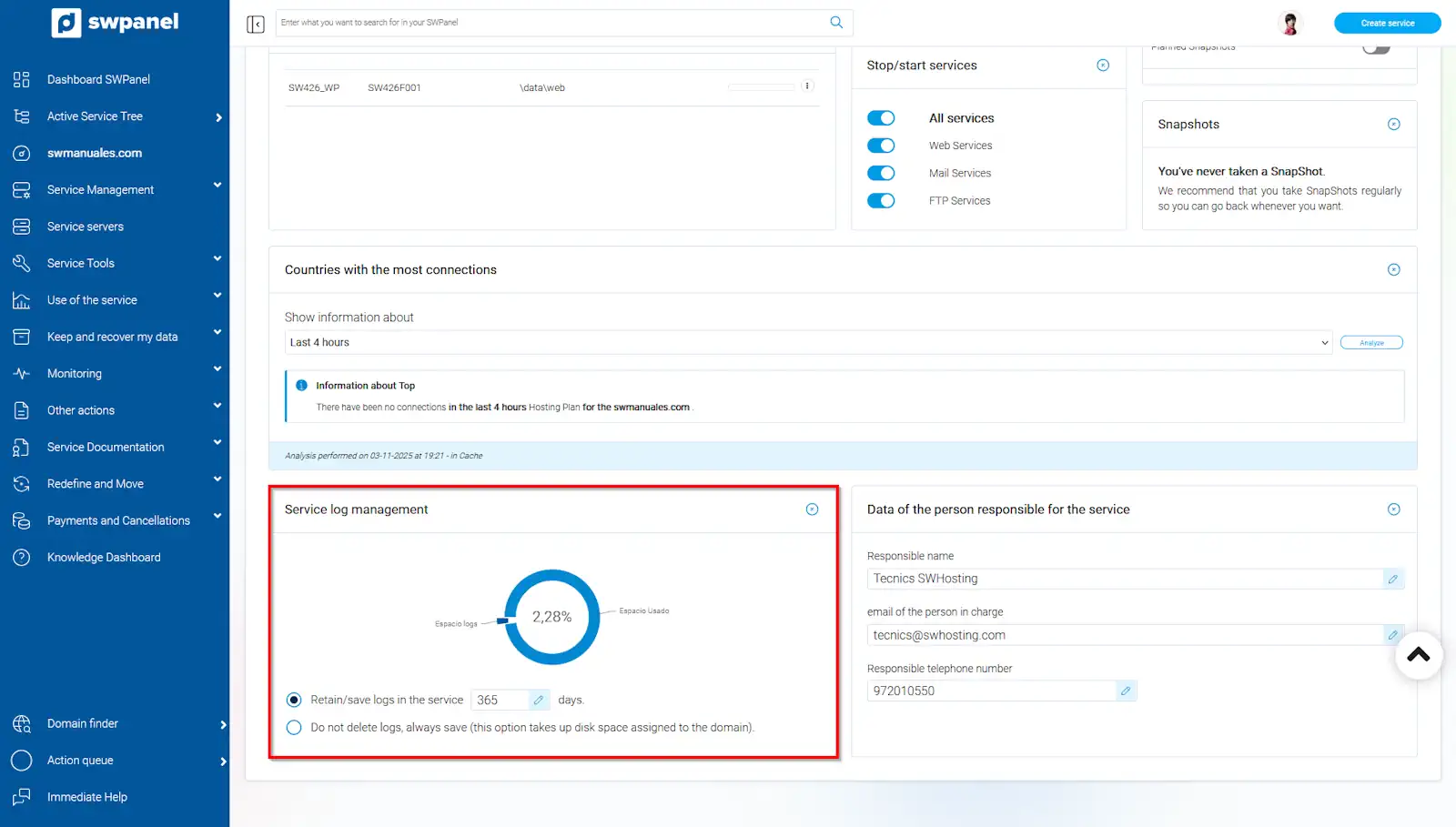
info_capture The screenshot is for guidance purposes. It was taken using version 2025.03.0001 dated 19/03/2025. It may differ from what the current version of SWPanel shows.
To access your stored logs, you must use an FTP client with the access data and credentials you indicated in step 4. Once connected to the directory through your FTP client, you will be able to see different compressed files in tar.gz format, distinguished by the name corresponding to the creation date of each file.
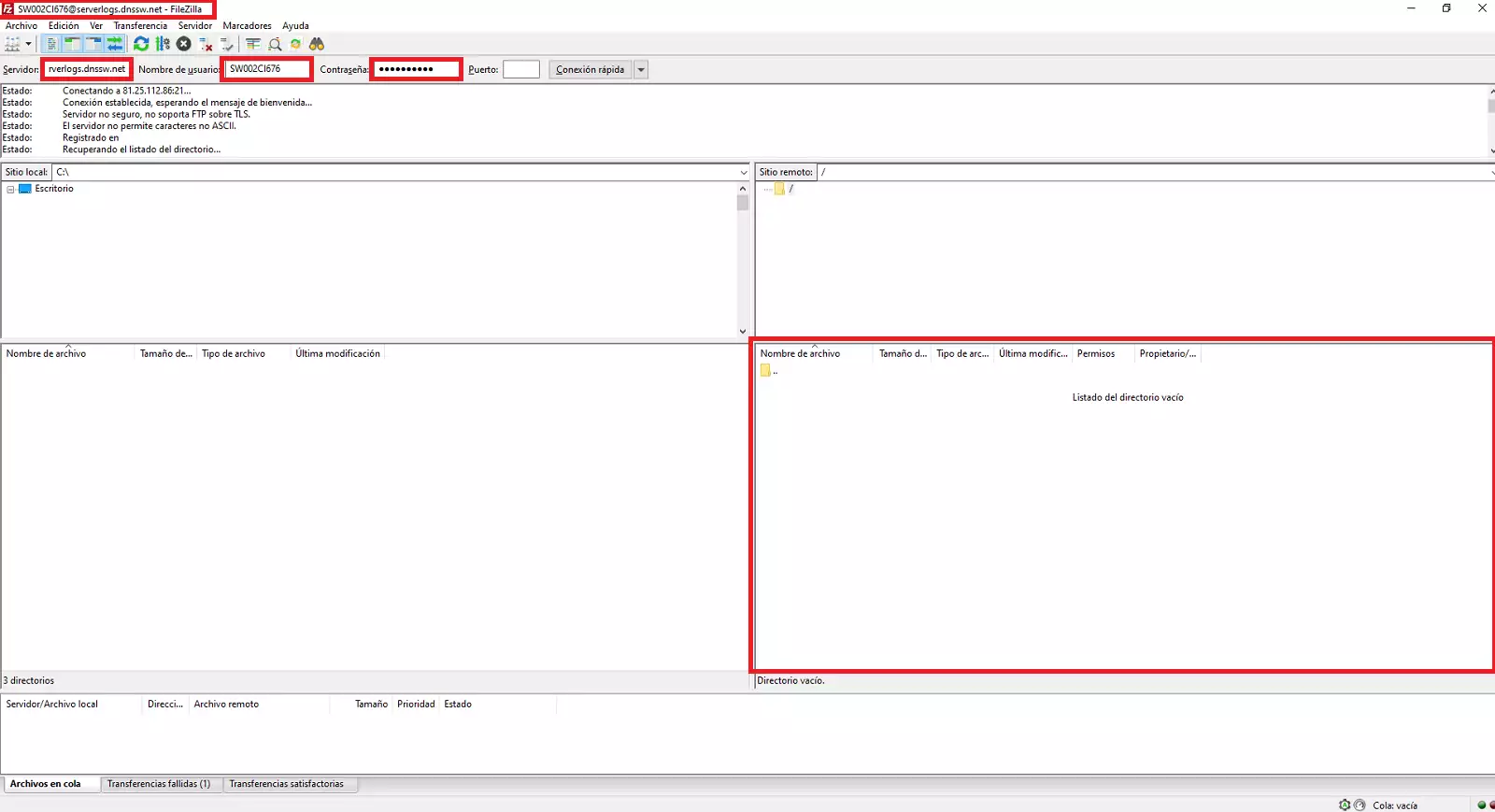
Once the file corresponding to the date on which you wish to recover the logs has been downloaded, you can decompress it and access the directories corresponding to the Mail, Web, and FTP logs generated by the server on the indicated date.