
File management
In your SWPanel, you have a File Manager with which you can manage and administer the directories and files of your Website.
To access the file manager, first you must search for the service where the website to be managed is located, using the top search bar of your SWPanel
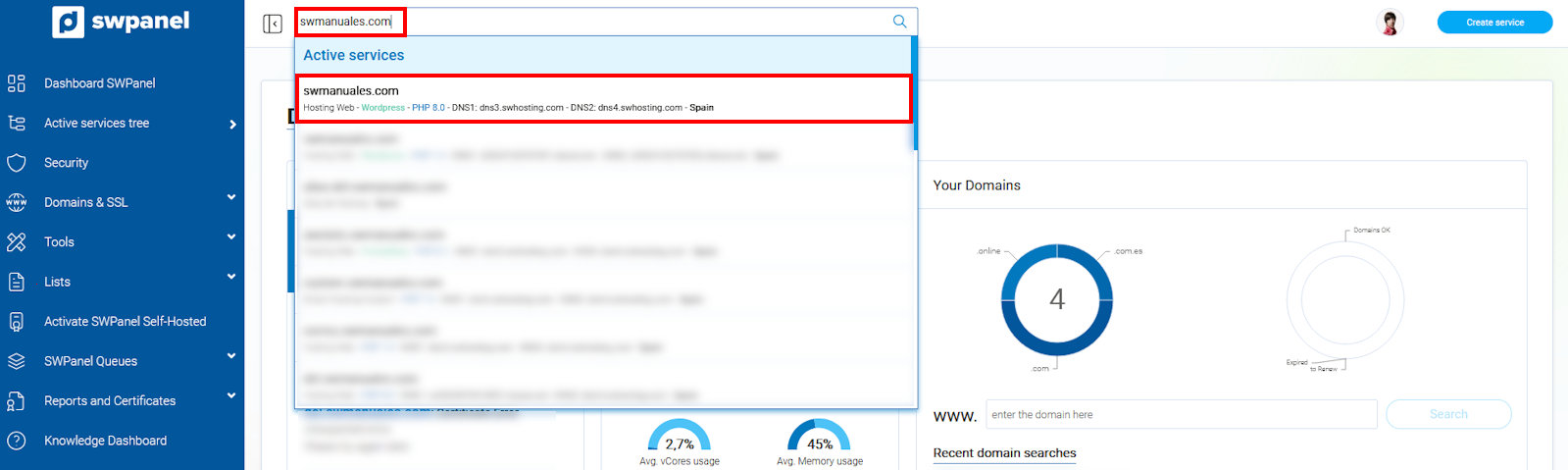
info_capture The screenshot is for guidance purposes. It was taken using version 2026.001.0057 dated 16/05/2026. It may differ from what the current version of SWPanel shows.
Once inside your service dashboard, you must select the File Manager option, which you will find in the blue left side menu by expanding the Service Management option
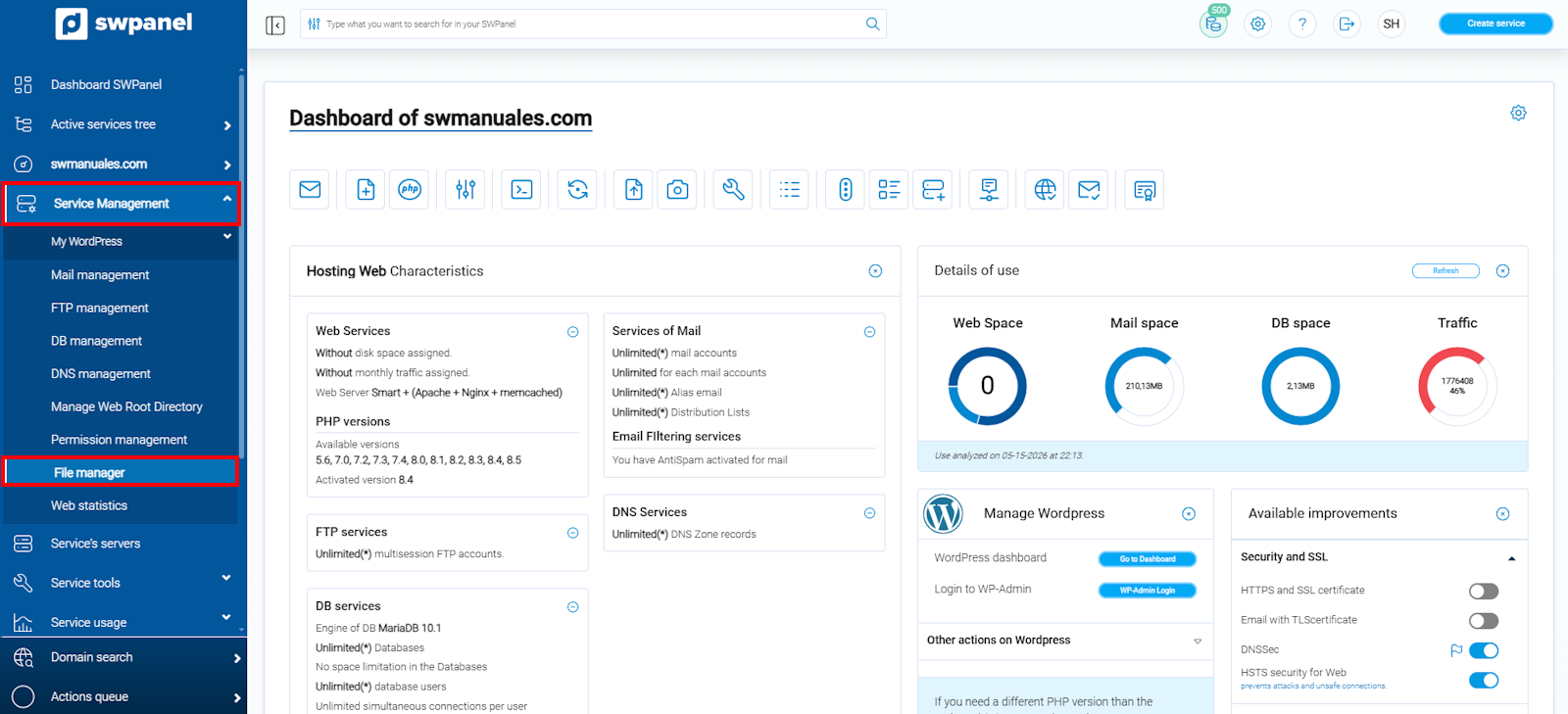
info_capture The screenshot is for guidance purposes. It was taken using version 2026.001.0057 dated 16/05/2026. It may differ from what the current version of SWPanel shows.
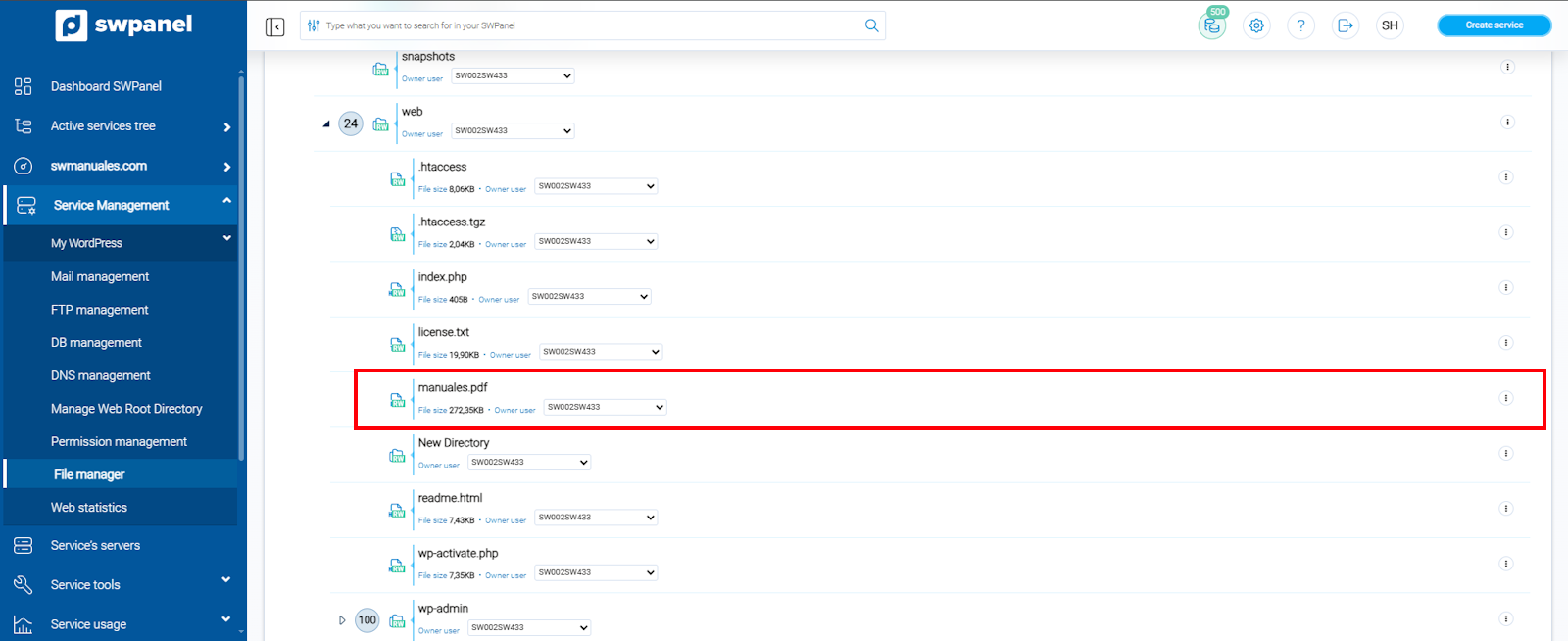
From this section, you can view the directories and files of your website and manage them as you wish, by expanding the [...] menu that appears to the right of each of them
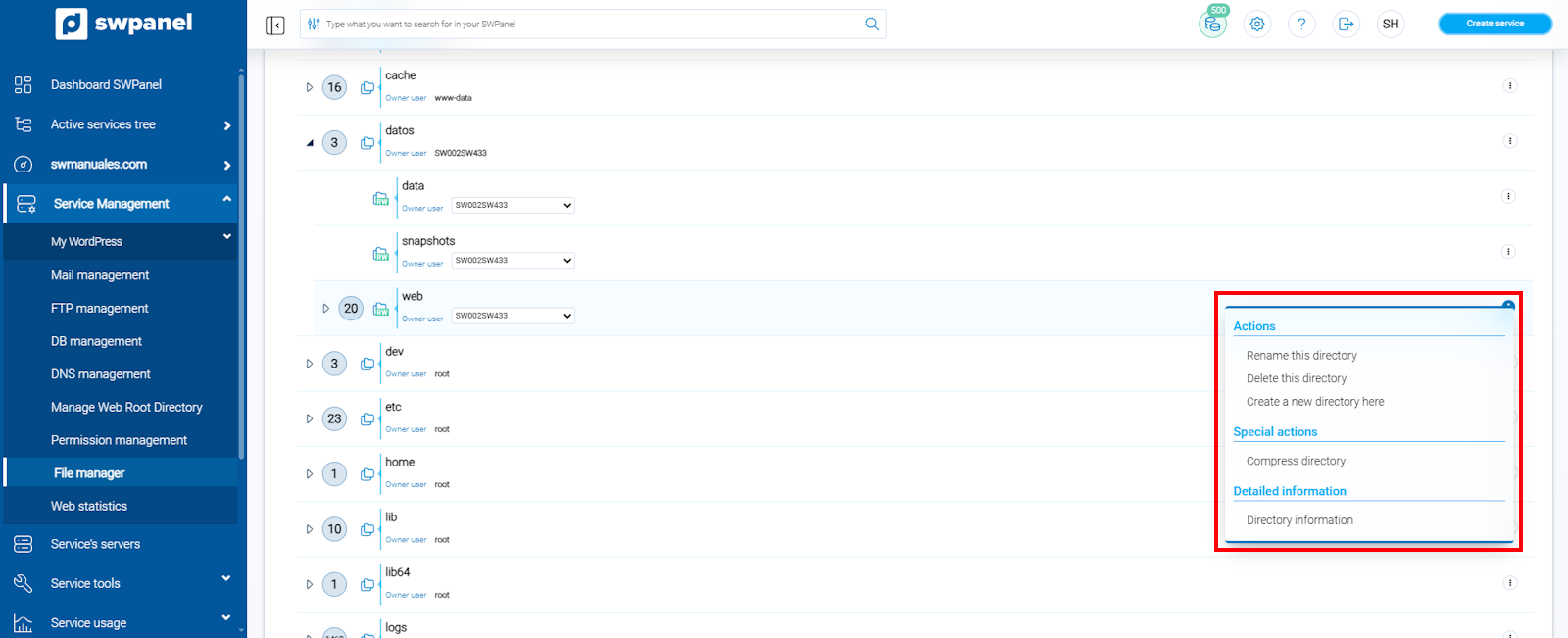
info_capture The screenshot is for guidance purposes. It was taken using version 2026.001.0057 dated 16/05/2026. It may differ from what the current version of SWPanel shows.
Directories
Regarding directories, SWPanel allows you to perform the following actions:
Rename It allows you to give another name to the directory you want. Select the Rename option, type the name that suits you best, and click on the confirmation checkmark:
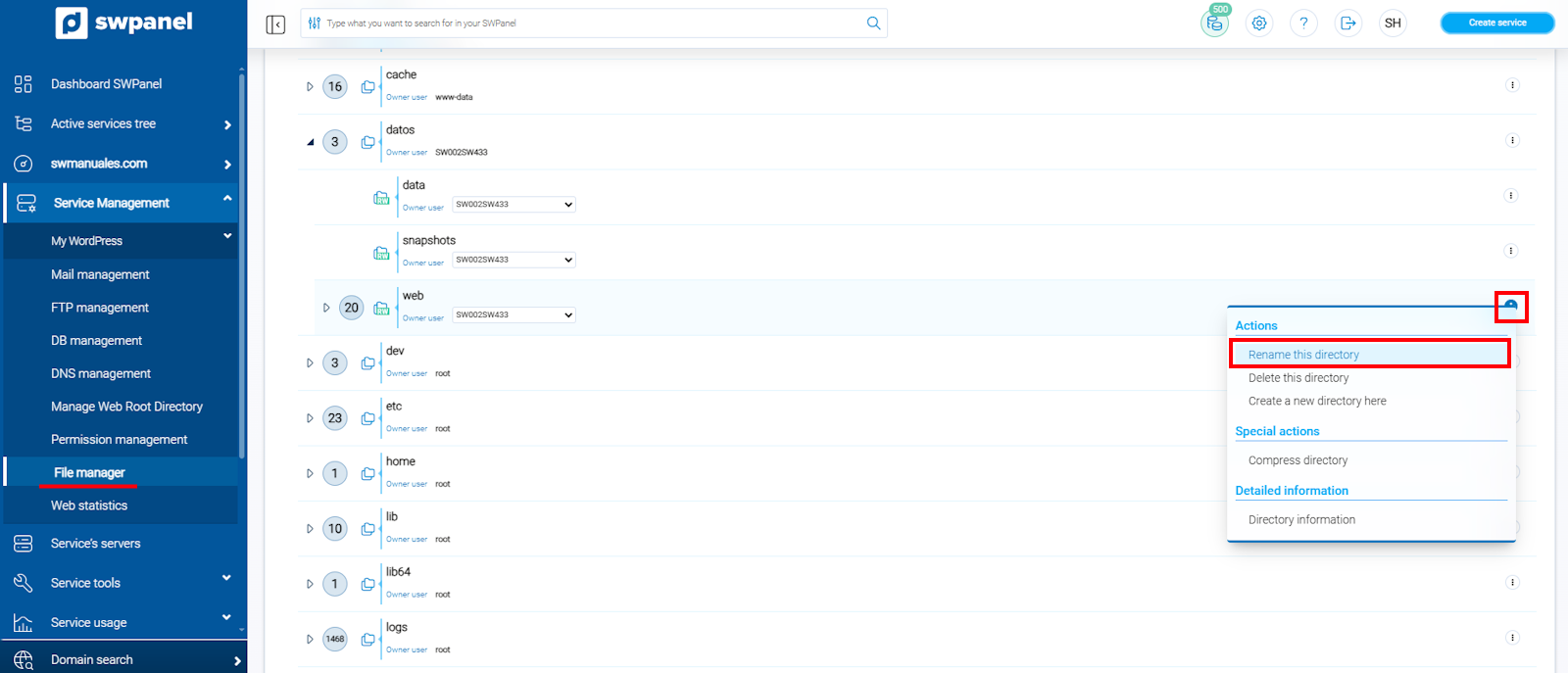
info_capture The screenshot is for guidance purposes. It was taken using version 2026.001.0057 dated 16/05/2026. It may differ from what the current version of SWPanel shows.
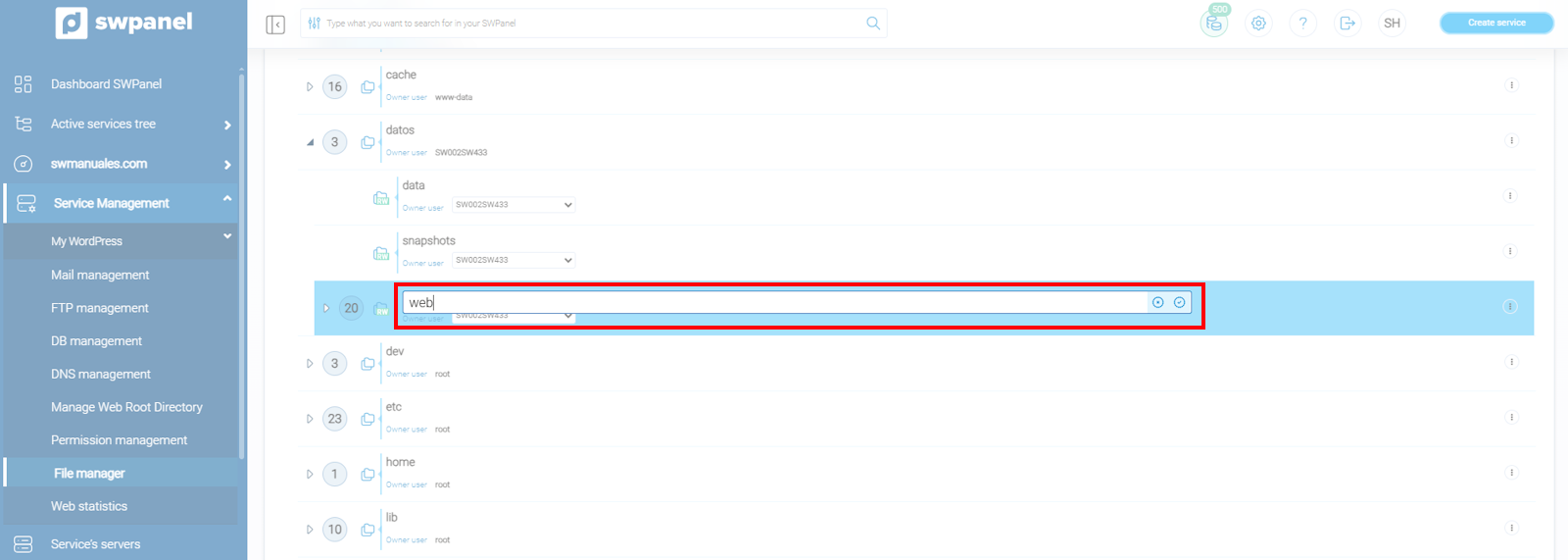
info_capture The screenshot is for guidance purposes. It was taken using version 2026.001.0057 dated 16/05/2026. It may differ from what the current version of SWPanel shows.
Delete
You can delete any directory on your website. Select the Delete option and confirm the action by clicking Yes, delete
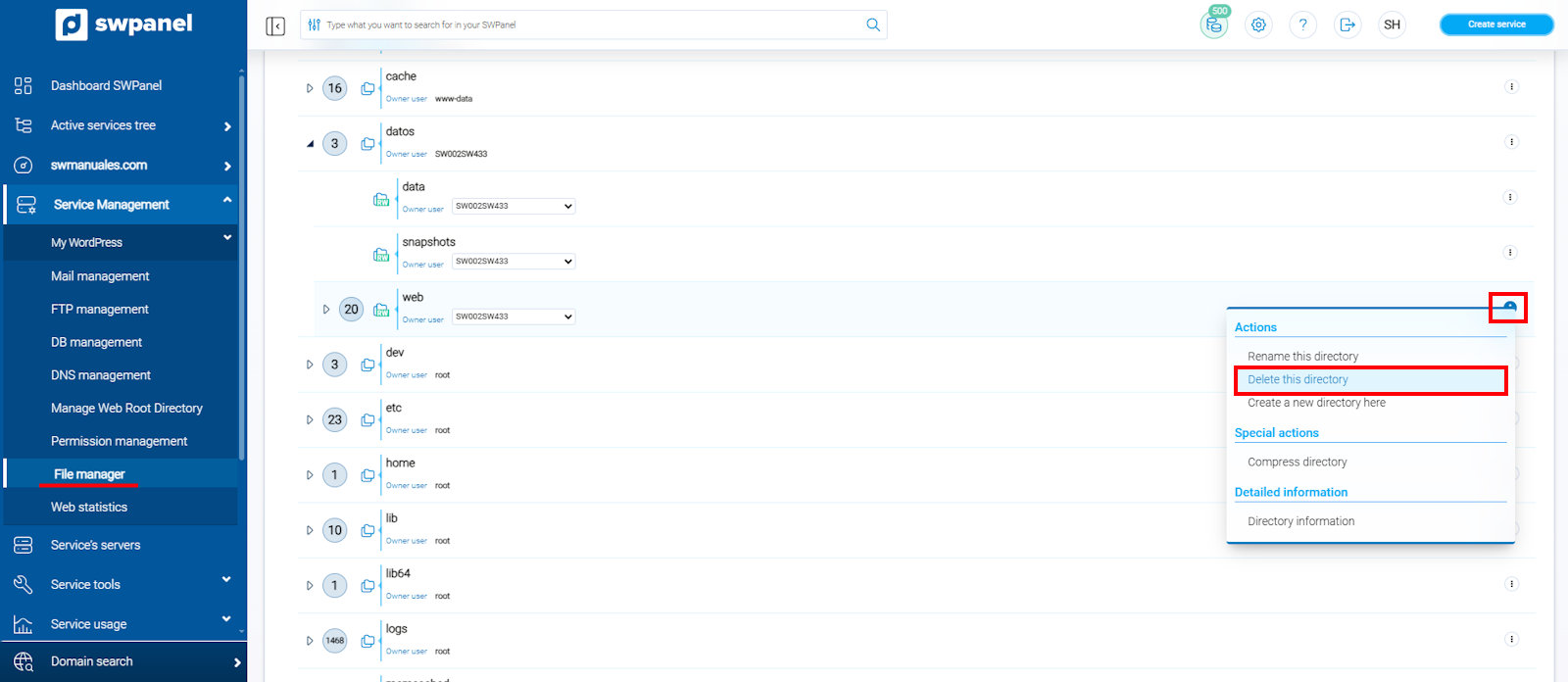
info_capture The screenshot is for guidance purposes. It was taken using version 2026.001.0057 dated 16/05/2026. It may differ from what the current version of SWPanel shows.
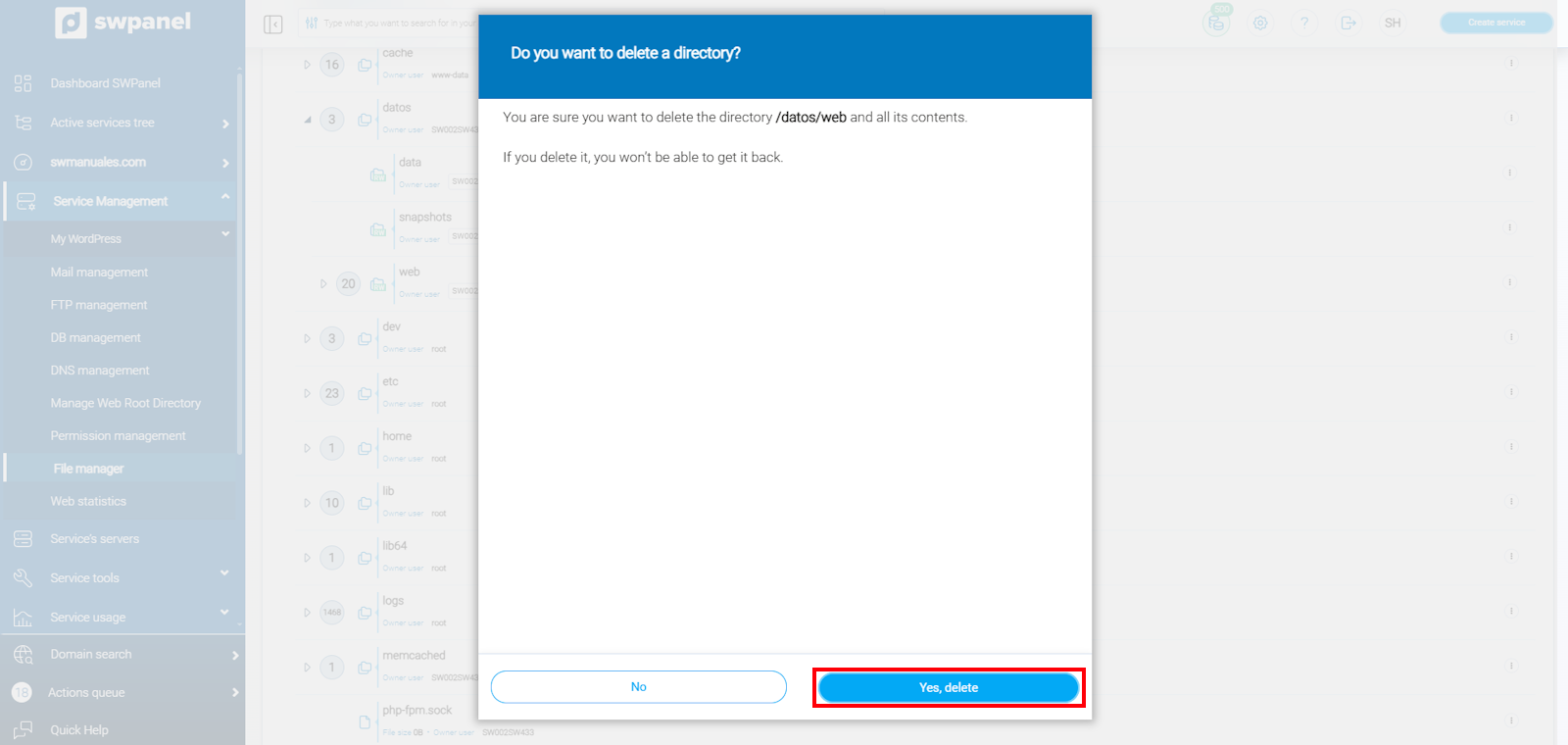
info_capture The screenshot is for guidance purposes. It was taken using version 2026.001.0057 dated 16/05/2026. It may differ from what the current version of SWPanel shows.
Create a new directory here
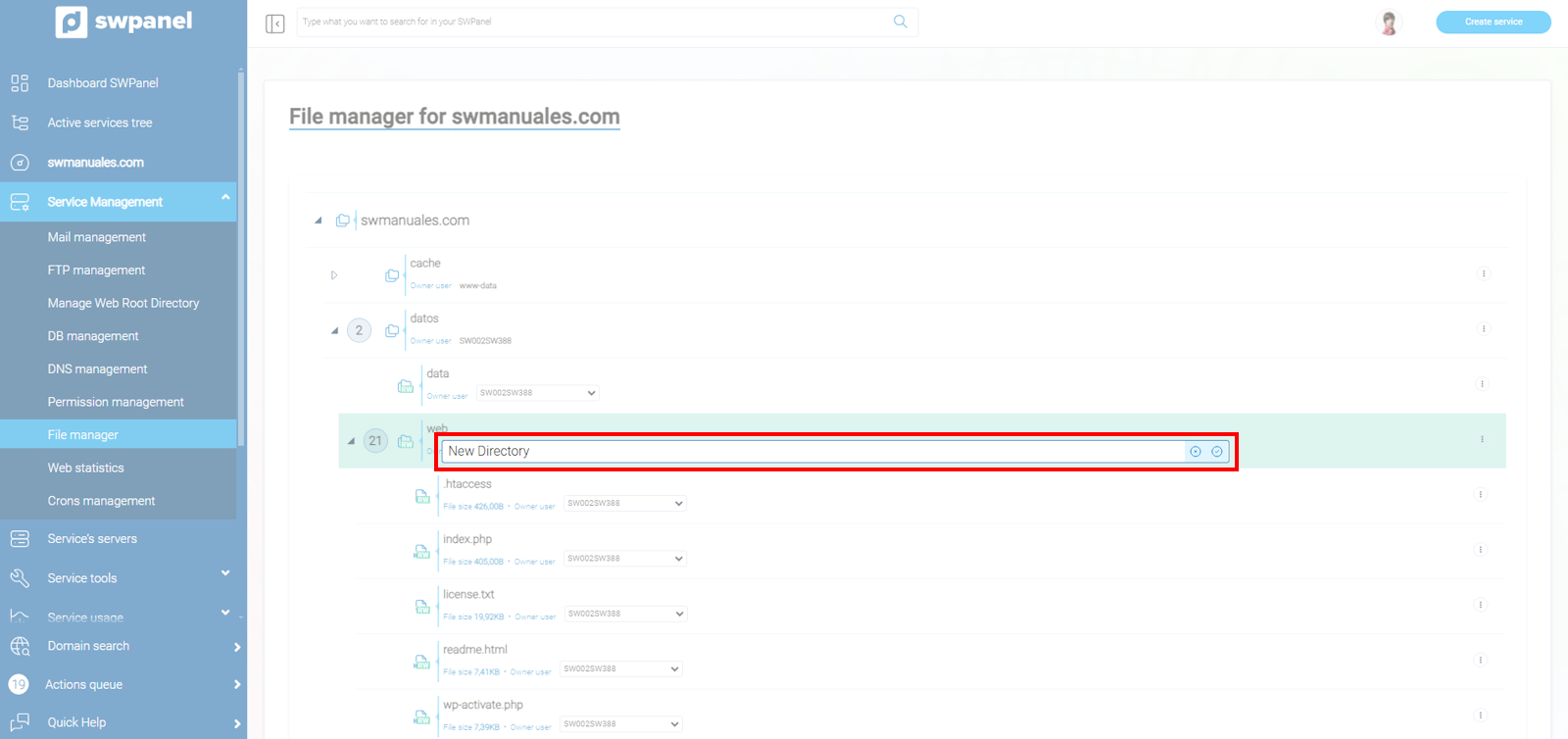
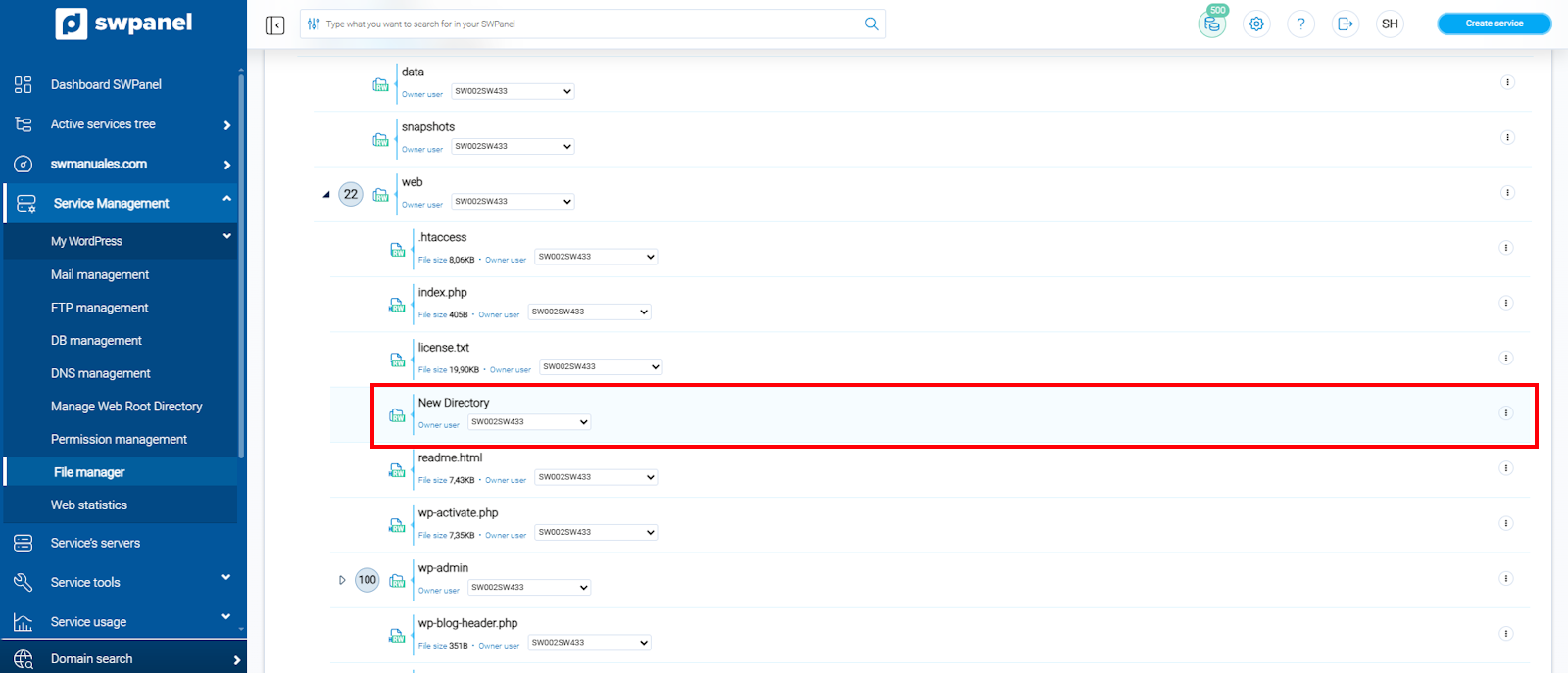
Add as many directories as you want. Select the Create a new directory here option, enter the name you want to give it, and confirm by clicking the acceptance checkmark. In a few seconds, you will see it added to your file list
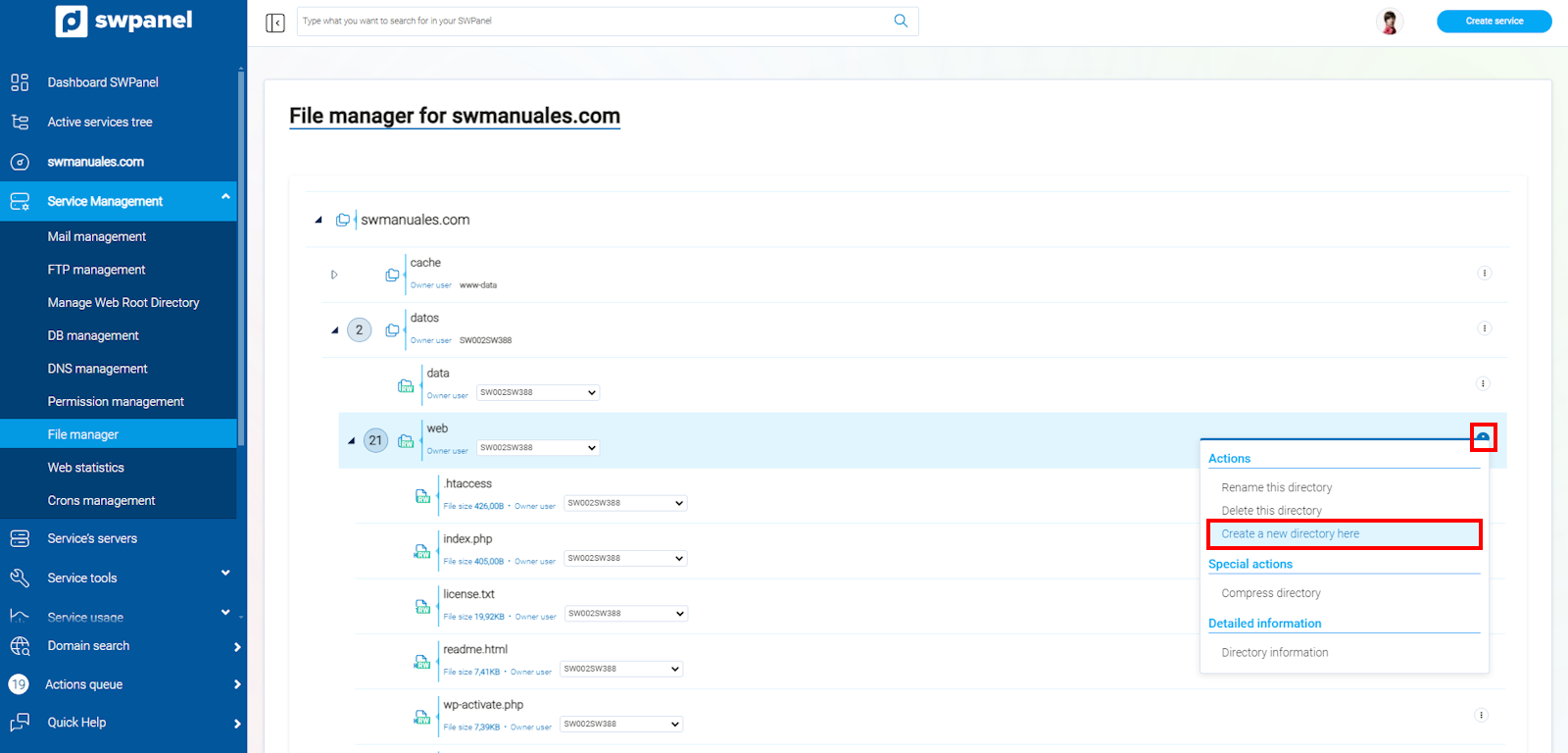
info_capture The screenshot is for guidance purposes. It was taken using version 2026.001.0057 dated 16/05/2026. It may differ from what the current version of SWPanel shows.
info_capture The screenshot is for guidance purposes. It was taken using version 2026.001.0057 dated 16/05/2026. It may differ from what the current version of SWPanel shows.
info_capture The screenshot is for guidance purposes. It was taken using version 2026.001.0057 dated 16/05/2026. It may differ from what the current version of SWPanel shows.
Compress directory
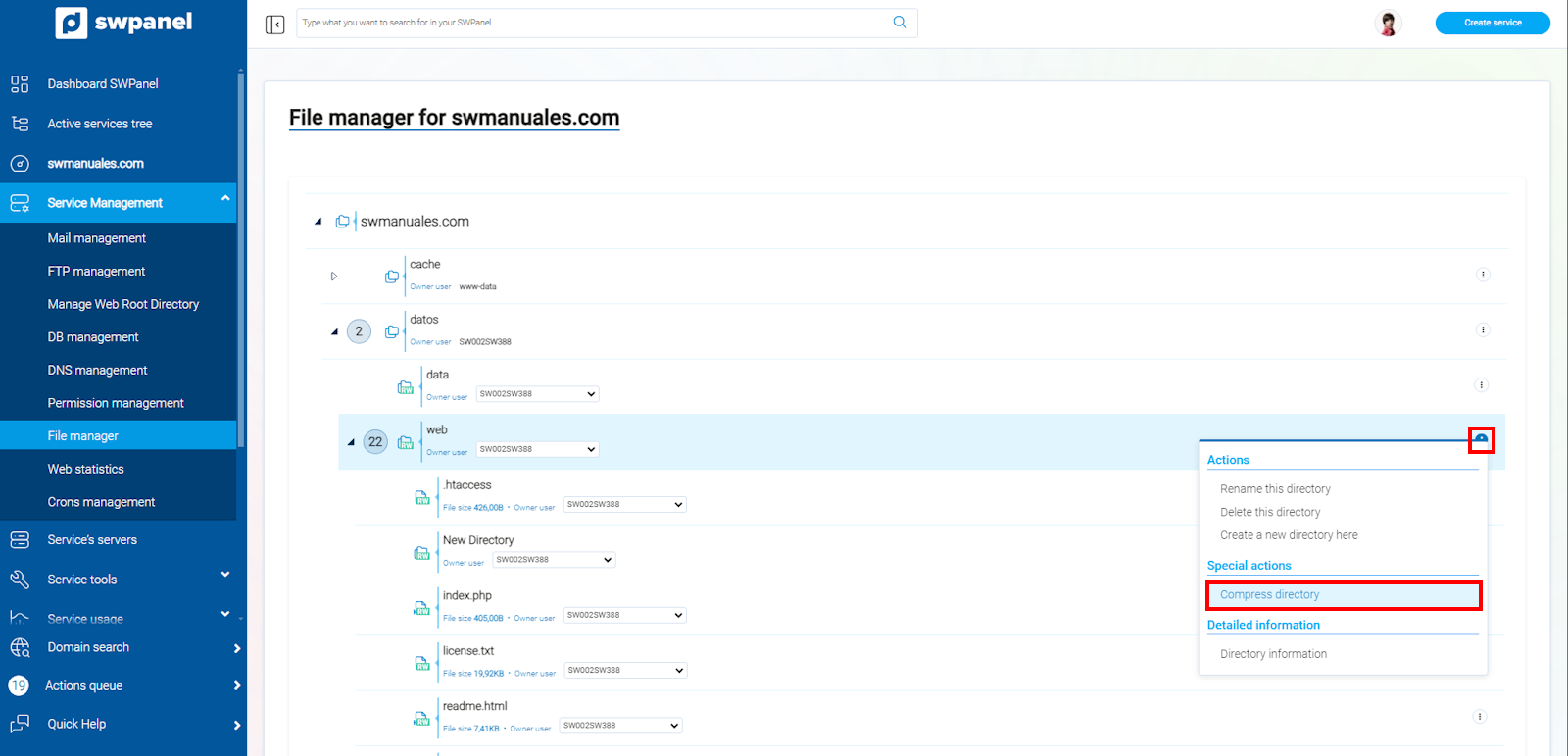
The purpose of this function is to group and compress the files contained in any directory, creating a single file that you can download locally. Select the Compress directory option
info_capture The screenshot is for guidance purposes. It was taken using version 2026.001.0057 dated 16/05/2026. It may differ from what the current version of SWPanel shows.
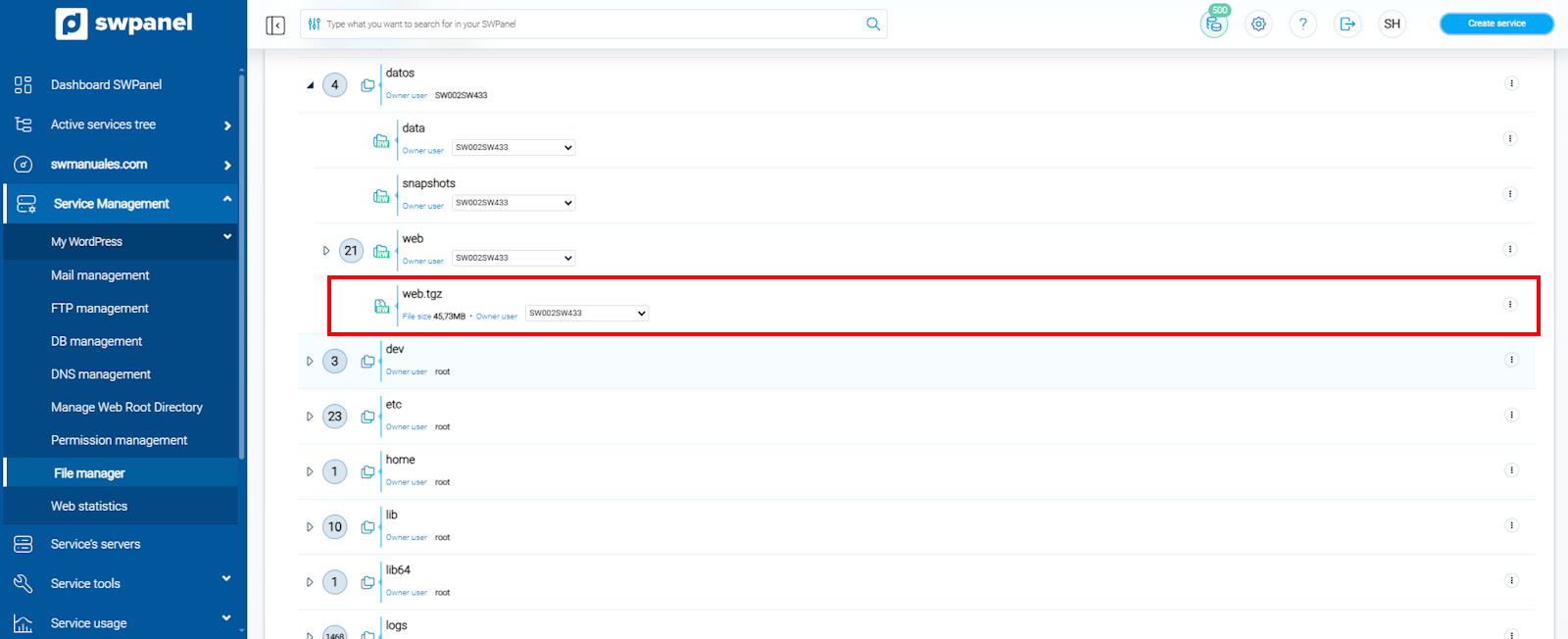
You will see that a file in .tgz format (Linux compression format) has been added just below the directory we compressed
info_capture The screenshot is for guidance purposes. It was taken using version 2026.001.0057 dated 16/05/2026. It may differ from what the current version of SWPanel shows.
You can download this compressed file to your computer by expanding the [...] menu -> Download file
info File downloads are limited to 250mb; for larger files, you must download them via FTP.
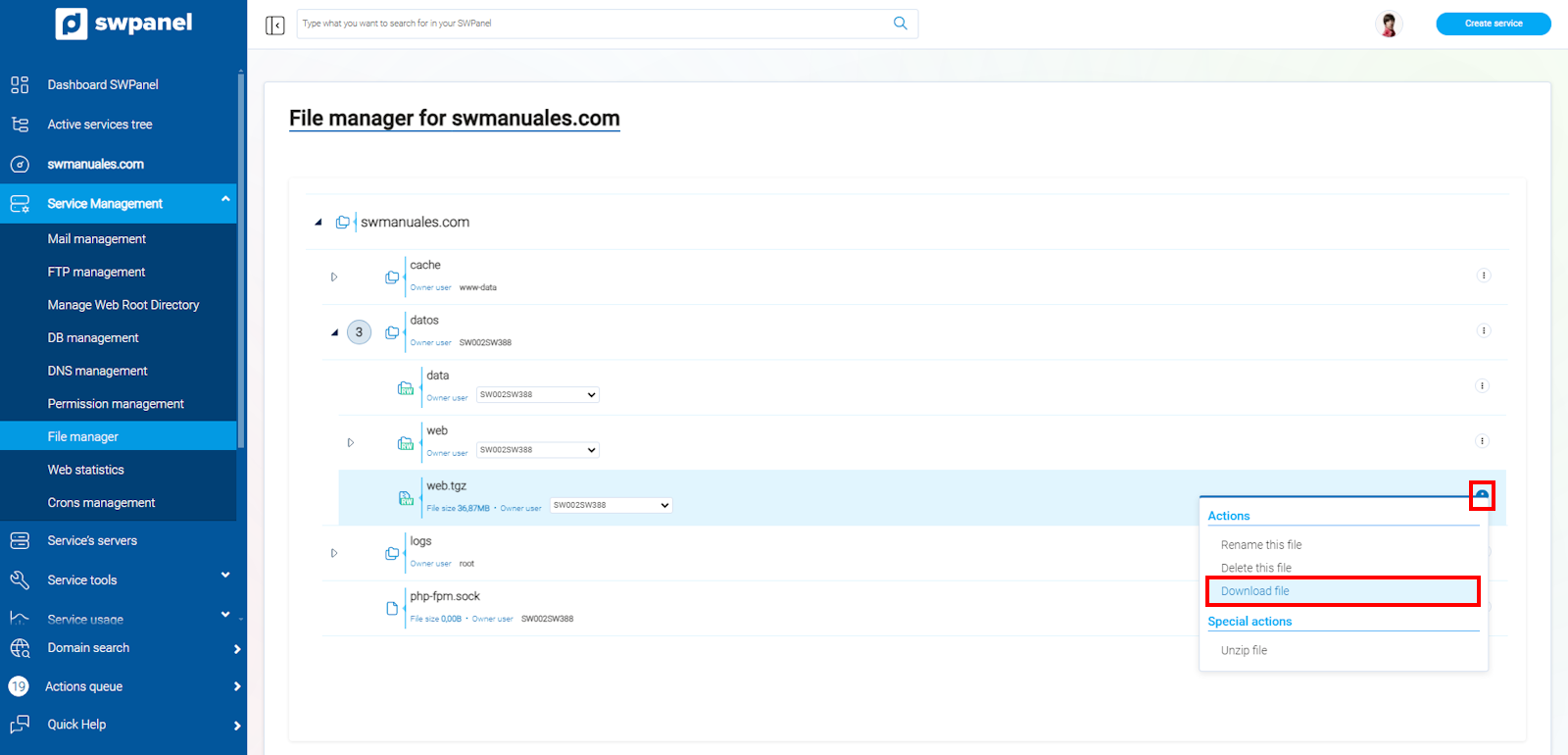
info_capture The screenshot is for guidance purposes. It was taken using version 2026.001.0057 dated 16/05/2026. It may differ from what the current version of SWPanel shows.
And it also gives you the option to decompress it, from the same [...] menu
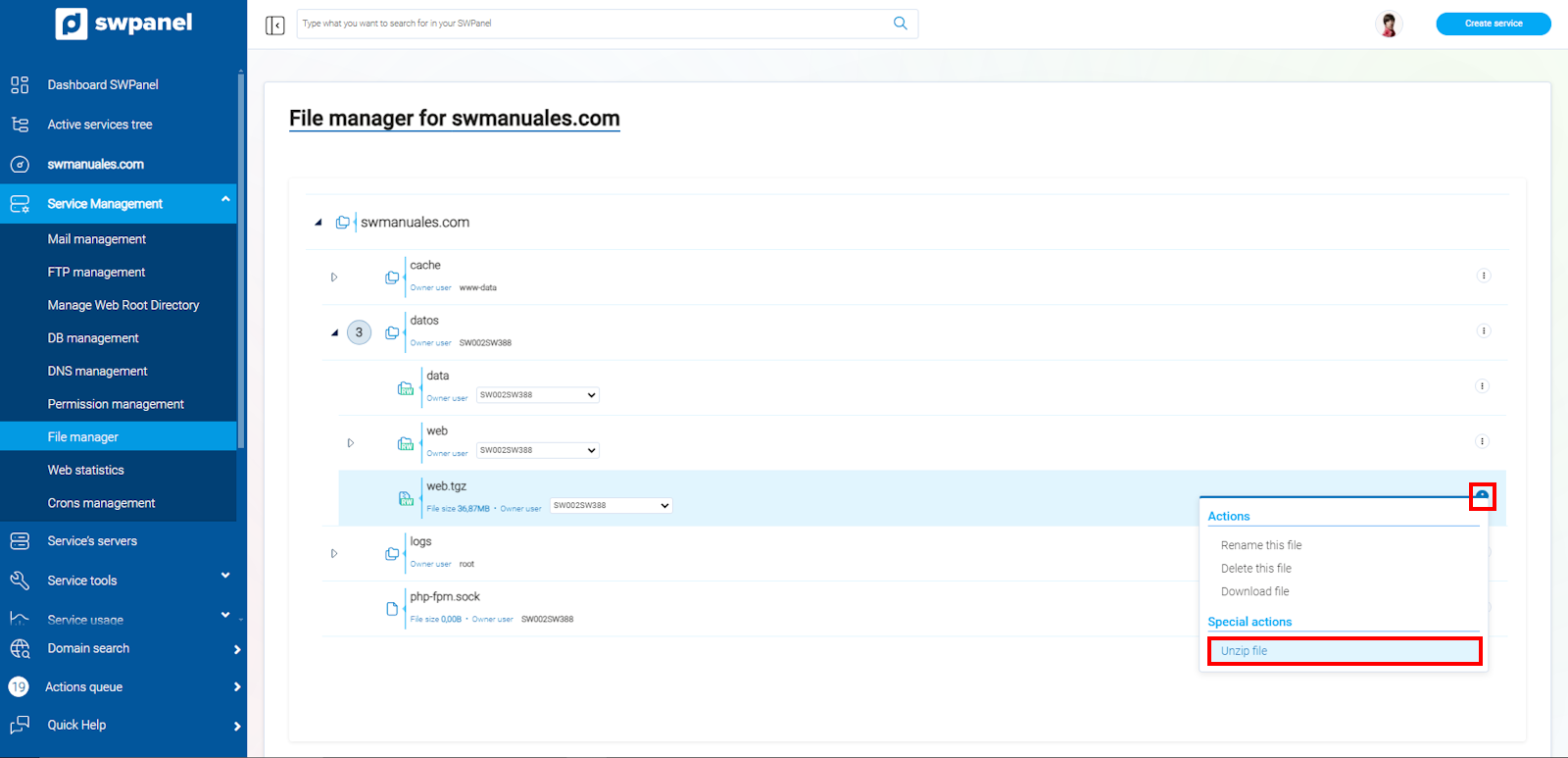
info_capture The screenshot is for guidance purposes. It was taken using version 2026.001.0057 dated 16/05/2026. It may differ from what the current version of SWPanel shows.
Files
Regarding files, SWPanel allows you to perform the following actions:
Rename It allows you to give another name to the file you want. Select the Rename option, type the name that suits you best, and click on the confirmation checkmark:
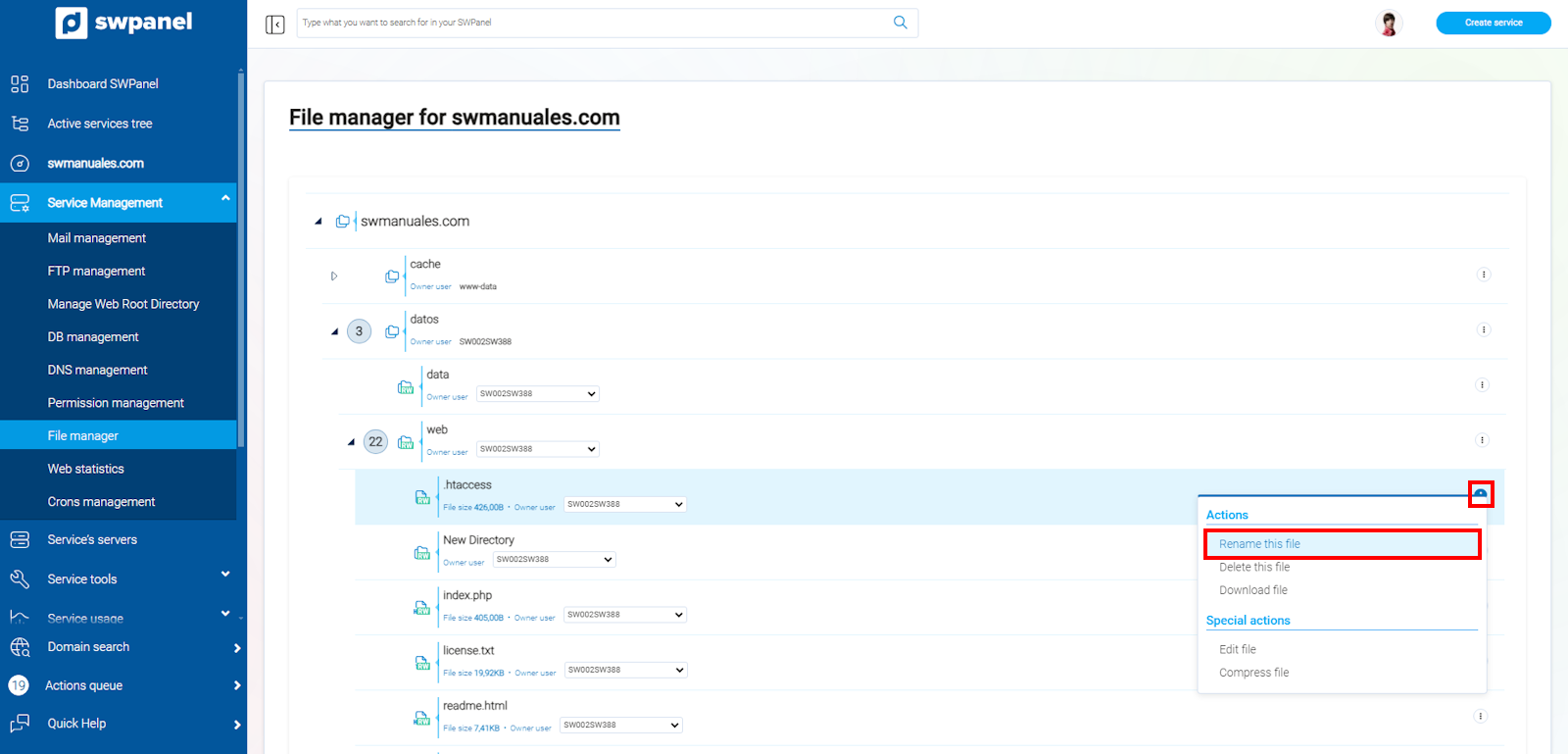
info_capture The screenshot is for guidance purposes. It was taken using version 2026.001.0057 dated 16/05/2026. It may differ from what the current version of SWPanel shows.
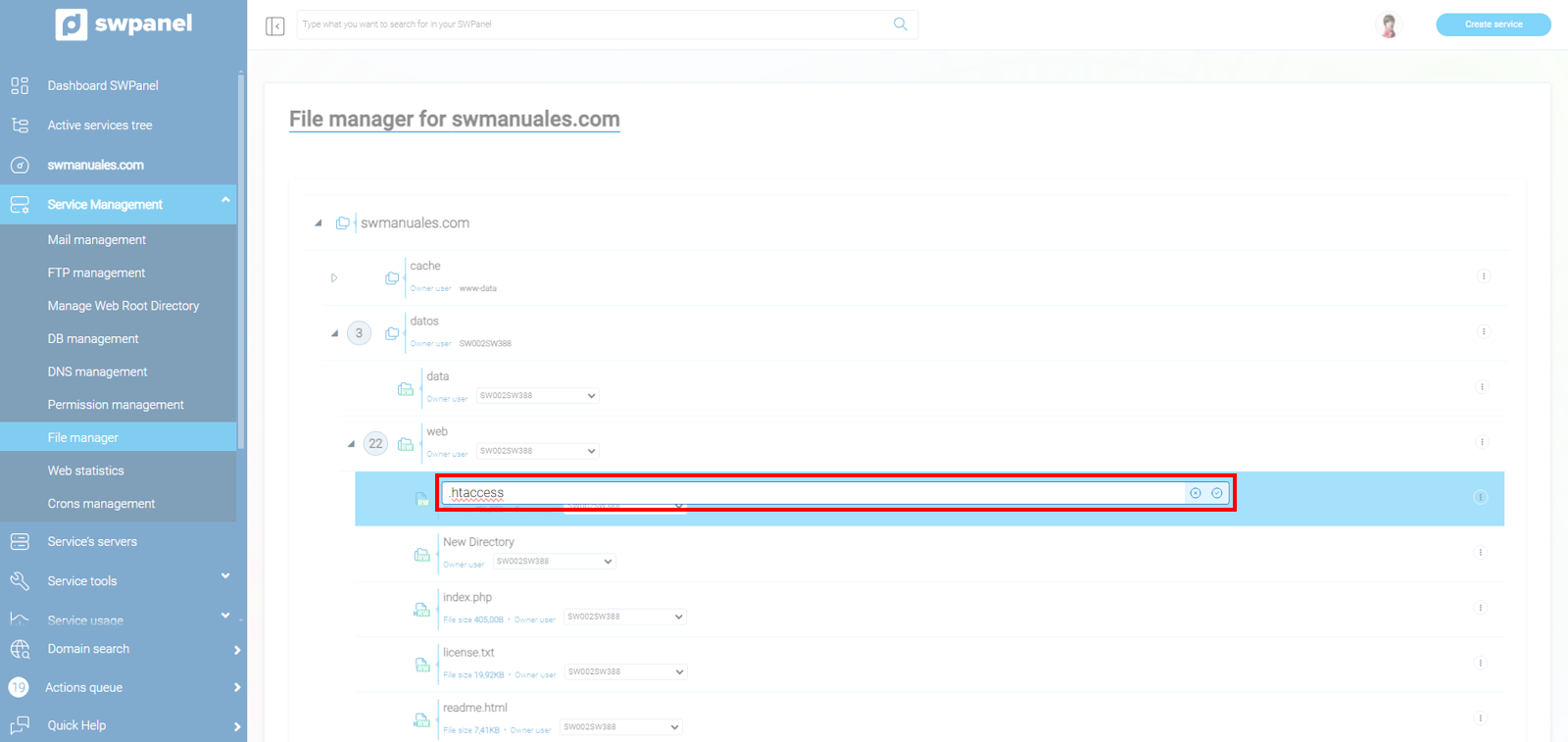
info_capture The screenshot is for guidance purposes. It was taken using version 2026.001.0057 dated 16/05/2026. It may differ from what the current version of SWPanel shows.
Delete
You can delete any file on your website. Select the Delete option and confirm the action by clicking Yes, delete
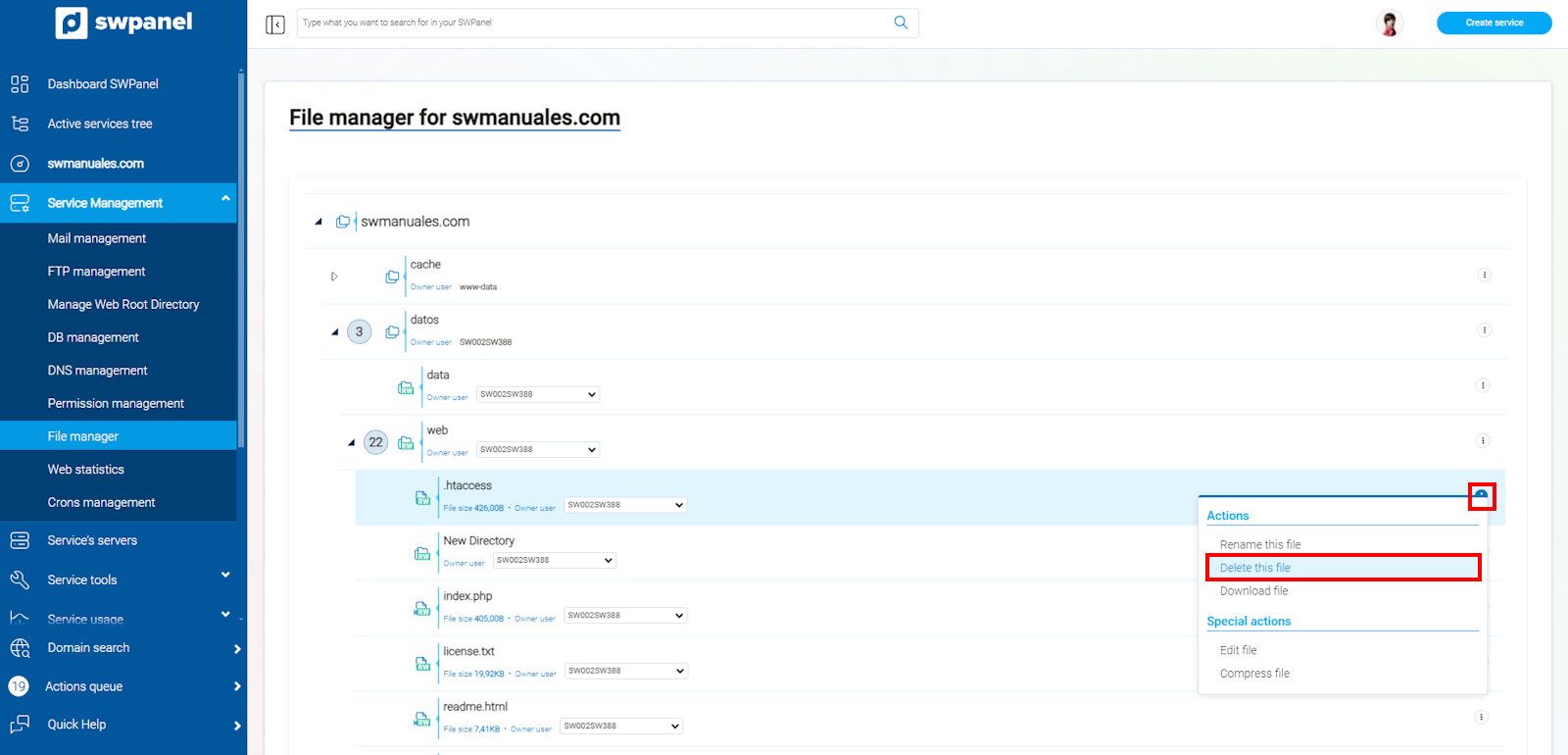
info_capture The screenshot is for guidance purposes. It was taken using version 2026.001.0057 dated 16/05/2026. It may differ from what the current version of SWPanel shows.
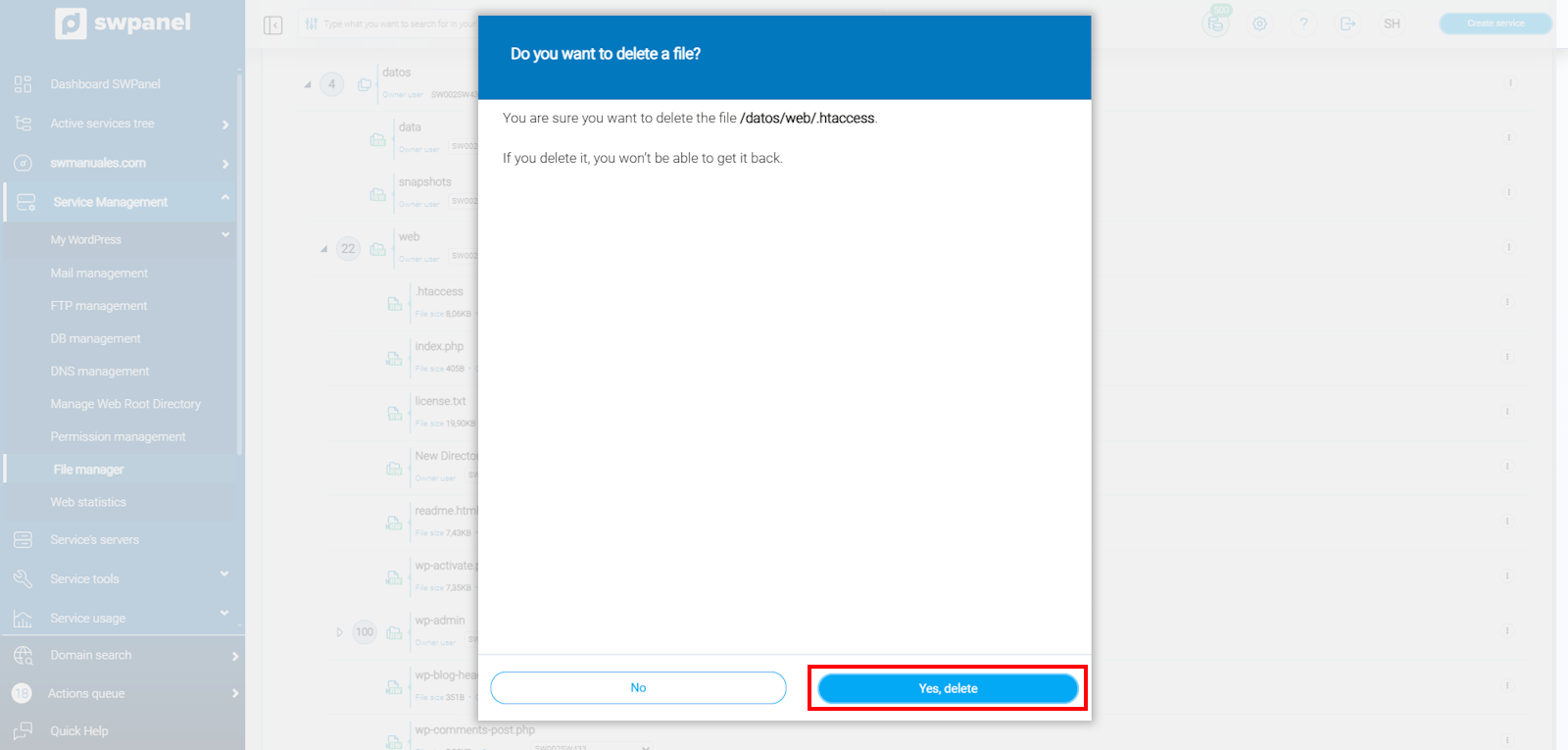
info_capture The screenshot is for guidance purposes. It was taken using version 2026.001.0057 dated 16/05/2026. It may differ from what the current version of SWPanel shows.
Download
Download the file you want to save it locally on your computer
info File downloads are limited to 250mb; for larger files, you must download them via FTP.
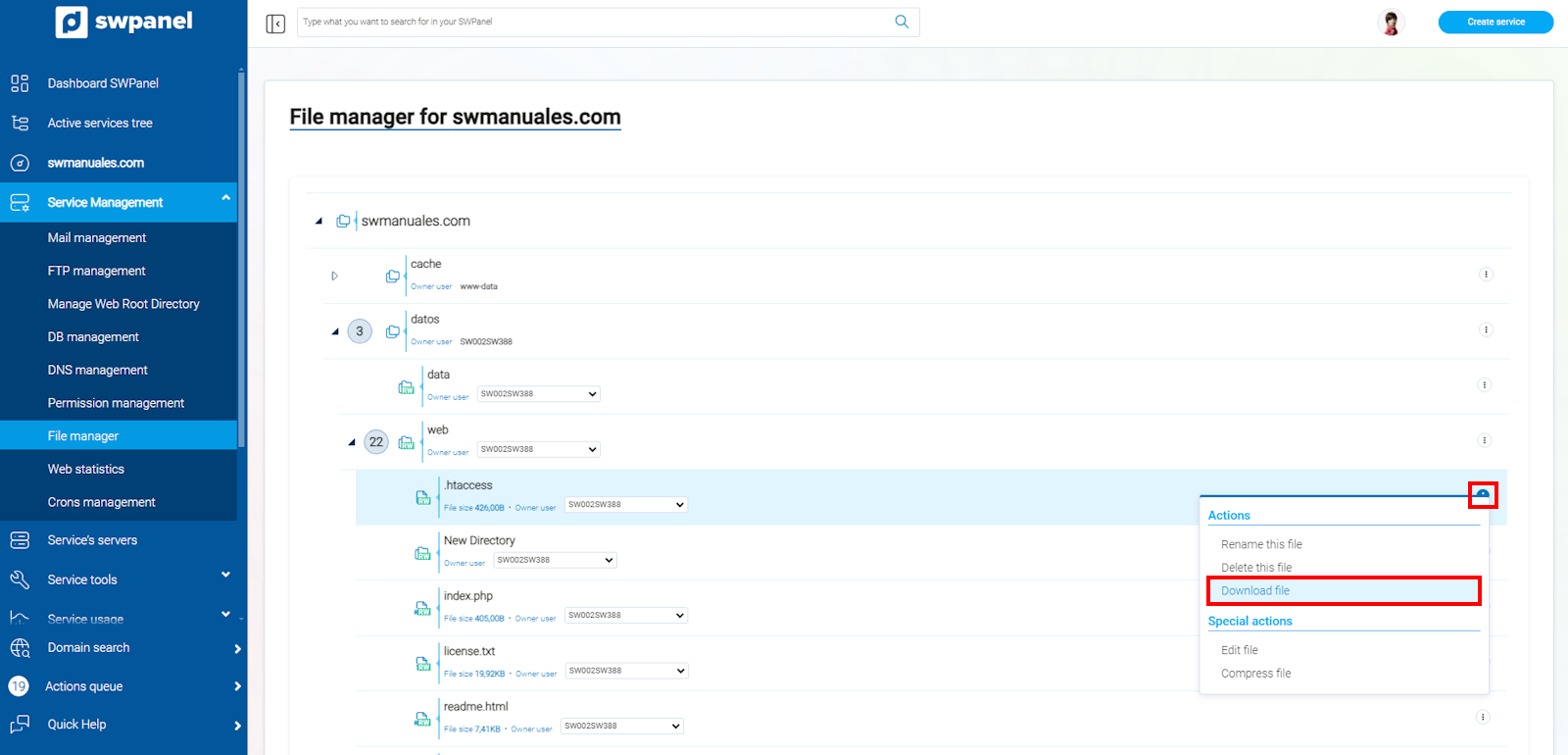
info_capture The screenshot is for guidance purposes. It was taken using version 2026.001.0057 dated 16/05/2026. It may differ from what the current version of SWPanel shows.
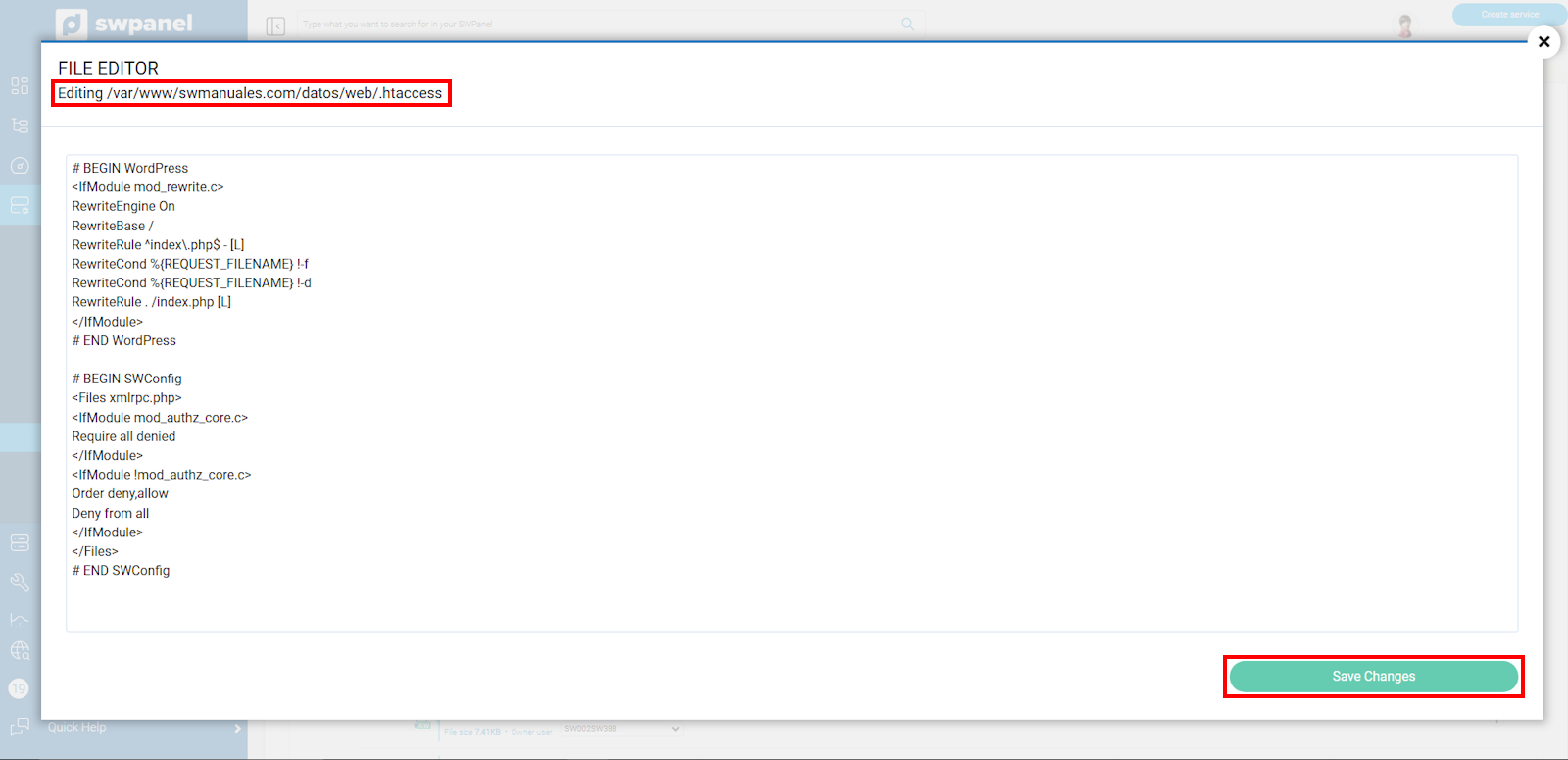
Edit You can edit any file directly from the SWPanel File Manager. When you select the Edit option, a text editor opens so you can modify whatever you need.
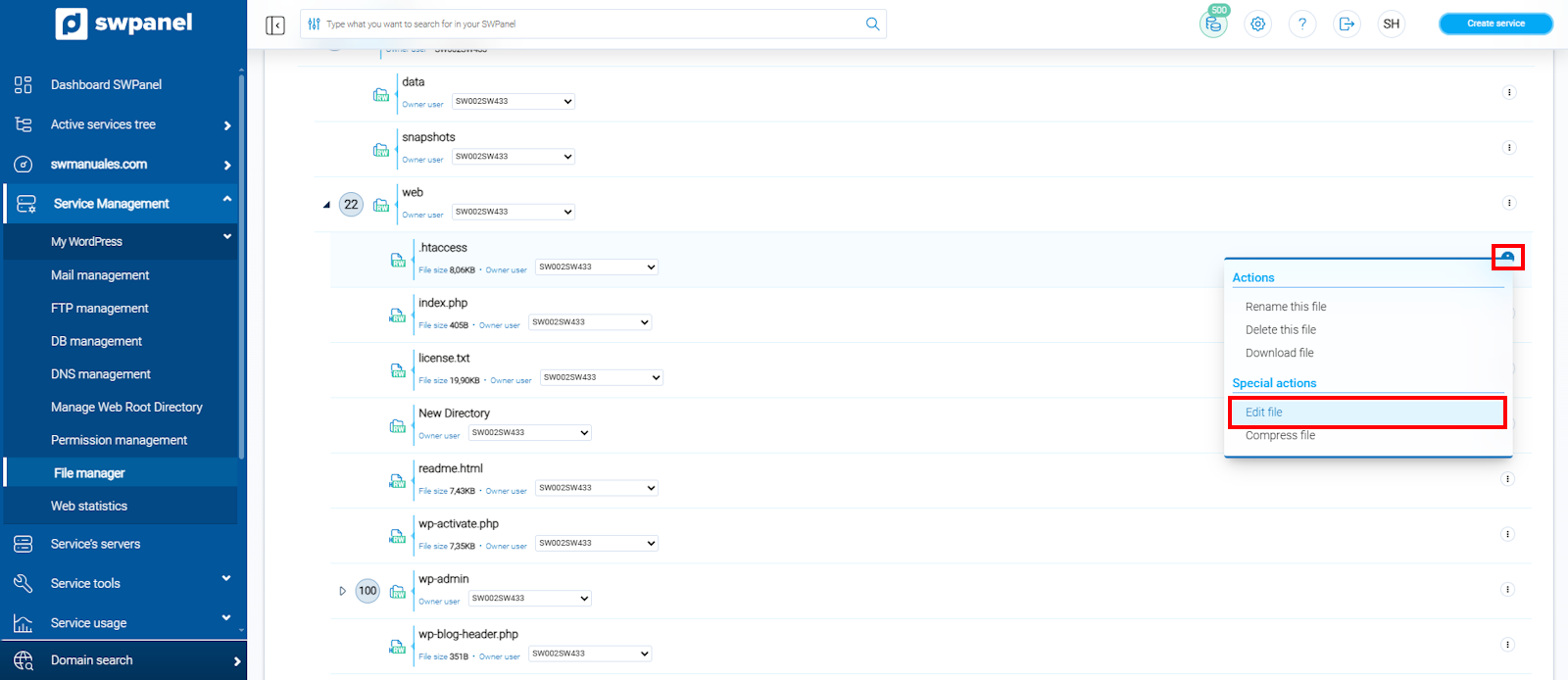
info_capture The screenshot is for guidance purposes. It was taken using version 2026.001.0057 dated 16/05/2026. It may differ from what the current version of SWPanel shows.
info_capture The screenshot is for guidance purposes. It was taken using version 2026.001.0057 dated 16/05/2026. It may differ from what the current version of SWPanel shows.
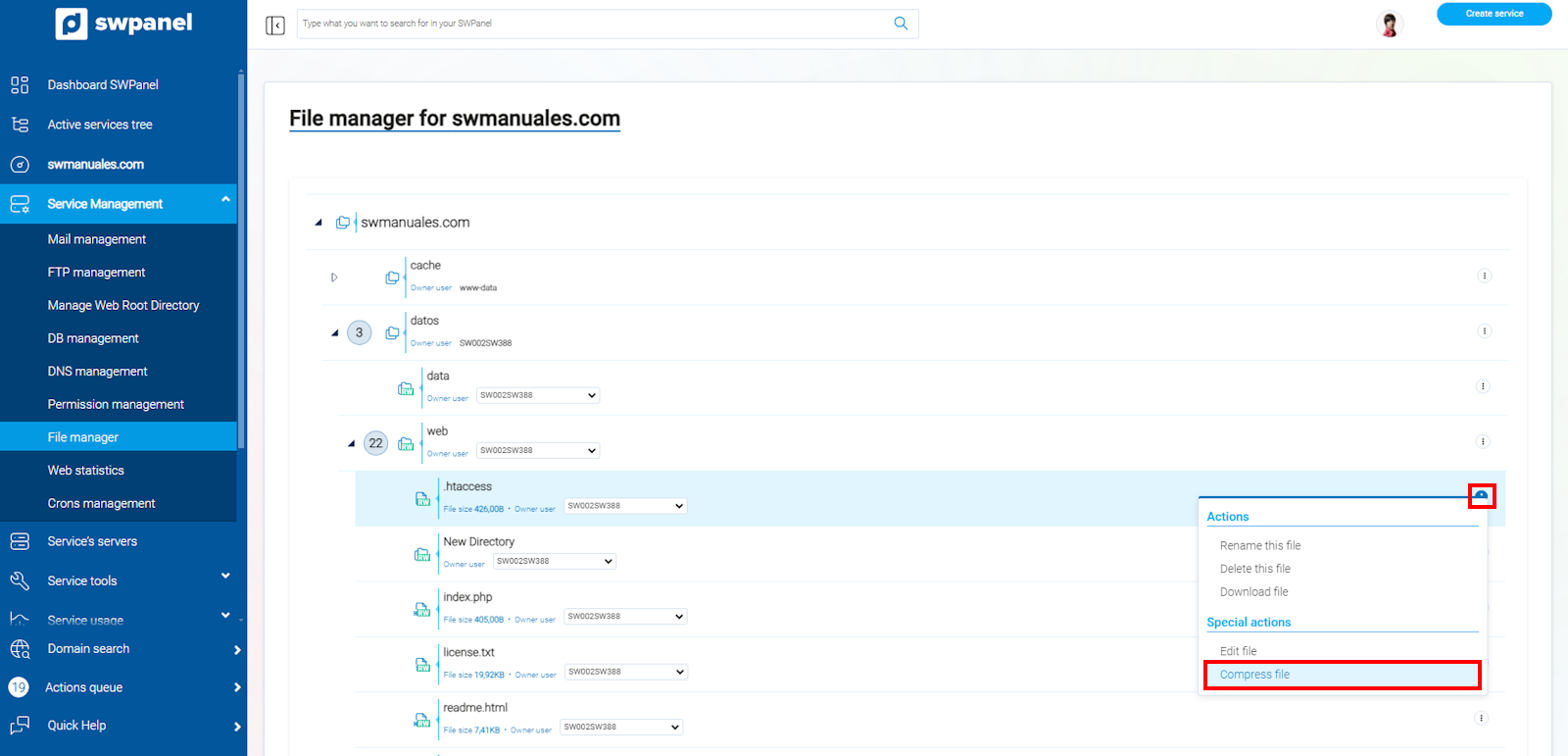
Compress
Compress any file you want to take up less space, allowing you to download it locally to your computer
info_capture The screenshot is for guidance purposes. It was taken using version 2026.001.0057 dated 16/05/2026. It may differ from what the current version of SWPanel shows.
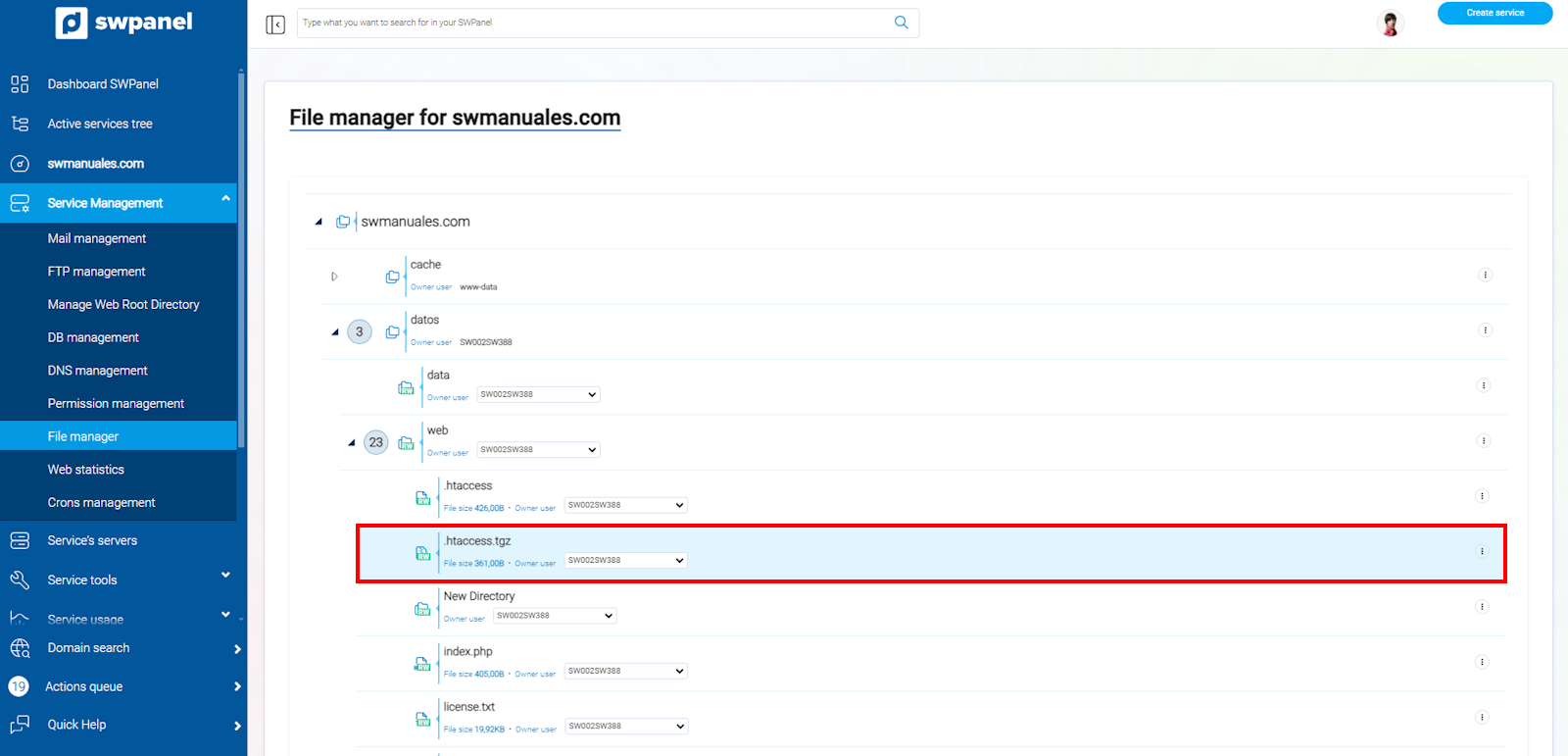
You will see that a file in .tgz format (Linux compression format) has been added just below the file we compressed
info_capture The screenshot is for guidance purposes. It was taken using version 2026.001.0057 dated 16/05/2026. It may differ from what the current version of SWPanel shows.
Add files
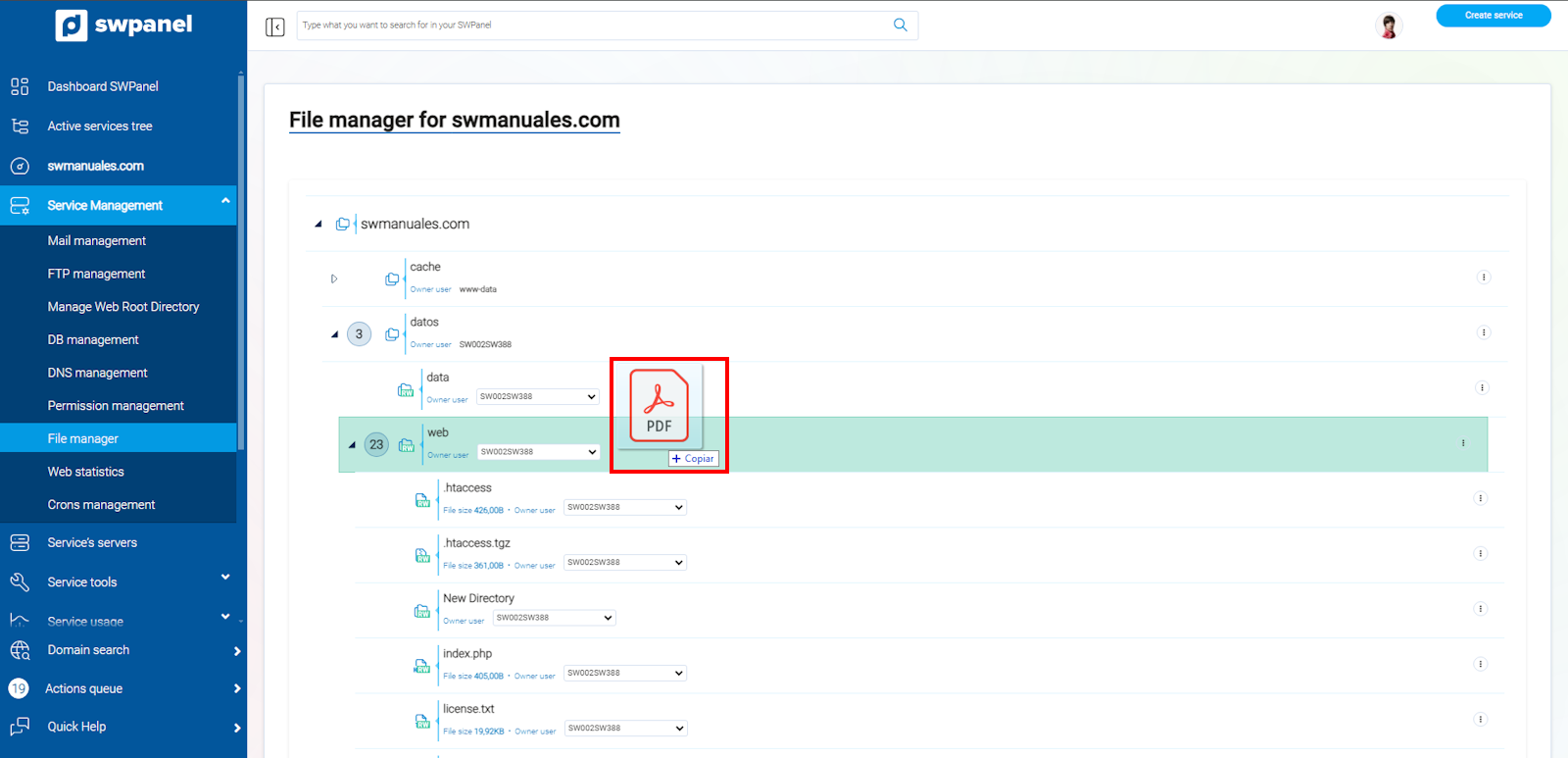
In addition to all the actions provided by the [...] dropdown menu, you can also add any file by dragging it into the file manager. When you perform this action, a loading bar will appear indicating that the file is being copied, and in a few moments, you will see it added to your file list
info_capture The screenshot is for guidance purposes. It was taken using version 2026.001.0057 dated 16/05/2026. It may differ from what the current version of SWPanel shows.
info_capture The screenshot is for guidance purposes. It was taken using version 2026.001.0057 dated 16/05/2026. It may differ from what the current version of SWPanel shows.