
Installation of osTicket on a server with Linux Debian 10
In this manual, we will show you how to install osTicket on your server.
info To create this manual, a completely empty Debian 10 server (without SWPanel) was used. Most of the installation will be carried out via the console.
Requirements
To be able to install the osTicket software, you need to meet a series of prerequisites:
- An updated server (in our case, a Debian 10)
- A LAMP environment (Linux, Apache, MariaDB/MySQL, and PHP)
- A user with sudo permissions (we will use the
rootuser) - Access to the Internet (to download the software)
Server Preparation
Execute the following commands from the terminal using the root user:
- Update the system
sudo apt update && sudo apt -y upgrade
- Install the unzip program
sudo apt install -y unzip
- Install Apache
sudo apt install apache2 apache2-utils
- Enable Apache to start automatically upon system reboot
systemctl enable apache2
- Configure
www-data(apache user) as the owner of the web root
chown www-data:www-data /var/www/ -R
- Install MariaDB
sudo apt install mariadb-server mariadb-client
- Enable MariaDB to start automatically upon system reboot
systemctl enable mariadb
- Install PHP 7.3
apt install php7.3 libapache2-mod-php7.3 php7.3-mysql php-common php7.3-cli php7.3-common php7.3-json php7.3-opcache php7.3-readline
- Enable the Apache module php 7.3
a2enmod php7.3
- Restart the web server
systemctl restart apache2
Software Installation
Execute the following commands from the terminal using the root user:
- Download the program from the [development] site (https://github.com/osTicket/osTicket/releases/)
wget -q https://github.com/osTicket/osTicket/releases/download/v1.15.2/osTicket-v1.15.2.zip
- Uncompress the downloaded file
unzip -q osTicket-v1.15.2.zip
- Move the folder containing the application to the root directory
mv upload/ /var/www/osticket
- Delete the scripts folder (we will not be using it)
rm -r scripts
- Delete the zip file (we no longer need it)
rm -r osTicket-v1.15.2.zip
- Create the initial configuration file for osTicket
cp /var/www/osticket/include/ost-sampleconfig.php /var/www/osticket/include/ost-config.php
- Grant write permission to the application's configuration file
chown www-data: /var/www/osticket/include/ost-config.php
Database
We are going to create the database so that it works correctly with the application
- Connect to the database with the
rootuser and its password
mysql -u root -p
(enter the root user password and press Enter)
- Create the Database with the name "osticket"
create database osticket charset utf8mb4 collate utf8mb4_unicode_ci;
- Create the Database user and password (Replace the Xs with the desired password)
create user osticket@localhost identified by 'XXXXXXXX';
- Grant the necessary permissions to the user on the Database
grant all privileges on osticket.* to osticket@localhost;
- Close the connection to the Database
exit
Web Server
We are going to configure the web server so that it works correctly with the application.
- Create a configuration for the osticket web service
nano /etc/apache2/sites-available/osticket.conf
- The content of the file will be:
Alias /osticket /var/www/osticket
-
Close the file saving the changes by pressing
Ctrl+Xand pressingy+Enter. -
Activate the new configuration
a2ensite osticket.conf
- Reload the web server configuration
systemctl reload apache2
PHP
Install the necessary extensions so the application works correctly.
- For version 7.3 (the one recommended by the application)
apt install -y php7.3-apcu php7.3-gd php7.3-imap php7.3-intl php7.3-mbstring php7.3-xml
- Restart the web server for the changes to take effect
systemctl reload apache2
Web Installation
The final phase of the installation is to configure the application via a web browser, which will allow us to create the administrator user and will ask for the database details.
To access this configuration, open a web browser and go to http://domain/osticket or alternatively http://machine-name/osticket.
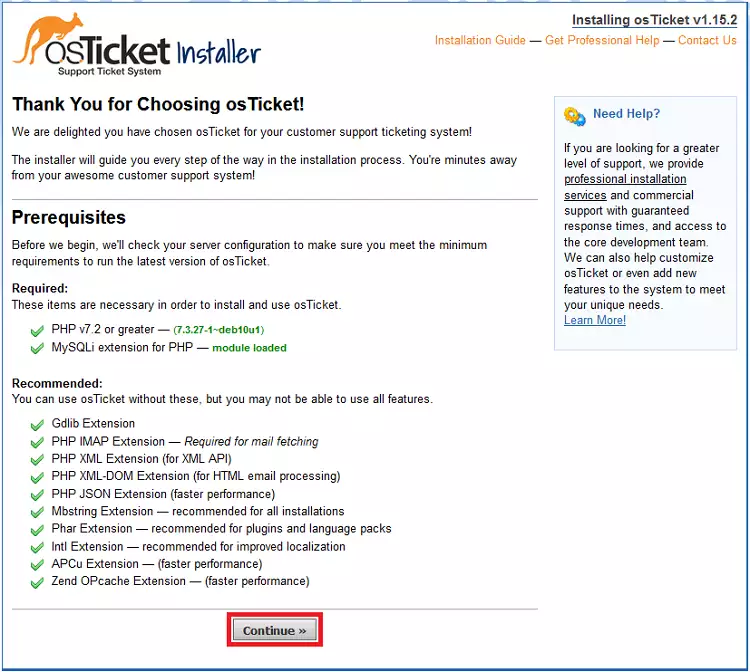
The first page will show a series of checks; if we have followed the manual, they will all be correct, and we will click Continue.
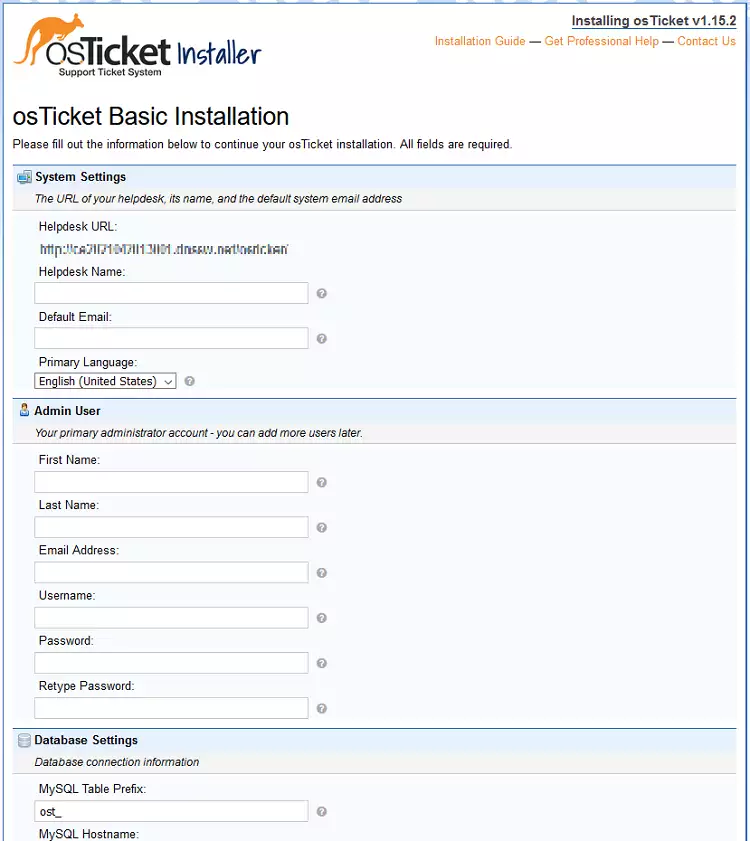
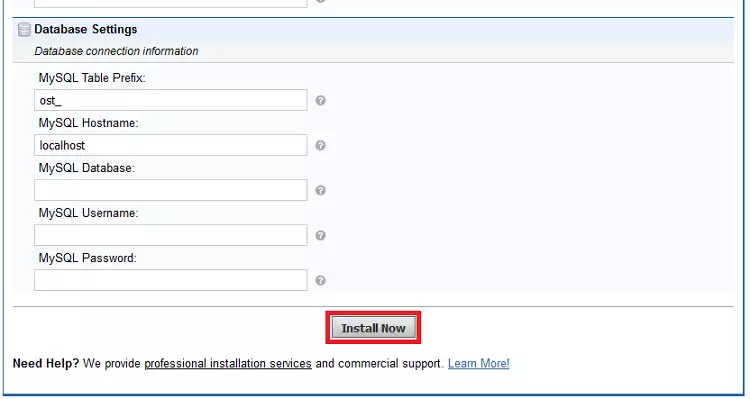
On the next page, we can create the administrator user and their password, and it will ask for the database connection details. Once entered, click Install Now. Required data:
System Settings
- Helpdesk Name (Enter our company name)
- Default Email (Enter a company email)
Admin User
- First Name (Enter the admin user's first name)
- Last Name (Enter the admin user's last name)
- Email Address (Enter the admin user's email)
- Username (Does not exist, create it now)
- Password (Does not exist, create it now)
- Retype Password (Enter the password again)
Database Settings
- MySQL Table Prefix (leave it as is)
- MySQL Hostname (leave it as is)
- MySQL Database (database name --> osticket)
- MySQL Username (database user -->osticket)
- MySQL Password (the database password we set -->XXXXXXXX)
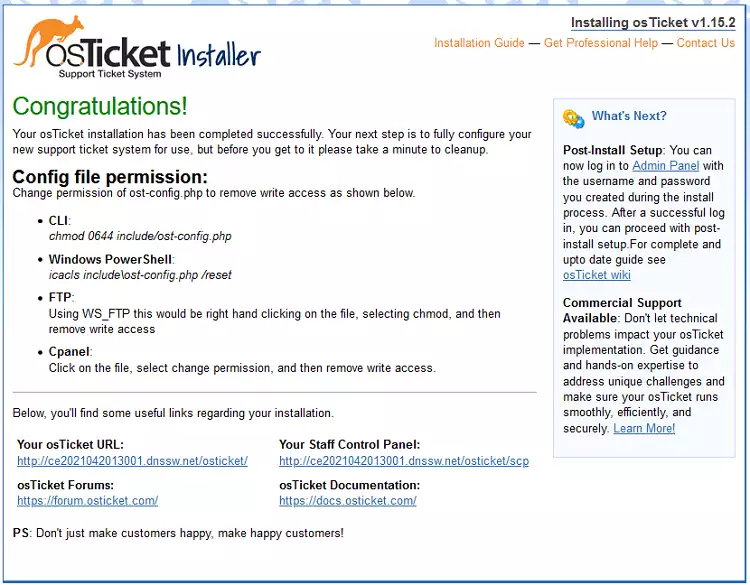
The installation process will take a moment and will show a final page informing us of the successful outcome of the operation and suggesting that we grant permission to the application's configuration file.
- Delete the application's web installer
rm -rf /var/www/osticket/setup/
- Grant permissions to the configuration file
chmod 0644 /var/www/osticket/include/ost-config.php
success Done! We can now access our osTicket service using the URL:
http://domain/osticket
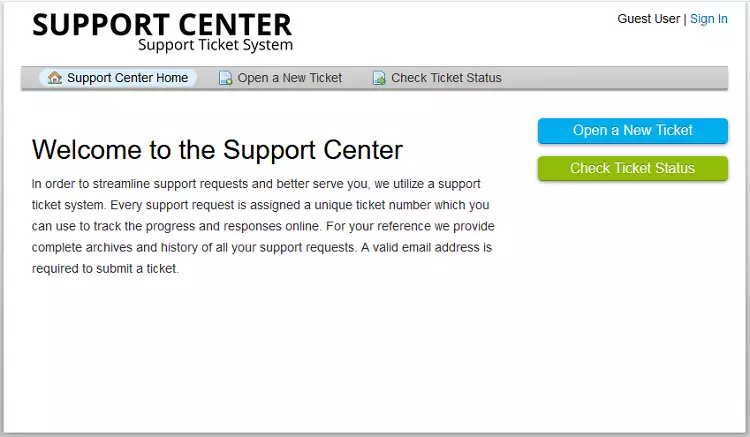
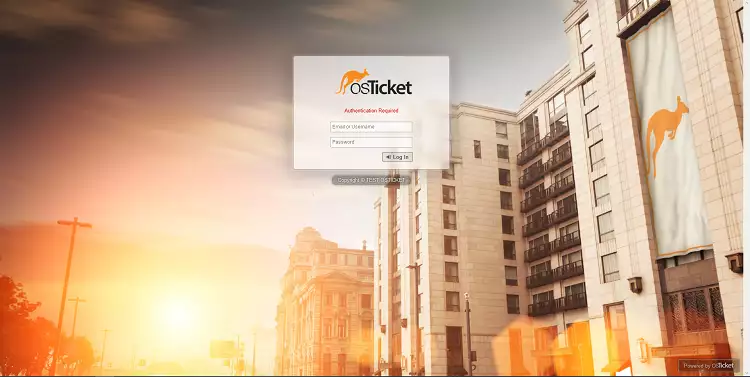
To access the backend, do so through the same URL but adding "/scp" at the end (http://domain/osticket/scp).
Change the language (optional)
To change the language of the application, we must download the language file we are interested in from the official application page, transfer the file via FTP, and uncompress it in the correct location. Since the server we are using is an empty Debian 10, the first step will be to create a user and install the FTP service.
- Create a system user for FTP
adduser testftp
- Enter the password and press
Enter. - Repeat the password and press
Enter. - Press
Enter5 times, then pressy + Enter.
- Installation of vsftp from the Debian 10 repositories
sudo apt -y install vsftpd
- Configure the FTP service by modifying its configuration file
nano /etc/vsftpd.conf
- Modify:
...
write_enable=YES
...
ssl_enable=YES
...
-
Close the file with
Ctrl + xand save it withy + Enter. -
Restart the service for the modifications to take effect
systemctl reload vsftpd
-
Download the language pack from the official [osTicket] website (https://osticket.com/download/) by clicking
Language pack, selecting the language (Spanish - Español), and clickingDownload. -
Transfer the language pack to the server via FTP using an FTP client such as Filezilla.
-
Uncompress the package in the correct directory.
unzip /home/testftp/osTicket-lang.zip -d /var/www/osticket/include/i18n/
-
Enter the backend using the URL
http://domain/osticket/scp -
Use the administrator user credentials to log in.
-
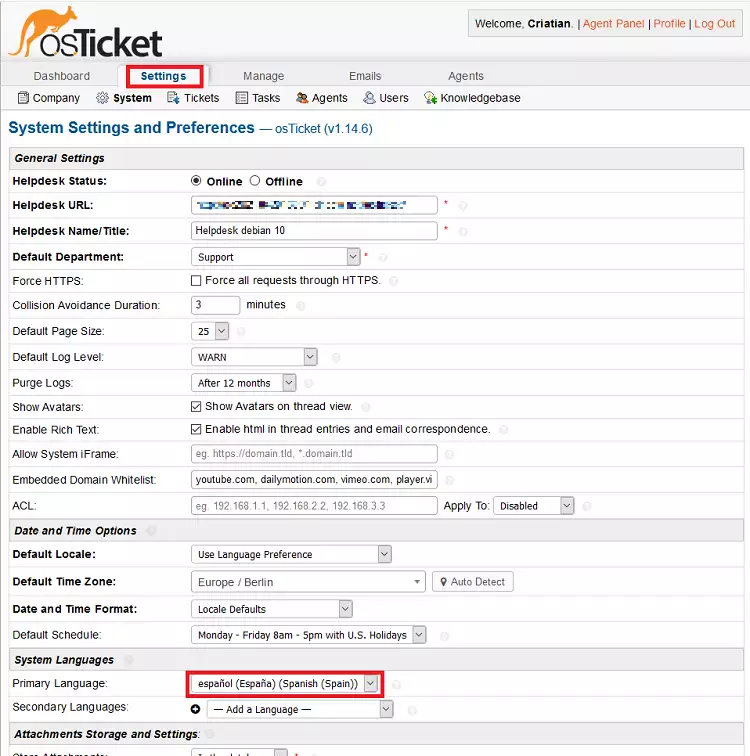
Click on the
settingstab
-
Look for the
Primary Languageoption and select "Spanish (Spain)" -
Scroll to the bottom of the page and click
Save Changes
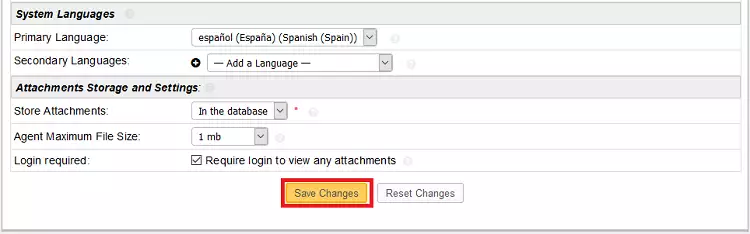
info Done! If we change tabs or exit, the language will have been updated.