
SW EasyWeb - How to hire and create your website in 1 minute
Order SW EasyWeb
To order your SW EasyWeb from the SW Hosting website is very easy; you must access the URL.
Search for the domain you want to register or transfer; then, the result will appear on the screen, with the status "Register" (if it is available) or "Transfer" (if it is already registered) and its price, excluding VAT. Click on one of the two options, and once the domain is selected, click on order now:
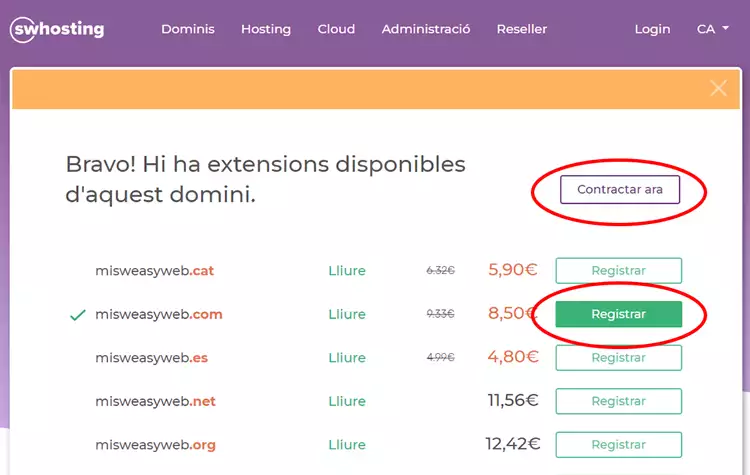
Now, you must enter a valid email address that will be used to create your customer account, and where you will receive important notifications about your domains or ordered services. Click on Create account:
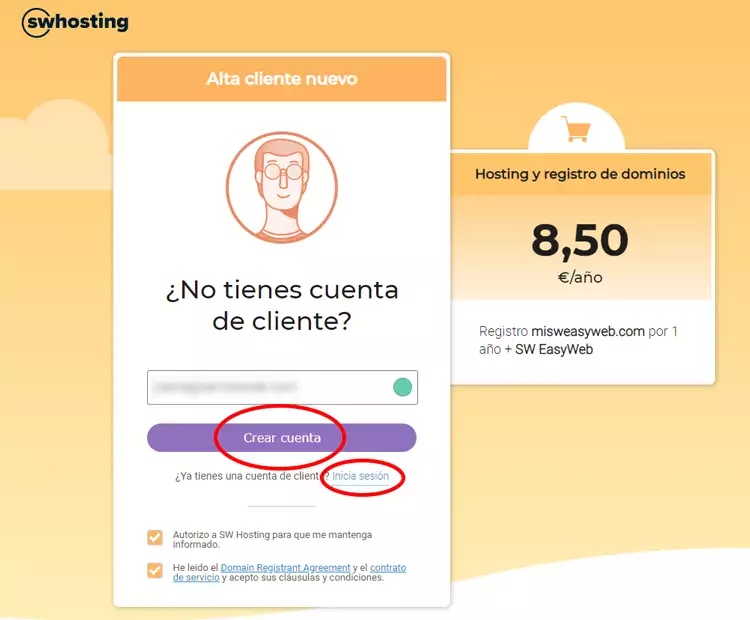
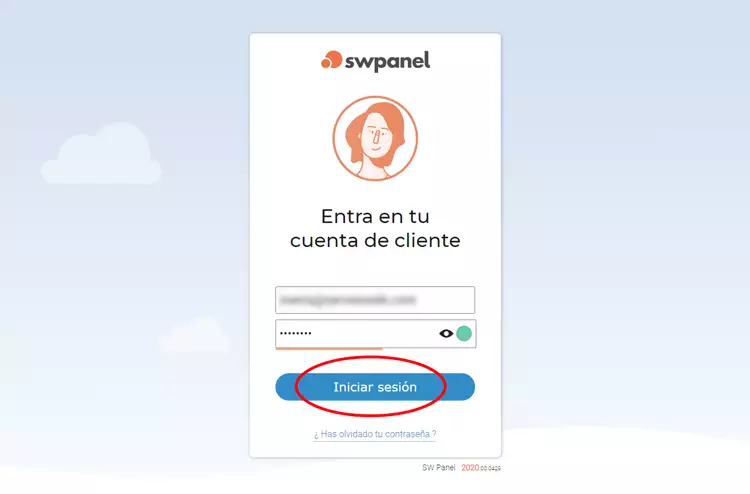
In case you already have a customer account, click on Log in and access with your credentials:
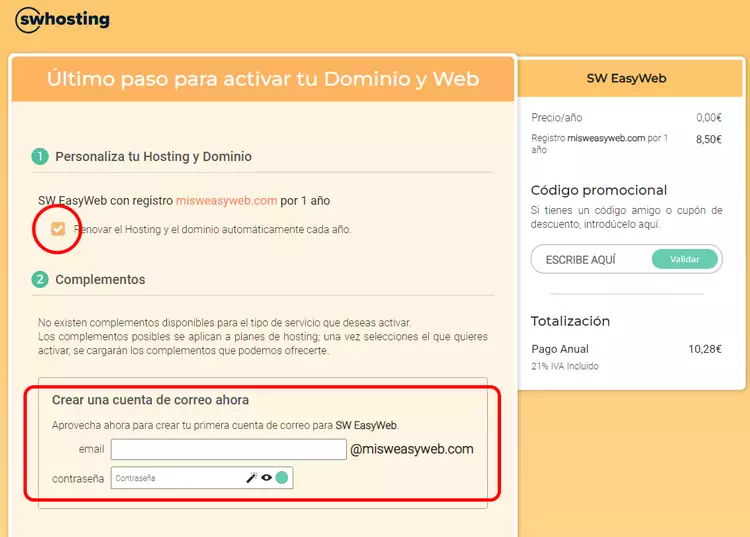
On the next screen, you can deactivate auto-renewal (it is activated by default) and you can create an email account with your domain name
Add the requested customer details for companies or individuals (self-employed people are included here).
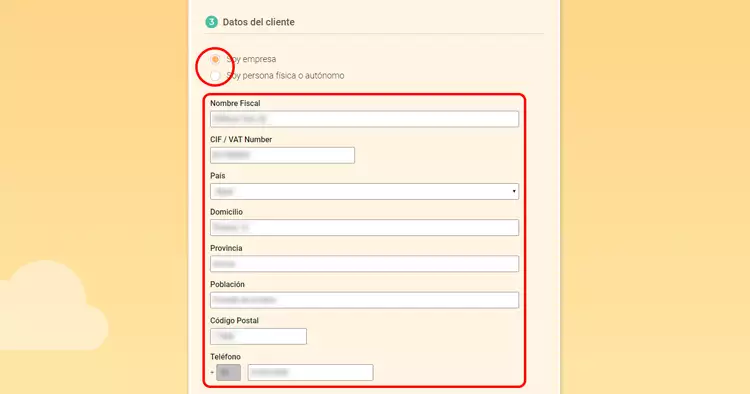
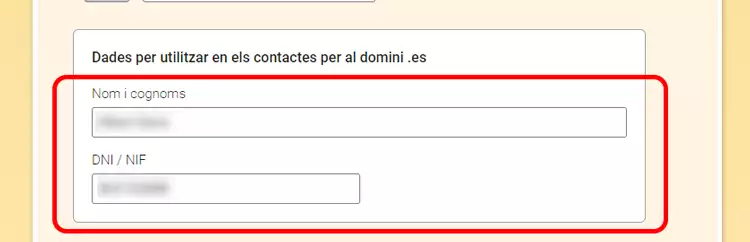
If the domain you want to register is a .ES, you must fill in some additional data, as it is essential that the administrative and technical contact of a .ES domain be an individual, and not a company.
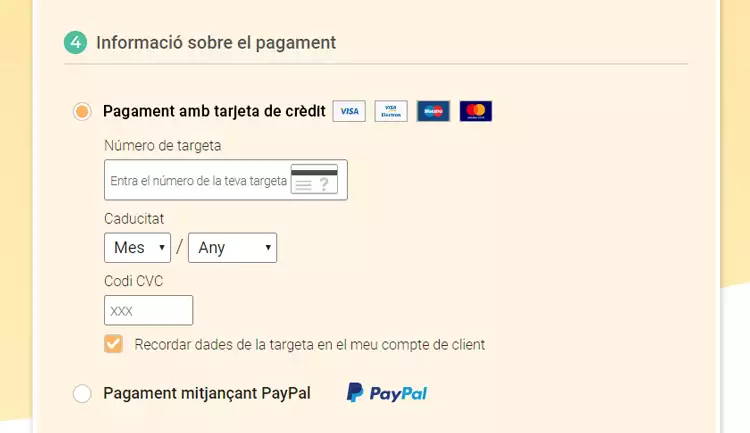
Once the fields are filled in, you must enter your card details to formalize the order, or choose the PayPal payment method. Remember that adding credits using PayPal has a commission applied by PayPal. The credit that will be added to your SWPanel will be the result of the requested amount, minus the amount of the commission charged by PayPal.
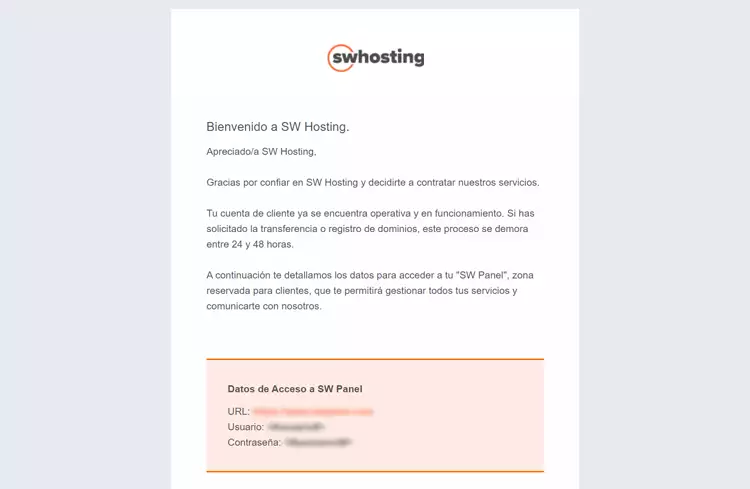
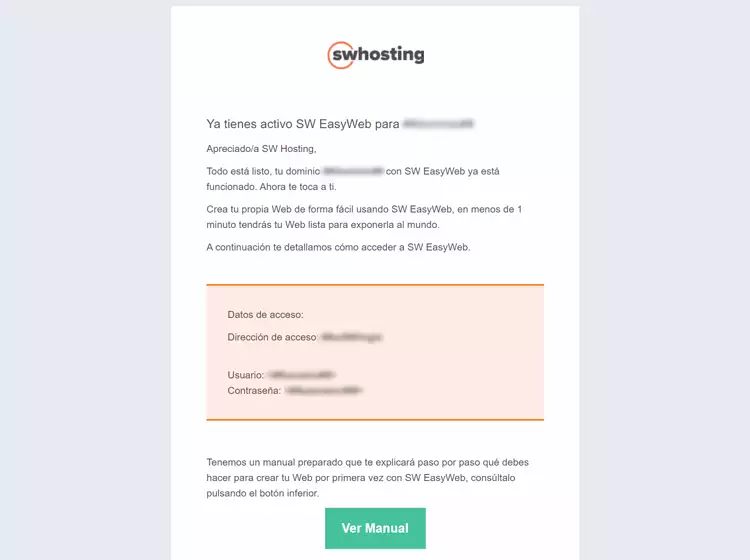
You will receive two emails, one with the welcome details to access your SWPanel, your private customer area, and start managing your domains and/or services:
And another where you will find the access details for your SW EasyWeb:
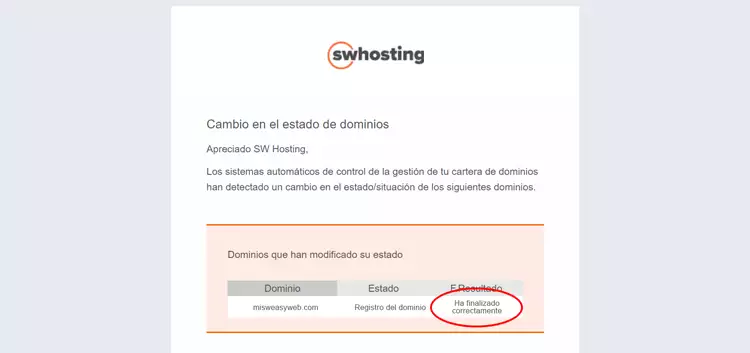
Once the domain has been registered, you will receive an email, at the address indicated above, notifying the status of the domain.
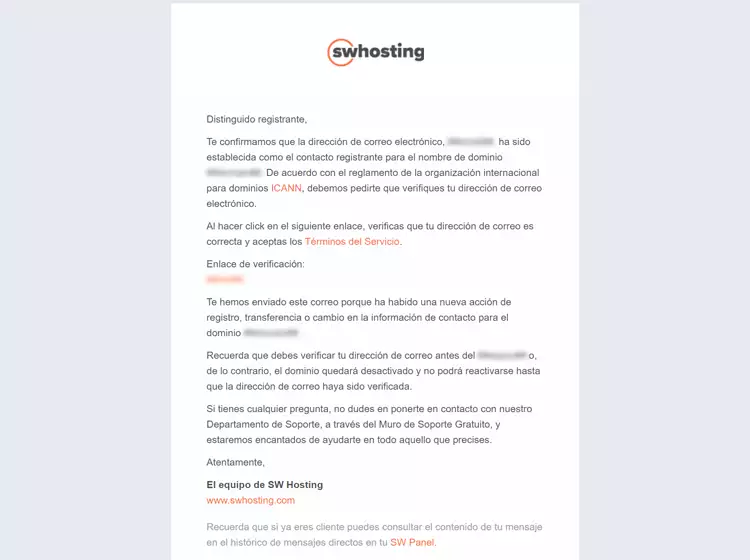
Likewise, in accordance with the regulations of the international organization for domains ICANN, and as explained in manual Handbuch: Whois Accuracy, you will receive another email with a link to verify your email address. It is very important to attend to this email and validate said address within the established time period (15 days); otherwise, the domain will remain deactivated until its verification. Example of a verification email:
SWPanel
To access your SWPanel, click on the following link.
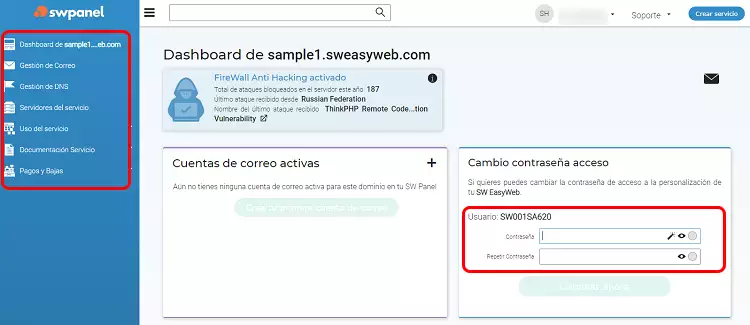
You will have to use the details sent in the welcome email you received when registering your domain. Through SWPanel, you can manage all the services you have ordered, in addition to being able to modify your access password for SW EasyWeb.
To access your EasyWeb again, you only have to type your domain name followed by /login, example: yourdomain.com/login
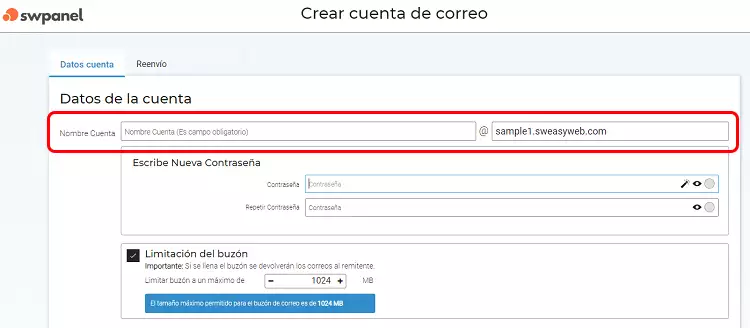
You can also create your email account of the type [email protected]
How to create your website in 1 minute
In the SW EasyWeb welcome email, you received the necessary details to access the administration of your website. Once you identify yourself and log in, in editing mode you will find two clearly differentiated sections:
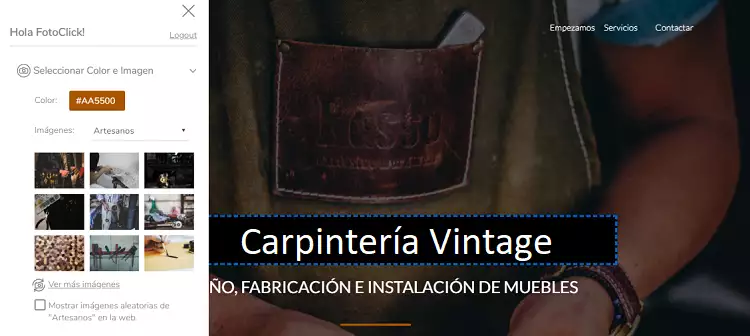
On the left, in the “Configuration Panel” is where you will find the necessary tools to personalize the design of your page.
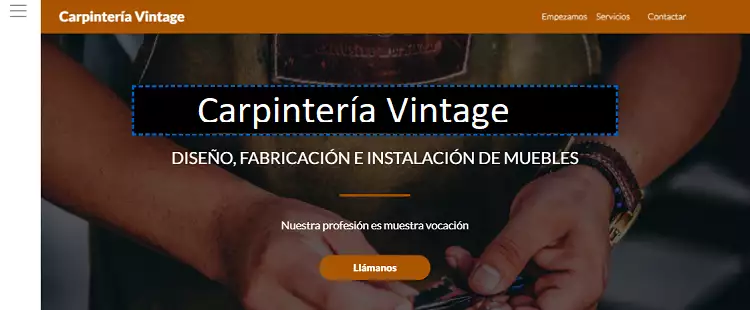
In the central part, you can see your design and by clicking on the desired text, you can edit it.
Configuration Panel
It consists of 3 sections:
1. Select color and image
- Color:
Select the color you like best, try different combinations and, if none fit your needs, you can create it yourself using a hexadecimal code.
- Images:
Search for an image that identifies you, there are hundreds of options to choose from.
Select a sector and, once selected, photographs related to it will be loaded.
You can see more images by clicking on See more images.
If you prefer that every time your website loads, it shows a different image, click on Show random image.
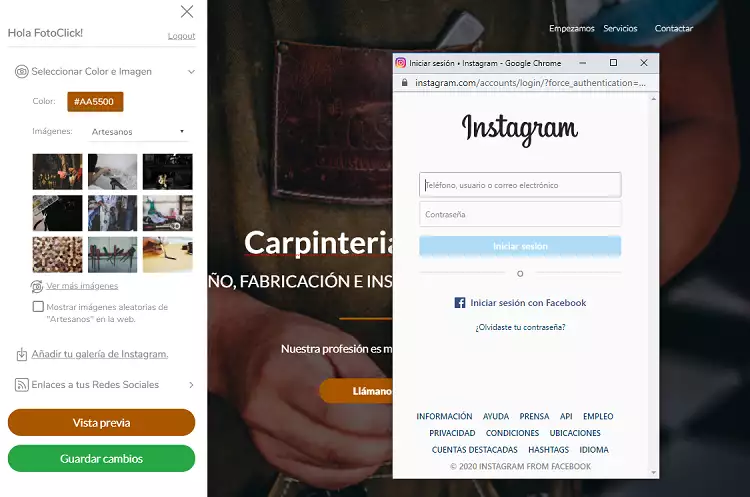
2. Add your Instagram gallery
If you want to add your Instagram photos, click on Add your Instagram gallery and a window will open where you must identify yourself and give permission to the application to link your account to SW EasyWeb.
3. Links to your social networks
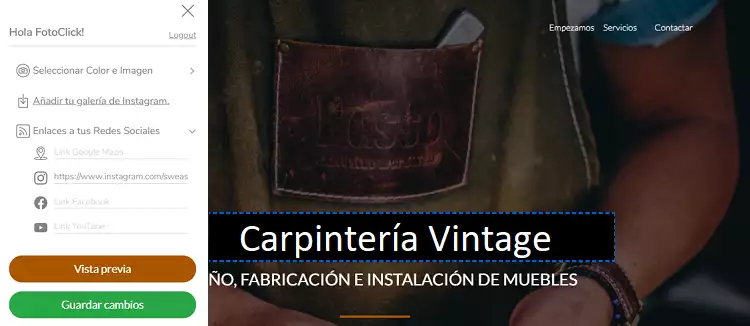
Add your social networks: Instagram, Facebook, Youtube and link your location via Googlemaps.
To include the icons of your social networks at the bottom of your website, you only have to write the corresponding links for each one.
Once all the changes have been made, click on the Preview button and you will be able to visualize the result of your website.
Edit texts
Modify the website texts:
To easily modify the texts with your own content, click on the text to be modified and a black box will be displayed where you can edit it.
Once everything is to your liking, you only have to click on the save changes button and your website will be ready to be published.
Congratulations, you now have your SW EasyWeb!
For more information, follow this link.