
Validate customer account
Validating your account in SWPanel allows you to confirm your identity as a customer and ensure legitimate use of SW Hosting services, in accordance with current regulations.
This process helps maintain a secure, reliable, and high-quality environment for all users.
Why is it important to validate your account?
Validating your account allows you to:
- Confirm your identity as a customer
- Avoid misuse of services (spam, fraud, etc.)
- Protect the infrastructure and other users
- Guarantee the quality and reputation of the service
Advantages of validating your account
Once validated, you will unlock multiple benefits:
1. No limit on services
You will be able to remove the current restriction and contract more than 5 services without limitations.
2. Access to the affiliate program
You can become part of the affiliate network and generate income by recommending services.
3. Email sending enabled
Only validated customers can send emails from their services.
To do so, you must commit to:
- Not sending spam
- Complying with good usage practices
4. Advanced Cloud features
Access to enhancements such as:
- More than 4 vCores
- More than 8 GB of RAM
- More than 500 GB of storage
- Additional IPs
- Auto-scaling
- Elastic memory
- Advanced Firewall (Layer 4)
- Advanced security
- Full server administration
- Log custody
- Guaranteed bandwidth adjustment
5. Payment advantages
- Add multiple cards
- Possibility of direct debit (Spain, subject to validation)
6. Additional features in SWPanel
- More than 5 active services
- More than 3 managed domains
- Immediate management of .es domains
- API activation
- SSL certificate activation
- Domain monitoring
- RHA module activation (Reseller Hosting)
- Referral code activation
How to validate your account step by step
1. Access your panel
- Access your client panel
- Click on “Validate client account”
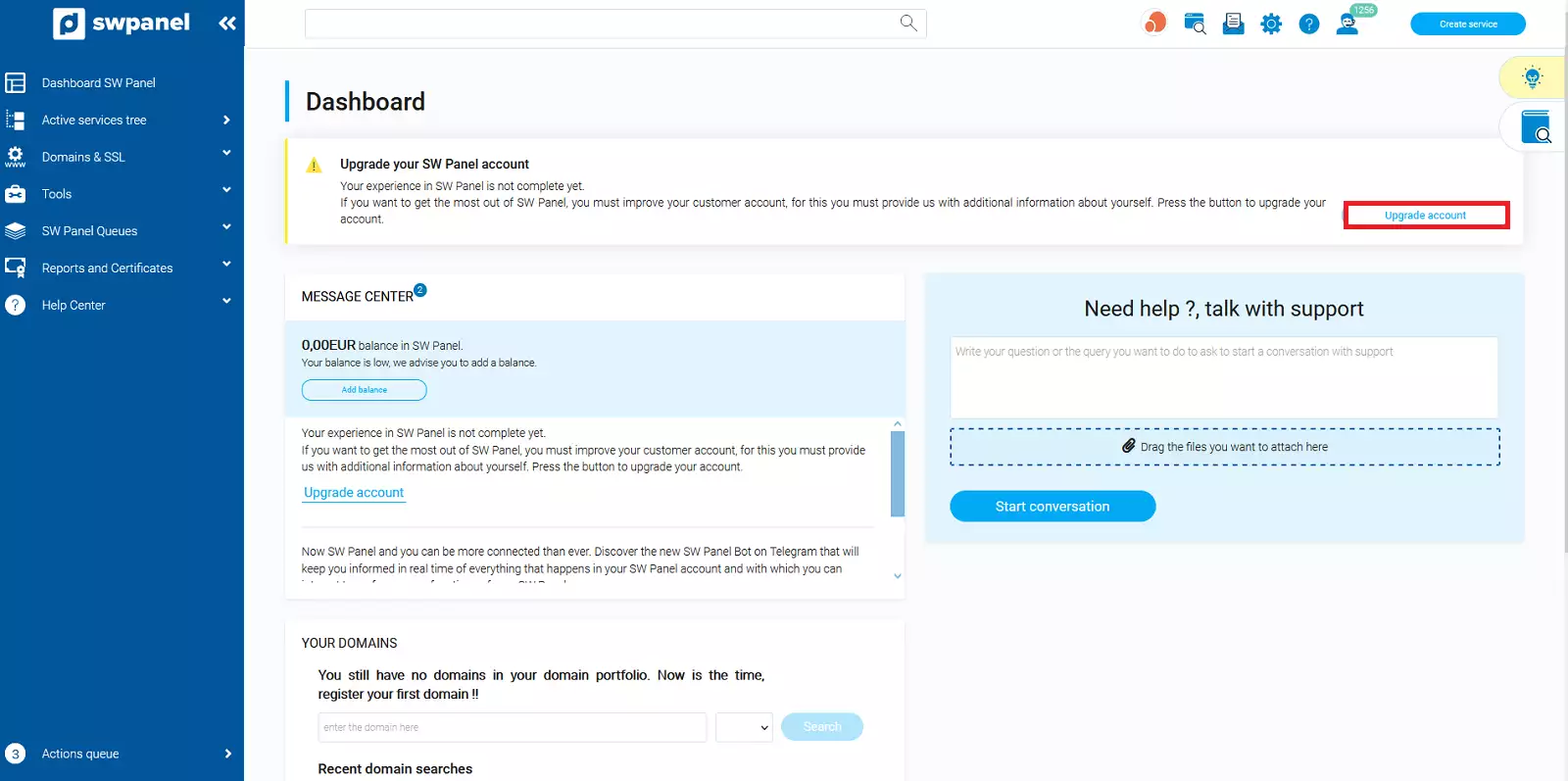
info_capture ℹ️ Note: The screenshot is for guidance, taken from version 2026.001.0026 dated 03/05/2026. It may differ from the current version of SWPanel.
2. Select your document
You can use:
- ID card
- Passport
- Driver's license
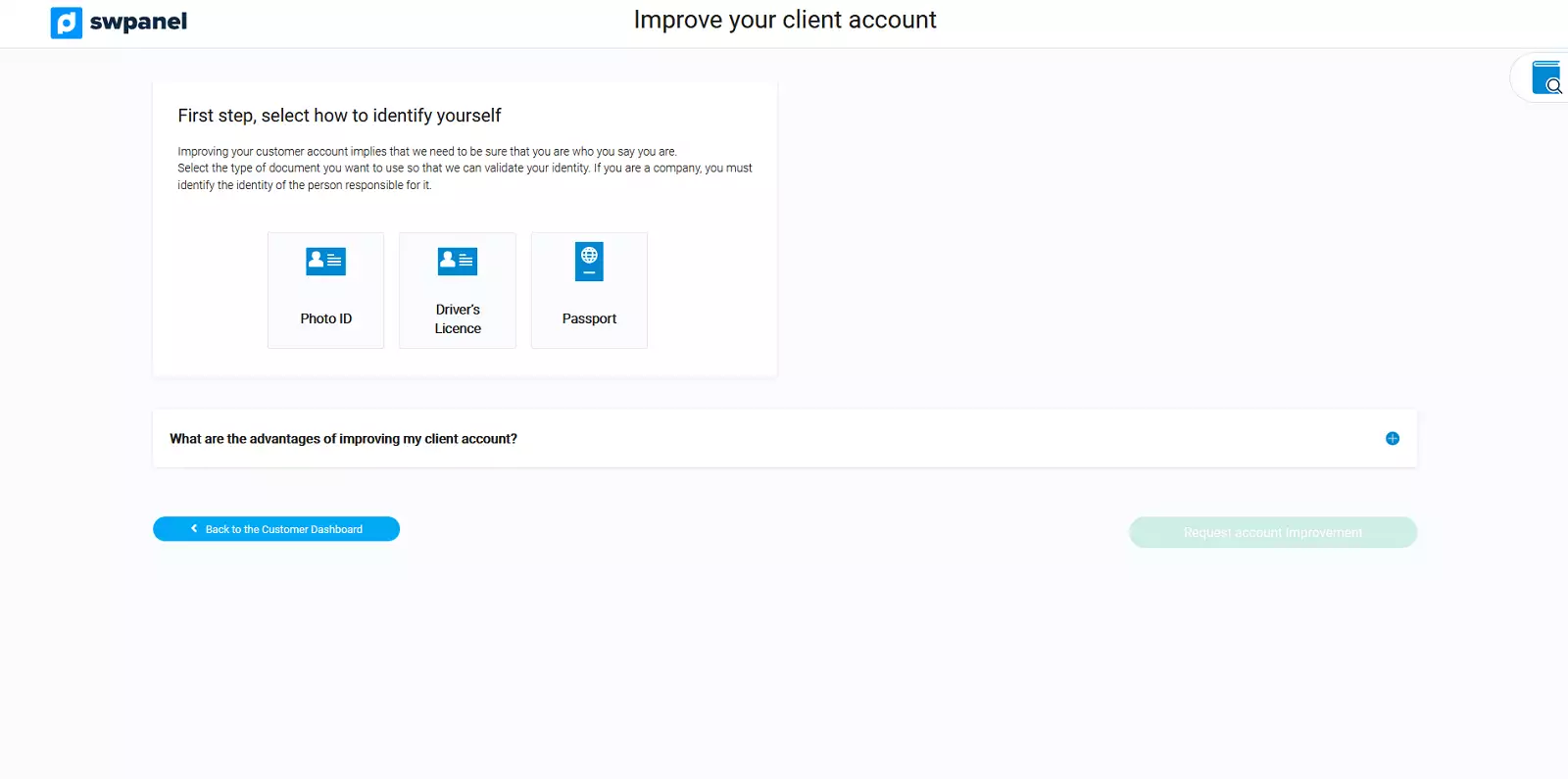
info_capture ℹ️ Note: The screenshot is for guidance, taken from version 2026.001.0026 dated 03/05/2026. It may differ from the current version of SWPanel.
3. Upload the document
- Upload the front image
- Upload the back image
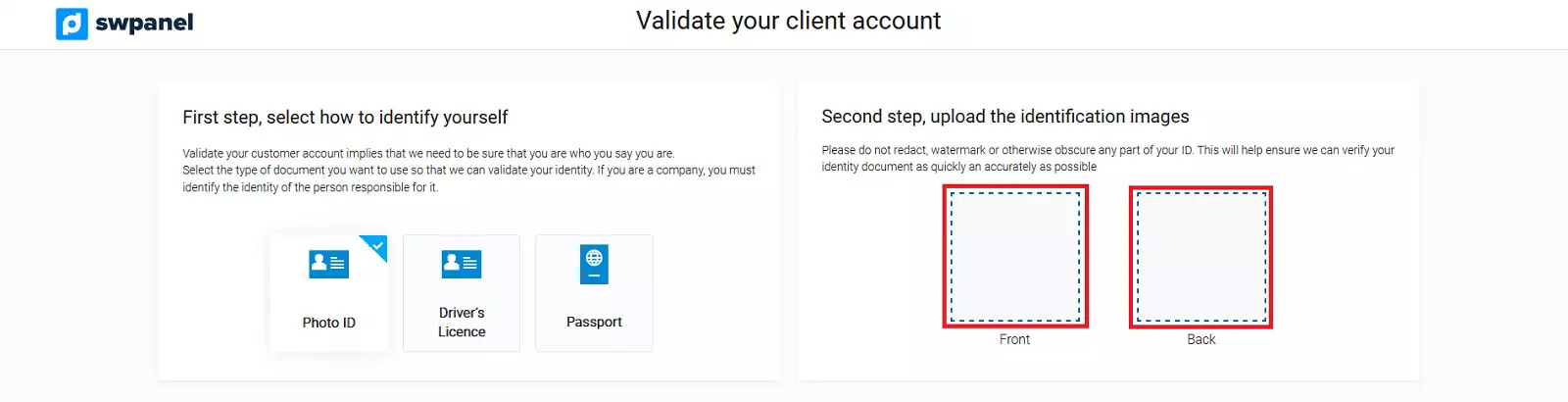
info_capture ℹ️ Note: The screenshot is for guidance, taken from version 2026.001.0026 dated 03/05/2026. It may differ from the current version of SWPanel.
4. Add selfie
You can:
- Upload an existing image
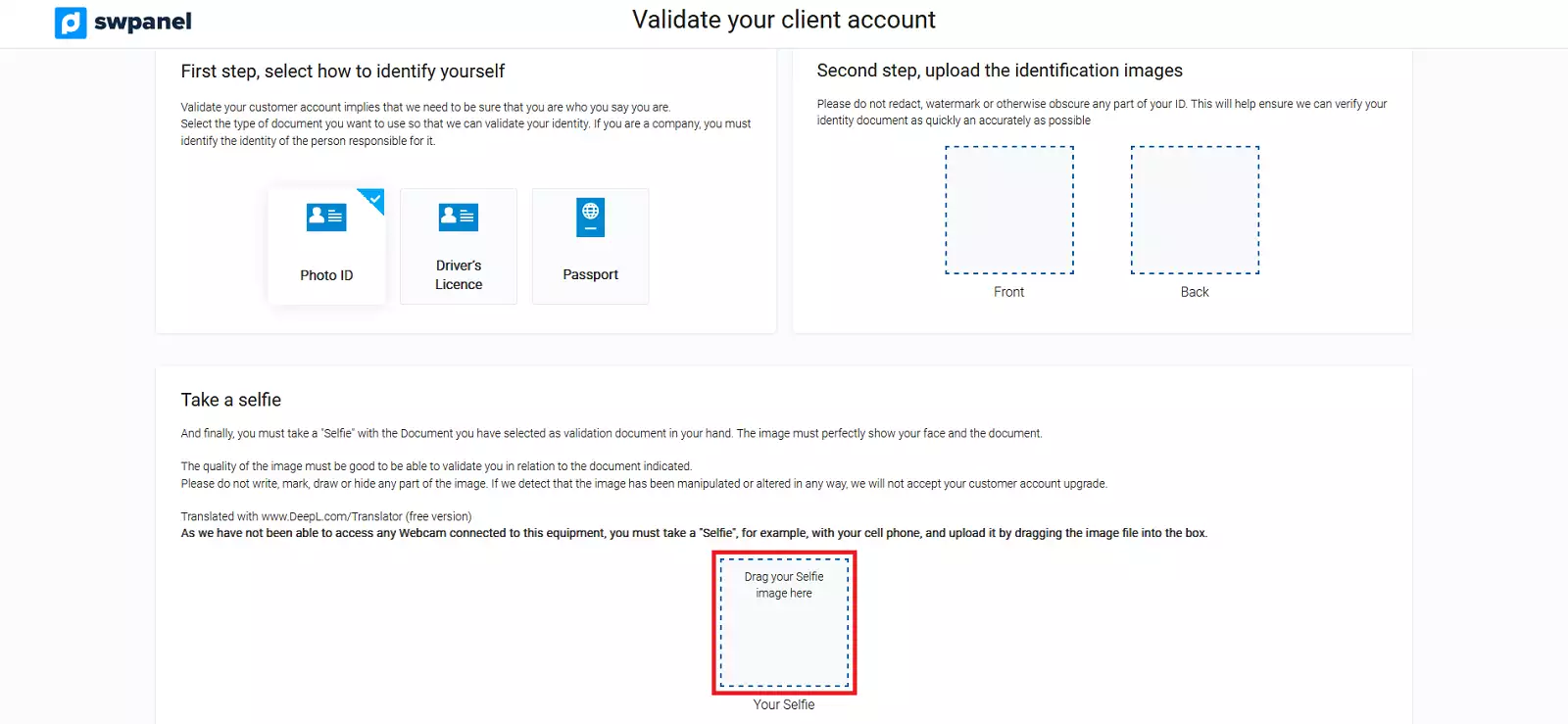
info_capture ℹ️ Note: The screenshot is for guidance, taken from version 2026.001.0026 dated 03/05/2026. It may differ from the current version of SWPanel.
- Or take a photo with your camera
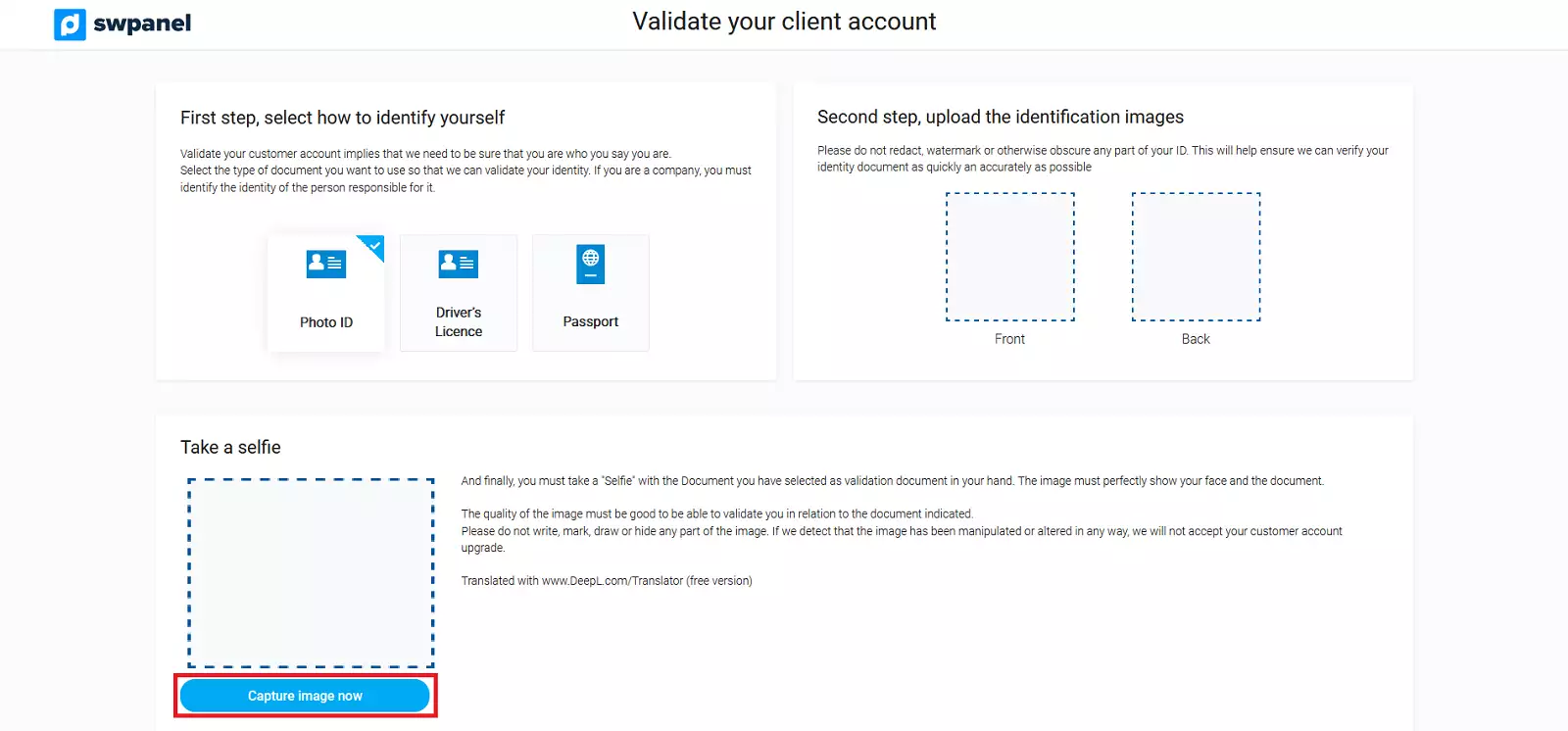
info_capture ℹ️ Note: The screenshot is for guidance, taken from version 2026.001.0026 dated 03/05/2026. It may differ from the current version of SWPanel.
5. Send request
- Accept the terms and conditions
- Click on “Request account upgrade”
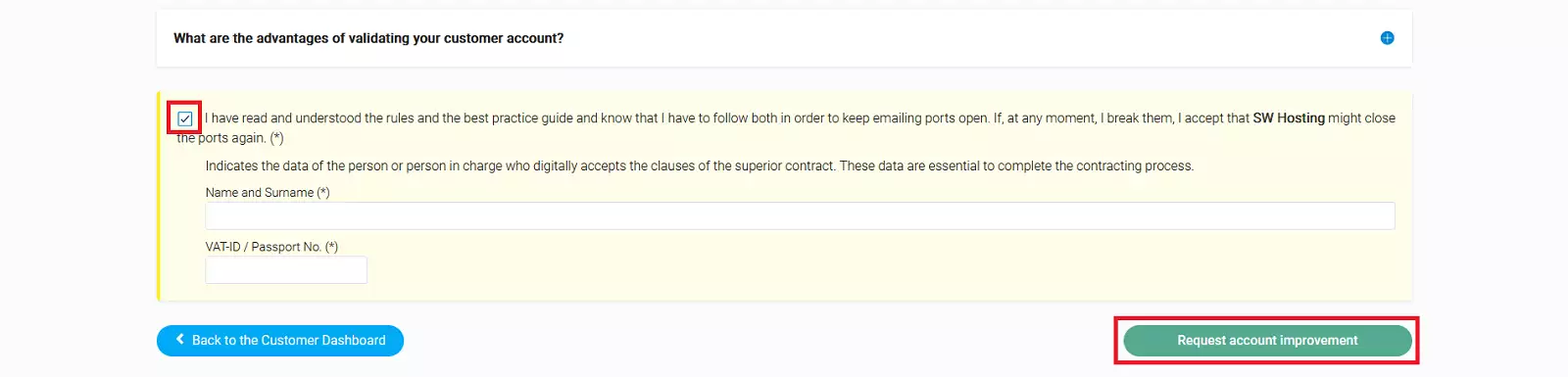
info_capture ℹ️ Note: The screenshot is for guidance, taken from version 2026.001.0026 dated 03/05/2026. It may differ from the current version of SWPanel.
What happens next?
- You will see a message confirming the submission
- The administration team will review your request
- You will receive the resolution by email