
Enable forced HTTPS redirection
Forced HTTPS activation implies that all requests made to your website via the HTTP protocol (Port 80) are automatically redirected to HTTPS (Port 443). This means that all requests made to port 80 will be mandatory internally redirected to port 443.
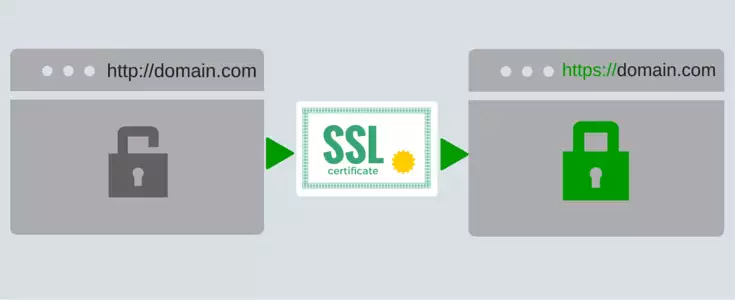
To activate this option, it is essential to have an SSL certificate previously activated and installed on your hosting or Cloud service. We attach some manuals on how to proceed.
? Manuel : How to install a Let's Encrypt SSL certificate with SWPanel
In SW Hosting you can activate forced HTTPS redirection through your service Dashboard in the SWPanel. The steps to activate it are as follows:
1. From the search box of your SWPanel, you must locate the service where the website for which you want to activate forced HTTPS redirection is hosted.
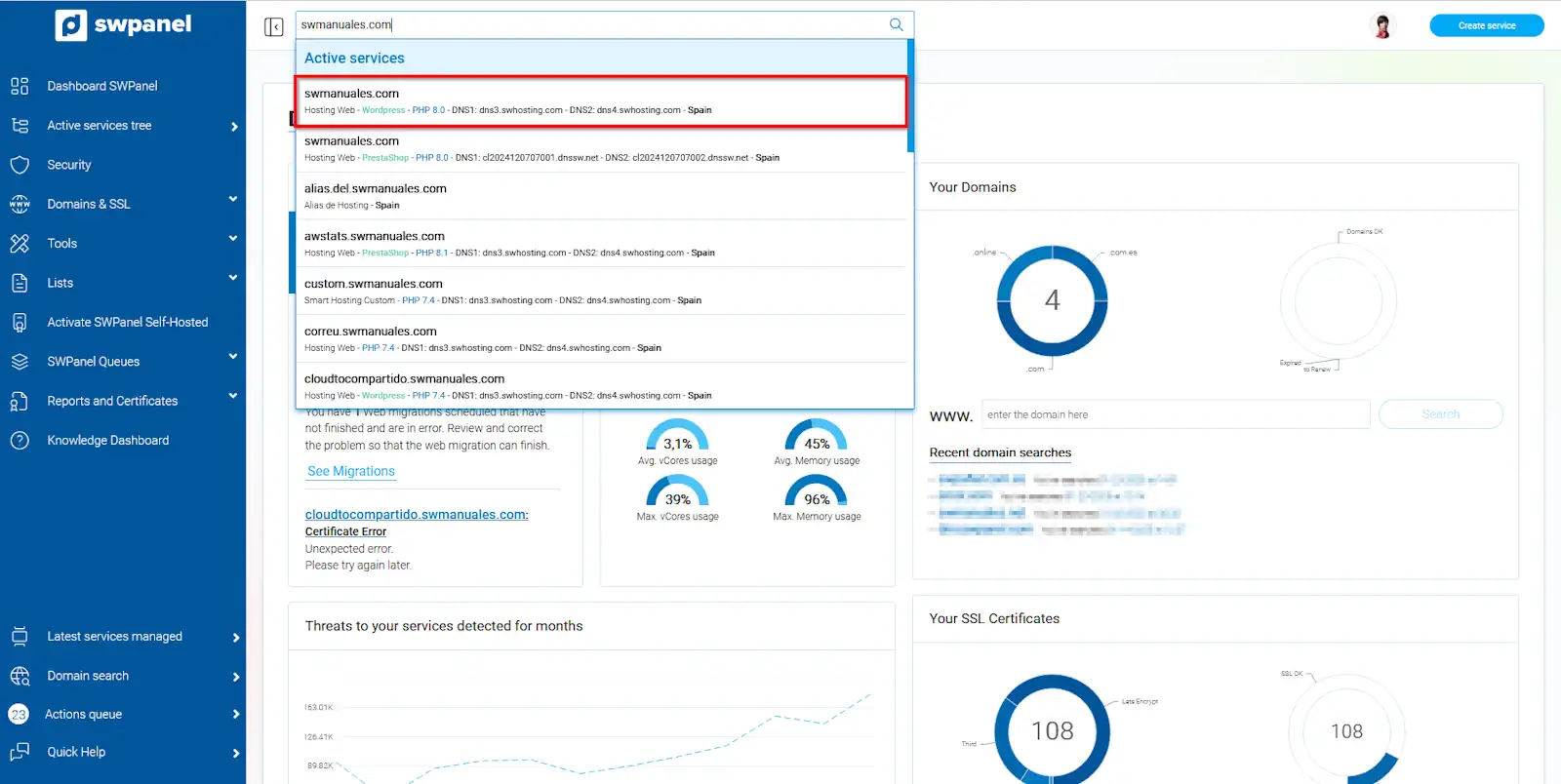
info_capture The screenshot is for guidance purposes. It was taken from version 2025.00.0017 dated 27/01/2025. It may differ from what is shown in the current version of SWPanel.
2. Once in the service Dashboard, you must click on the checkbox" Activate forced HTTPS redirection ", located in the " Available improvements " box.
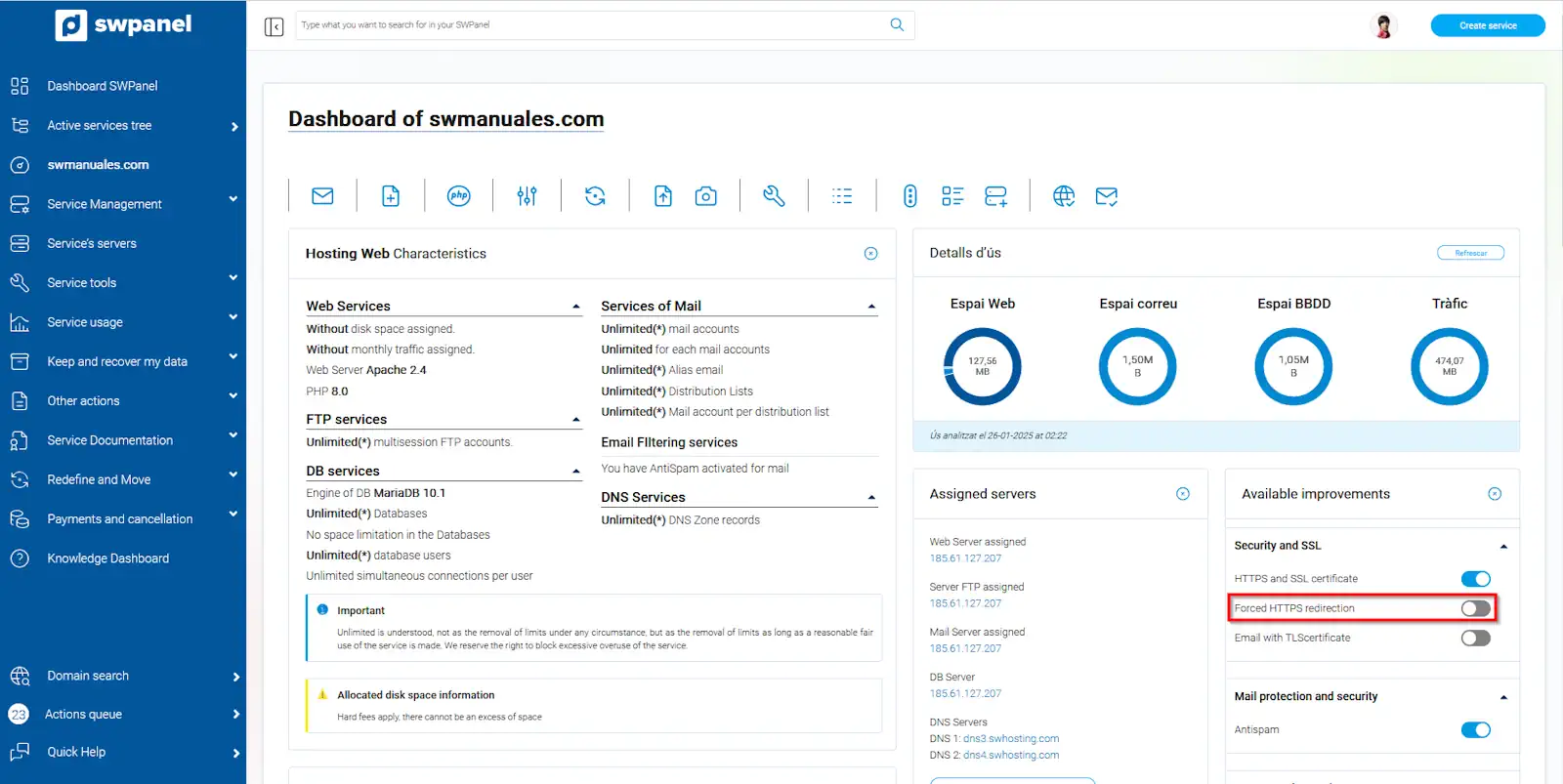
info_capture The screenshot is for guidance purposes. It was taken from version 2025.00.0017 dated 27/01/2025. It may differ from what is shown in the current version of SWPanel.
3. In the window that opens next, you must click on the "YES, ACTIVATE " button.
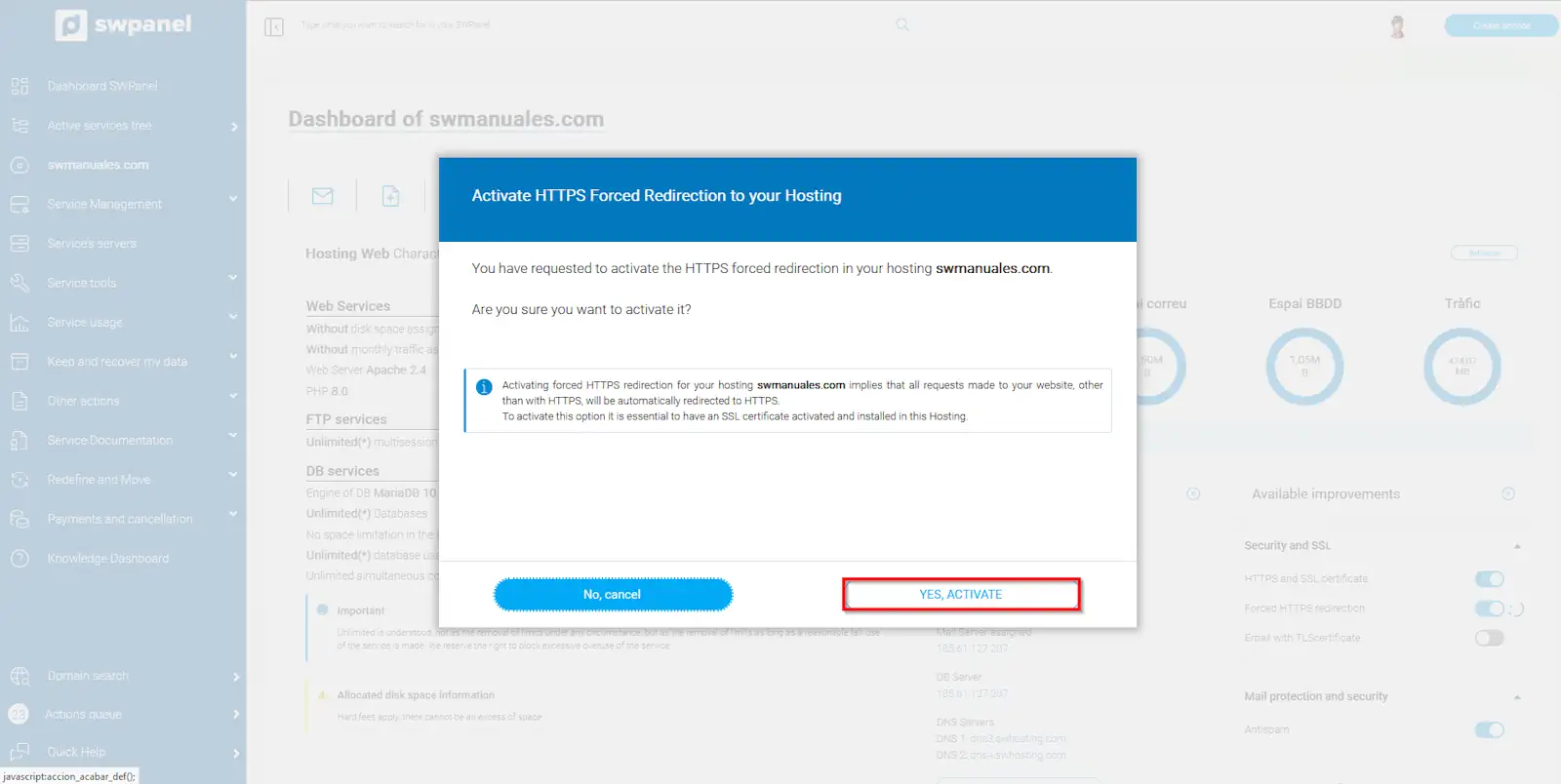
info_capture The screenshot is for guidance purposes. It was taken from version 2025.00.0017 dated 27/01/2025. It may differ from what is shown in the current version of SWPanel.
After a short period of time, your forced HTTPS redirection will be fully operational for everyone accessing your Website.