
How to Import a SQL file to my Database in SWPanel with DBeaver
With SWPanel you can use the phpMyAdmin tool to access the management of your databases, such as exporting or importing them.
Also, you can use any type of application for database management, such as DBeaver which allows for much more powerful DB management than phpMyAdmin; furthermore, it is available for any operating system and supports many database managers, such as: MySQL, MariaDB, PostgreSQL, SQLServer, Oracle, SQL Server
DBeaver is a SQL client software application and a database administration tool.
If you wish to install the DBeaver database manager on your private Cloud server with Windows 10 Pro operating system, you can have it at your disposal with a single click at SWHosting.
Connection to an existing Database with DBeaver
For this step, you need to have the database already created in your SWPanel. At SW Hosting we have a manual on Manuel : How to create a MySQL or MariaDB database.
danger In case of importing the database from an external provider or from another SWPanel service or account, it is very important that the name, the user, and the access key of the Database that you have created to import the SQL file are identical to those corresponding to the former service provider.
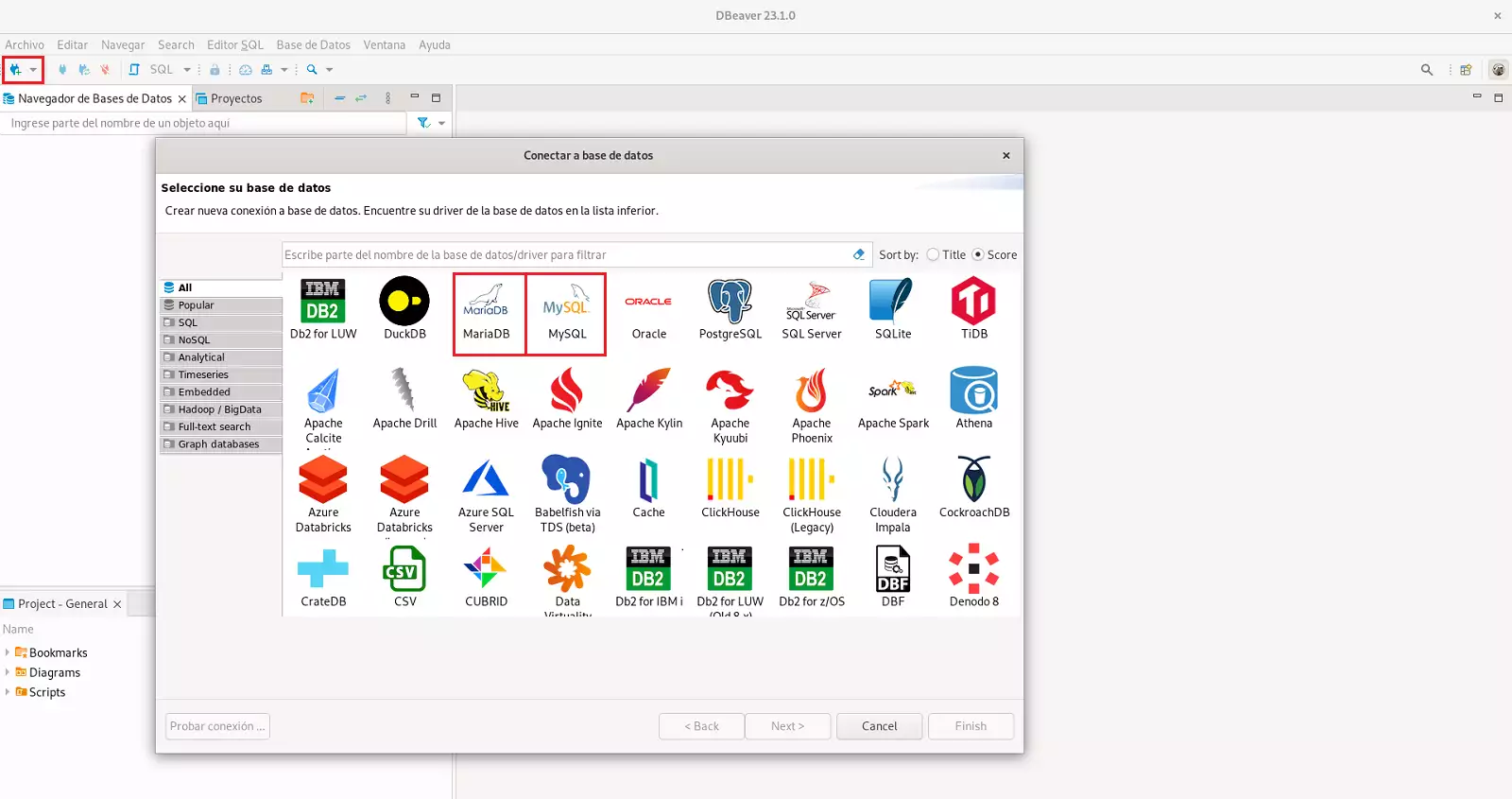
Open DBeaver. In the upper left corner, you will see an icon to establish the connection to a database; you must also choose the database manager you want to use; at SWHosting the two database managers we use are MariaDB/MySQL.
To find out what the Host/IP name of your database is, you must:
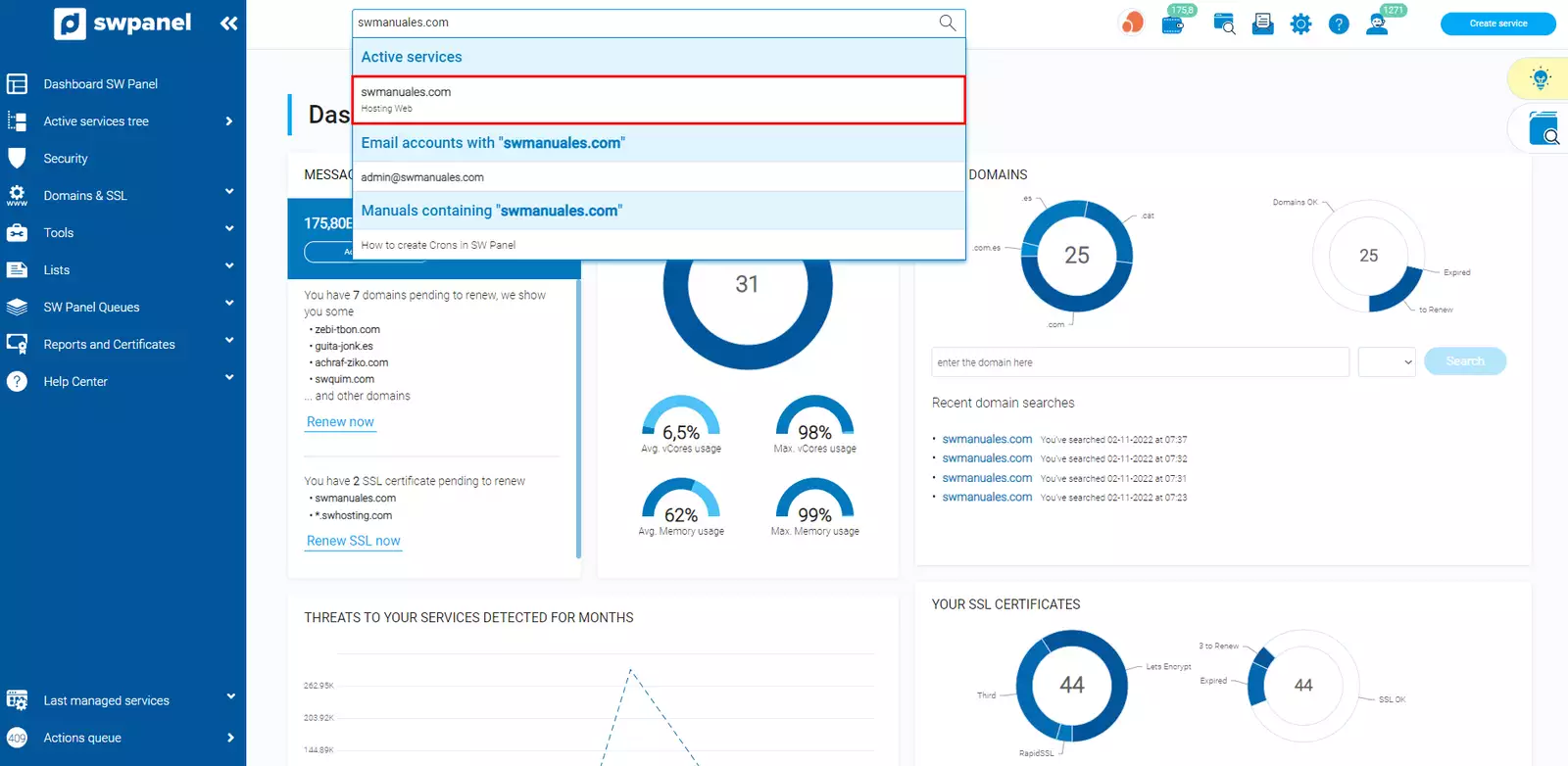
- Type the name of the service for which you wish to modify the basic parameters in the SWPanel search bar, and click on it:
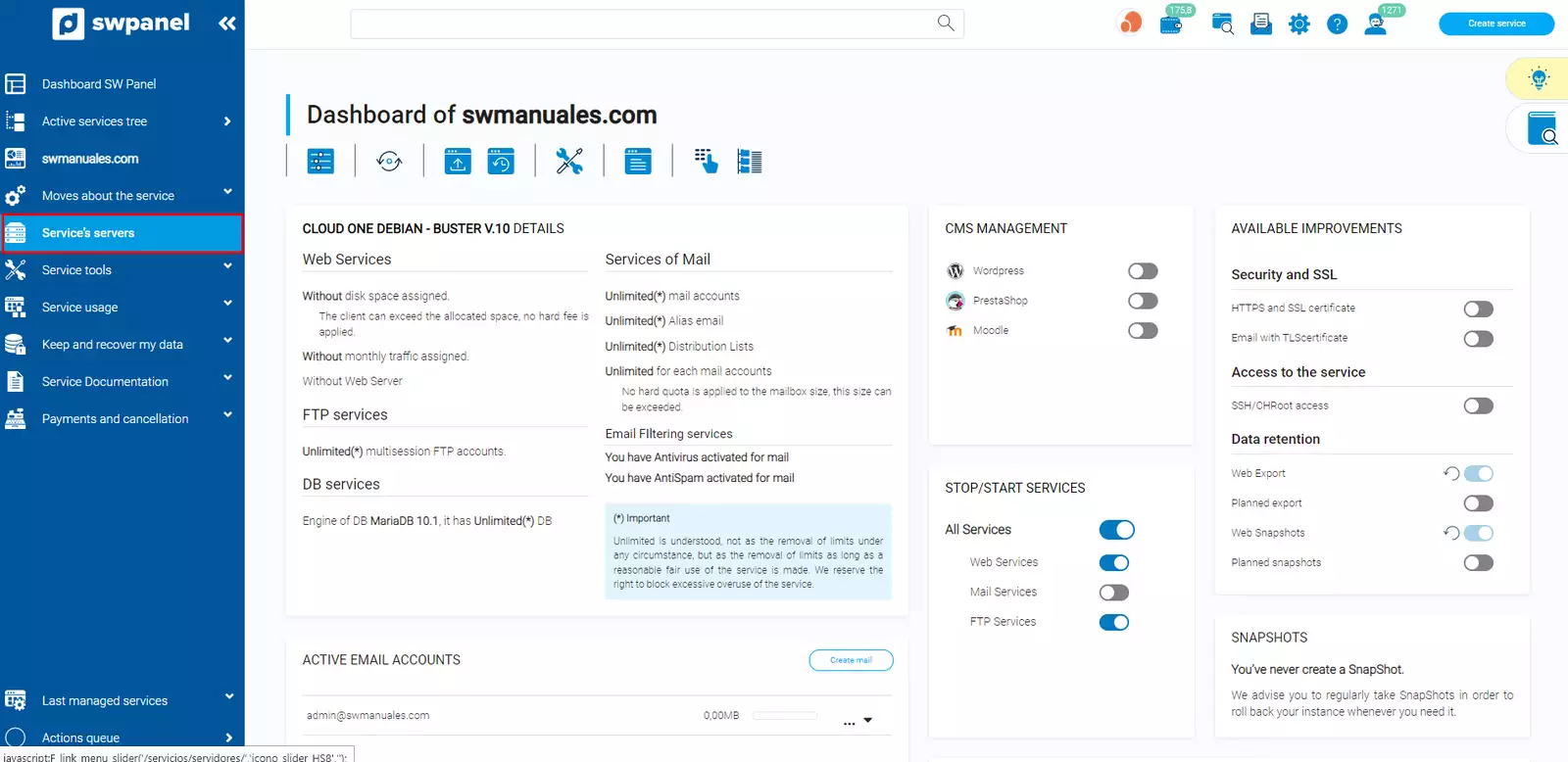
- Click on 'Service Servers', located in the blue side menu:
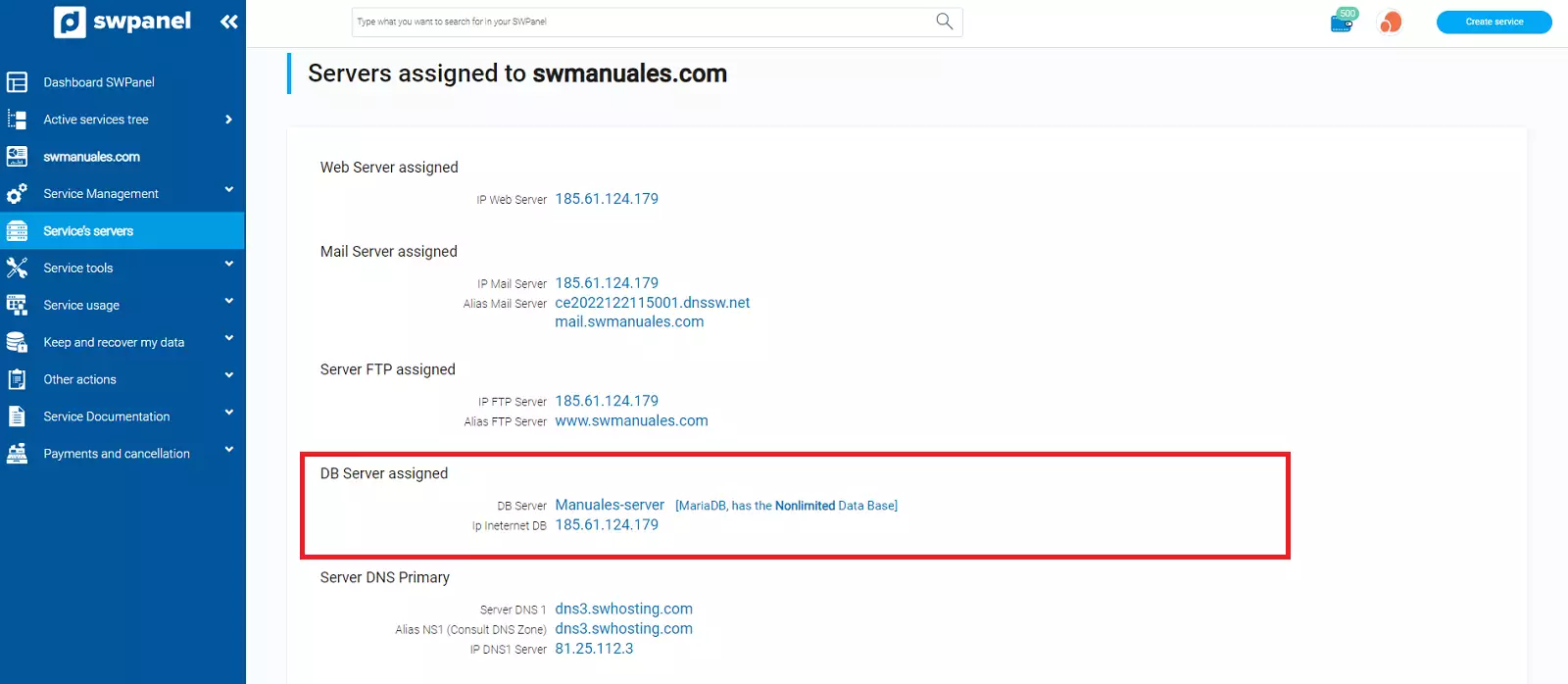
- The IP found in 'Assigned DB Server' is the one you must use as the 'Host/IP Name' to access DBeaver:
Once the data has been entered in DBeaver, we establish the connection:
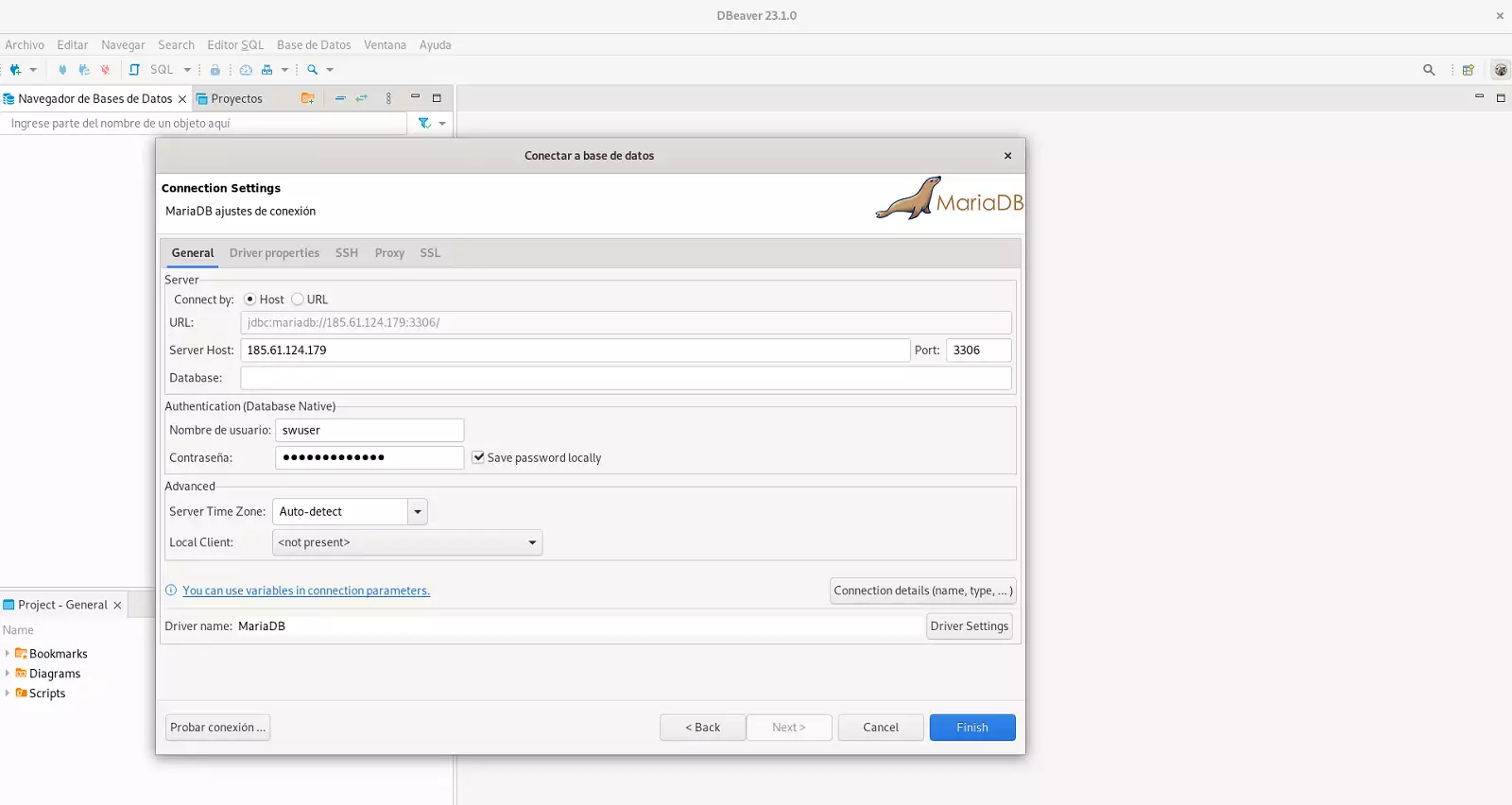
Upload SQL file
Finally, upload the previously downloaded file.
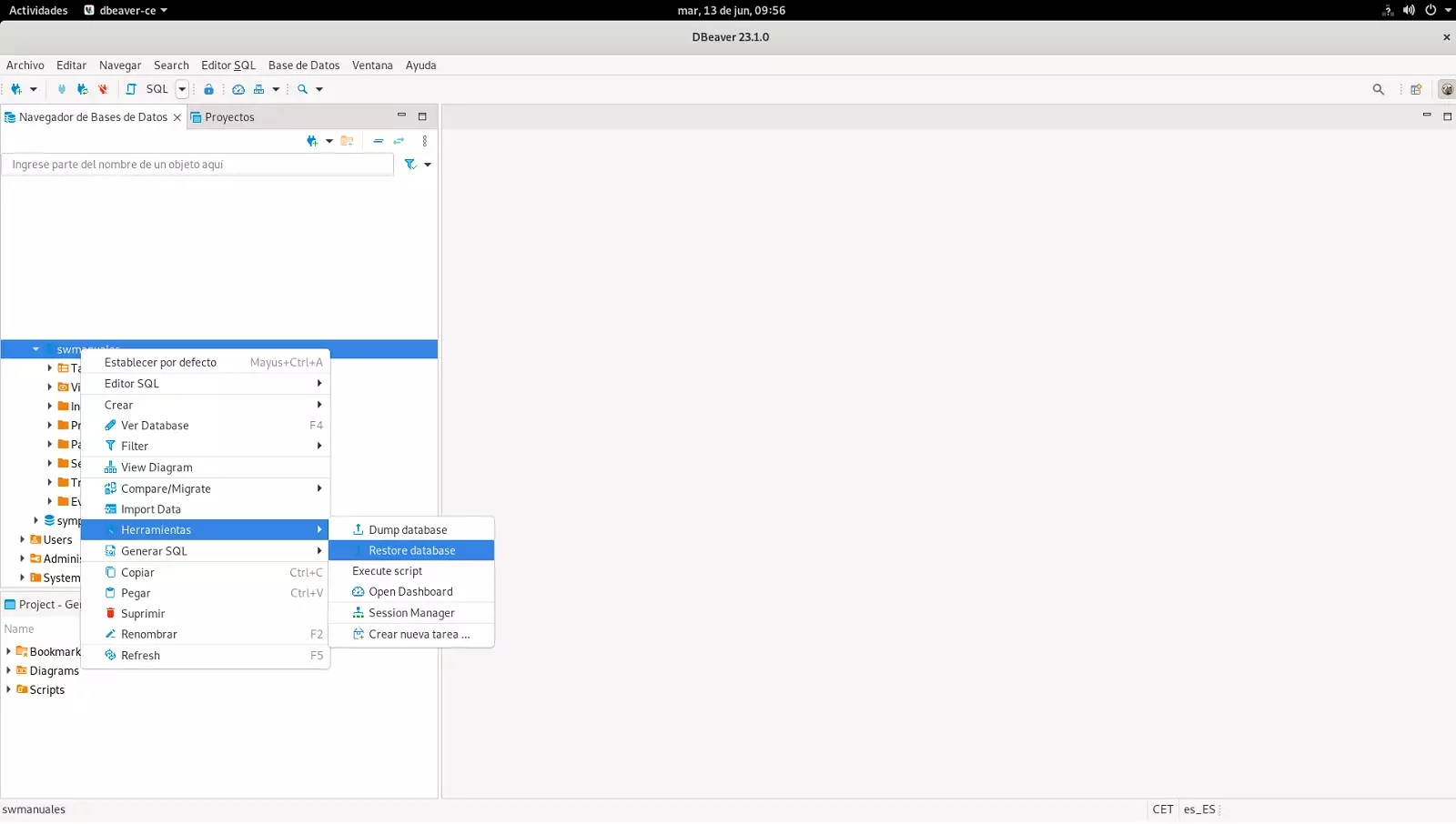
- Inside DBeaver, connected to the Database, go to 'Right-click on the database' > 'Tools' > 'Restore database':
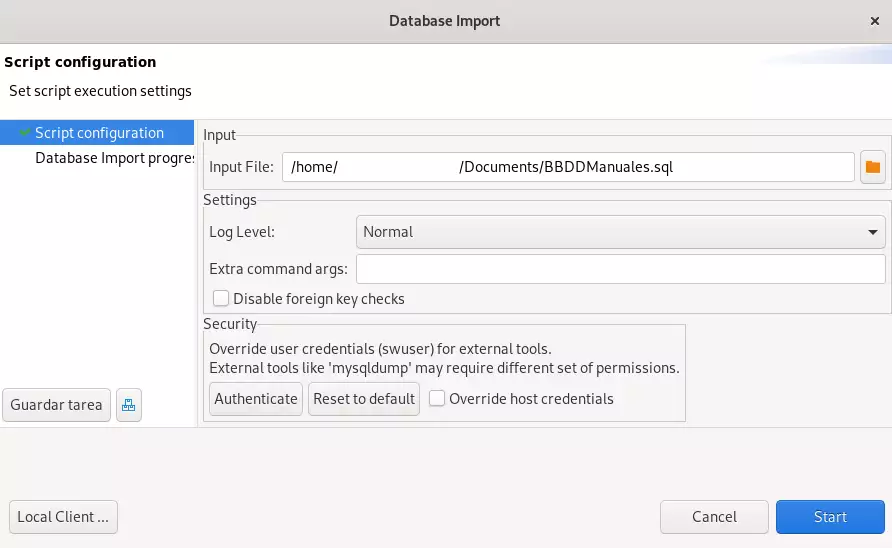
- Select the .sql file we want to import and click the 'Start' button:
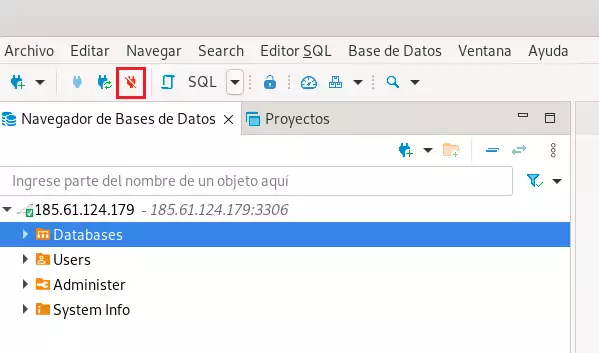
Once the file is loaded, you can check that it has been uploaded correctly, either by disconnecting and reconnecting to the database in DBeaver or by closing DBeaver and accessing the Database via phpMyAdmin from SWPanel: Manuel : How to access phpMyAdmin from the SWPanel.
DB Disconnection
To do this, press the disconnection button:
Remember that you can install the DBeaver database manager on your own private Cloud server with Windows 10 Pro located in the SWHosting data center.