How to migrate from WordPress.com to WordPress.org
WordPress is a content management system (in English, Content Management System or CMS) focused on the creation of any type of website. WordPress uses a GPL ("General Public License") and is free software that can be obtained in two different ways:
1st. By registering a user account at wordpress.com to create a website on their own servers. It is not necessary to hire any domain or Hosting service, as the website is hosted on wordpress.com's servers as an online service or SaaS (Software as a Service). Opening a website on wordpress.com is free of charge, although some improvements such as themes, plugins, or functionalities must be paid for, such as being able to use your own domain, since in this version of the service, your website will be a subdomain of the wordpress.com domain. For example http://your-site.wordpress.com
2nd. By downloading the software from wordpress.org for free, installing it in the space we have contracted from a Hosting company and starting to use it. In this installation and use modality of the content manager, there is no limitation of any kind, we can modify it through themes or plugins and we can also use our own domain to access our wordpress via a URL of the type http://your-domain.com
Differences between WordPress.com and WordPress.org
-
Ownership
- WordPress.com is open, free and independent and depends on The WordPress Foundation, a non-profit foundation.
- WordPress.org is a brand and depends on Automattic, a for-profit company.
-
Themes
- The WordPress.com service does not allow installing all available themes, only those offered on its online platform.
- The WordPress.org software allows installing all available themes and even creating and using your own themes.
-
Plugins
- The WordPress.com service does not allow installing any plugins.
- The software downloaded from WordPress.org allows the installation of plugins to extend the CMS functionalities.
-
Advertising
- The service offered by WordPress.com shows ads, unless you prevent them from being shown by paying $30 annually.
- The software downloaded from WordPress.org does not include third-party advertising.
-
Maintenance
- The service offered by WordPress.com requires no maintenance and updates automatically to the latest available version.
- The software downloaded from WordPress.org and installed on your Hosting service must be maintained by you. When there are new versions, you must update them yourself or through the automatic system of the CMS itself.
-
Customization
- The service offered by WordPress.com does not allow customization, unless you contract the custom CSS service for $30 annually which allows you to add only CSS code.
- The software downloaded from WordPress.org can be customized without limits and the code, themes, plugins, PHP, and CSS can be modified.
-
Price
- The service offered by WordPress.com is free, unless you want upgrades, such as more than 3GB of space, custom domain or other extras.
- The software you download from WordPress.org is free, but you will need to buy a domain and contract hosting.
Migrating from WordPress.com to WordPress.org
If you have your website created on the WordPress.com service and wish to migrate it to your own hosting service with the WordPress.org software, you must follow these steps:
Export all content from WordPress.com
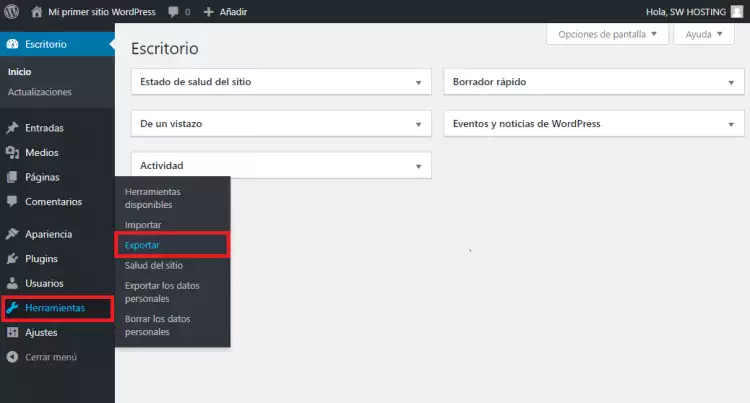
First, we access the Back-End of Wordpress.com and, in the side menu, we go to Tools > Export
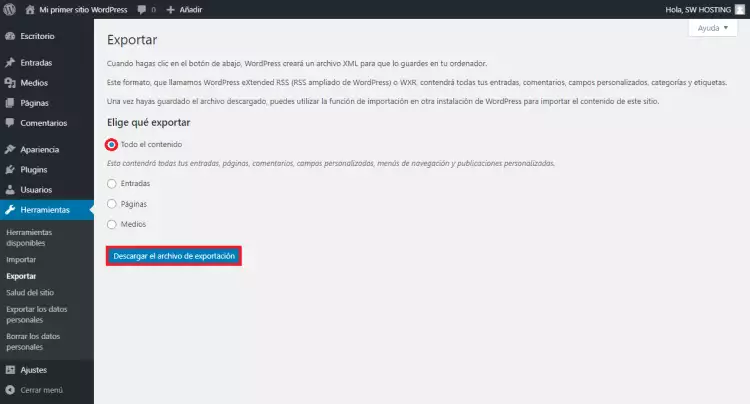
In the following window, we leave the “All content” option selected and click the blue Download export file button.
We save the .xml export file on our PC
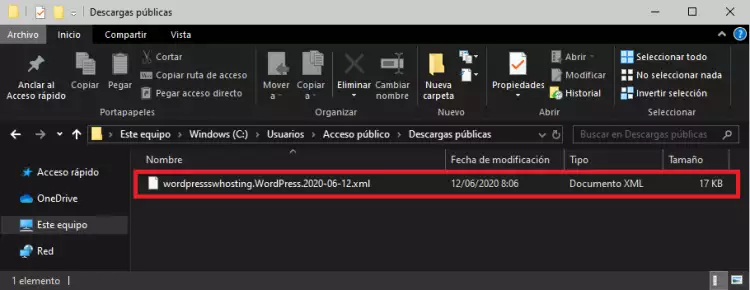
With this .xml file, we can import the content of our website on WordPress.com to a new website created with the WordPress.org software on our Hosting service.
Import all content to our WordPress.org
Now that we have the content exported and in a simple file, we are going to import the .xml file into our new WordPress installation running on our hosting.
We access the Back-End of the new installation created with WordPress.org on our Hosting and, in the side menu, we go to Tools > Import
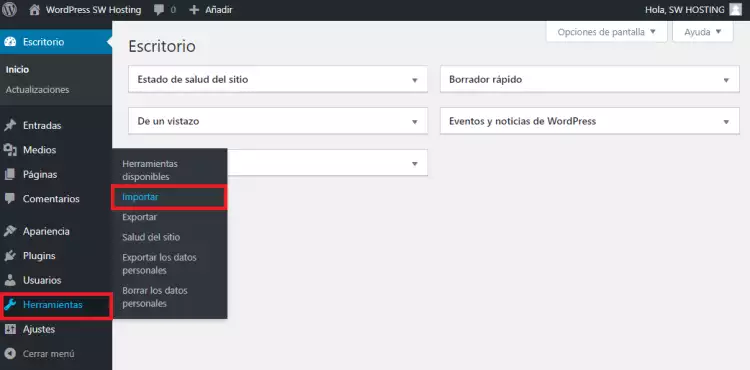
To import data, there are different options. We are going to use the WordPress import. If it is not installed, you must click on install now.
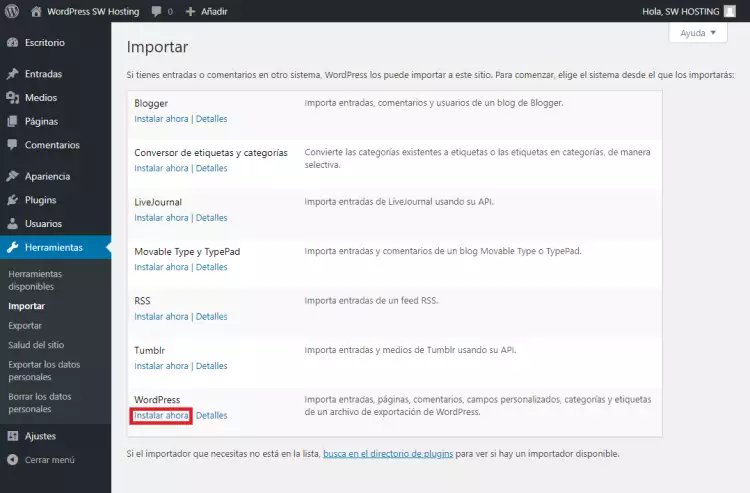
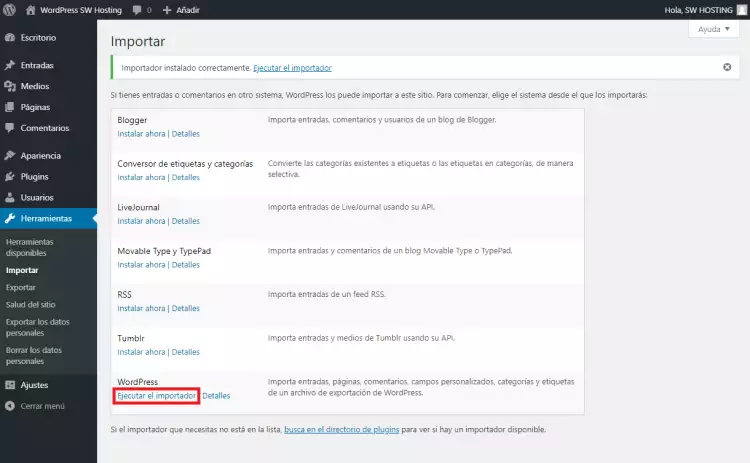
Once installed, we will click on the Run Importer option of WordPress.
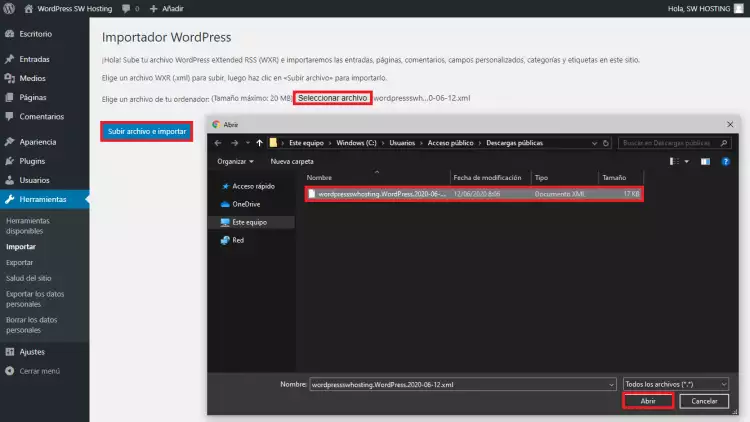
In the following window, we must select the .xml file that we previously downloaded from WordPress.com and, subsequently, we must click the blue Upload file and import button.
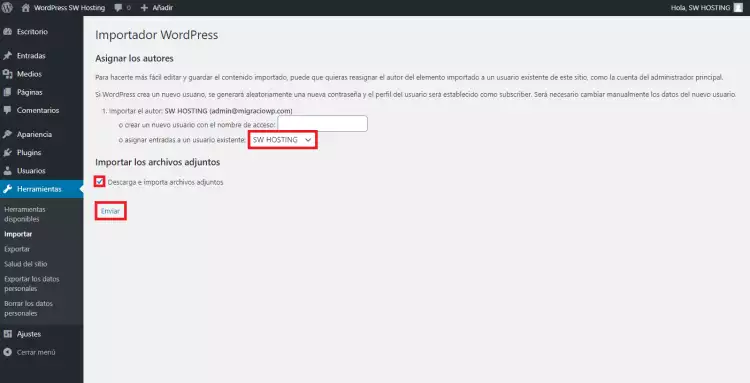
In the following window you can choose which user the new articles and content will be assigned to. In addition, we can check the Download and import file attachments box so that the images from the origin are also downloaded to the new hosting where the new WordPress is hosted.
Once we have configured the previous parameters, we will click the Submit button and the import will be performed
Once the import is finished, you will see the following window:
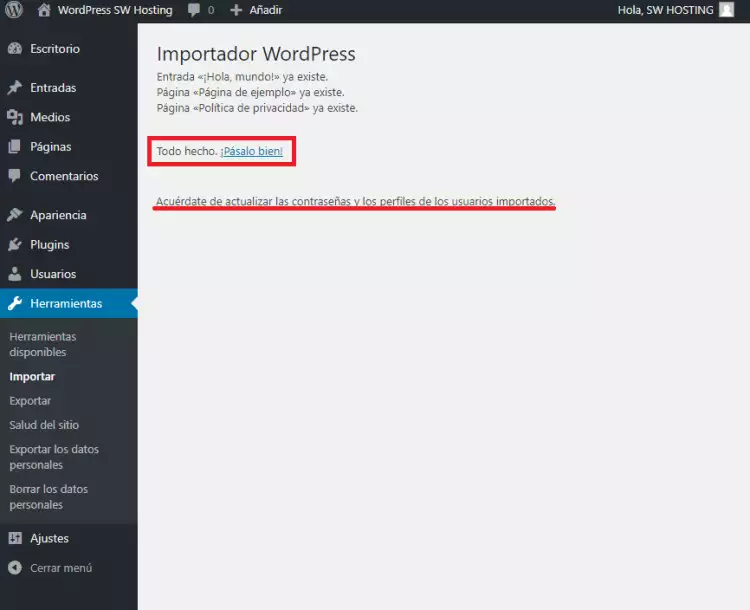
With this, we will have all the data of our website migrated to the new WordPress installation on our Hosting service.
Important: You should keep in mind that when migrating, you will have to start from scratch with the appearance of the website, this means that only the content will be migrated, the appearance of the website nor its WordPress.com add-ons will not be migrated.
To acquire new add-ons, you must access the WordPress Panel and, in the left side menu, click on Plugins and then on add new.
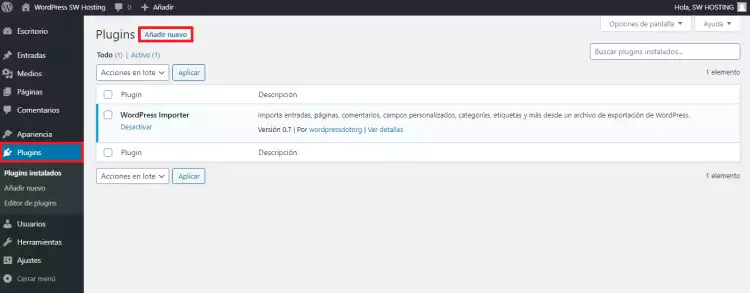
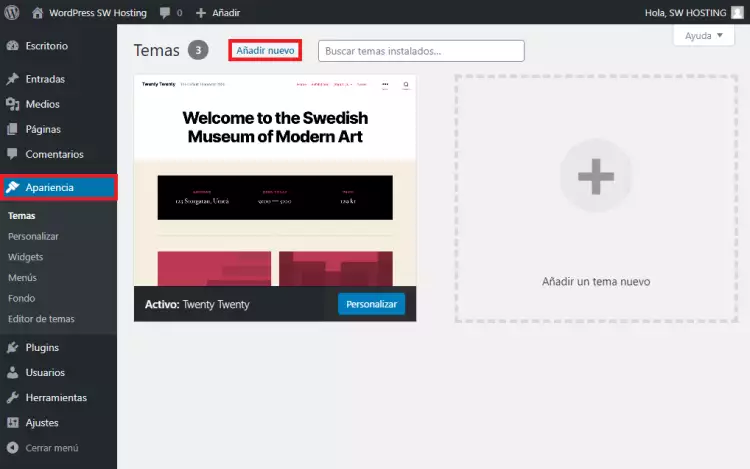
To acquire new style templates, you must access the WordPress Panel and, in the left side menu, click on Appearance and then on add new.