
How to migrate your WordPress with the All-in-One WP Migration plugin
Introduction
The WordPress plugin All-in-One WP Migration allows you to export your current WordPress website to a backup created in a single file with the .wpress extension, which you can then import into any other WordPress website.
Additionally, the All-in-One WP Migration plugin is a solution that allows you to create periodic backups of your website, transfer a WordPress website between hosting services from different providers, and even migrate a WordPress site from a local or public domain to another different domain.
In this manual, we will explain how to migrate a website created with WordPress for the same domain between two different hosting services.
Step 1: Install the All-In-One WP Migration plugin
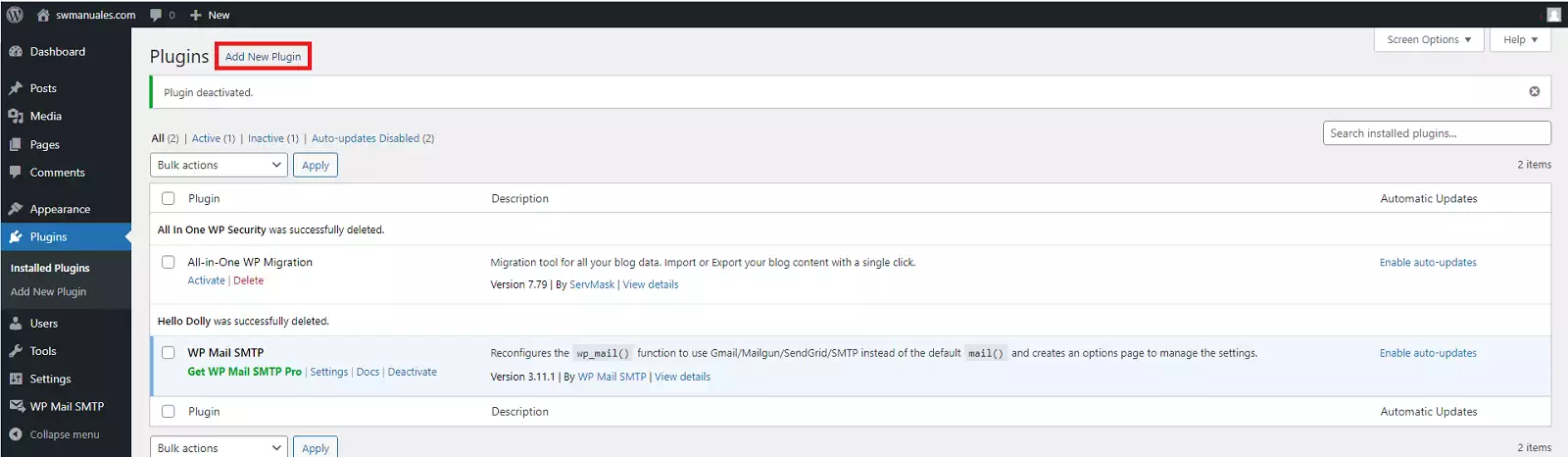
To begin the migration of your site, you will need to install and activate the All-in-One WP Migration plugin in your WordPress dashboard. Go to Plugins → 'Add New Plugin', search for the plugin, and click 'Install Now':
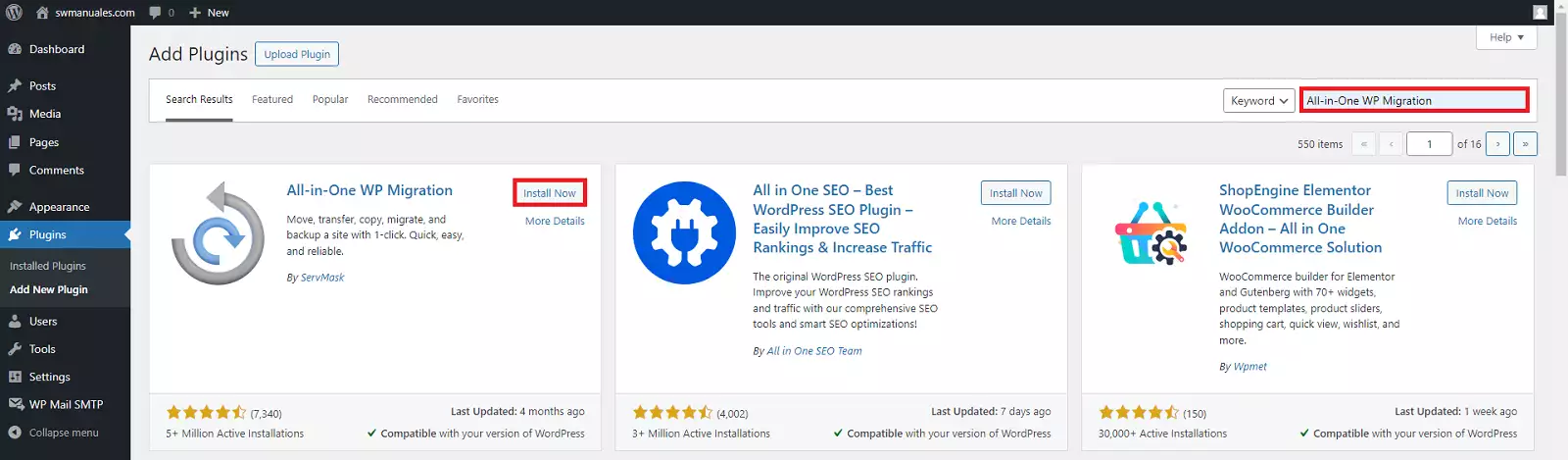
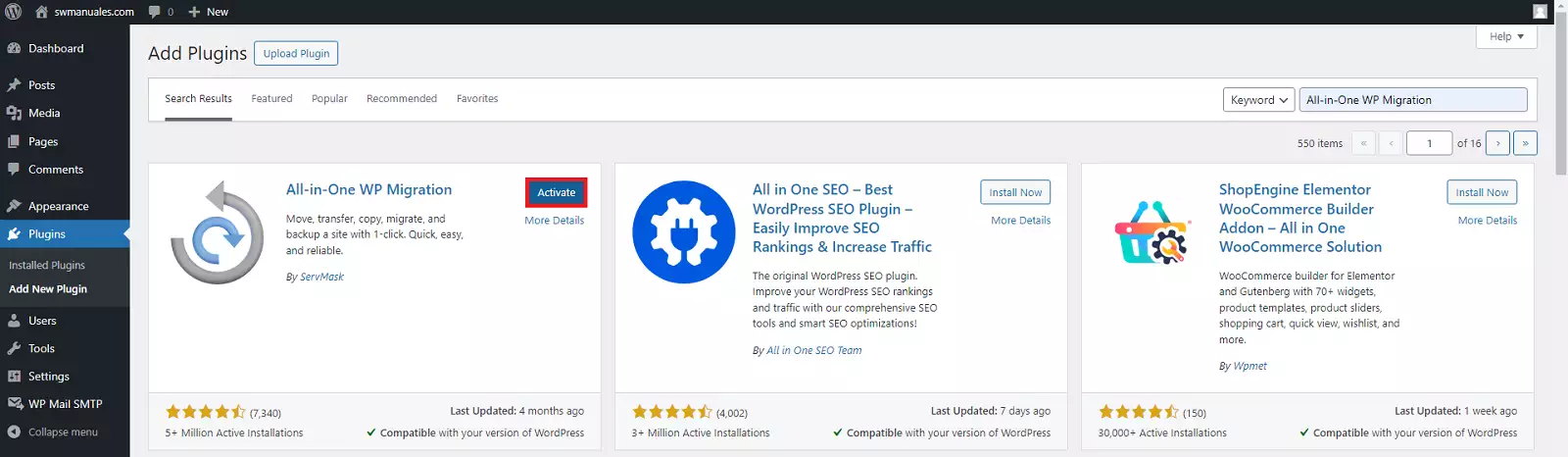
After a few seconds, you will be able to select 'Activate'.
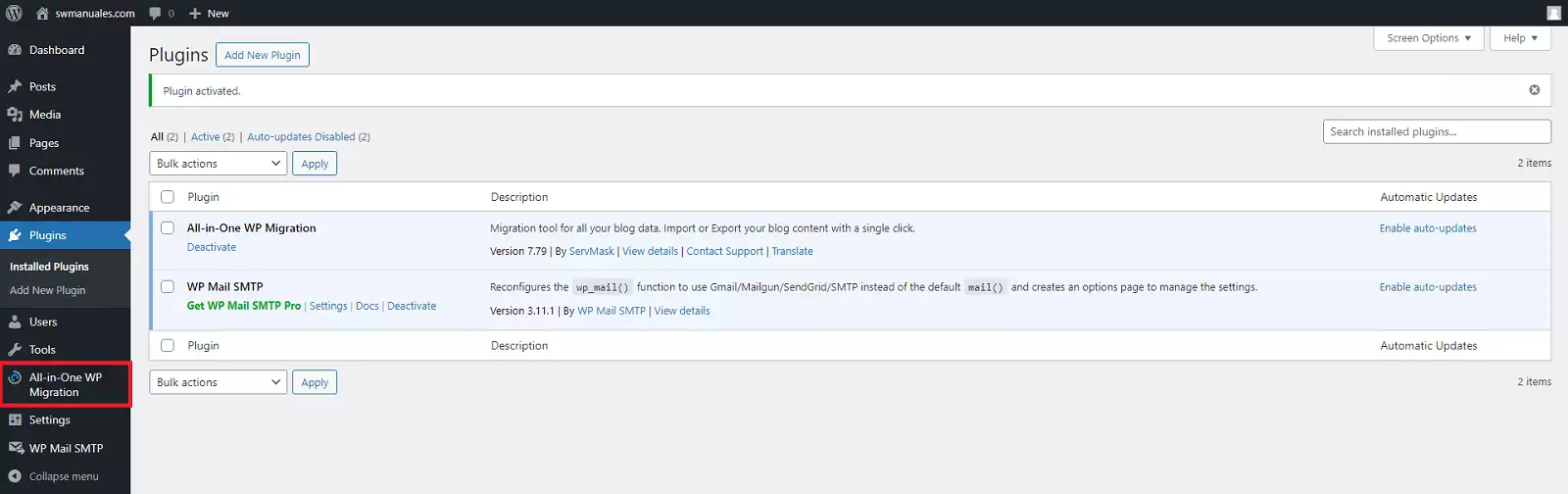
If the installation was successful, a link to the All-In-One WP Migration plugin will appear in the sidebar of your WordPress dashboard.
Step 2: Export your website created with WordPress
All you need to do is go to All-in-One WP Migration in your WordPress dashboard. Then, click on Export:
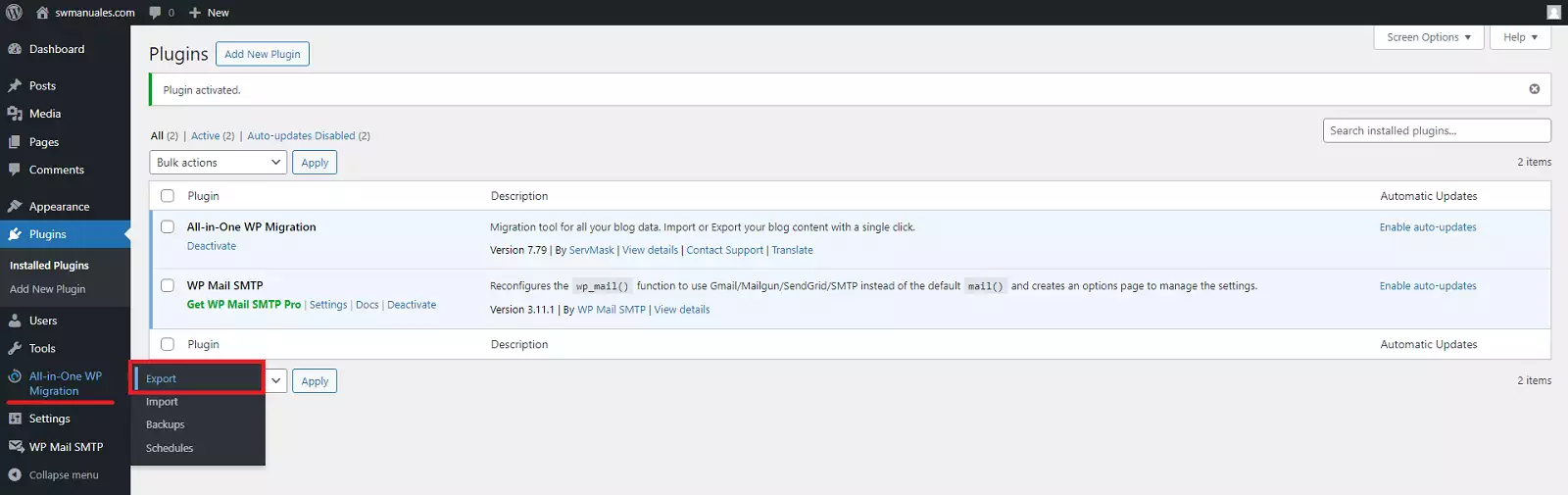
Next, a new screen will open where you can determine the settings for creating the migration file.
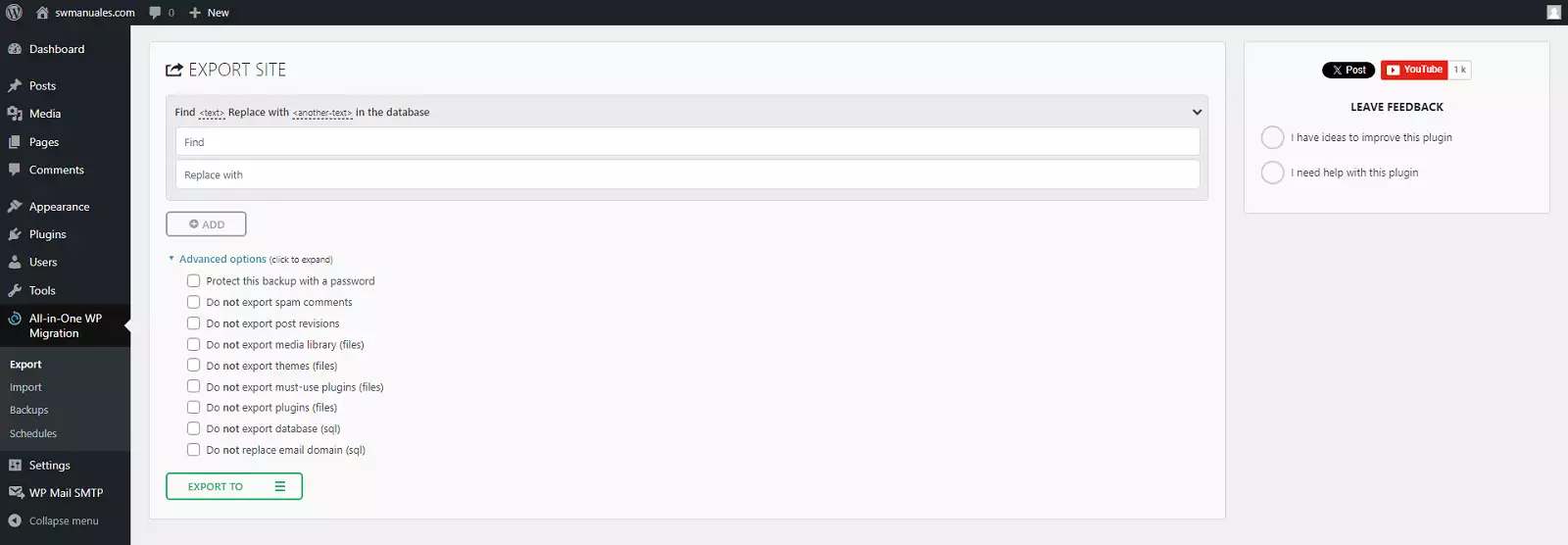
Find and Replace with
It is not necessary to use this function for our export. However, it can be useful if you wish to replace certain information during the migration process, such as changing the original domain of our WordPress so that all database URLs are updated from the domain 'https:/www.webantigua.com/' to 'https:/www.webnueva.com/'. This way, the exported database will be ready so that when imported into the new hosting service, the WordPress site loads its content correctly with the new domain name.
For example: the URLs to specify in the 'Find and Replace with' option to change your WordPress domain would be:
- Find: https://www.webantigua.com/
- Replace with: https://www.webnueva.com/
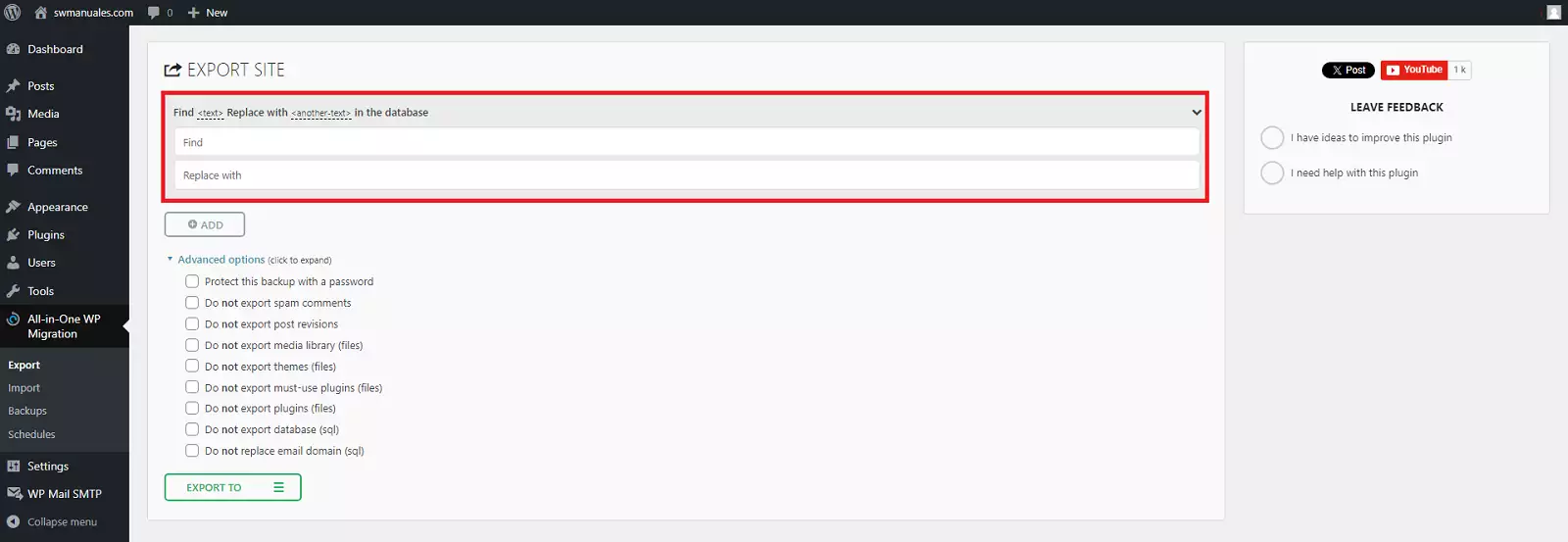
Advanced Options
Although it is also not necessary to configure these advanced options for our export, you have the possibility to exclude certain elements from the final export file. You can exclude plugin files, theme files, media files, spam comments, and more:
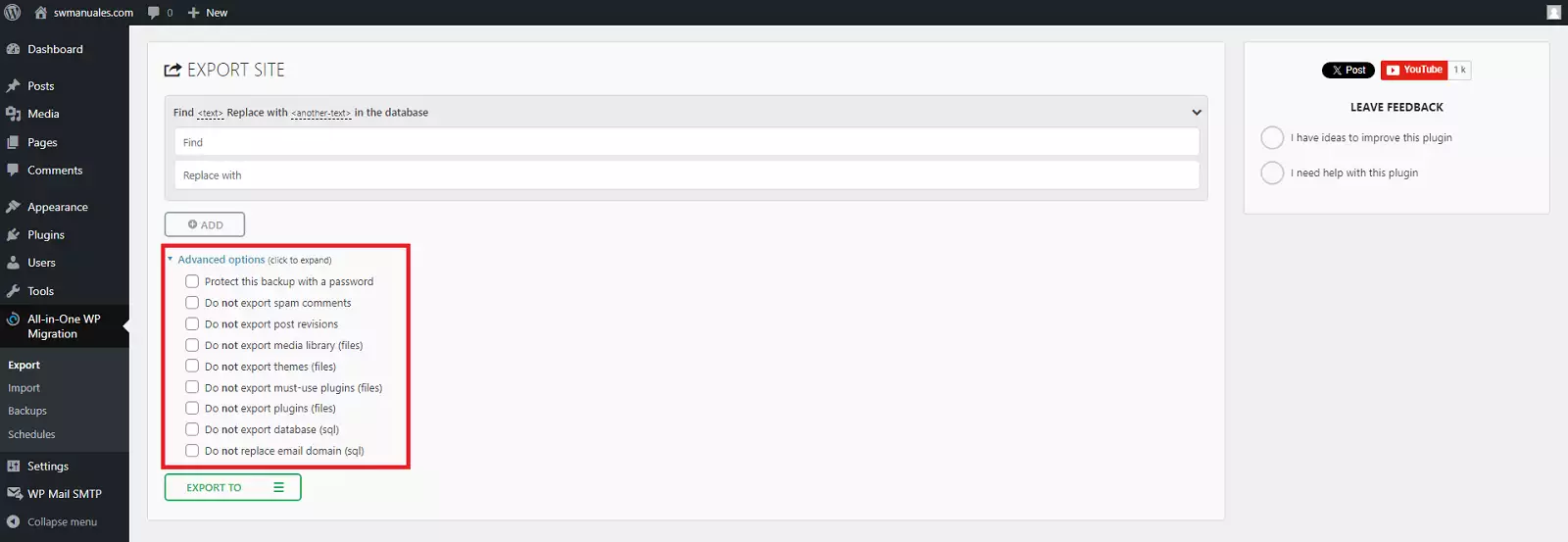
Export To
Select 'Export To' and you will see a new set of options. For example, you can export your website to Dropbox, Google Drive, or Google Cloud. Or you can simply download your website as a file to your PC, which is the option we will use in this manual:
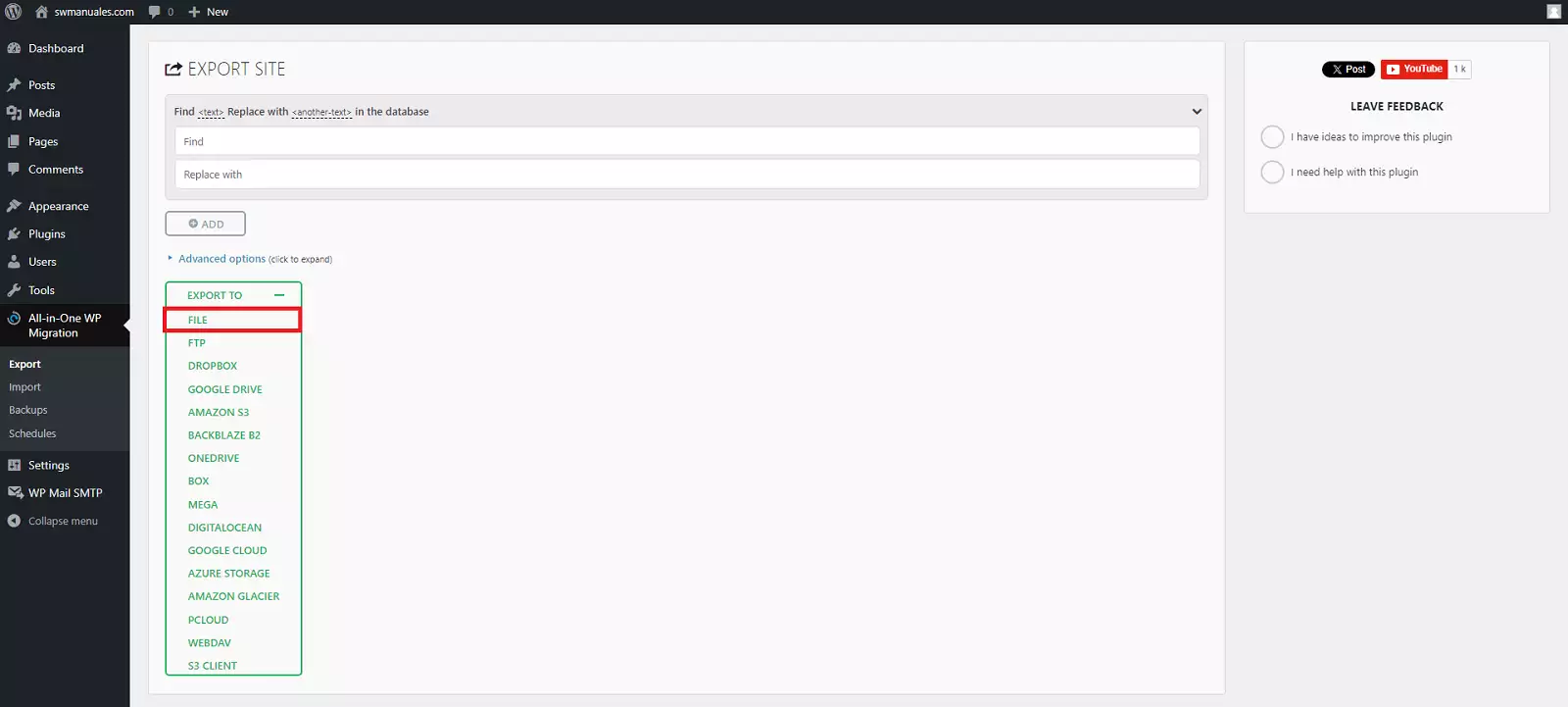
The export process will begin. Normally, this only takes a few seconds. However, if you have a particularly large website with a great amount of data (such as an e-commerce store), this process may take a bit longer.
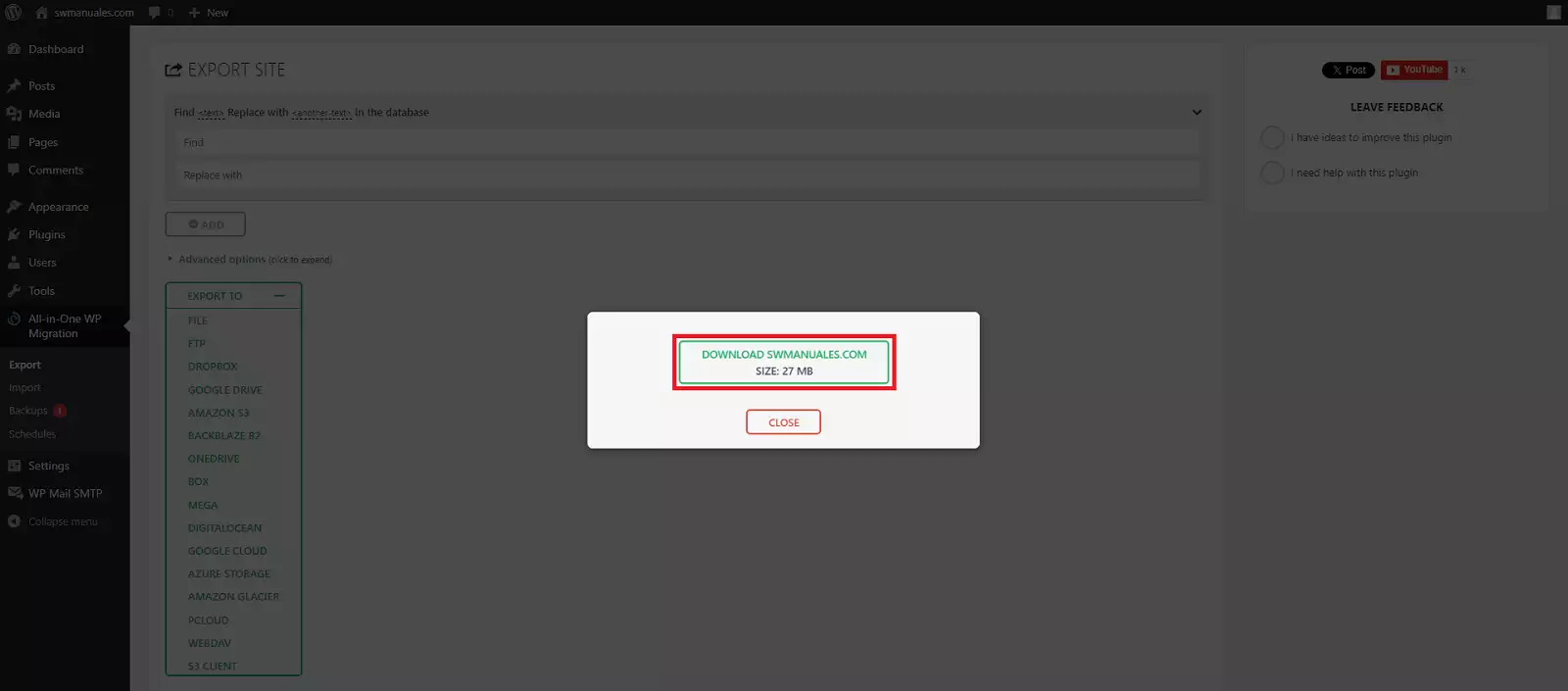
Then you will be able to download your website in a single file with the .wpress extension by clicking the download link in the pop-up box:
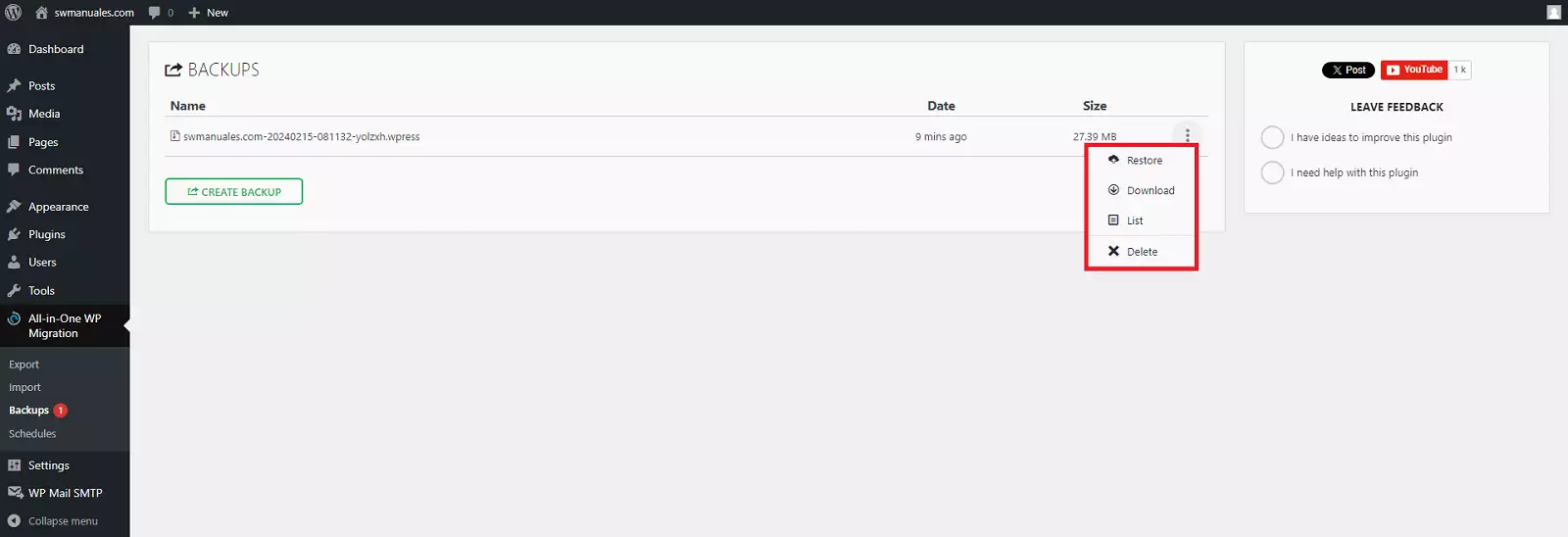
You will also have a copy of the same .wpress file previously downloaded in the 'Backups' section of the All-in-One WP Migrator plugin, so you can use it as a backup in case you wish to restore your WordPress on your current hosting, or also download the .wpress file to your PC again, delete it from your WordPress...
Step 3: Import the WordPress website to the new hosting service.
To start the import process, we should have a WordPress installation with the All-in-One WP Migration plugin installed on this new site, so we will follow these steps to import the site:
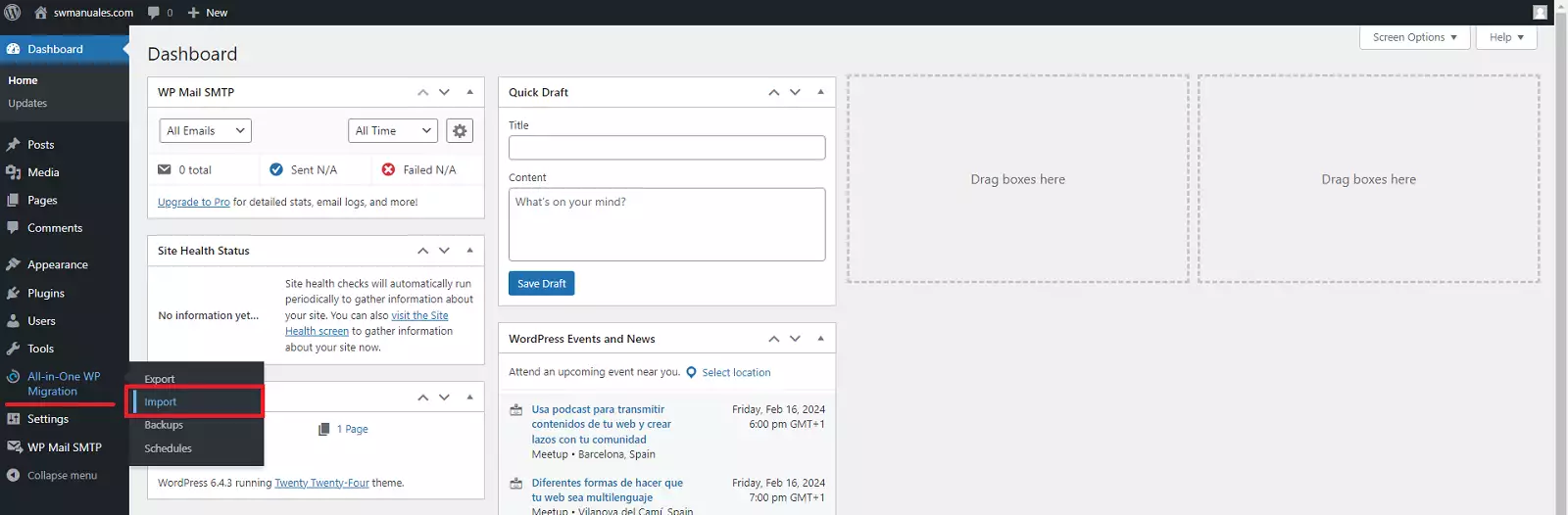
Go to All-in-One WP Migration in your WordPress dashboard and select 'Import'
Next, you must click the 'Import From' button and choose the 'File' option
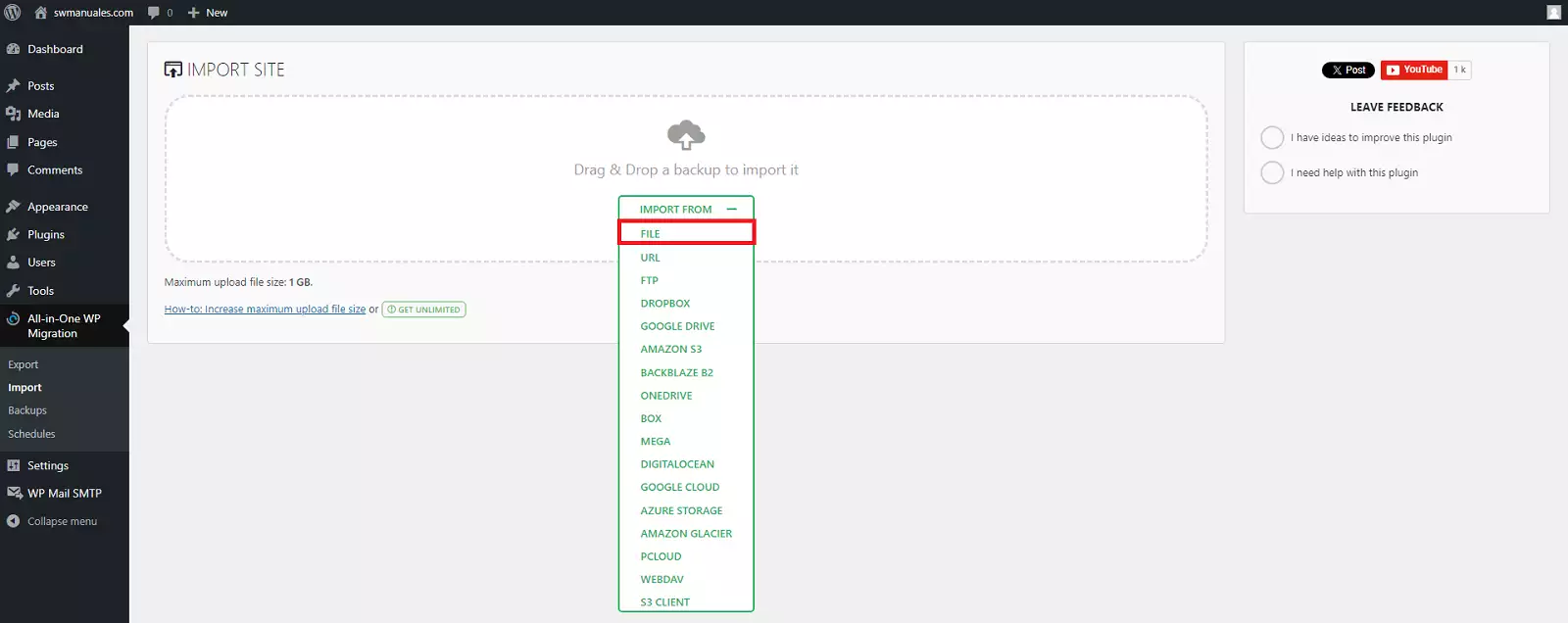
Search for and upload from your PC the .wpress export file that you created in the previous step of this tutorial.
The plugin will warn you that this process will overwrite your current WordPress database, media, plugins, and themes. Click the 'Proceed' button:
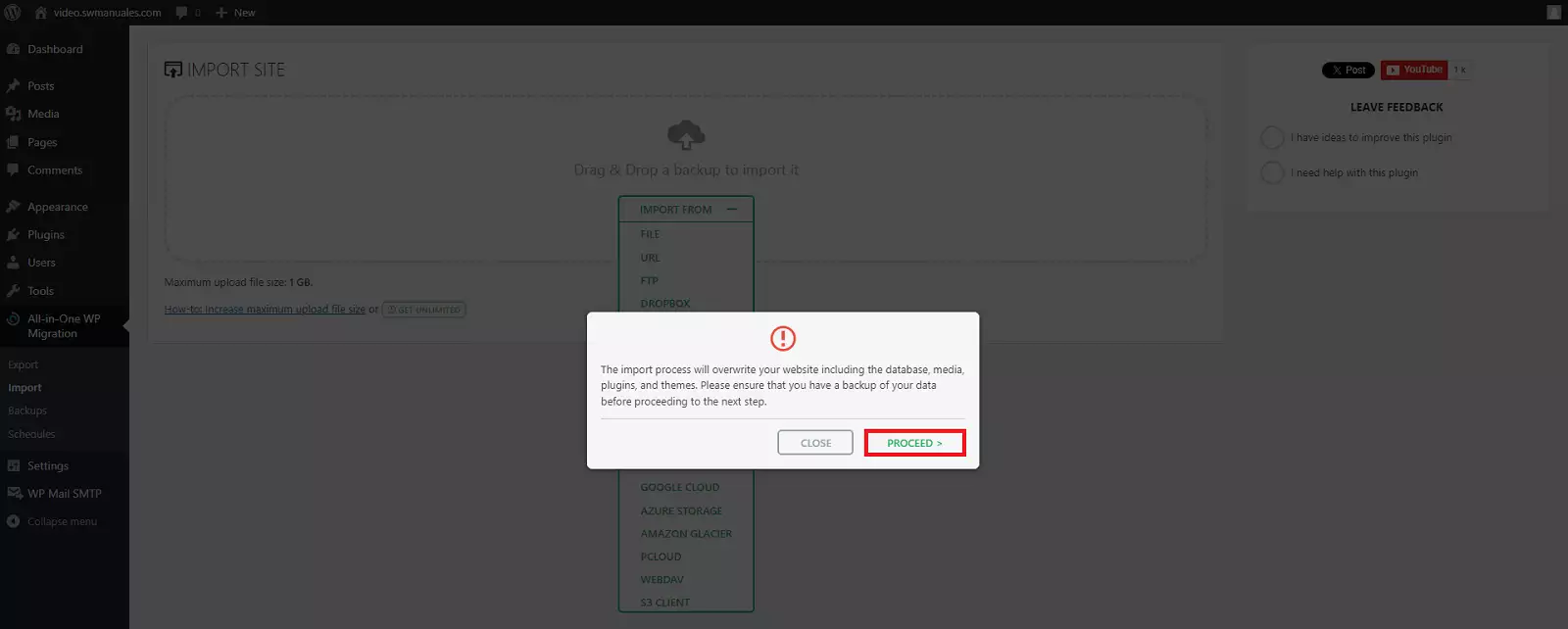
At this point, the import process will begin. The time this takes will depend on your new server and the size of the migration file.
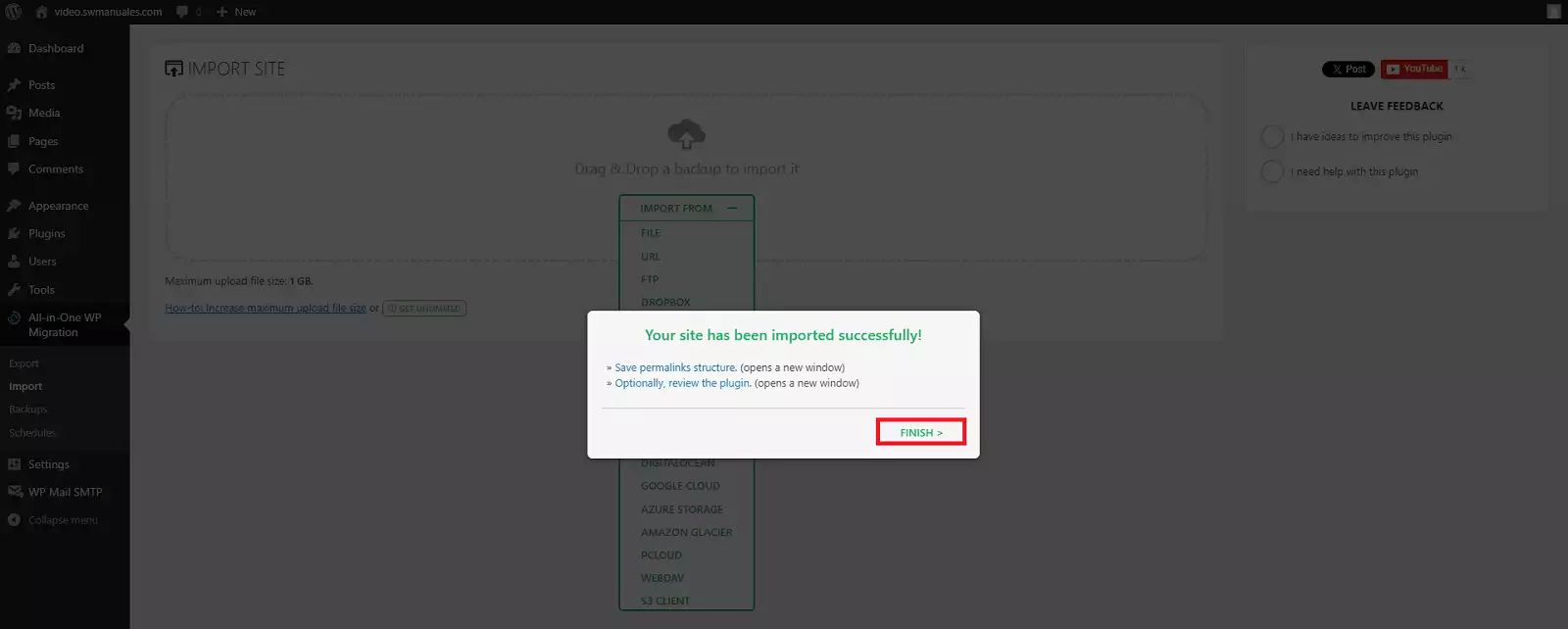
You will receive a confirmation message indicating that 'Your site has been imported successfully!' and it will also indicate that you must 'Save the permalink structure'.
To conclude the import process, you must click the 'Finish' button.
danger Attention! Now the username and password you configured during the installation for your new WordPress are no longer valid because you have migrated all the information from your old WordPress, including its users and passwords, to your new WordPress.
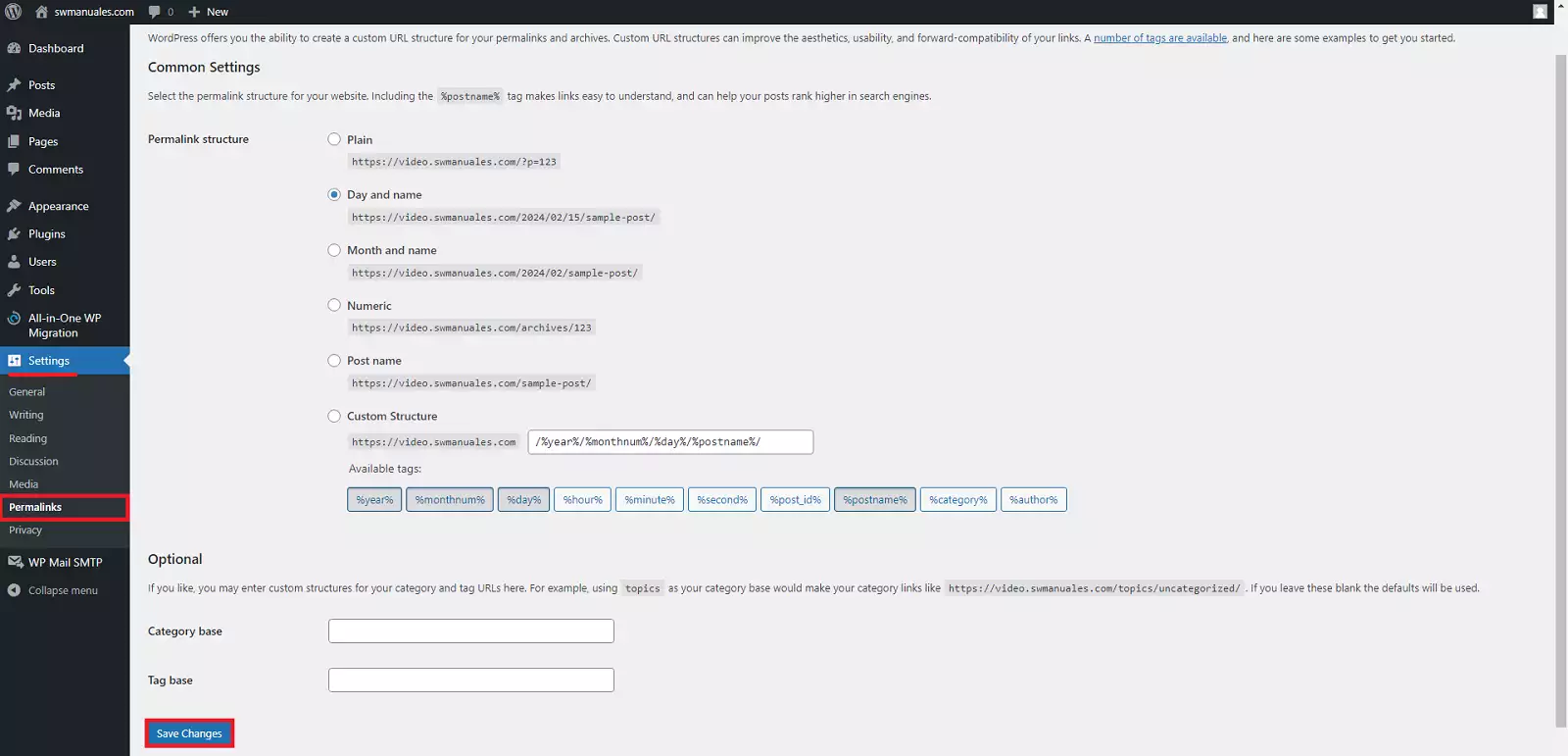
The migration of your WordPress is almost finished at this point. All you have to do now is reset the permalink settings of the newly migrated WordPress.
In your new WordPress dashboard, go to 'Settings' > 'Permalinks' and click the 'Save Changes' button.
success Congratulations! You have successfully migrated and configured your WordPress