
How to transfer a SWPanel service to a new SWPanel account
In this manual, we explain how to migrate content between services with different names and between two SWPanel customer accounts.
In this case, we will use the services hosting1.swmanuales.com (source in customer account A) and hosting2.swmanuales.com (new in customer account B) to perform the process.
Prior recommendations
To carry out the migration of a Hosting service, you will need the following information:
-
To synchronize the Web content
- Source Web Server IP
- Web Path (By default it is '/var/www/dominio.tld/datos/web')
- Copy Web content via FTP
- FTP Username
- FTP Password
-
To synchronize the Database
- Source Database Server IP
- Database Name
- Database Username
- Database User Password
-
To migrate the email content, since these are Hosting services with different names, you must do it manually through the following manual Manuel : How to back up my email messages by downloading them locally to my PC.
We recommend that you gather it before starting the process, as it will be simpler.
Where to find the necessary data
Web and Database server IPs
Using the top search bar, go to your Hosting service:

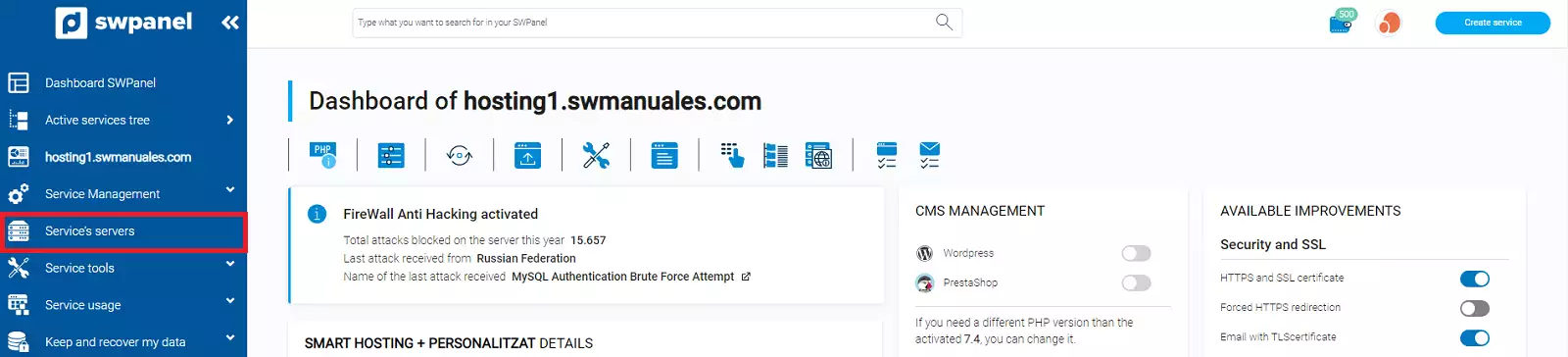
To see the IPs of the servers assigned to your service, you must click on Service Servers in the blue side menu:
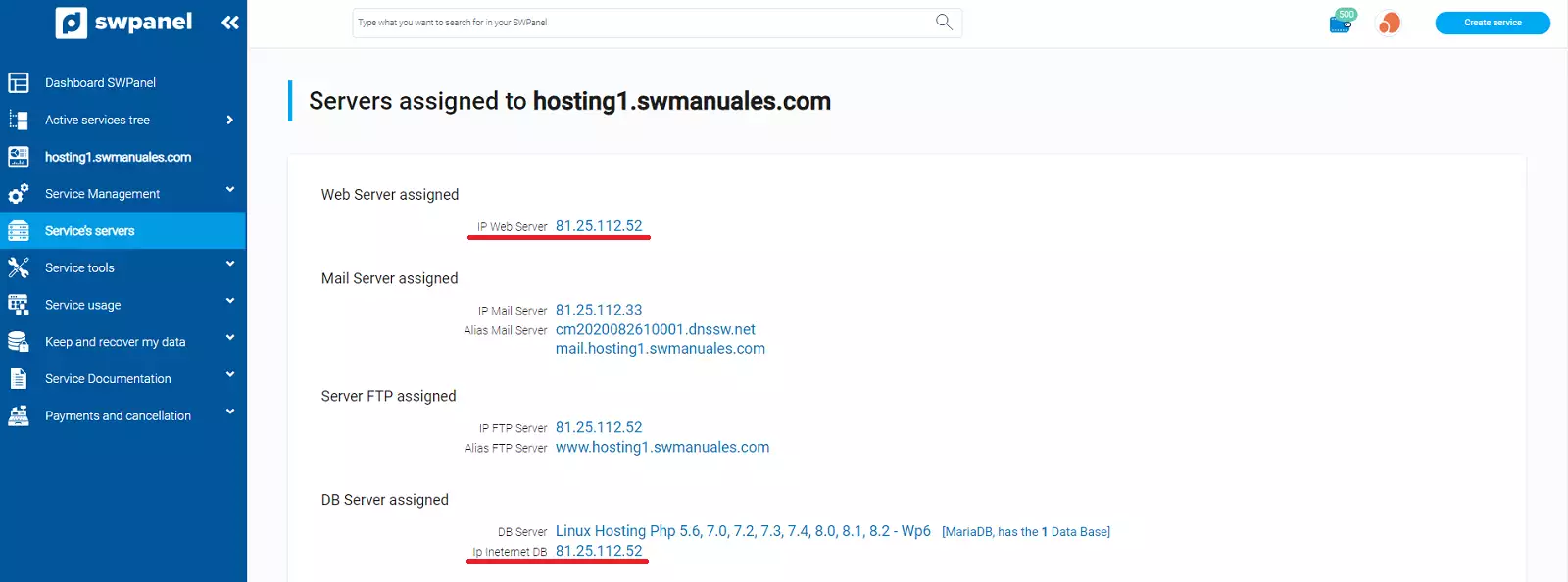
You will have access to the IPs of the servers associated with your Hosting service:
Database Name and Username
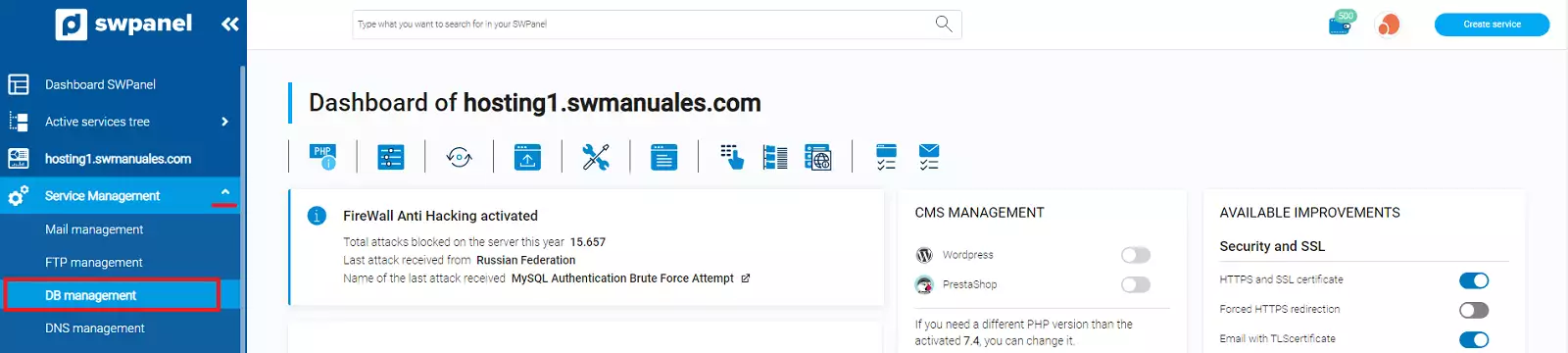
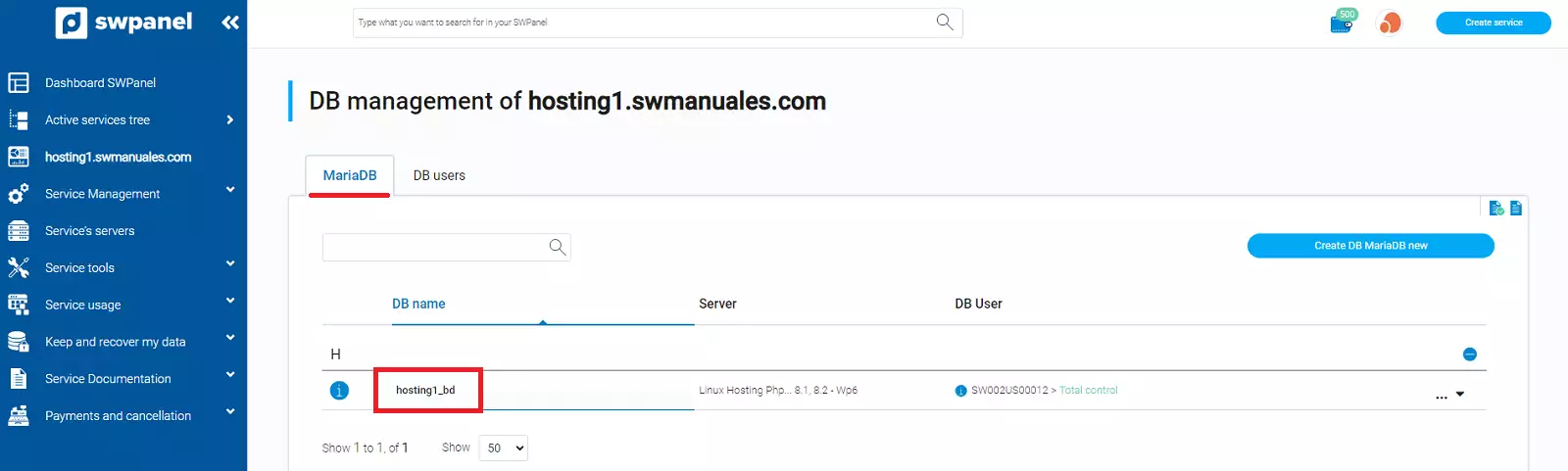
To see the Database name of your Hosting service, you must go to Service Management → DB Management. In the MariaDB section, you can see the created databases and their name:
In the DB Users section, you can see the Database users you have in your Hosting service:
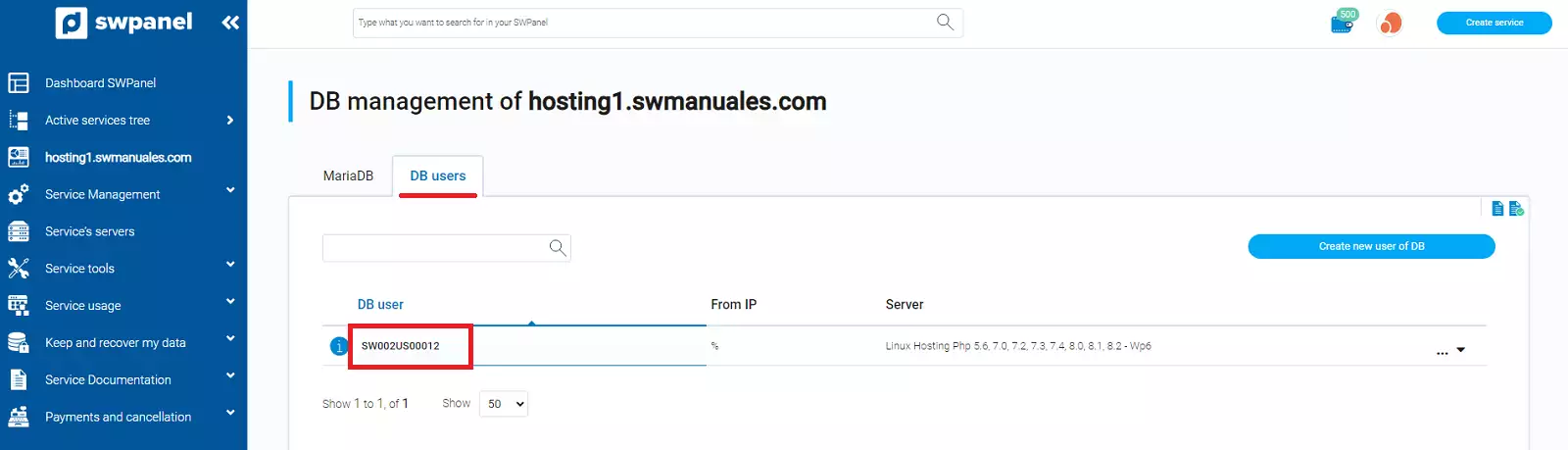
info In strict compliance with ISO27001, LOPD, and GDPR, SW Hosting does not know the passwords of the different accounts (FTP, DB, Email...) that you have created in your Hosting service.
How to perform the migration
In the new customer account, we recommend having the Hosting service created. To do this, you can follow the following manual Manuel : Create Hosting service for my Website.
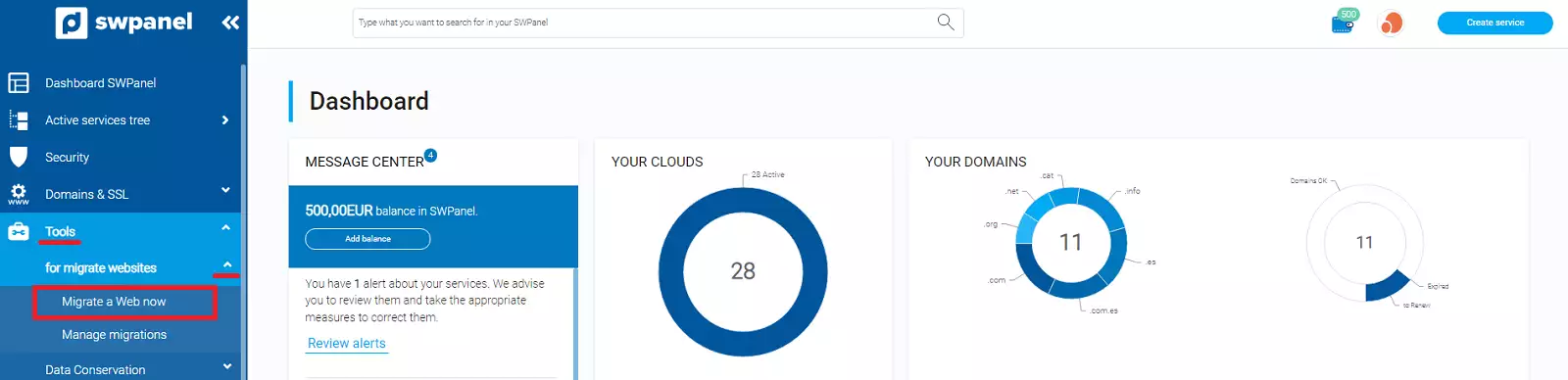
Once the Hosting service has been created, we will use the migration tool (in the new customer account) to copy the content. In the blue side menu Tools → To migrate Webs → Migrate a Web now:
If the Hosting service has already been created, you must select which Hosting service you are going to migrate it to.
You must fill it in with the data gathered previously, and finally, you can add an email account where you will be notified when the migration has finished.
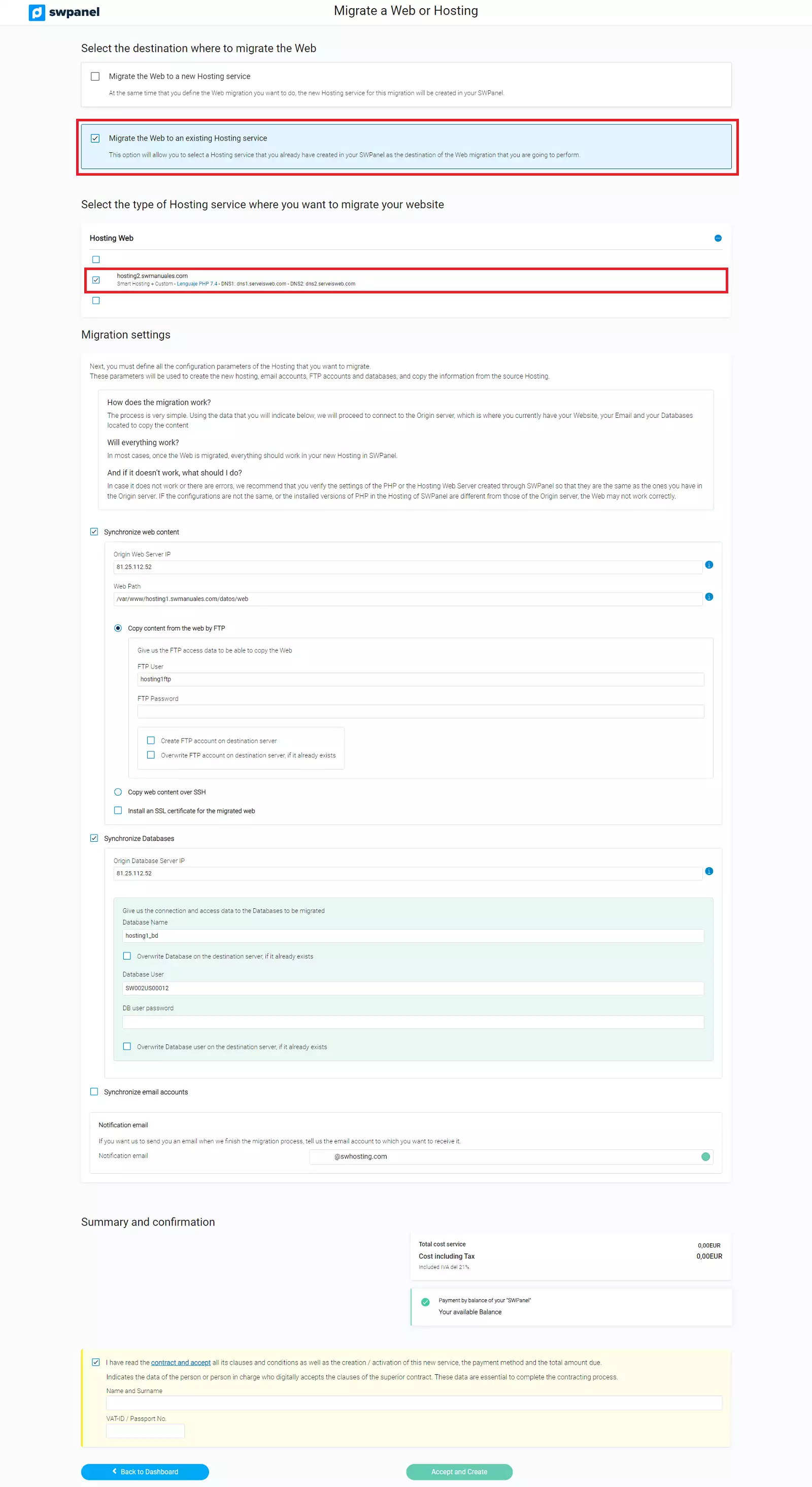
Finally, click on Accept and Create.