
How do I access my Cloud using the console via SWPanel
To access your server via console from SWPanel, you must first access your server's dashboard. You can do this by searching for it using the SWPanel search bar or from the services tree:
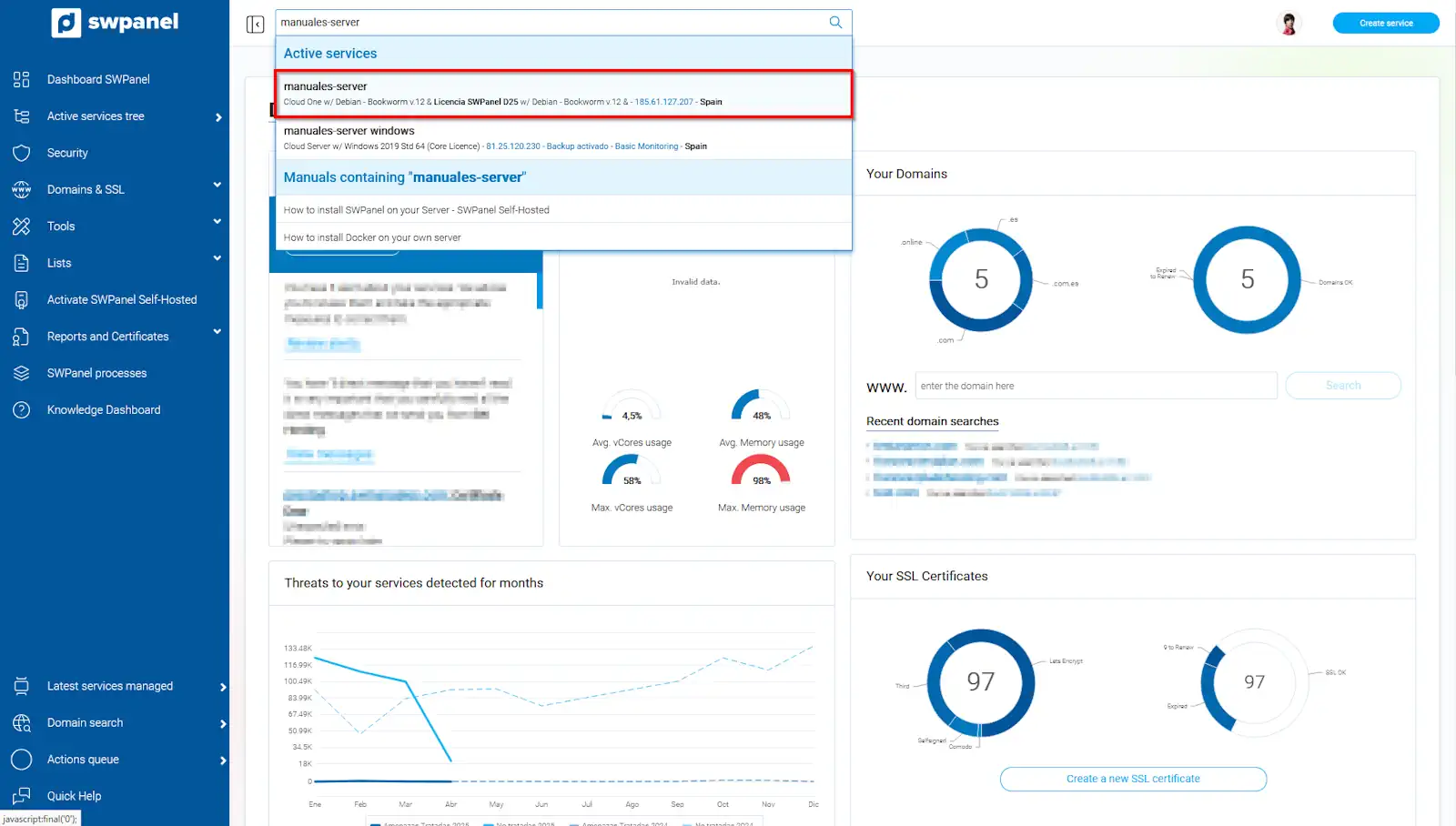
info_capture The screenshot is for guidance purposes. It was taken using version 2025.003.0007 dated 11/04/2025. It may differ from what is shown in the current version of SWPanel
Once in the Cloud server dashboard, you must click on the console icon, or you can access it via Actions for this Cloud → Act on the Cloud → Open console from the blue side menu:
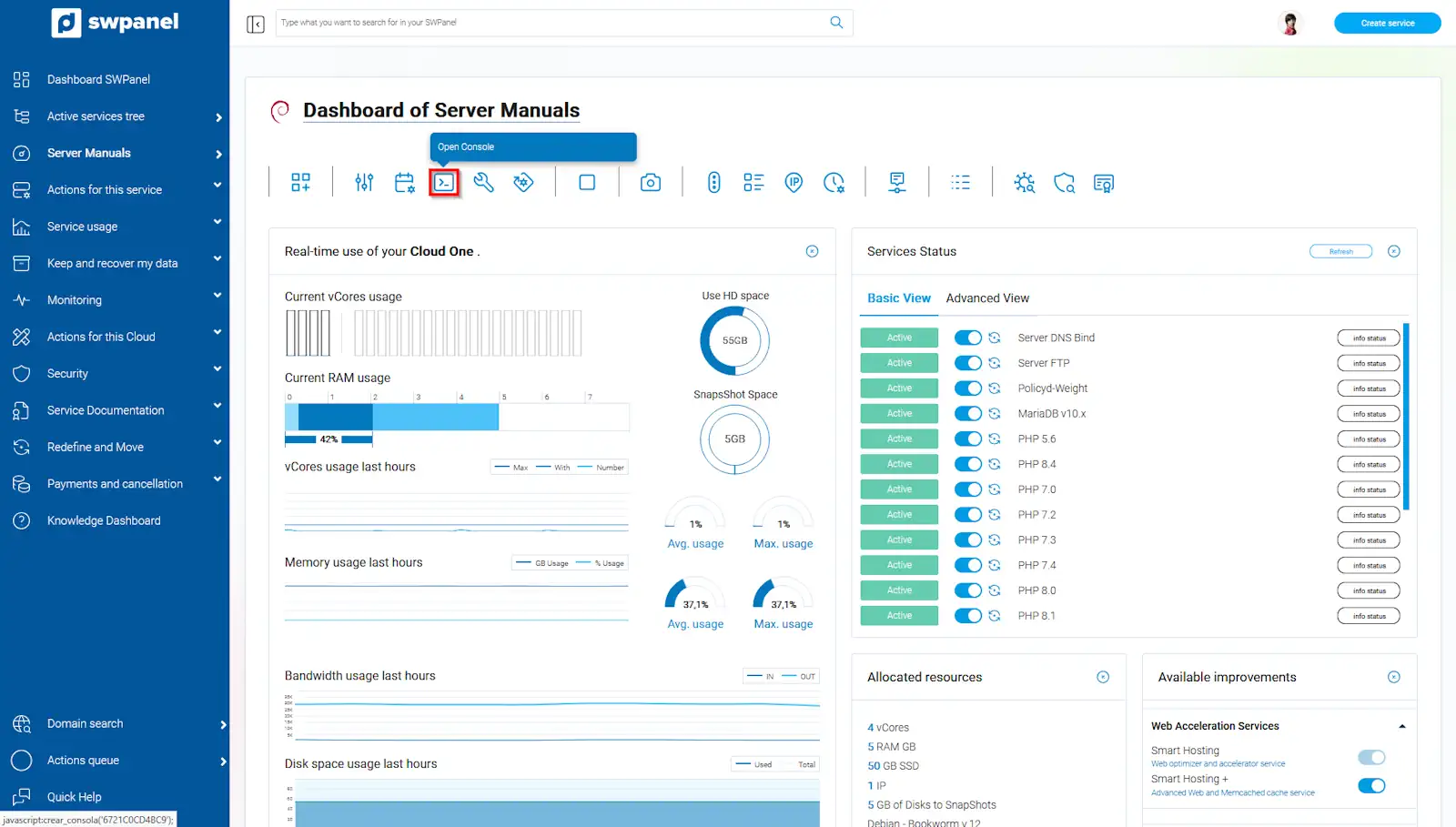
info_capture The screenshot is for guidance purposes. It was taken using version 2025.003.0007 dated 11/04/2025. It may differ from what is shown in the current version of SWPanel
Once the console opens, you must enter the access credentials.
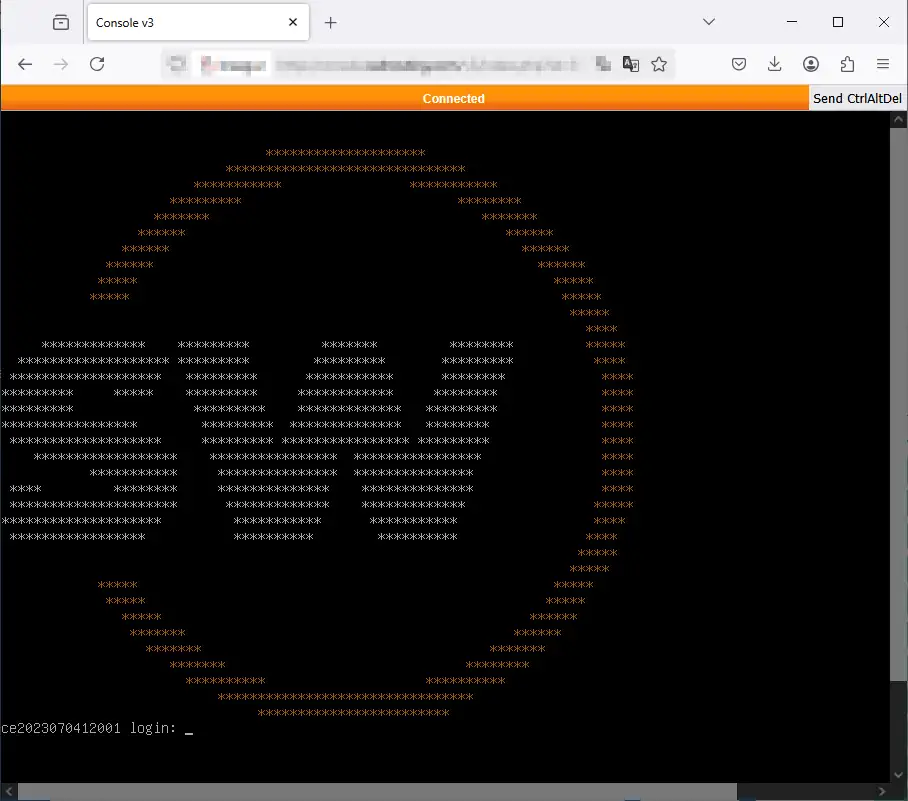
info_capture The screenshot is for guidance purposes. It was taken using version 2025.003.0007 dated 11/04/2025. It may differ from what is shown in the current version of SWPanel
The “Send CtrlAltDel” button will restart the Cloud server
In case a gray screen or the message 'Something went wrong, connection is closed' is displayed when attempting to access the console, it may be due to a problem with loading via secure connection (HTTPS).
If this happens, we recommend trying to access the console using http:// instead of https:// in the browser URL.
For example, if the original URL is:
https://console.swhosting.com/v3/index.php?id=...
change it to:
http://console.swhosting.com/v3/index.php?id=...
This alternative may resolve the issue temporarily.