
How to activate an SSL certificate in your service (HTTPS and Email TLS)
SWPanel has improved the SSL certificate activation process. Let's Encrypt validation is no longer performed on the main dashboard, but in the next step. This allows problems to be detected before continuing.
Steps to activate the SSL certificate
- Access the Dashboard of your hosting service in SWPanel.
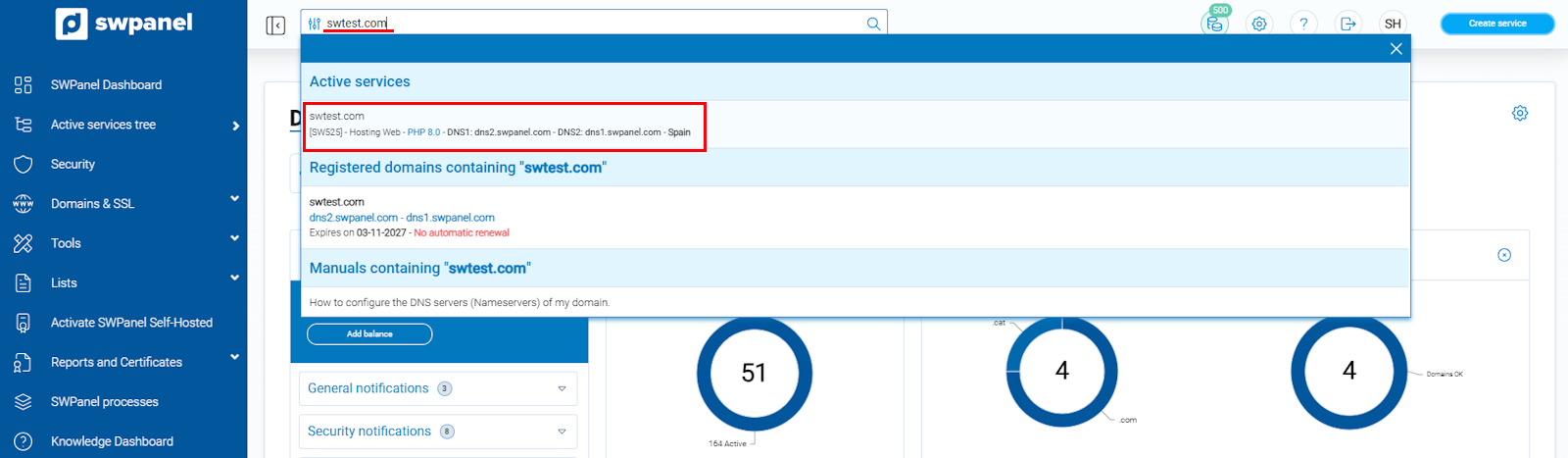
info_capture The screenshot is for guidance purposes. It was taken using version 2026.001.0020 dated 03/05/2026. It may differ from what is shown in the current version of SWPanel.
- Scroll down to the Available improvements section.
info_capture The screenshot is for guidance purposes. It was taken using version 2026.001.0020 dated 03/05/2026. It may differ from what is shown in the current version of SWPanel.
- In the Security and SSL block, activate the corresponding switch:
- HTTPS and SSL certificate → To encrypt your website - Email with TLS certificate → To encrypt email connections
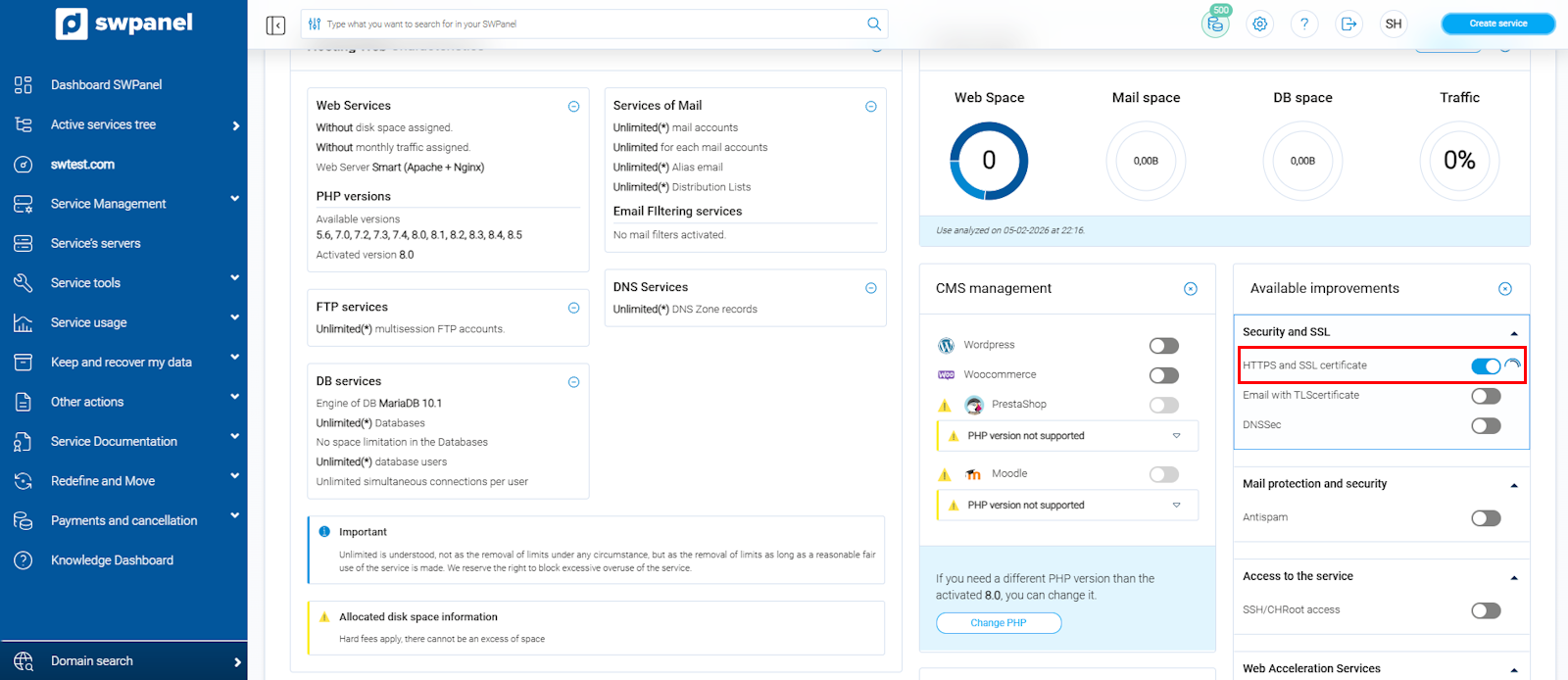
info_capture The screenshot is for guidance purposes. It was taken using version 2026.001.0020 dated 03/05/2026. It may differ from what is shown in the current version of SWPanel.
- The activation screen will open. Select the desired certificate type from the dropdown menu:
- Let’s Encrypt SSL, Free
- Paid certificates (Comodo, RapidSSL, etc.)
- SSL Self-signed, Free (for testing and development)
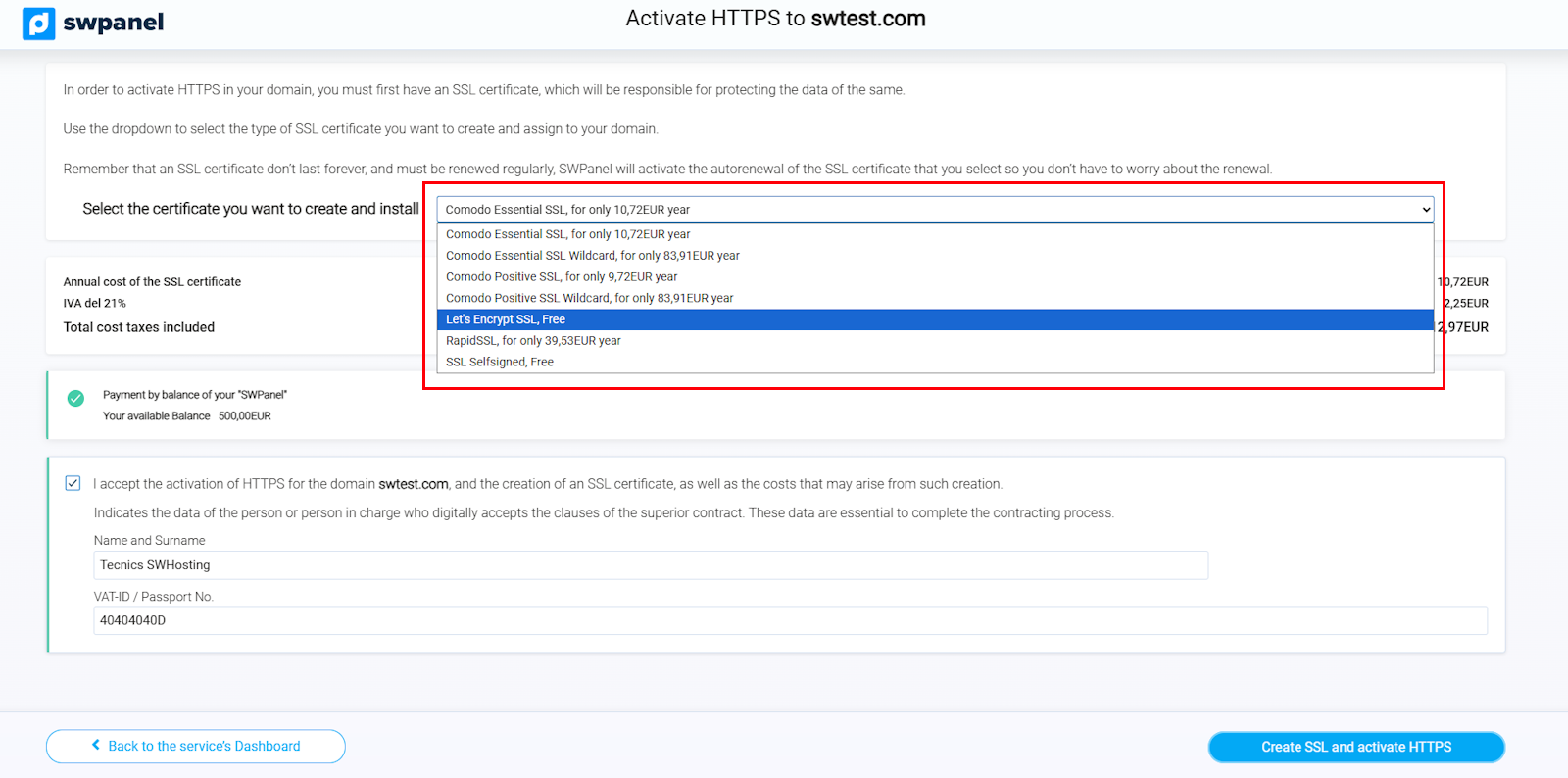
info_capture The screenshot is for guidance purposes. It was taken using version 2026.001.0020 dated 03/05/2026. It may differ from what is shown in the current version of SWPanel.
- Automatic Let's Encrypt validation
If you select Let’s Encrypt, SWPanel performs the validation immediately:
- If everything is correct → you can proceed with the activation.
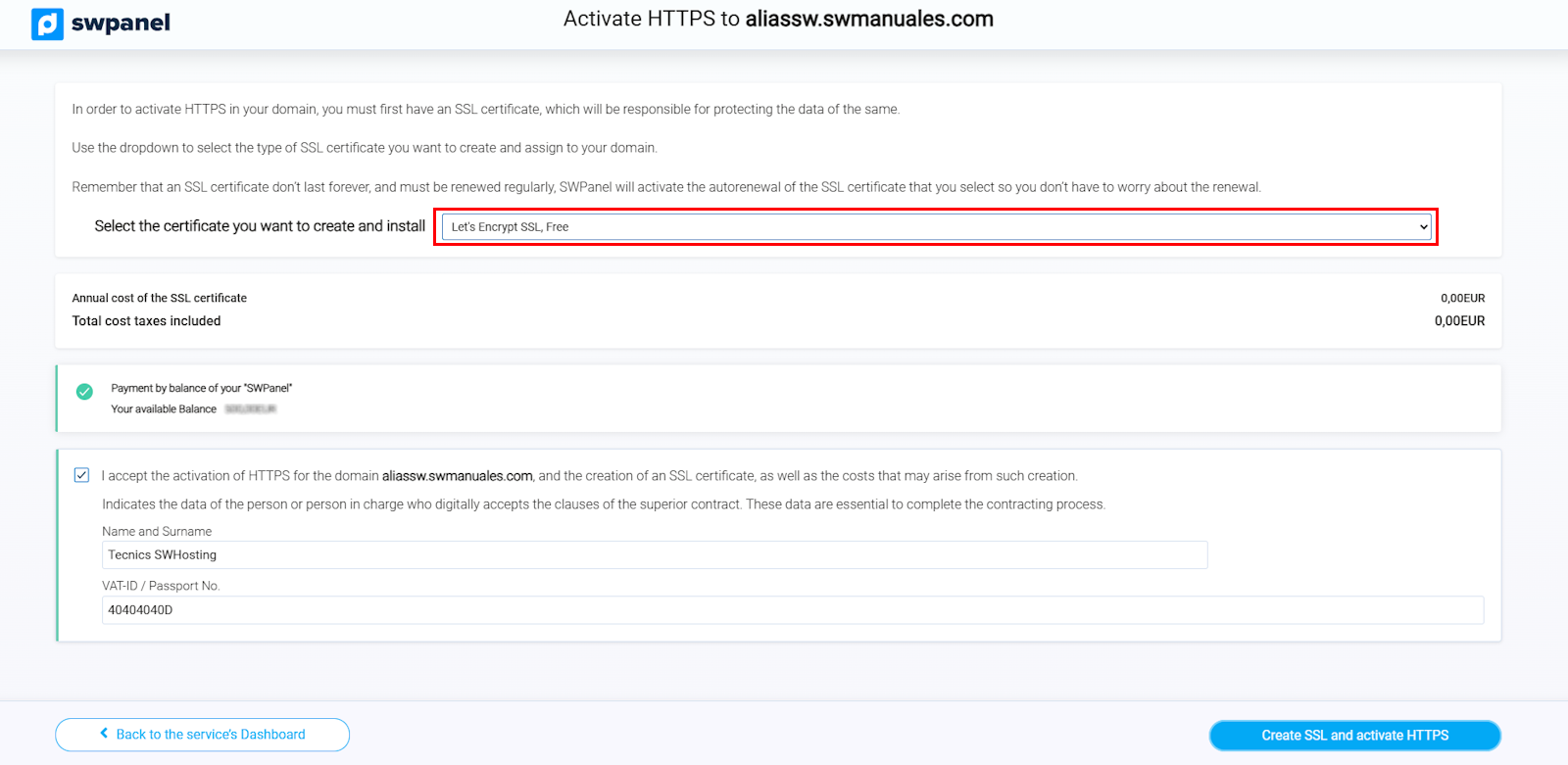
info_capture The screenshot is for guidance purposes. It was taken using version 2026.001.0020 dated 03/05/2026. It may differ from what is shown in the current version of SWPanel.
- If it fails → a detailed message will appear with the reason for the error (for example: domain does not point to the server, CDN conflict, multiple A records, etc.).
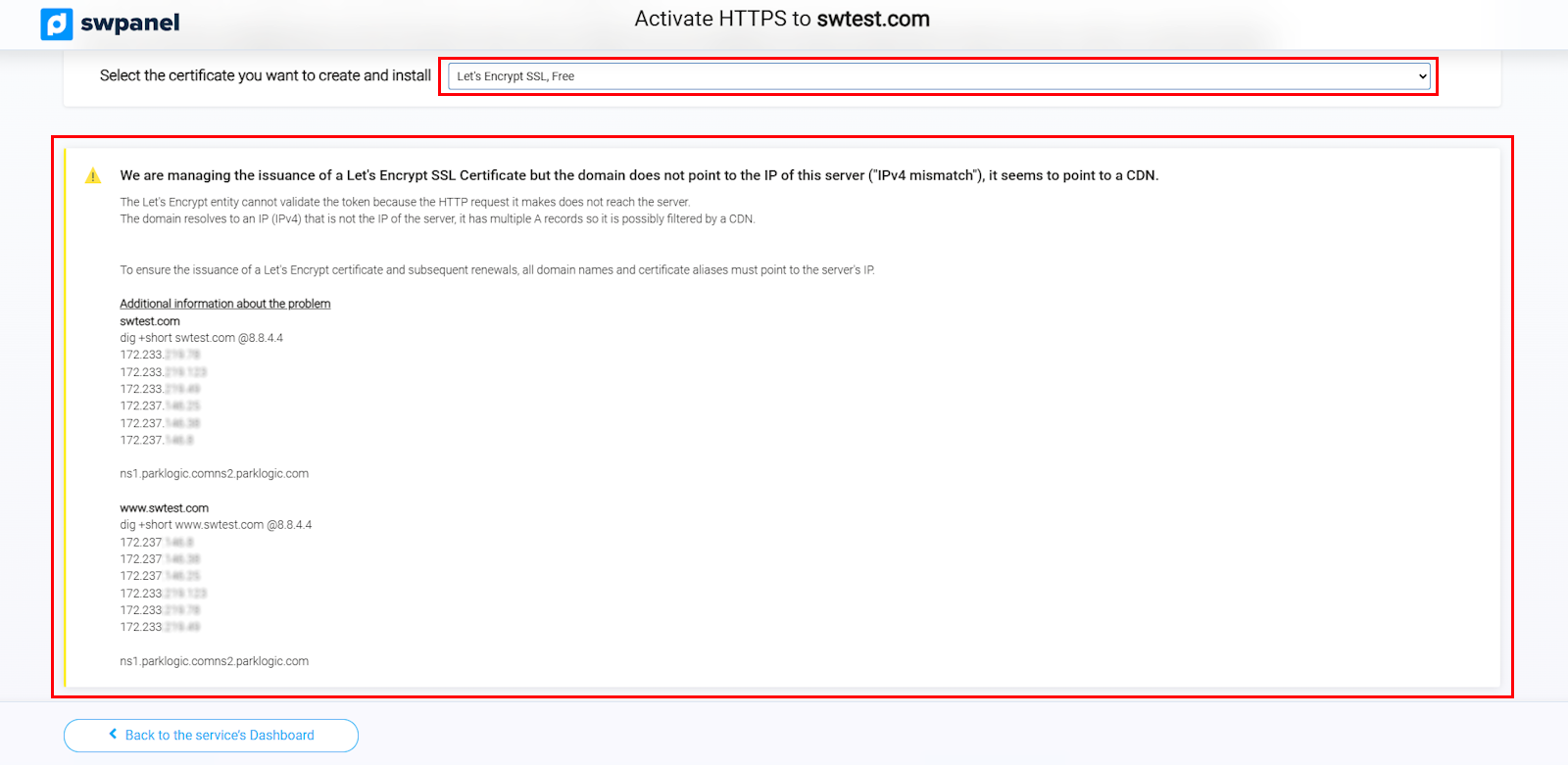
info_capture The screenshot is for guidance purposes. It was taken using version 2026.001.0020 dated 03/05/2026. It may differ from what is shown in the current version of SWPanel.
- If the validation is correct (or if you choose Self-Signed), check the acceptance box, complete your details (Name and ID/Tax ID) and click on Create SSL and activate HTTPS.
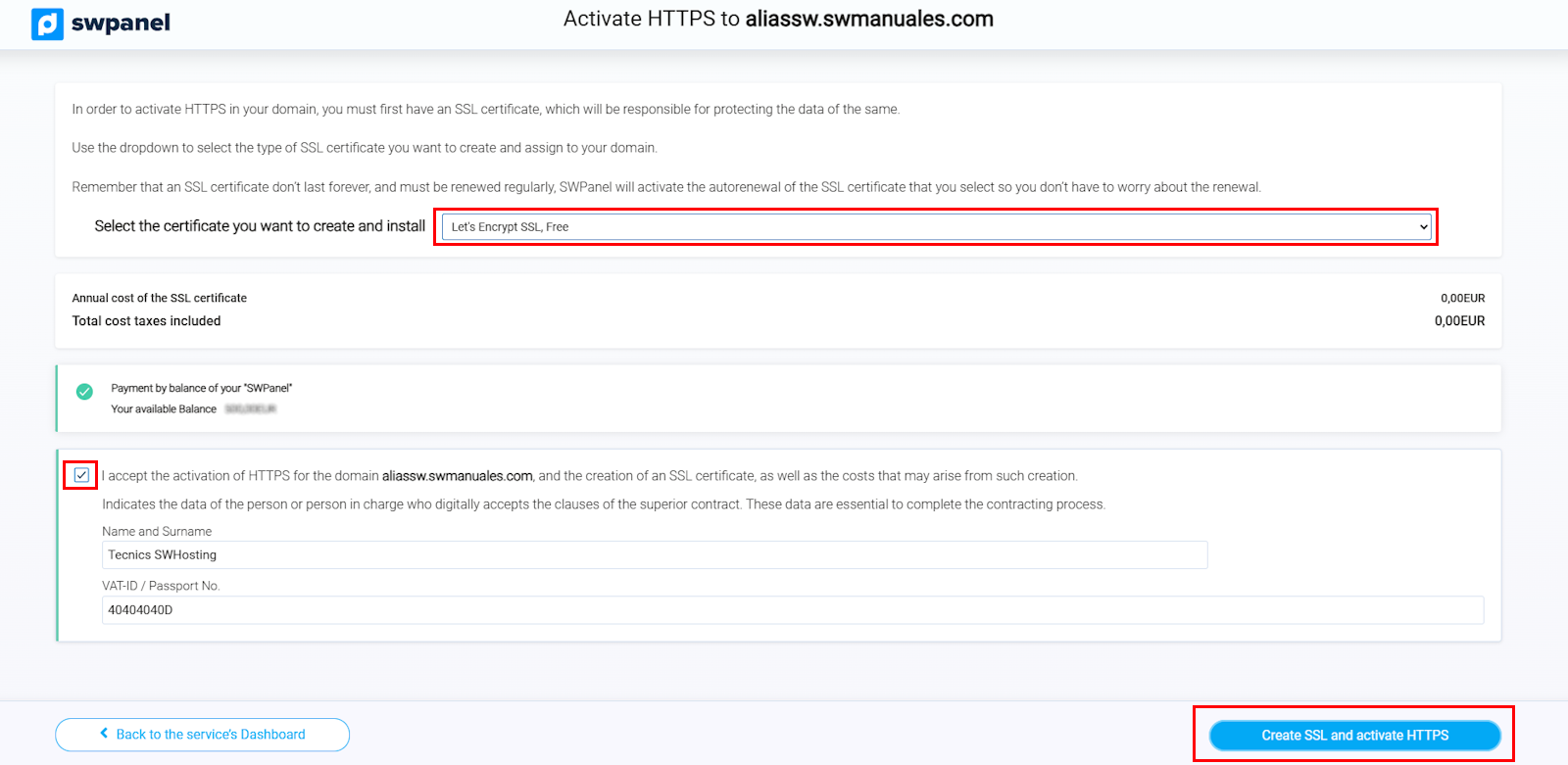
info_capture The screenshot is for guidance purposes. It was taken using version 2026.001.0020 dated 03/05/2026. It may differ from what is shown in the current version of SWPanel.
💡 Recommendation: The Let’s Encrypt certificate is a free and fully valid option for most websites, especially when looking for a fast, secure solution with automatic renewal.
However, paid certificates are also available which may offer additional advantages, such as greater compatibility with certain devices, advanced options, or associated warranties. The choice will depend on the specific needs of your project.
💡 The Self-Signed option is suitable only for testing, development, or internal environments.
This type of certificate is not validated by a certificate authority, so browsers will show security warnings to users.
Important notes
- SWPanel automatically activates auto-renewal for valid certificates.
- If you use a paid certificate, the amount will be charged to your balance.
- Once activated, manage all your certificates from Domains and SSL → SSL Certificate Portfolio or from its new Specific Dashboard. Manuel : How to access and use the Domains and SSL Dashboard