
How to install ISPConfig 3 with Nginx on Ubuntu 22.04
Introduction
ISPConfig is a widely used open-source hosting control panel for Linux, under the BSD license, that allows the management of websites, email addresses, MySQL and MariaDB databases, FTP accounts, and DNS records. Its administration is carried out through a web-based interface with 4 login levels: administrator, reseller, client, and email user, each with a different set of permissions
Before starting the tutorial, don't you have a Linux Ubuntu 22.04 Cloud server where you can install your ISPConfig 3 with Nginx? Don't worry! With just one click, you can easily deploy it with SW Hosting.
Step 1: Update the system
Before installing any new software on Ubuntu, remember that you should always update the system to have the latest versions of the software packages.
The system update process and the ISPConfig installation must be performed with the root user. To do this, you must execute the commands:
sudo -s
apt update && apt upgrade -y
Step 2: Install ISPConfig 3 with Nginx
To install ISPConfig 3, you must download and run the installation script by executing this command:
wget -O - https://get.ispconfig.org | sh -s -- --use-nginx --use-ftp-ports=40110-40210 --unattended-upgrades)
You will receive the following result and you must enter 'yes' to start the ISPConfig installation:
WARNING! This script will reconfigure your entire server!
It should be run on a freshly installed server and all current configuration that you have done will most likely be lost!
Type 'yes' if you really want to continue: yes
When the installer finishes, it will show you the passwords for the ISPConfig root administrator user and MySQL:
...
[INFO] Installing ISPConfig3.
[INFO] Adding PHP version(s) to ISPConfig.
[INFO] Checking all services are running.
[INFO] mysql: OK
[INFO] clamav-daemon: OK
[INFO] postfix: OK
[INFO] bind9: OK
[INFO] pureftpd: OK
[INFO] nginx: OK
[INFO] rspamd: OK
[INFO] redis-server: OK
[INFO] dovecot: OK
[INFO] Installation ready.
[INFO] Your ISPConfig admin password is: ***
[INFO] Your MySQL root password is: ***
Step 3: Access the ISPConfig 3 control panel
Now you can access the ISPConfig 3 installation at http://YourServerIpAdress:8090 or https://YourNameServer:8080

Step 4: Configure the ISPConfig 3 panel firewall
Go to 'System';

-> 'Firewall'
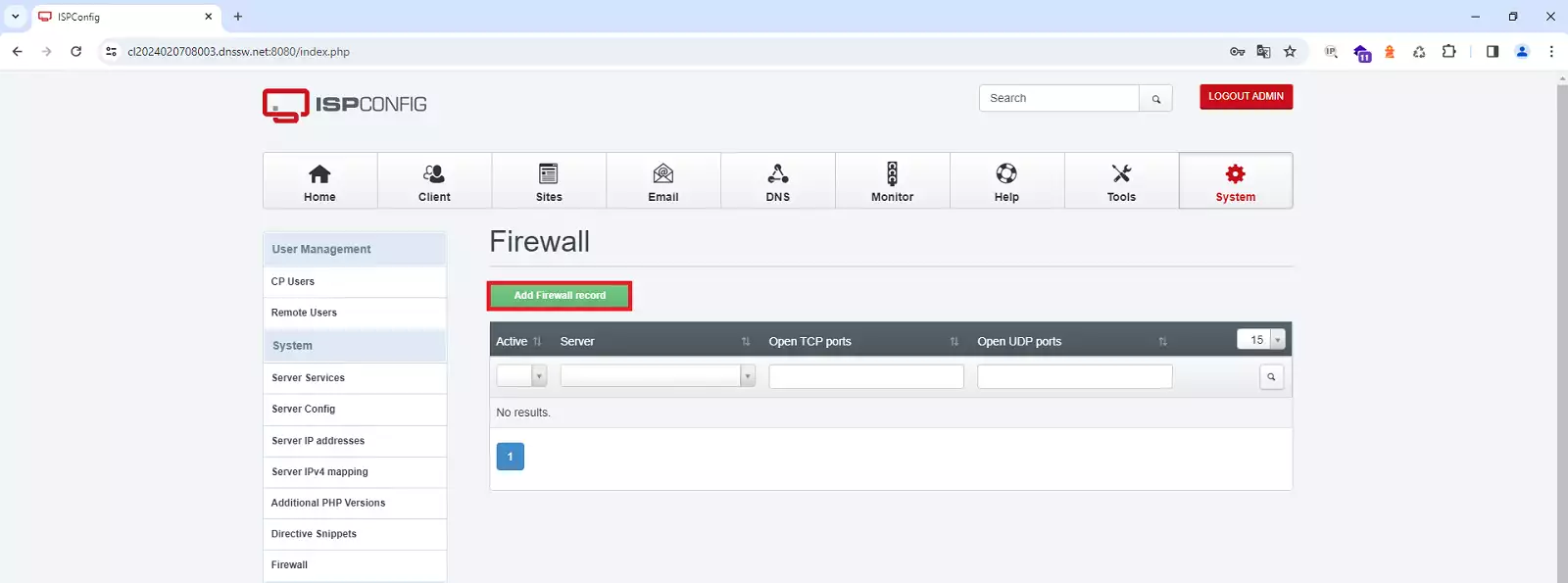
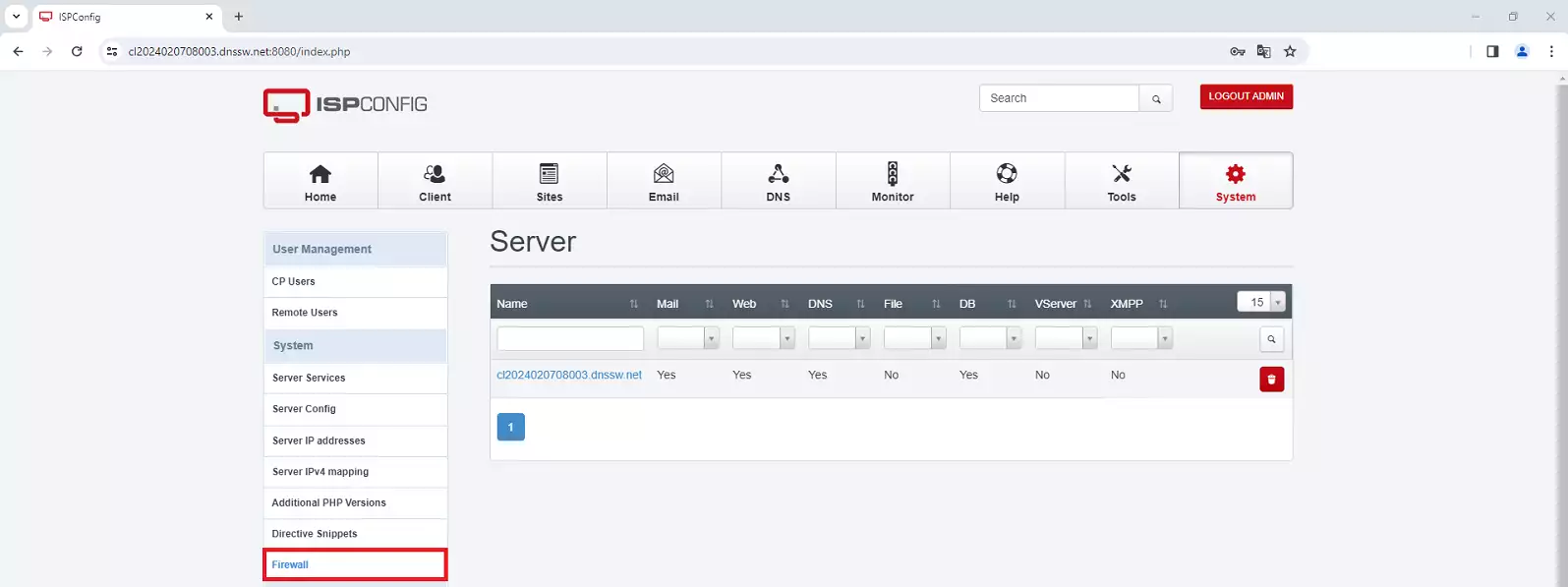 Then click on 'Add new firewall record'.
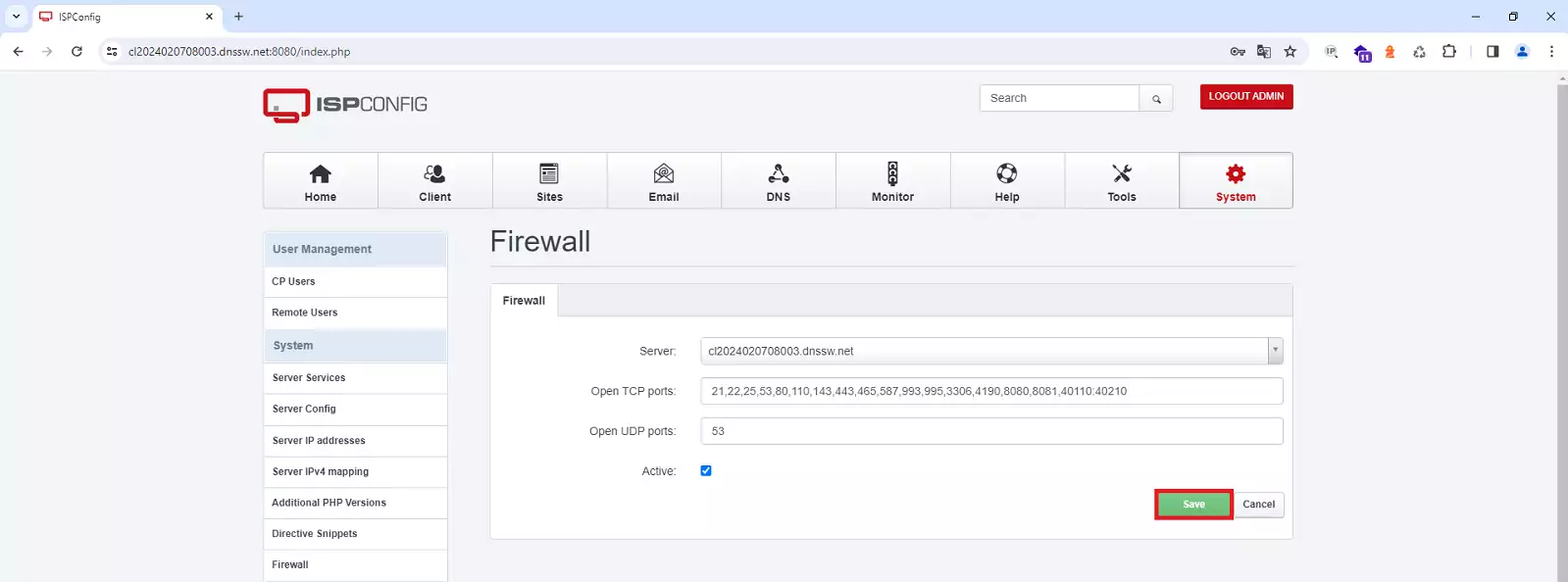
Save the changes by clicking the 'Save' button.
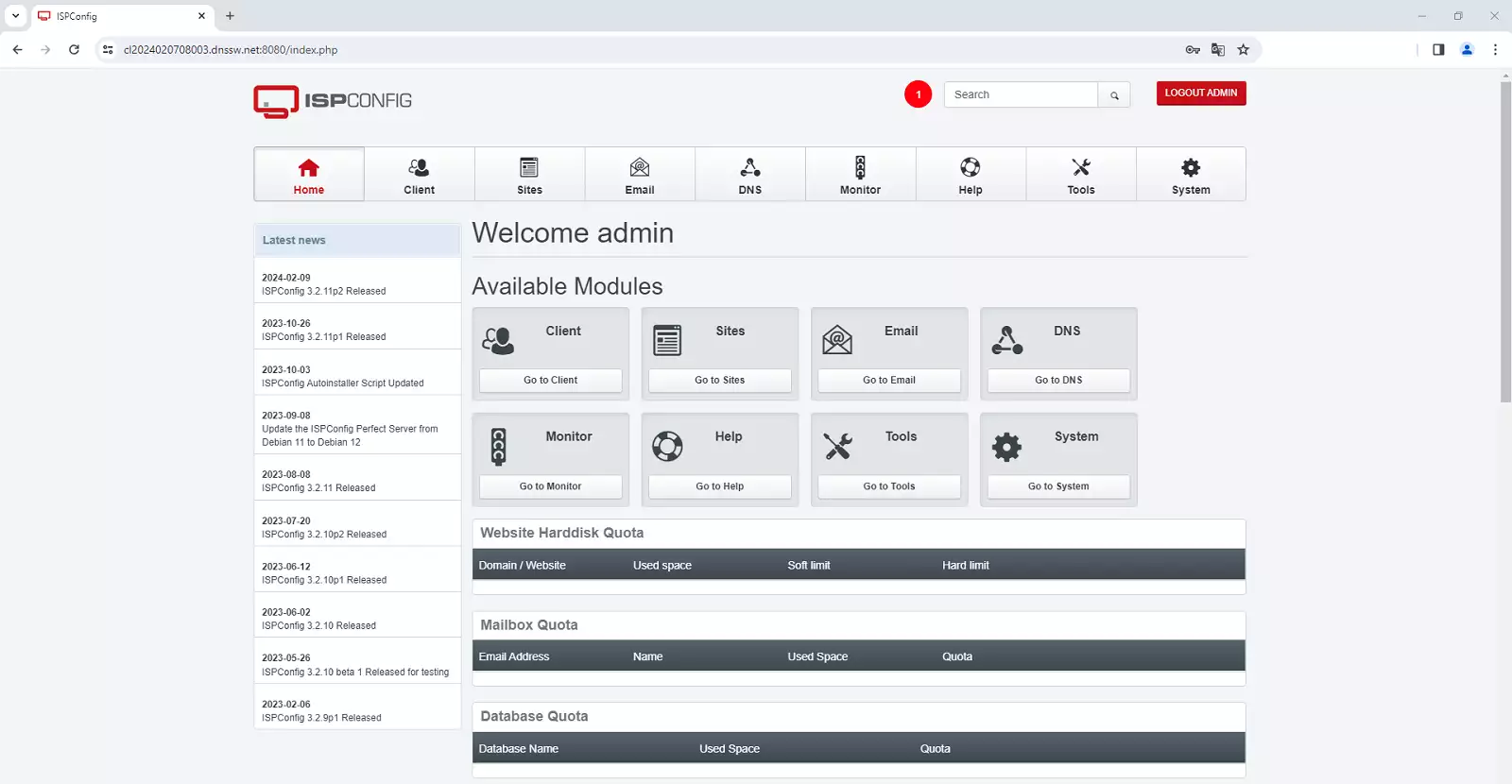
success Congratulations! You have successfully installed and configured ISPConfig 3 with Nginx on Ubuntu 22.04.
Remember that if you do not yet have a Cloud server with the Linux Ubuntu 22.04 operating system, you can easily deploy it with SW Hosting.