
How to migrate your WordPress with the Duplicator plugin
Introduction
The Duplicator plugin allows you to export your current WordPress website to a backup created as a single compressed .zip file containing all the files present in the directory where your website is saved (folders, images, etc.) as well as a copy of the database. The content of this .zip file will allow you to migrate your WordPress website hosted on a local or public server to another identical website hosted on a different server.
Additionally, the Duplicator plugin is a solution that allows you to create periodic backups of your website.
In this manual, we will explain how to migrate a WordPress website for the same domain between two different hosting services.
Before starting the tutorial, don't you have a hosting service for your WordPress? Don't worry! With just one click, you can easily deploy it with SW Hosting.
Step 1: Install the Duplicator plugin
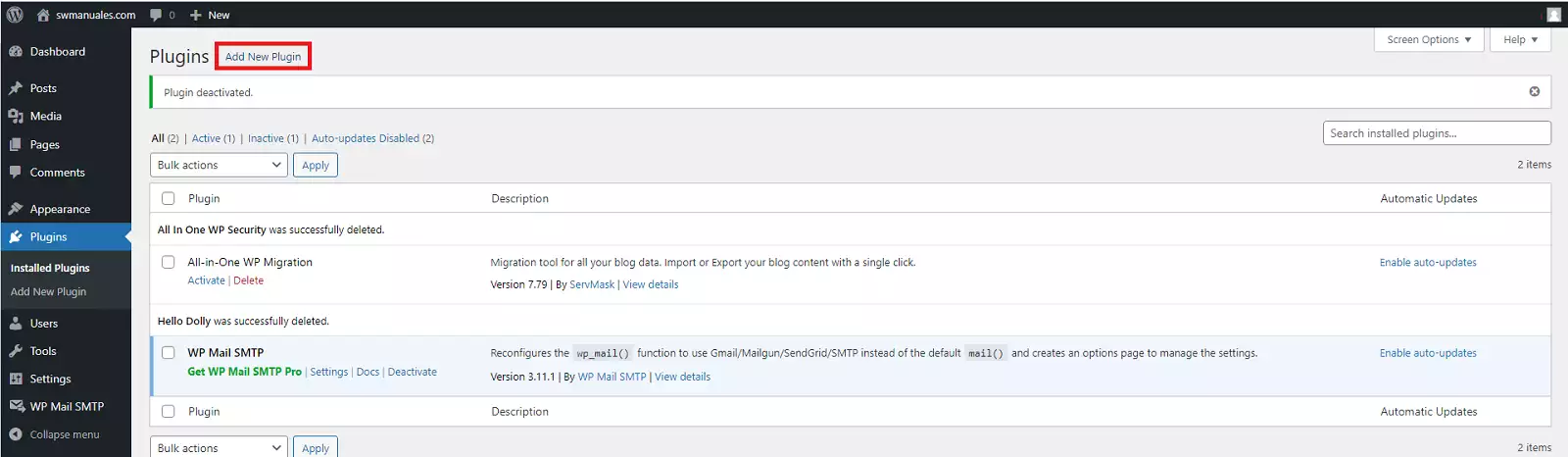
To begin the migration of your site, you must install and activate the Duplicator plugin in your WordPress panel. Go to Plugins → 'Add New Plugin', search for the plugin, and click on 'Install Now':
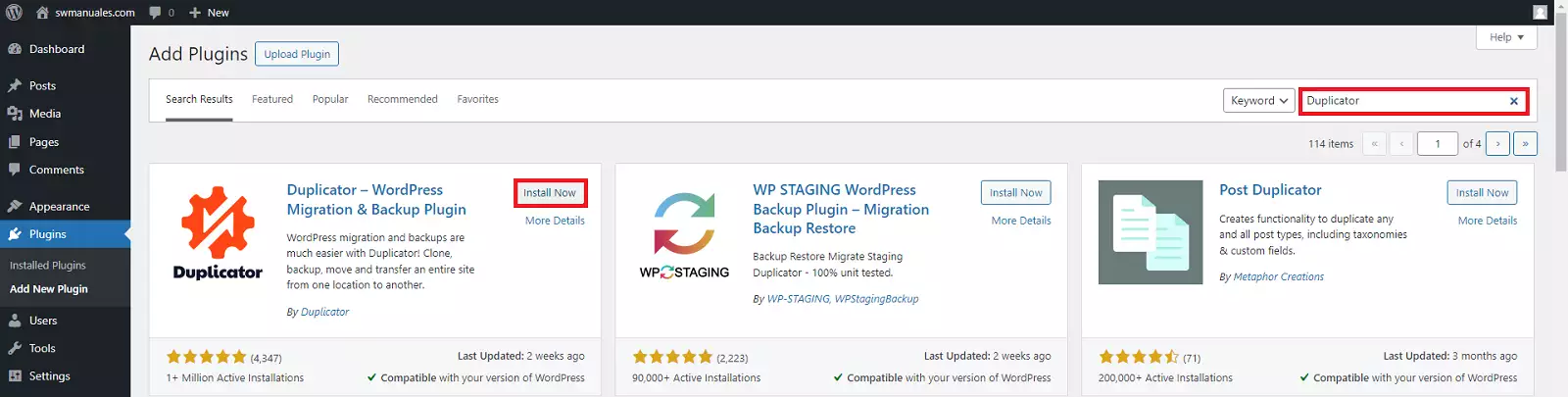
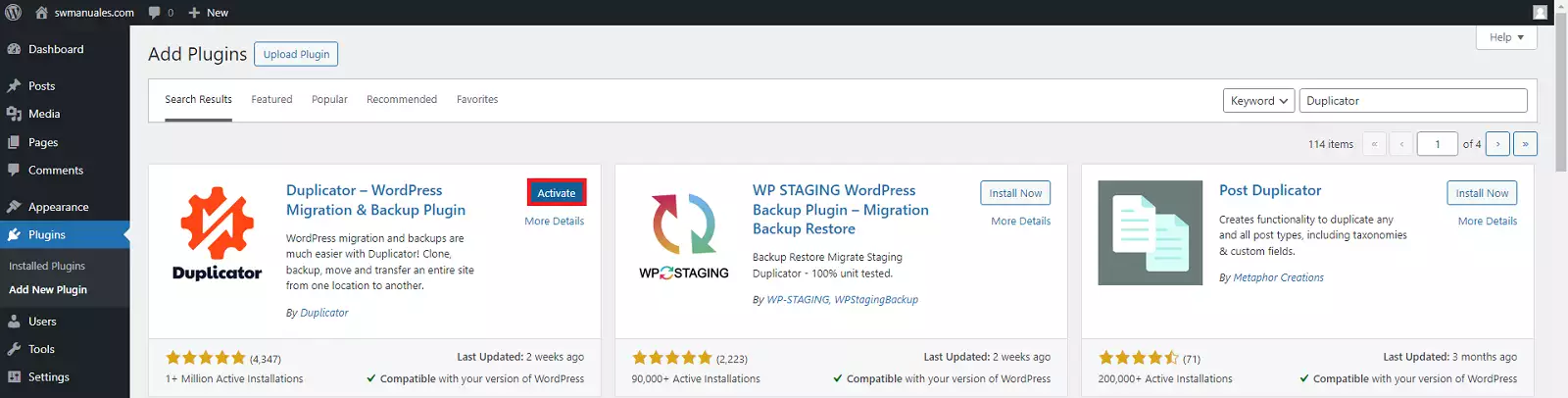
After a few seconds, you can select 'Activate'.
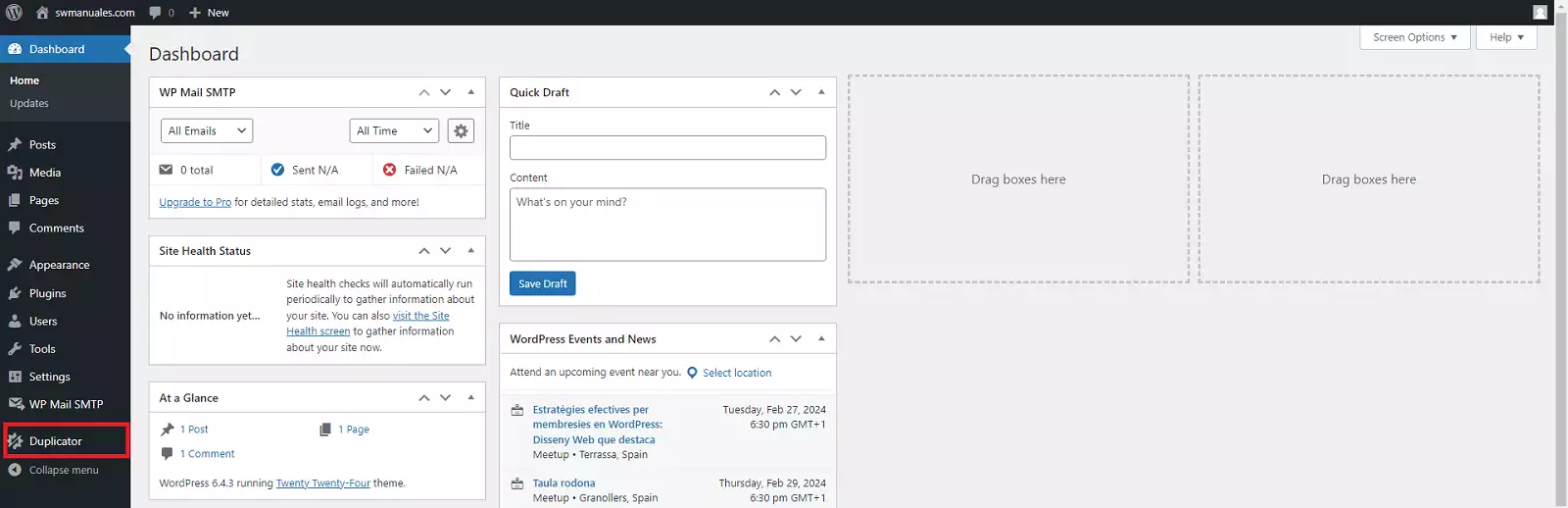
If the installation was successful, a link to the Duplicator plugin will appear in the sidebar of your WordPress panel.
Step 2: Export your website with Duplicator
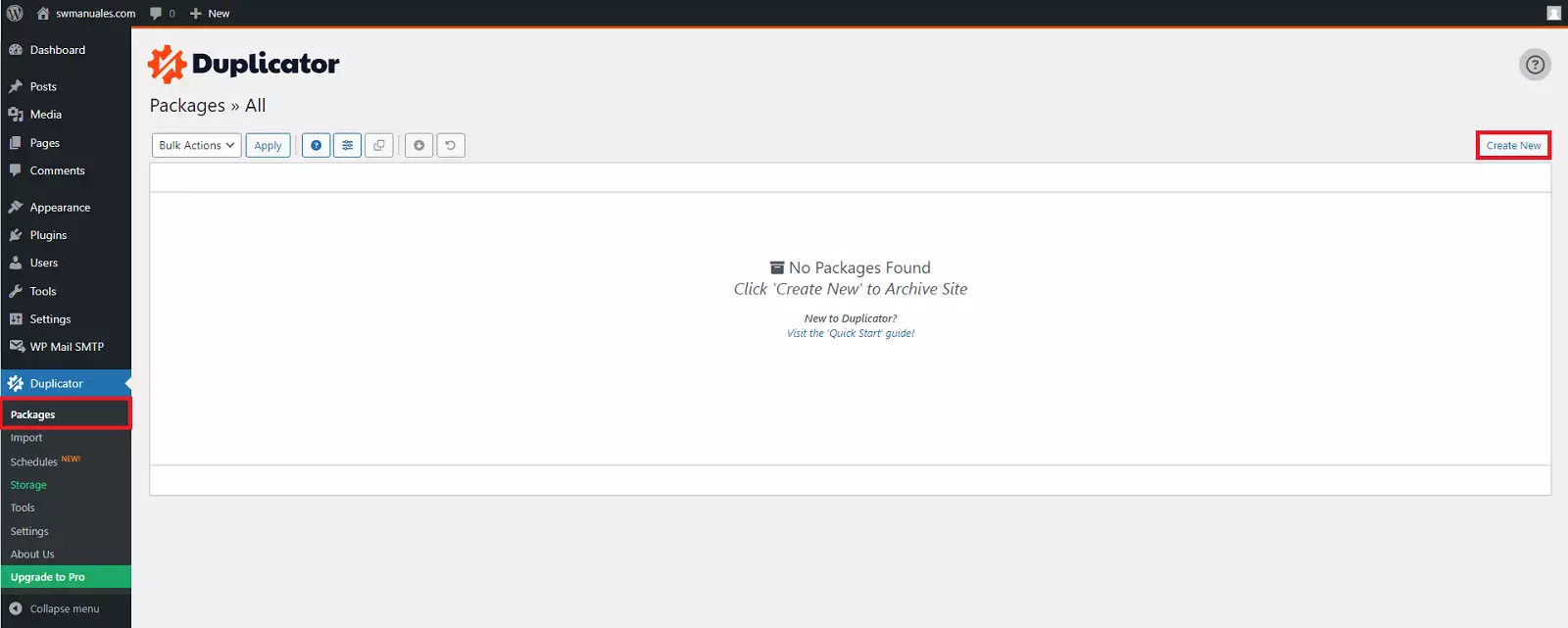
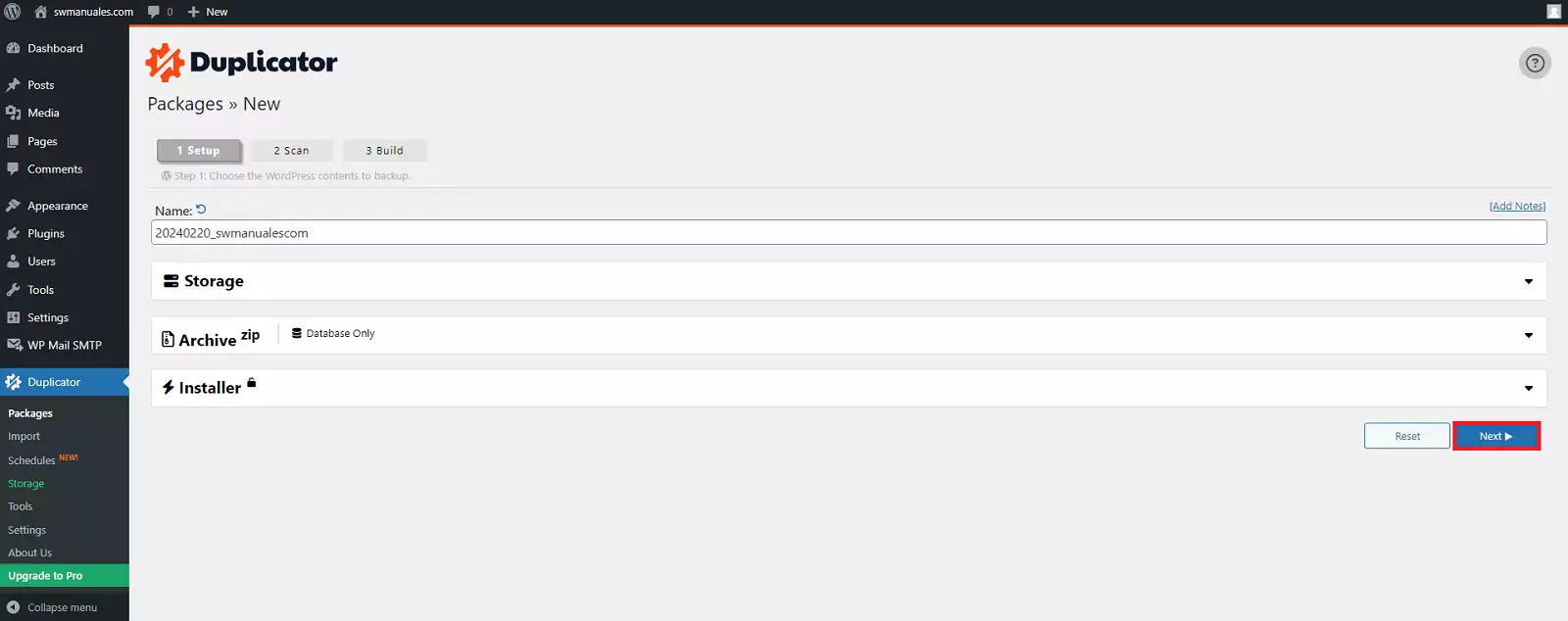
To start the export, go to the Duplicator section in your WordPress panel, click on 'Packages', and then on the 'Create New' button.
The configurable options for creating the package are as follows:
- Name. By default, the name of the compressed file has the following structure: yearmonthday_yourwebsname. You can change this name to any other you prefer.
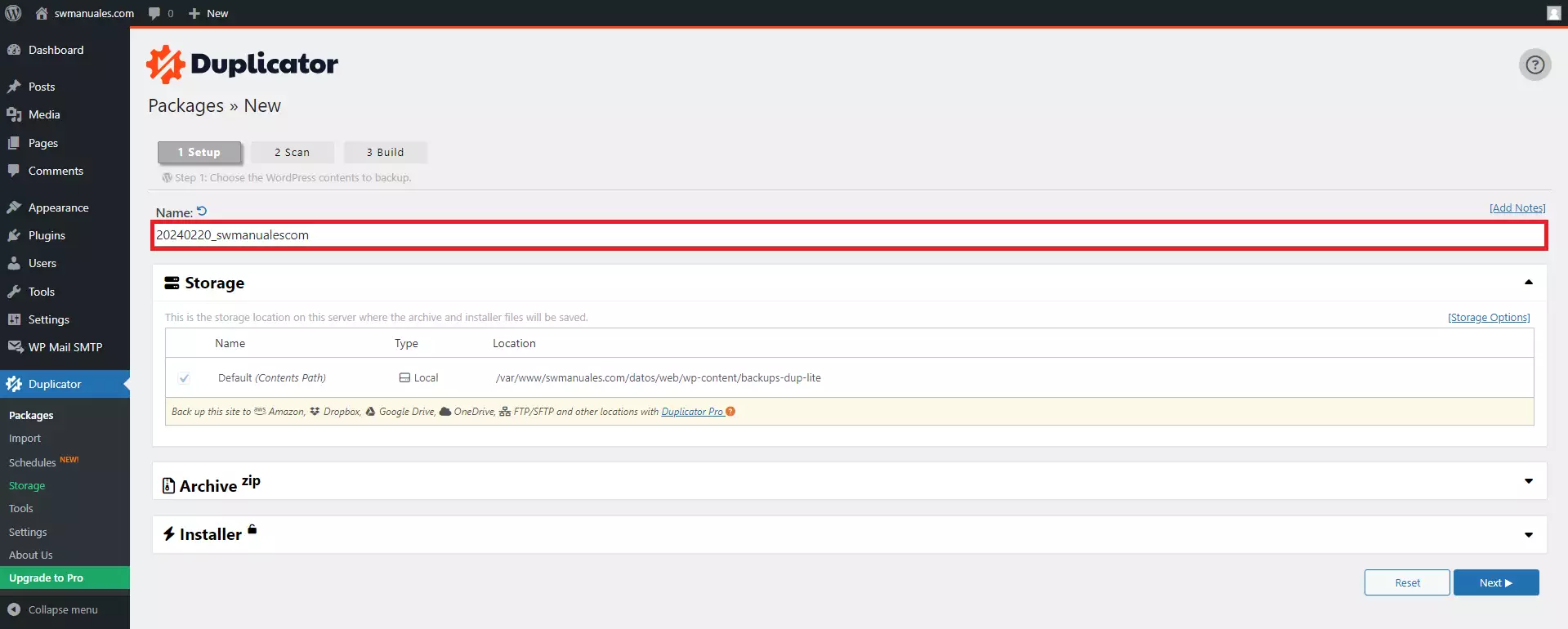
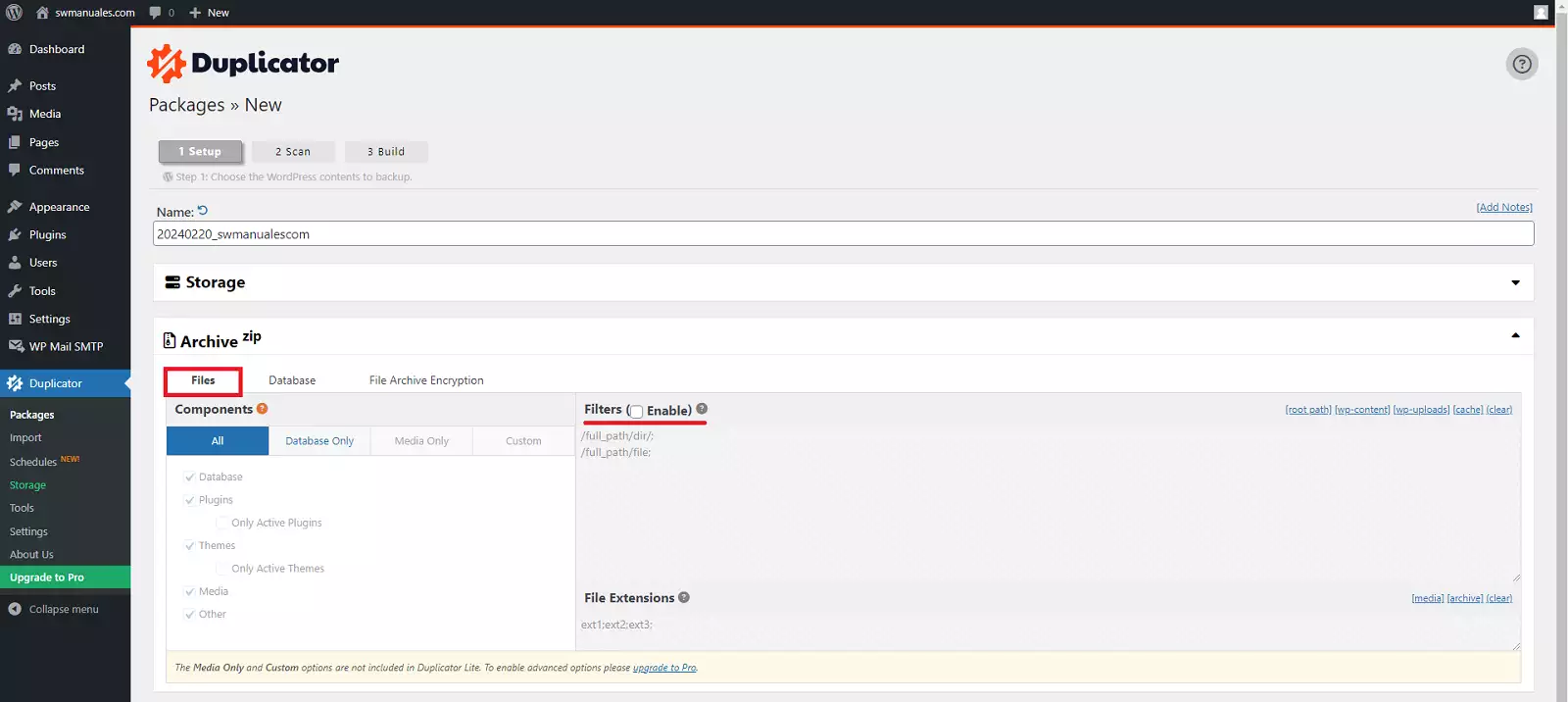
- Storage. We will leave the default options selected, although in the free version of the plugin, we can specify if we want to filter some directory paths of our website that we wish to exclude from the backup in the compressed file.
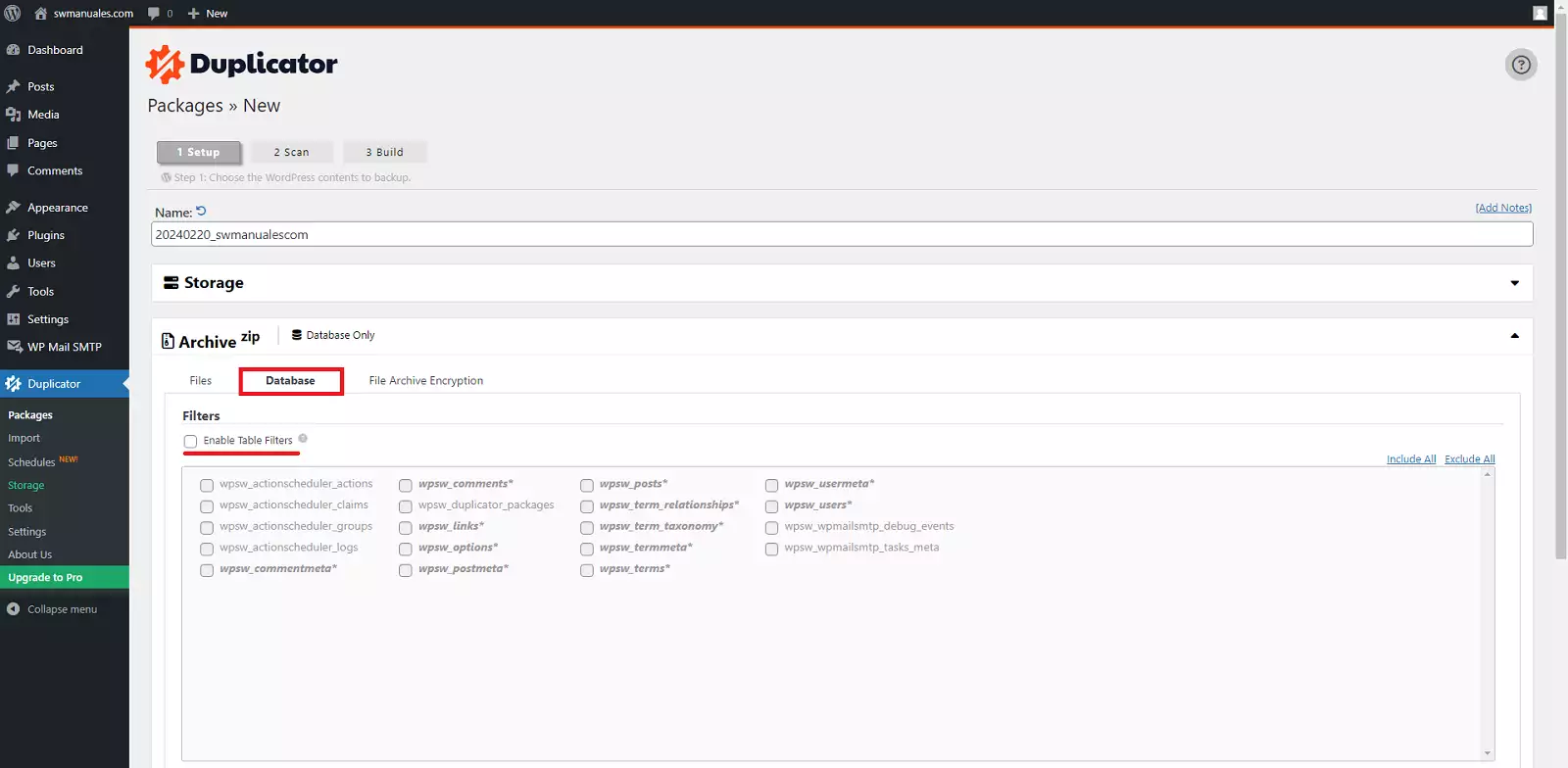
We can also exclude some tables from our database that we do not want to export:
We will continue with the process of creating the new package by clicking the 'Next' button.
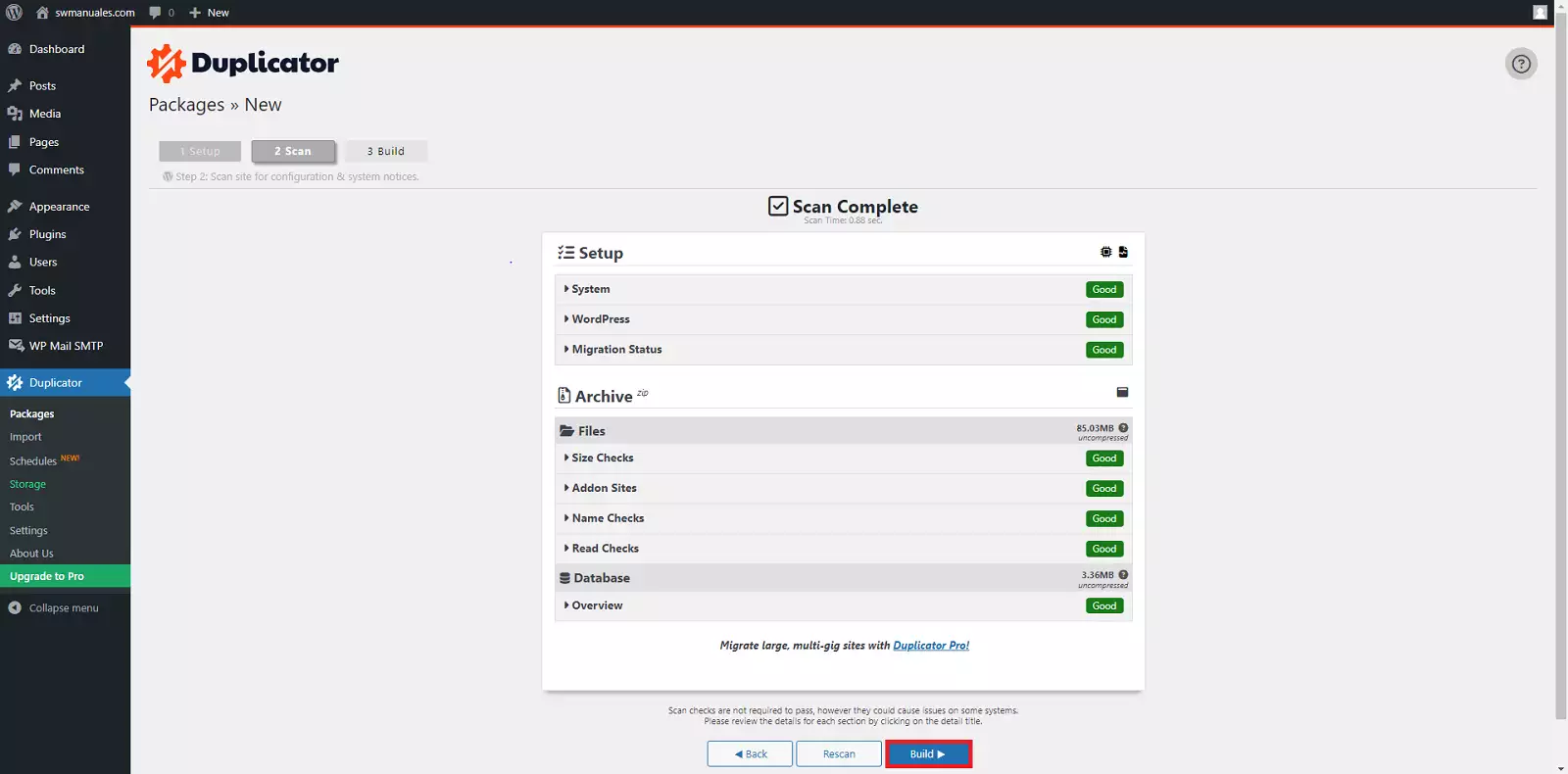
Before creating a backup of the web, Duplicator analyzes a series of variables to determine if it is possible to proceed. Once you have verified that all the analyzed options appear as valid, you can click the 'Create' button.
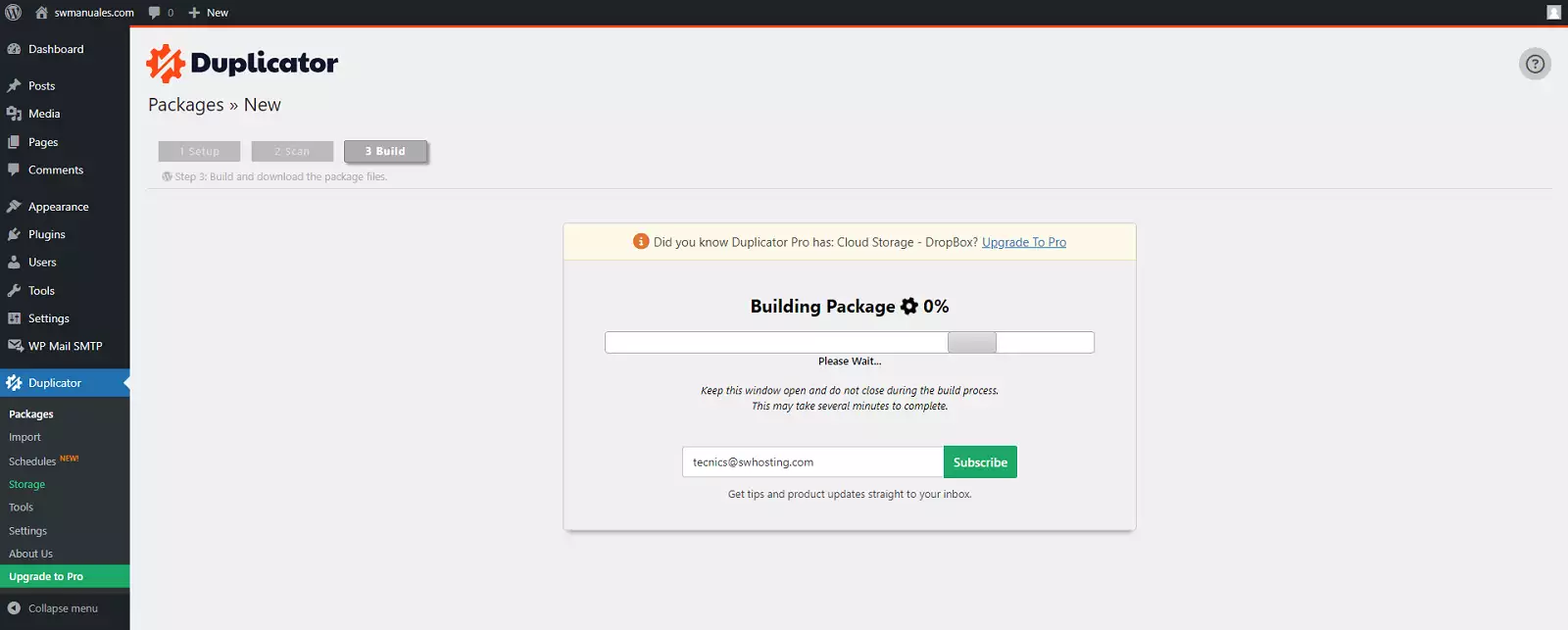
The package creation process will begin:
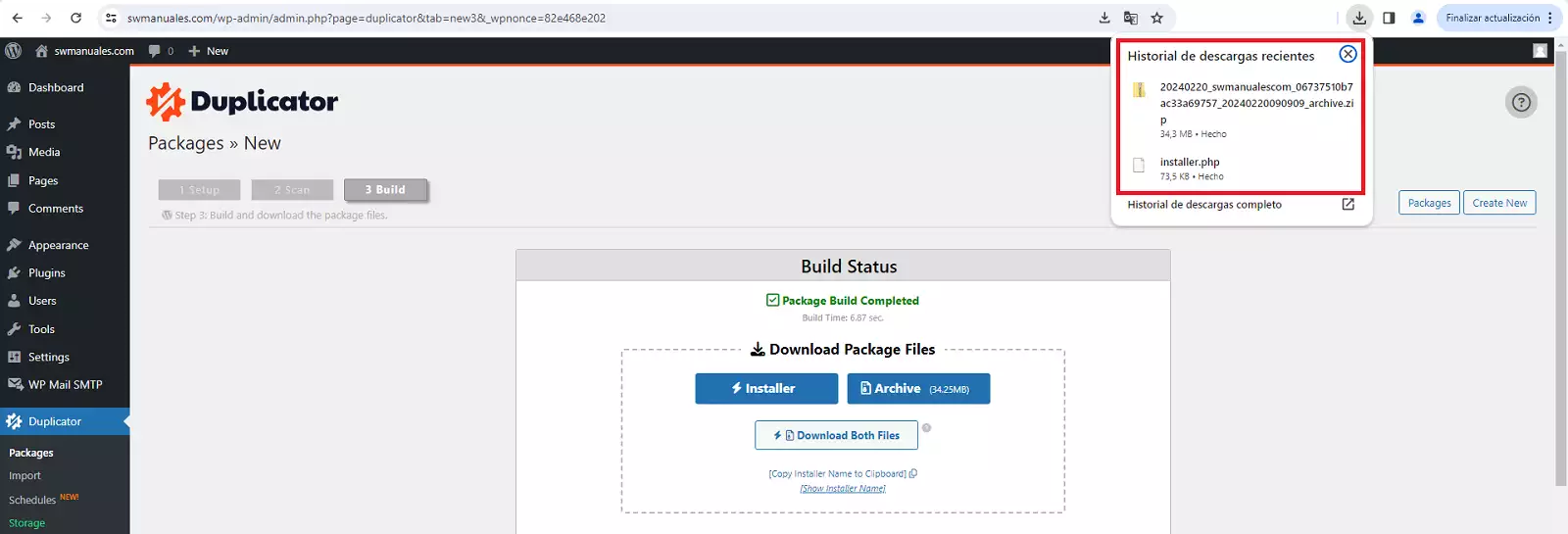
Once the package creation is complete, you must click the 'Download Both Files' button; these will be the installer with the .php extension and the .zip file including the website content and its database. Both files will be downloaded from your web browser to your PC's downloads folder.
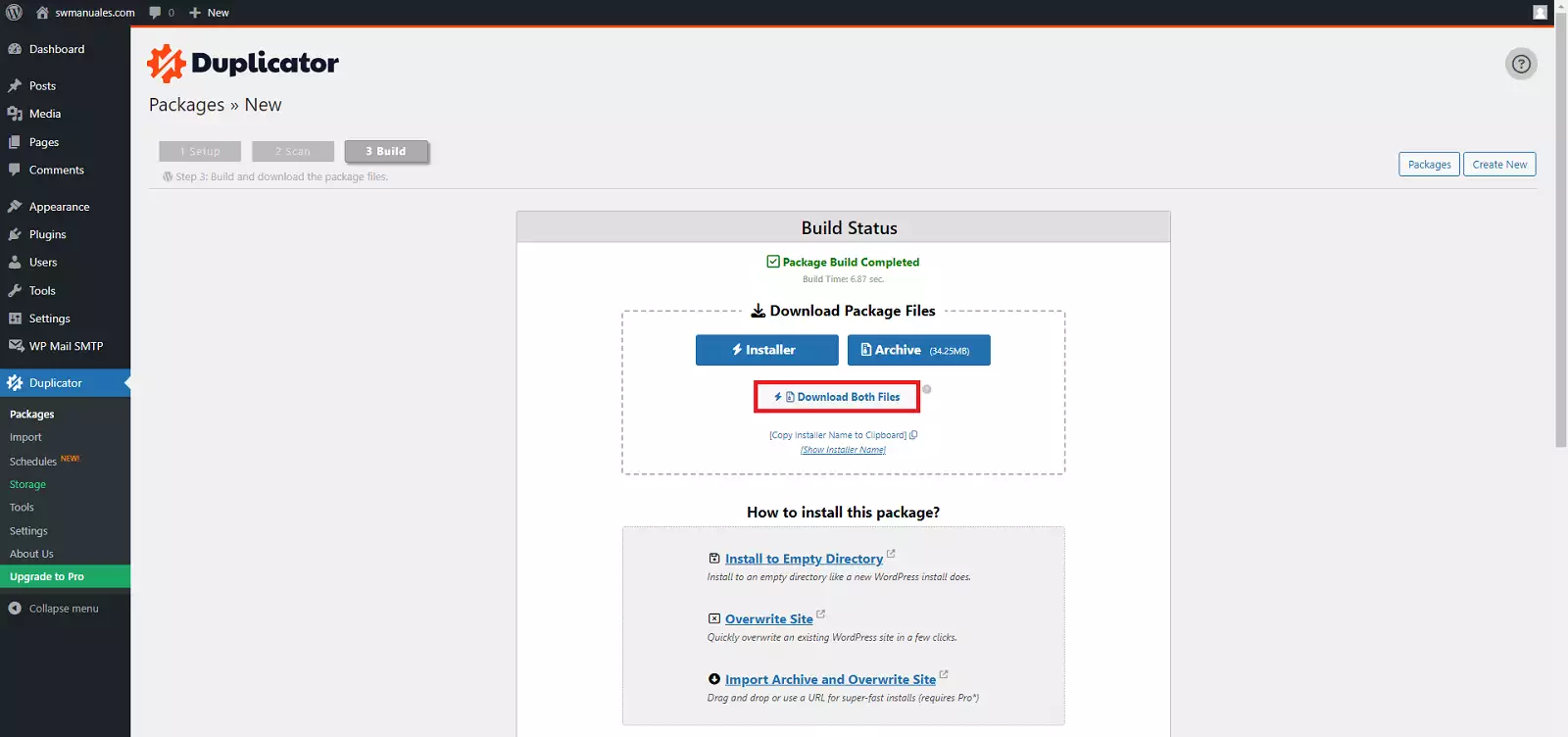
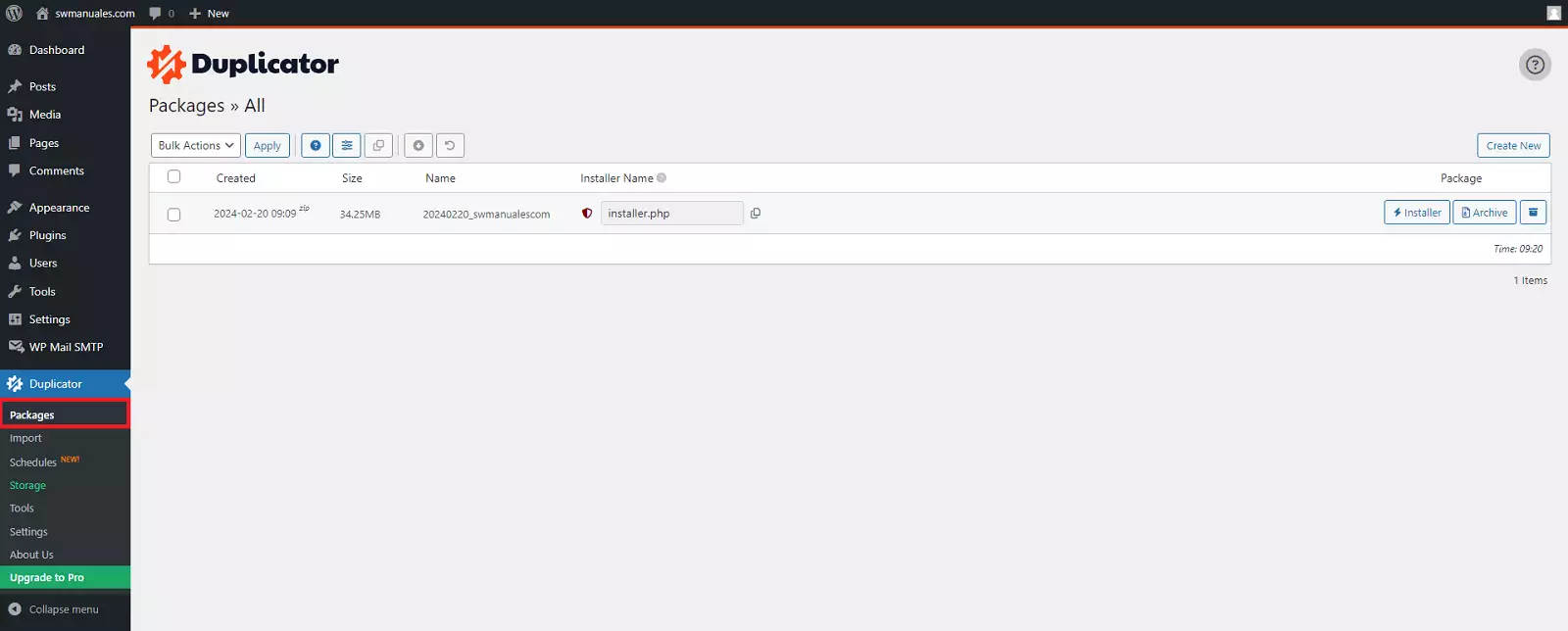
You can also download these files later, as they are stored and accessible from the 'Packages' section of the Duplicator plugin in your WordPress control panel.
Step 3: Upload the package created with Duplicator via FTP
Upload the installer.php and .zip files to your new hosting via FTP
To upload the files created with Duplicator, you must use an FTP connection that connects your PC to your new hosting. If you do not yet have an FTP account in your new hosting and it is located at SWHosting, you can create one by following the instructions described in the following manual: Manuel : How to create an FTP account
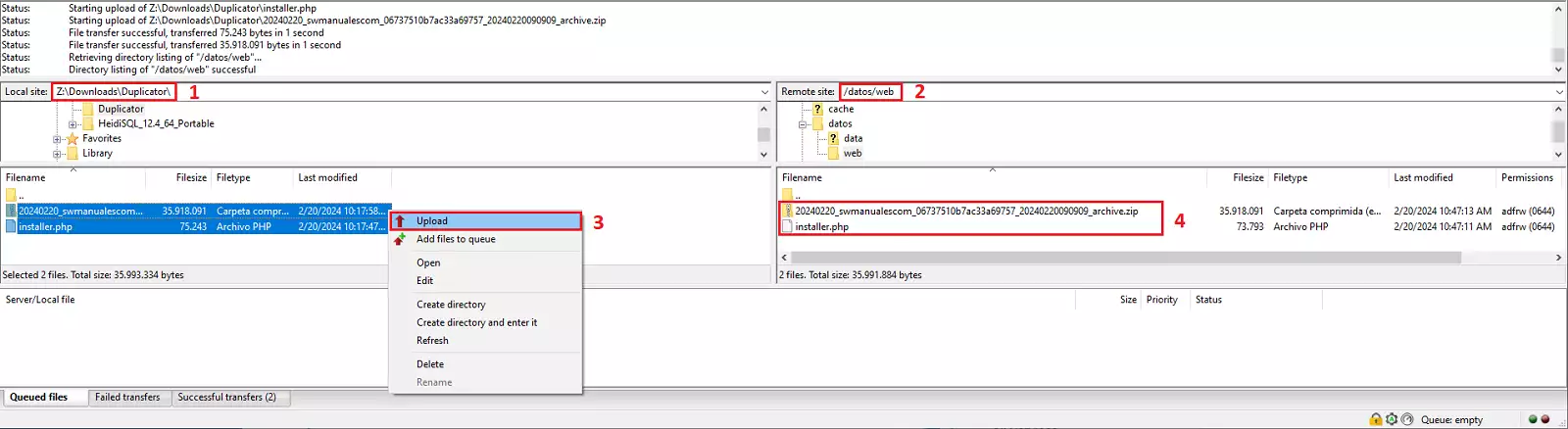
Once you have connected your PC to your new hosting via FTP, you should follow these steps:
1. Locate the backup files installer.php and .zip created with Duplicator on your computer.
2. Locate the directory of your new hosting on your server where you want to migrate or restore your WordPress. If you are restoring a backup, delete all WordPress files you see in the directory.
3. Upload the two files installer.php and .zip created with Duplicator.
4. Check that the files have been uploaded correctly to your new hosting.
Step 4: Create the database
Create the WordPress database in your new hosting
To be able to import the database previously exported with Duplicator to your new hosting, you must create an empty database. If you do not yet have a database in your new hosting and it is located at SWHosting, you can create one by following the instructions described in the following manual:
Manuel : How to create a MySQL or MariaDB database
When creating the database in your new hosting, you can define the same name for the database, the same user, and the original password. Alternatively, you can specify completely new ones, which you will need for the subsequent import of the data.
Step 5: Run the installation file
Run the installer.php file in your new hosting
To start the installation process of Duplicator, you must enter the following address in your browser: www.yournewweb.com/installer.php.
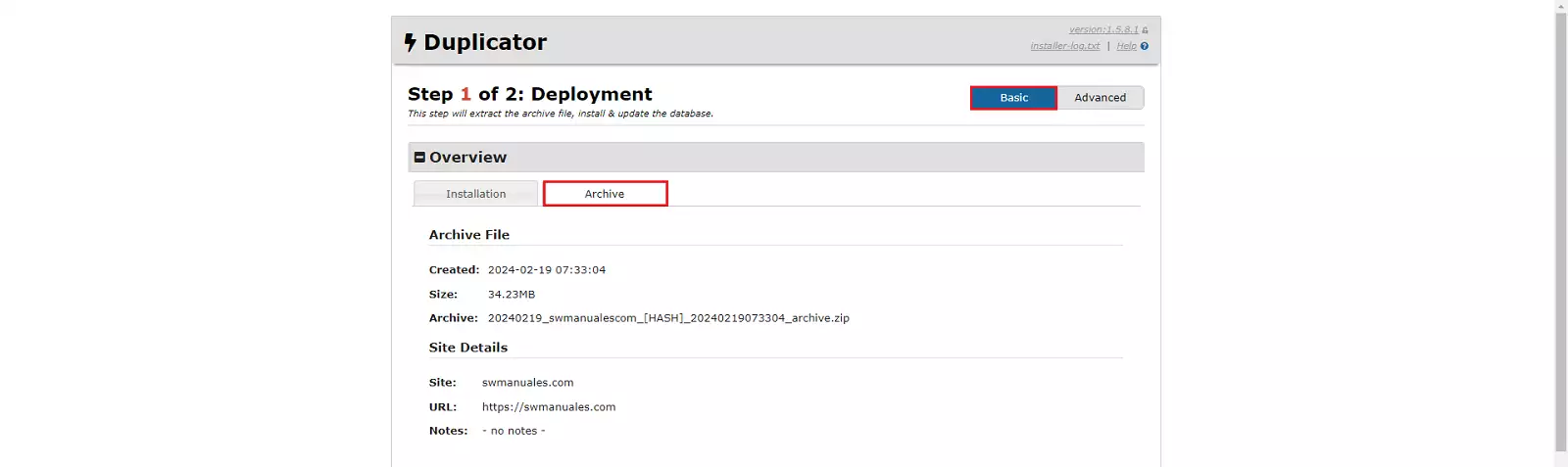
Next, Duplicator will check the new web hosting and the files you uploaded via FTP to start the deployment wizard in Basic mode and with the following configuration blocks:
- 'Overview'. Provides information about the file created by Duplicator and the website details.
-
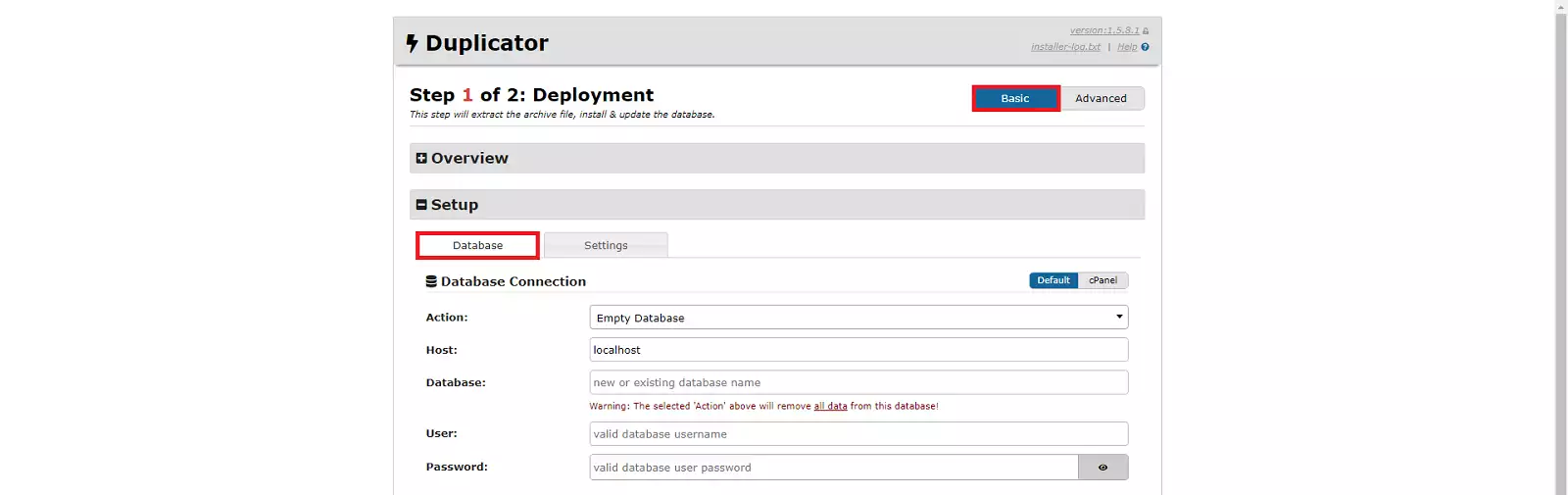
'Setup'. The next step defines the actions and credentials necessary to import the existing data from the original database into the new database. In this second step of the installer, you must enter the following fields for the database you previously created:
-
a) 'Action': Since we have previously created an empty database, we will leave the default option 'Empty Database'.
-
b) 'Host': If the web server and the database server of your new hosting are the same, we will leave the default option 'localhost'. In the event that your database server is different from your web server, you must specify the IP or name of the database server.
-
c) 'Database': You must specify the name of the database created previously.
-
d) 'User': You must specify the name of the database user.
-
e) 'Password': You must specify the password for the database user.
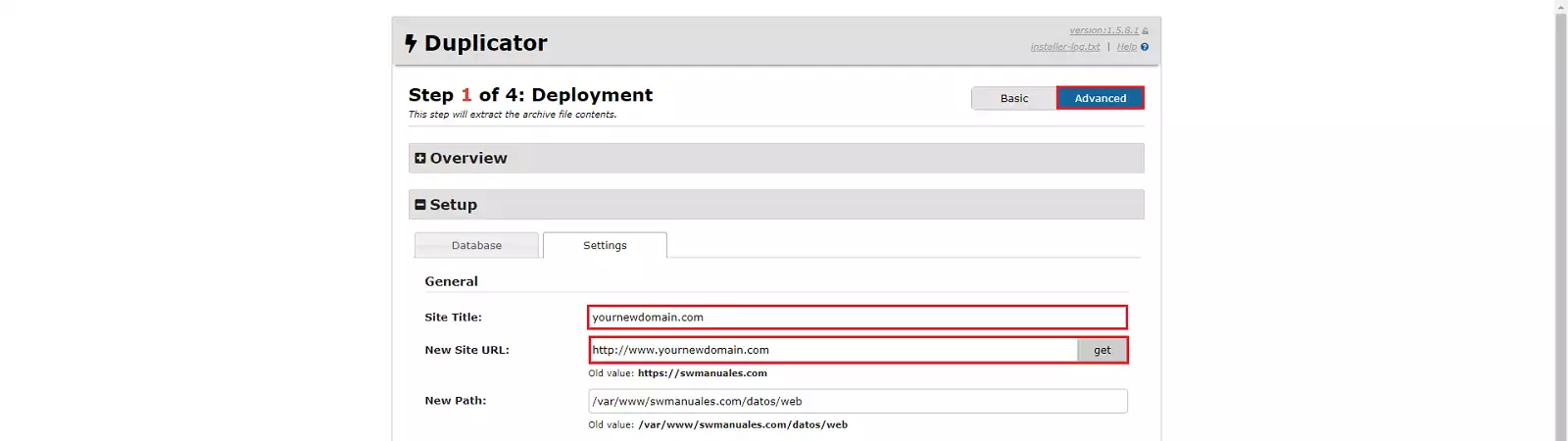
danger You may want to change the domain name for which your website was originally created during the process of migrating your WordPress to your new hosting. To do this, you can run the Duplicator wizard in 'Advanced' mode, go to 'Setup' > 'Settings', and define the 'Site Title' and 'New Site URL' fields with the name and URL of the new domain, respectively.
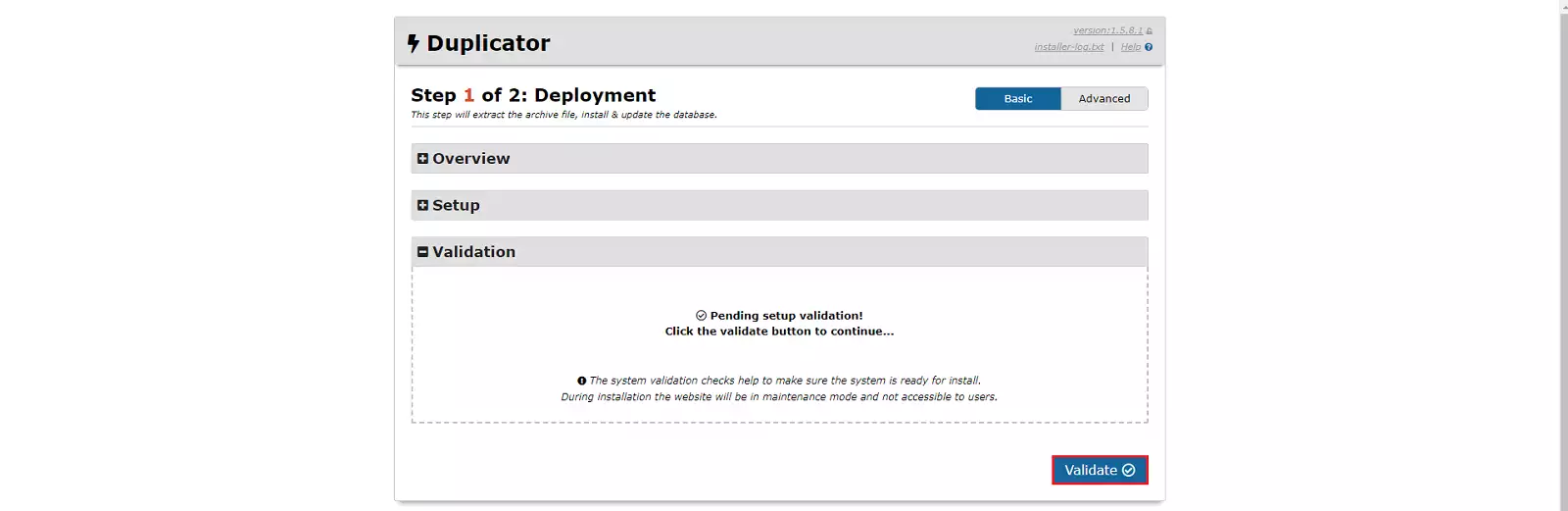
- 'Validate'. The next step is the validation of the data we have configured in the wizard by clicking the 'Validate' button.
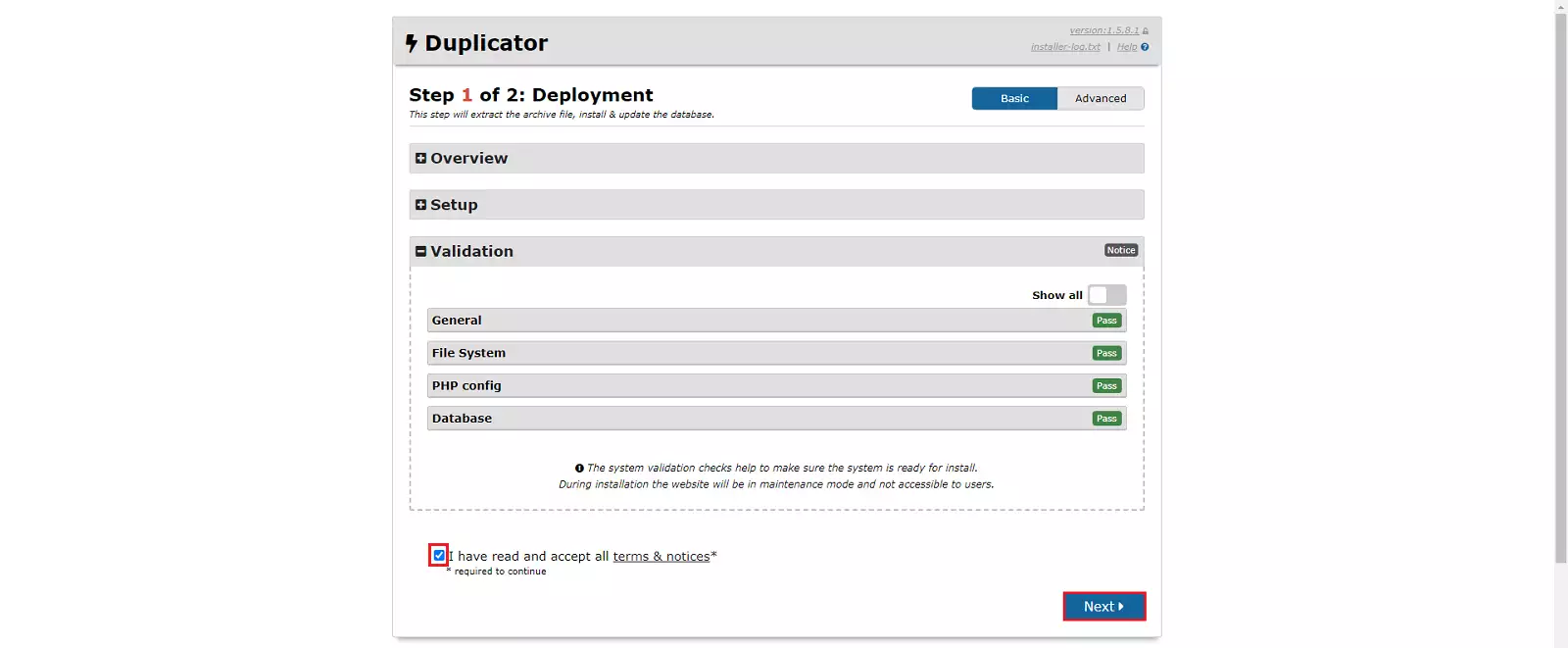
Once the validation is correctly completed, we can continue by clicking the 'Next' button.
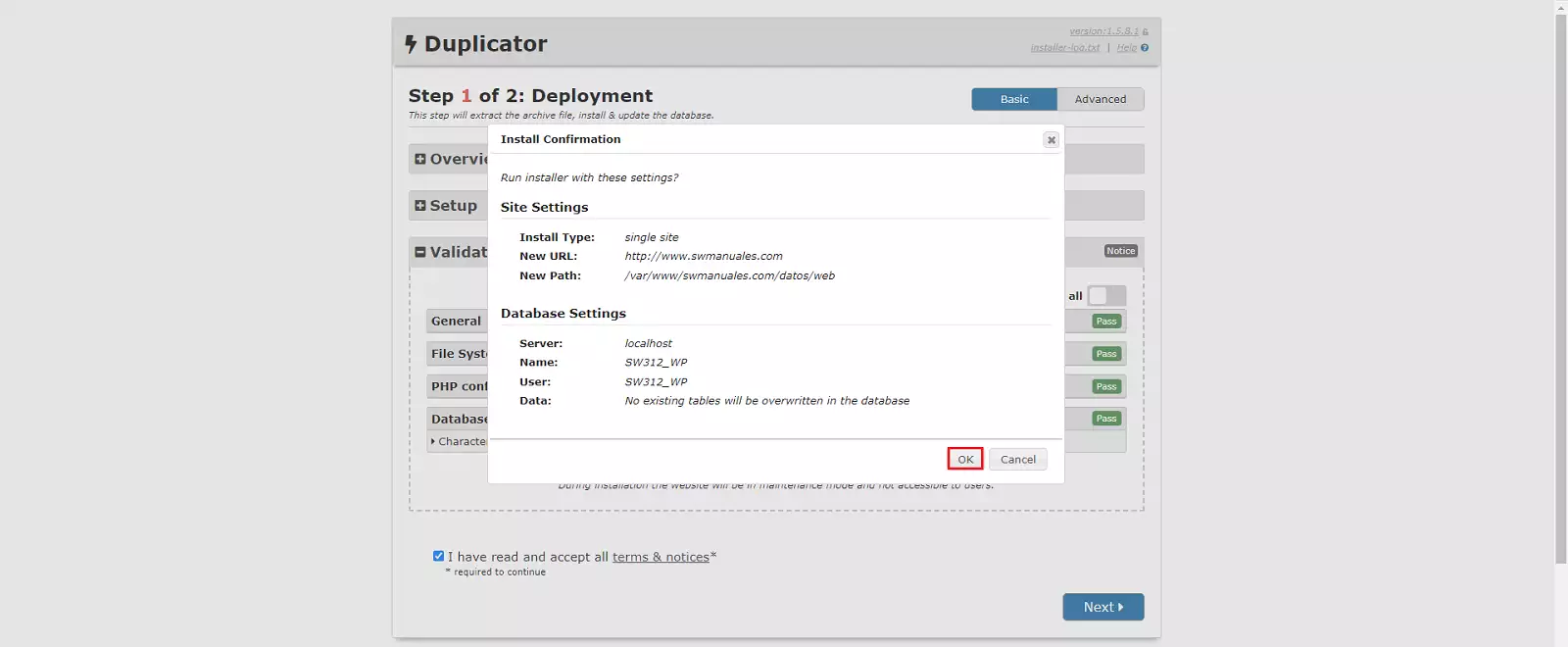
To then access the installation confirmation window, we must click the 'OK' button.
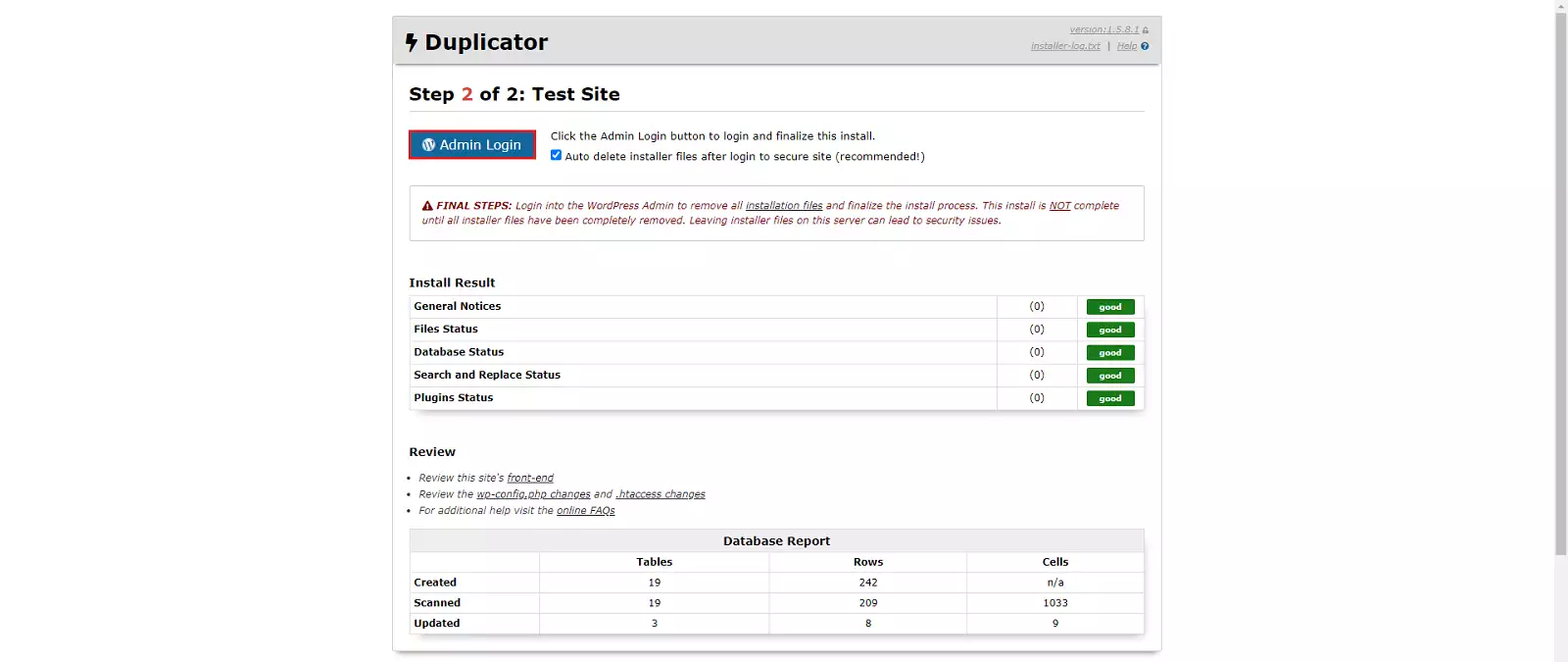
After a few moments, 'Duplicator' will show us the report on the installation of our new site and will indicate that we must click the 'Admin Login' button to complete the installation.
Next, the access window to the administration panel of our new WordPress will open.

Log in to your new WordPress, and Duplicator will indicate that the website has been migrated successfully and that all installation files have been automatically deleted.
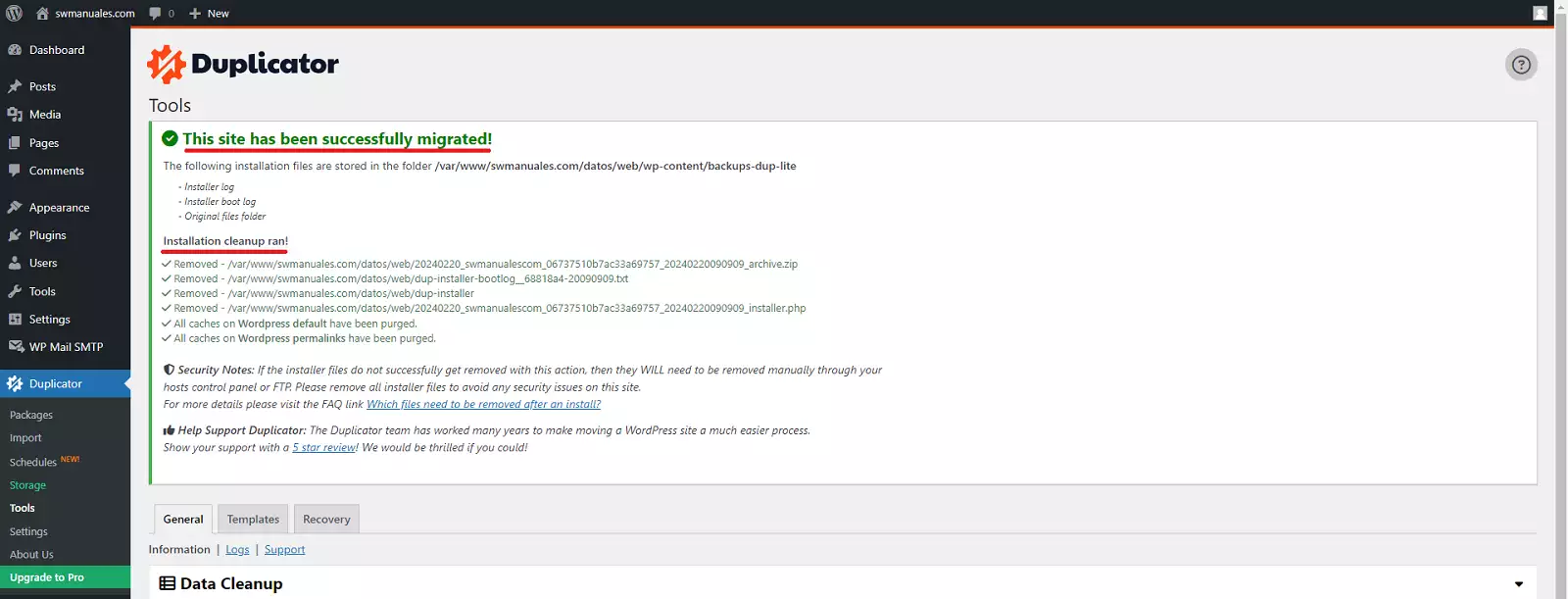
success Congratulations! You have successfully migrated and configured your WordPress with the Duplicator plugin.
There is also the option to migrate a WordPress manually. For more information:
Manuel : How to migrate a Wordpress manually
Remember that if you do not yet have a hosting service for your WordPress, you can easily get one with a single click at SWHosting.