
How to migrate your Wordpress using SWPanel WP Migrator
1. Introduction and migration process summary
This manual explains, in a detailed and structured way, how to migrate a website developed in WordPress from an external provider to a managed hosting service in SWPanel, using the official SWPanel WP Migrator plugin.
What is SWPanel WP Migrator?
SWPanel WP Migrator is a plugin developed specifically to automate the migration of WordPress sites to infrastructures managed from SWPanel. Its function is:
- Connect your source WordPress with your destination hosting.
- Export the site data.
- Transfer them securely through an authentication system based on a token and secret key.
General process flow
The complete process consists of three main phases:
- Installation of the plugin in the source WordPress.
- Generation of the token and secret key from SWPanel.
- Entering credentials in the plugin and starting the export.
Upon completion, your WordPress will be migrated to the destination hosting.
danger In case your website has many images, products, or videos, and certain resource limitations on the source provider, such as memory_limit or max_children, the export is likely to fail, as the SWPanel Migrator plugin is designed for lighter sites. As an alternative, you can use our internal migration tool, about which you will find more information in the manual: Manuel : SWPanel migration tool.
2. Installation of the SWPanel WP Migrator plugin
Step 1: Access the WordPress backend
You must access the administration panel of your source WordPress.
Normally it is done from:
https://yourdomain.com/wp-admin
Once inside:
- Go to the left side menu.
- Click on Plugins.
- Press the Add New Plugin button.
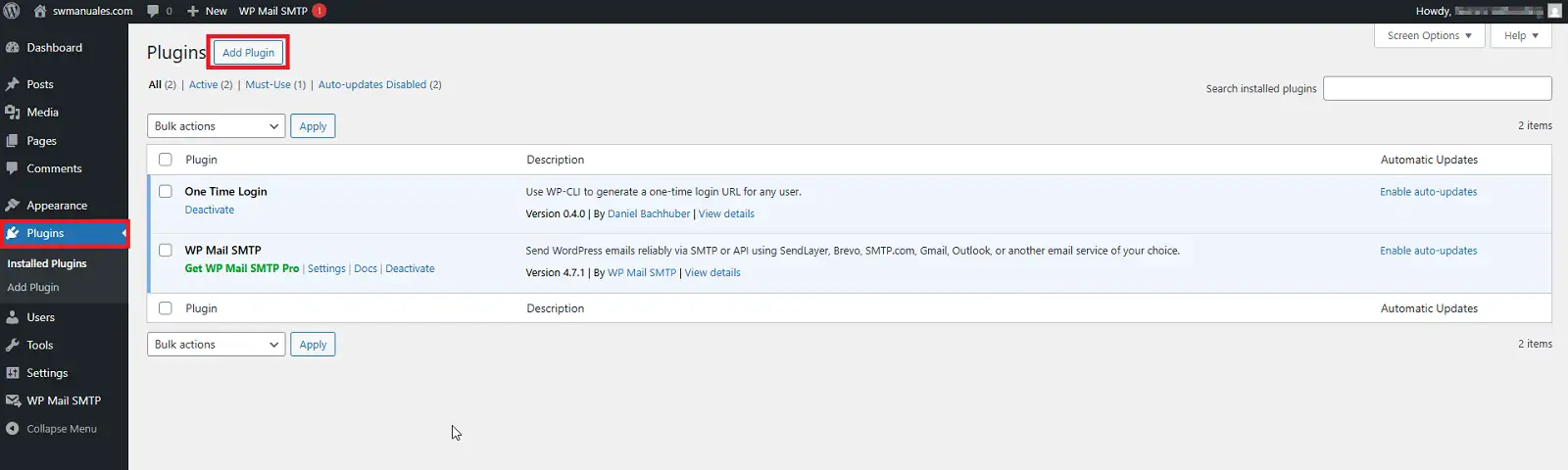
info_capture The screenshot is for illustrative purposes. It was taken from version 2026.000.0001 dated 02/18/2026. It may differ from what the current version of SWPanel shows.
Step 2: Search for the plugin
In the plugin search bar (top right):
- Enter the name: SWPanel WP Migrator.
- Wait for it to appear in the results.
- Verify that it is compatible with your version of WordPress.
- Click on Install Now.
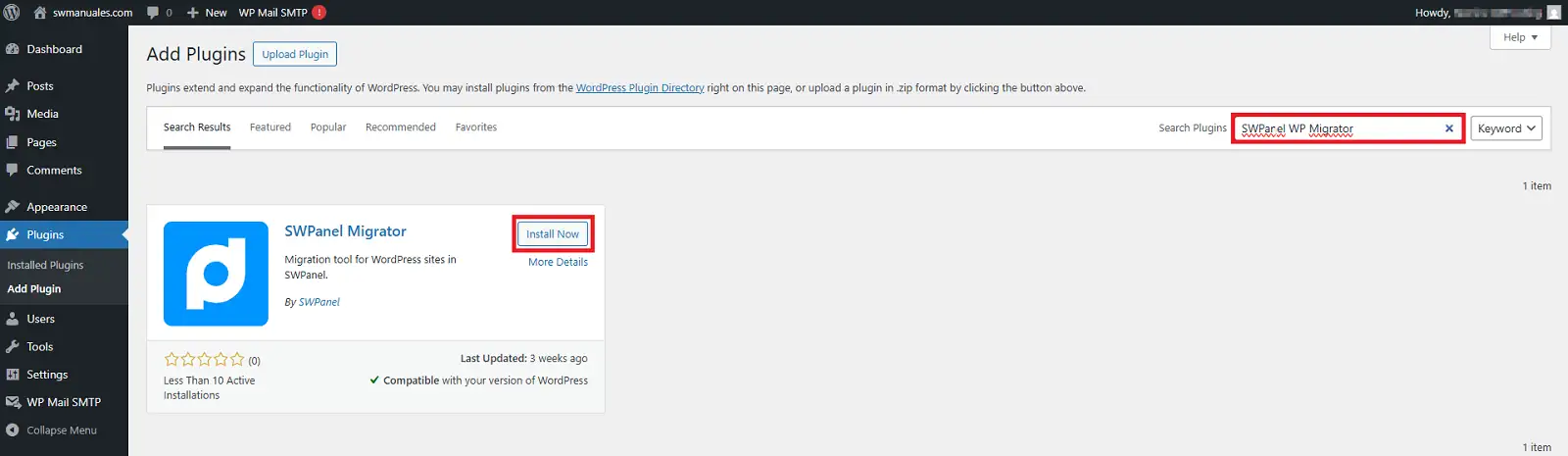
info_capture The screenshot is for illustrative purposes. It was taken from version 2026.000.0001 dated 02/18/2026. It may differ from what the current version of SWPanel shows.
Step 3: Activate the plugin
Once the installation is complete:
- Press the Activate button.
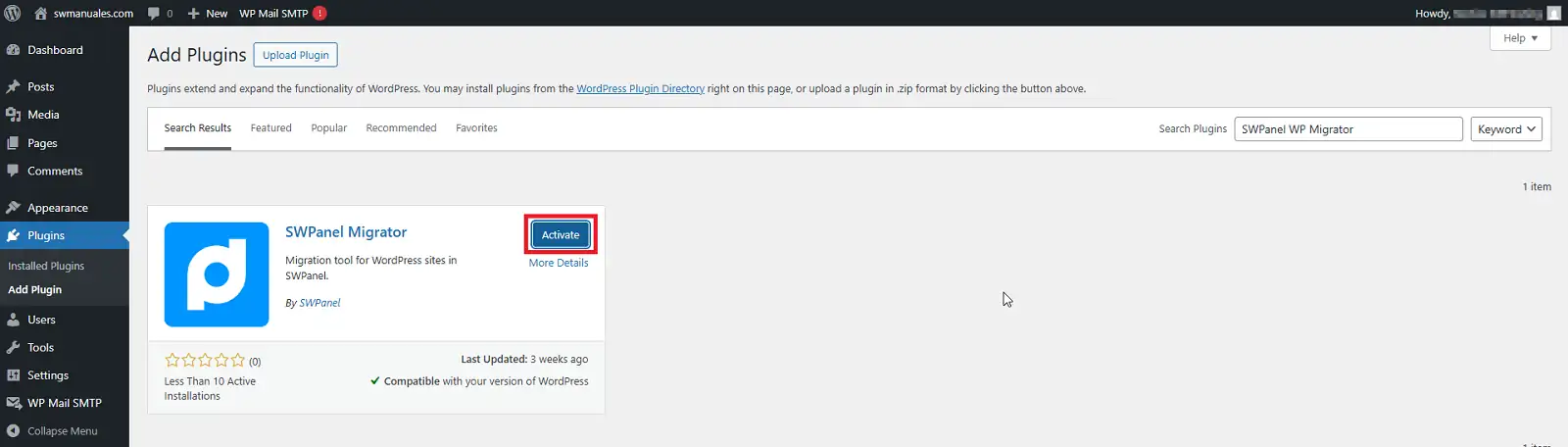
info_capture The screenshot is for illustrative purposes. It was taken from version 2026.000.0001 dated 02/18/2026. It may differ from what the current version of SWPanel shows.
3. Generation of the token and secret key
To continue with the migration, it is necessary to generate a token and a secret key from your SWPanel account.
We will need to have an SWPanel account to proceed, so if you do not have an SWPanel account, you should follow manual Manuel : How to register on SWPanel to register.
Step 1: Access SWPanel
- Log in to your SWPanel account.
- In the left side menu, select:
- Tools
- For migrating websites
- Migrate a website now
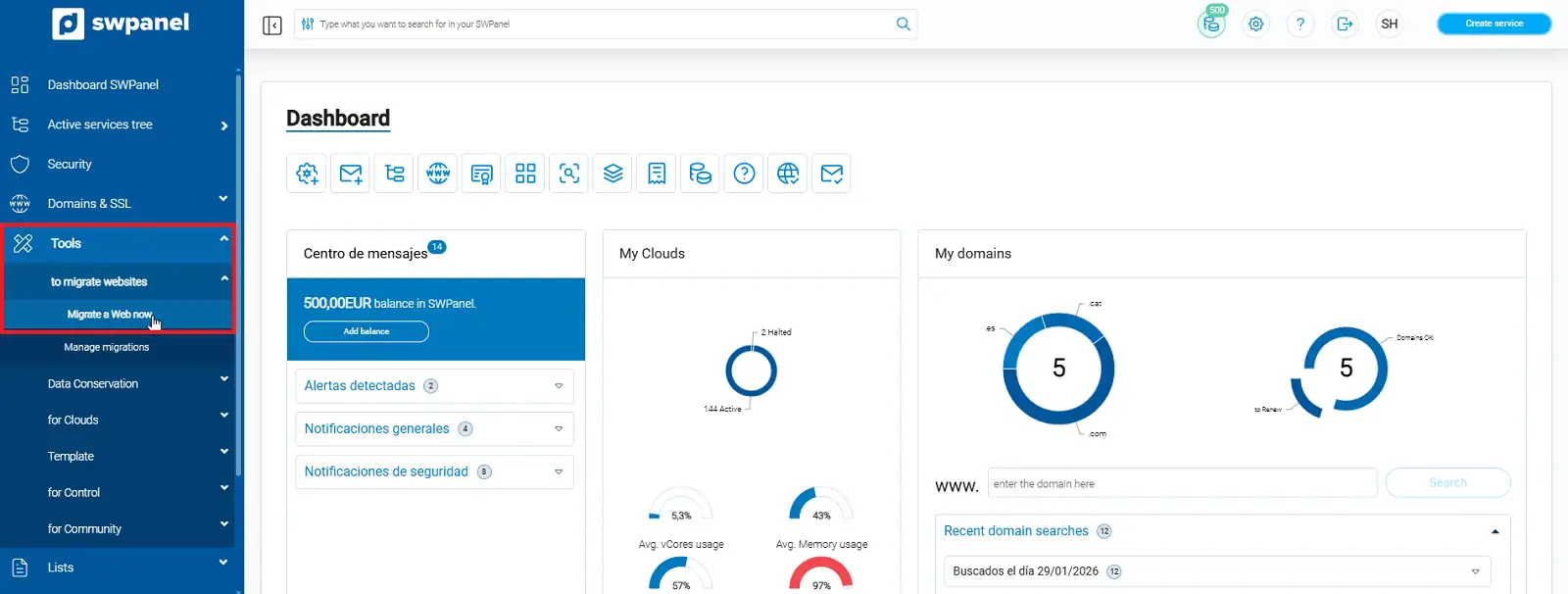
info_capture The screenshot is for illustrative purposes. It was taken from version 2026.000.0001 dated 02/18/2026. It may differ from what the current version of SWPanel shows.
Step 2: Select the migration type
Select the option:
Migrate a WordPress Website
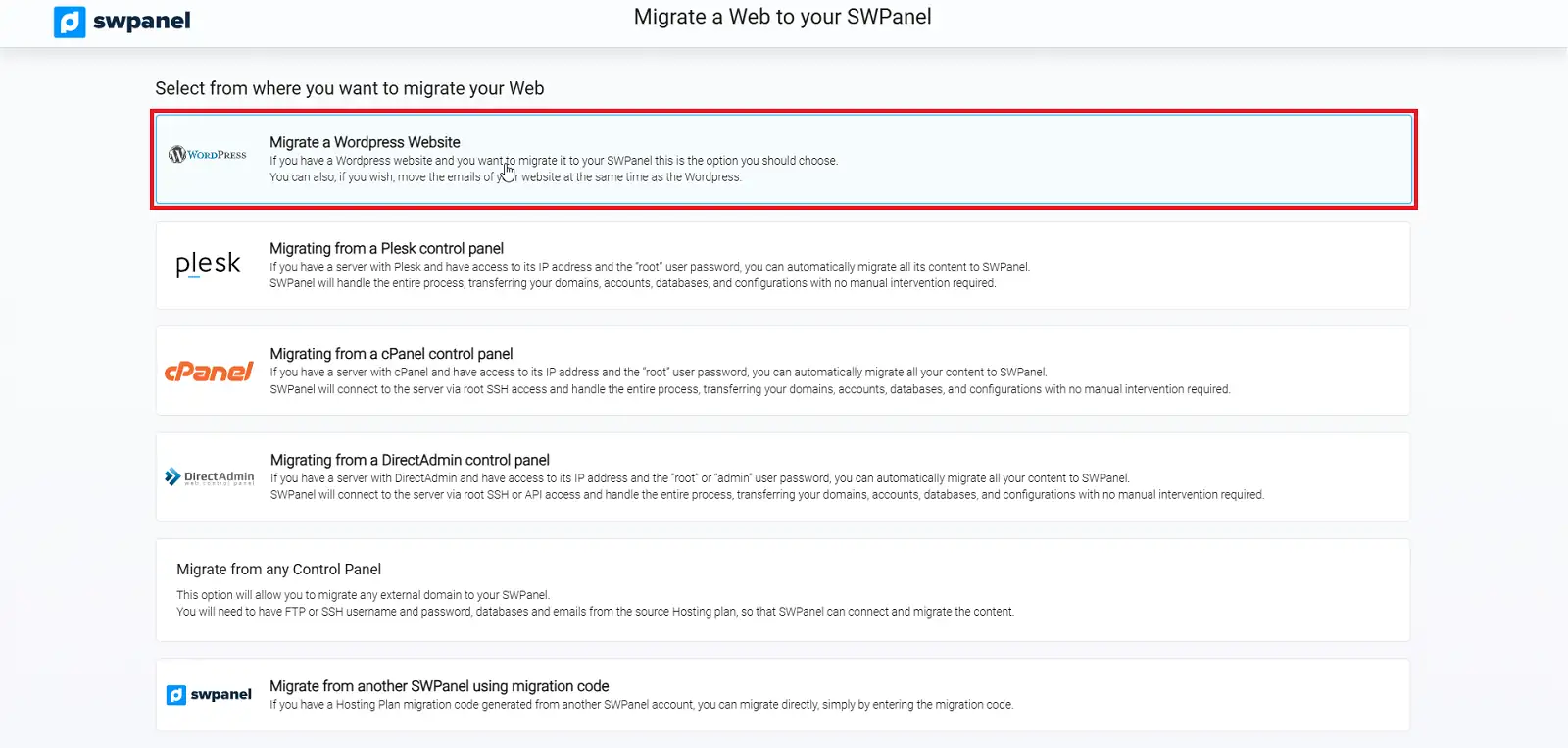
info_capture The screenshot is for illustrative purposes. It was taken from version 2026.000.0001 dated 02/18/2026. It may differ from what the current version of SWPanel shows.
Step 3: Configure source and destination
- Select your source provider (for example, "Others").
- Check the option: Migrate the Website to an existing Hosting service.
- Enter the name of the destination hosting.
- Select: Move my WordPress Website to my new Hosting in SWPanel.
This will generate:
- The token
- The secret key
- A quick usage guide
You can use the copy to clipboard icon for greater convenience.
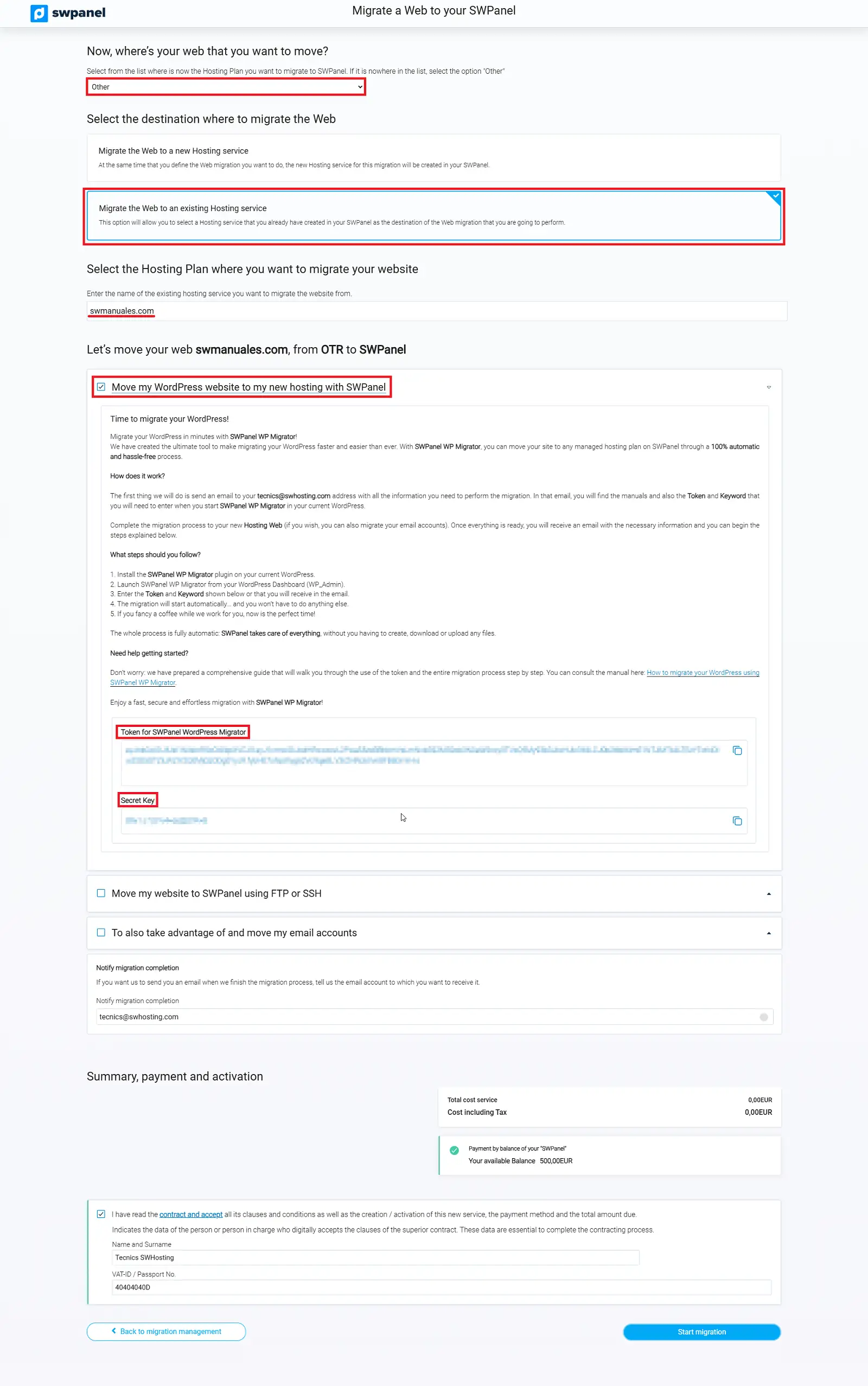
info_capture The screenshot is for illustrative purposes. It was taken from version 2026.000.0001 dated 02/18/2026. It may differ from what the current version of SWPanel shows.
4. Enter the token and secret key in the plugin
Step 1: Access the plugin settings
- Return to the source WordPress.
- Go to Plugins.
- Locate SWPanel Migrator.
- Click on Settings.
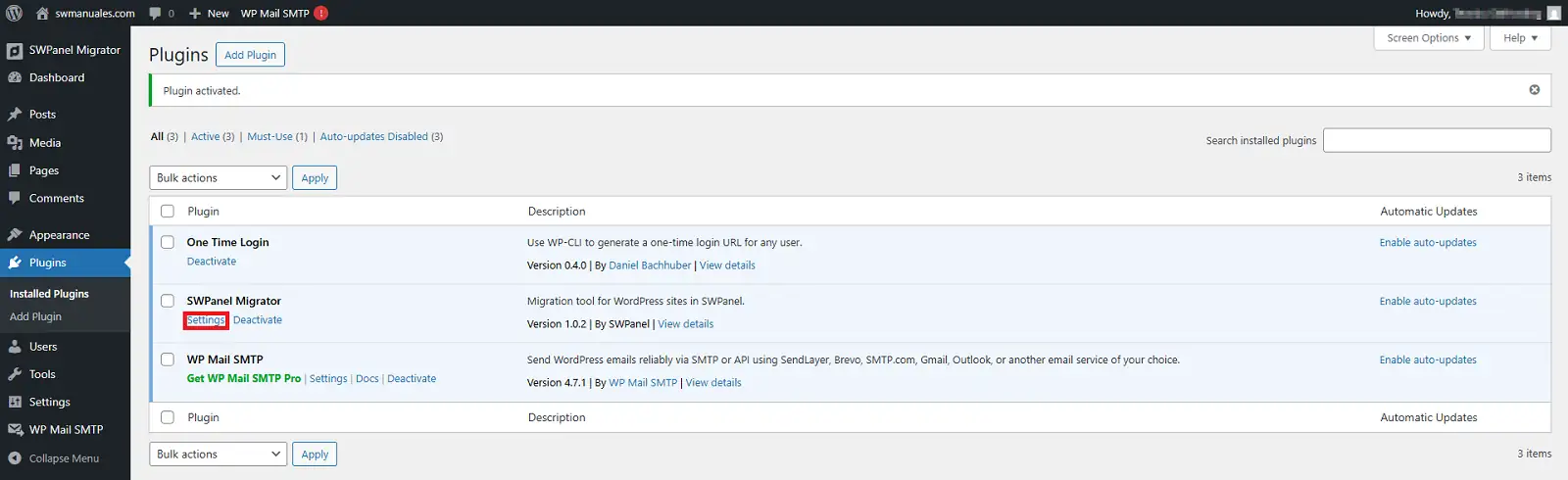
info_capture The screenshot is for illustrative purposes. It was taken from version 2026.000.0001 dated 02/18/2026. It may differ from what the current version of SWPanel shows.
Step 2: Enter credentials
- Enter the token in the corresponding field.
- Enter the secret key.
- Click on Start export.
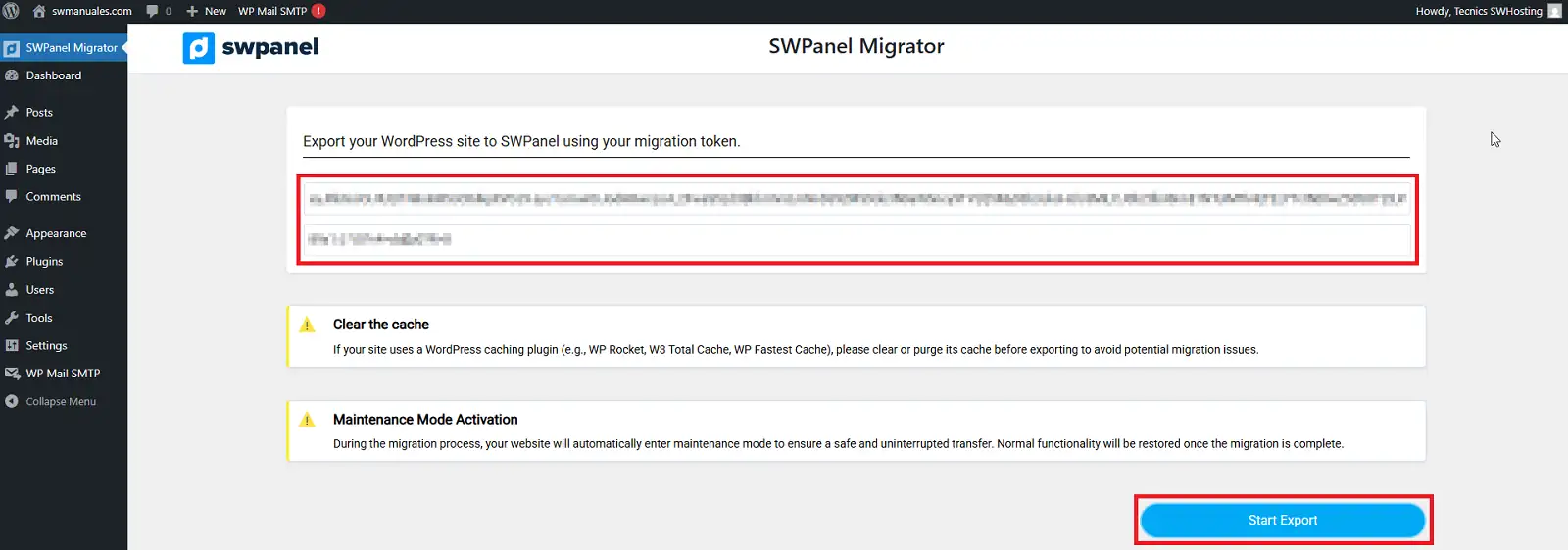
info_capture The screenshot is for illustrative purposes. It was taken from version 2026.000.0001 dated 02/18/2026. It may differ from what the current version of SWPanel shows.
Step 3: Monitor the process
During the export, you will be able to see the process status through a progress chart.
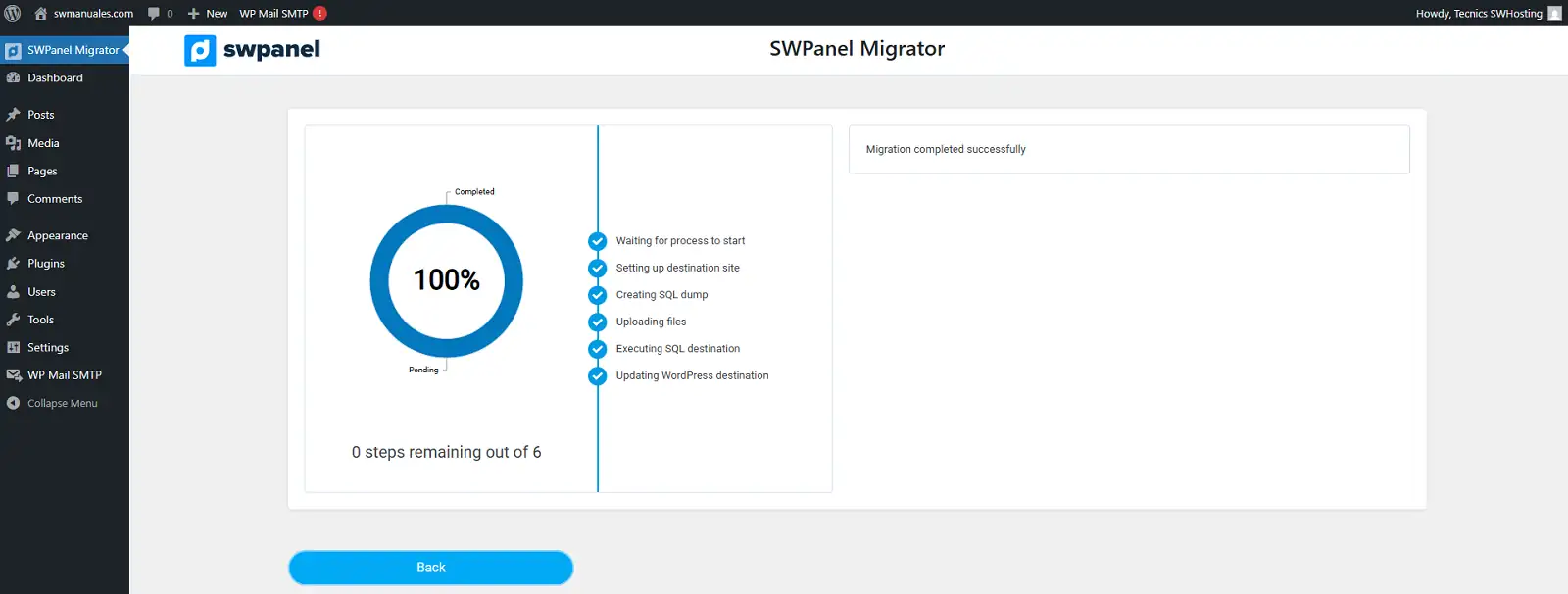
info_capture The screenshot is for illustrative purposes. It was taken from version 2026.000.0001 dated 02/18/2026. It may differ from what the current version of SWPanel shows.
When all steps are completed successfully, the migration will have finished.
Once this is finished, our system will send an email to the electronic mailbox associated with your customer account indicating that it has been completed successfully, and providing the corresponding data.
5. Accessing WordPress without modifying DNS
If you have not yet modified the domain's DNS, you can access the new WordPress by editing your hosts file, forcing your domain to point to the IP of the new server.
This allows:
- Testing the site before making it public.
- Verifying that everything is working correctly.
- Avoiding interruptions for users.
You can check how to do this in the following manual: