
How to check the event logs of your server
To review your Cloud's event log, you can follow these steps:
1- Access SWPanel and go to the Dashboard of the corresponding Cloud using the top search bar.
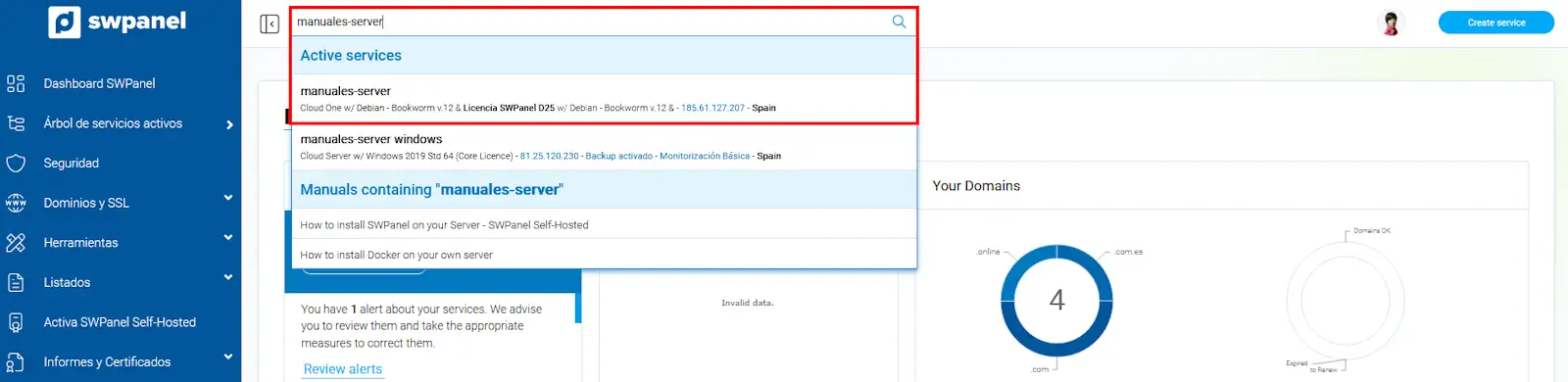
info_capture The screenshot is for guidance purposes. It was taken from version 2025.02.0002 dated 14/03/2025. It may differ from what is shown in the current version of SWPanel.
2- Once on your Cloud's Dashboard, go to the LOG Manager using the LOGs icon.
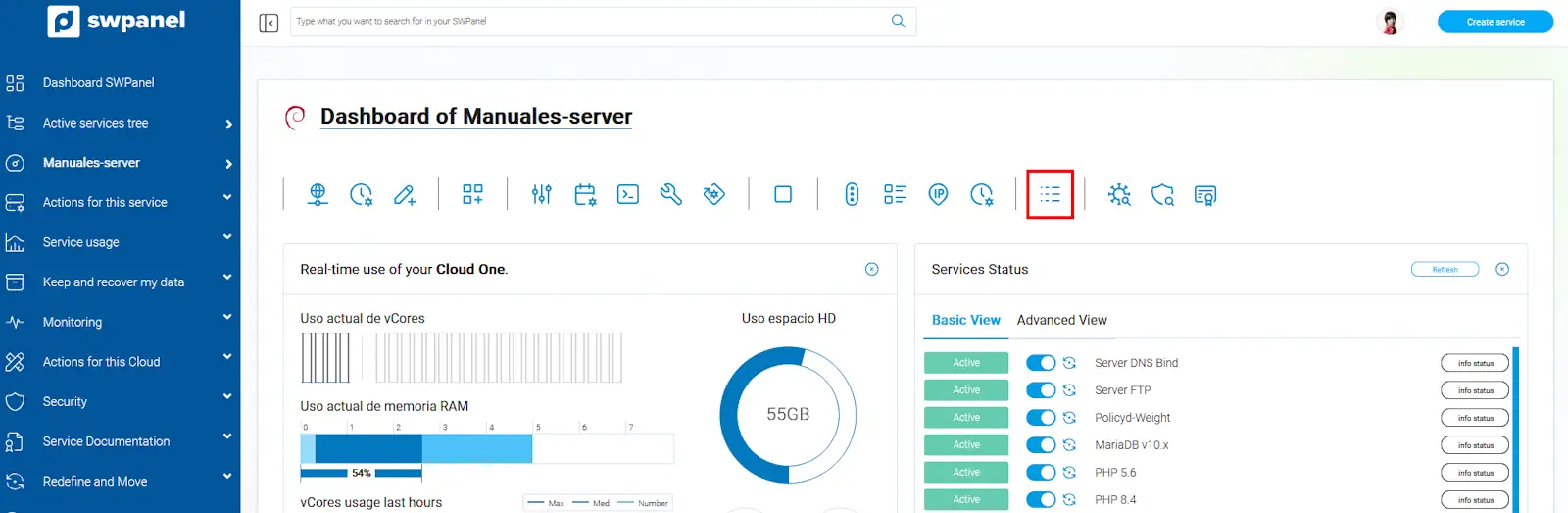
info_capture The screenshot is for guidance purposes. It was taken from version 2025.02.0002 dated 14/03/2025. It may differ from what is shown in the current version of SWPanel.
Here, you will be able to view the LOGs generated by the various services available on the server. The way to view them is as follows:
3- Select the dropdown menu [...] and select 'Download' or 'View Log from SWPanel'. If the log file is too large, the 'View Log from SWPanel' option will not be available.
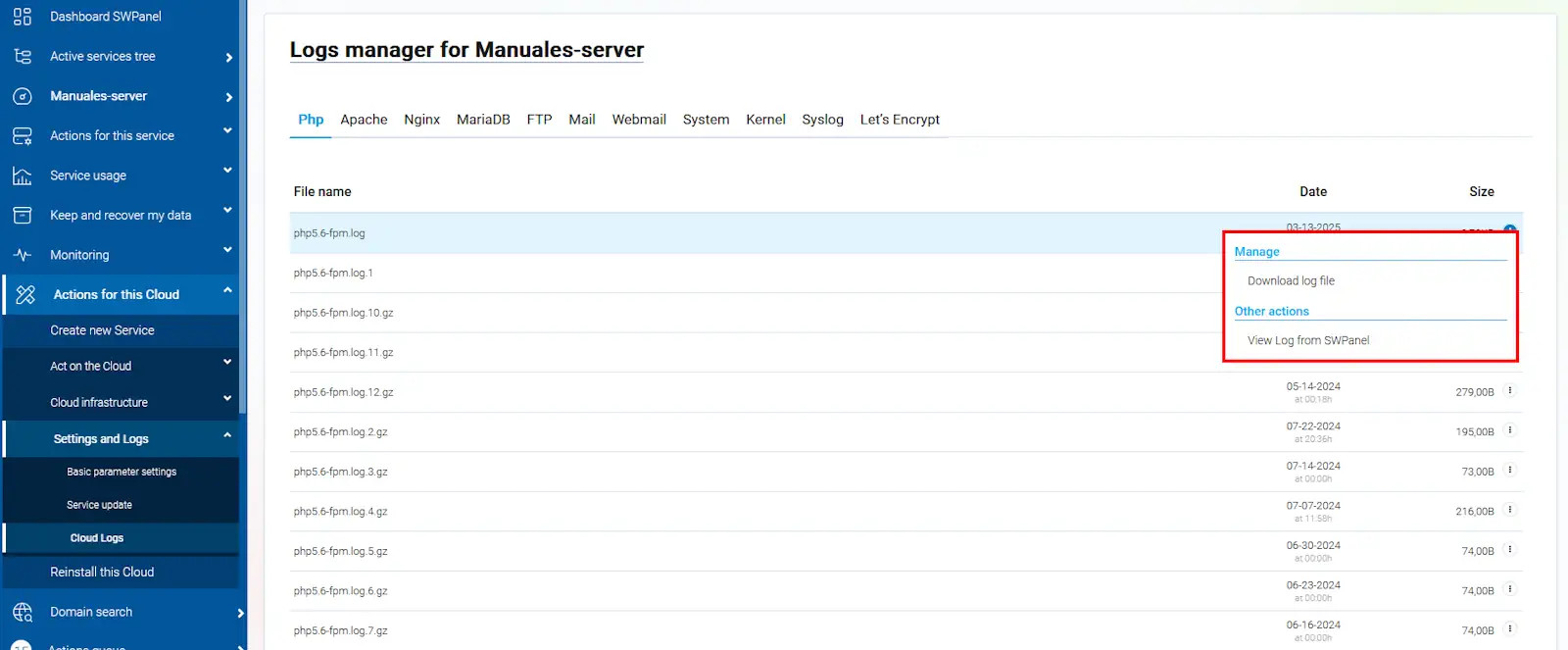
info_capture The screenshot is for guidance purposes. It was taken from version 2025.02.0002 dated 14/03/2025. It may differ from what is shown in the current version of SWPanel.
4- If you open it via SWPanel, the appearance will be similar to this.
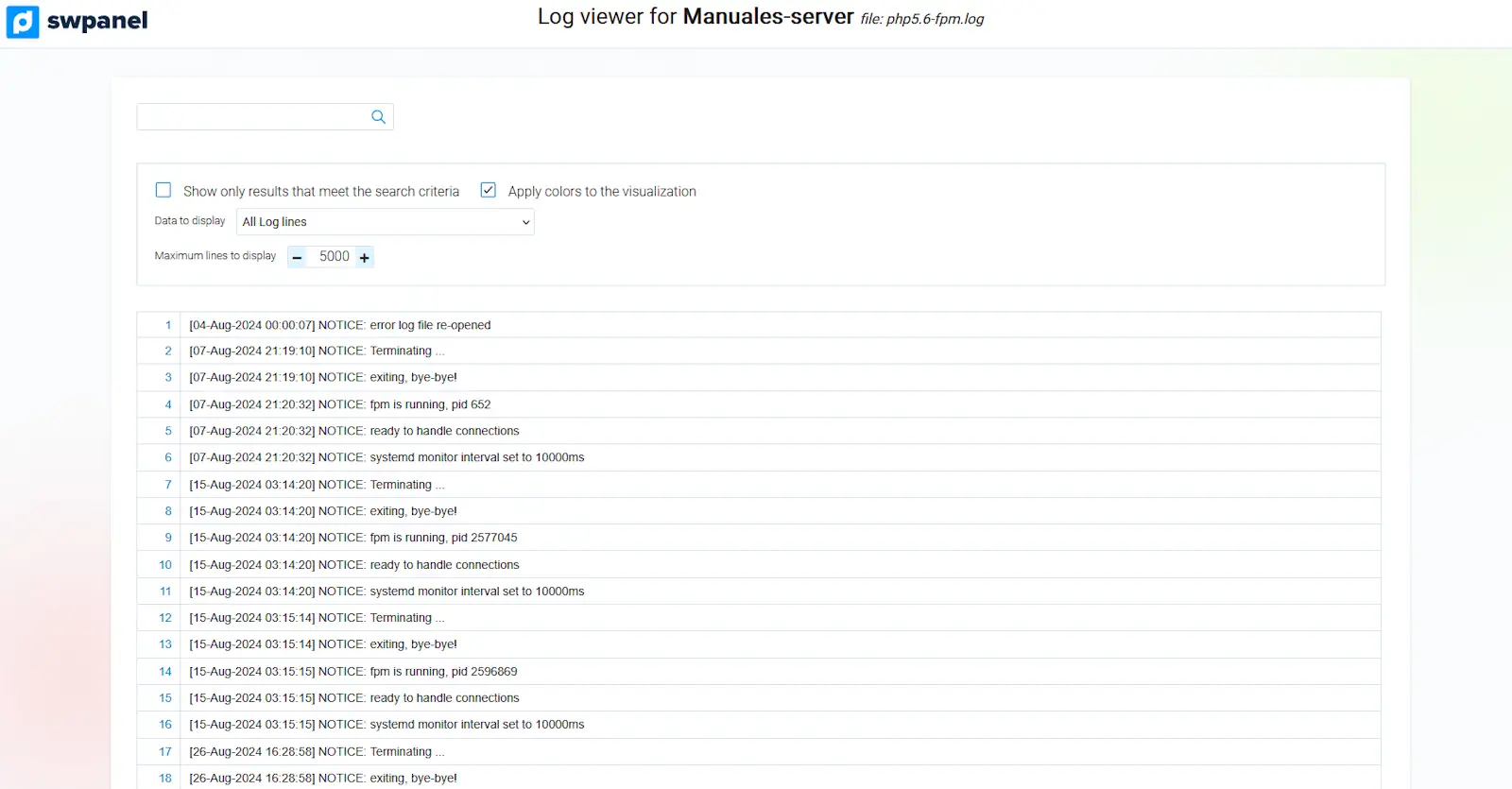
info_capture The screenshot is for guidance purposes. It was taken from version 2025.02.0002 dated 14/03/2025. It may differ from what is shown in the current version of SWPanel.
5- In the 'Data to view' option, you can choose from the following options to filter and search only for the specific code.

info_capture The screenshot is for guidance purposes. It was taken from version 2025.02.0002 dated 14/03/2025. It may differ from what is shown in the current version of SWPanel.
-
All Log lines: --> Default option.
-
Only Result Ok lines - (Status 200) --> Filters only lines containing status 200, the request was successful
-
Only Result Redirect lines - (Status 300) --> Filters only lines containing status 300, equivalent to redirects.
-
Only Result Client Error lines - (Status 400) --> Filters only lines containing status 400, equivalent to client errors.
-
Only Result Server Error lines - (Status 500) --> Filters only lines containing status 500, equivalent to server errors.
6- Additionally, you can choose the maximum number of lines to view; by default it is 5000, although you can modify it. You only need to enter the number of lines you want in the box and press the 'Enter' button.
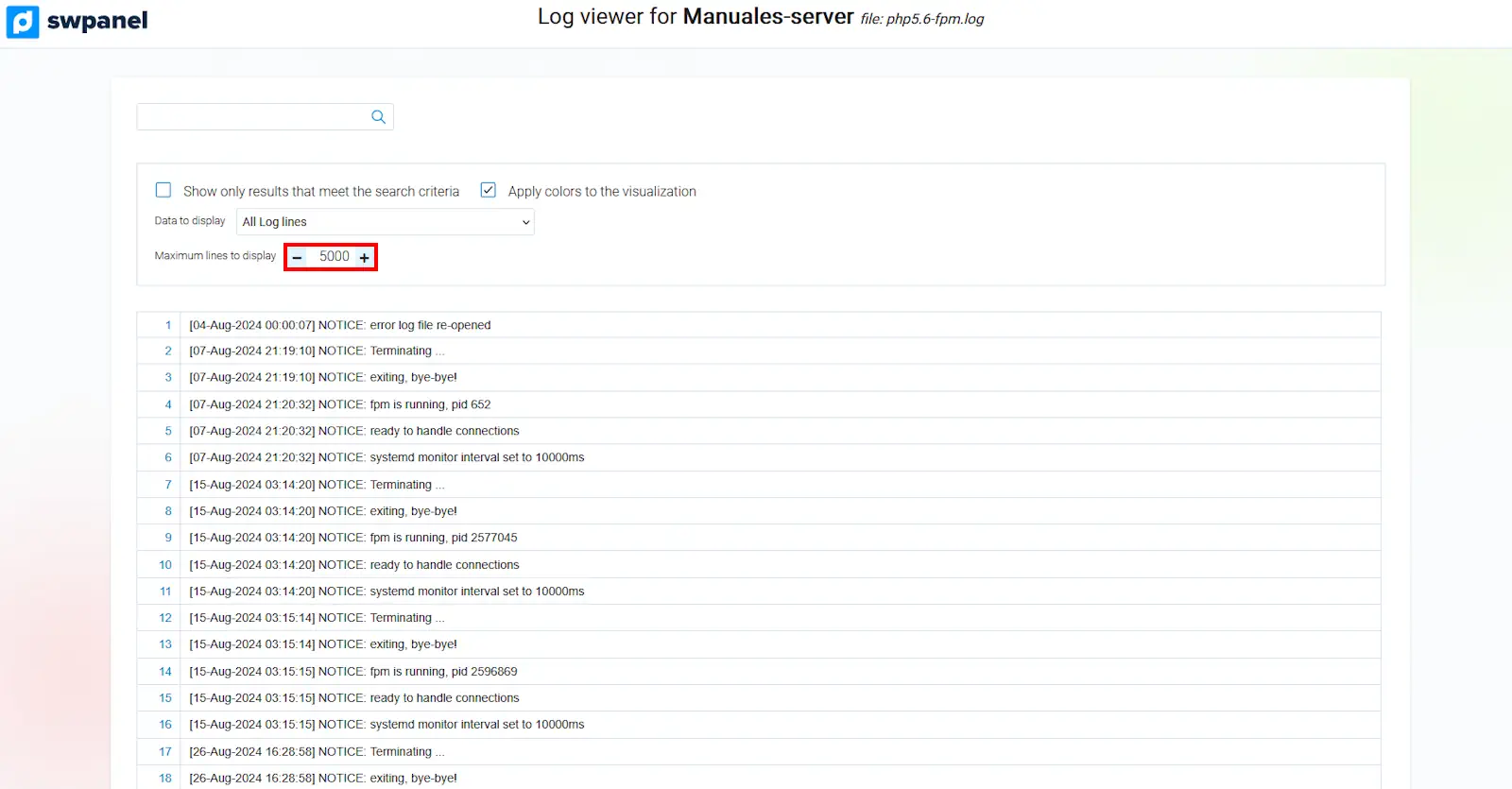
info_capture The screenshot is for guidance purposes. It was taken from version 2025.02.0002 dated 14/03/2025. It may differ from what is shown in the current version of SWPanel.
If you have any questions regarding this, feel free to use our support wall: Manuel : Talk to support with Quick Help