
Create Hosting service for my Website
Host your website quickly and easily. The performance of our Hosting, the intuitive control panel, and 24/7 Support will provide you with an excellent service to trust your projects with.
We provide unlimited traffic, email accounts and lists, FTP access, database, Anti-Hacking Firewall, one-click installation of Wordpress and Prestahop, Spanish IP with better positioning... And much more!
From SWPanel you will be able to set up your Hosting service in a matter of minutes.
Click on Create Service (upper right corner):
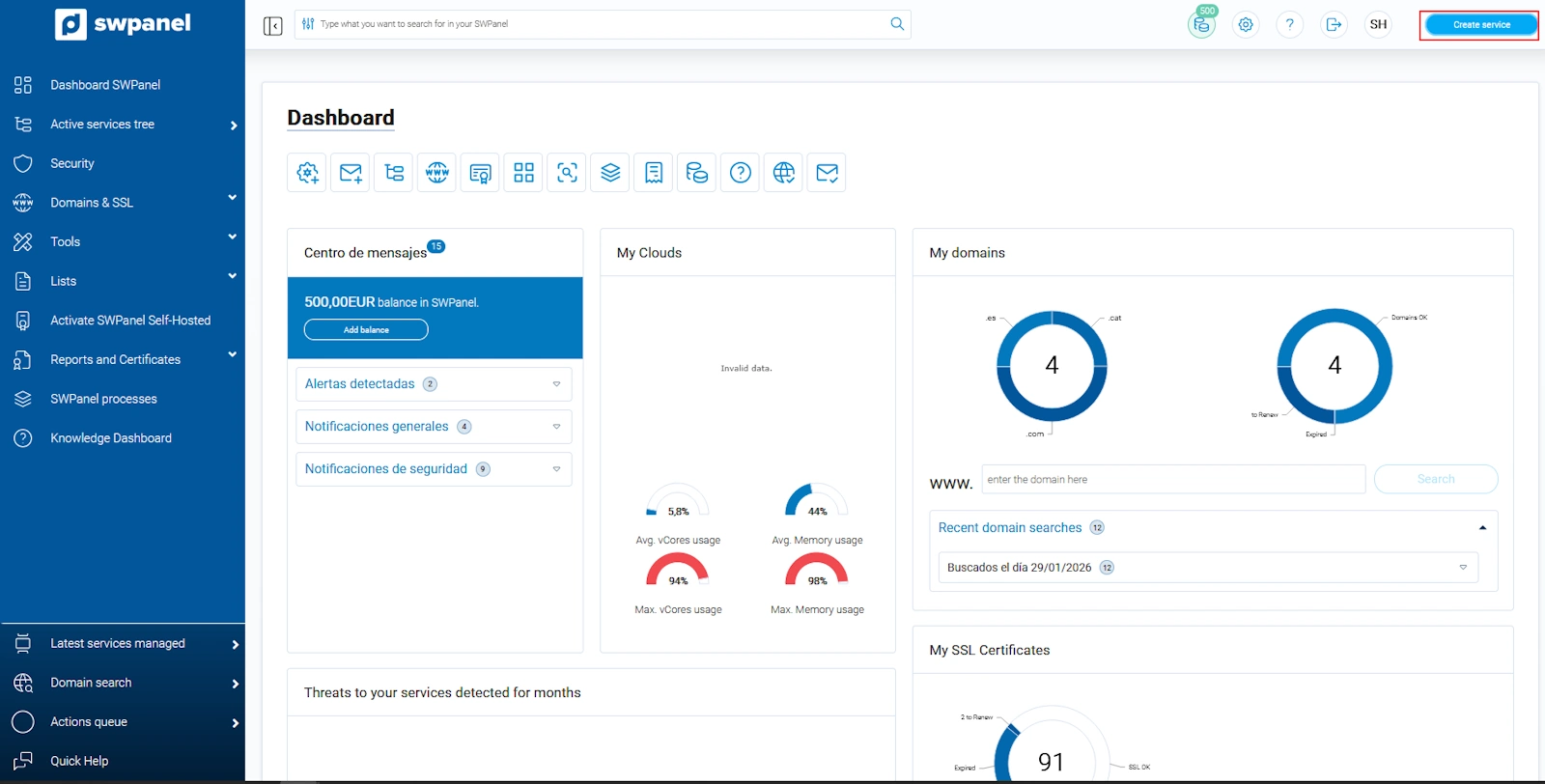
The screenshot is for guidance purposes. It was taken from version 2024.07.0132 dated 20/10/2024. It may differ from what the current version of SWPanel shows.
Next, select Web Hosting:
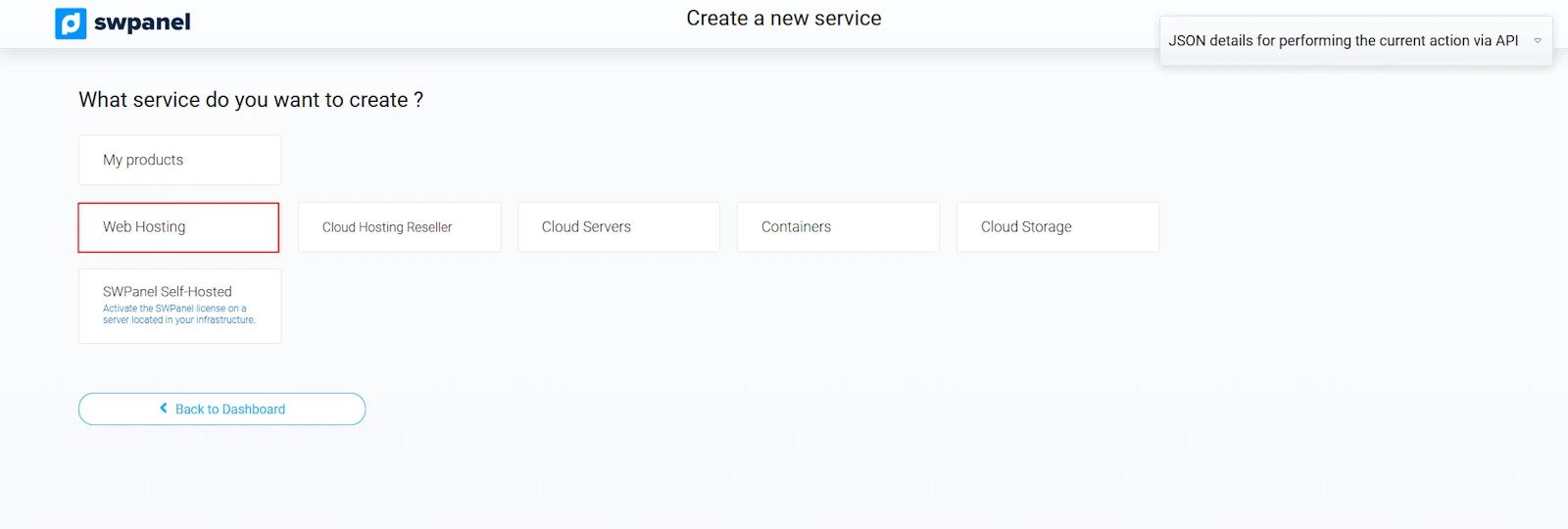
The screenshot is for guidance purposes. It was taken from version 2024.07.0132 dated 20/10/2024. It may differ from what the current version of SWPanel shows.
Next, you will find the following options:
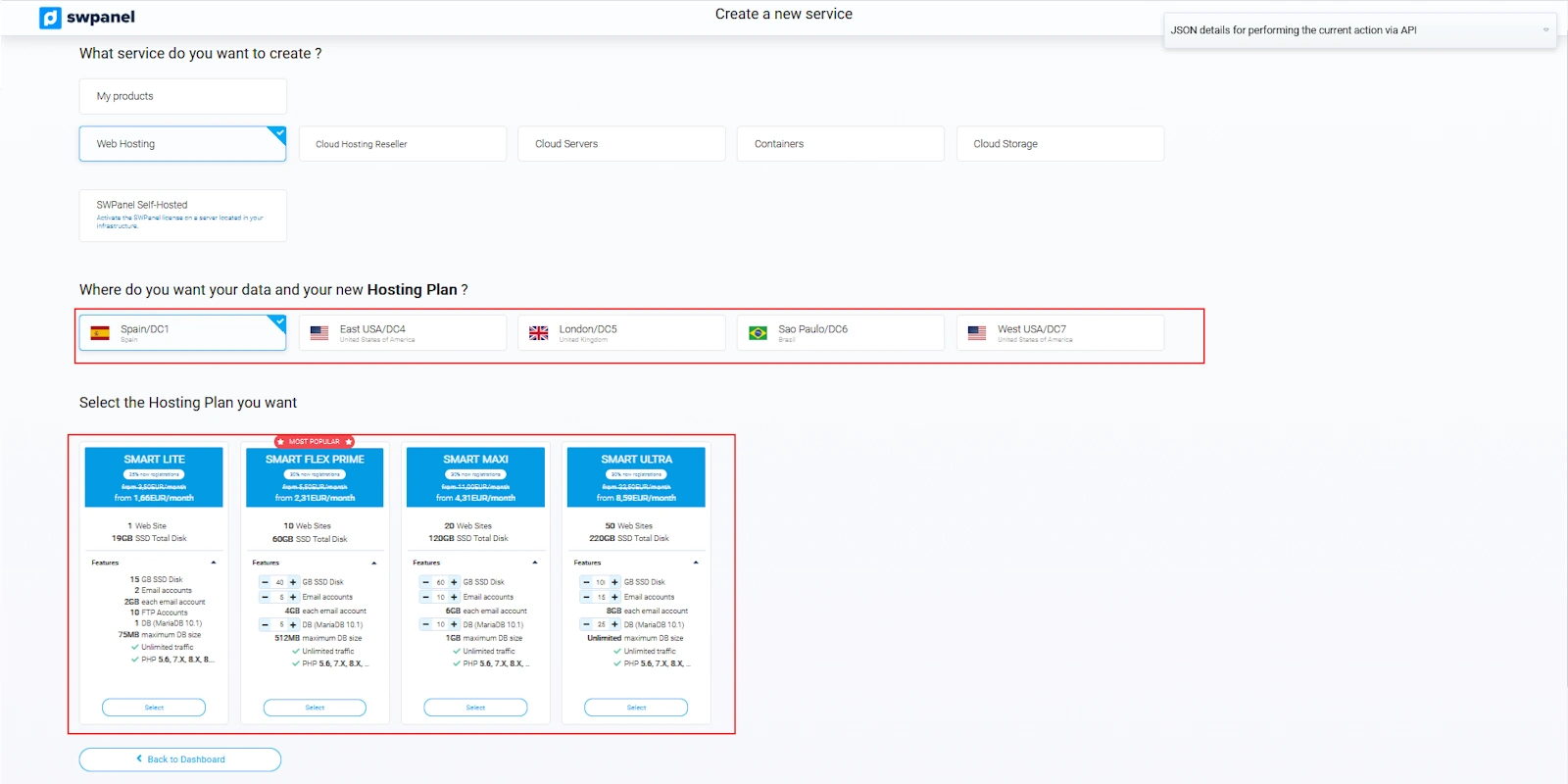
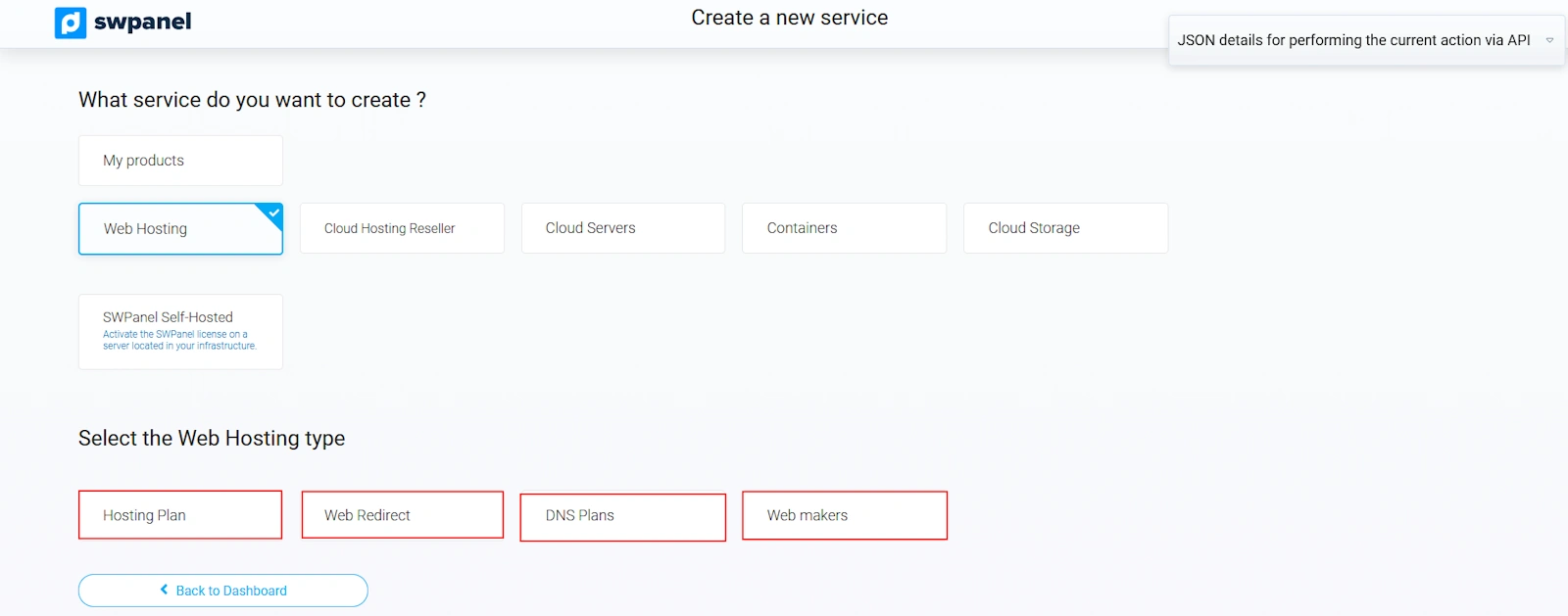 Then, you can select the Data Center where your Hosting will be hosted.
Hosting Plans: Shared hostings to be able to create a website, databases, email accounts, FTP accounts, DNS records, etc. The differences between the available Hosting plans can be seen at the following link: https://www.swhosting.com/es/hosting
Redirectors: Redirection Hosting plans are ideal for users who want to perform a redirection quickly and easily. 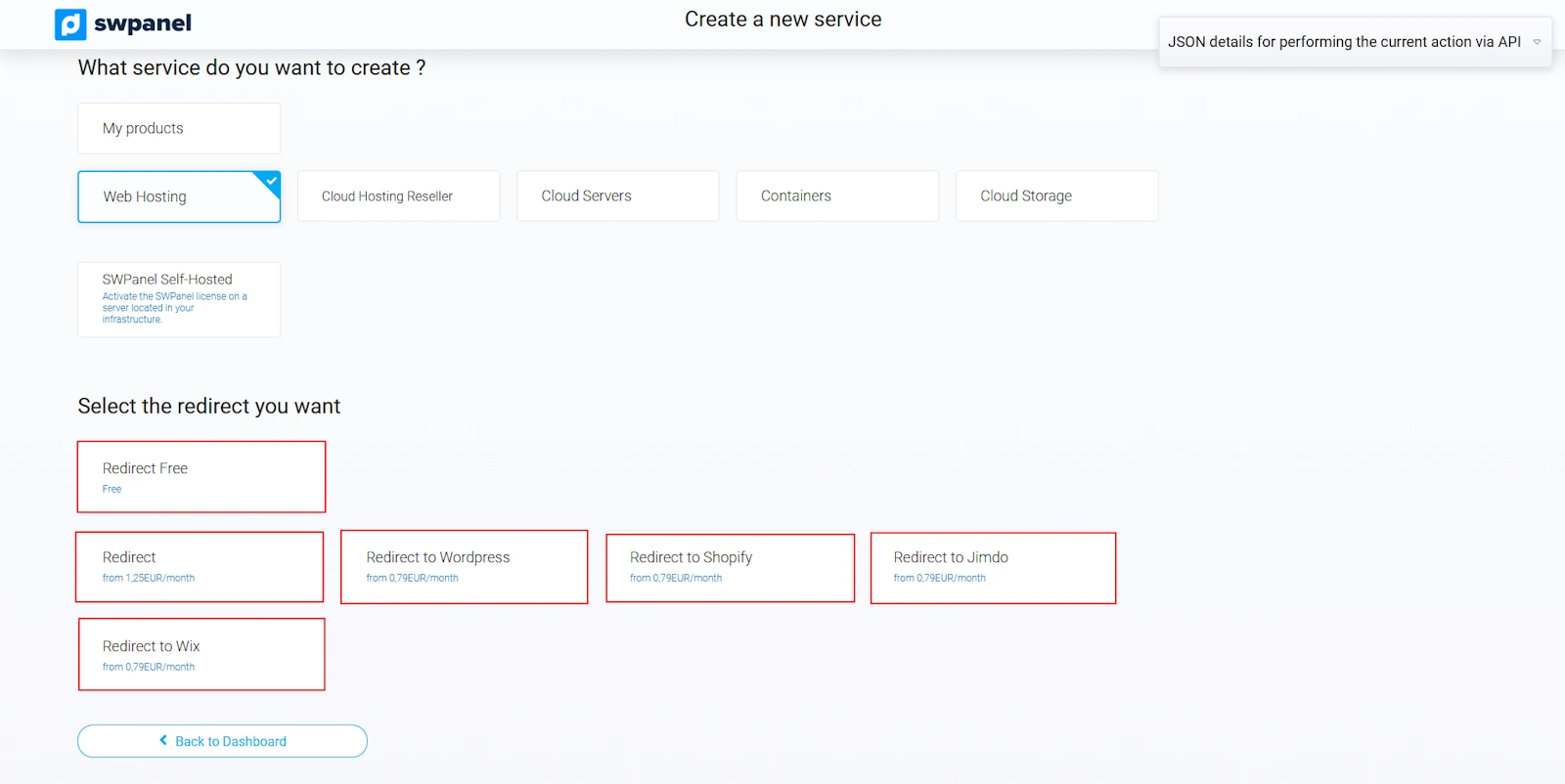
DNS Plans: These are a very good option if you only need to have DNS records associated with a domain, as it is not possible to create a website with this type of Hosting. 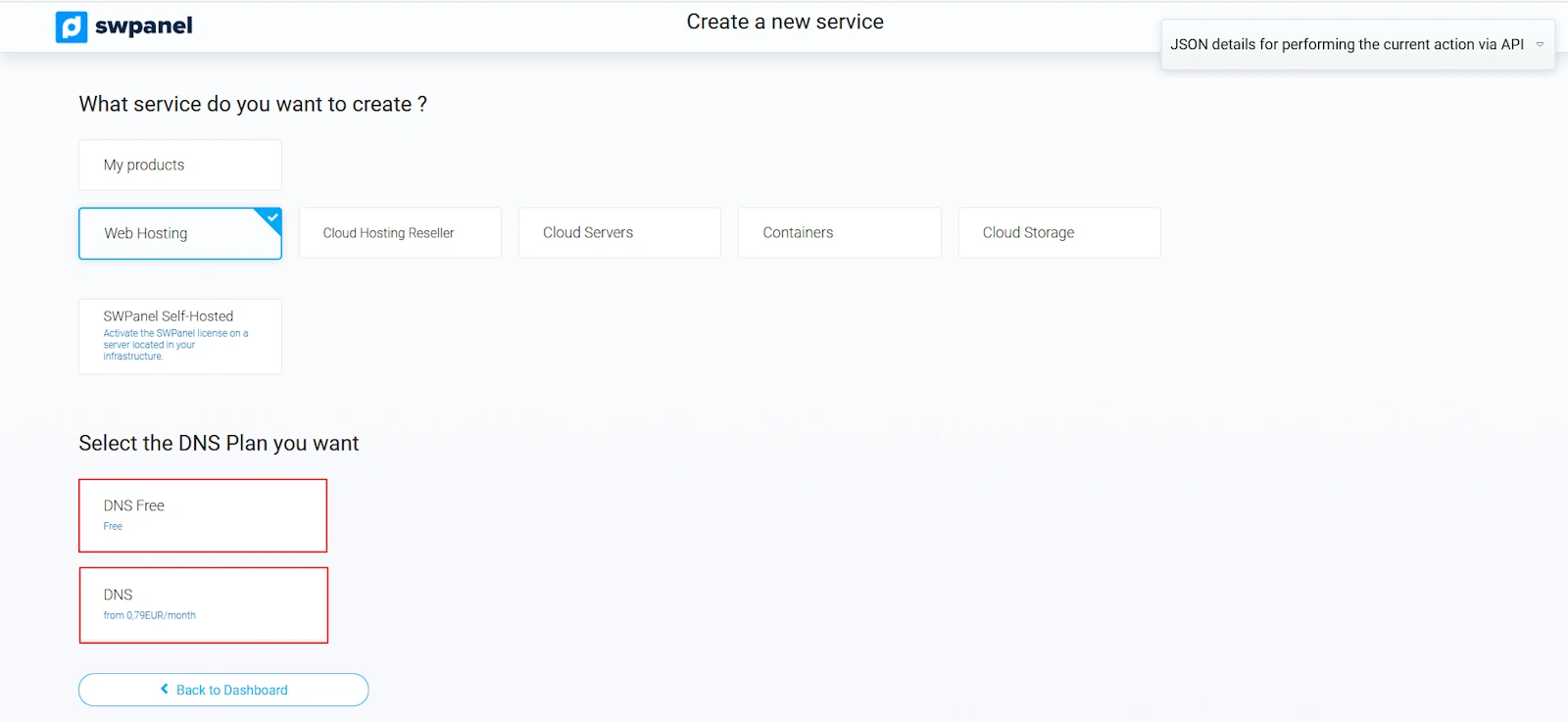
Web Builders: Here you can create an SW EasyWeb, a website that can be created in 1 minute. 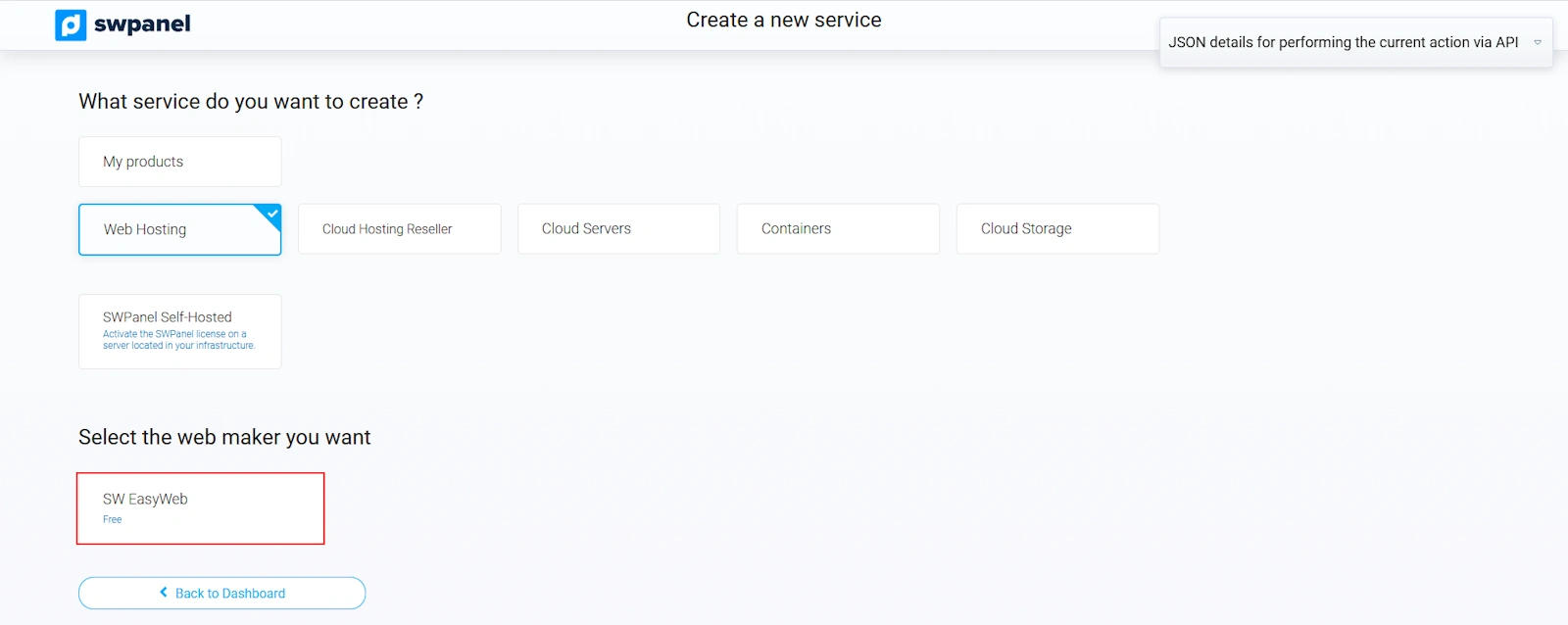
Once you have decided which Hosting plan best suits your needs, it will be time to indicate the domain or subdomain that will be created as a service.
Domain examples: swhosting.com, swproit.com.
Subdomain examples: hosting.swhosting.com, correo.swhosting.com.
For more information about domains and their registration process, consult our manual See manual: Domains
.
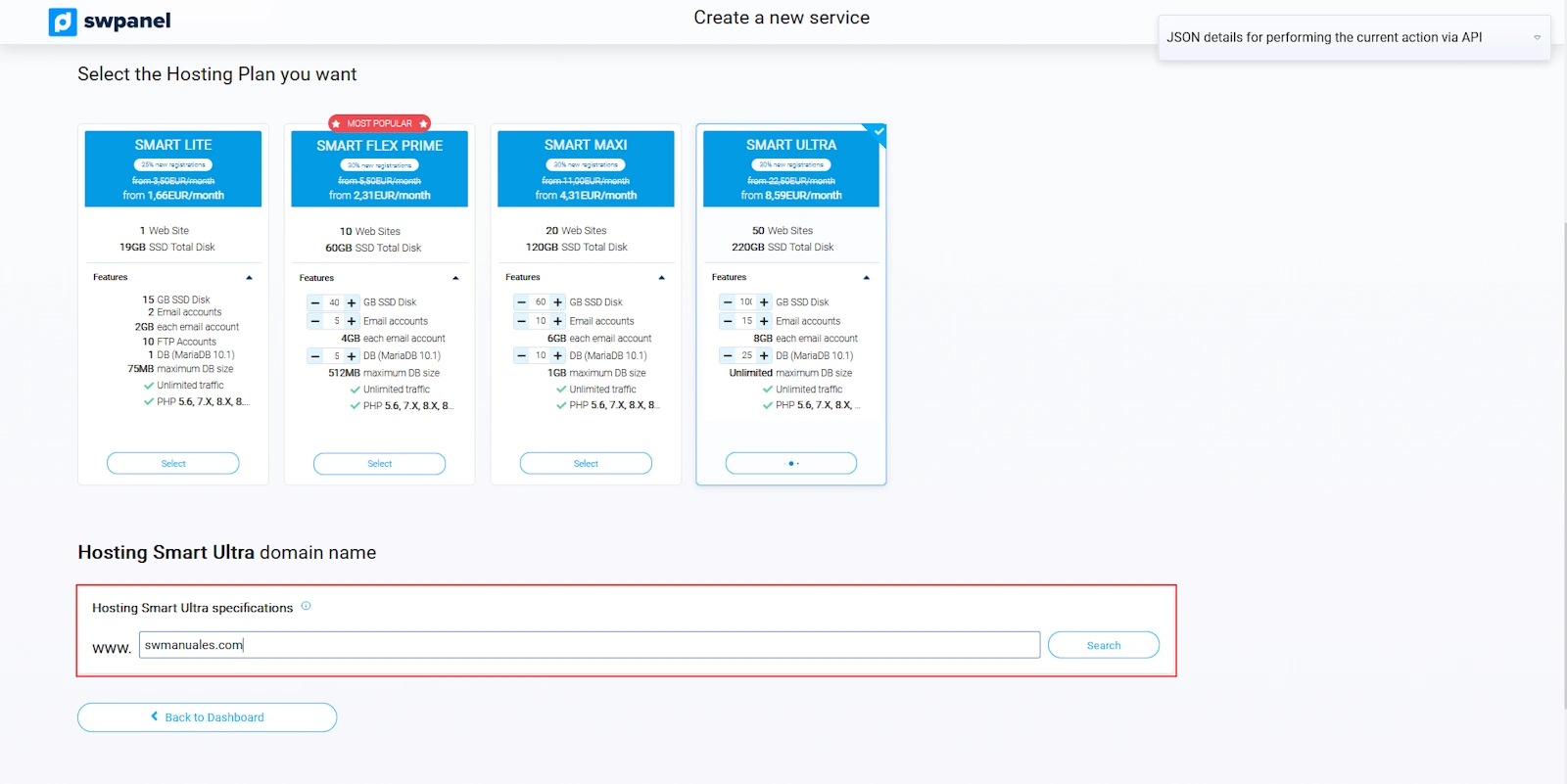
By clicking the Search button, the status of the entered domain will appear.
You can choose to register the domain if it is available, transfer it if you are the owner, or simply activate the service without registering the domain.
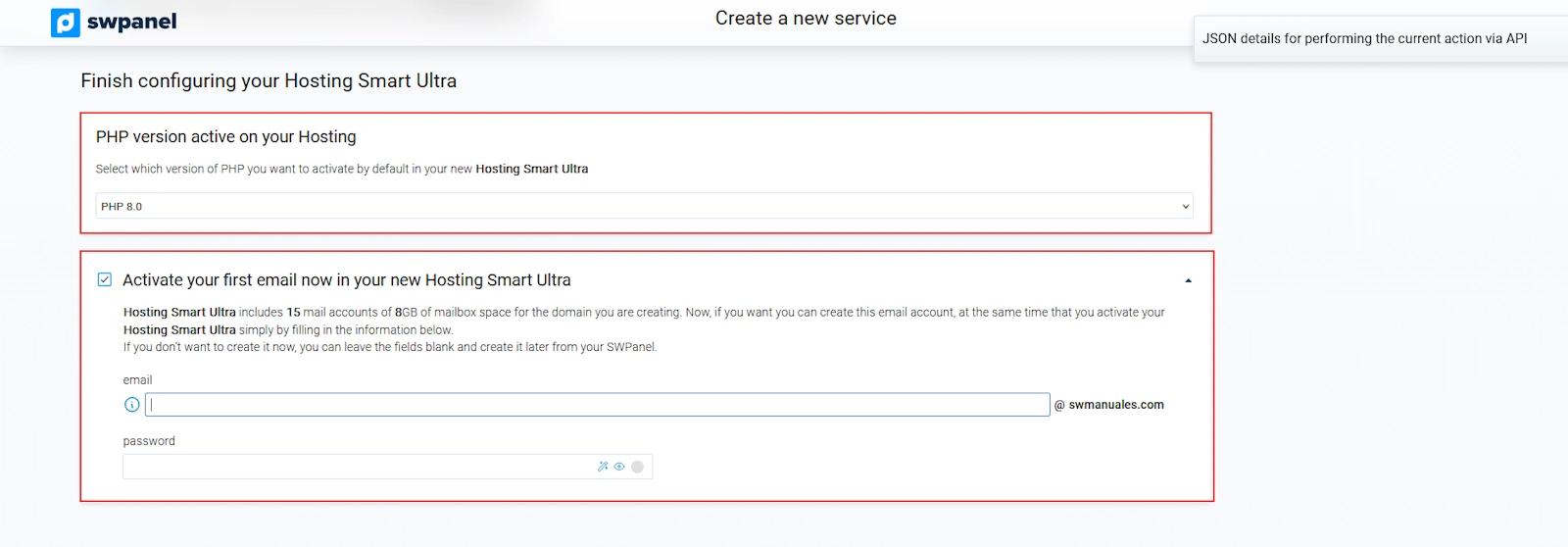
Now you can adjust your new Hosting to your needs: PHP version and creation of an email account for the indicated domain:
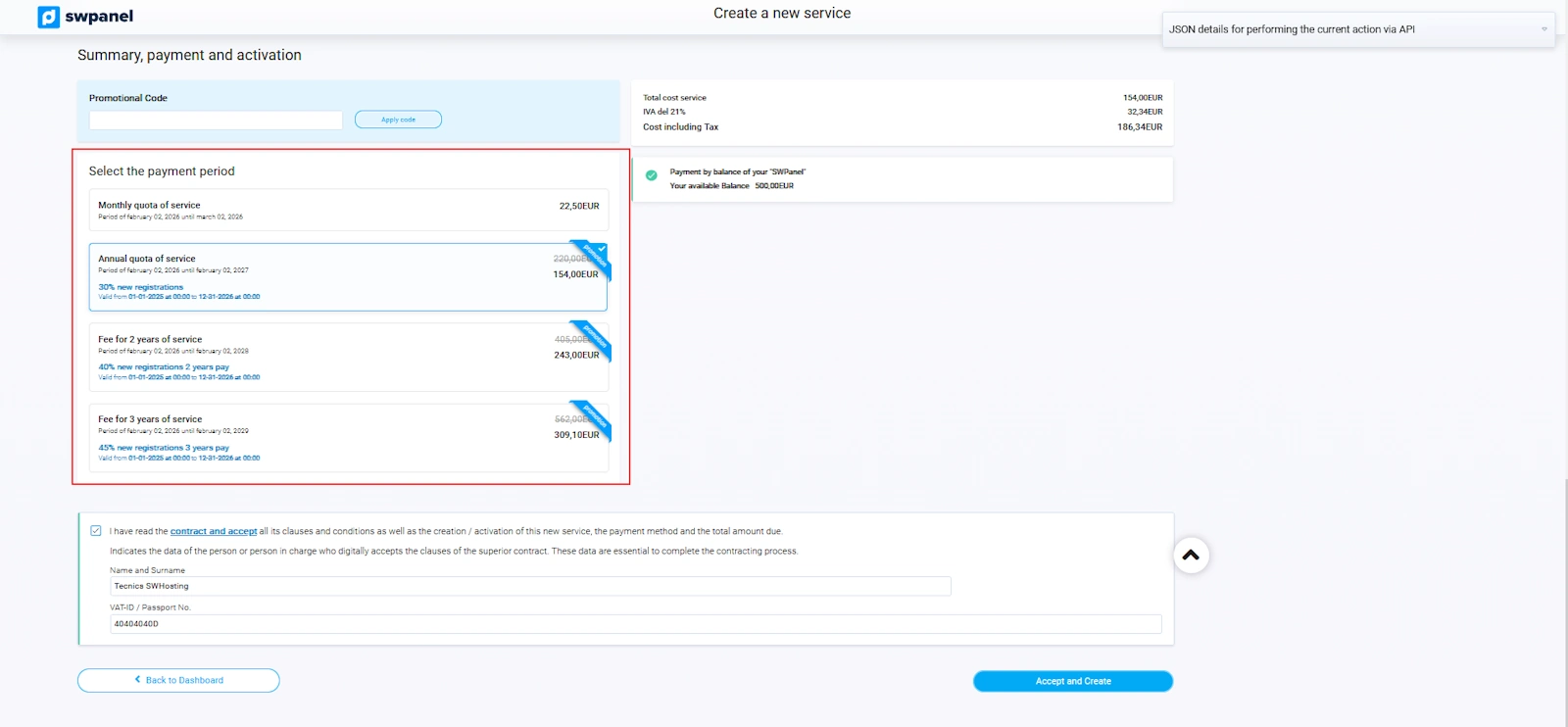
After reviewing the data that appears on the screen, click on Accept and create to proceed with the hiring:
Done! Your new Hosting service is now operational.
I have read the manual, close the window