
Modification of backups (backup)
Hosting backup definition
-
In the upper box of the SWPanel, indicate the name of the server for which you want to manage the backup.

-
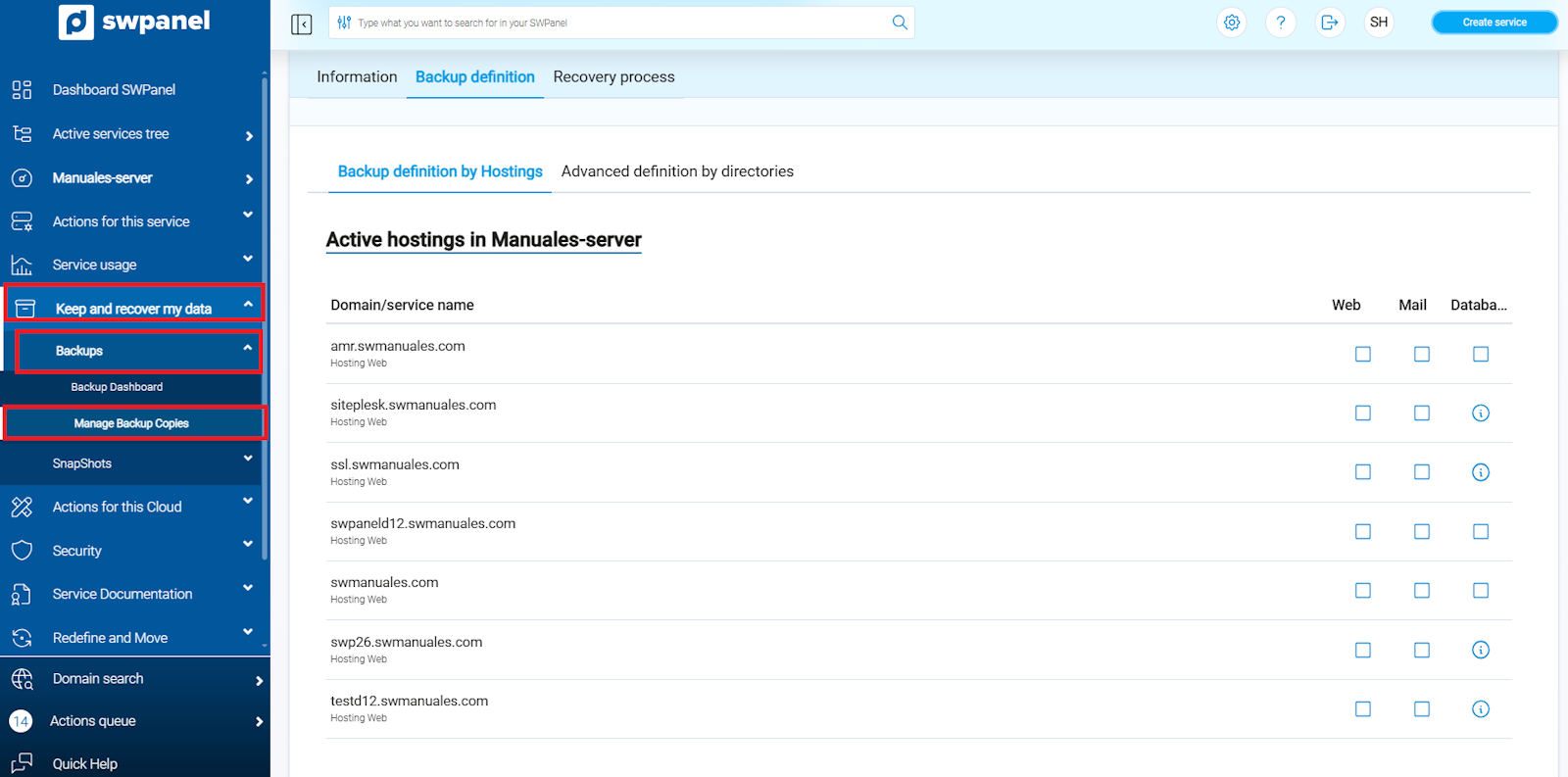
Go to Preserve and recover my data > Backups > Backup Management (left menu) and click on the Backup Definition tab:

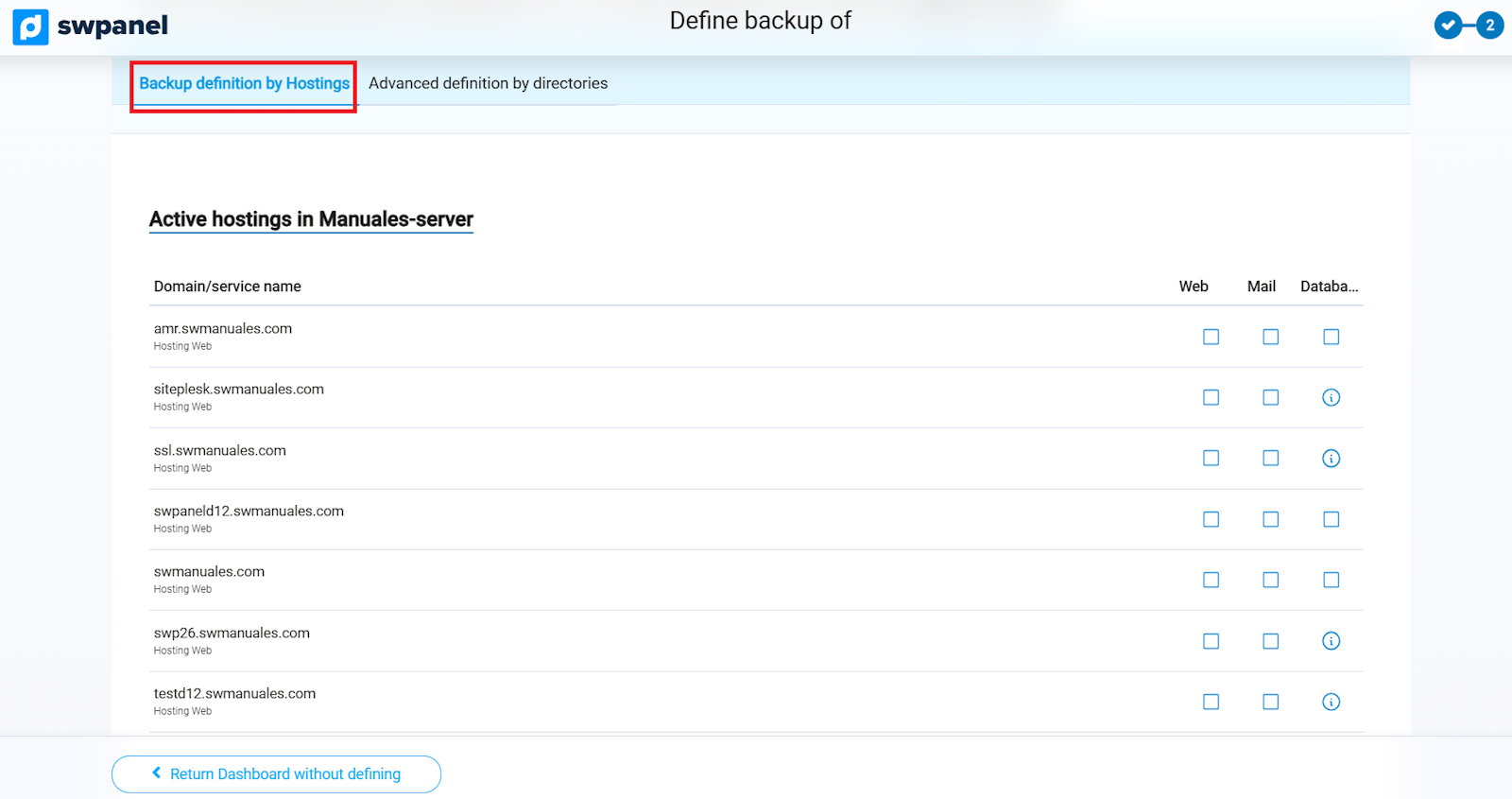
- By default, the hosting backup definition will appear, where you can select whether you want the web, email, and database backup for all your services by clicking on the checkbox for each section. For example, in the following screenshot, you can see that we have only selected the web and database backup for our first hosting service, while for the second service, only the email backup is performed:
Advanced definition by directory
-
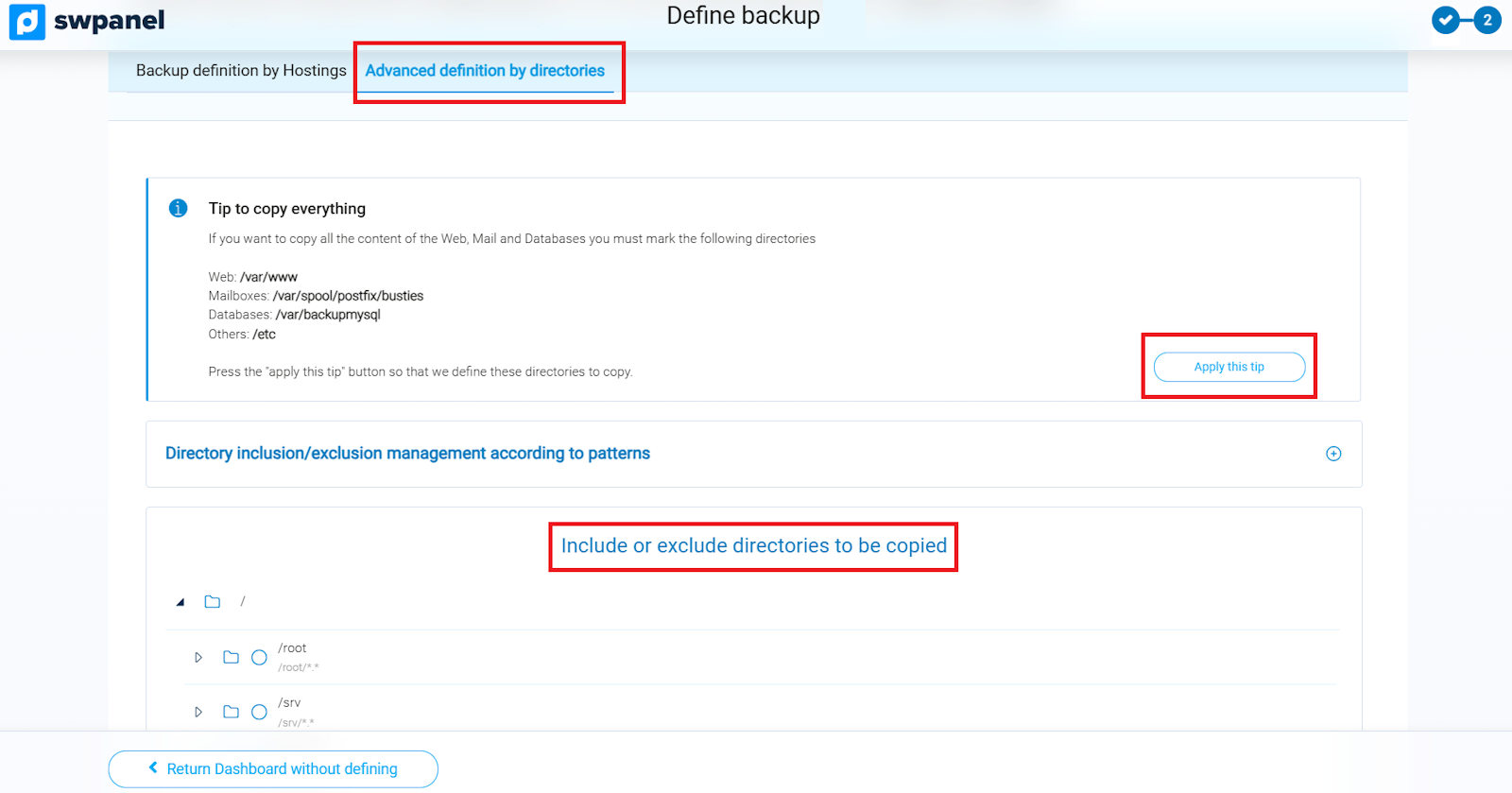
In case you want to add a directory manually, we have the advanced definition by directory:
-
On the left side of the advanced definition, you can see the current directories being backed up and those excluded. On the right side, you can select the directories you wish to copy.
-
By clicking on the icon located next to the directory, you can configure them in the following way:
 Included in the backup.
 Excluded from the backup. Example: You have selected the entire "/home/swuser" directory, but you wish to exclude the "/home/swuser/documentos" subdirectory.
 Removed from the backup. It will not be taken into account in the backups.
-
-
Once you have selected the corresponding directories, press Apply changes.
We recommend keeping the following directories selected: - /var/www/: Web pages directory. - /var/backupmysql/: This is where all your databases are dumped into ".sql" files.
Subsequently, if you wish to access the backup management again, you must follow these steps:
-
In the upper box of the SWPanel, indicate the name of the server for which you want to manage the backup.
-
Go to Preserve and recover my data > Backups > Backup Management (left menu) and click on the Backup Definition tab:
Backups of the specified directories will be performed daily starting from 1:00 AM.
Activate Backup and Configure Backup Directories in Clouds without Administration Panel (SWPanel)
-
From SWPanel, go to Active services tree (left menu) and click on the name of the corresponding Cloud:

-
Go to Preserve and recover my data > Backups > Activate Backup (left menu):

The following options will appear for configuration before activating it:
-
Select the Backup location.

- You can choose where you want SWPanel to perform the backups, which can be in the datacenters located in Girona/BCN or also in Paris.
-
Select the retention days for your backup:

- For example, if you select 30 days of retention, you will be able to restore data corresponding to the last 30 days.
-
You will see the following notice, indicating that you must install and configure the backup service on your Cloud. It is important that you follow these instructions; otherwise, we will not be able to perform the backups:

Once backups are activated, you must indicate which directories should be copied:
- Here you can manually enter the paths to be included in the backups. Once you have indicated the corresponding directories, press Apply changes:

We recommend keeping the following directories selected: - /var/www/: Web pages directory. - /var/backupmysql/: This is where all your databases are dumped into ".sql" files.
- Once the directory has been entered, you have the action section, where you can include or exclude that directory.
Finally, once the path and action are defined, you must click on the following icon to add it:

Subsequently, if you wish to access the backup management again, you must follow these steps:
-
In the upper box of the SWPanel, indicate the name of the server for which you want to manage the backup.

-
Go to Preserve and recover my data > Backups > Backup Management (left menu) and click on the Backup Definition tab:

Backups of the specified directories will be performed daily starting from 1:00 AM.