
DNS Templates
A DNS Template allows you to define a custom DNS configuration that will be automatically applied when creating new services.
Main advantages:
- Avoids manually configuring the same records in each service
- Saves time during deployments
- Reduces configuration errors
- Allows you to standardize your infrastructure
💡 Additionally, you can mark a template as default, so that it is automatically applied to all new services.
How to create a DNS Template
1. Access the Templates section
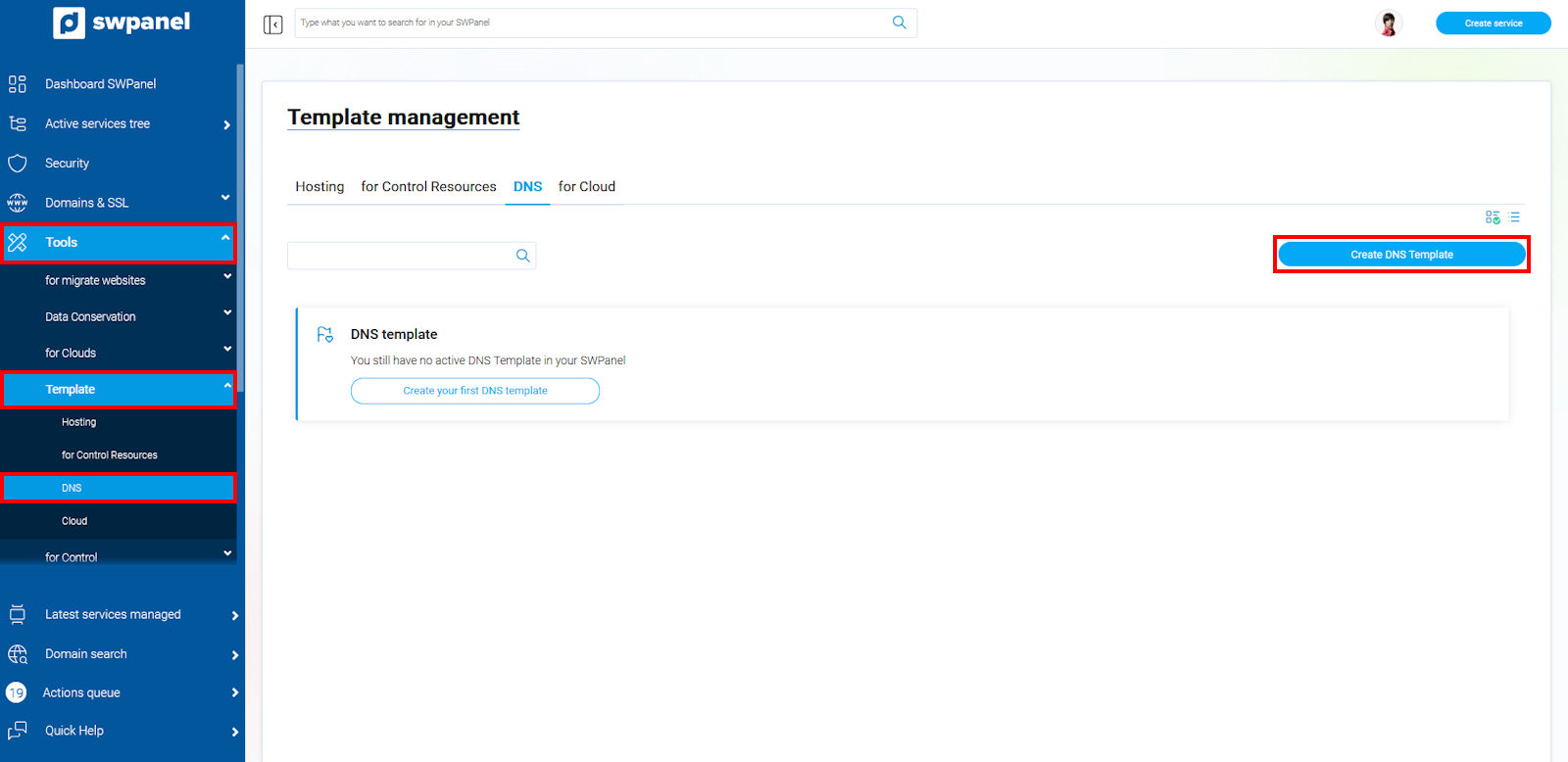
Path: Tools → Templates → DNS
2. Create new template
- Click on Create DNS Template
- Enter an identifying name
info_capture ℹ️ Note: The screenshot is for guidance purposes, taken from version 2026.001.0026 dated 03/05/2026. It may differ from the current version of SWPanel.
3. Configure template options
You can select:
- Do not inherit DNS template
→ It will not be available for sub-users - Mark as default template
→ It will be automatically applied to new services
4. Edit the template
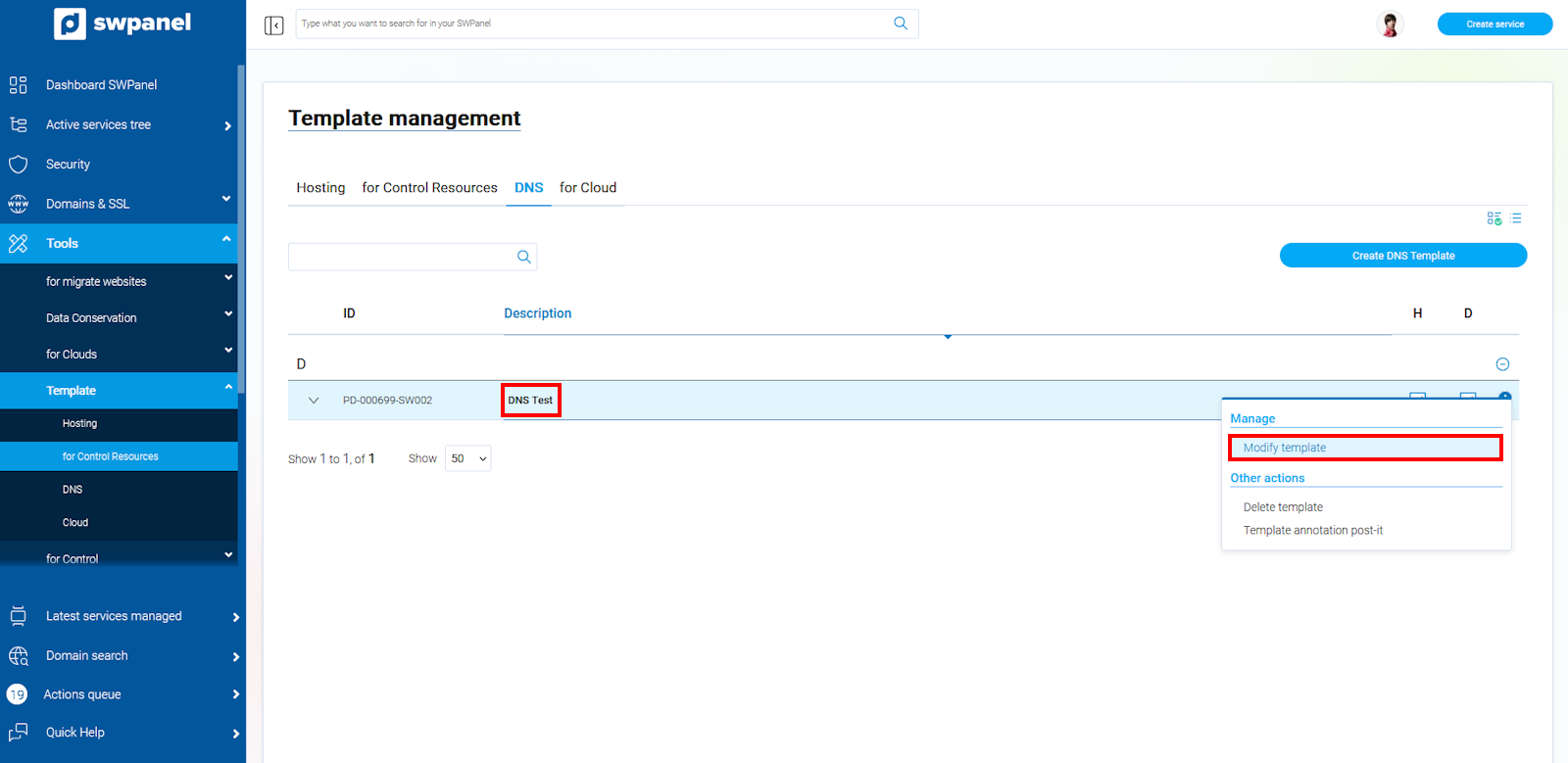
- Locate the template in the list
- Go to Manage → Modify template
info_capture ℹ️ Note: The screenshot is for guidance purposes, taken from version 2026.001.0026 dated 03/05/2026. It may differ from the current version of SWPanel.
5. Add DNS records
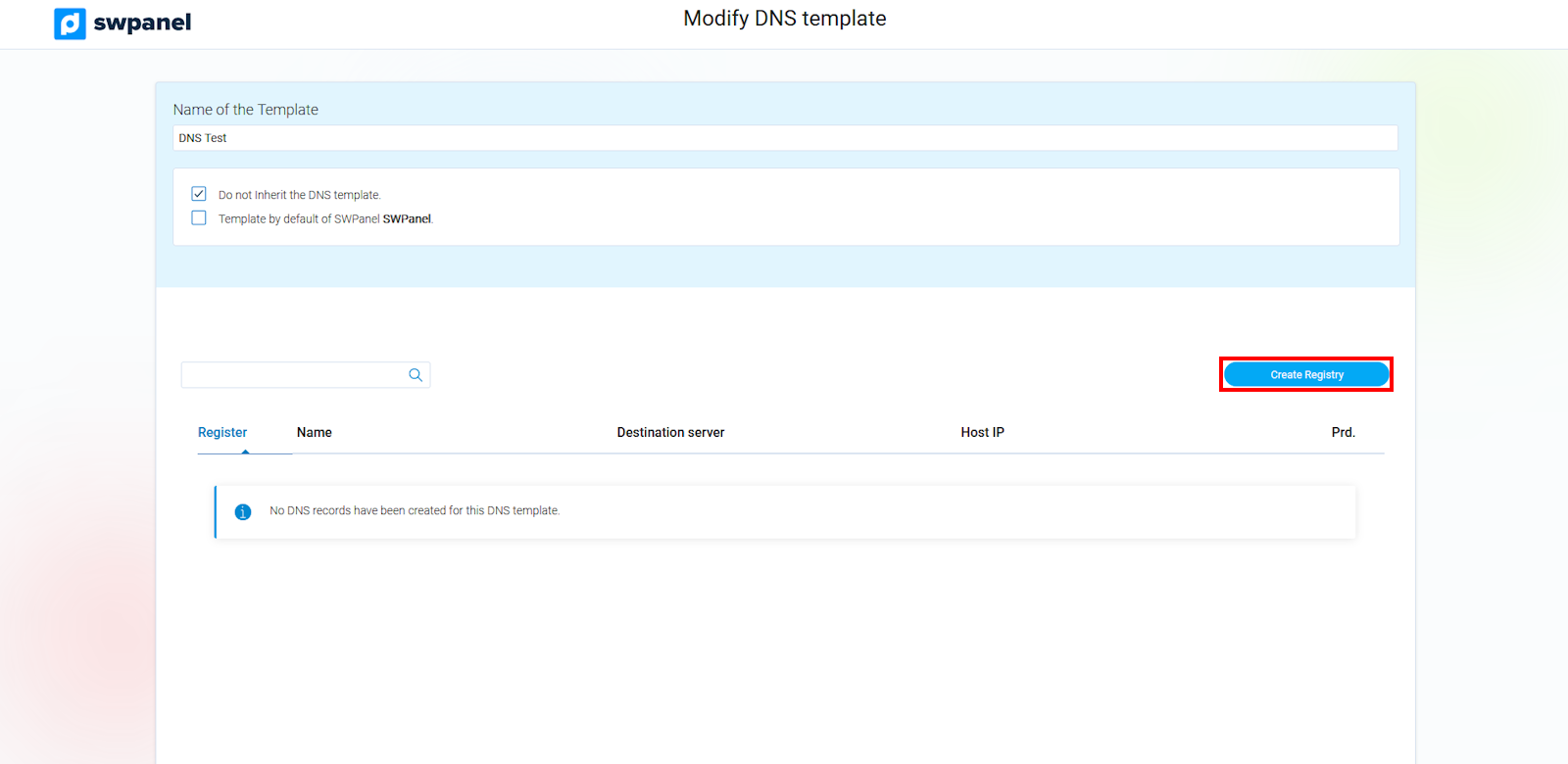
- Click on Create Record
- Select the record type
info_capture ℹ️ Note: The screenshot is for guidance purposes, taken from version 2026.001.0026 dated 03/05/2026. It may differ from the current version of SWPanel.
6. Available record types
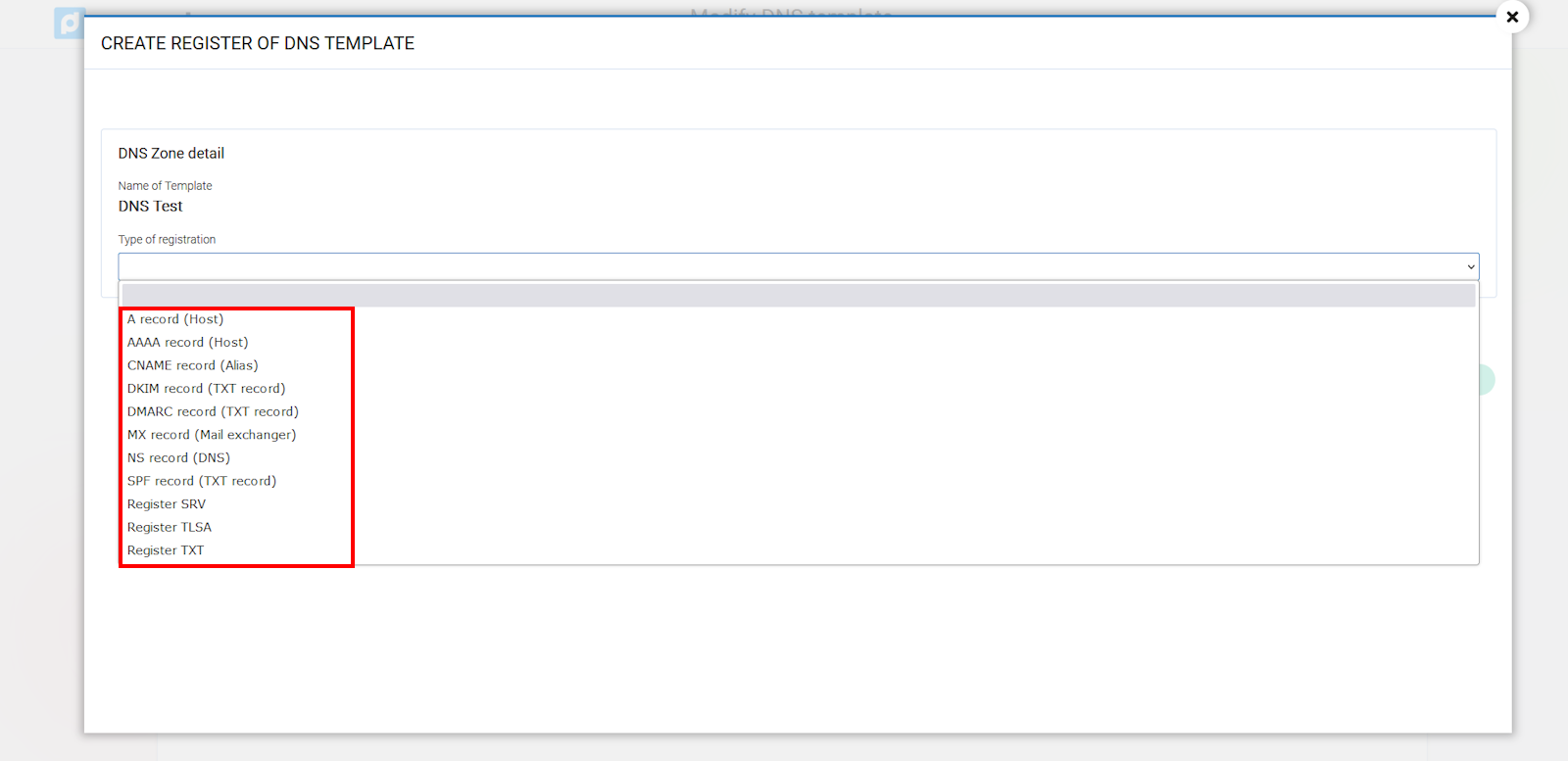
You will be able to configure records such as:
- A → IP Address
- CNAME → Domain alias
- MX → Mail servers
- TXT → Verifications and configurations
info_capture ℹ️ Note: The screenshot is for guidance purposes, taken from version 2026.001.0026 dated 03/05/2026. It may differ from the current version of SWPanel.
7. Enter the record data
- Fill in the required fields
- Save the record
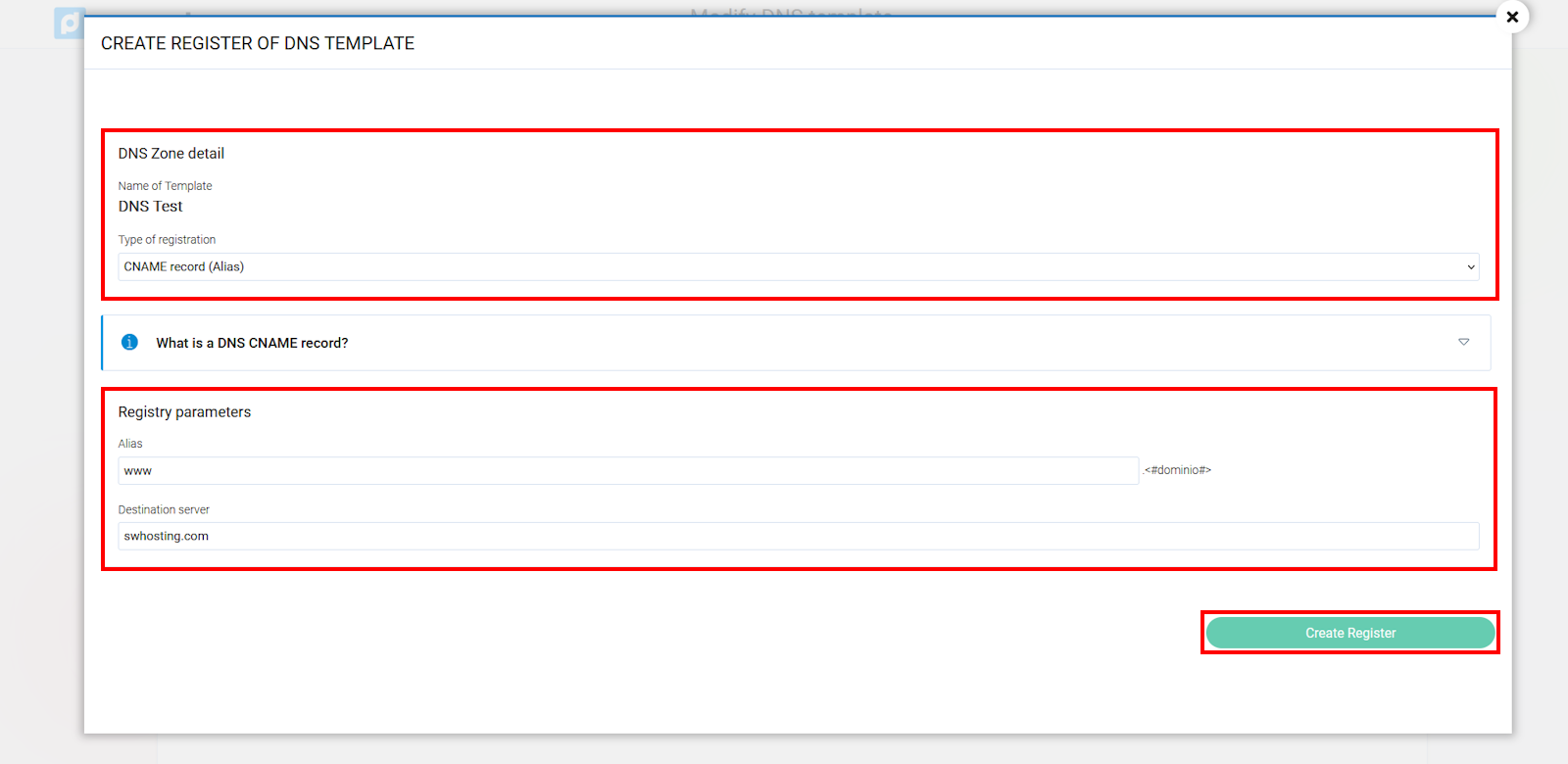
info_capture ℹ️ Note: The screenshot is for guidance purposes, taken from version 2026.001.0026 dated 03/05/2026. It may differ from the current version of SWPanel.
8. View the DNS zone
Once the records have been added, you will be able to see the entire DNS configuration in table format.
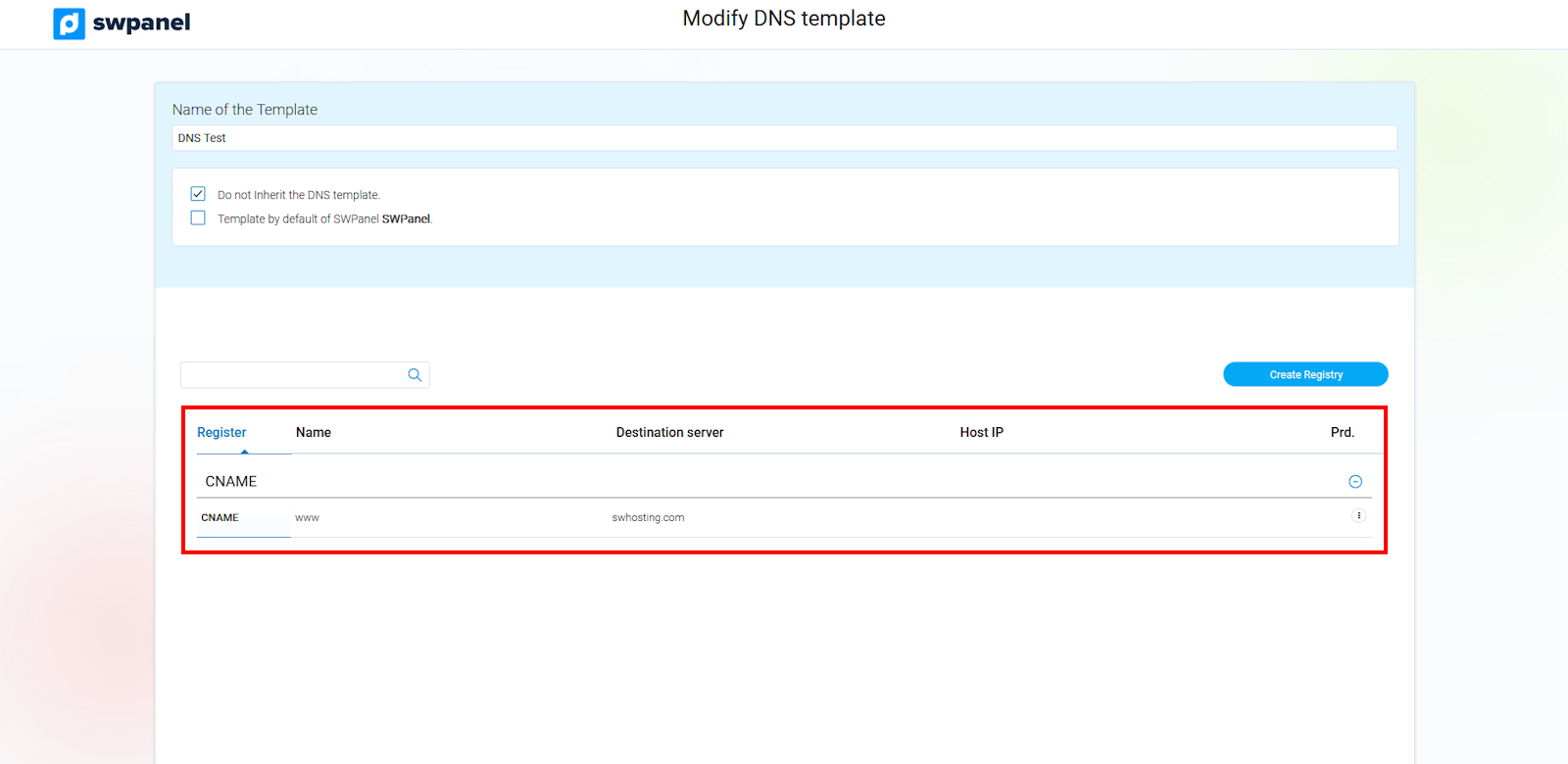
info_capture ℹ️ Note: The screenshot is for guidance purposes, taken from version 2026.001.0026 dated 03/05/2026. It may differ from the current version of SWPanel.
How to apply a DNS Template
Your template can be applied in:
- ✔️ Creation of new services using templates.
- ✔️ Automatically, if you define it as the default template.