
Restore default permissions of the web directory
In this manual, we will learn how to recursively reset user permissions for any hosting directory through SWPanel. This option resets all permissions that you may have modified, leaving them as they are initially deployed.
However, before resetting user permissions, we must learn how the permission system works in GNU / Linux operating systems. We show you below:
Permission structure
In Linux directories, there are three types of permissions. These can be enabled or disabled for each file / directory for any of the three types of users mentioned below:
- Owner: designated as the user who owns the file or directory.
- Group: group of users to which the file or directory belongs.
- Other: any other system user.
Important: Keep in mind that when modifying a file or directory with a user with administrative privileges, whether through the console or via FTP/SFTP, it inherits the permissions of the user used when modified. If a user has elevated permissions and modifies the file or directory, a user with lower privileges will not be able to access it.
Resetting permissions with SWPanel
Access SWPanel and go to the Dashboard of the corresponding service, using the search bar located at the top.
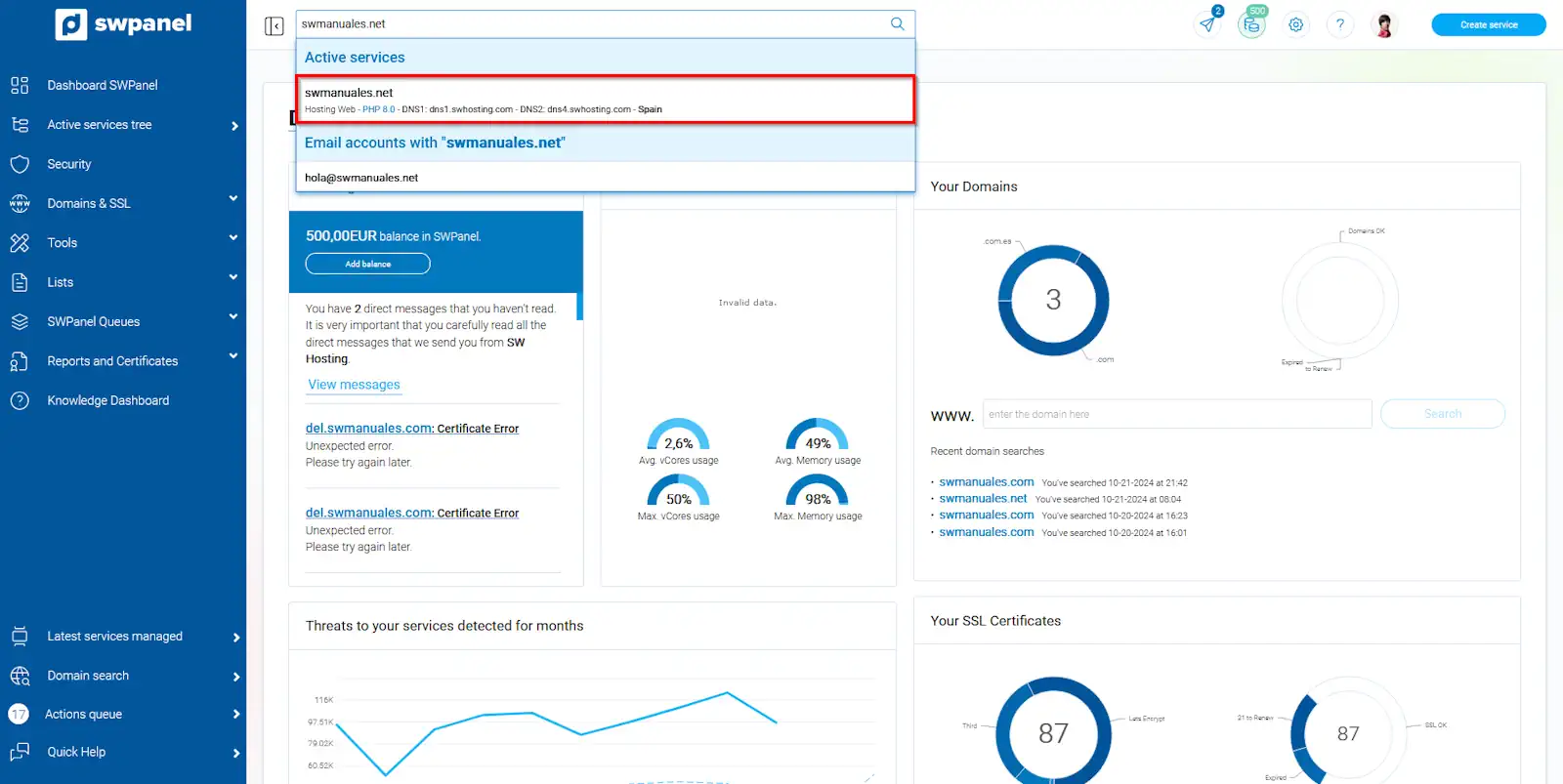
info_capture The screenshot is for guidance purposes. It was taken on version 2024.07.0123 dated 24/10/2024. It may differ from what is shown in the current version of SWPanel.
Once inside the service Dashboard, you must go to Service Management → Permission Management from the blue side menu:
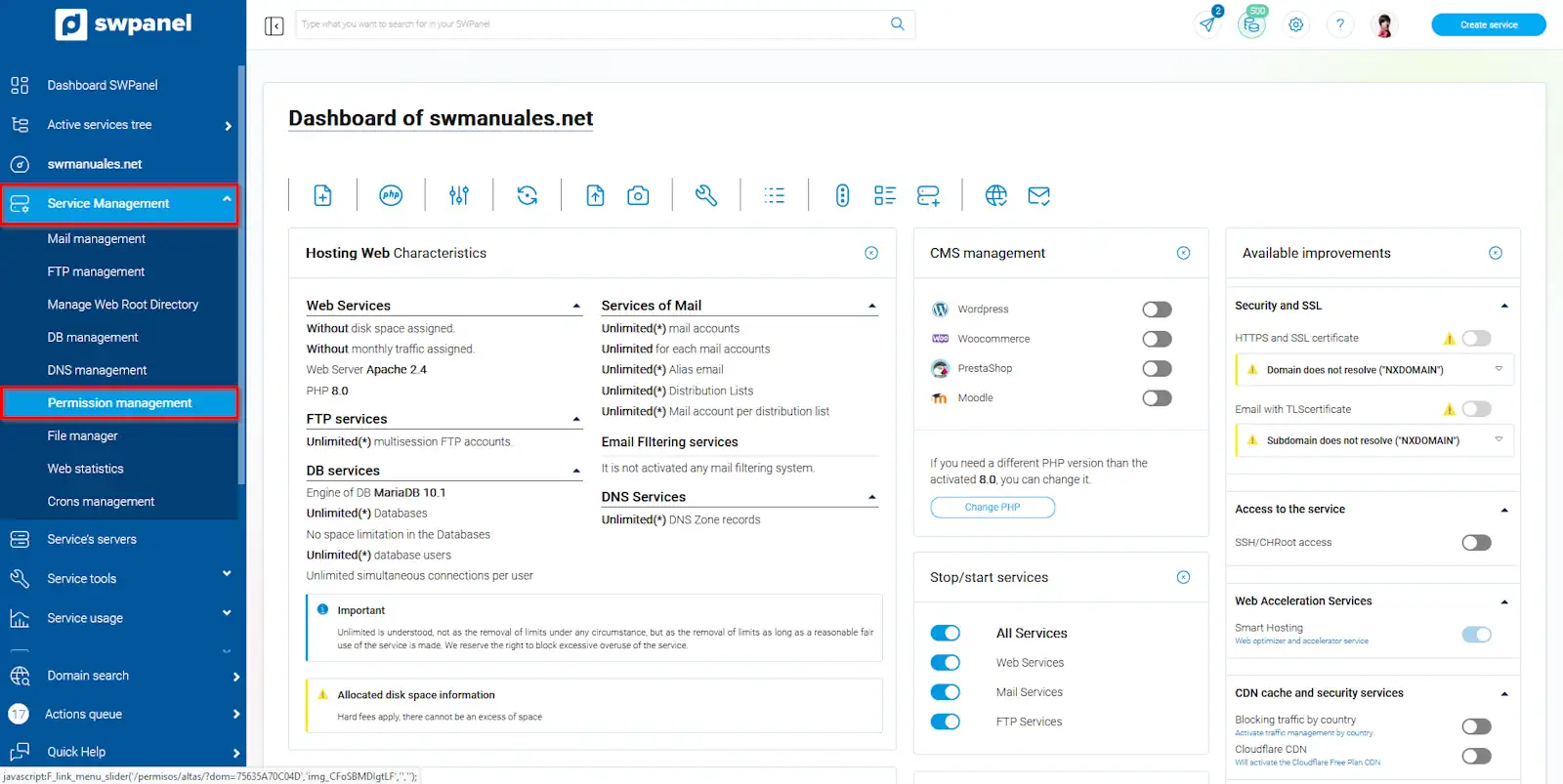
info_capture The screenshot is for guidance purposes. It was taken on version 2024.07.0123 dated 24/10/2024. It may differ from what is shown in the current version of SWPanel.
Click on Restore default permissions.
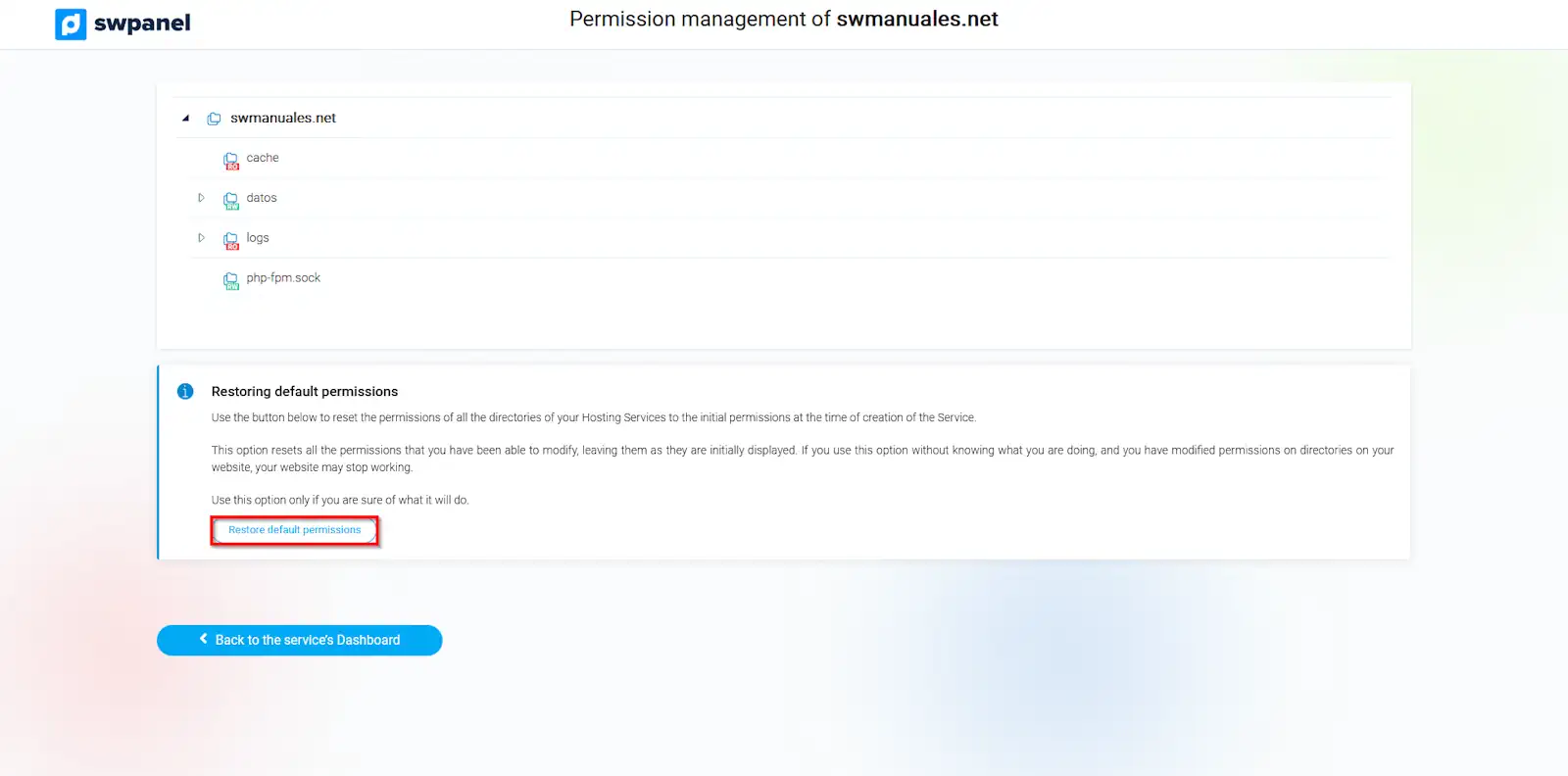
info_capture The screenshot is for guidance purposes. It was taken on version 2024.07.0123 dated 24/10/2024. It may differ from what is shown in the current version of SWPanel.