
SW EasyWeb - How to create your website in 1 minute
How to create your website in 1 minute
In the SW EasyWeb welcome email, you received the necessary details to access the administration of your website. Once you log in and gain access, in editing mode you will find two clearly differentiated sections:
On the left, in the “Configuration Panel”, is where you will find the tools necessary to personalize the design of your page.
In the central part, you can see your design and by clicking on the desired text, you will be able to edit it.
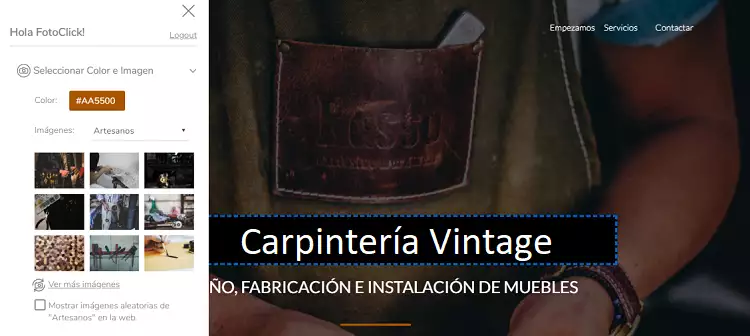
Configuration Panel
It is composed of 3 sections:
1. Select color and image
- Color:
Select the color you like most, try different combinations and if none fit your needs, you can create it yourself using a hexadecimal code.
- Images:
Look for an image that identifies you, there are hundreds of options to choose from.
Select a sector; once selected, photographs related to it will be loaded.
You can see more images by clicking on “See more images”.
If you prefer that every time your website loads, it shows a different image, select “Show random image”.
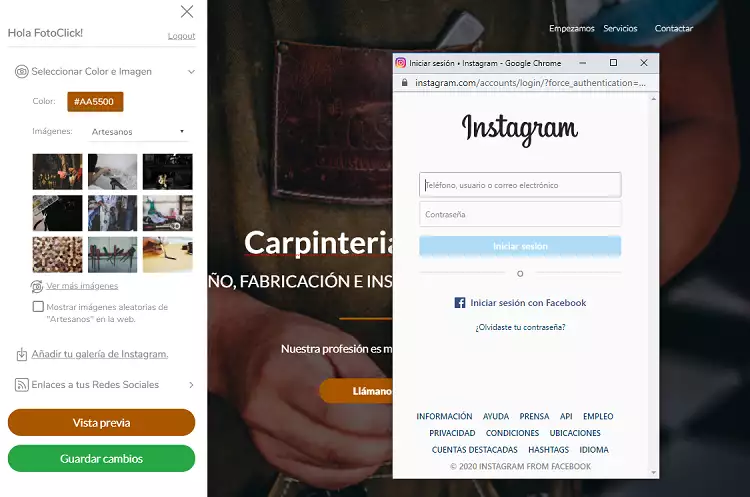
2. Add your Instagram gallery
If you want to add your Instagram photos, click on “Add your Instagram gallery”; a window will open where you must identify yourself and grant permission to the application to link your account to SW EasyWeb.
3. Links to your social networks
Add your social networks: Instagram, Facebook, Youtube and link your location via Googlemaps.
To include your social network icons at the bottom of your website, you only need to write the corresponding links for each one.
Once all changes have been made, by clicking on the “Preview” button you will be able to visualize the result of your website.
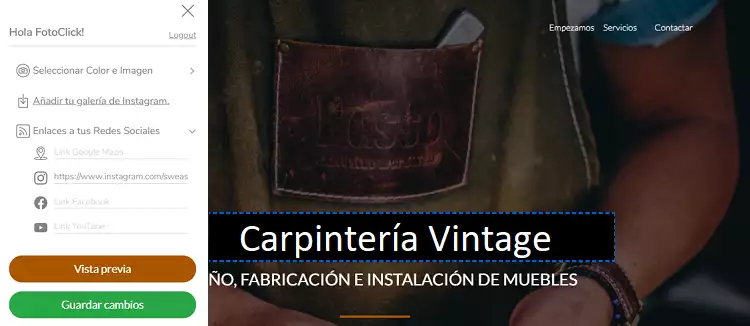
Editing texts
Modify the website texts:
To easily modify the texts with your own content, click on the text to be modified and a black box will be displayed where you can edit it.
Once everything is to your liking, you just have to click on the “save changes” button and your website will be ready to be published.
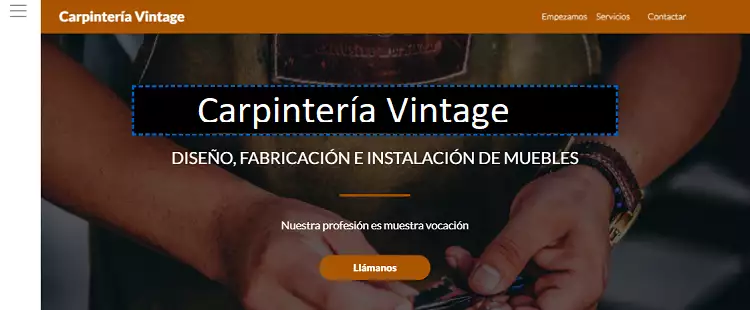
Congratulations, you now have your SW EasyWeb!
For more information, follow this link.