
SSL Certificates
What is an SSL certificate?
The acronym SSL stands for Secure Socket Layer. It is a security protocol that ensures the data transmitted between a server and a web user, in feedback, travels securely, ciphered and encrypted.
A system of keys and mathematical algorithms is used that can only be identified between the browsing user and the server, so that no one else can read its content.
To be able to use an SSL certificate on your website, it is of vital importance that the Internet server supports SSL.
When a visitor accesses an SSL-protected page on your website, their browser bar shows a padlock icon and the prefix https:// in the URL address.
With an SSL certificate, the client knows that the site is authentic, real, and reliable for entering their personal data.
Types of registration certificates
Depending on the use given to each certificate, we can find different typologies of them. According to the data checks performed, they are divided into four classes:
Class 1 Certificates: These correspond to the simplest ones. They perform few data verifications, only the name and email address of the holder.
Class 2 Certificates: In this case, the ID or driver's license, Social Security number, and date of birth are also checked.
Type 3 Certificates: In this category, credit checks of the person or company are added through Equifax or Duns&Bradstreet.
Class 4 Certificates: In this case, all previous checks are performed plus the verification of a person's role or position within the organization.
Depending on the purpose of the certificates, they can be divided into:
Client SSL Certificates: Used to identify and authenticate clients who enter the website via the Secure Socket Layer protocol. They are normally issued to a natural person, whether an individual or a company.
Server SSL Certificates: In this case, it is used to identify a server to a client, using the same Secure Socket Layer protocol, which they generally issue in the name of the company owning the secure server or service.
S/MIME Certificates: Used for email services, signing, and encryption.
Code signing certificates: Used to identify the author of a file.
CA Certificates: Identifies and verifies the certification authorities themselves using specific software.
What types of certificates does SWHosting have in its portfolio?
We have different types of fully reliable certificates. Let's start with the basic trust certificates:
Comodo Essential: Secures and certifies 1 domain, it is immediately available with 256-bit encryption. The coverage insurance is 10,000$
Comodo Positive: Secures and certifies 1 domain, it is immediately available with 256-bit encryption.
RapidSSL: Secures and certifies 1 domain, it is immediately available with 256-bit encryption. The coverage insurance is 10,000$.
RapidSSL Wildcard: Certifies a domain and secures unlimited subdomains, it is immediately available with 256-bit encryption. The coverage insurance is 5,000$.
Comodo Essential Wildcard Certifies a domain and secures unlimited subdomains, it is immediately available with 256-bit encryption. The coverage insurance is 10,000$.
Comodo Positive Wildcard Certifies a domain and secures unlimited subdomains, it is immediately available with 256-bit encryption. The coverage insurance is 50,000$.
Now, we will describe the advanced trust certificates ideal for professional pages and e-commerce.
TrueBusinessID: Certifies the organization and the domain, secures one domain, available from 1 to 10 business days with 256-bit encryption. The coverage insurance is 1,250,000$.
TrueBusinessID Wildcard: Certifies the organization and the domain, has unlimited secured subdomains, available from 1 to 10 business days with 256-bit encryption. The coverage insurance is 1,250,000$.
TrueBusinessID with EV: identifies and obtains details of the organization, the physical address, the authorized contact person, and domain ownership. Secures 1 domain, available from 3 to 15 business days with 256-bit encryption. The coverage insurance is 1,500,000$.
TrueBusinessID certificates allow the inclusion of additional domains or UC/SAN. A single certificate for a company, which will be valid for a main domain and up to 24 additional domains.
TrueBusiness ID + Pack 4 UC/SAN: Identifies and certifies the organization, the domain, and its ownership, secures 1 domain and 4 alternatives (expandable to 25 domains). Available from 1 to 10 business days with 256-bit encryption. The coverage insurance is 1,250,000$.
TrueBusinessID with EV + Pack 4 UC/SAN: Identifies, certifies, and obtains details of the organization, the physical address, the authorized contact person, the domain, and its ownership. Secures 1 domain and 4 alternatives (expandable to 25 domains). Available from 3 to 15 business days with 256-bit encryption. The coverage insurance is 1,500,000$.
How to contract a certificate through SWPanel?
To contract any of our certificates available in the portfolio, you must go to your SWPanel and select, in the blue left side menu within the 'Domains and Certificates' section, the 'SSL Certificates Portfolio' submenu.
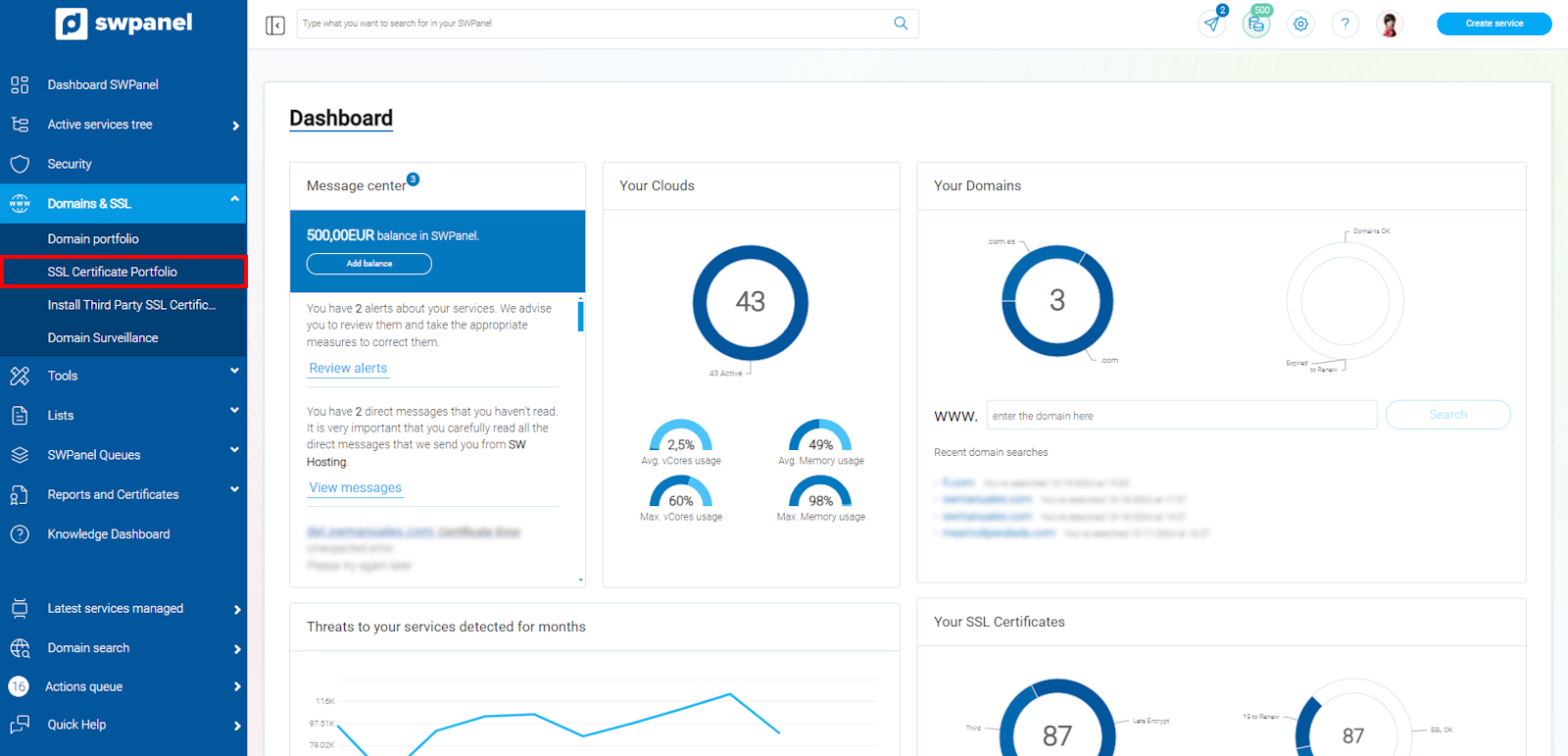
info_capture The screenshot is for guidance. It was taken using version 2026.001.0057 dated 18/05/2026. It may differ from what the current version of SWPanel shows.
Within this section, you can manage your already purchased certificates. For this, you have different options: Open the notes post-it, download the RSA Private Key, renew Certificate, start validation by DNS Token, and install the certificate directly in the selected service.
From the SSL Certificates section, you will also have the option to create a new SSL certificate by clicking on the blue button located in the upper right corner 'Create SSL' or, if you do not have any certificates, in the bottom part in green.
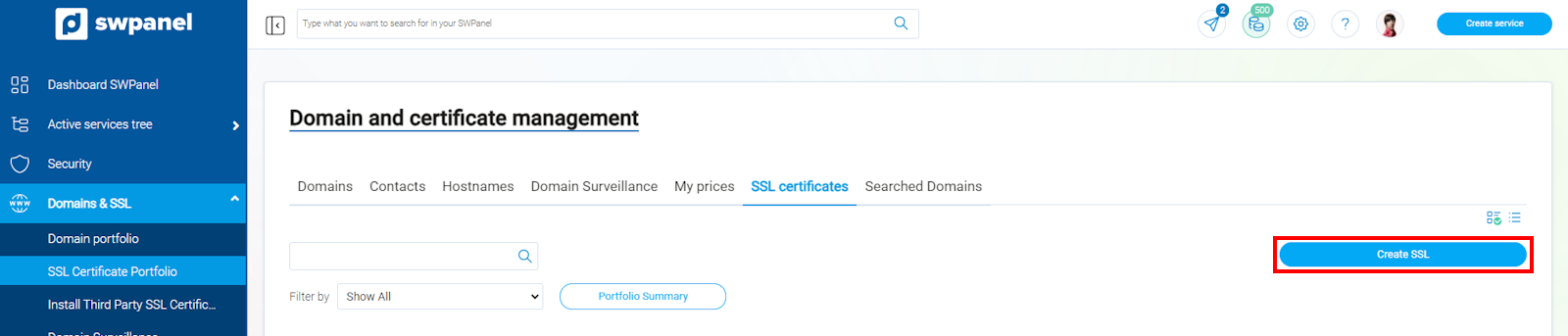
info_capture The screenshot is for guidance. It was taken using version 2026.001.0057 dated 18/05/2026. It may differ from what the current version of SWPanel shows.
Once the tab for creating a new certificate is selected, you must select the Certificate that best suits your needs.
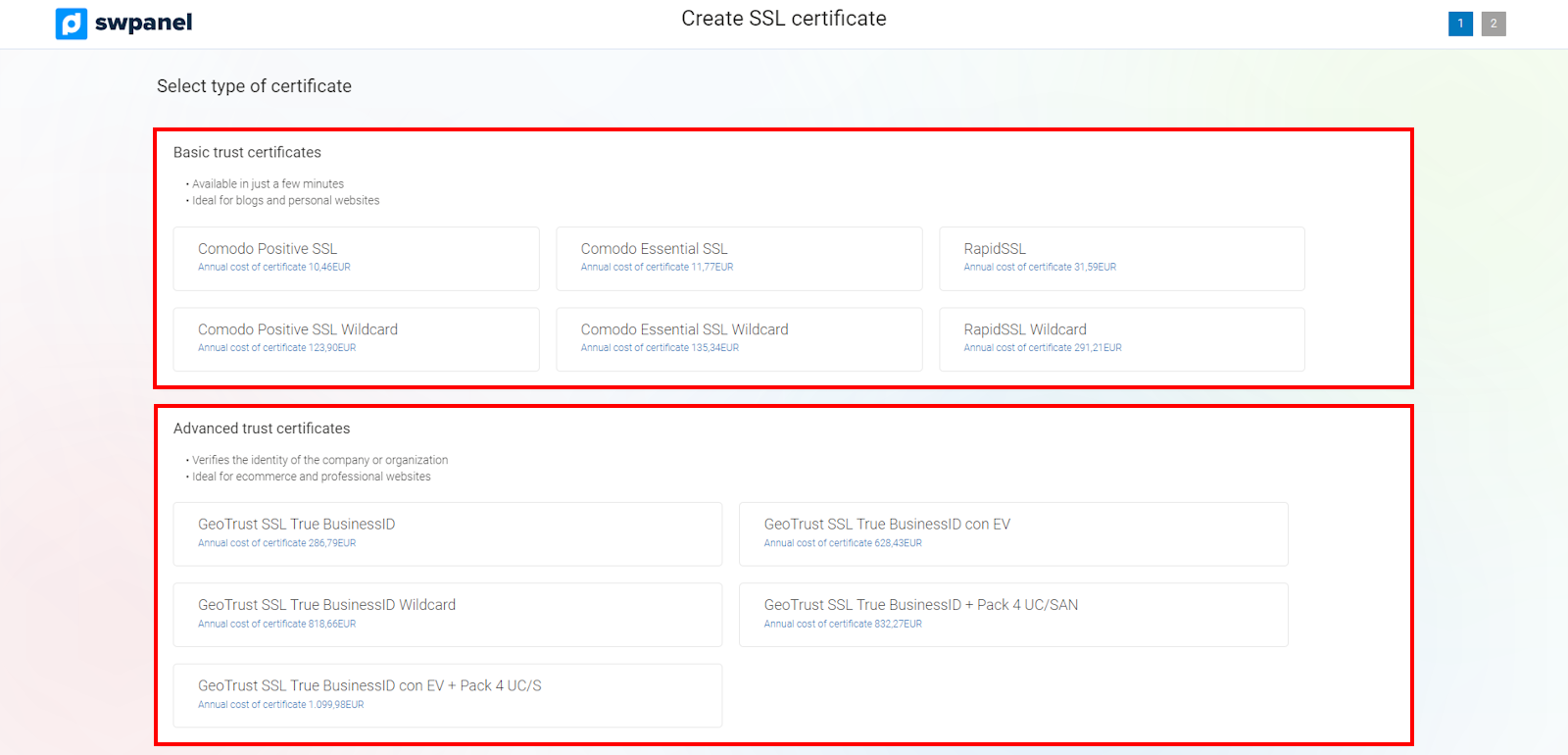
info_capture The screenshot is for guidance. It was taken using version 2026.001.0057 dated 18/05/2026. It may differ from what the current version of SWPanel shows.
You must indicate the URL to be secured and, next, a form will be displayed in which you must choose the validation method and fill in all the fields.
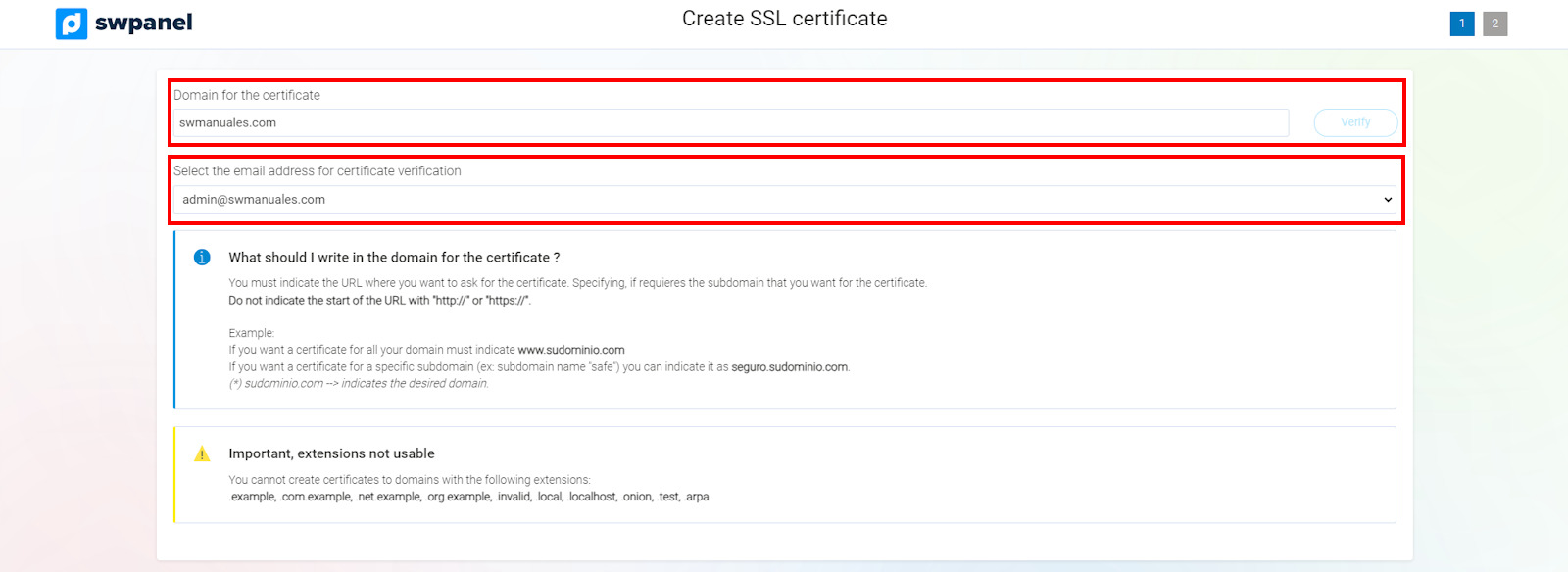
info_capture The screenshot is for guidance. It was taken using version 2026.001.0057 dated 18/05/2026. It may differ from what the current version of SWPanel shows.
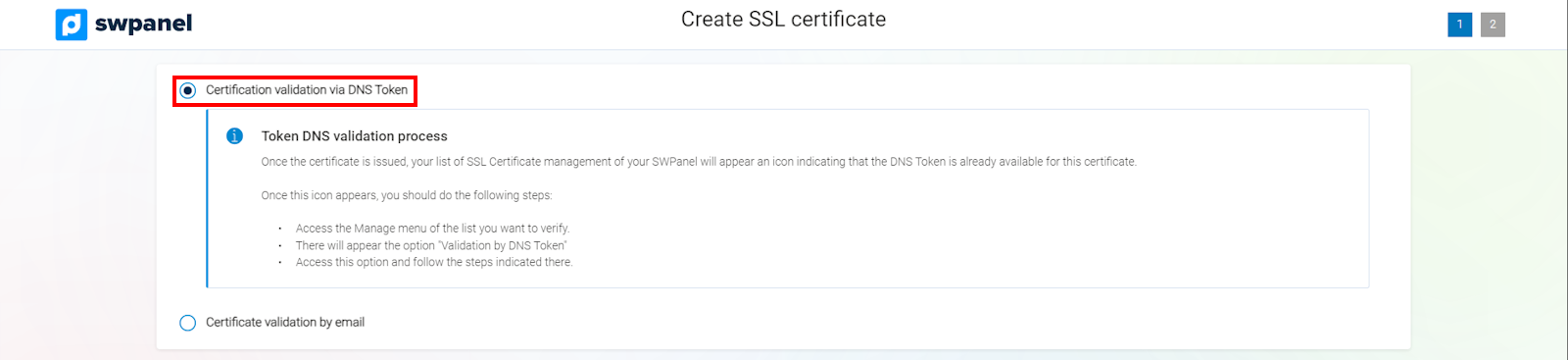
info_capture The screenshot is for guidance. It was taken using version 2026.001.0057 dated 18/05/2026. It may differ from what the current version of SWPanel shows.
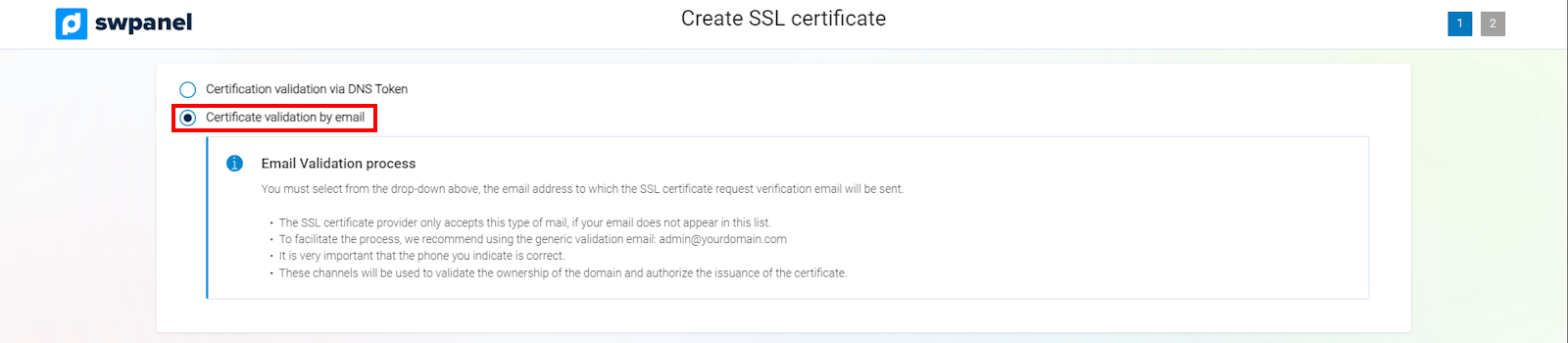
info_capture The screenshot is for guidance. It was taken using version 2026.001.0057 dated 18/05/2026. It may differ from what the current version of SWPanel shows.
Once the entire form is filled out, you can proceed to the next step. Remember that you must have created a validation email account beforehand and, furthermore, you must have access to that mailbox to validate your certificate request. Likewise, you must ensure that you have access to the email account you indicate in owner details, as this is where you will finally receive your certificate.
To finish, you must verify your data and validate the contracting of your new certificate.
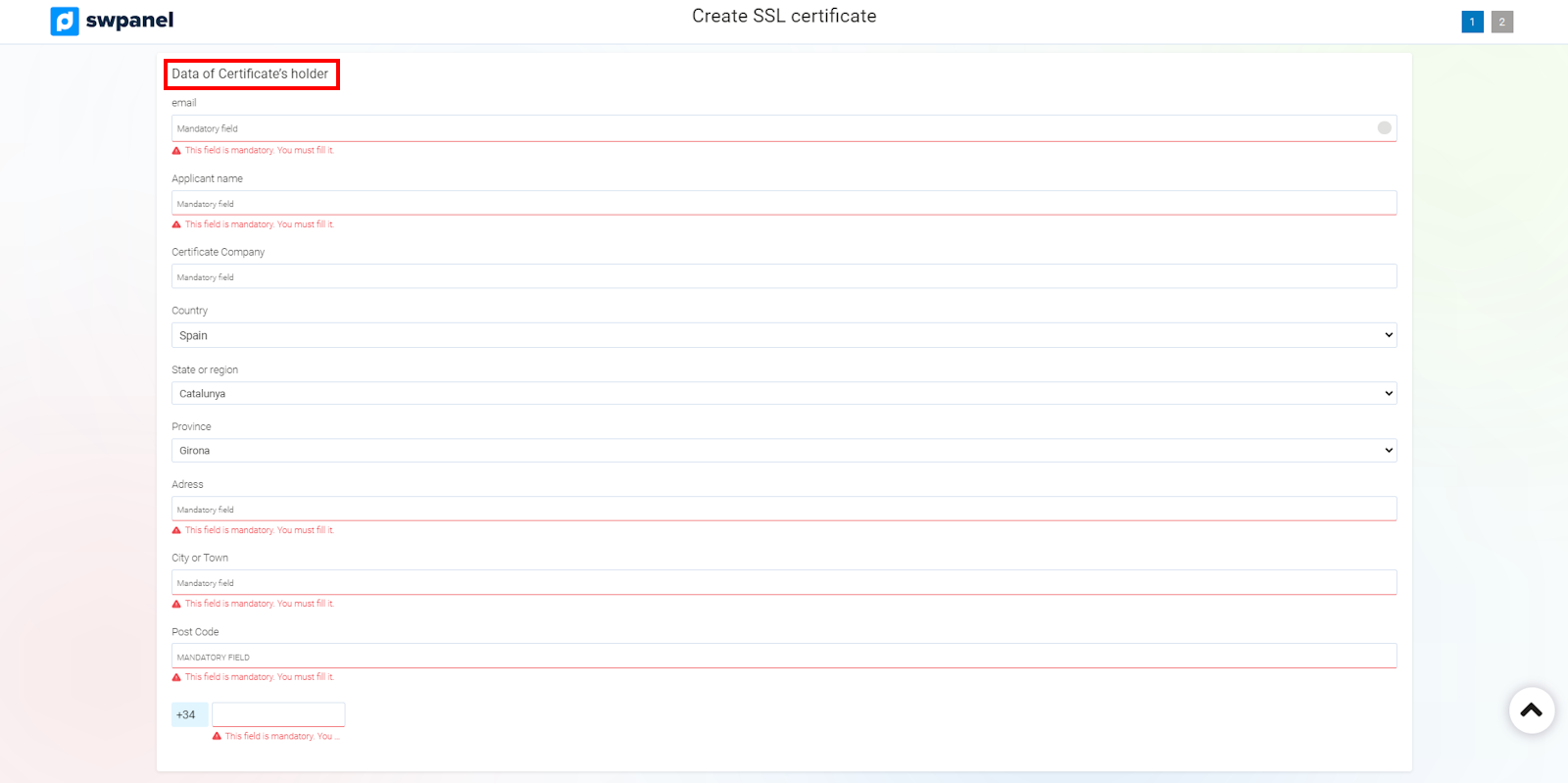
info_capture The screenshot is for guidance. It was taken using version 2026.001.0057 dated 18/05/2026. It may differ from what the current version of SWPanel shows.
Process when buying your SSL Certificate
Once you have filled in all the data in the form that SWPanel shows you, you will receive a validation email at the email account [email protected]. If no account created as 'admin' exists, you must create it. Subsequently, once you have validated said email, you will receive another email with the certificate attached to the email address listed as the owner of the certificate. Then, if your server has a SWPanel license, you can install it on your server through the tools available in certificate management, which we explain below.
Actions on Certificates
From the SSL certificates portfolio, you can perform different actions on each contracted certificate. When expanding the available options, you will find the following functionalities:
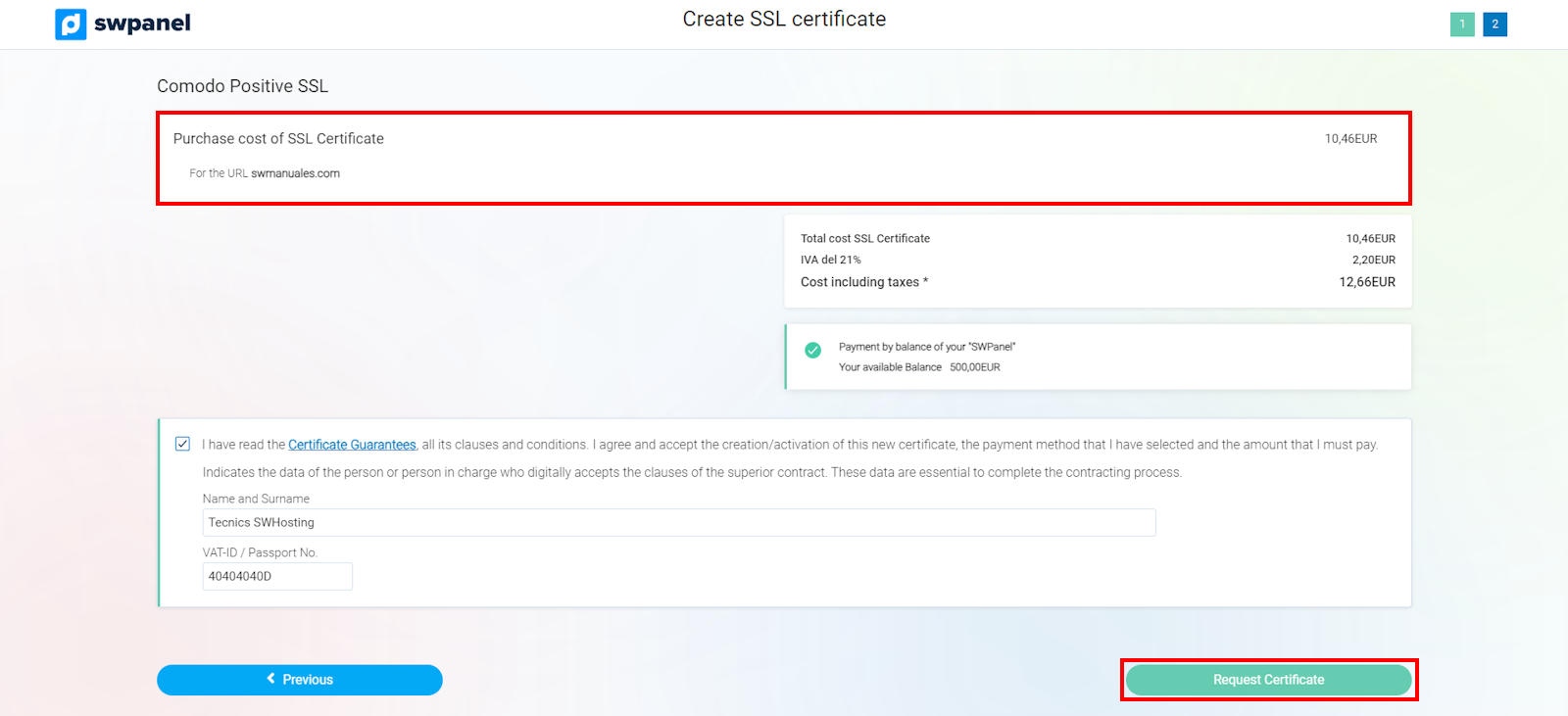
info_capture The screenshot is for guidance. It was taken using version 2026.001.0057 dated 18/05/2026. It may differ from what the current version of SWPanel shows.
Download RSA Private Key
Allows downloading the RSA private key associated with the certificate. This key is necessary to perform migrations or manual reinstallations of the certificate on other servers or services. It must be stored securely, as it is the key used to decrypt encrypted communications.
Download CA Intermediates
Downloads the intermediate certificates from the certification authority (CA). These certificates allow the trust chain to be correctly established between the SSL certificate and the visitors' browsers or devices.
Download Certificate CRT
Downloads the certificate in .crt format, one of the standard formats used in web servers such as Apache or Nginx.
Download Certificate PFX
Downloads the certificate in .pfx or .p12 format, which includes the certificate and the private key in a single protected file. This format is common in Windows or Microsoft IIS environments.
Download Certificate PEM
Downloads the certificate in .pem format, compatible with multiple Linux/Unix services and applications.
View TLSA Hash
Shows the TLSA hash record associated with the certificate, used in advanced security configurations such as DANE and validations via DNSSEC.
Enable automatic renewal
With this option, you can enable the automatic renewal of the certificate to avoid service interruptions due to expiration.
Non-renewable
In some specific certificates or states, the system may indicate that the certificate does not support automatic renewal and must be contracted again.
Manage annotations (Post-It)
Allows opening a notepad associated with the certificate to add observations or internal information related to it.
Validation by DNS Token
Allows performing the domain validation via a DNS Token record. This method consists of adding a specific DNS record provided by the certifying entity to verify domain ownership.
Install certificate on the service
Allows automatically installing the SSL certificate on a service managed via SWPanel. To use this functionality, the server must have a SWPanel license and be updated to a compatible version, whatever you wish, provided that your server has contracted level 2 support.
Other manuals related to SSL certificates that may be of interest to you: