How to change the default mailbox of your WordPress?
This manual explains how to modify the email account that is created by default in a WordPress installation from SWPanel. In addition to changing the account, such as updating the password or modifying the connection security.
-
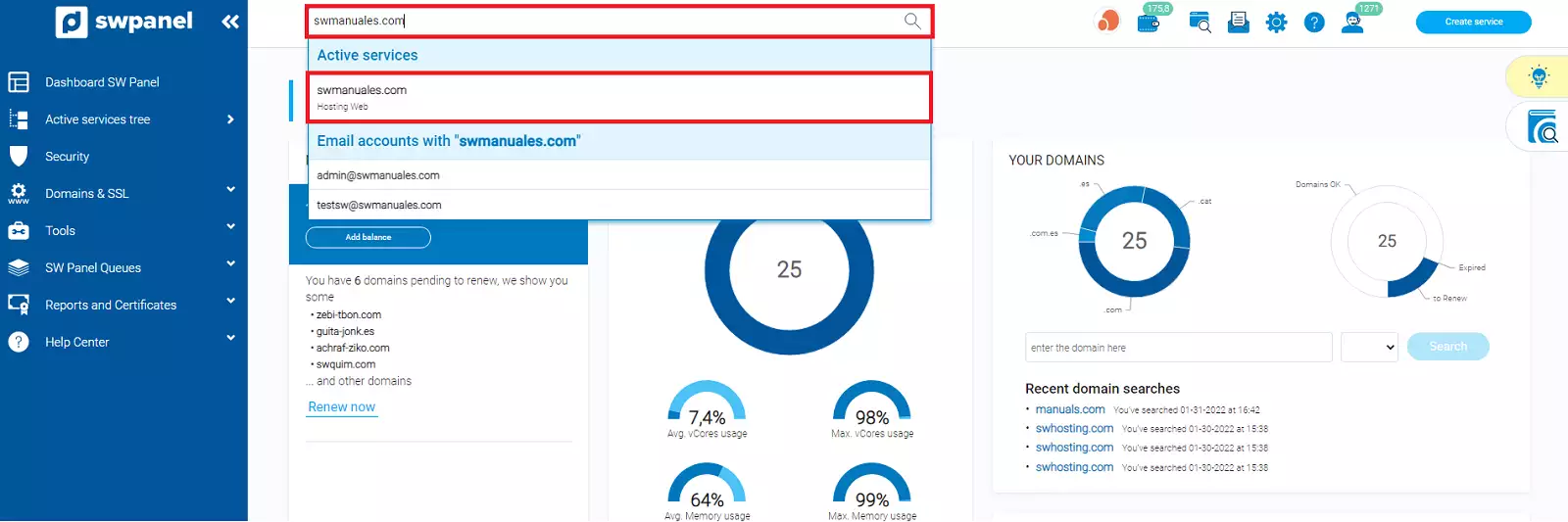
Using the search bar of your SWPanel, access your WordPress hosting:
-
If your Hosting plan only allows one email mailbox, you will need to delete your current mailbox and create a new one. To do this, you can follow the following manual: Manuale: Email.
-
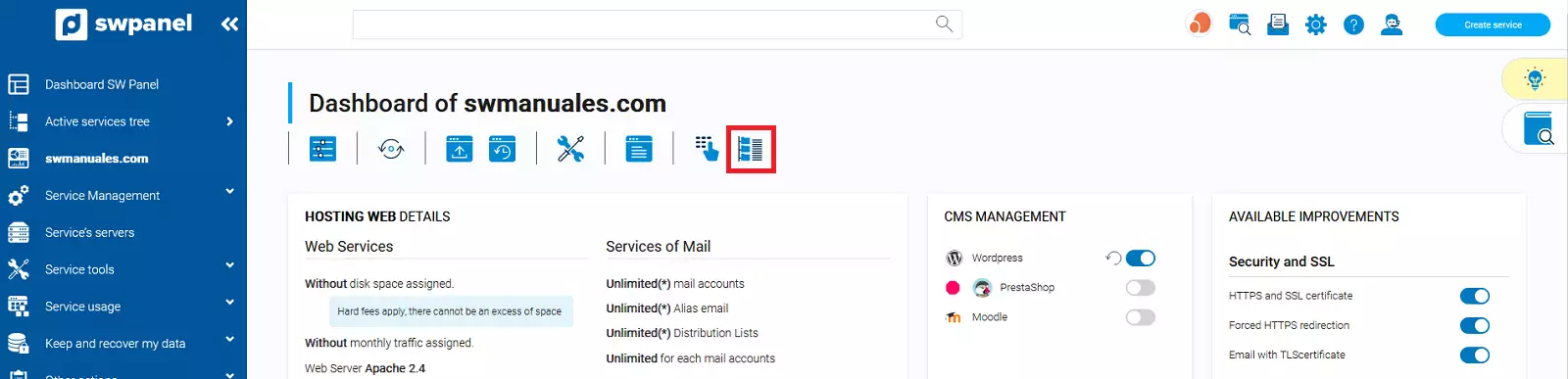
Next, you must access the file manager of your hosting:
-
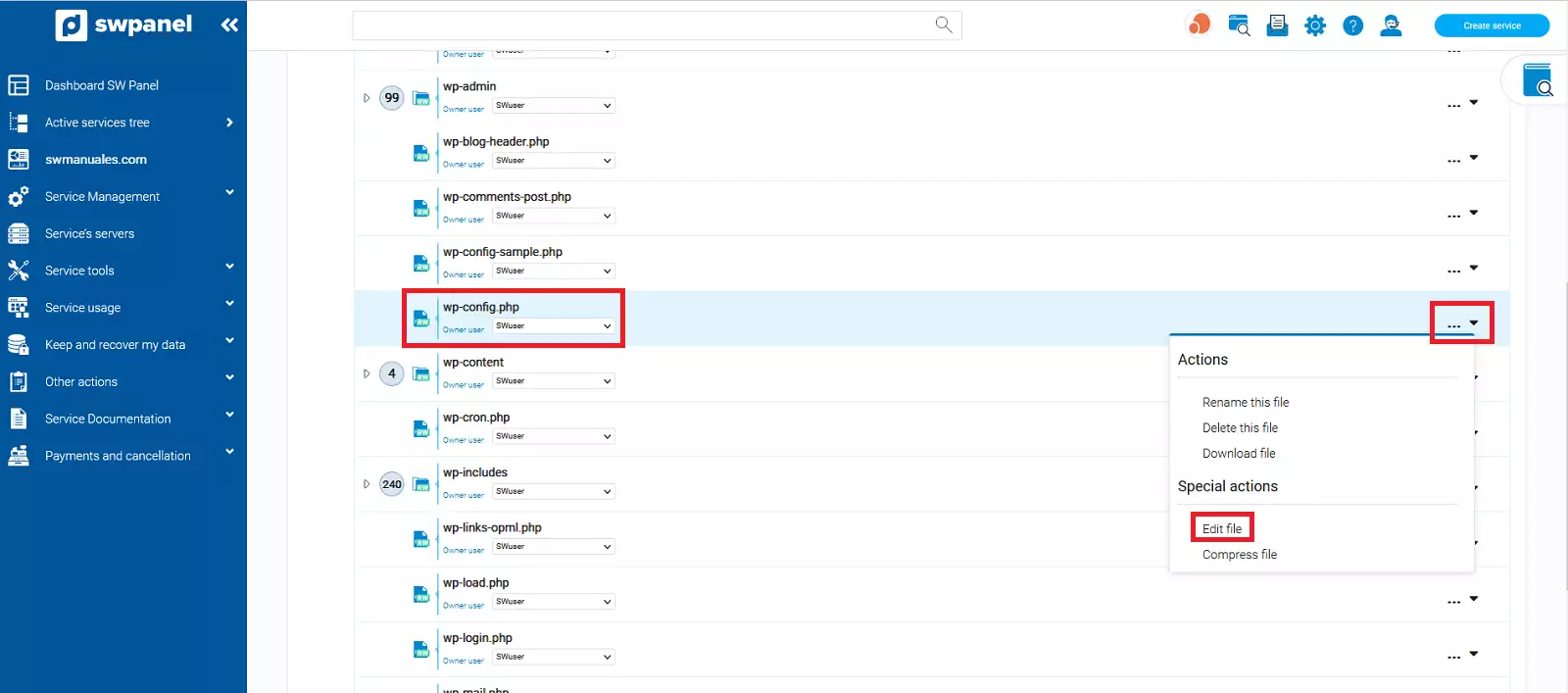
You must locate and edit the wp-config.php file, located in datos/web/wp-config.php:
-
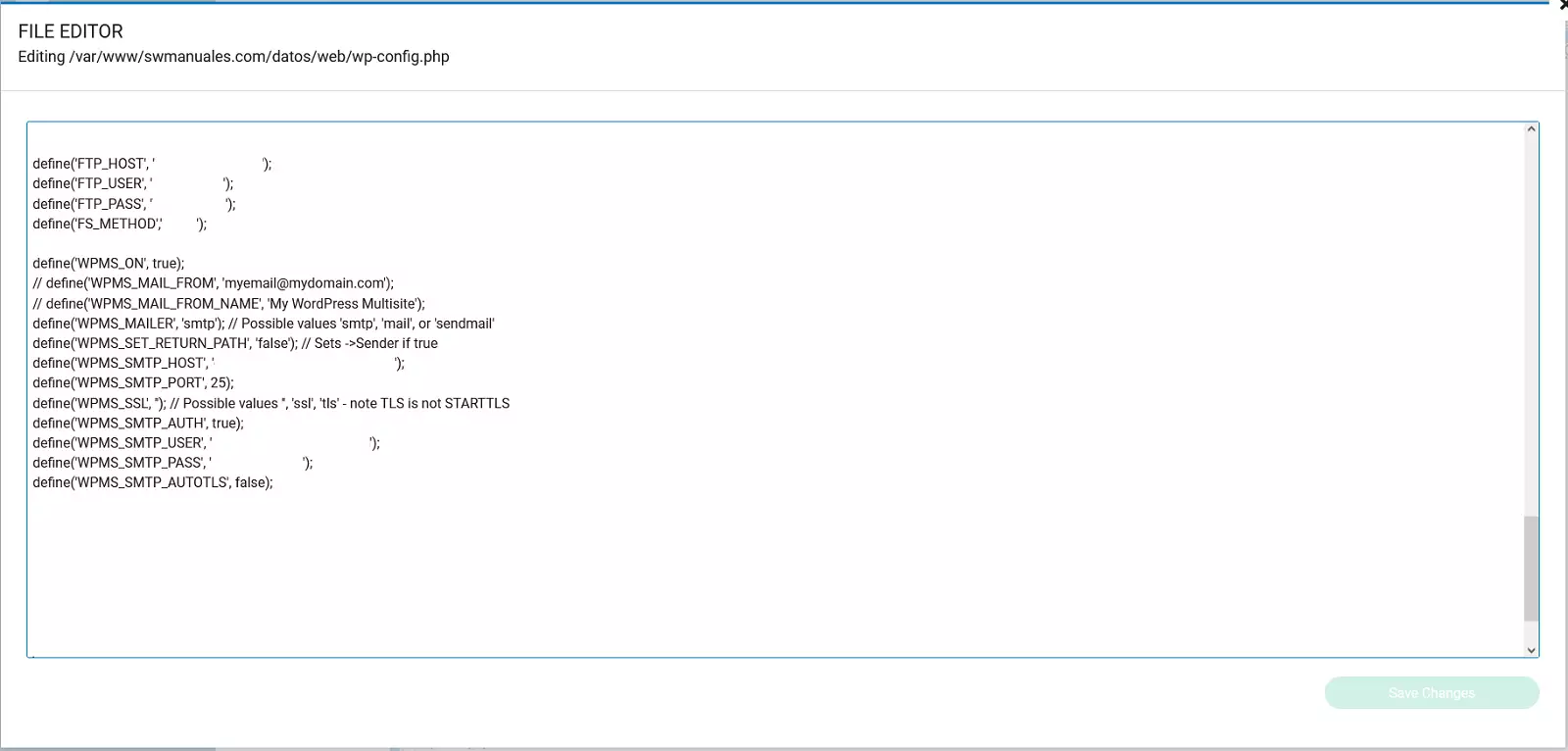
At the bottom of the file, you must locate the following section:
-
Here, you must modify the following sections with the parameters you will find in the details of the account you have created (Manual Manuale: Email):
Configuration, if your email mailbox has a security certificate (You can install it by following the following manual Manuale: How to Activate TLS for my email via SWPanel.)
define('WPMS_SMTP_HOST', '**mail_server**');

define('WPMS_SMTP_PORT', **465**);

define('WPMS_SSL', '**ssl**');

define('WPMS_SMTP_USER', '**Email**');

define('WPMS_SMTP_PASS', '**Password**');
Configuration, if your email mailbox DOES NOT have a security certificate
define('WPMS_SMTP_HOST', '**mail_server**');

define('WPMS_SMTP_PORT', **25**);

define('WPMS_SMTP_USER', '**Email**');

define('WPMS_SMTP_PASS', '**Password**');
-
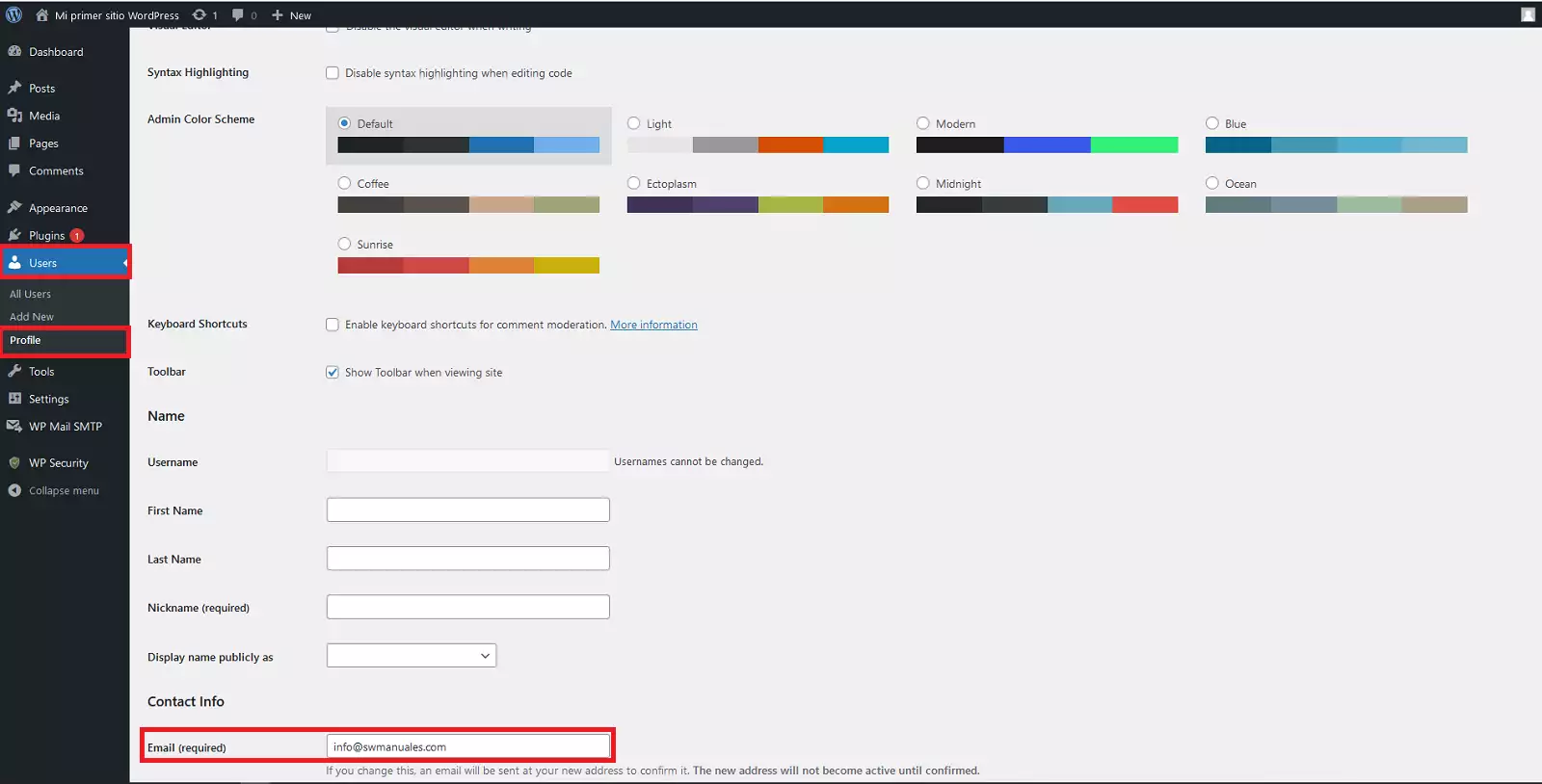
To ensure that WordPress notifications and password recovery emails reach your new account, you must enter your WordPress configuration panel and edit your user profile via the Users → Profile tab, modify the Email section, and update it with your new email account:
-
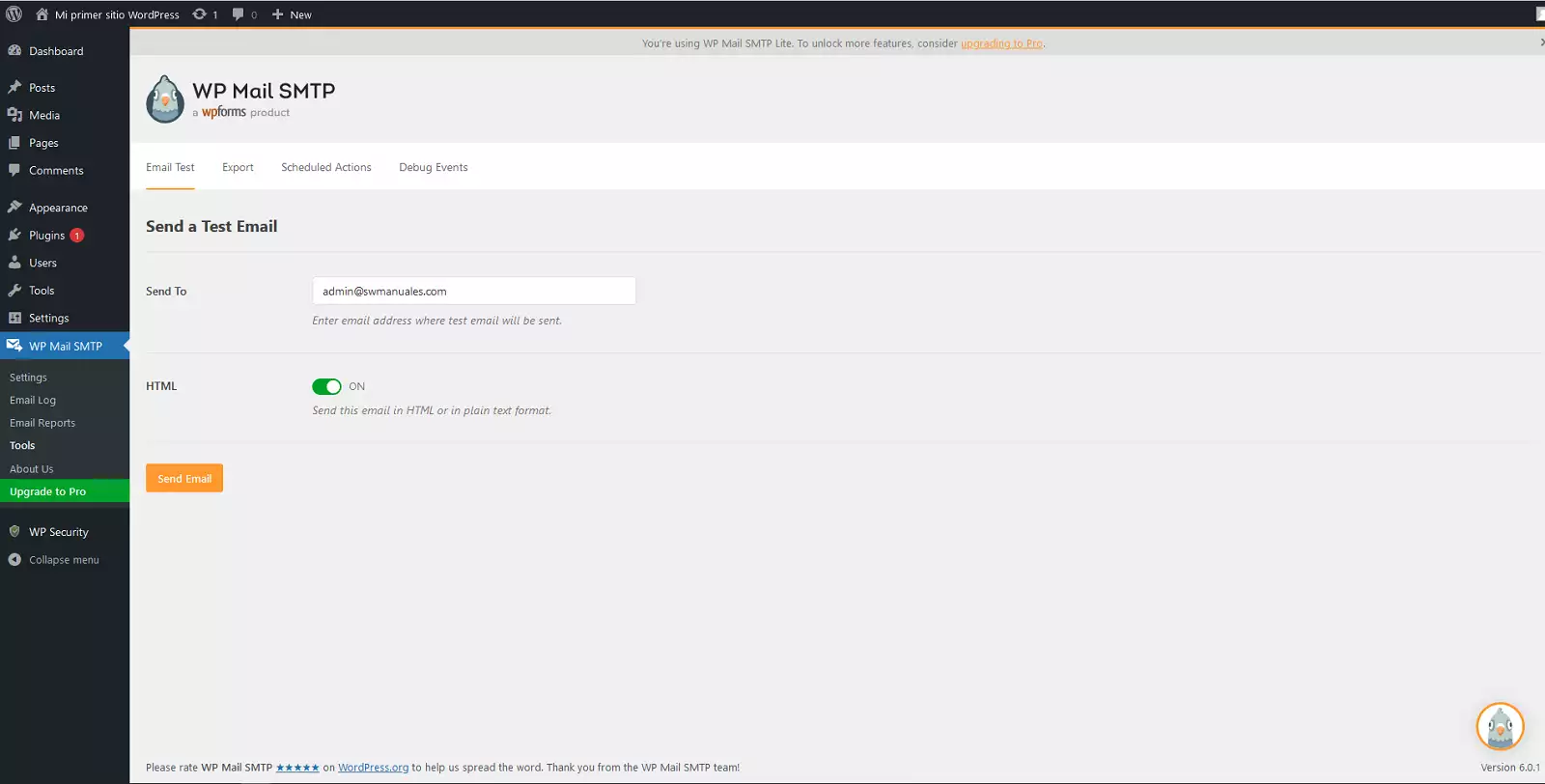
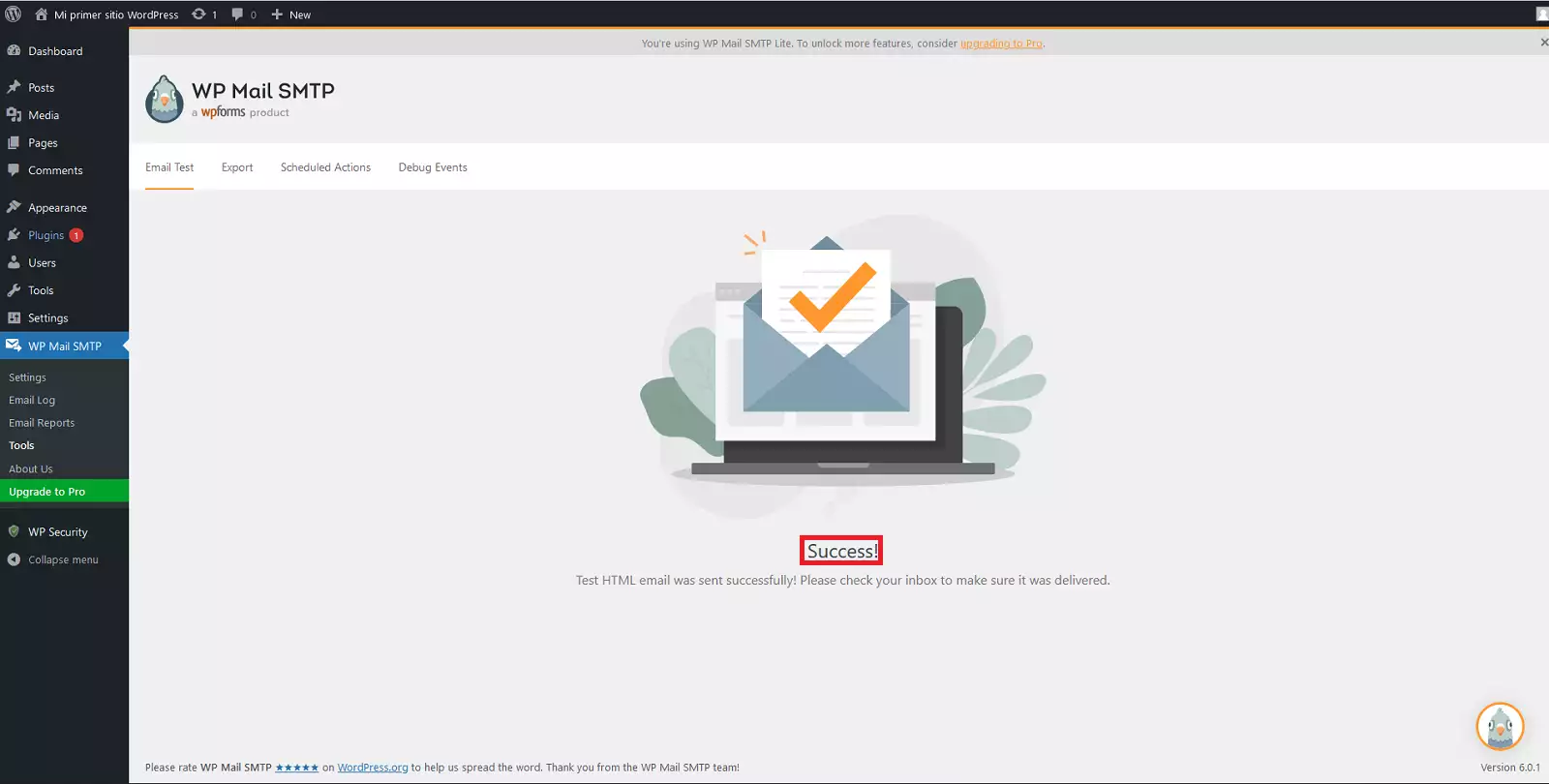
To verify that the configuration is correct, you can do so using the WP Mail SMTP plugin (installed automatically) by using the Email Test function: