
How to start your Cloud Server
In this manual, we will guide you, step by step, so that you can start your Cloud Server from the SWPanel.
First of all, you must go to the SWPanel Dashboard and, using the top search bar in the SWPanel, search for the Cloud server to be managed:
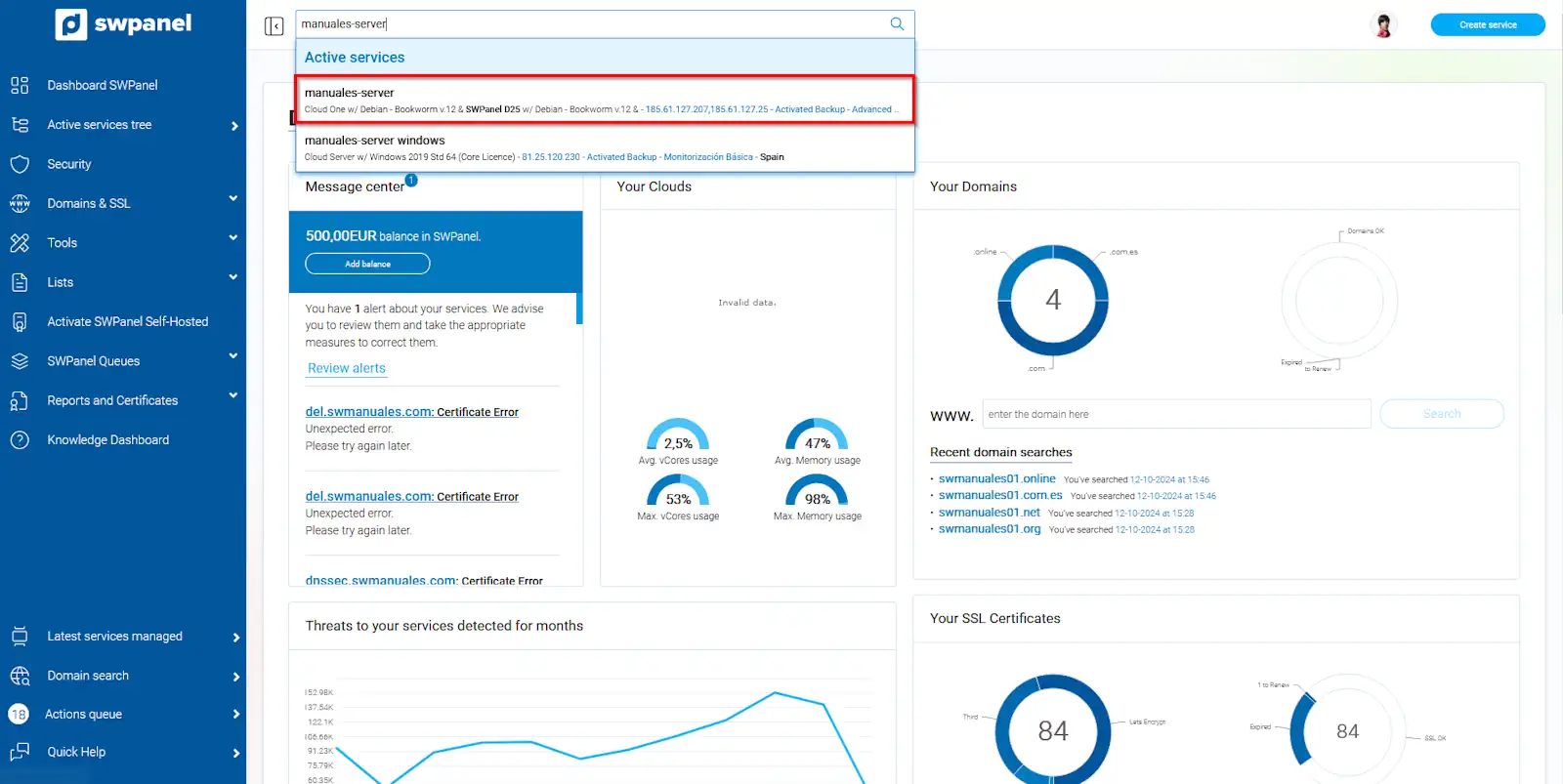
info_capture The screenshot is for guidance purposes. It was taken from version 2025.00.0017 dated 11/12/2024. It may differ from what the current version of SWPanel shows.
You must locate the server power icon among those found in the top bar. This option will initiate the start of the Cloud Server:
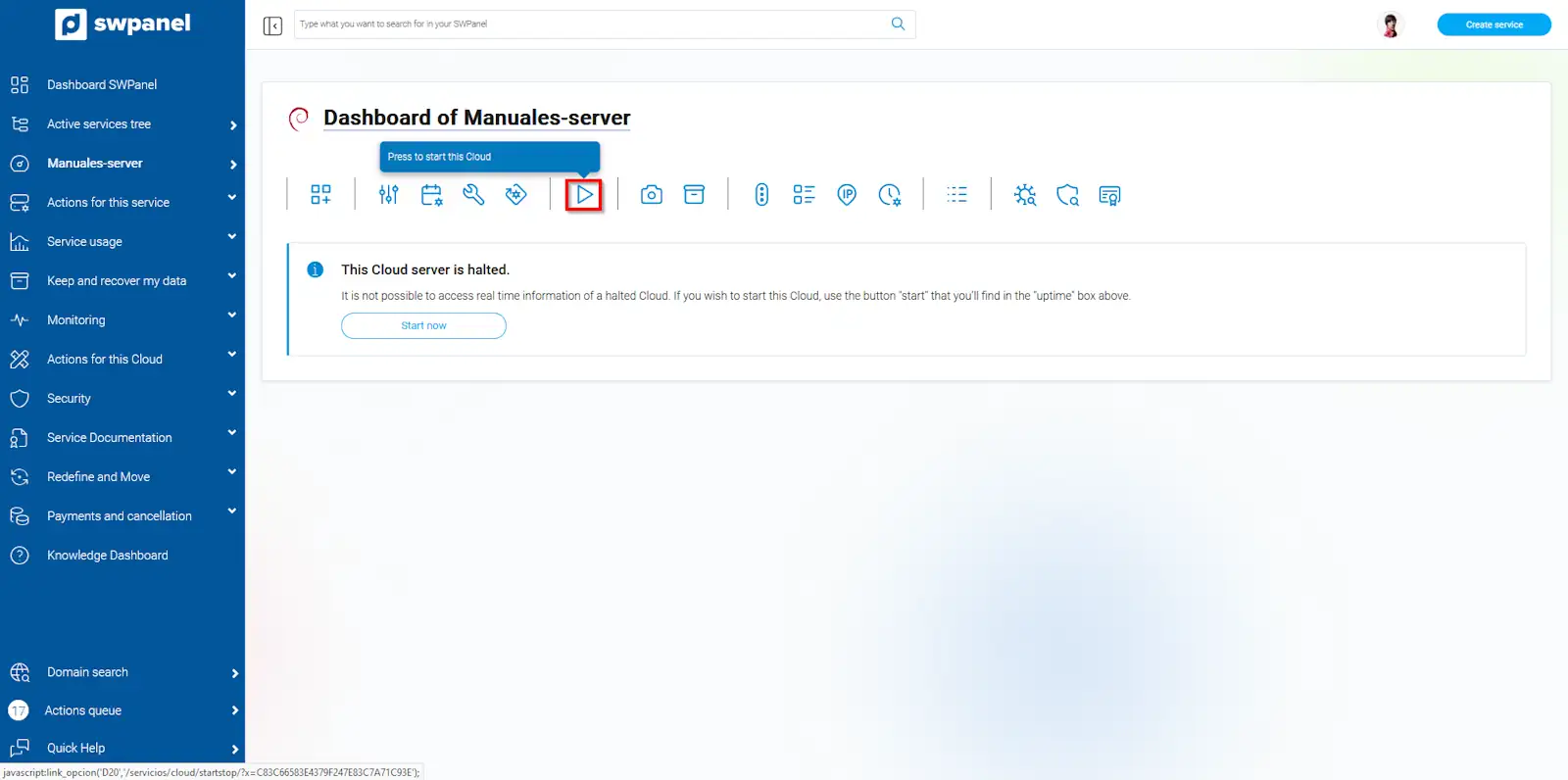
info_capture The screenshot is for guidance purposes. It was taken from version 2025.00.0017 dated 11/12/2024. It may differ from what the current version of SWPanel shows.
Next, you must accept to start the Cloud. Select Start Now:
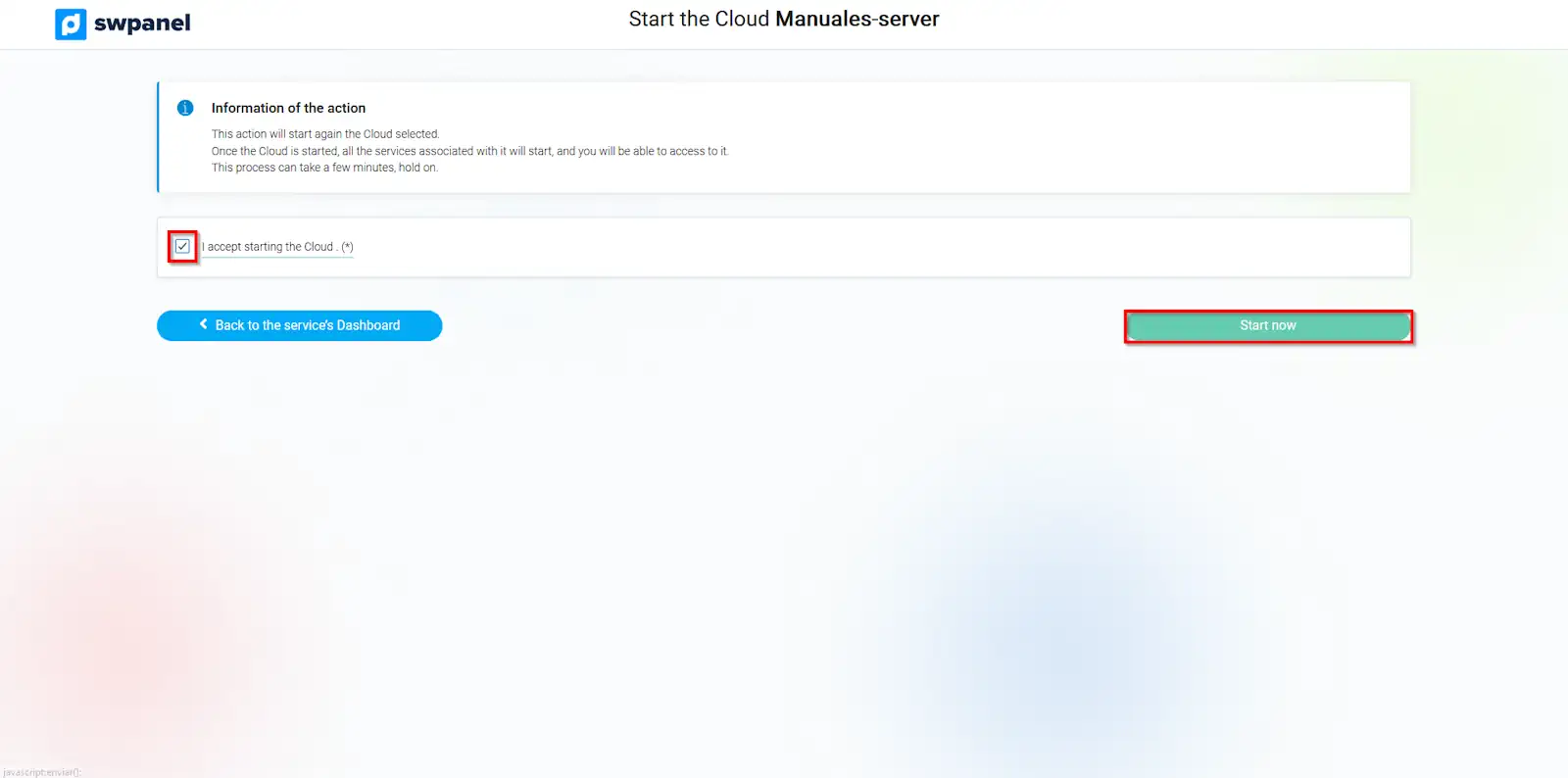
info_capture The screenshot is for guidance purposes. It was taken from version 2025.00.0017 dated 11/12/2024. It may differ from what the current version of SWPanel shows.
Now you just have to wait for the startup to be completed correctly:
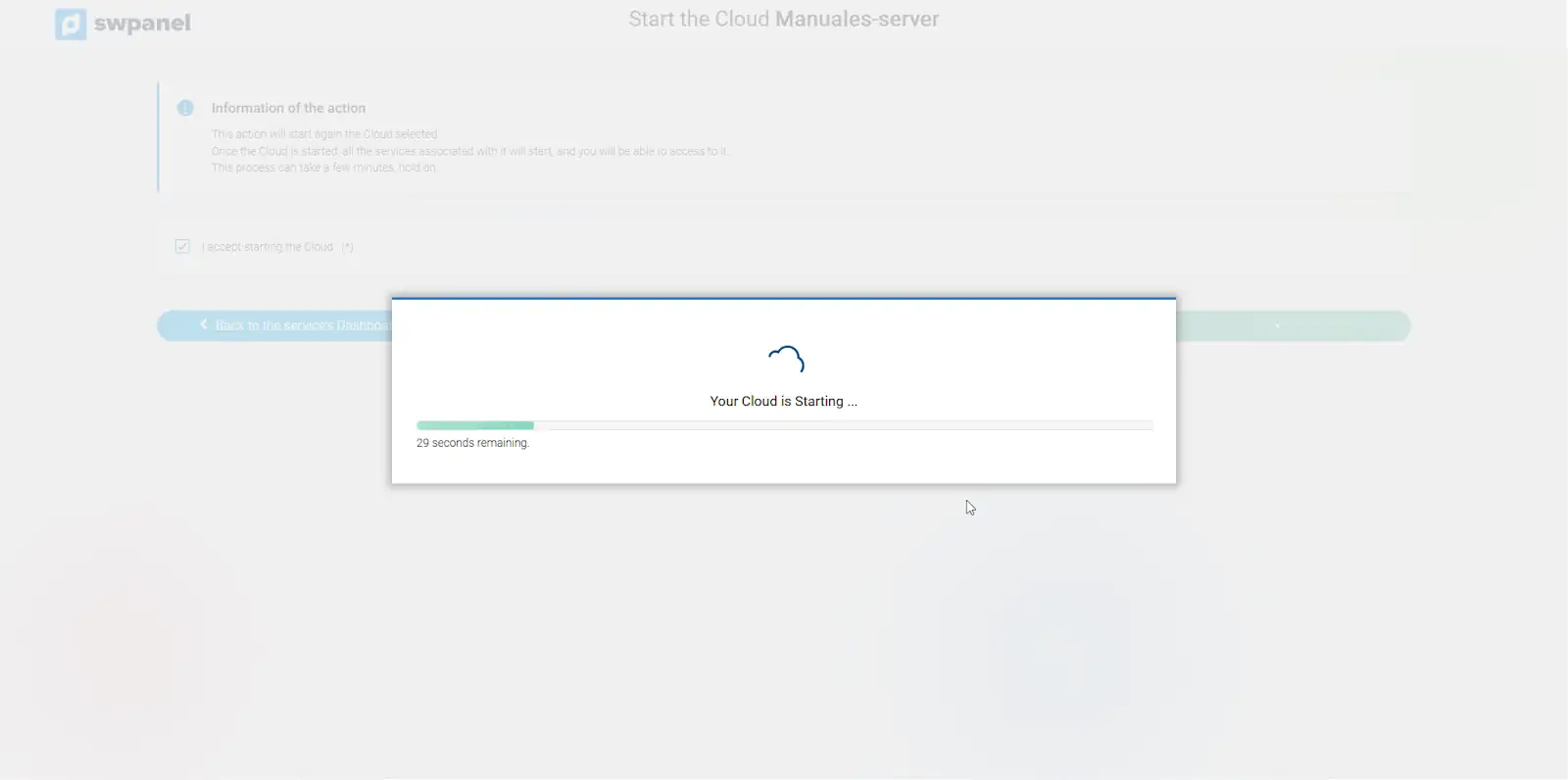
info_capture The screenshot is for guidance purposes. It was taken from version 2025.00.0017 dated 11/12/2024. It may differ from what the current version of SWPanel shows.
Once successfully started, the usage data for vCores, RAM memory, HD space, and other statistics related to the Cloud server will appear.
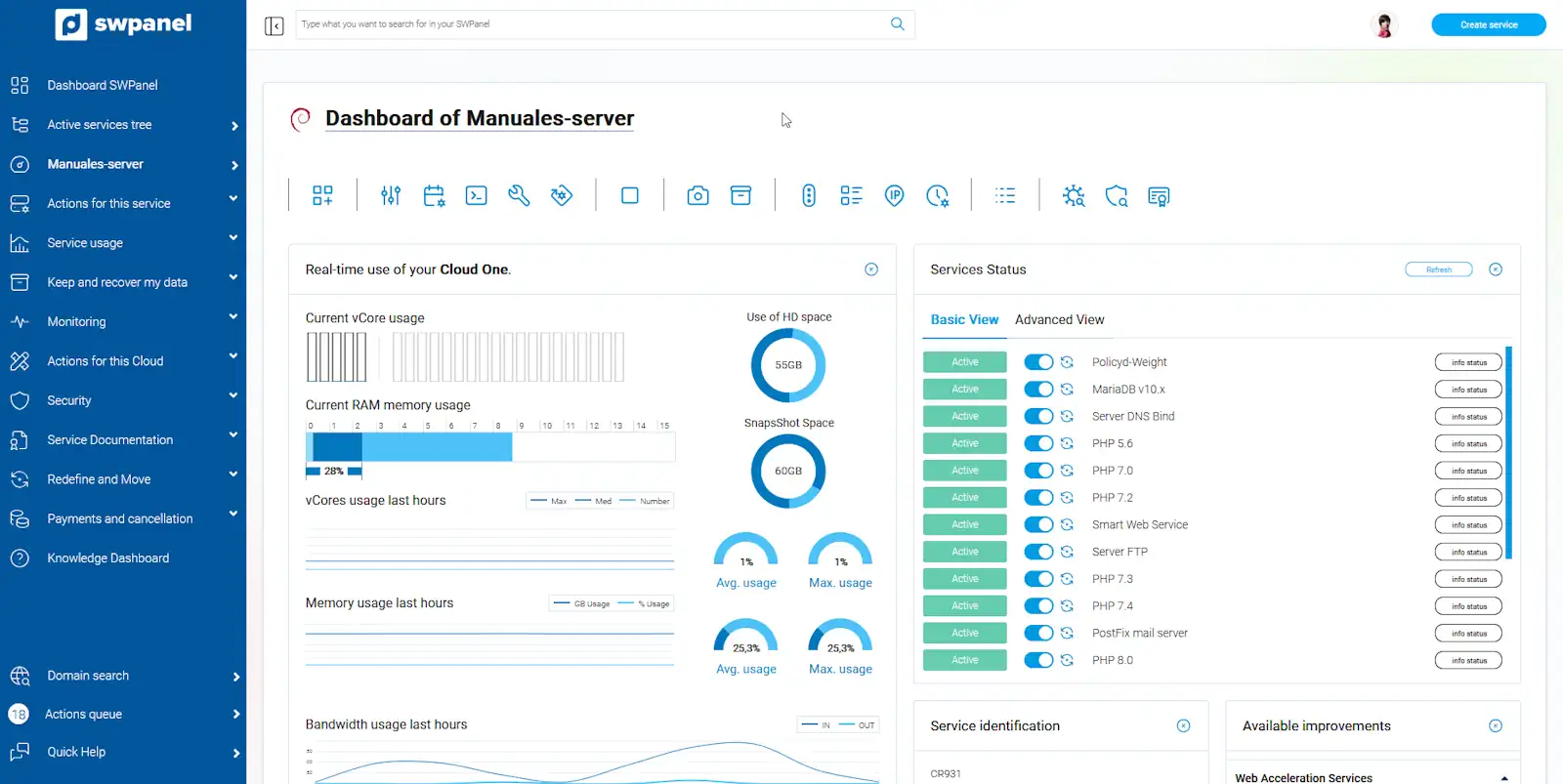
info_capture The screenshot is for guidance purposes. It was taken from version 2025.00.0017 dated 11/12/2024. It may differ from what the current version of SWPanel shows.
And with this, you will have started your Cloud Server.