
How to install Virtualmin on Ubuntu 22.04
Introduction
Virtualmin is a popular web hosting control panel that allows you to manage multiple domains, email accounts, and websites on a single server. It is designed to be easy to use, even for users without technical knowledge, and provides a variety of features that make it a popular choice for web hosting providers and website owners. It is based on Webmin and is an alternative to other paid panels such as cPanel and Plesk.
Before starting the tutorial, don't you have a Linux Ubuntu 22.04 Cloud server where you can install your Virtualmin? Don't worry! With just one click, you can easily deploy it with SW Hosting.
Step 1: Update the system
Before installing any new software on Ubuntu, remember that you should always update the system to have the latest versions of the software packages.
The system update process and the Virtualmin installation must be performed with the root user. To do this, you must run the commands:
sudo -s
apt update && apt upgrade -y
Step 2: Install Virtualmin 7
To install Virtualmin, you must download and run the installation script with the following commands:
wget http://software.virtualmin.com/gpl/scripts/install.sh
chmod a+x install.sh
./install.sh
You will receive the following result and you must enter "y" to start the installation of ISPConfig:
[INFO] Log will be written to: /root/virtualmin-install.log

  Welcome to the Virtualmin GPL installer, version 7.3.4

  This script must be run on a freshly installed supported OS. It does not
  perform updates or upgrades (use your system package manager) or license
  changes (use the "virtualmin change-license" command).

  The systems currently supported by the install script are:

    Red Hat Enterprise Linux and derivatives
      - RHEL 8 and 9 on x86_64
      - Alma and Rocky 8 and 9 on x86_64
      - CentOS 7 on x86_64

    Debian Linux and derivatives
      - Debian 10, 11 and 12 on i386 and amd64
      - Ubuntu 20.04 LTS and 22.04 LTS on i386 and amd64

  If your OS/version/arch is not listed, installation will fail. More
  details about the systems supported by the script can be found here:

    https://www.virtualmin.com/os-support

  The selected package bundle is LAMP and the size of install is
  full. It will require up to 2 GB of disk space.

  Exit and re-run this script with --help flag to see available options.

 Continue? (y/n) y
When the installer finishes, it will show you the access URLs for the Virtualmin web interface:
...
[SUCCESS] Installation Complete!
[SUCCESS] If there were no errors above, Virtualmin should be ready
[SUCCESS] to configure at https://cl2024020708003.dnssw.net:10000 (or https://81.25.126.188:10000).
[SUCCESS] You may receive a security warning in your browser on your first visit.
Step 3: Access the control panel and configure Virtualmin 7
Now you can access the Virtualmin 7 installation at http://YourServerIpAdress:10000 or https://YourNameServer:10000
Ignore the SSL certificate validation error in your browser (the SSL certificate is self-signed after the initial installation, but it can be replaced with a valid certificate once the initial configuration is completed).
To access the Virtualmin web interface, you must provide the root user and their server access password.
 Follow the steps of the post-installation wizard to configure Virtualmin according to your environment and needs. Virtualmin will verify the system configuration and validate some server settings to ensure that your system is ready for service.
Click the "Next" button.
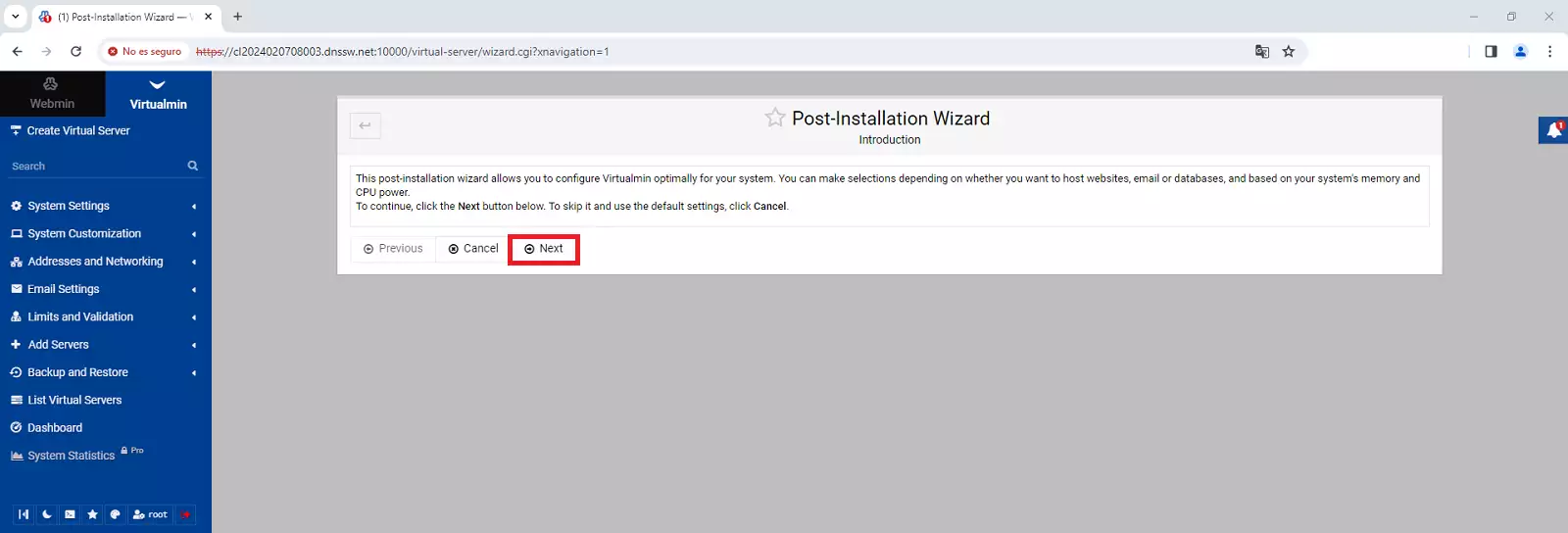
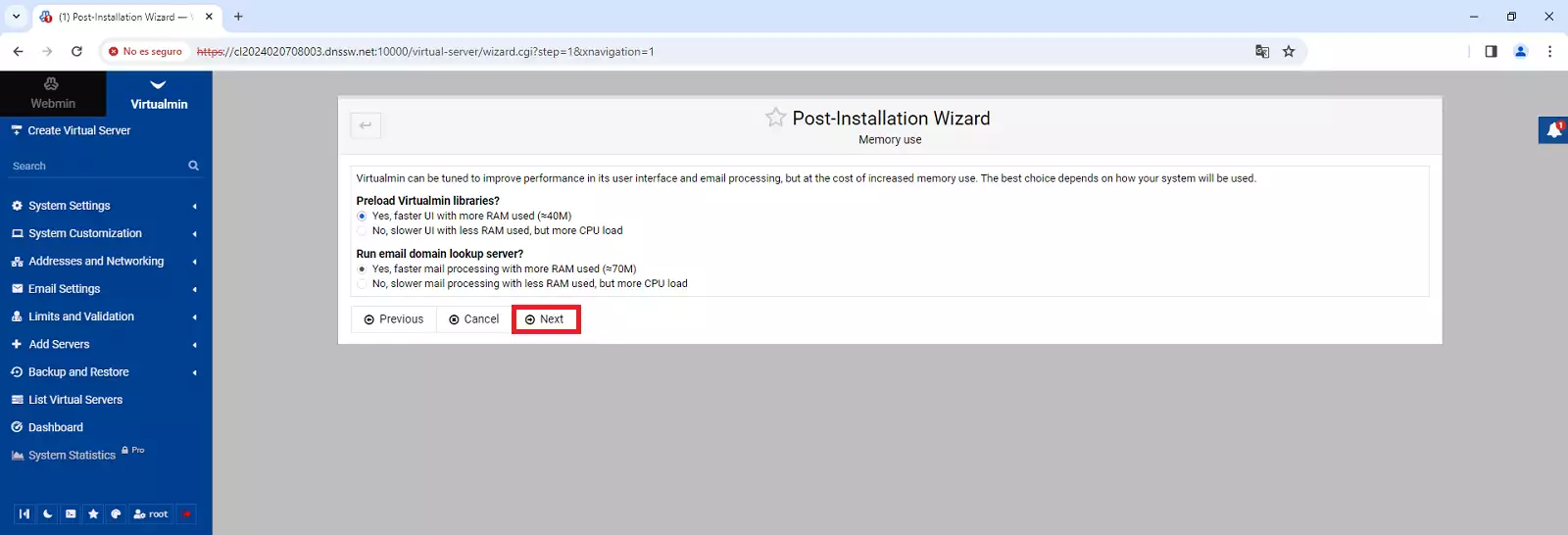
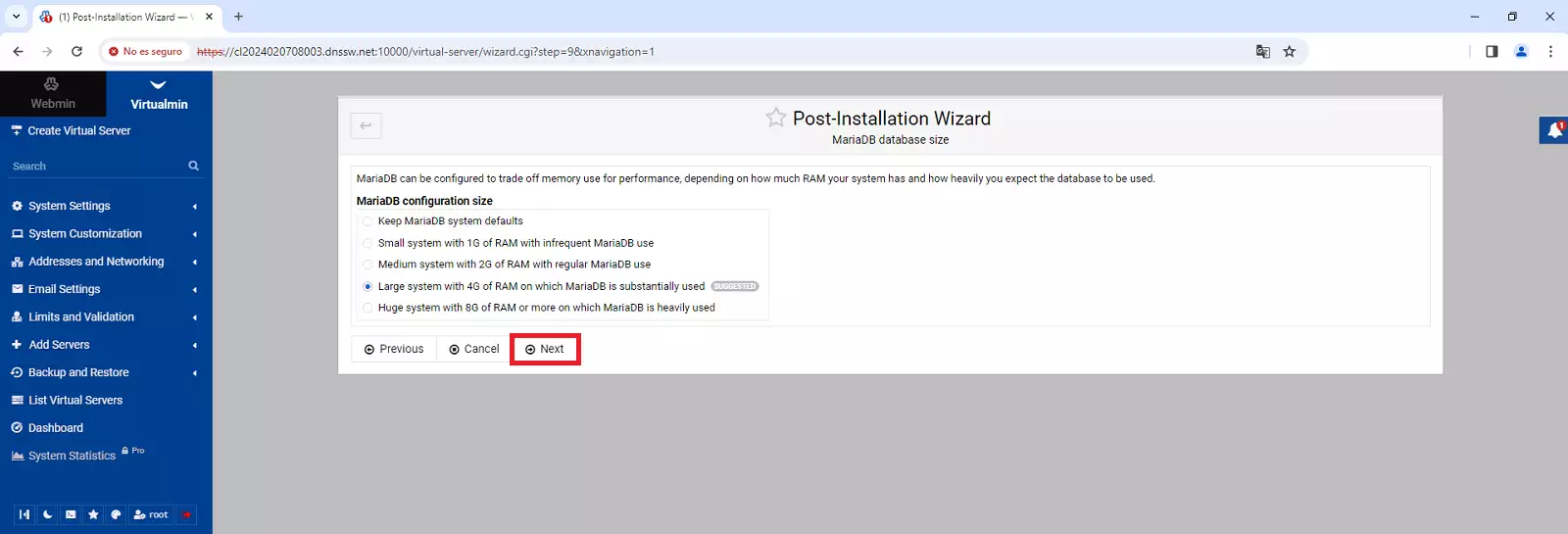
Select the appropriate configuration regarding RAM usage for your system and click the "Next" button.
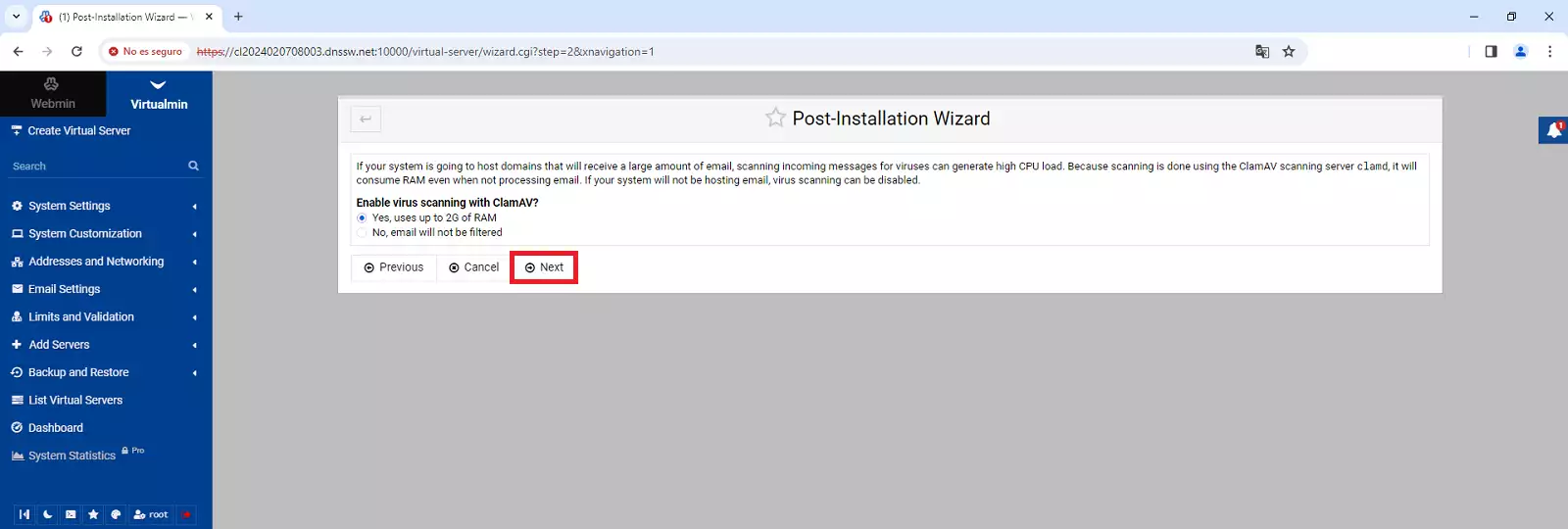
Select whether you want to run the clamd antivirus in the background.
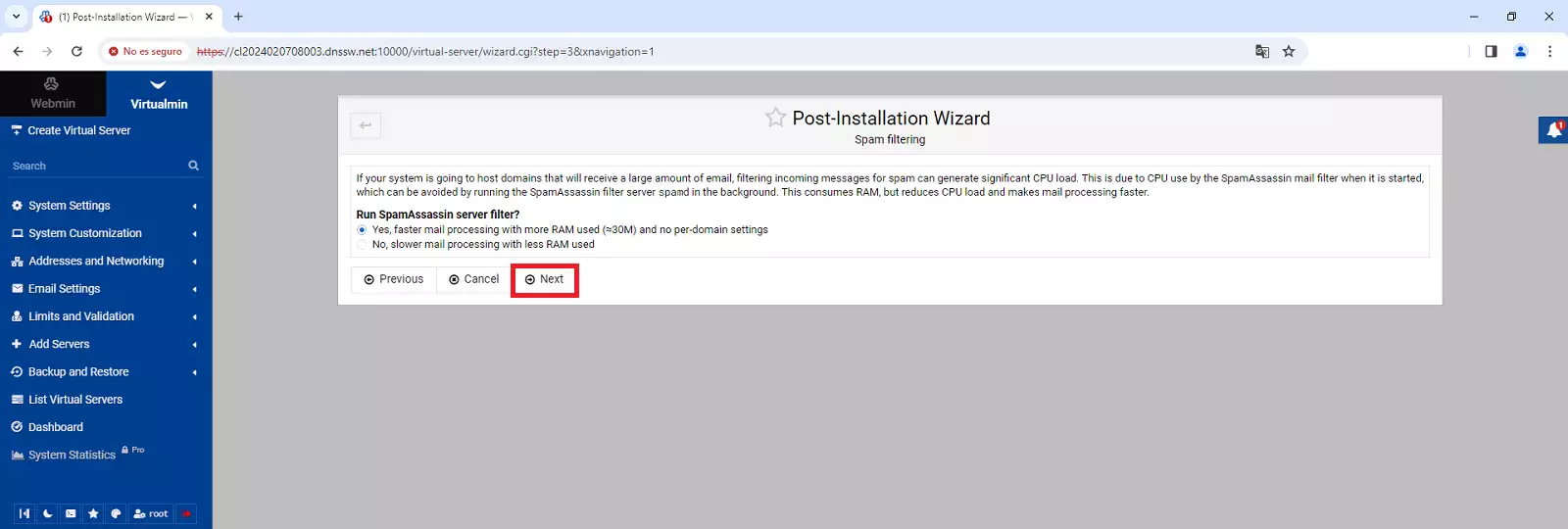
Select whether you want to run the spamd antispam in the background.
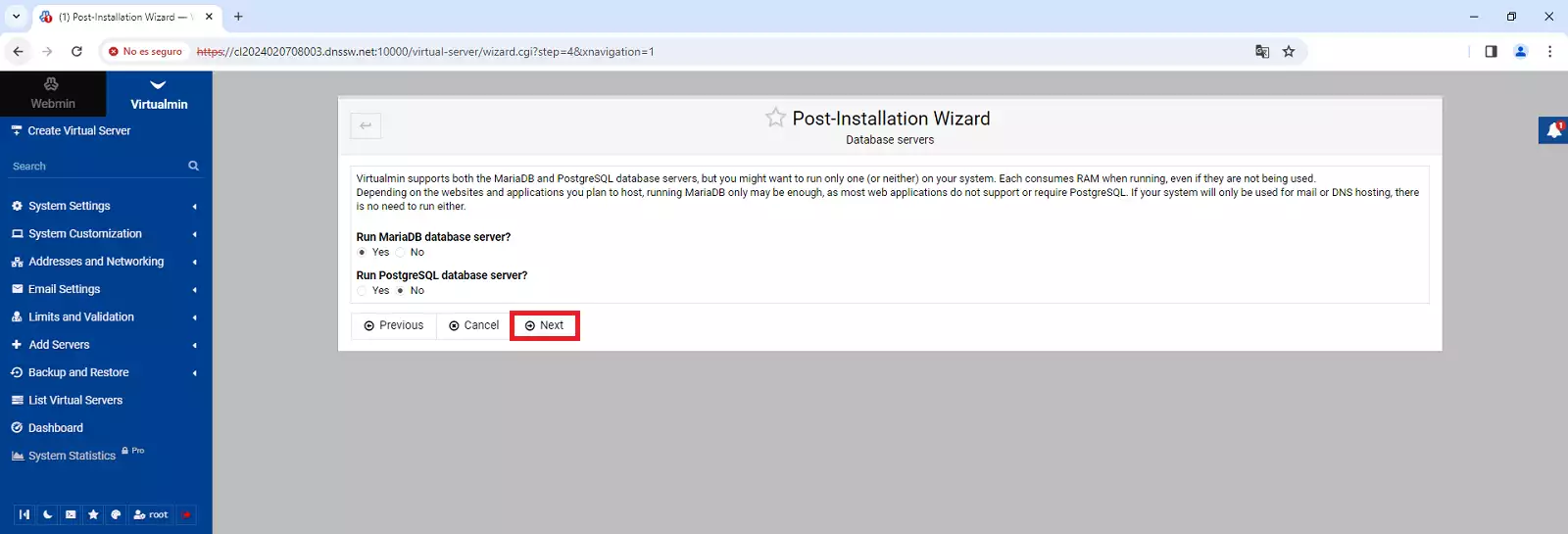
Select whether you want to run a MySQL server, a PostgreSQL server, or both, and click the "Next" button.
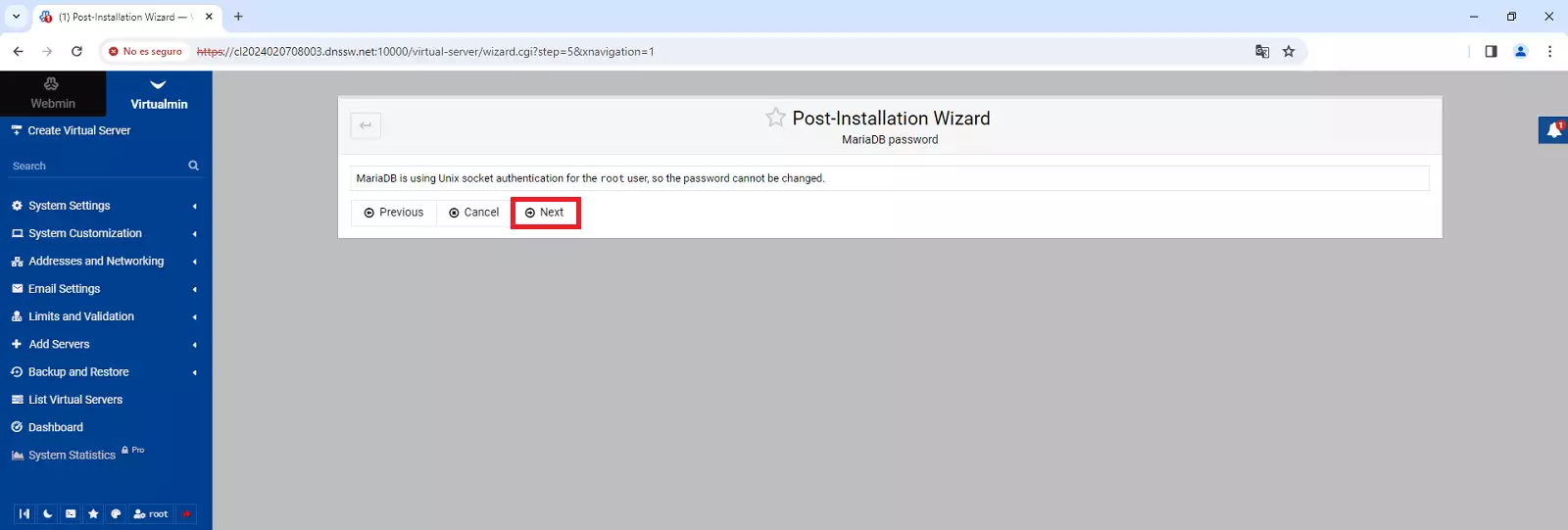
Set a root password for the database server (MySQL/PostgreSQL).
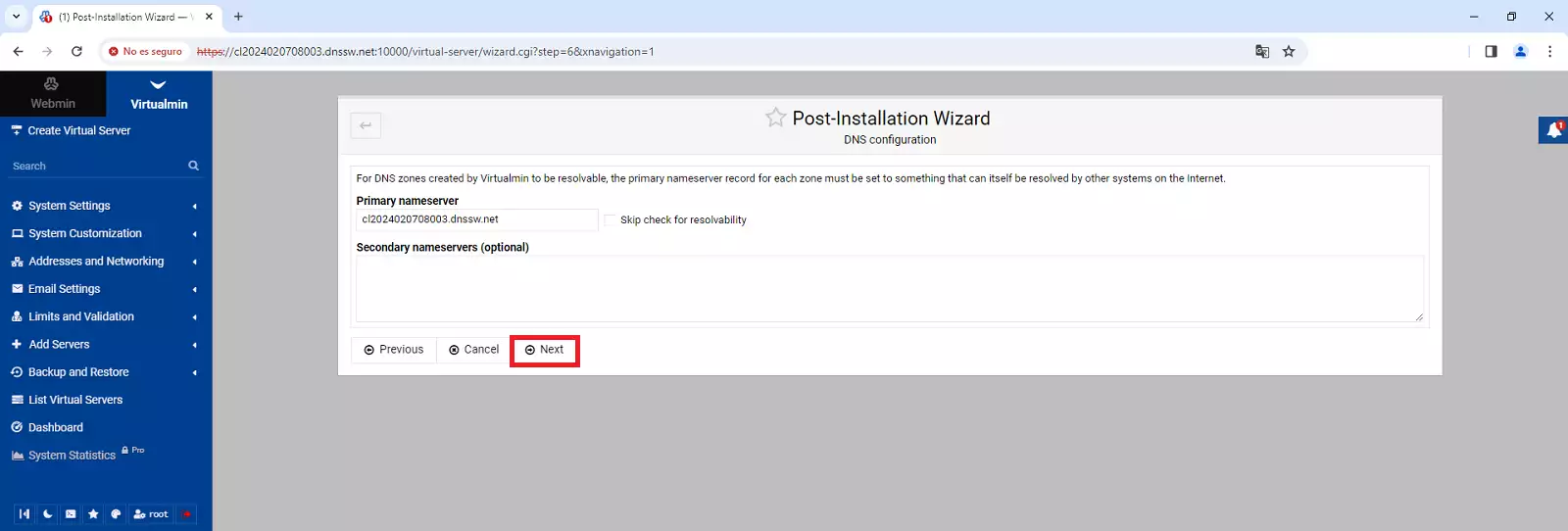
Configure the primary Nameserver.
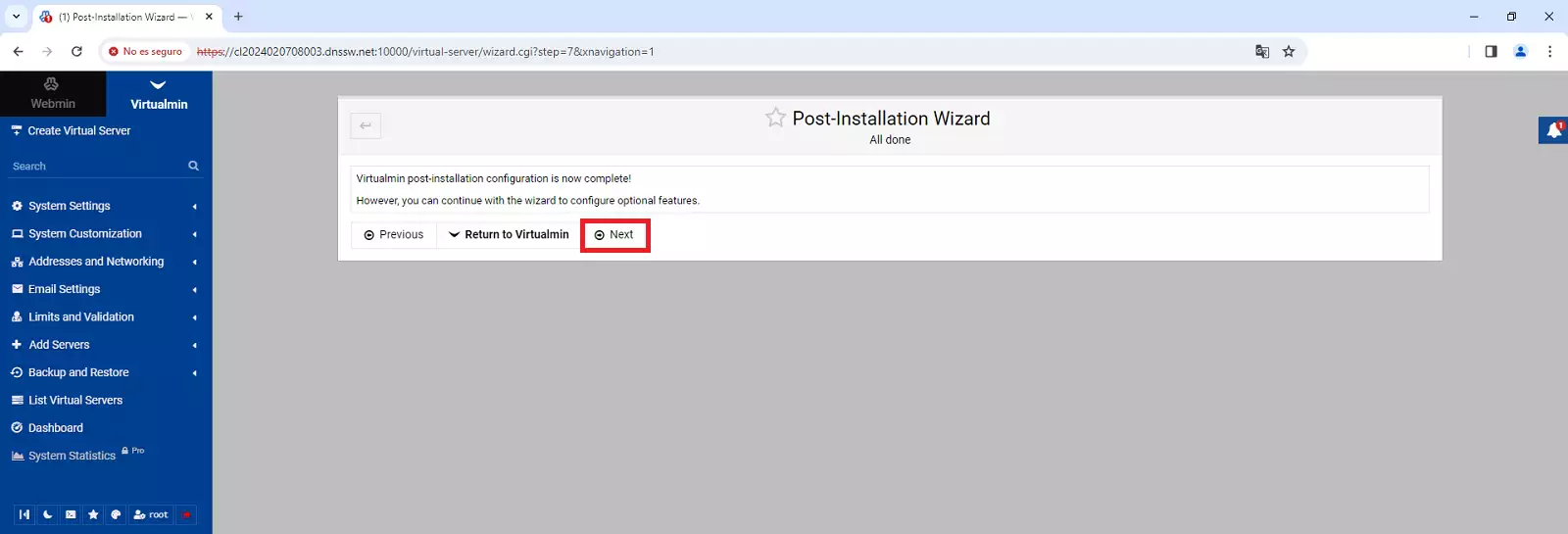
Continue with the custom configuration of Virtualmin with some additional parameters by clicking the "Next" button.
Select whether you prefer to store passwords in plain text or hash.
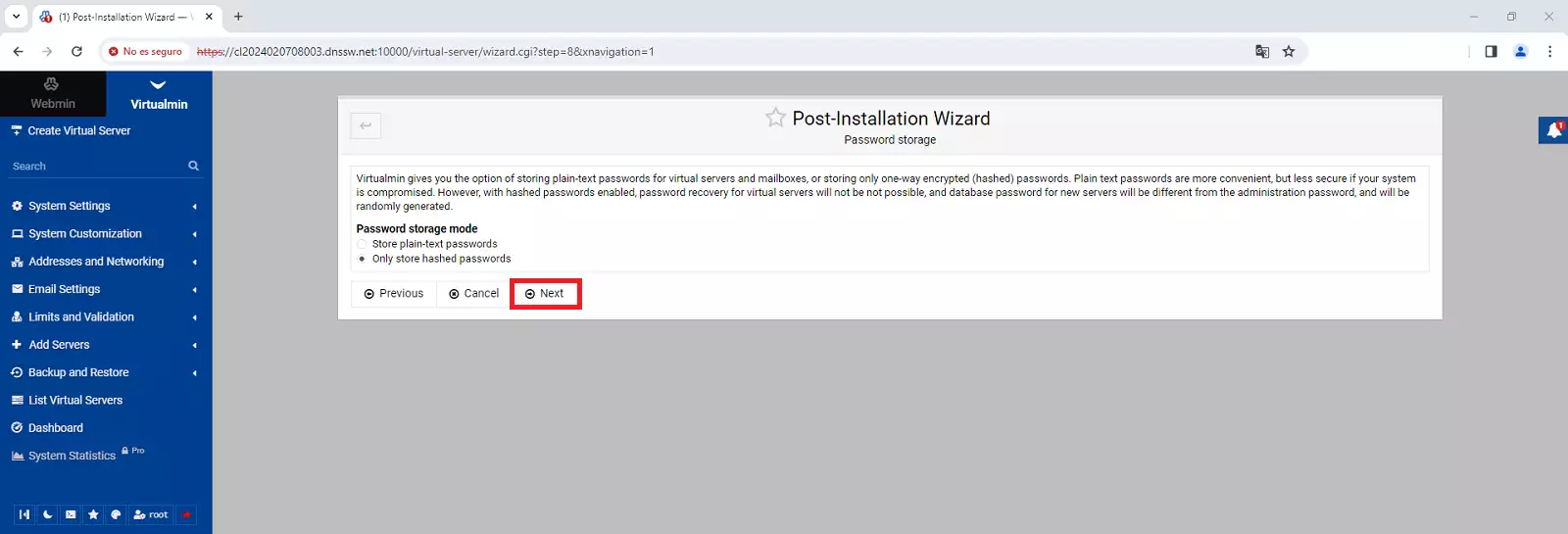
Select the RAM memory and performance usage parameters for MySQL/MariaDB
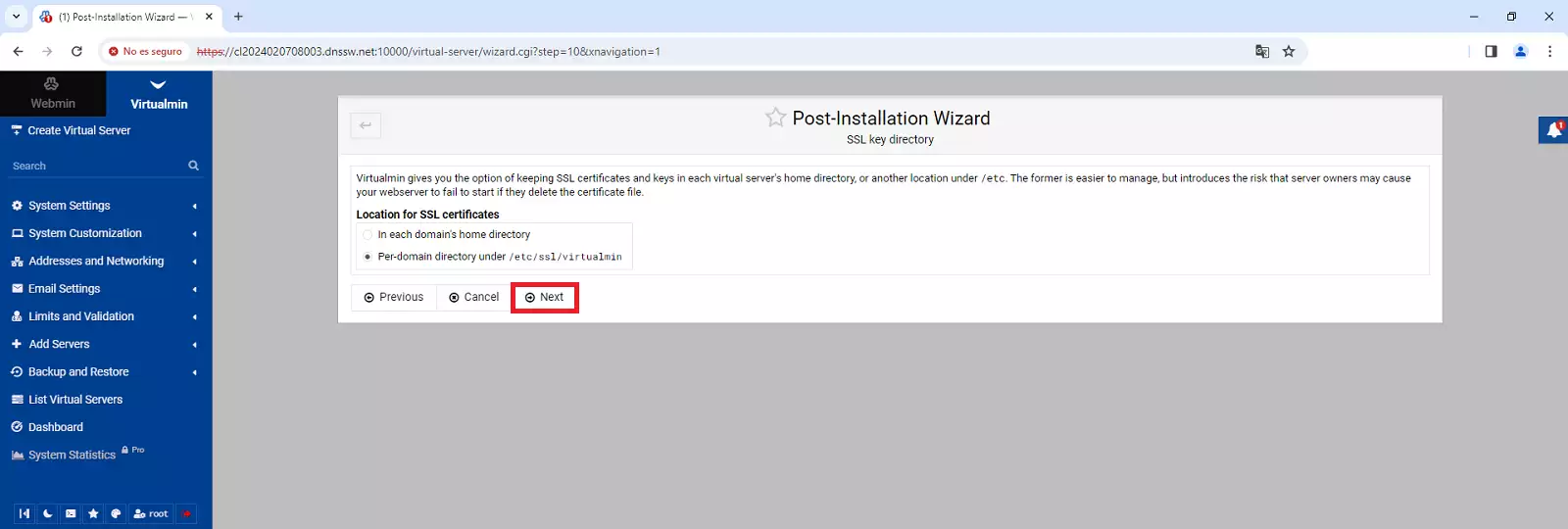
Select the location of the SSL certificates
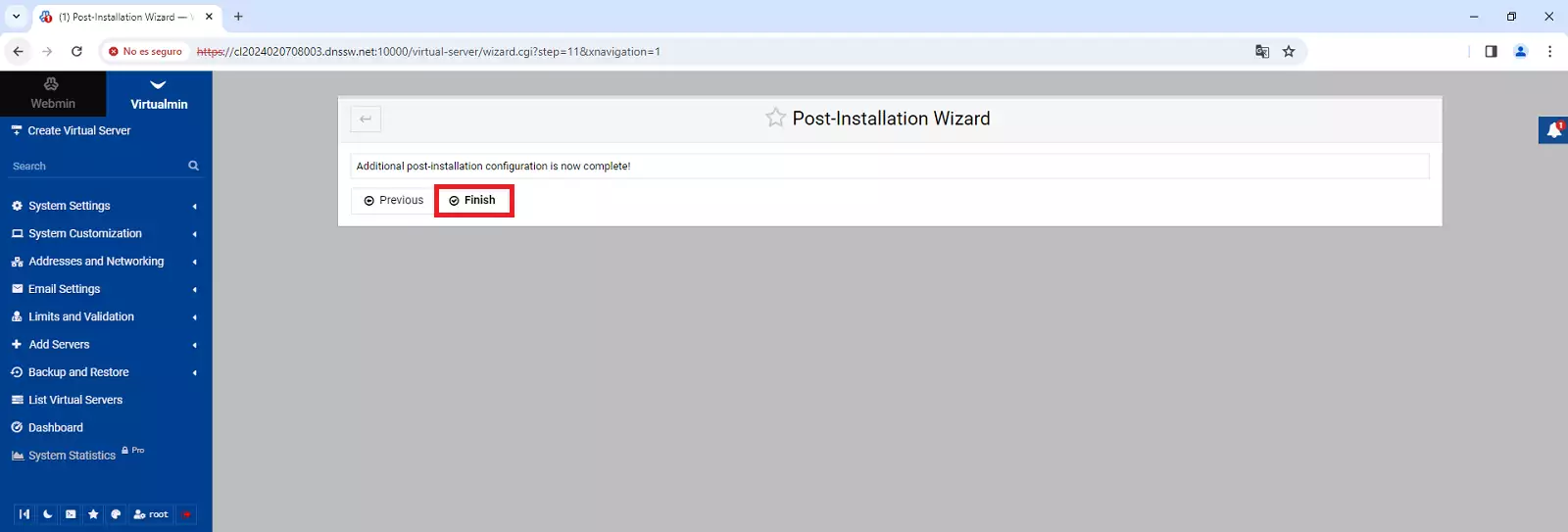
Complete the Virtualmin configuration wizard by clicking the "Finish" button.
success Congratulations! You have successfully installed and configured Virtualmin in Ubuntu 22.04.
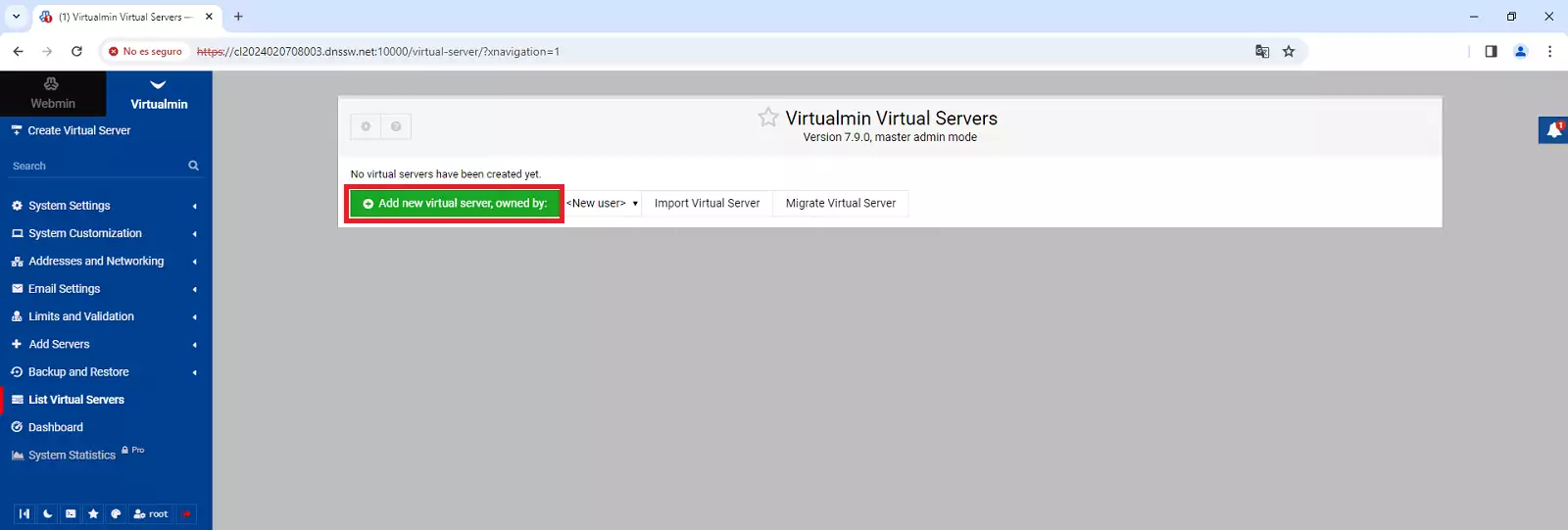
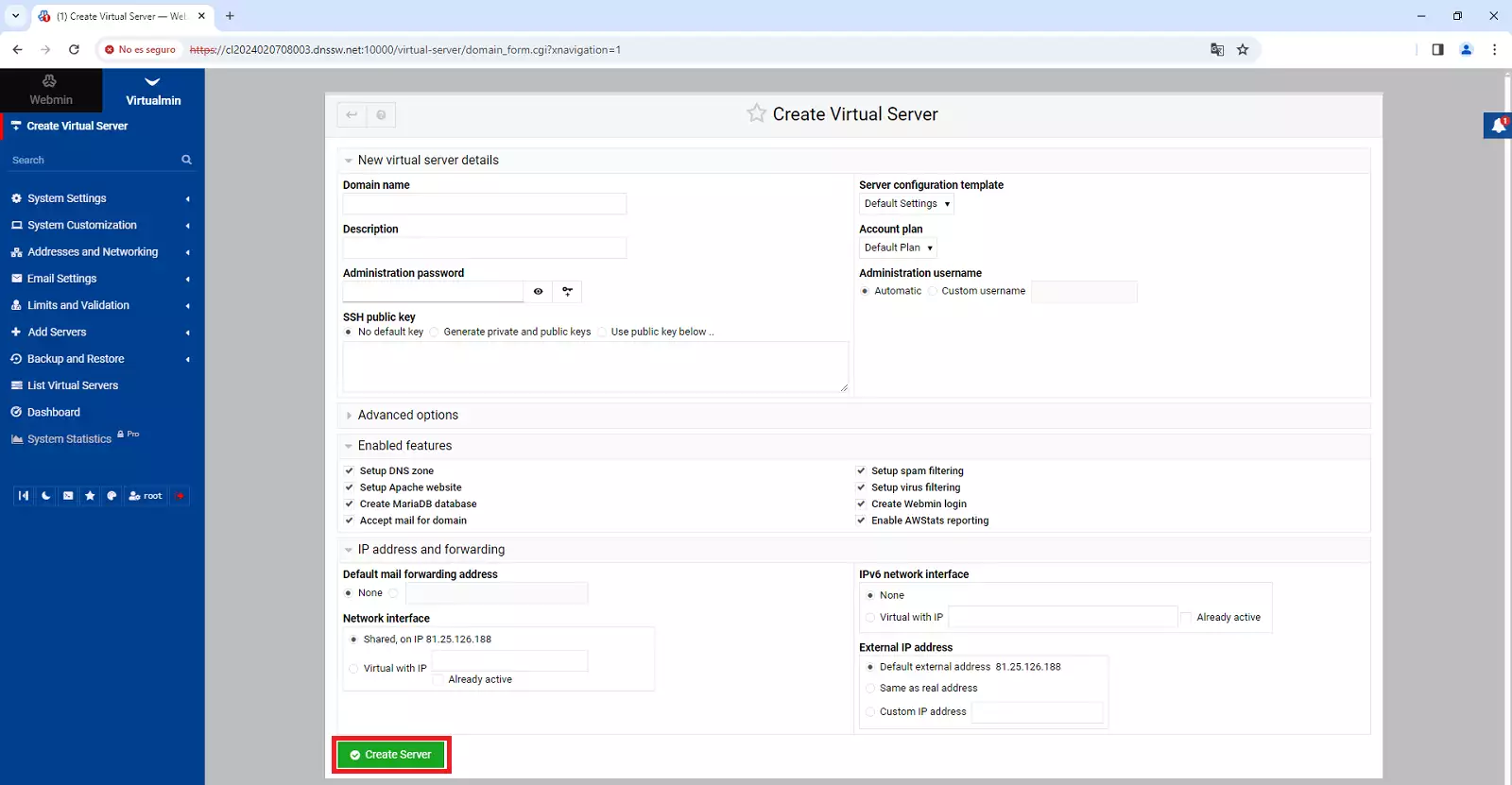
You can now click "Add new virtual server..." to start creating your first website in Virtualmin!
Remember that if you do not yet have a Cloud server with the Linux Ubuntu 22.04 operating system, you can easily deploy it with SW Hosting.