
How to migrate a Wordpress manually
Migrating a WordPress site can seem like a complex task, and in a way, it is. Whether you are coming from another provider and want to bring your website to SWHosting, because you have hired a more powerful Cloud, or for any other reason... We will help you perform the migration simply.
In this manual, we cover the process of migrating a WordPress site manually, which means exporting/importing the web content and database from the source server to your hosting and performing the necessary configurations for the website to function correctly.
1. Environment Preparation
To perform the migration correctly, you must export the web content and database from the source server; for this, you will need to have:
1. FTP access credentials for the source server.
2. Access to the database (phpMyAdmin) of the source server.
danger If you already have a copy of the web content and database (".sql" file), it is not necessary to have the previous details and you can also skip the steps:
- "2. Export web content from the source server".
- "3. Export database from the source server".
On the other hand, when importing the web content and database to your hosting, you will need to have:
3. FTP access credentials for your hosting.
info You can follow the following manual to create an FTP account on your hosting:
4. phpMyAdmin access credentials for your hosting.
info You will obtain these details later in this manual, in the step:
- "6. Import the database".
2. Export web content from the source server
The following steps describe in a very simplified way how you can copy the web content from the source server to your local computer:
info You will need an FTP client, a program that connects to the remote FTP server and manages the sending/receiving of files. The most popular FTP client is FileZilla. It is a free and easy-to-use FTP manager.
-
Access the source server via FTP.
-
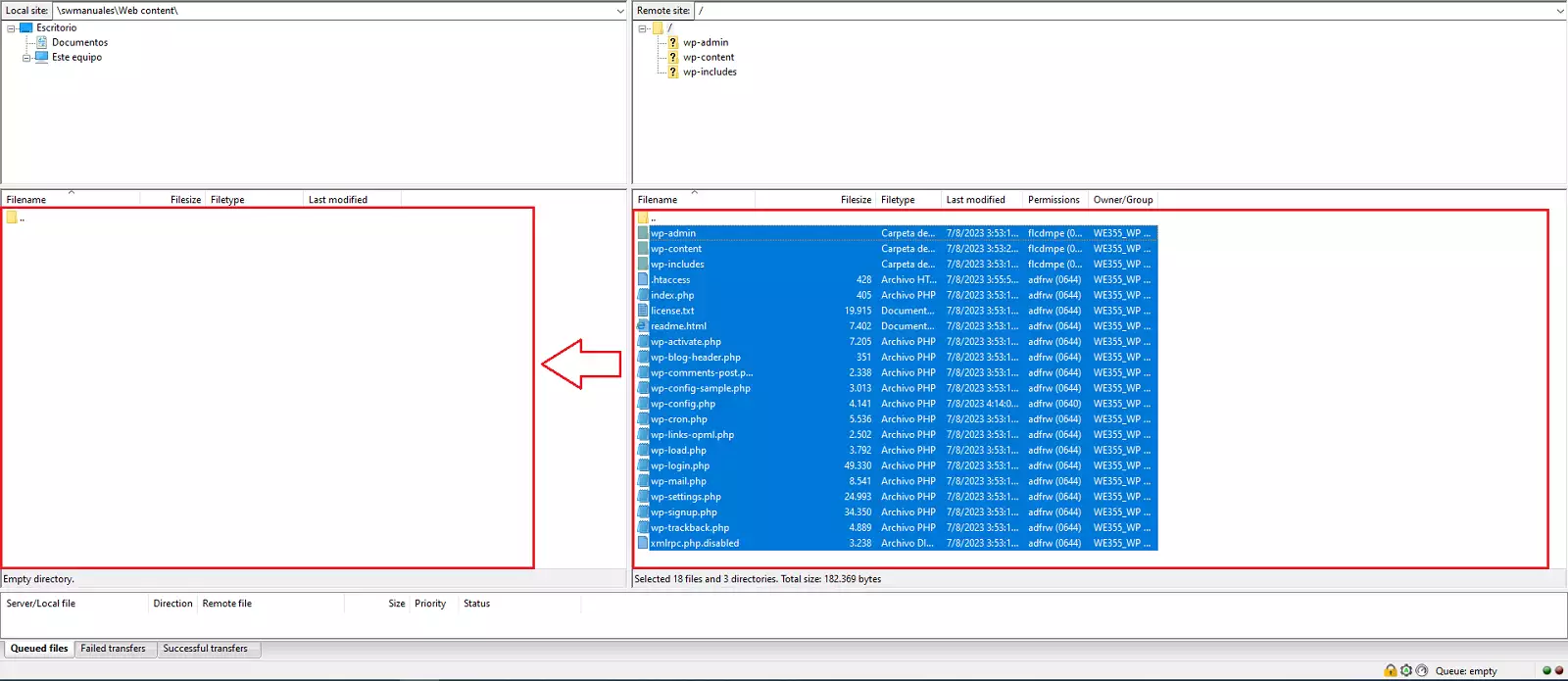
Select all files in the root folder of the website.
danger Make sure that hidden files such as ".htaccess" and similar are included. If you do not see them, there should be an option to view them in the FTP manager.
- Copy them and save them on your local computer.
info The web content should be similar to the following image:
3. Export database from the source server
The following steps describe in a very simplified way how you can export the database from the source server and save it on your local computer in ".sql" file format.
-
Access phpMyAdmin on the source server.
-
Select the database.
-
Go to export, select "SQL" format, and click the "Export" button.
4. Create a database on your hosting
It is recommended to create a database from SWPanel, which must have the same name as the database of the WordPress site to be migrated.
You can follow the following manual to create a database from SWPanel:
This way, the database can be managed from SWPanel.
5. Edit the wp-config.php file
It is necessary to edit the wp-config.php file before uploading the website so that it connects to the new database created in step "4. Create a database on your hosting"; for this:
-
Open the folder on your computer where you saved the website files you want to copy.
-
Look for a file named wp-config.php and create a copy.
-
Use an editor such as Sublime Text, Atom, or your computer's Notepad.
-
Edit the original file (wp-config.php) and make the changes we will see below:
Change the database name
Locate the following line:
define( 'DB_NAME', "NAME" );
Here you should add the name of the new database you created in the previous step. In the example, you would change where it says "NAME" to the name of the new database created, keeping the quotes.
Change the database username
To do this, look for the line:
define( 'DB_USER', "USER" );
Just like in the previous step, modify "USER" to the username created previously, keeping the quotes.
Change the database password
Finally, look for the line:
define( 'DB_PASSWORD', "PASSWORD" );
Following the example, you would replace where it says "PASSWORD" with the password of the DB user created previously.
6. Import the database
We now proceed to the import of the website to your hosting. The first step will be to import the copy of the database (.sql file) saved on your local computer into the database created previously.
You can follow the following manual to import your website's database to your hosting in SWPanel:
7. Upload WordPress files:
Once all the information has been imported into the new database of the hosting and you have modified the wp-config.php file according to the new data, it is time to finish and now, yes, upload the WordPress site files that we had previously downloaded from our former server.
info Using an FTP client, such as FileZilla.
-
Access your hosting FTP with the data collected in step "1. Environment Preparation".
-
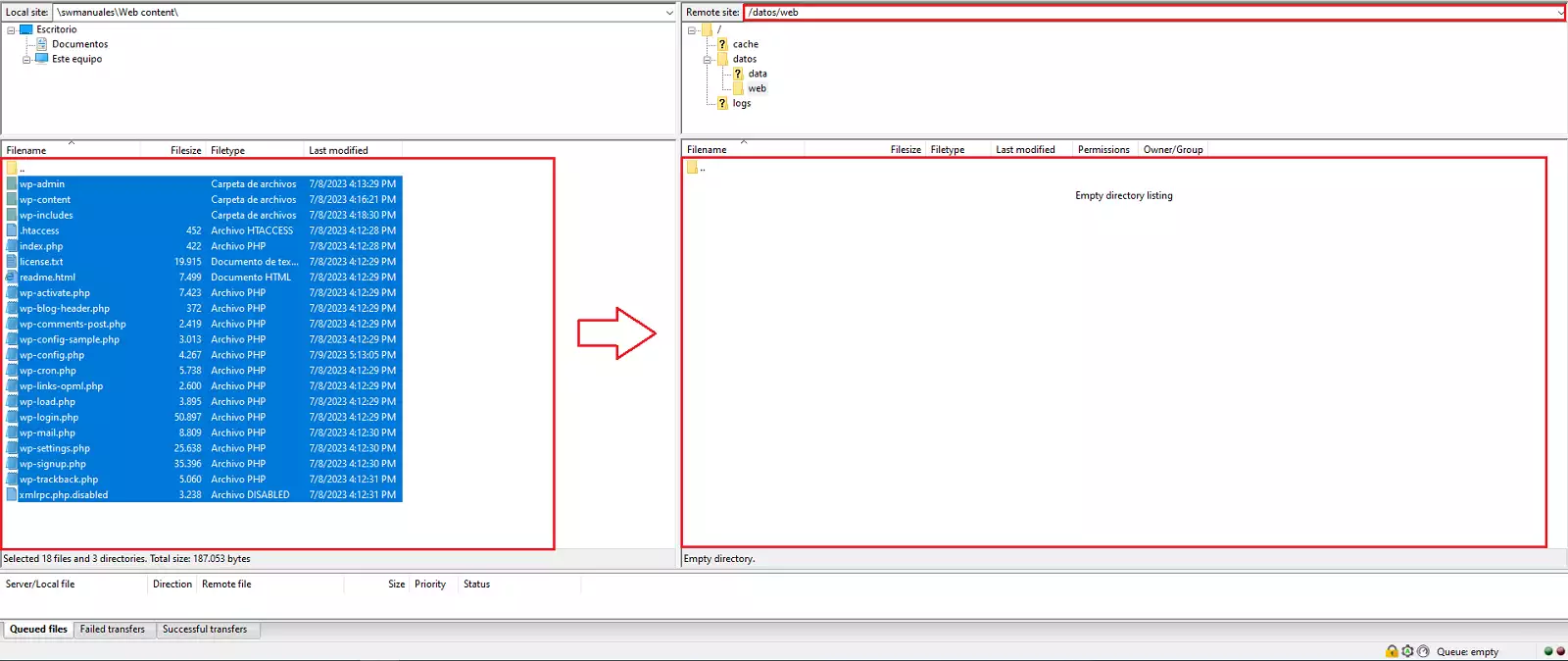
Look for the web content saved on your local computer and copy it to "** /datos/web**".
info The web content you upload should be similar to the following image:
Don't worry if it takes a while; this whole process can take some time.
info We recommend that you do not delete these files from your computer yet, even after the upload is finished, at least until you verify over several days that nothing is missing and the website works perfectly.
8. Check the website
After the entire WordPress migration process, you may want to check if the website is displayed correctly; to do this, simply enter the URL in the browser.
If you cannot access it by entering the URL in your browser, whether because the domain does not yet point to your hosting or for any other reason... In these cases, you can make your personal computer access your hosting content temporarily.
To do this, you must modify the 'hosts' file on your computer. We attach the following manual which explains the process in detail:
Manuale: Modify 'hosts' file in Windows, Mac and Linux
Once you check your website, we recommend deleting the line added to the "hosts" file so that your computer uses the propagated DNS records.
success Done! You now have all the required information to migrate a WordPress site manually.
There is also the option to migrate a WordPress site using the Duplicator Plugin. For more information:
Manuale: How to migrate your WordPress with the Duplicator plugin