How to plan the Web export
A scheduled web export involves setting a specific date on which all data will be exported. This content can be imported into another hosting service, or even used as a backup.
In SW Hosting, you can schedule the export of your Web through your service's Dashboard in the SWPanel. The steps to export your web are as follows:
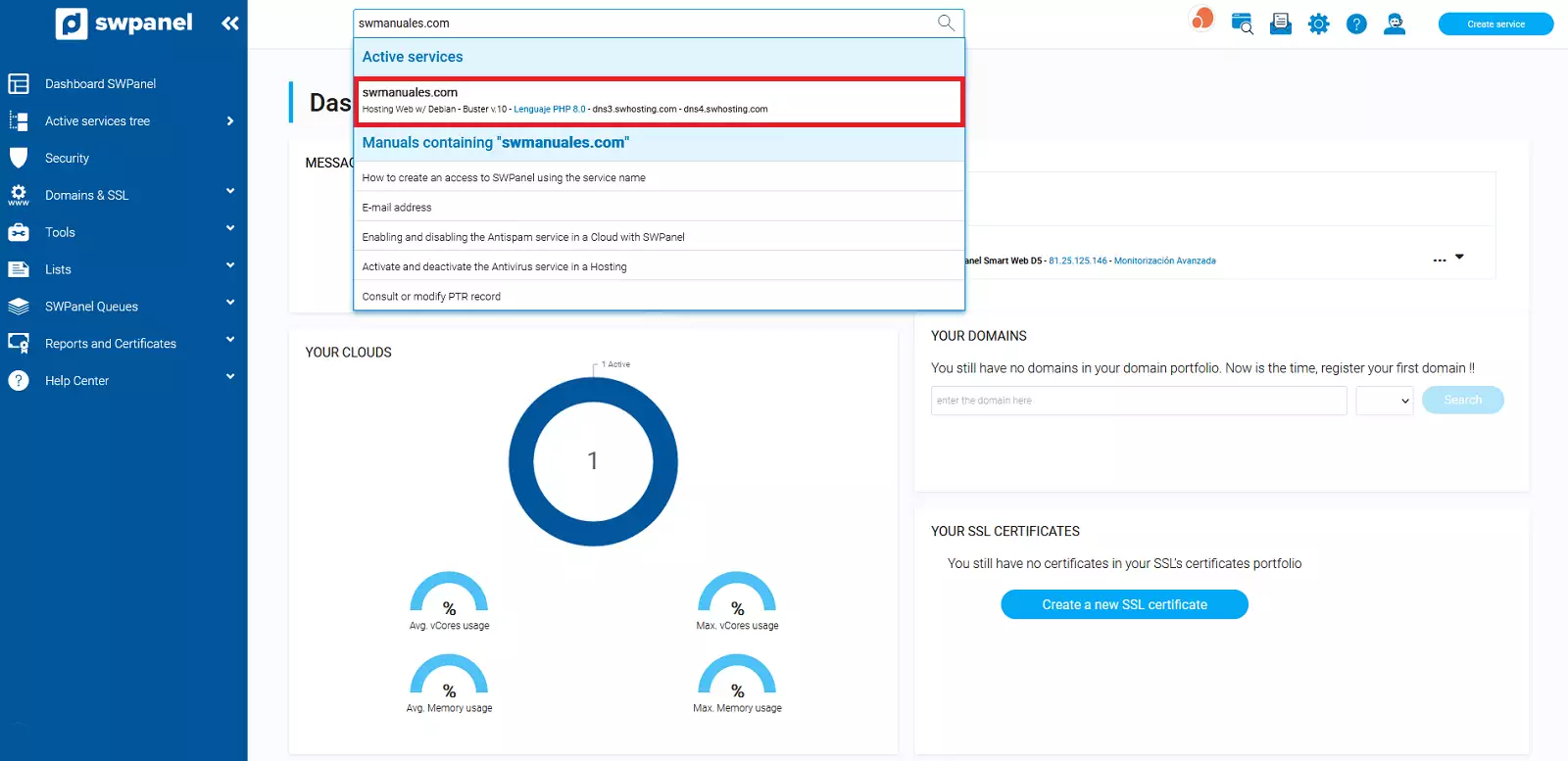
1. From the search box of your SWPanel, you must locate the service where the website you want to schedule the export for is hosted.
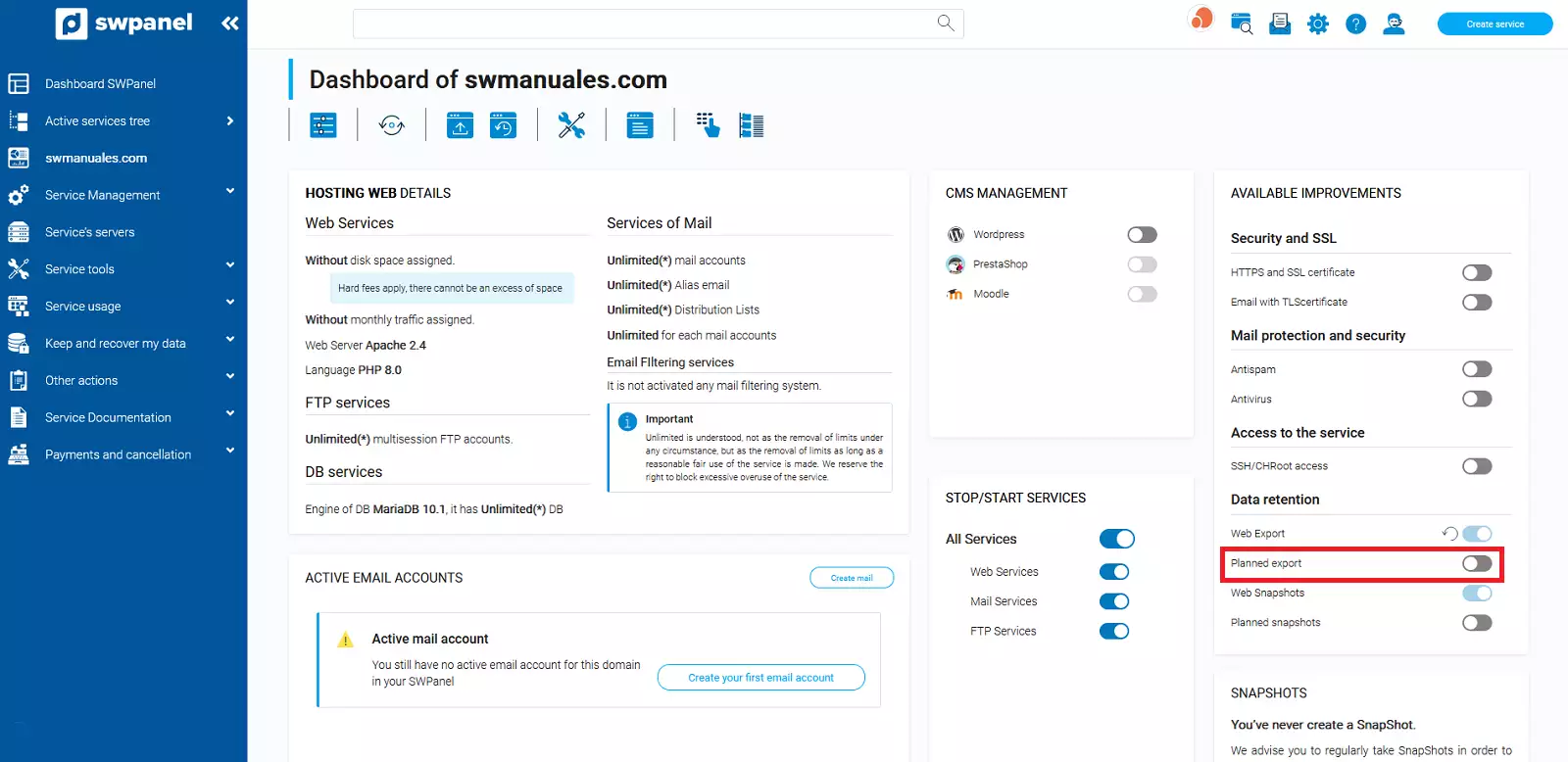
2. Once you are in the service Dashboard, you must click on the checkbox 'Scheduled Export', located in the Available Improvements box, which can be found in the bottom right of your Dashboard.
Next, the Web Export Scheduler menu will open in the current browser tab, where you can choose from three options:
-
Perform an export every day: You must indicate in the Execution Parameters the time the export should be carried out, the day it should start, and the end date.
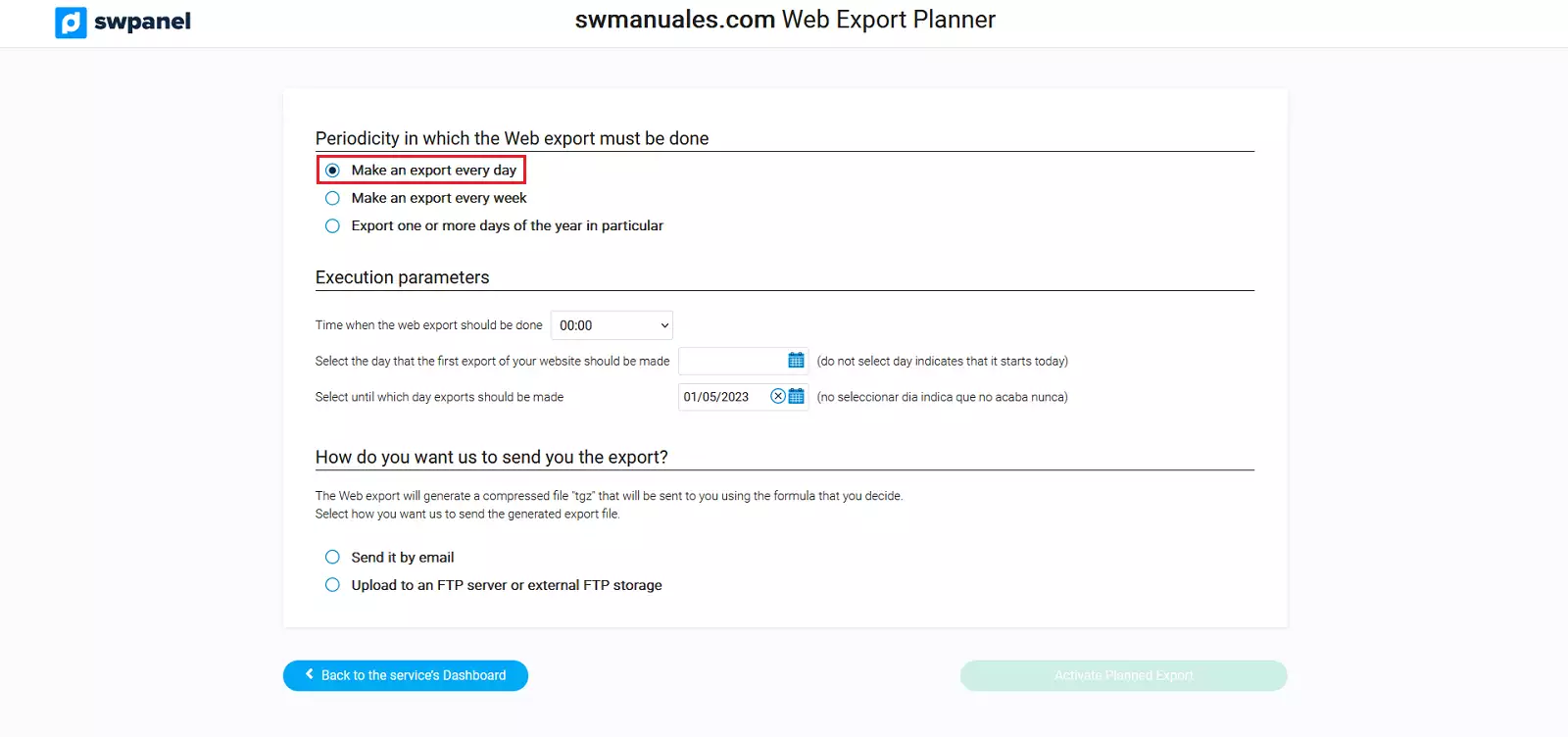
If you do not indicate a start date, the exports will begin instantly the moment they are scheduled. Likewise, if you do not indicate an end date, the exports will be performed periodically without end.
-
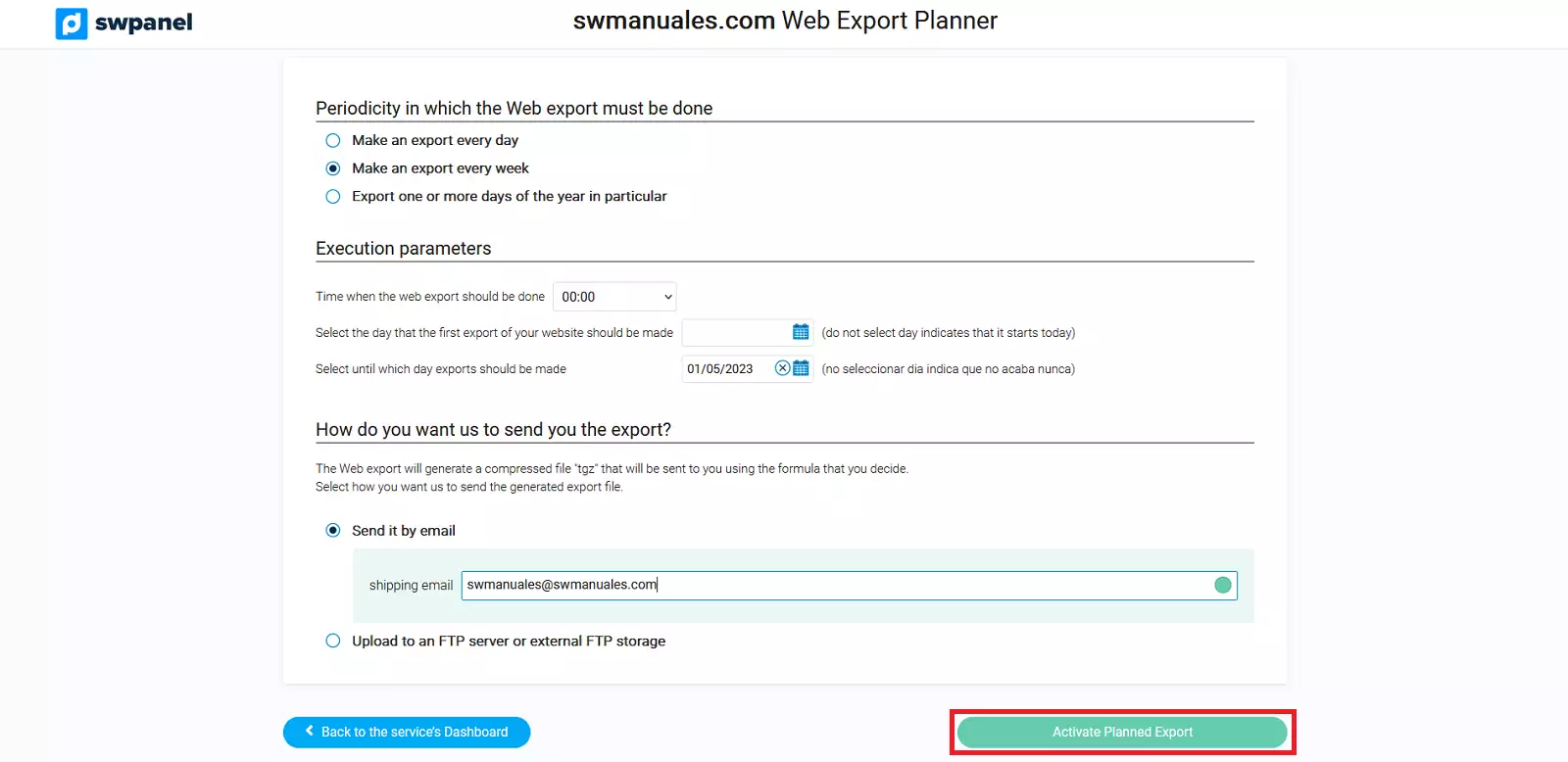
Perform an export every week: You must indicate the day of the week the export will be carried out, in addition to configuring the time, start day, and end day in Execution Parameters.
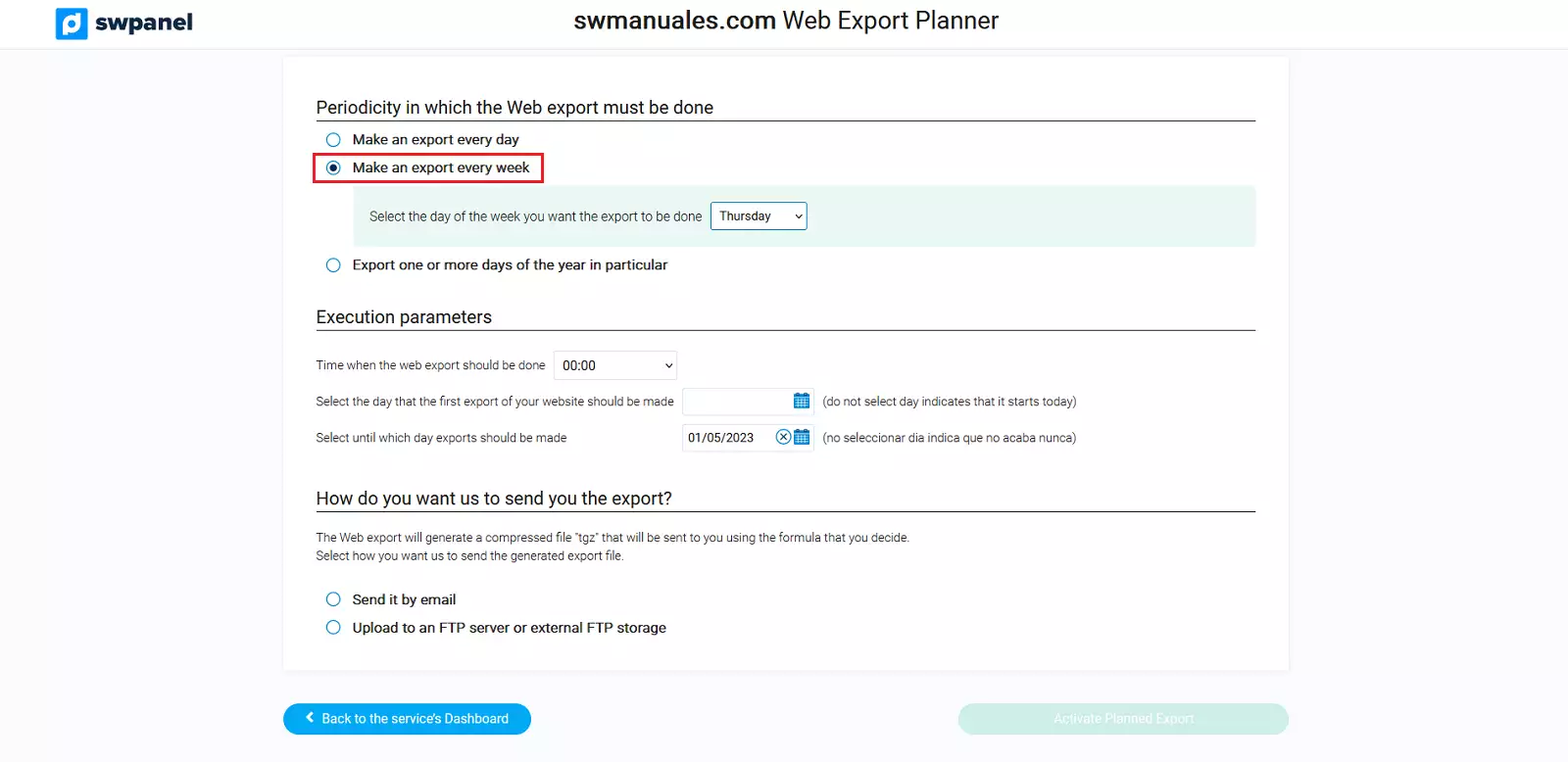
-
Perform an export on one or several specific days of the year: This option will provide a range of parameters that must be indicated, including the months in which the web exports should be carried out and the days of the month. Additionally, you must configure the time the exports will be performed, the start day, and the end day in Execution Parameters.
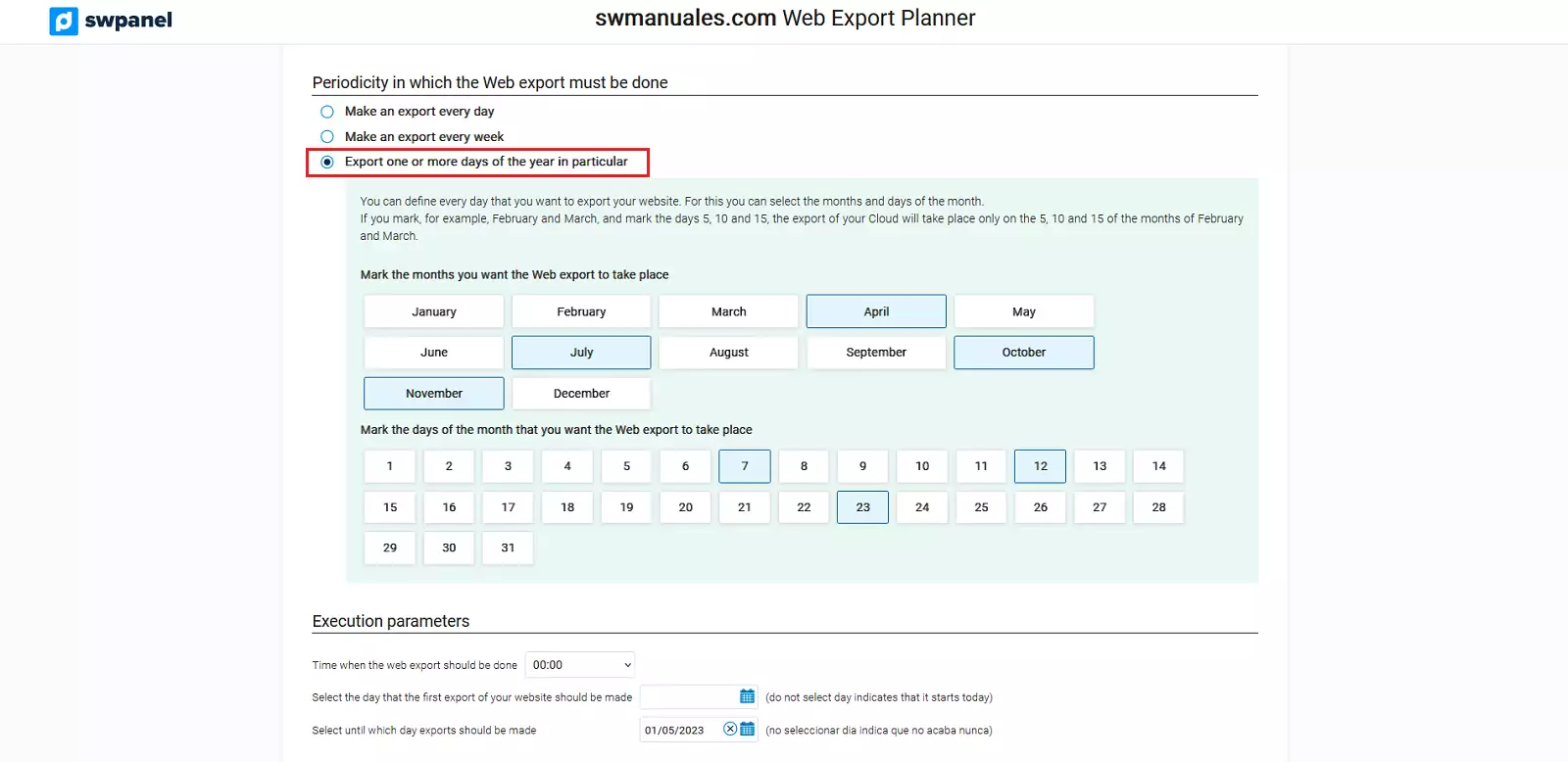 The export will generate a compressed file in '.tgz' format, similar to the well-known '.zip' or '.rar'. Finally, we can choose whether to send the export by email, or via FTP.
 -
Send it by email: The web will be sent to the indicated email, in the box that will appear under the check once the green button, located in the bottom right of the SWPanel 'Activate Scheduled Export', is clicked.
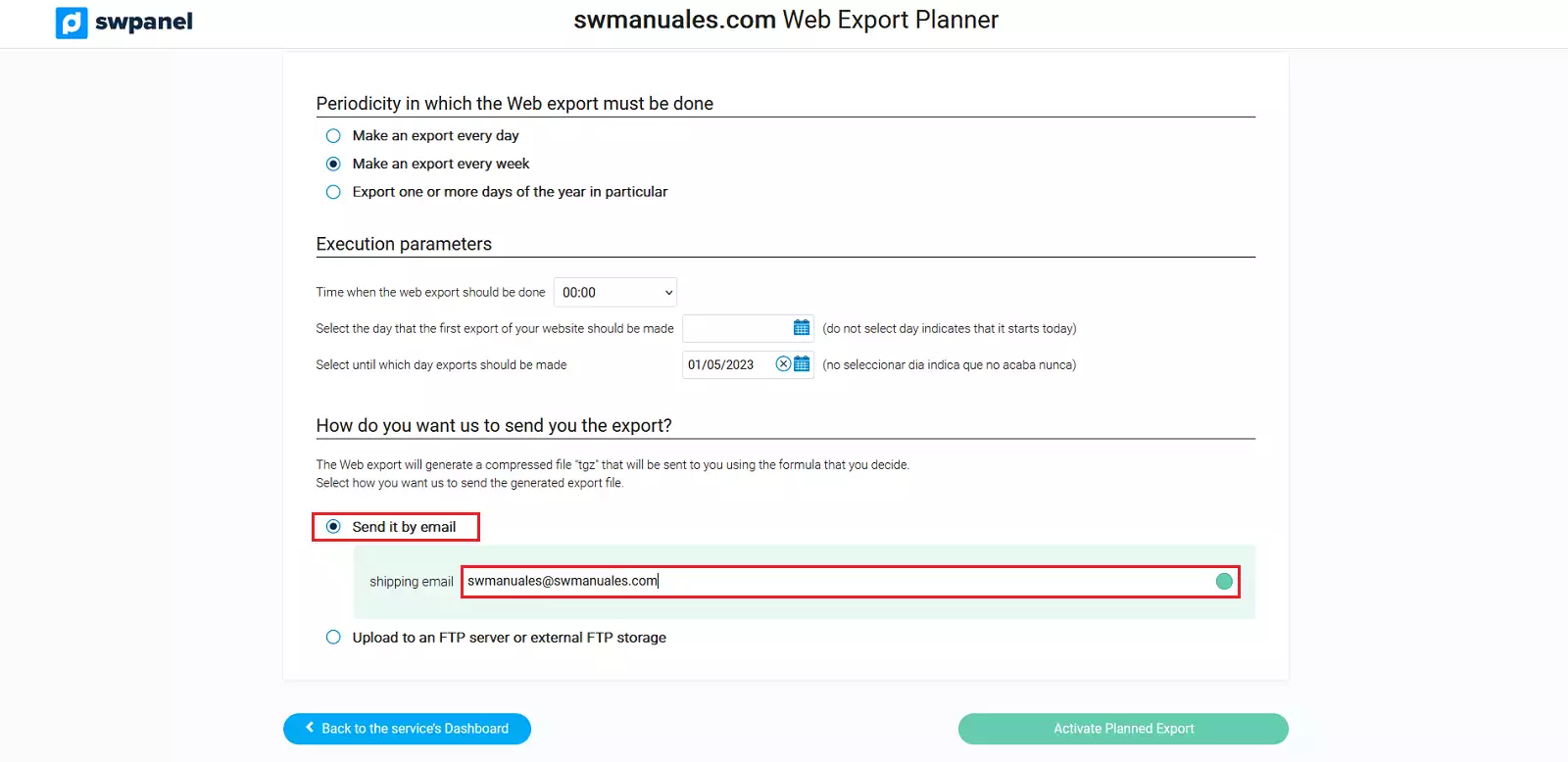
-
Upload it to an FTP server or external FTP storage: This option will provide the possibility of sending the web export to the destination indicated in the boxes that will appear under the check. Additionally, an email notification can be received if the corresponding checkbox is marked and an email address is indicated.
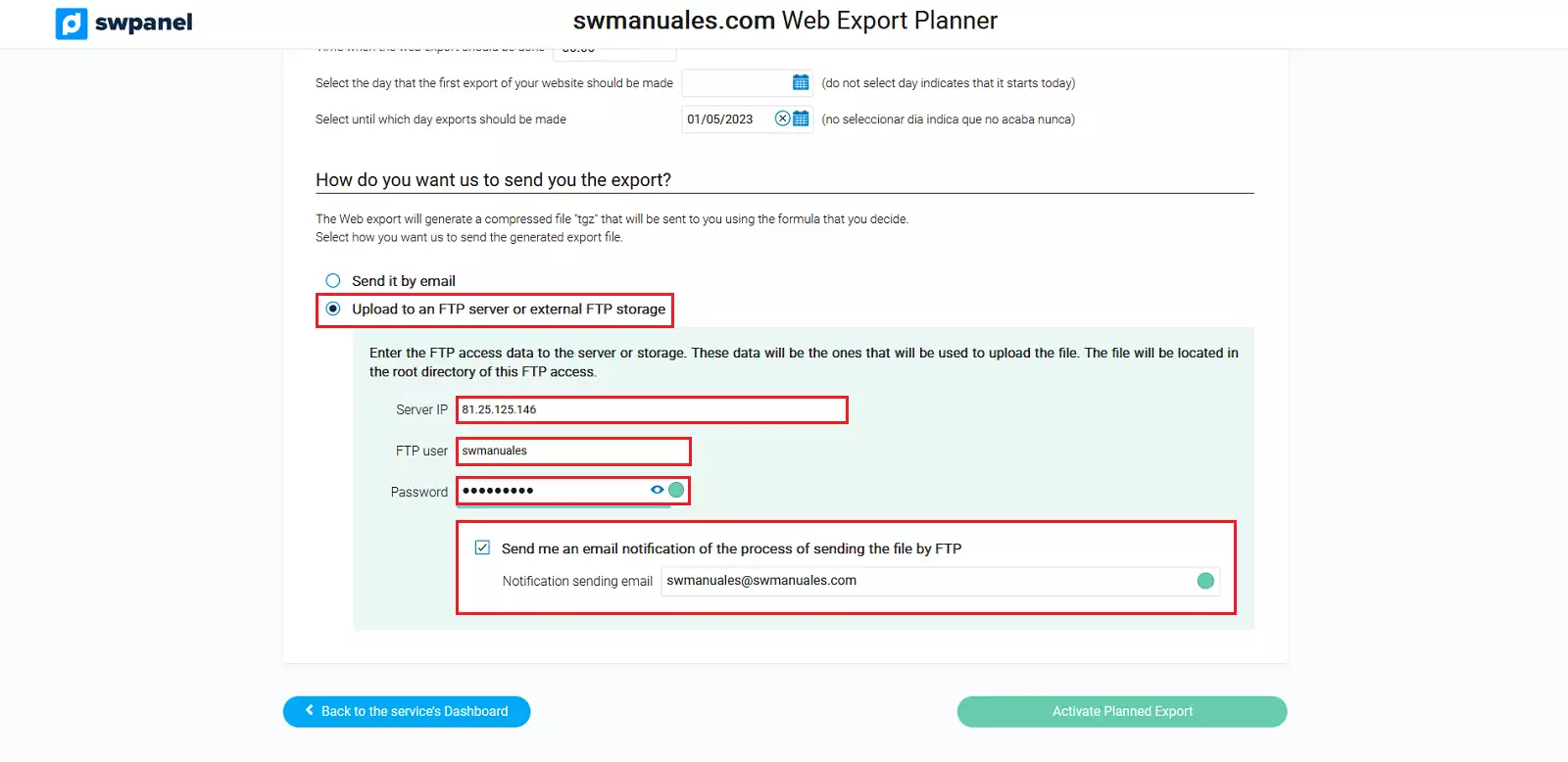
The action will be performed once the green button, located in the bottom right of the SWPanel 'Activate Scheduled Export', is clicked.