
How to enable auto-renewal of SSL certificates
To activate the auto-renewal of an SSL certificate, you must access your SWPanel account
Once inside, go to the Domains and SSL -> SSL Certificate Wallet tab found in the blue side menu:
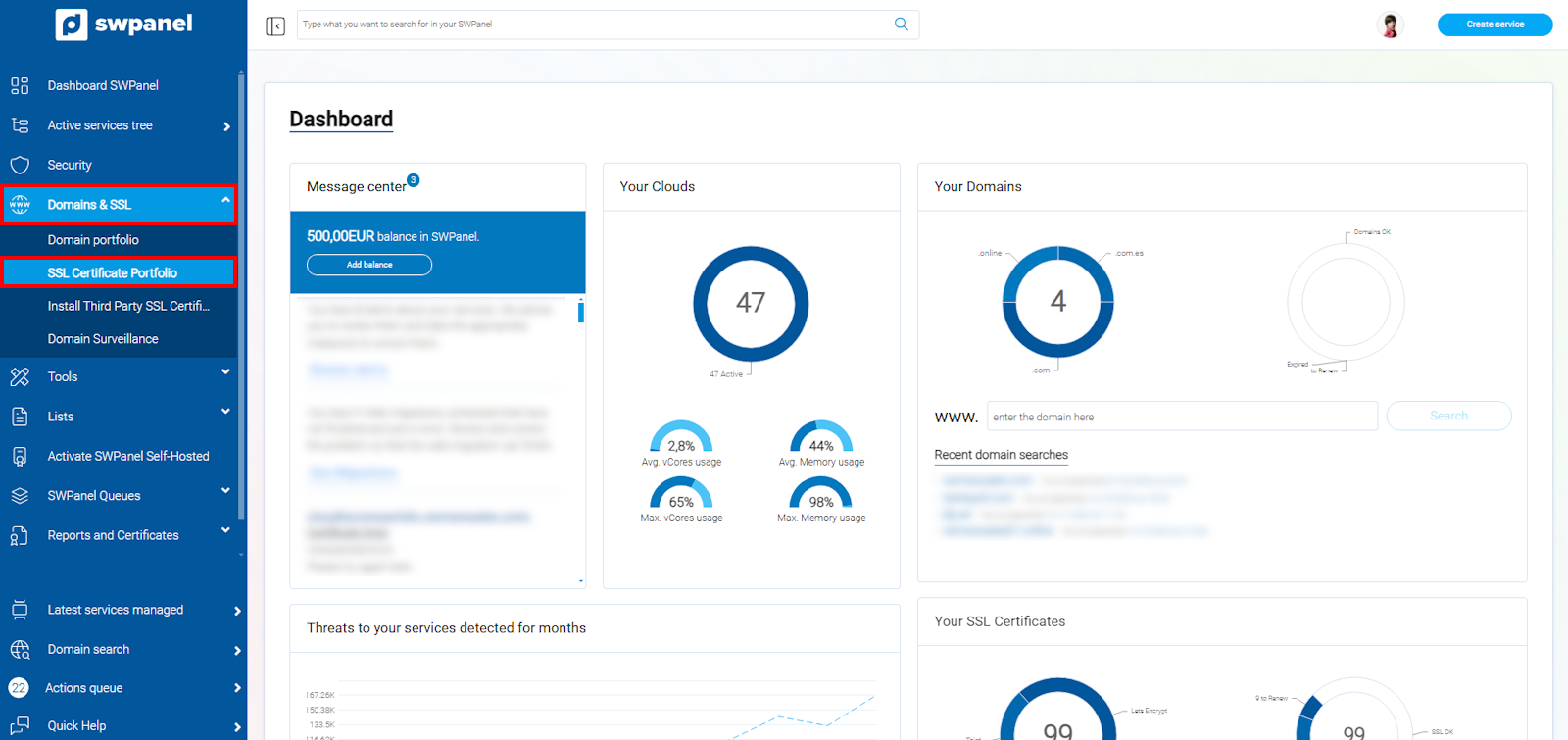
info_capture The screenshot is for guidance purposes. It was taken using version 2025.00.0017 dated 04/01/2025. It may differ from what the current version of SWPanel displays.
Locate the certificate you wish to auto-renew, expand the options menu that appears to its right, and click on "SSL Certificate Auto-renewal"
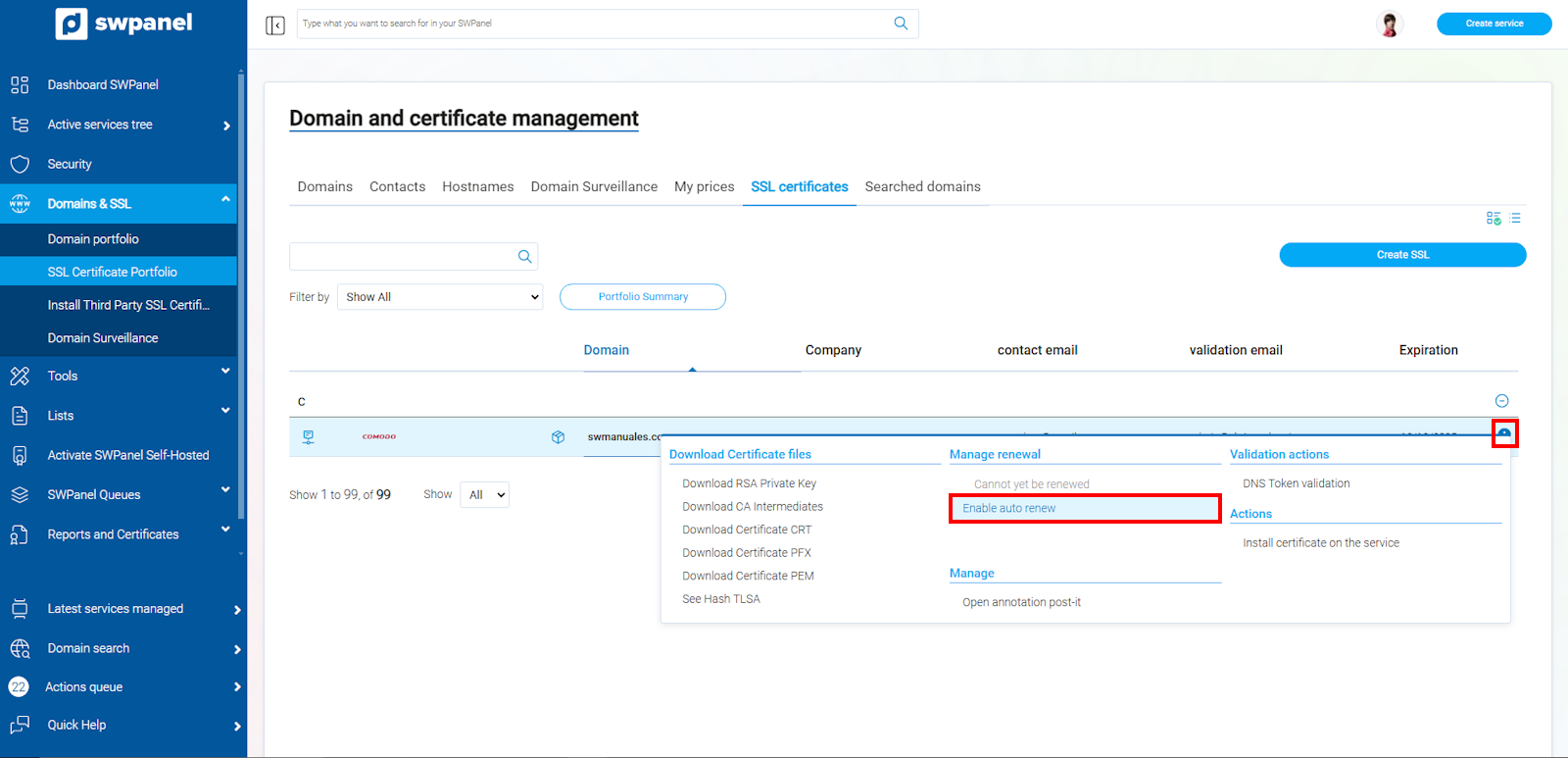
info_capture The screenshot is for guidance purposes. It was taken using version 2025.00.0017 dated 04/01/2025. It may differ from what the current version of SWPanel displays.
Once the option is selected, the next step will be to accept the auto-renewal and click the "Activate auto-renewal now" button
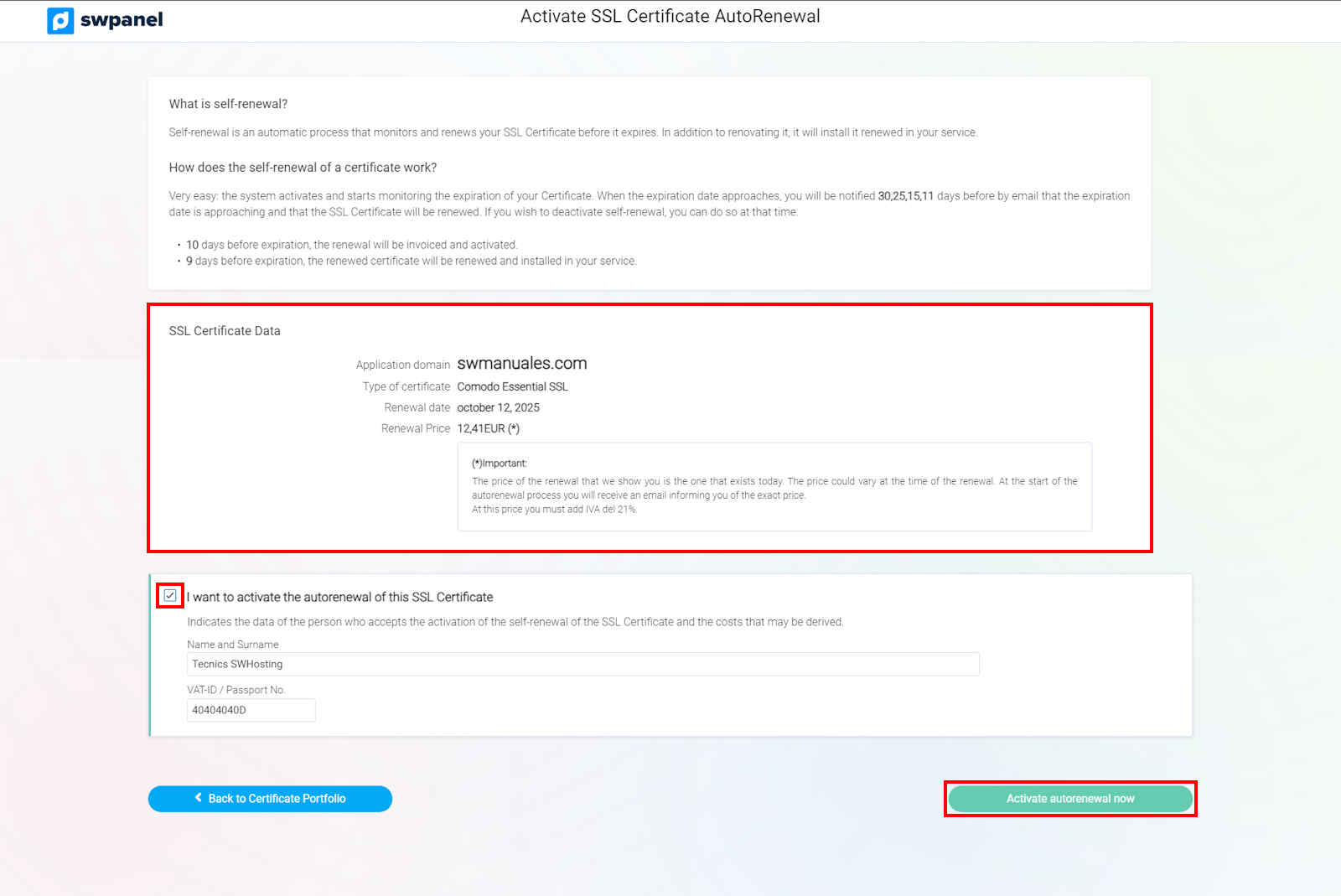
info_capture The screenshot is for guidance purposes. It was taken using version 2025.00.0017 dated 04/01/2025. It may differ from what the current version of SWPanel displays.
danger IMPORTANT: Please note that to activate the auto-renewal of an SSL certificate, the following conditions must be met:
- That it is not a self-signed Let's Encrypt certificate.
- That it can be auto-renewed (all except the self-signed Let's Encrypt).
- That the certificate is not expired.
- That the expiration date is more than 10 days from the current date.
- That the certificate has DNS Token validation.
- That the certificate is marked as auto-validate.
- That the certificate is marked as auto-install.
- To have no outstanding balance.
- To not have the service blocked for the certificate that you wish to install.
Other manuals related to SSL certificates that may be of interest to you
Manuale: Install third-party SSL certificate via SWPanel