
How to adjust the basic parameters of my hosting in a Cloud.
The steps to adjust the basic parameters of a Hosting service that belongs to a Cloud are as follows:
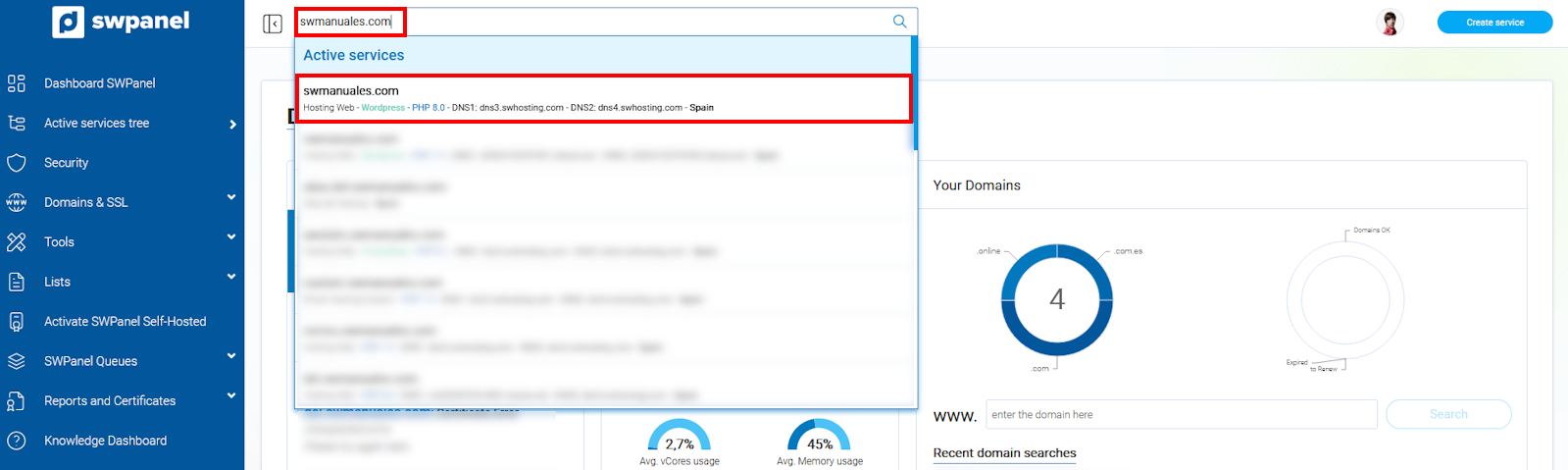
1- Type the name of the service in which you wish to modify the basic parameters in the SWPanel search bar and click on it.
info_capture The screenshot is for guidance purposes. It was taken using version 2025.00.0017 dated 03/01/2025. It may differ from what the current version of SWPanel shows.
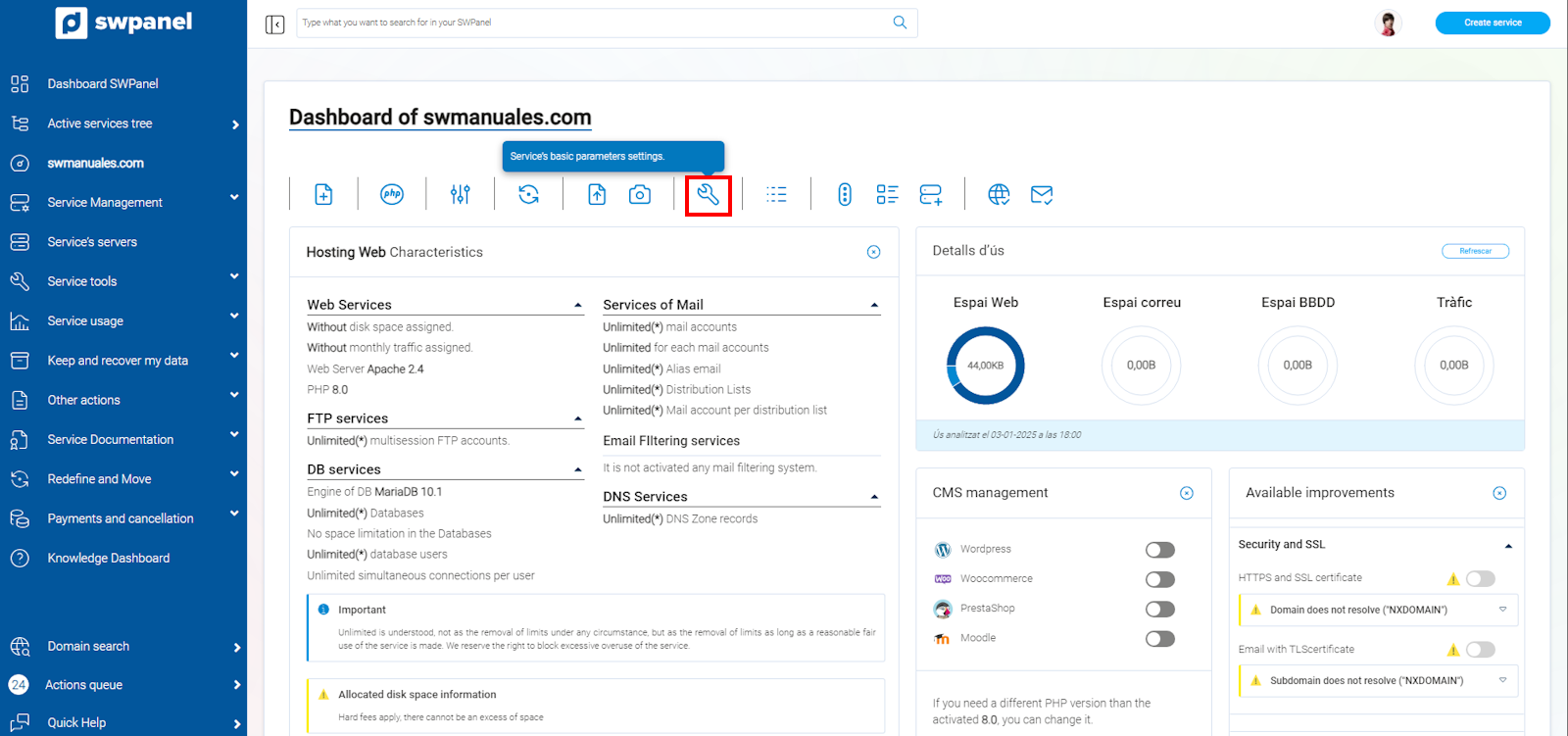
2- In the hosting service Dashboard, click on the basic service parameter settings icon, located between the specific functions and Hosting configuration icons.
info_capture The screenshot is for guidance purposes. It was taken using version 2025.00.0017 dated 03/01/2025. It may differ from what the current version of SWPanel shows.
3- You will then be able to modify PHP settings exclusive to this service, Nginx Web Server settings, and other advanced settings corresponding to the PHP programming engine version for your website.
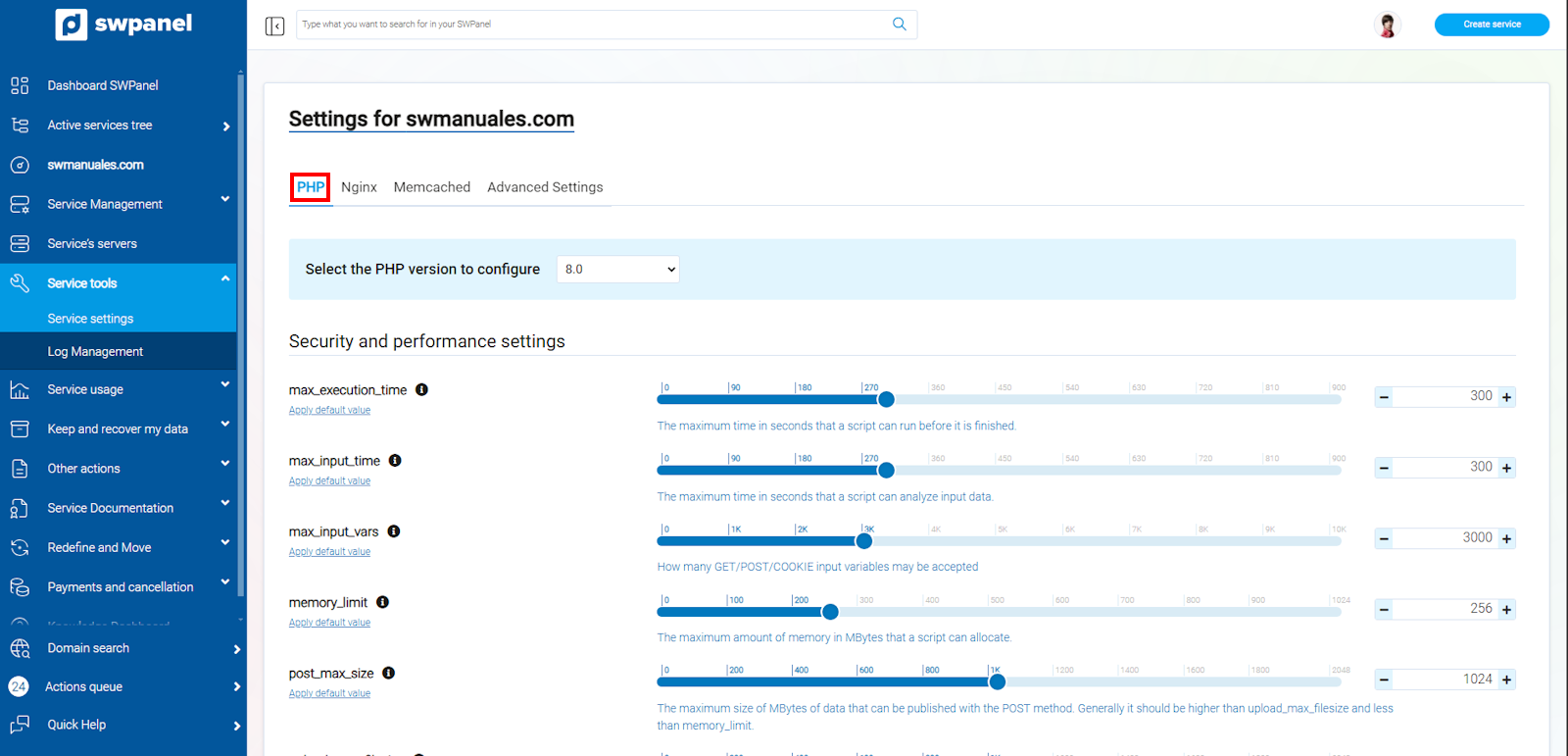
3.1- The following configurations are found in the basic PHP settings:
max_execution_time --> Sets the maximum time a script can run before it stops automatically. If a script takes too long to execute, this parameter ensures that a script does not occupy resources indefinitely.
max_input_time --> Controls how long the server can take to process the data it receives from the web, such as requests sent via POST or GET.
max_input_vars --> Limits the number of variables that can be sent to the server via web requests; if this number is exceeded, the server will not accept more data.
memory_limit --> Sets how much RAM a script can use on the server; if a script attempts to use more memory than allowed, the server will stop its execution.
post_max_size --> Determines the maximum size of the data you can send to the server via web requests, such as attachments or text; if the data size exceeds this limit, the server will not process it, NOTE: this value must be greater than 'upload_max_filesize'.
upload_max_filesize --> Limits the maximum size of a file that can be uploaded via the web; if an attempt is made to upload a file that exceeds this limit, the server will reject the request. NOTE: this value must be less than 'post_max_size'.
error_reporting --> The error information level.
open_basedir --> Allows specifying paths to which the hosting service user does not have access so that they can access and use their content.
pm --> Sets how the PHP process manager will control the number of subprocesses. Possible values: 'static', 'ondemand', 'dynamic'.
pm.max_children --> Sets the limit of simultaneous requests that PHP can serve for this service.
pm.max_spare_servers --> Maximum number of processes in 'idle' state. Only used when 'pm' is defined as 'dynamic'.
pm.min_spare_servers --> Minimum number of processes in 'idle' state. Only used when 'pm' is defined as 'dynamic'.
pm.process_idle_timeout --> Number of seconds after which an 'idle' state process will be canceled. Only used when 'pm' is defined as 'ondemand'. Available units: s(econds)(default), m(inutes), h(ours), or d(ays).
pm.start_servers --> Number of subprocesses or threads created at startup. Only used when 'pm' is defined as 'dynamic'.
Once you have defined the values you want, you must click on 'Save settings', located at the bottom of the page.
info_capture The screenshot is for guidance purposes. It was taken using version 2025.00.0017 dated 03/01/2025. It may differ from what the current version of SWPanel shows.
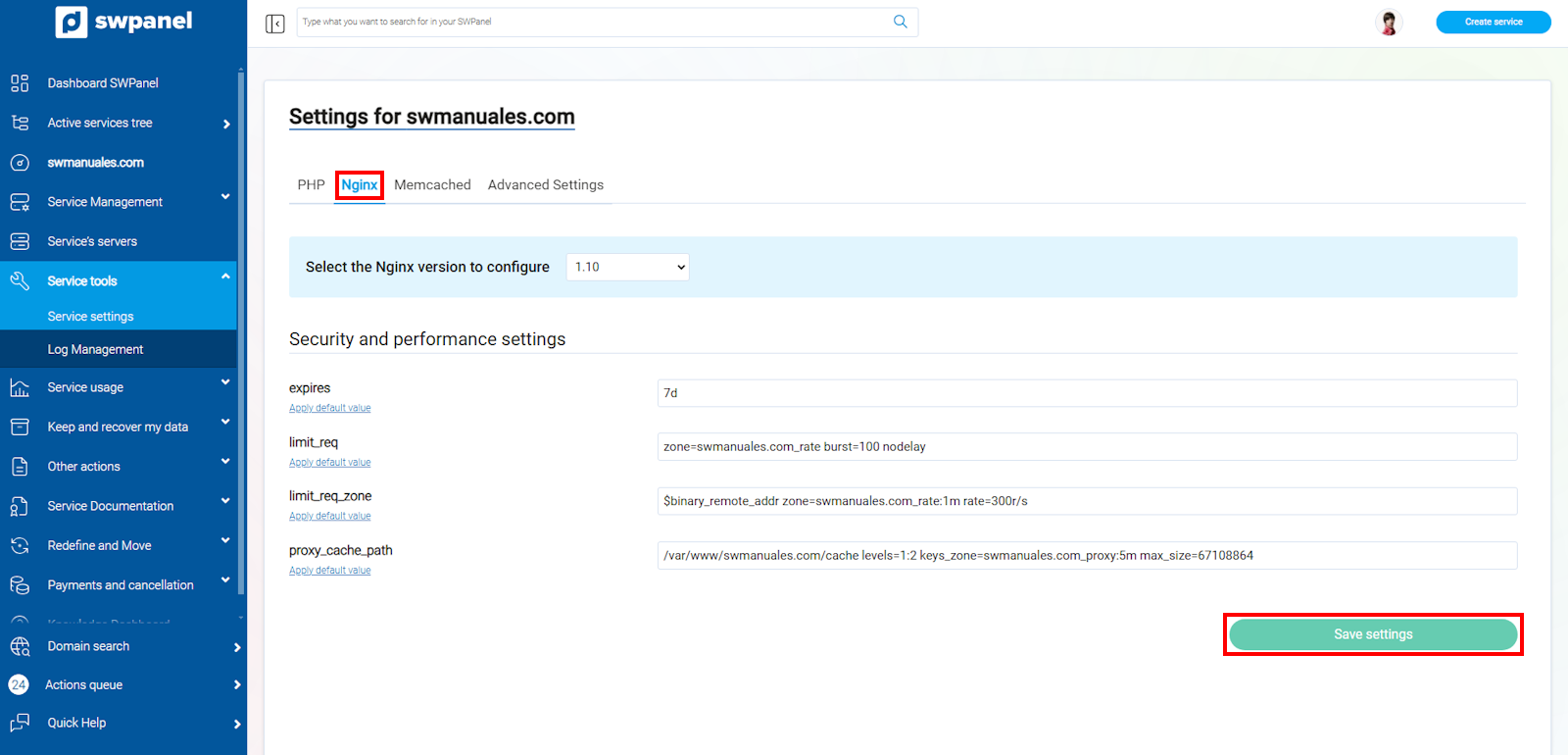
3.2- To switch to the Nginx settings, you must click on the tab. Among its settings are the following configurations:
expires ---> Indicates the amount of time that static data (jpg/cms/doc/pdf,...) from your website will be kept in the browser cache.
limit_req ---> Sets the shared memory zone ('zone' parameter) and the maximum size of the requests ('burst' parameter) that reach the Hosting service.
limit_req_zone ---> Parameters for a shared memory zone are defined. The zone stores the number of excessive requests. The 'rate' variable sets the number of requests that Nginx can handle per second. By default, this is set to 150 requests per second.
proxy_cache_path ---> Indicates where the cache file is located and other parameters regarding it. The 'max_size' value defines the maximum size of the cache in bytes.
Once you have defined the values you want, you must click on 'Save settings' to confirm the changes.
info_capture The screenshot is for guidance purposes. It was taken using version 2025.00.0017 dated 03/01/2025. It may differ from what the current version of SWPanel shows.
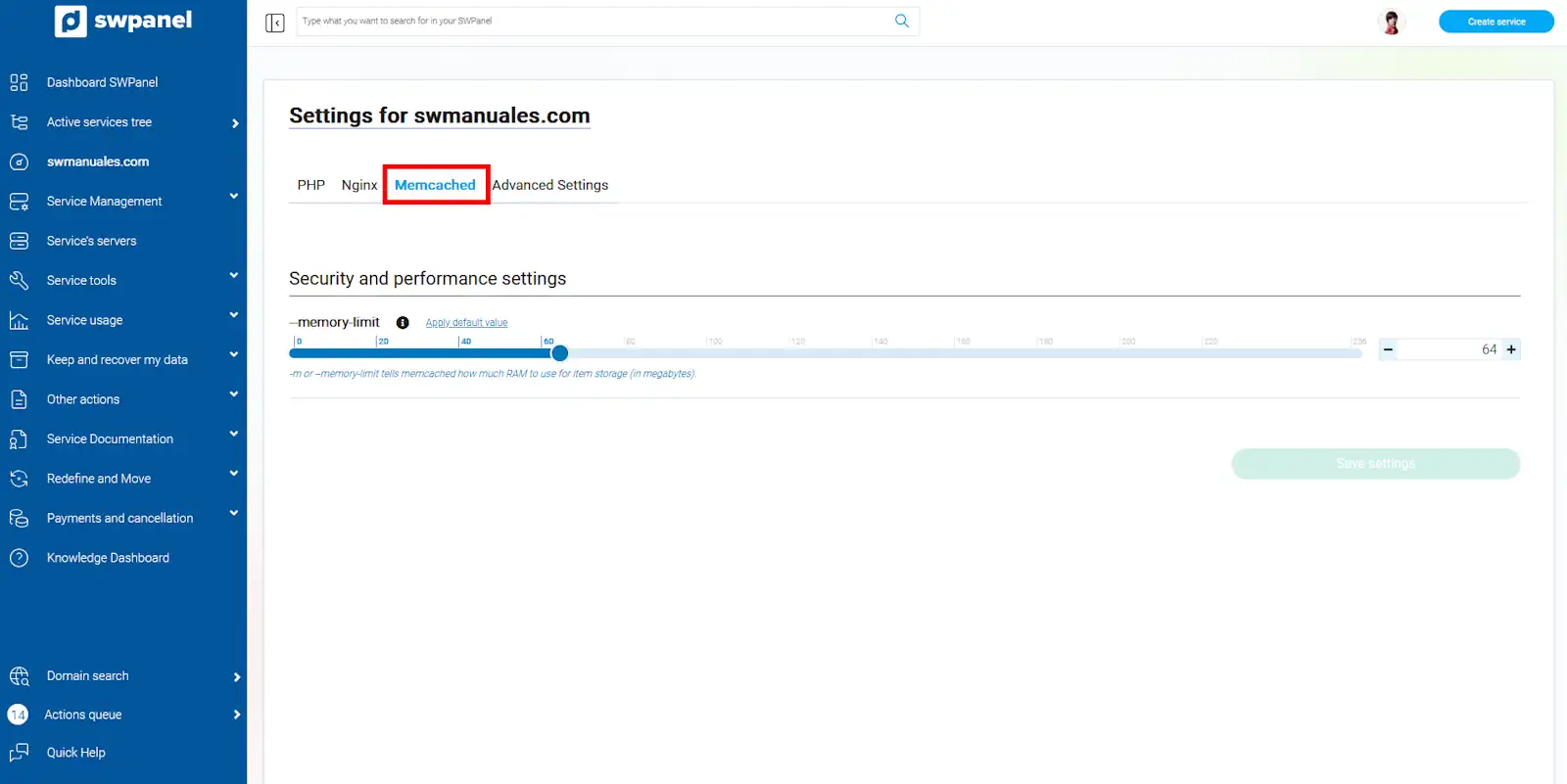
3.3- To switch to the Memcached settings, you must click on the tab. Among its settings are the following configurations:
--memory-limit --> Indicates how much memory(MB) memcached can use to store data in cache; the minimum recommended amount is 64 MB.
info_capture The screenshot is for guidance purposes. It was taken using version 2025.01.0001 dated 11/02/2025. It may differ from what the current version of SWPanel shows.
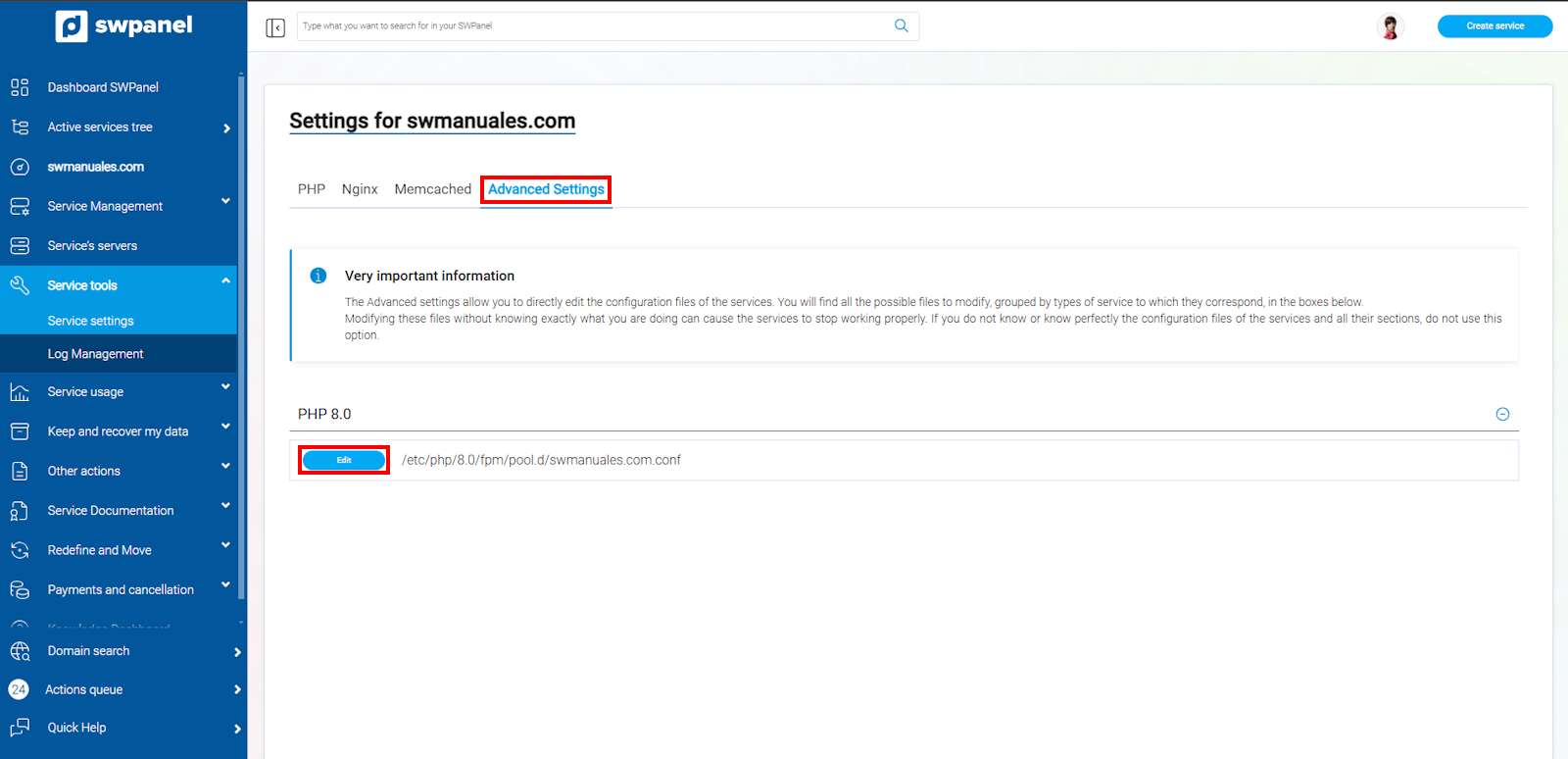
3.4- In the basic settings of your Hosting service, you can modify settings regarding the configuration of the PHP programming engine used by the website. To change those parameters, you must click on 'Advanced Settings' and 'Edit'.
info_capture The screenshot is for guidance purposes. It was taken using version 2025.00.0017 dated 03/01/2025. It may differ from what the current version of SWPanel shows.
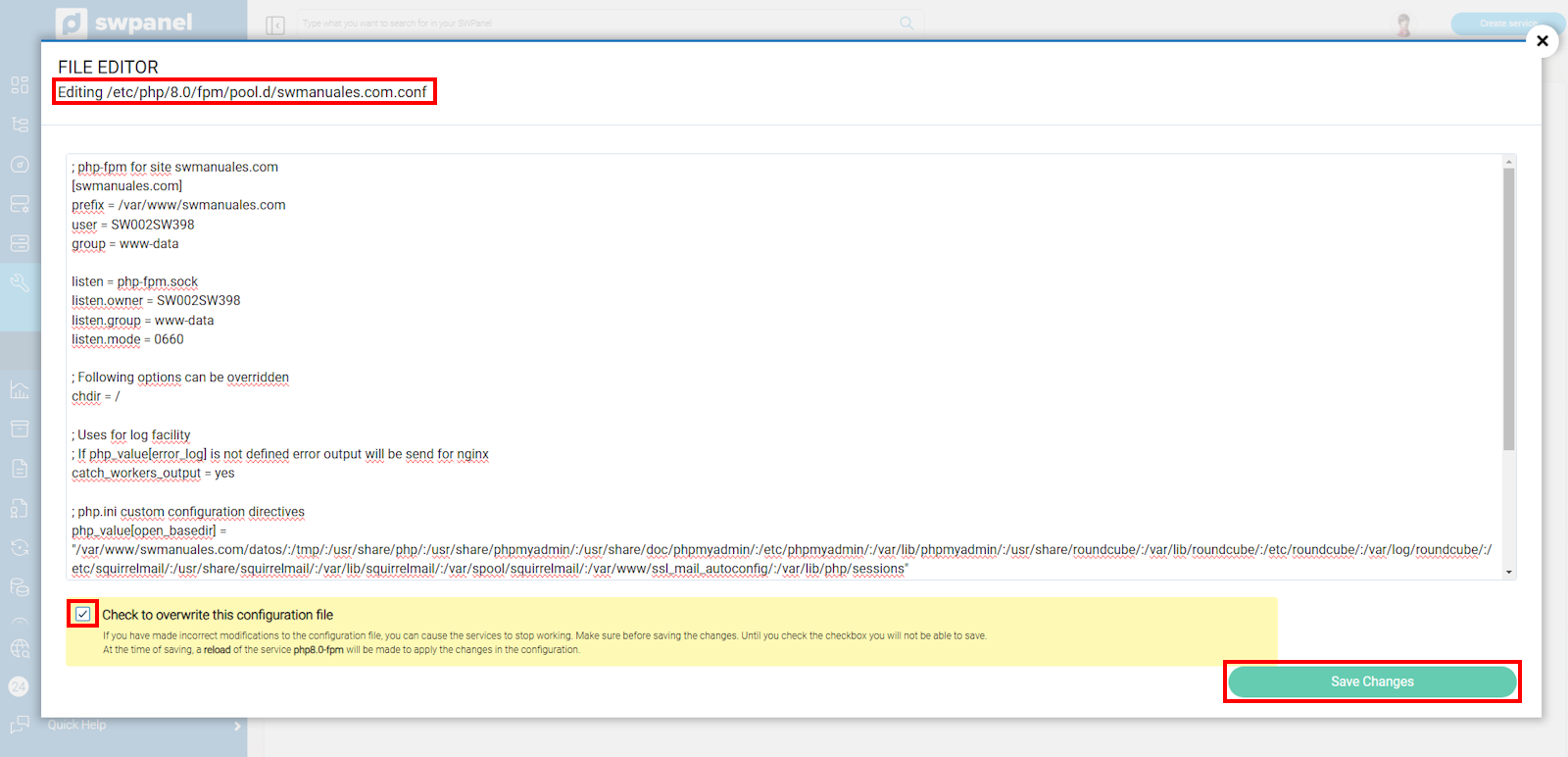
You will then have access to different PHP variables and values that can influence the behavior of your website.
It is worth noting that the value of pm.max_children is found in this file, which indicates the maximum number of simultaneous requests that will be served by PHP for each of the connections from the different users connected to your website. By default, the number 10 is assigned to this parameter, indicating that each connection from the same user to your website can create a maximum of 10 simultaneous requests to deliver content through the PHP engine of that website.
Once you have configured the value you want to modify among the different advanced settings, you must check the validation box to overwrite the existing configuration file and, finally, save the changes.
info_capture The screenshot is for guidance purposes. It was taken using version 2025.00.0017 dated 03/01/2025. It may differ from what the current version of SWPanel shows.
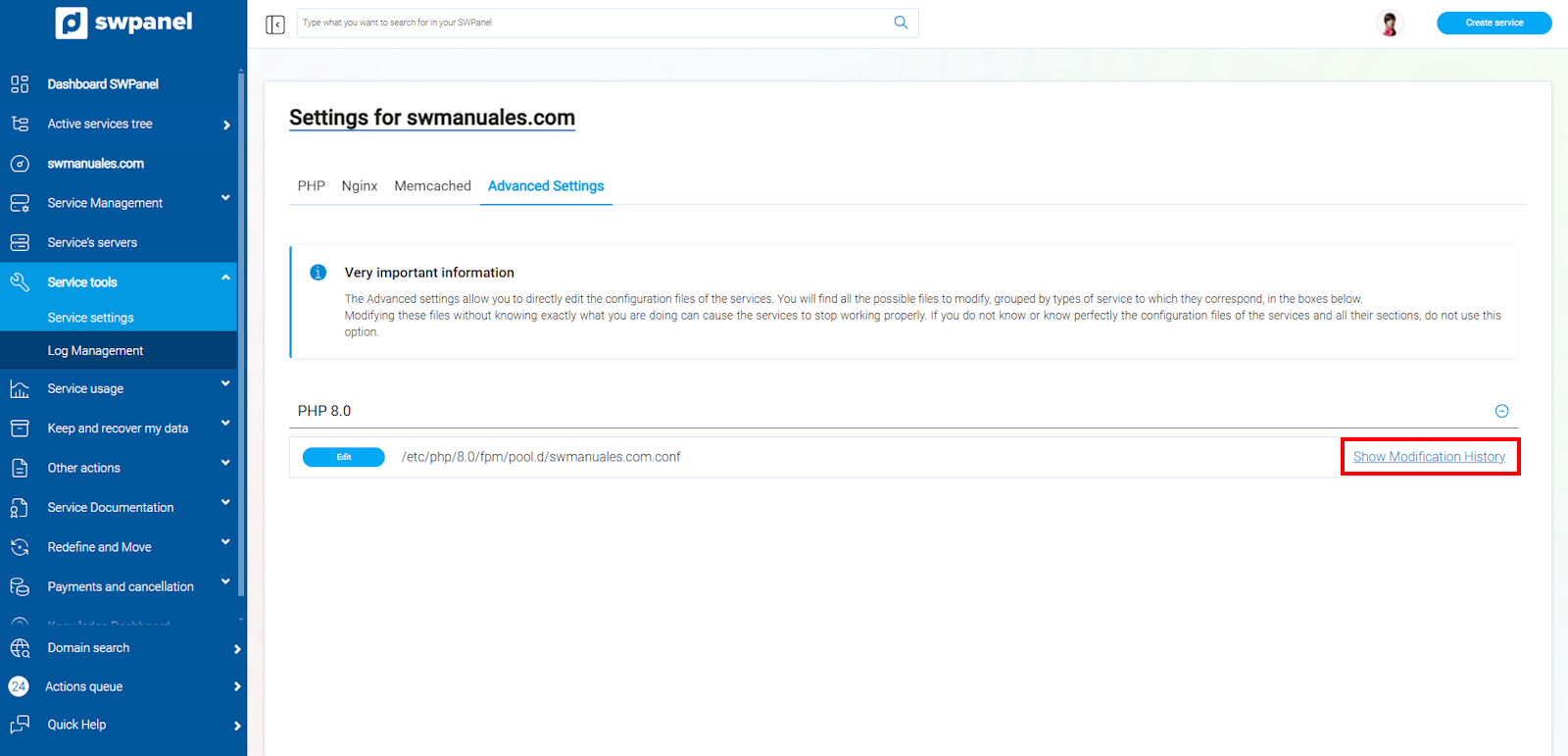
It is important to highlight that there is a modification history, where all the configurations saved from the PHP configuration engine are stored.
To access it, you must be in the advanced settings of the basic parameters of the Hosting service and press Show Modification History, to the right of the PHP file.
info_capture The screenshot is for guidance purposes. It was taken using version 2025.00.0017 dated 03/01/2025. It may differ from what the current version of SWPanel shows.
You will see that all the different configurations that have been modified in the file are displayed. If you hover over the three dots [...], to the right of one of the configurations, you will see the following options:
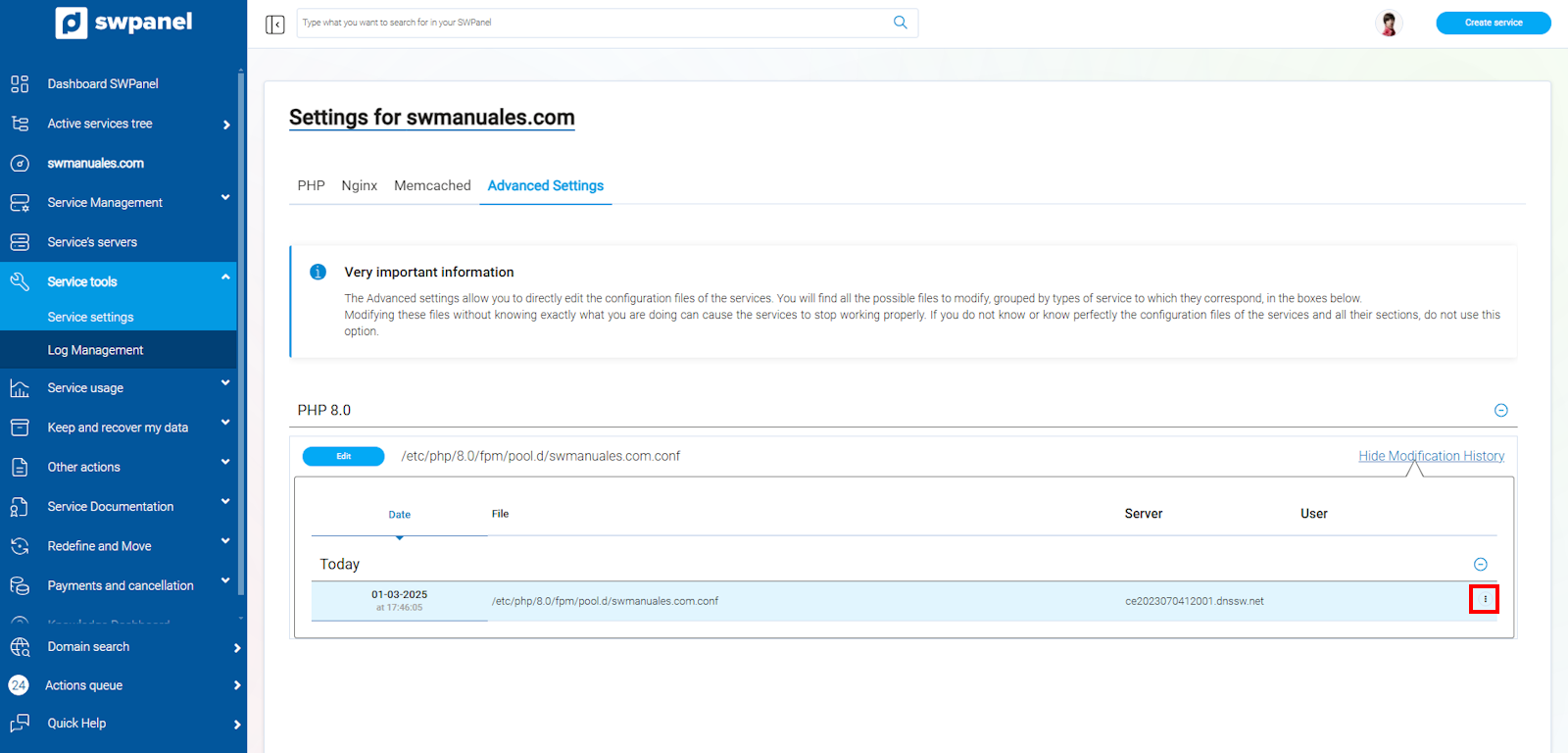
info_capture The screenshot is for guidance purposes. It was taken using version 2025.00.0017 dated 03/01/2025. It may differ from what the current version of SWPanel shows.
In the first option, 'View configuration file', you can review the PHP file without being able to modify it.
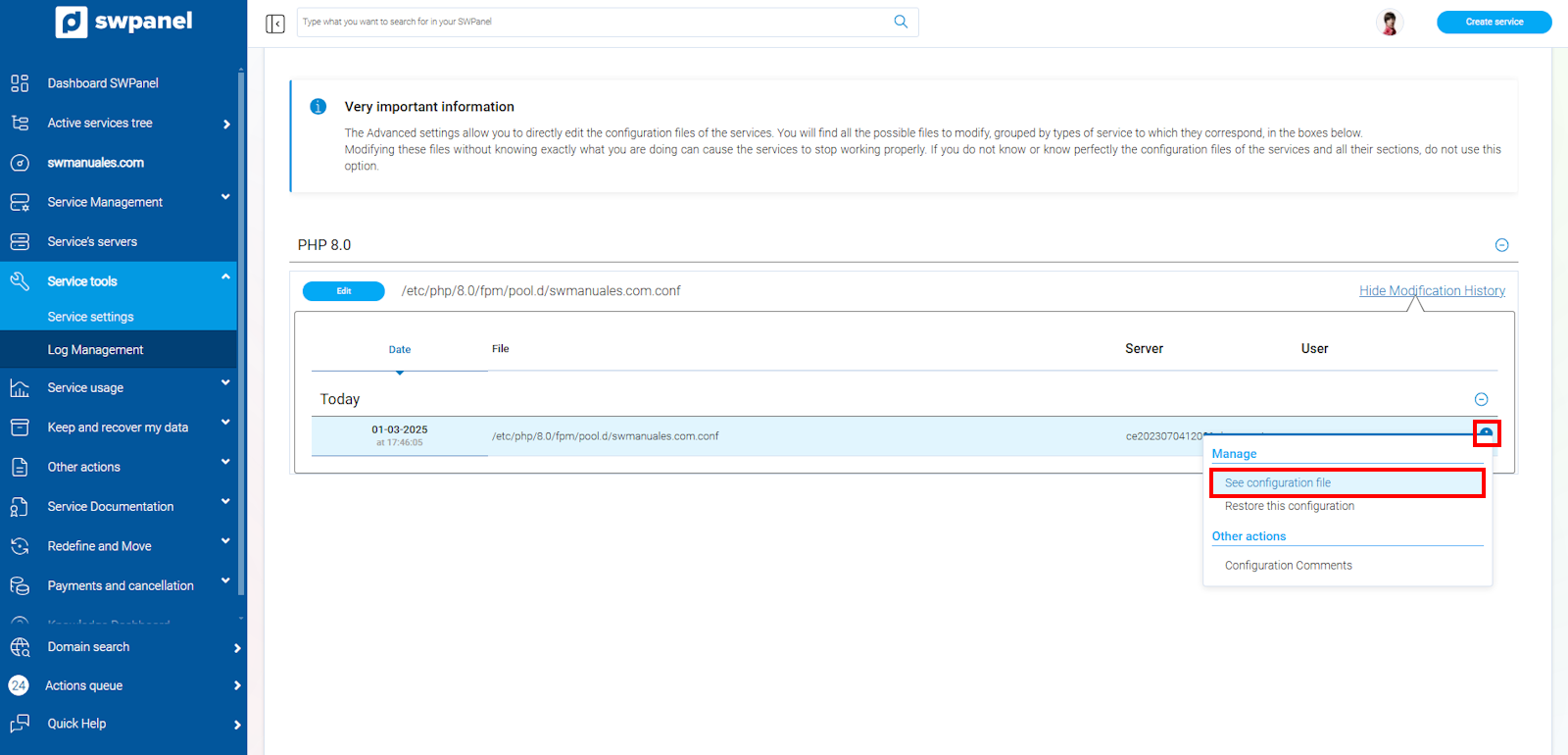
info_capture The screenshot is for guidance purposes. It was taken using version 2025.00.0017 dated 03/01/2025. It may differ from what the current version of SWPanel shows.
In the second option, 'Restore this configuration', you can restore the configuration you are selecting.
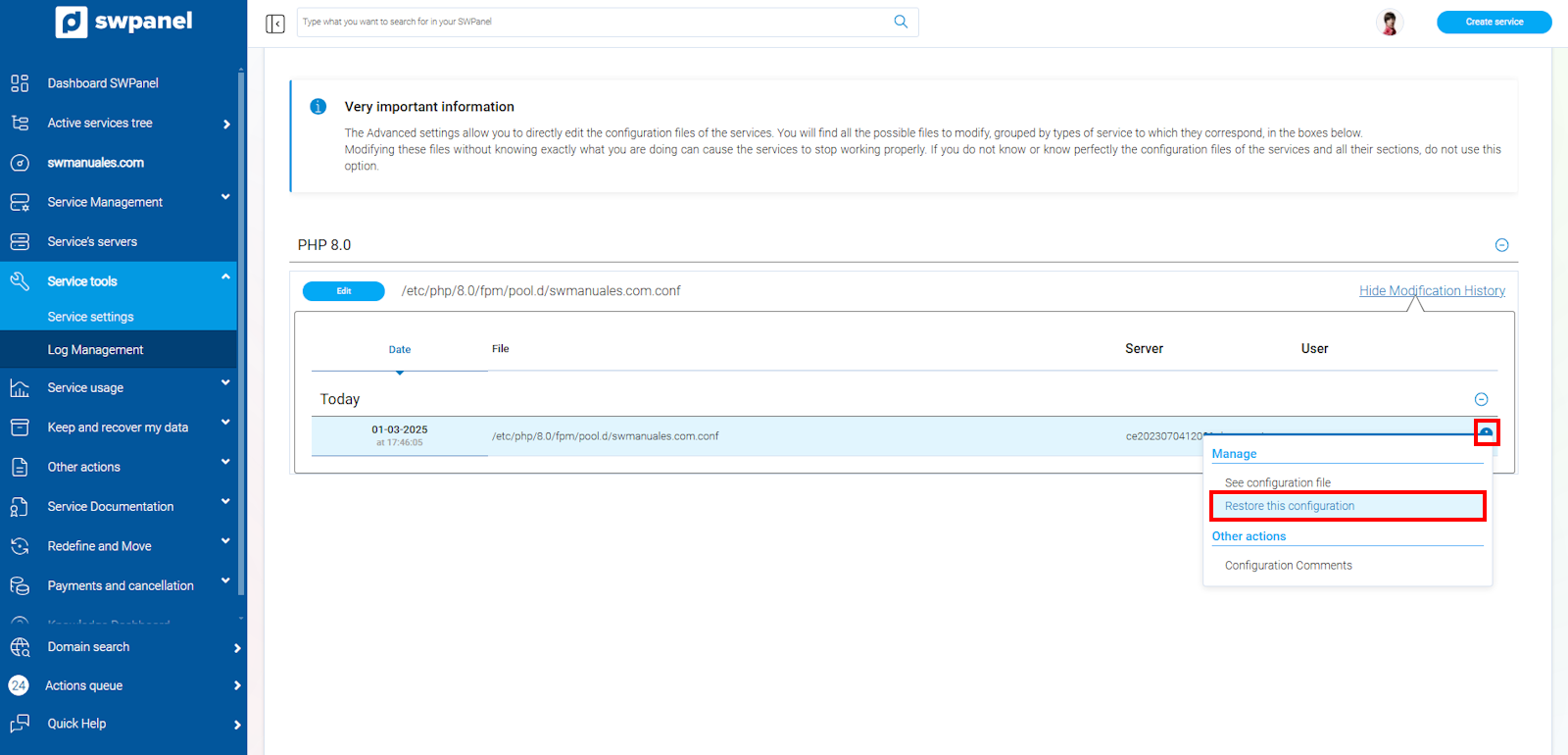
info_capture The screenshot is for guidance purposes. It was taken using version 2025.00.0017 dated 03/01/2025. It may differ from what the current version of SWPanel shows.
To restore it, you only need to type the random word requested to confirm the restoration of the configuration file and, finally, click on 'Yes, restore now'.
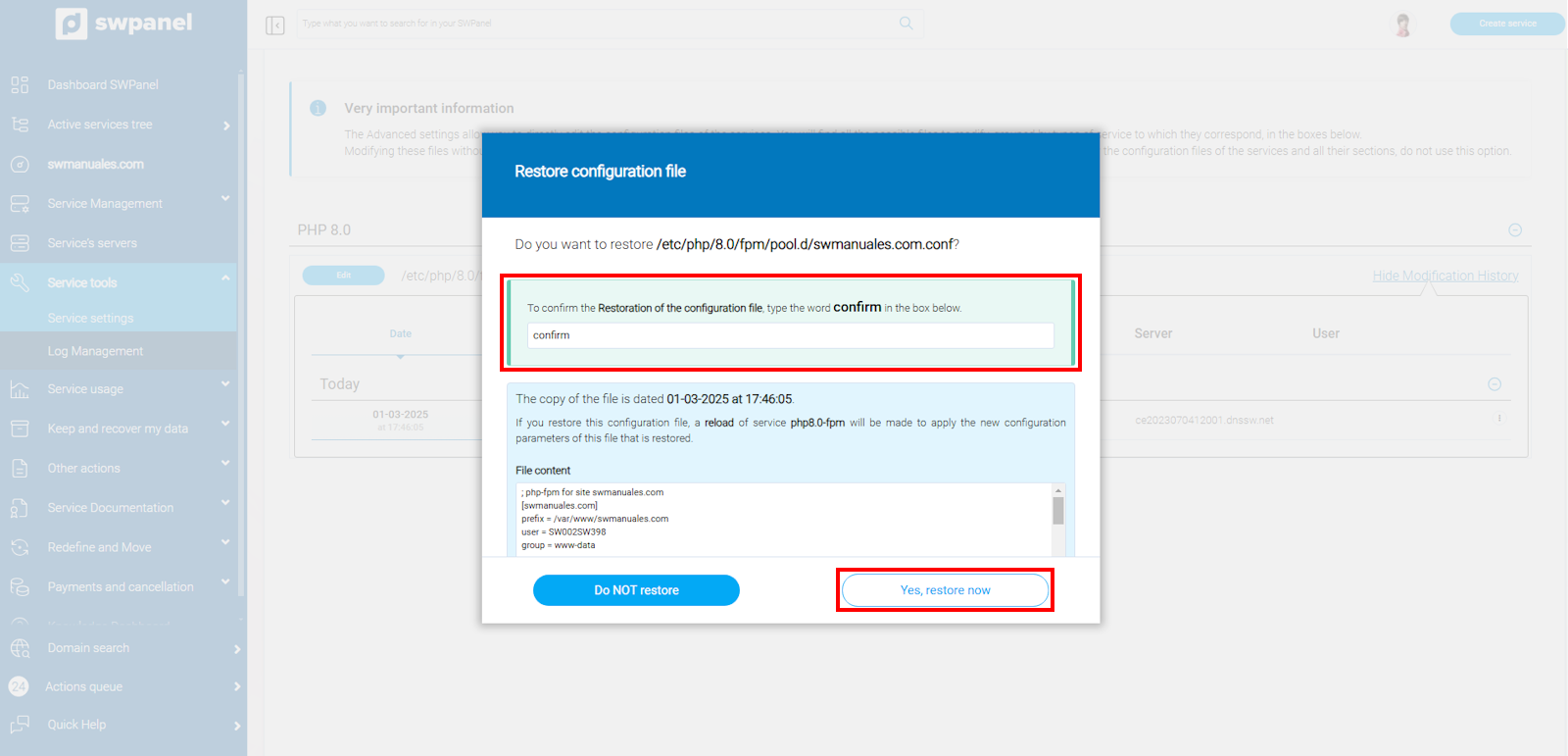
info_capture The screenshot is for guidance purposes. It was taken using version 2025.00.0017 dated 03/01/2025. It may differ from what the current version of SWPanel shows.
In the third and final option, 'Comments on configuration', you can add comments to each of the configurations you have. These comments can be very useful if used as reminders, as they will not affect the PHP file.
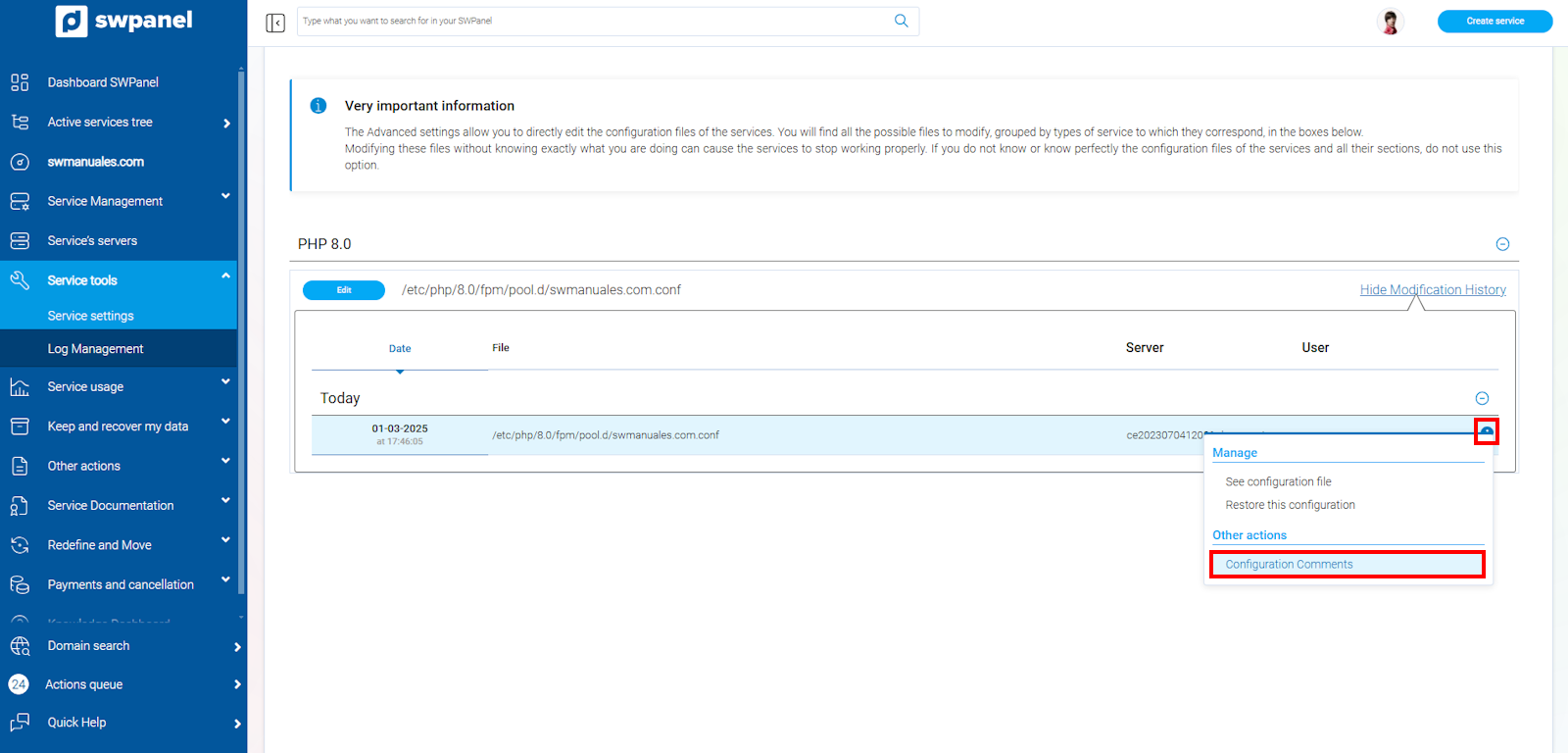
info_capture The screenshot is for guidance purposes. It was taken using version 2025.00.0017 dated 03/01/2025. It may differ from what the current version of SWPanel shows.