
How to clear the cache of Smart Hosting and Smart Hosting +
The Manuale: What is cache memory? acts as a high-speed intermediary between the processor and the main memory, storing frequently accessed data to reduce access times and improve the overall system performance. However, in certain cases, it is necessary to disable it to correctly view the changes made to a website. In this manual, you will learn how to clear the cache memory in the Smart Hosting and Smart Hosting + tools of your hosting.
Smart Hosting + is not enabled by default. We have this manual - Manuale: How to activate Smart Hosting + for your website where we detail how to activate it.
To clear the cache of your website, you must follow these steps: in the general dashboard of your SWPanel, look for the Cloud hosting service for which you wish to clear the cache, and once located, click on its name.
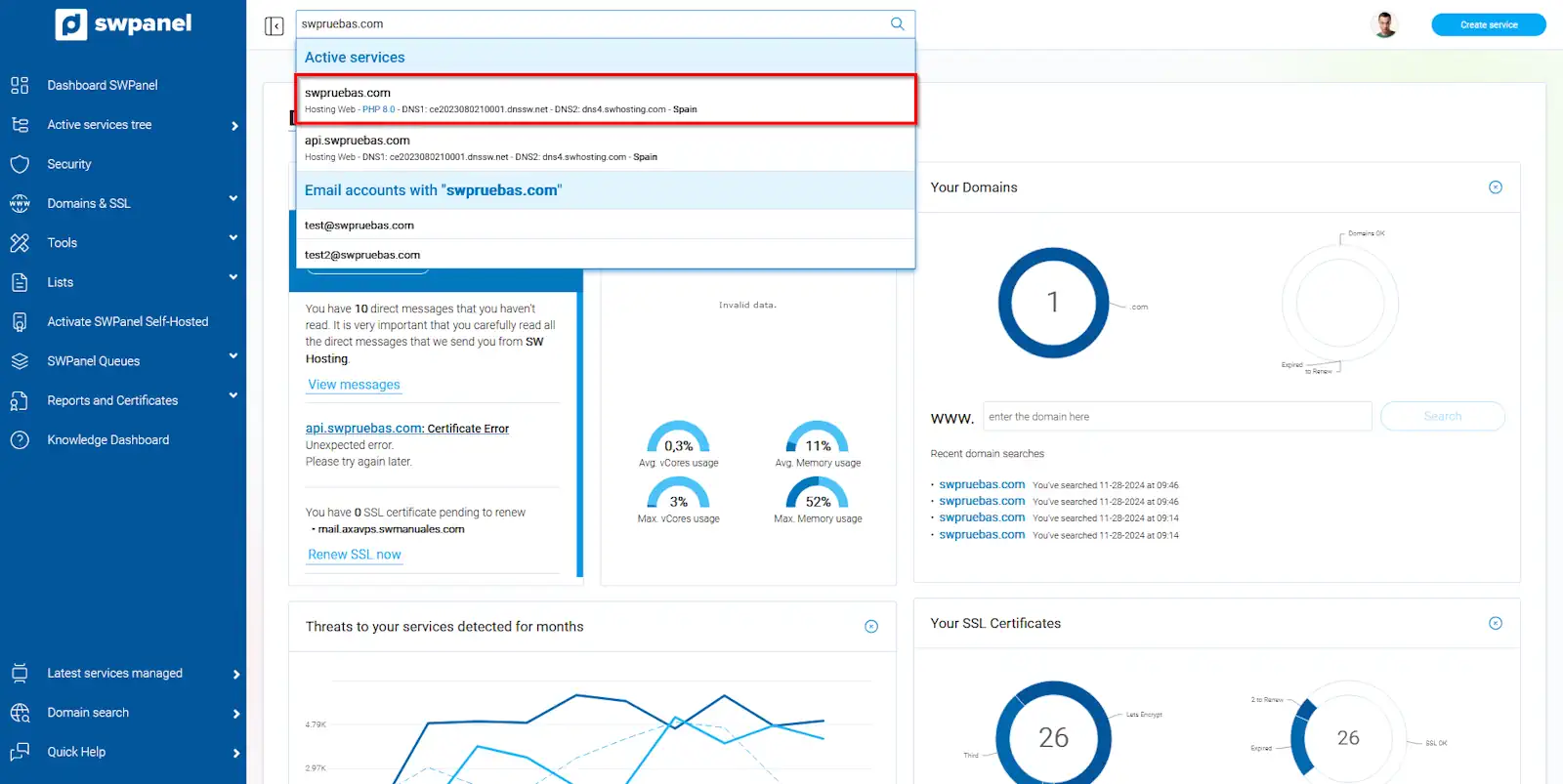
info_capture The screenshot is for guidance only. It was taken using version 2025.00.0015 dated 28/11/2024. It may differ from what the current version of SWPanel shows.
Clear the Smart Hosting cache
- Once in the Dashboard of your Hosting service, look for the 'Web acceleration services: Smart Hosting' box and click on Clear cache data.
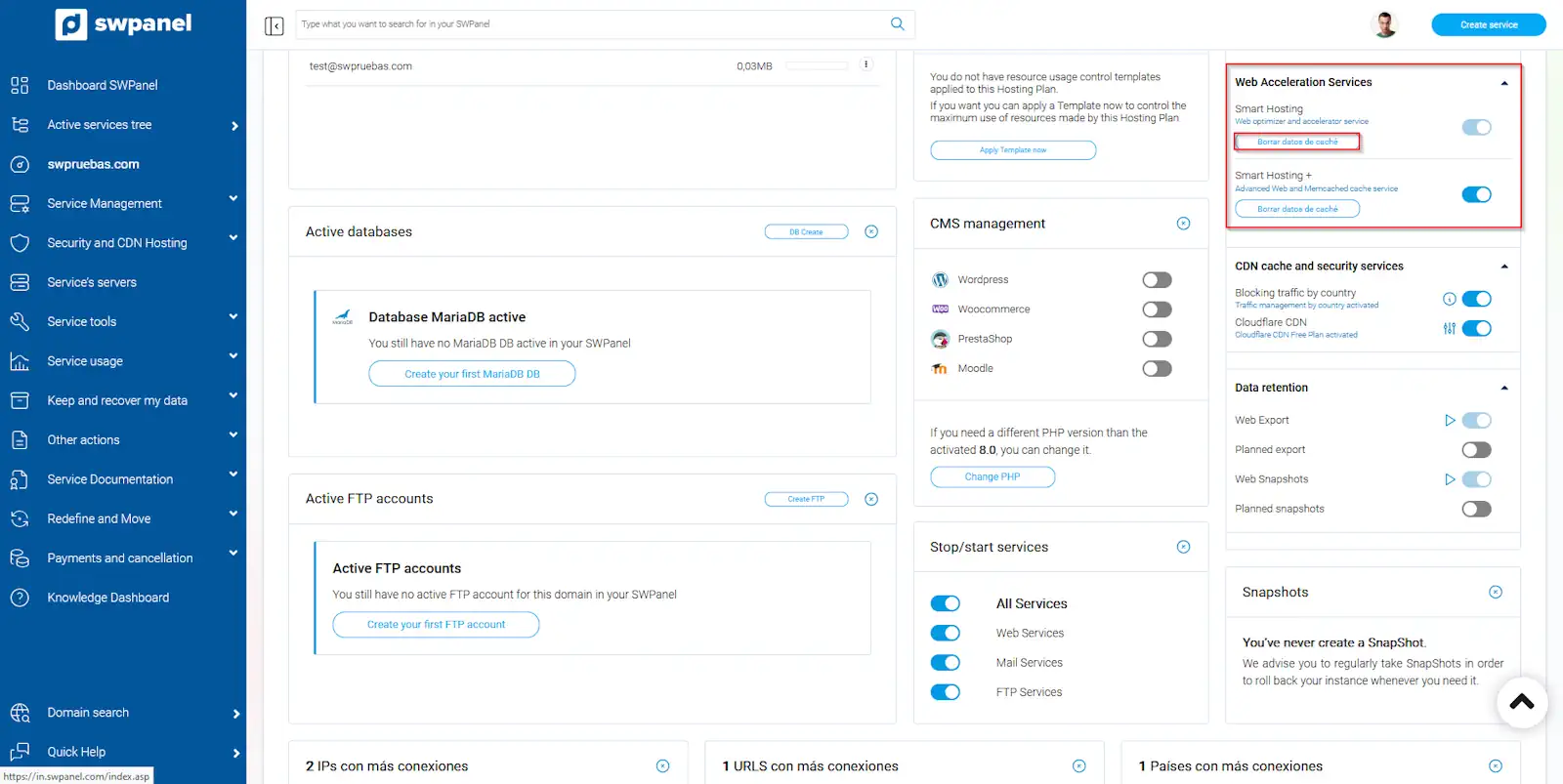
info_capture The screenshot is for guidance only. It was taken using version 2025.00.0015 dated 28/11/2024. It may differ from what the current version of SWPanel shows.
- On the following screen, you must check the box to agree to clear the memory, and click on Clear cache now.
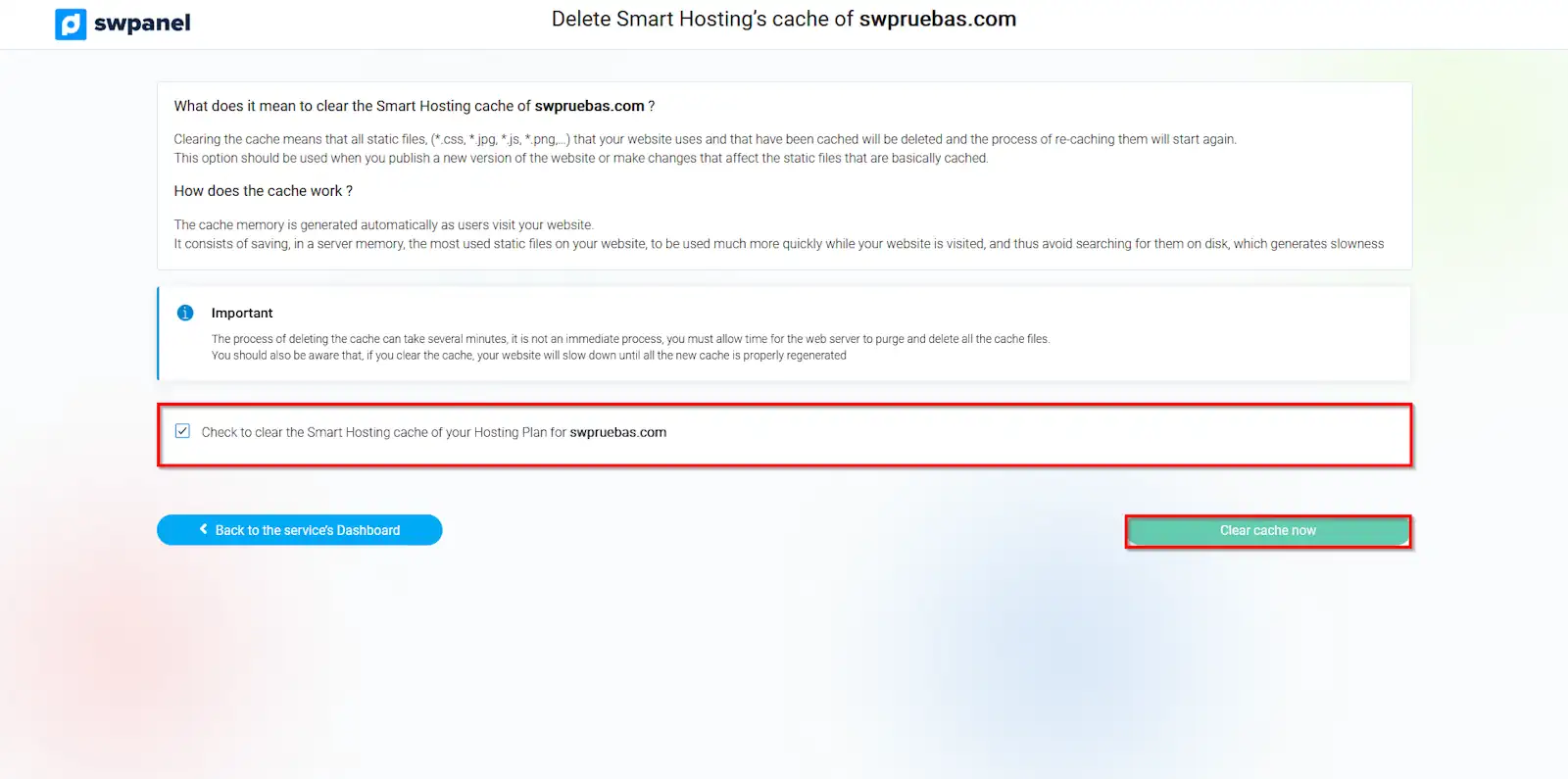
info_capture The screenshot is for guidance only. It was taken using version 2025.00.0015 dated 28/11/2024. It may differ from what the current version of SWPanel shows.
Clear the Smart Hosting + cache
From the same Dashboard of your Hosting, locate again the 'Web acceleration services: Smart Hosting +' box and click on Clear cache data.
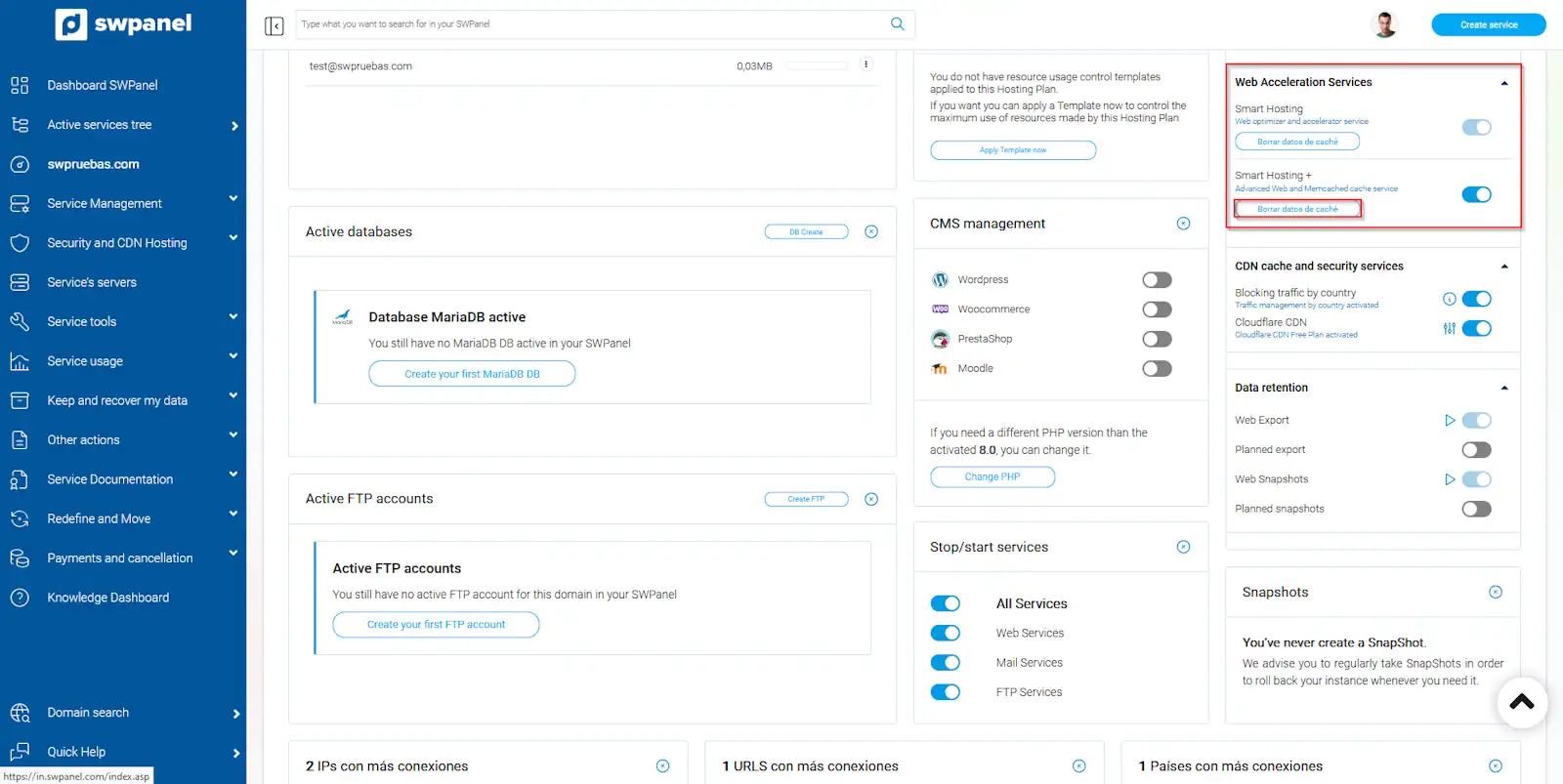
info_capture The screenshot is for guidance only. It was taken using version 2025.00.0015 dated 28/11/2024. It may differ from what the current version of SWPanel shows.
- On the following screen, you must check the box to agree to clear the memory, and click on Clear cache now.
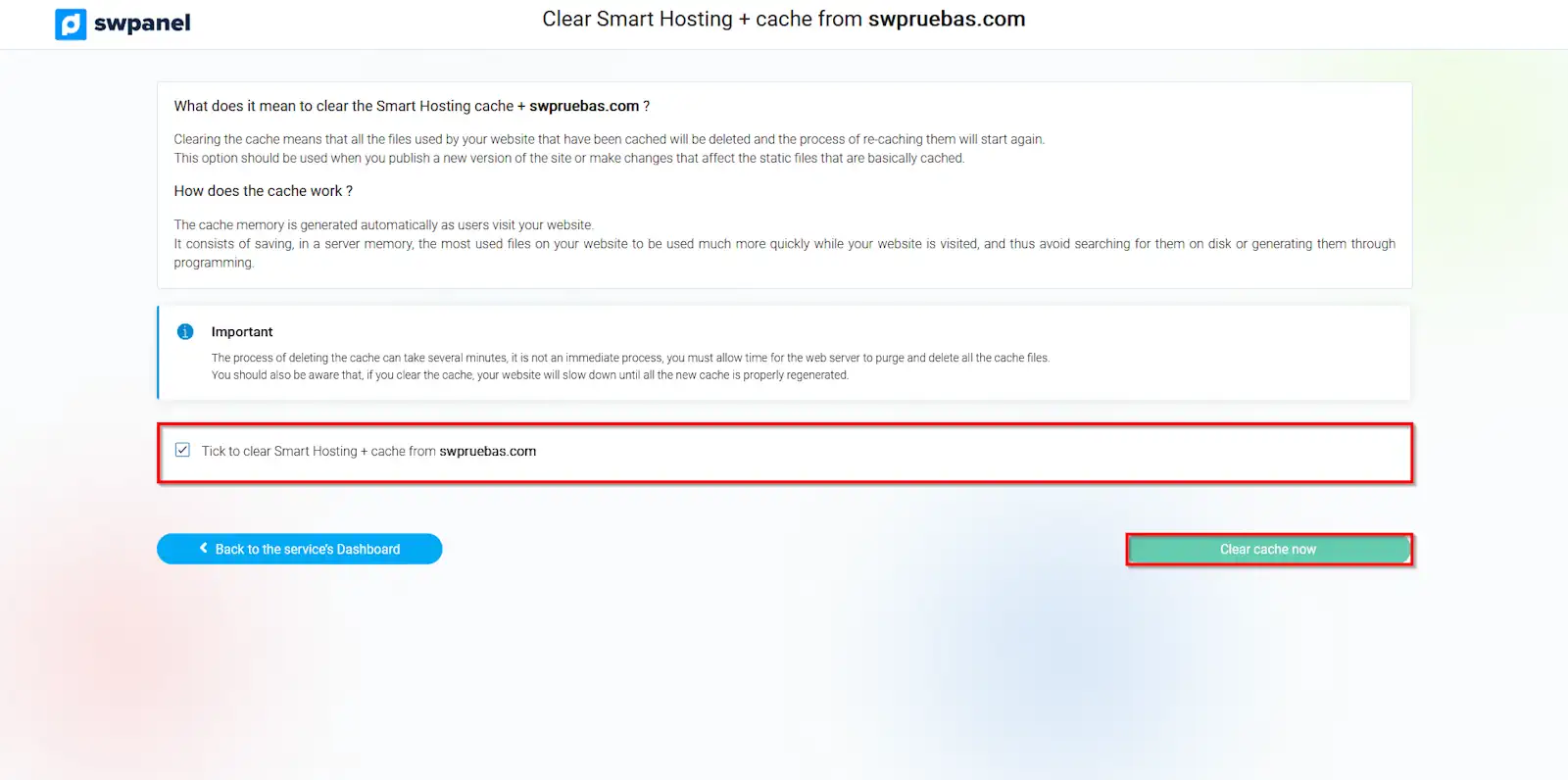
info_capture The screenshot is for guidance only. It was taken using version 2025.00.0015 dated 28/11/2024. It may differ from what the current version of SWPanel shows.