
How to clone a Hosting on your Cloud server with SWPanel
Cloning a Hosting can be useful to have another hosting service, using another domain name or subdomain with the same web data as the original hosting. In this manual, we will show you how you can clone your Hosting hosted on a Cloud with SWPanel.
danger This cloning method is only applicable to hostings that are hosted on a private Cloud with SWPanel.
If you do not have a Cloud with SWPanel, you can contract one and move your hosting into it, following the indications of the following manuals:
Below, we mention the data and features that will be cloned into the new hosting:
The following features/content are cloned:
- Hosting Content
- Hosting Databases
- Hosting PHP and WordPress settings
The following features/content are NOT cloned:
- Email accounts
- DNS records
- FTP accounts
- Crons
Cloning a Hosting
- First of all, you must go to the Dashboard --> Active services tree --> Hosting [...] Menu --> Clone this Hosting:
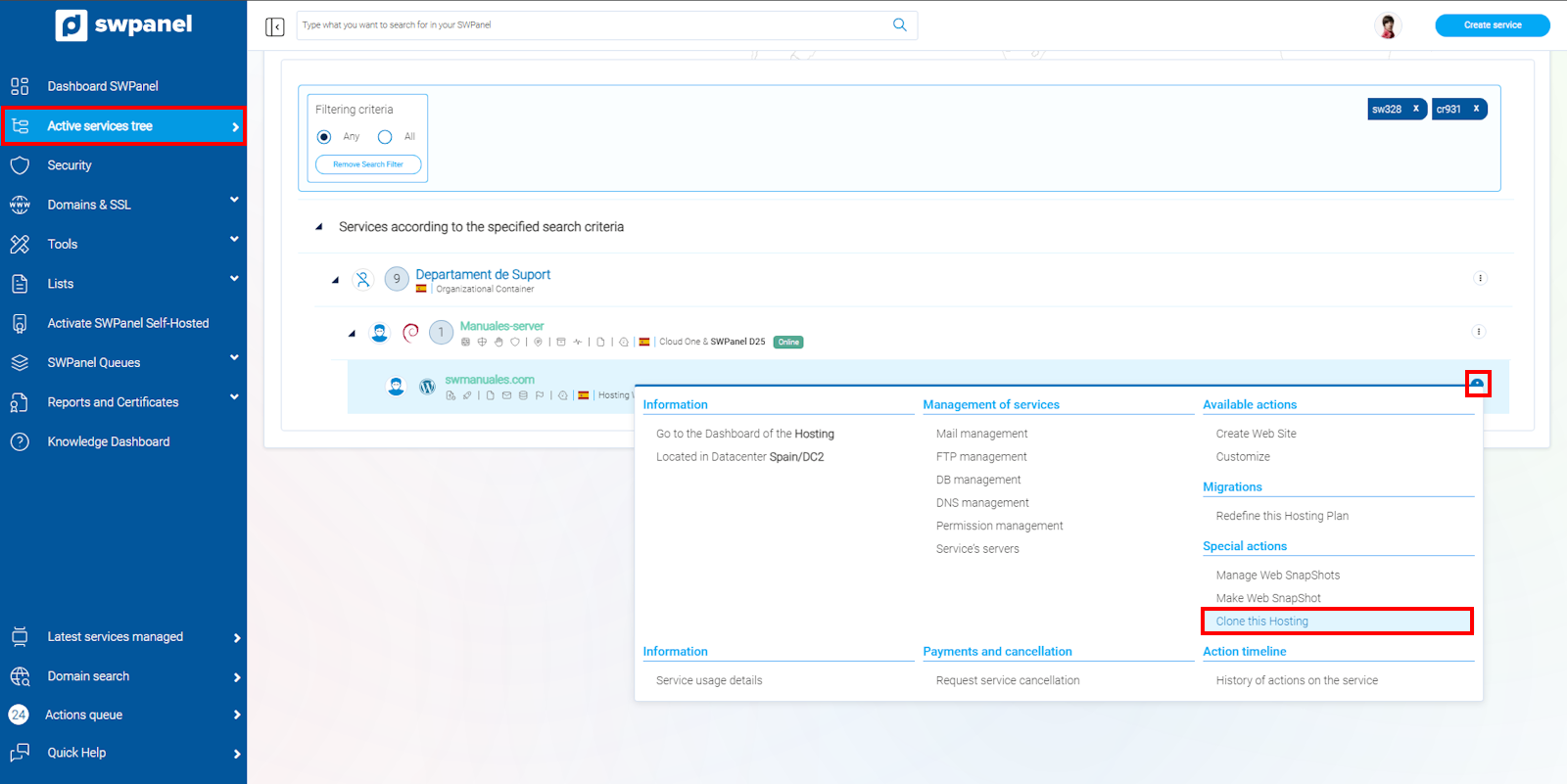
info_capture The screenshot is for guidance purposes. It was taken from version 2025.00.0017 on 12/29/2024. It may differ from what the current version of SWPanel shows.
- A window will open in which we can select which resources we want to clone (Web / Databases) and set a domain name for the new hosting service:
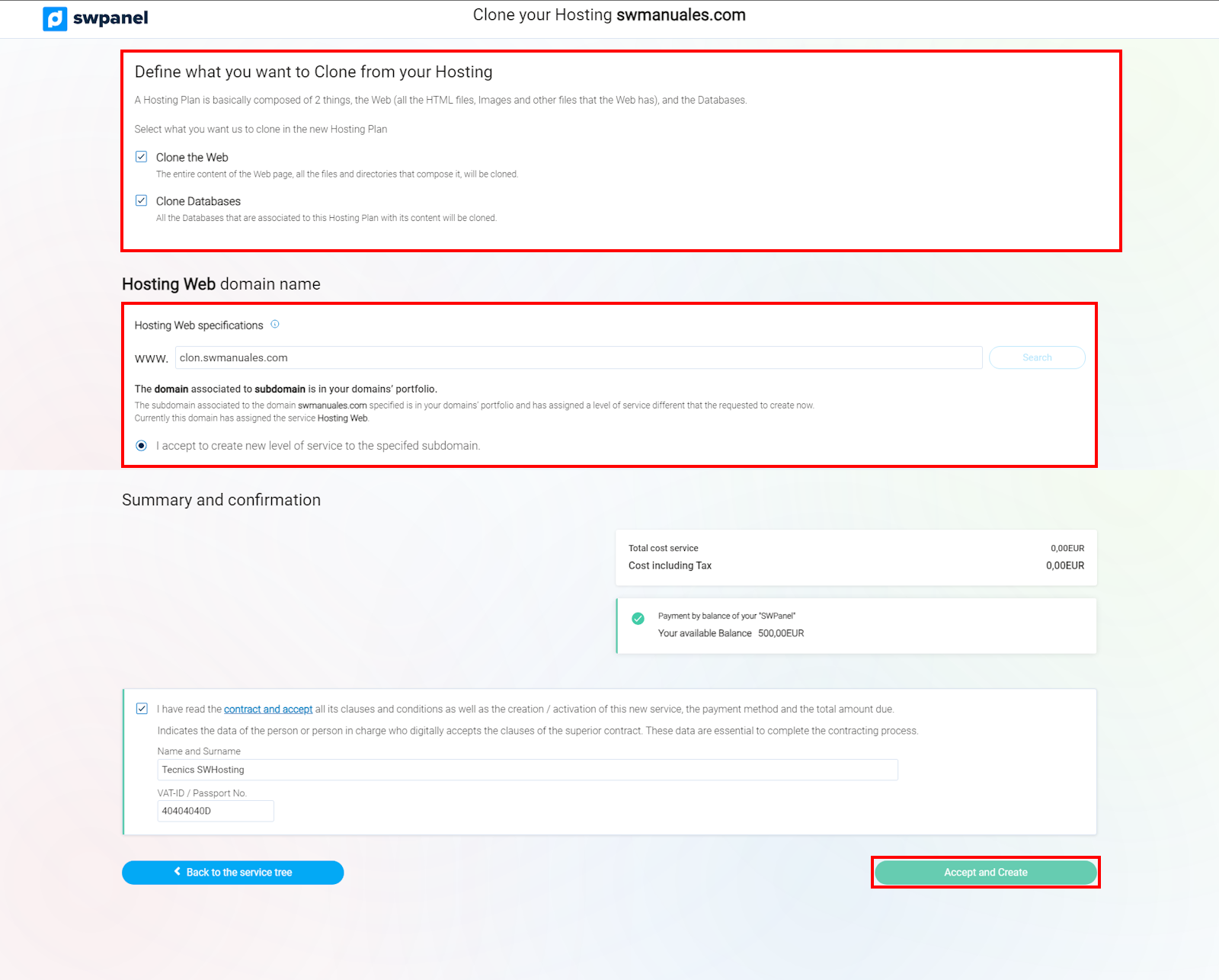
info_capture The screenshot is for guidance purposes. It was taken from version 2025.00.0017 on 12/29/2024. It may differ from what the current version of SWPanel shows.
info The new DB and DB user will have the name 'clon_' or 'clone_', followed by the original name of the DB or user. Example:
- clon_originalDB
- clon_originalDBuser
- We will click on Accept and create, so that the cloning process will begin:
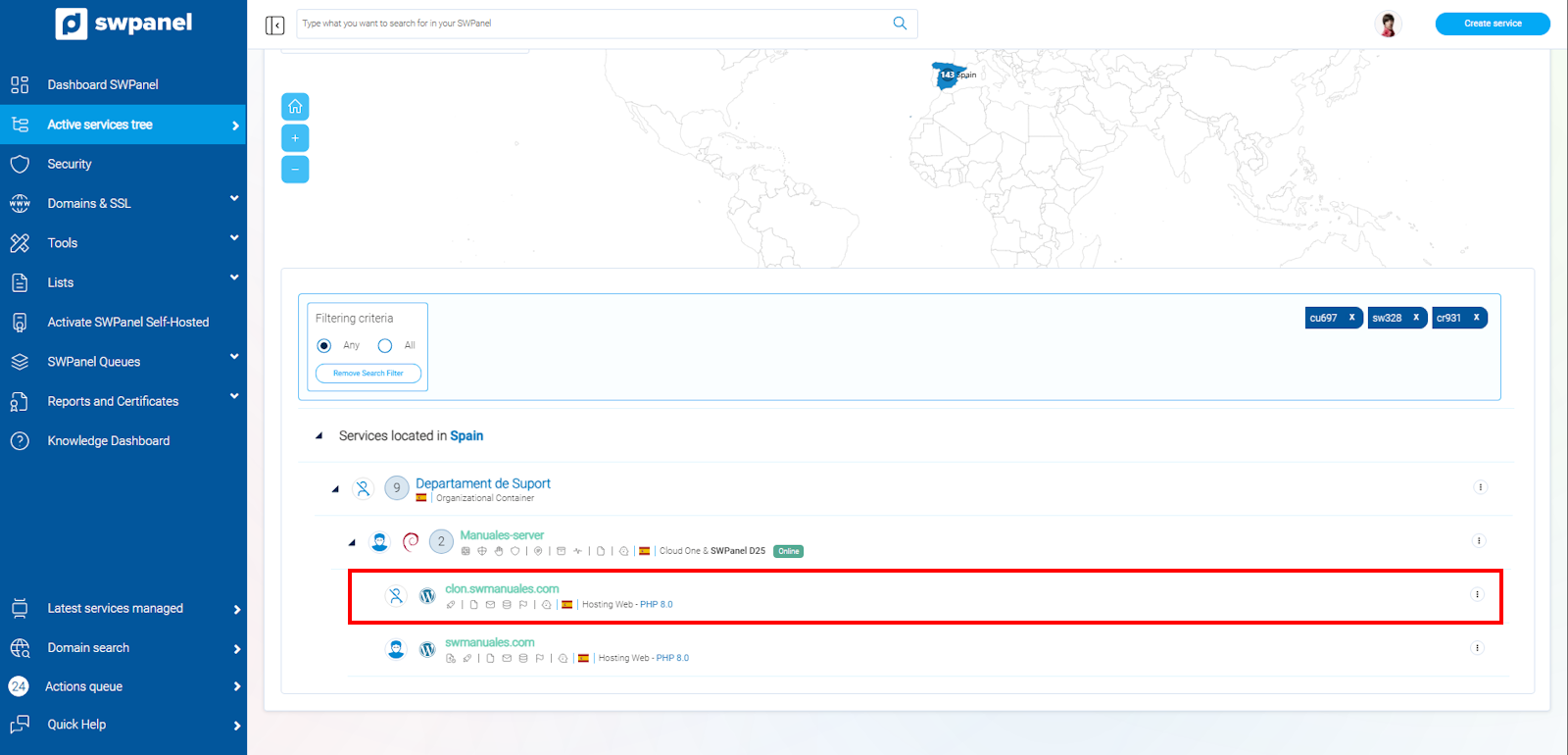
info_capture The screenshot is for guidance purposes. It was taken from version 2025.00.0017 on 12/29/2024. It may differ from what the current version of SWPanel shows.
info Please note that for the cloned Web to work correctly, you must reconfigure the DB connection internally, and possibly also the relative URL links that your Cloned Web is using. If you do not make these modifications, the cloned Web will remain connected to the DB of the Source Web, and it is possible that some web links are still using the Source domain name.
Configuring a Cloned WordPress
In case your cloned web is a WordPress, we provide all the modifications you would need to make so that your WordPress site works with the new URL.
info By default, your cloned WordPress will remain connected to the original DB and will continue using the original domain URL. For your Cloned WordPress to load its content correctly with the new domain name, it will be necessary to:
- Connect your WordPress to the Cloned DB.
- Replace the old WordPress URLs in the Cloned DB with the new URL.
- First, we will modify the 'wp-config.php' file, accessing the Hosting Dashboard → Service Management → File Manager → 'wp-config.php', click on Edit file:
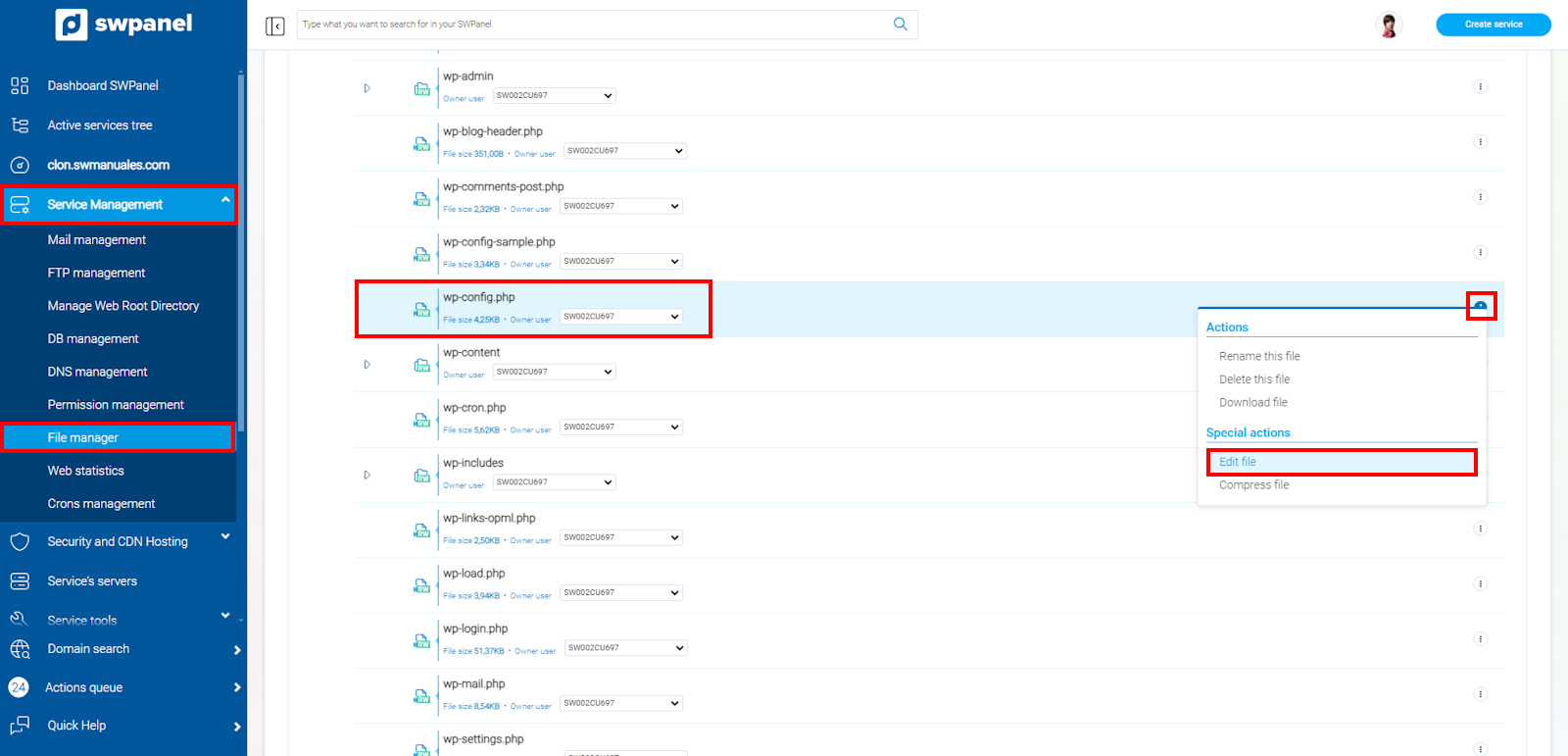
info_capture The screenshot is for guidance purposes. It was taken from version 2025.00.0017 on 12/29/2024. It may differ from what the current version of SWPanel shows.
MySQL Data
These are the access details that WordPress uses to connect the website with the database. You will have to enter the cloned DB name and cloned DB user.
info You can check the cloned DB and cloned DB User names by accessing Service Management --> Database Management.
The lines to modify are as follows:
/** The name of the database for WordPress */
define( 'DB_NAME', 'NAME_WP' );

/** MySQL database username */
define( 'DB_USER', 'USER_WP' );
- After connecting WordPress to the cloned DB, we can access via phpMyAdmin and replace the old URL with the new URL, mainly to gain access to the administrative area of the Cloned WordPress.
You can access phpMyAdmin by entering your domain URL, followed by '/phpmyadmin':
- newdomain.com/phpmyadmin
Once inside, you can modify the old URL for the new URL, by placing the following SQL command if your WordPress was installed in SWPanel:
UPDATE wpsw_options SET option_value = replace(option_value, 'olddomain.com', 'newdomain.com') WHERE option_name = 'home' OR option_name = 'siteurl';
In case your WordPress was not installed from SWPanel, you can use the following:
UPDATE wp_options SET option_value = replace(option_value, 'olddomain.com', 'newdomain.com') WHERE option_name = 'home' OR option_name = 'siteurl';
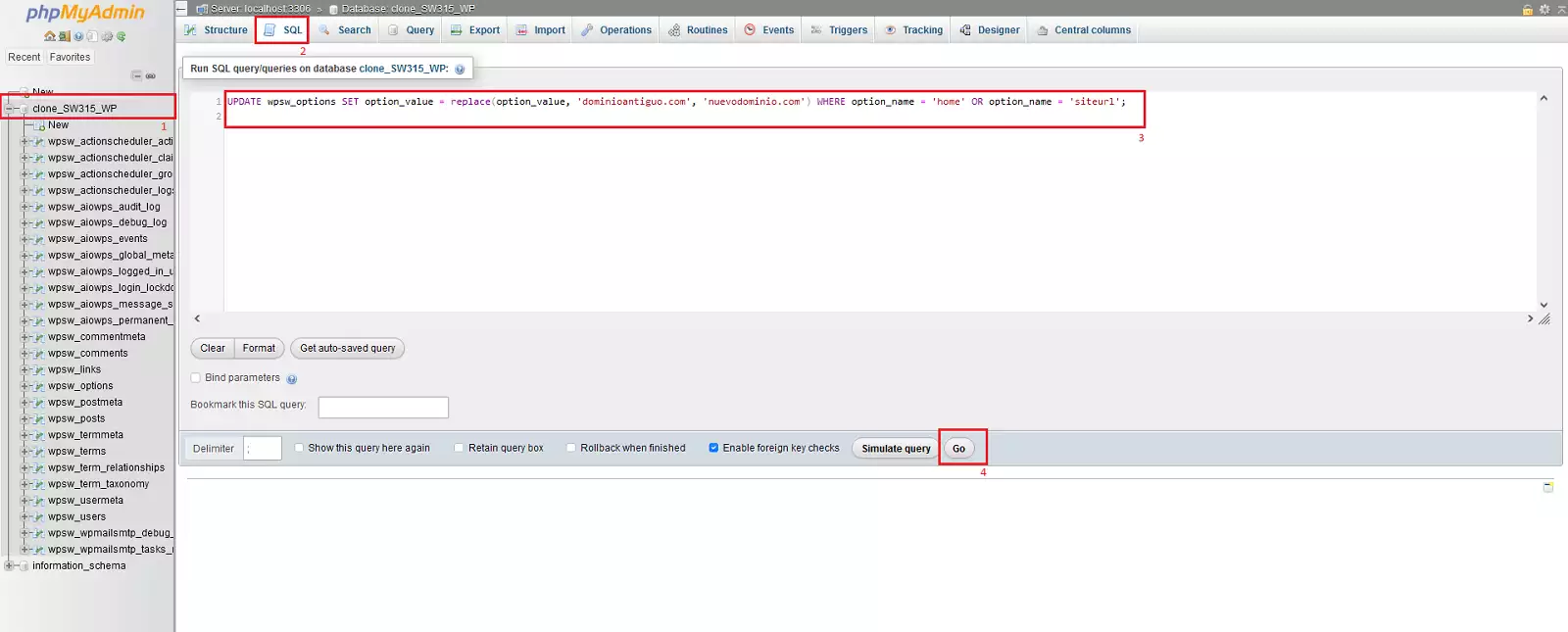
info_capture The screenshot is for guidance purposes. It was taken from version 2025.00.0017 on 12/29/2024. It may differ from what the current version of SWPanel shows.
info The prefix of your WordPress tables may NOT be wpsw_. If that is not the prefix, we must check what the correct one is from the left panel, changing the wpsw_ prefix to the corresponding one.
You can check the changes by expanding the wpsw_options table and verifying the siteurl and home fields. These will have the new URL that we have previously set:
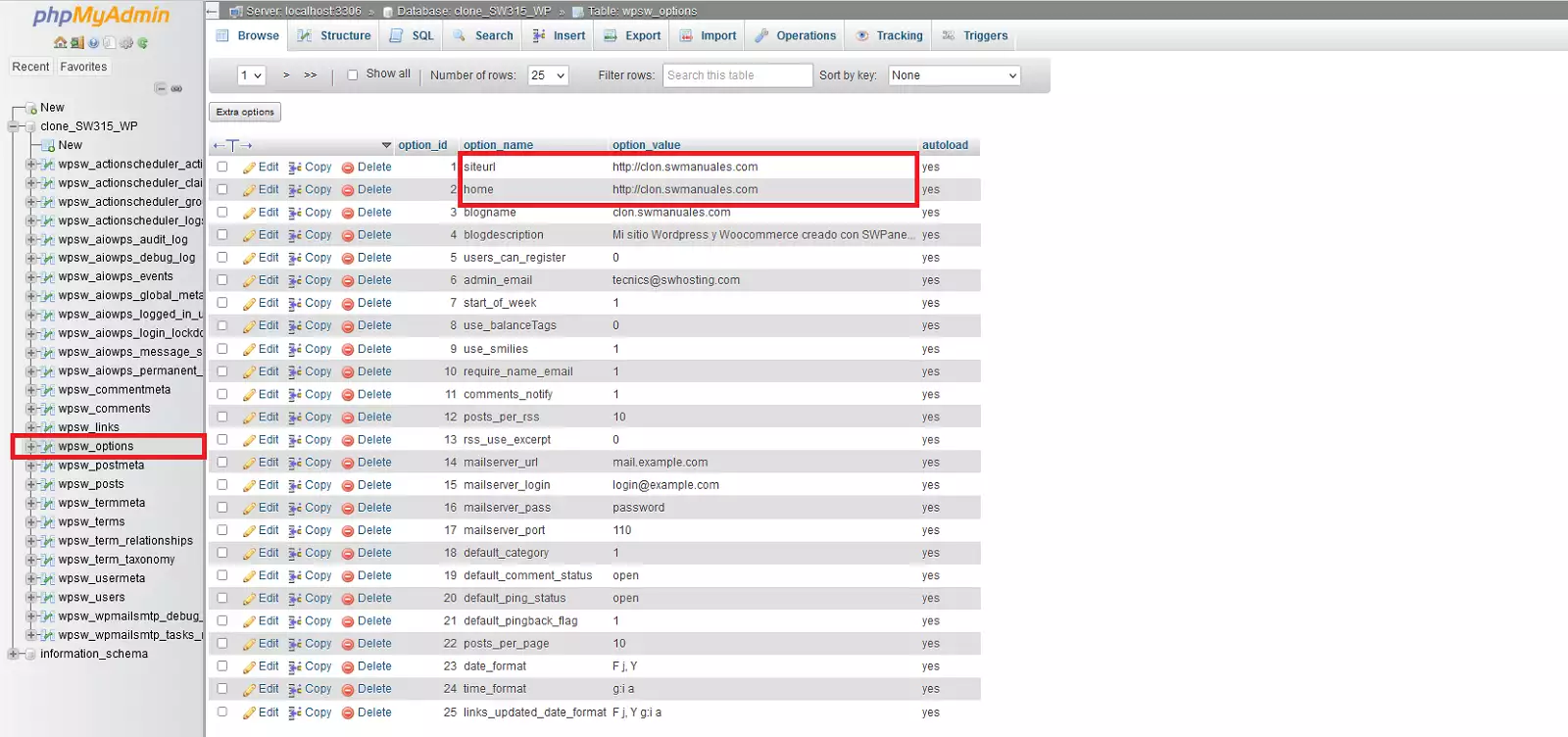
info_capture The screenshot is for guidance purposes. It was taken from version 2025.00.0017 on 12/29/2024. It may differ from what the current version of SWPanel shows.
- Subsequently, your WordPress will connect to the Cloned DB and respond to the new domain name; however, for everything to work correctly using the new URL, it will be necessary to replace all the old URL entries in the Cloned DB with the new URL.
We can perform these changes automatically using the free 'Search & Replace' plugin.
To do this, we will have to access the administrative area of our WordPress.
- newdomain.com/wp-admin
danger Important! The WordPress access username and password you received in your email are not valid, since all the information from your WordPress is cloned, including its users and passwords. You must use the username and password of your Original WordPress for the moment.
Once inside the administrative area, go to Plugins → 'Add New Plugin', search for the 'Search & Replace' add-on and click on 'Install Now' --> Activate:
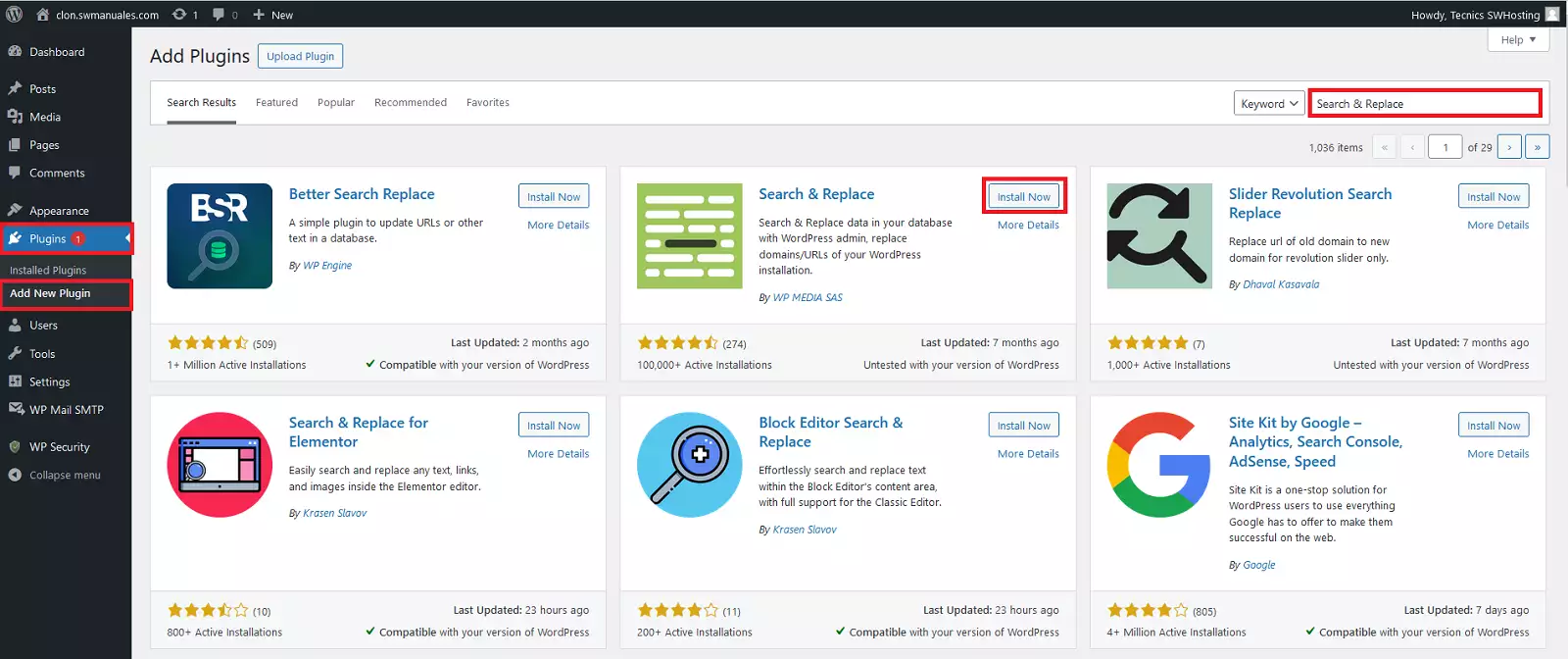
info_capture The screenshot is for guidance purposes. It was taken from version 2025.00.0017 on 12/29/2024. It may differ from what the current version of SWPanel shows.
- You can access the plugin by going to Tools → Search & Replace
Next, click on the 'Search/Replace' tab.
-
Enter your old URL in the first field called 'Search for:', example: olddomain.com
-
Enter your new URL in the second field titled 'Replace with:', example: newdomain.com
-
Select all tables.
-
Uncheck 'Dry run'.
-
Select 'Save changes to the database'.
-
Click on 'Search and replace'.
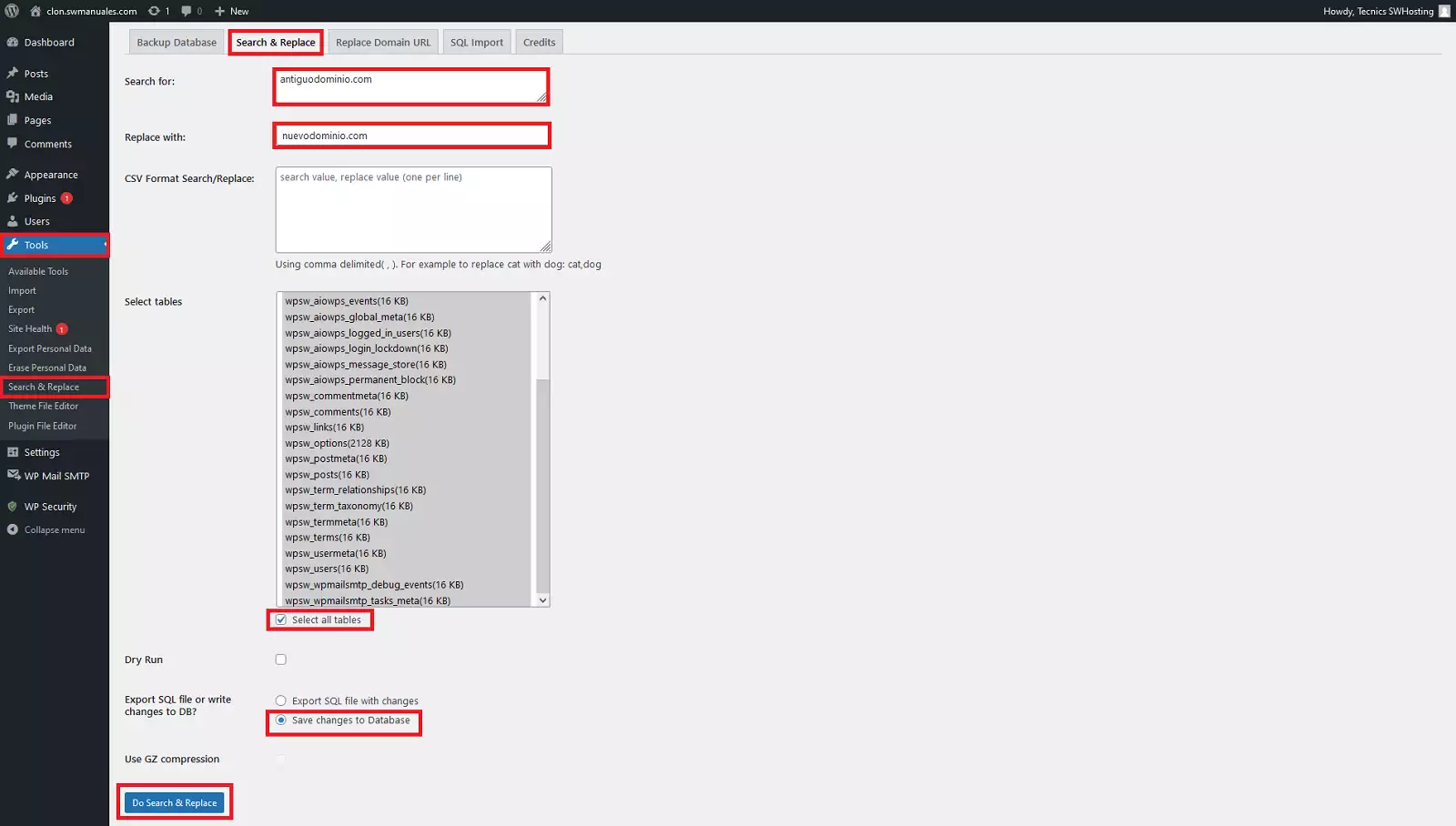
info_capture The screenshot is for guidance purposes. It was taken from version 2025.00.0017 on 12/29/2024. It may differ from what the current version of SWPanel shows.
danger In case the cloned web was a subdomain of the original domain, it is possible that we have lost access due to the action of the plugin. To recover it, we must edit the site url and home parameters again in the wpsw_options or wp_options table, as:
info_capture The screenshot is for guidance purposes. It was taken from version 2025.00.0017 on 12/29/2024. It may differ from what the current version of SWPanel shows.
success Ready! Your WordPress is correctly configured with the new URL.