
How to create Crons in SWPanel
Cron is a time-based job scheduling service used in Unix-like operating systems. Users who configure and maintain software environments use Cron to automate different tasks. These tasks consist of commands or Shell Scripts. You can configure the Cron service so that the created tasks run periodically at fixed hours, dates, or intervals.
Create a CRON
First, you must search for the Cloud server on which you wish to create the new Cron. To do this, you can find it in our SWPanel service search tool.
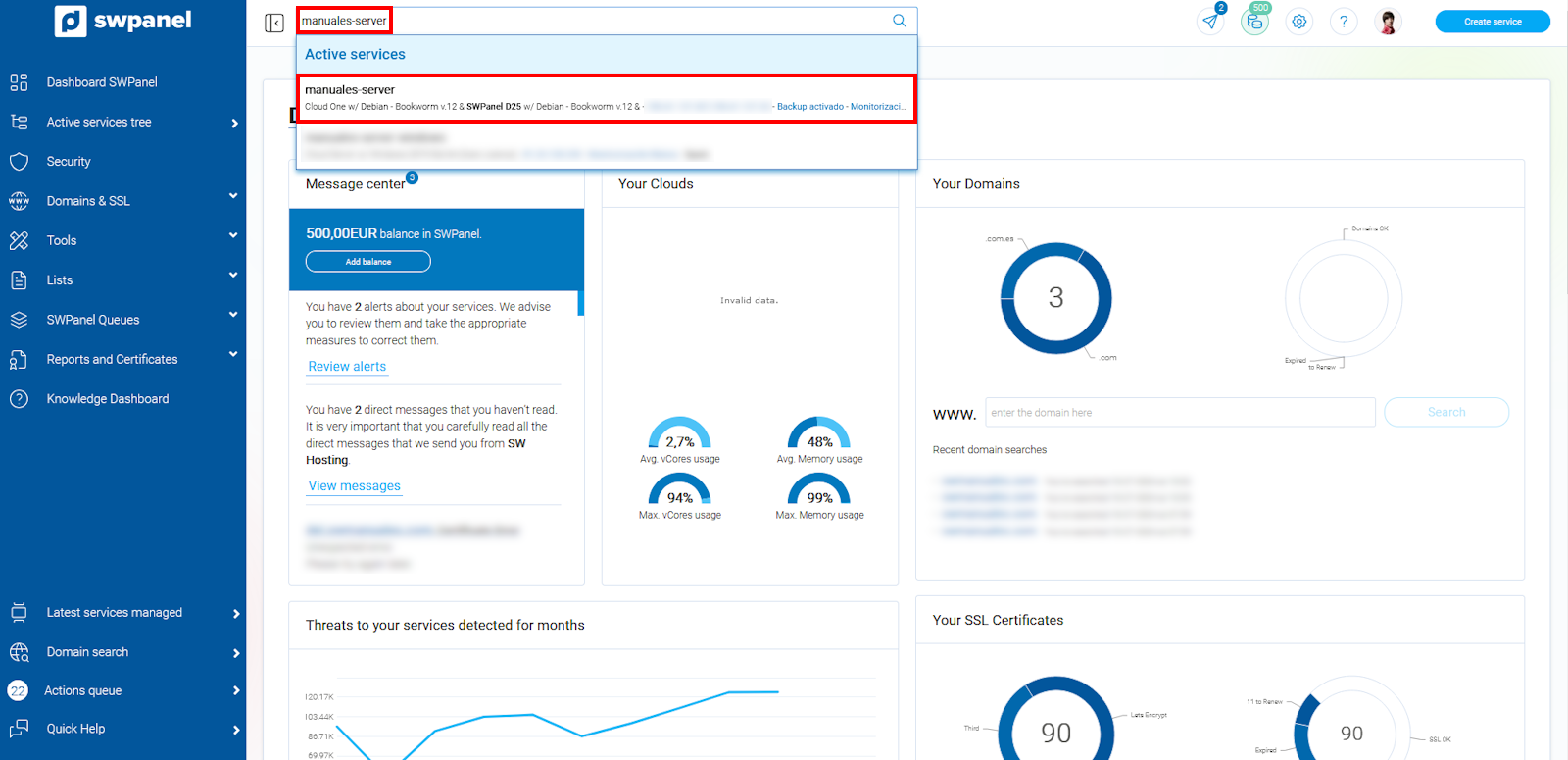
info_capture The screenshot is for guidance purposes. It was taken from version 2026.001.0058 dated 20/05/2026. It may differ from what is shown in the current version of SWPanel.
Or select the services tab, located in the blue menu on the left of your screen, and select the server on which you wish to create your new Cron.
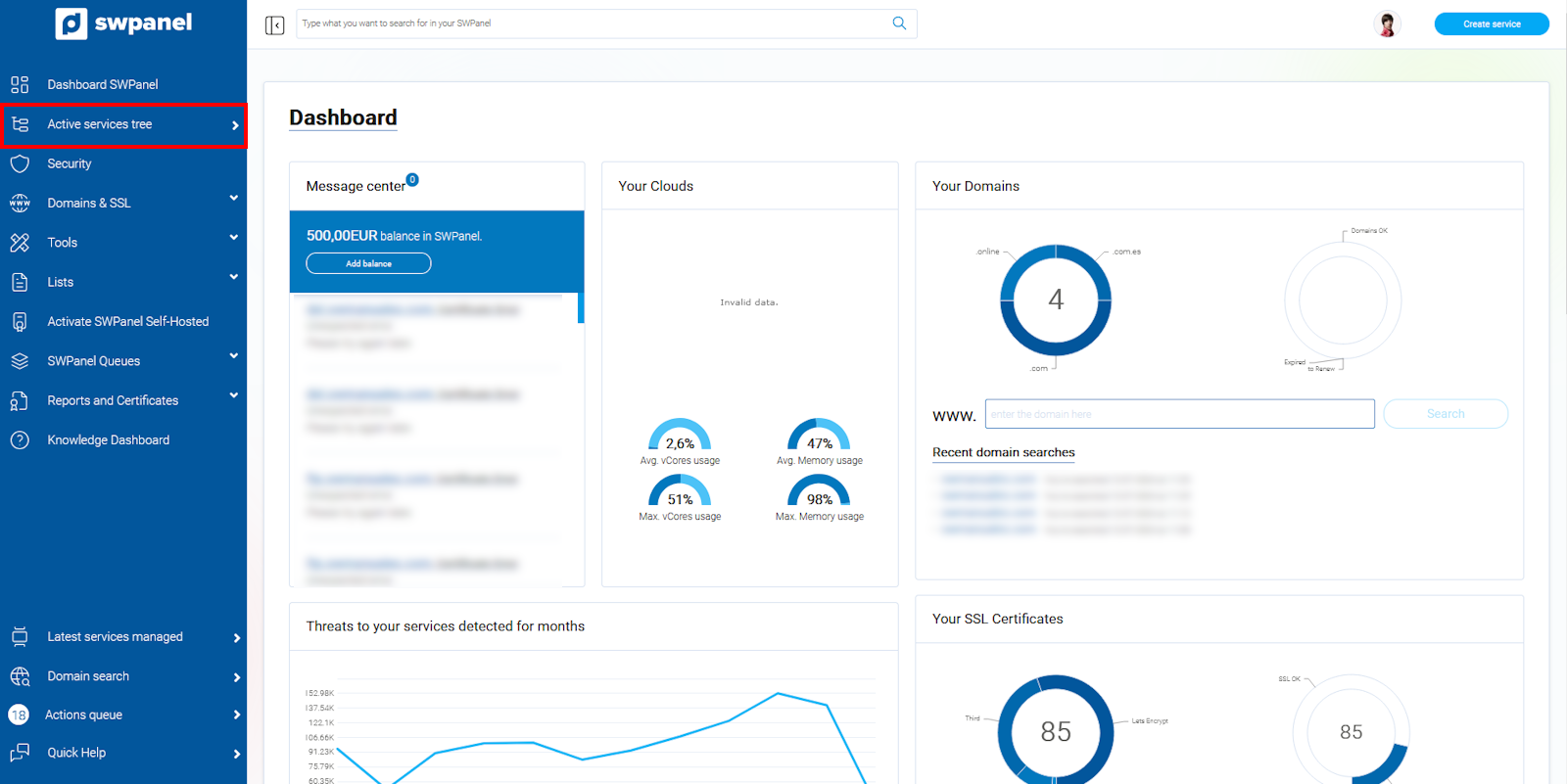
info_capture The screenshot is for guidance purposes. It was taken from version 2026.001.0058 dated 20/05/2026. It may differ from what is shown in the current version of SWPanel.
Once you are in All my Services, you must select the desired server.
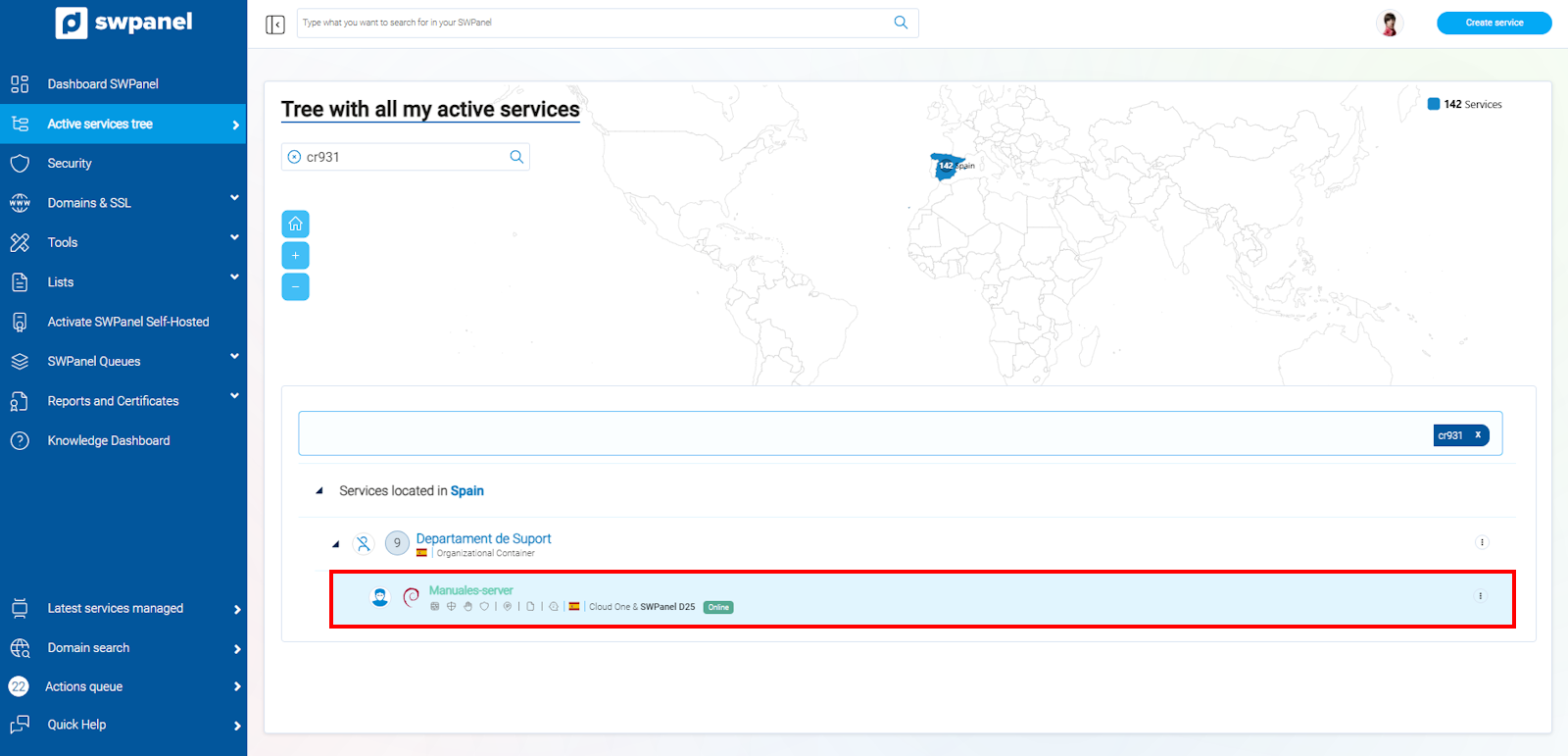
info_capture The screenshot is for guidance purposes. It was taken from version 2026.001.0058 dated 20/05/2026. It may differ from what is shown in the current version of SWPanel.
Within the selected service, you must go to the blue menu on the left and click on Actions on this service > Cron Management.
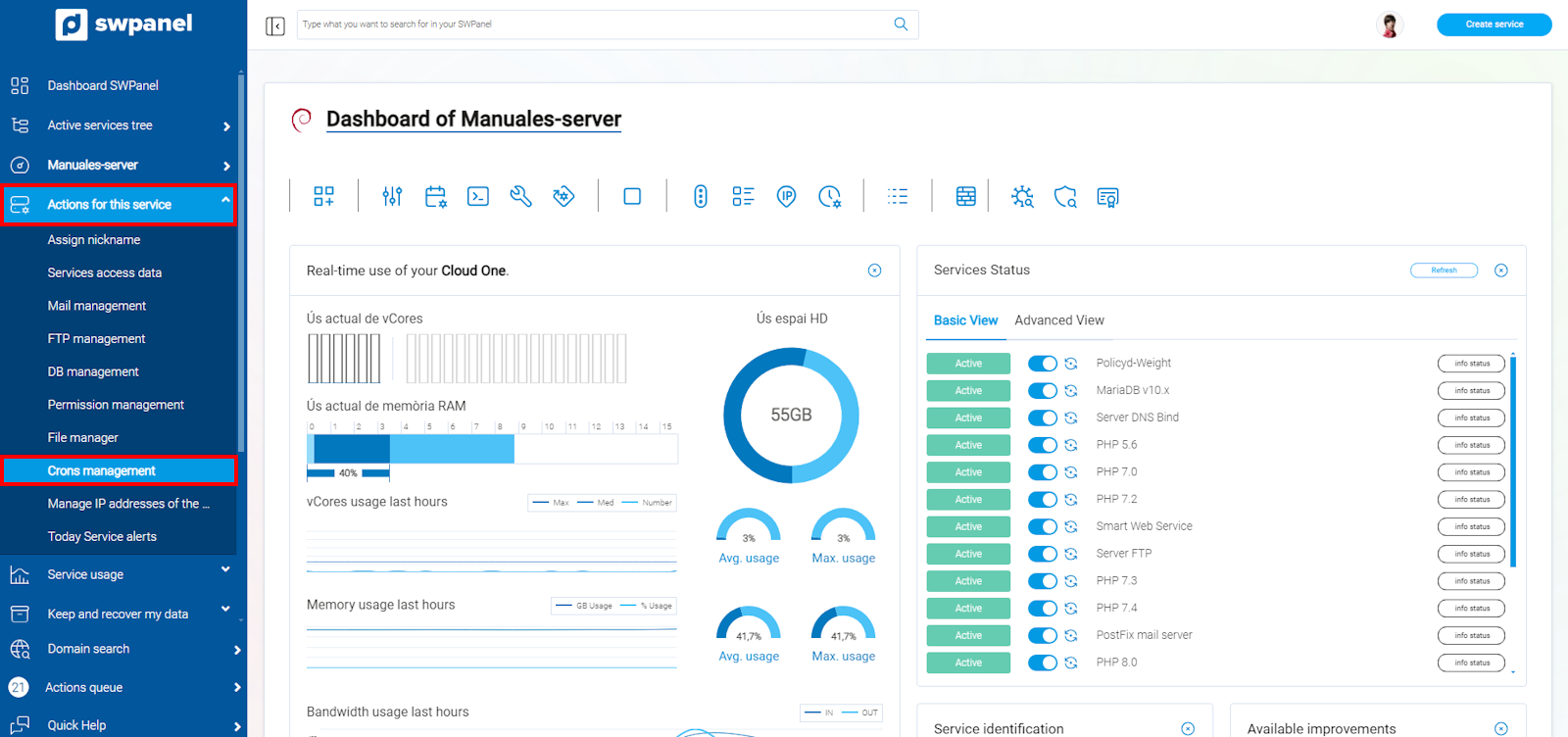
info_capture The screenshot is for guidance purposes. It was taken from version 2026.001.0058 dated 20/05/2026. It may differ from what is shown in the current version of SWPanel.
In "Cron Management", you will see the list of all created Crons.
To create a new Cron, you must click on the Create a new Cron button.
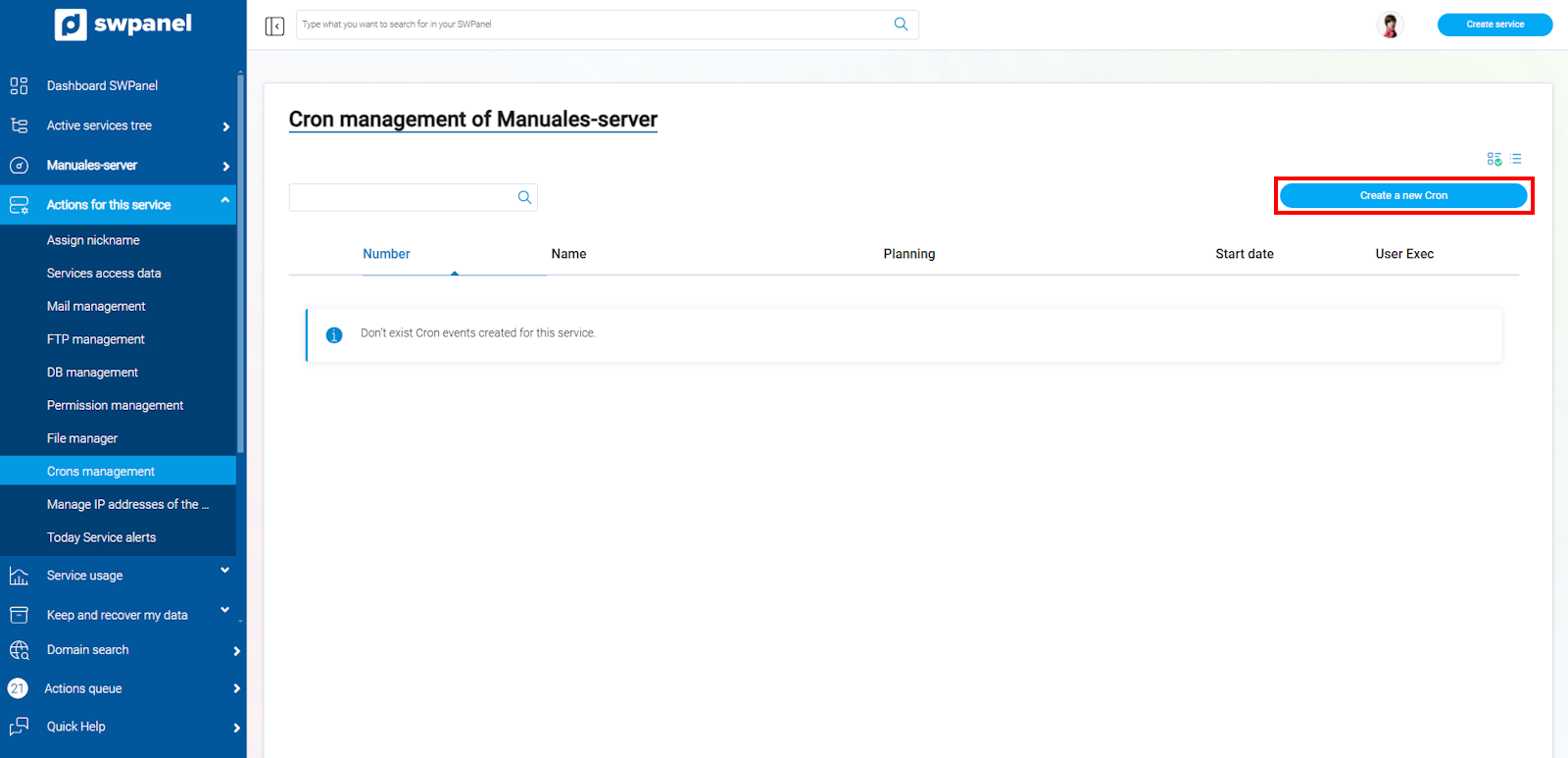
info_capture The screenshot is for guidance purposes. It was taken from version 2026.001.0058 dated 20/05/2026. It may differ from what is shown in the current version of SWPanel.
First, you must define a name for the Cron and set the date on which you want it to start, along with the time you want it to run (it will not be created until the defined date and time).
In the Cron Content section, you must define the commands to be executed.
In the Cron execution User section, you can choose several users; for example, the root user who has administration permissions, swuser who only has maintenance tasks and not modification ones, and you can also create tasks for each of the users of the different hosting services you have, for example swmanuales.com
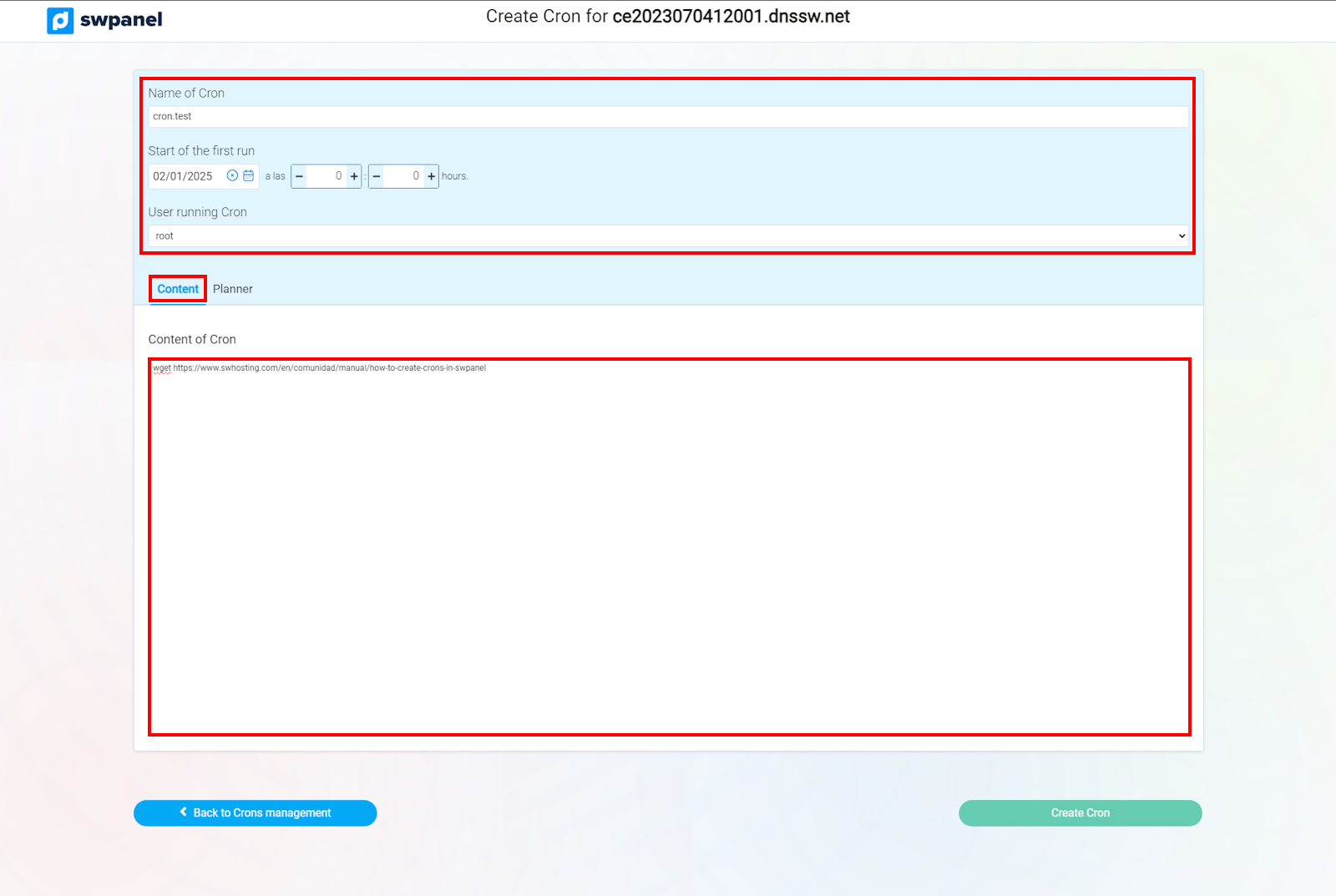
info_capture The screenshot is for guidance purposes. It was taken from version 2026.001.0058 dated 20/05/2026. It may differ from what is shown in the current version of SWPanel.
In the Scheduler tab, you can define how frequently the Cron will run. You can define it by minutes, hours, days, days of the week, or months.
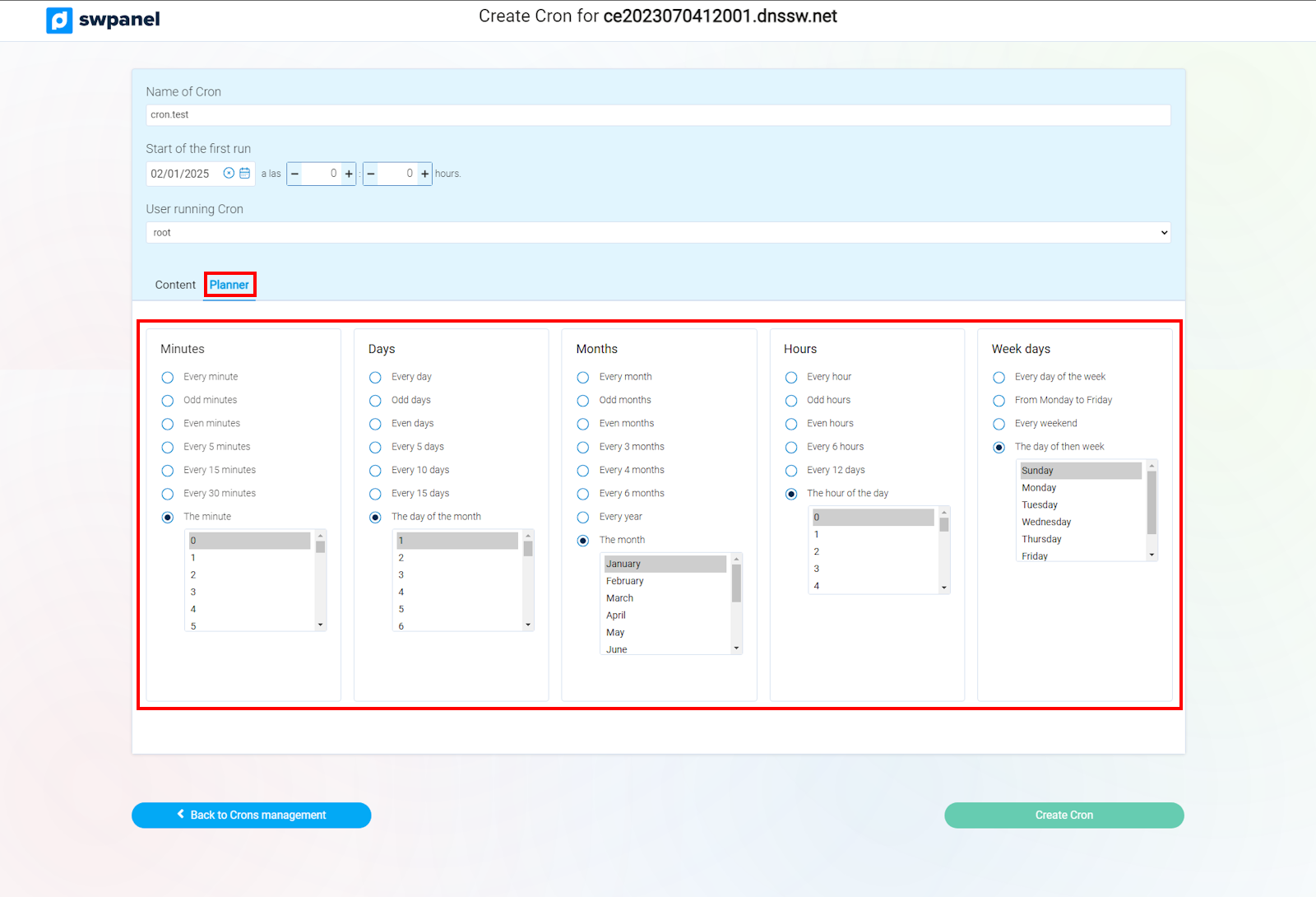
info_capture The screenshot is for guidance purposes. It was taken from version 2026.001.0058 dated 20/05/2026. It may differ from what is shown in the current version of SWPanel.
Once all the data has been entered, check that it is correct and, finally, press the Create Cron button.
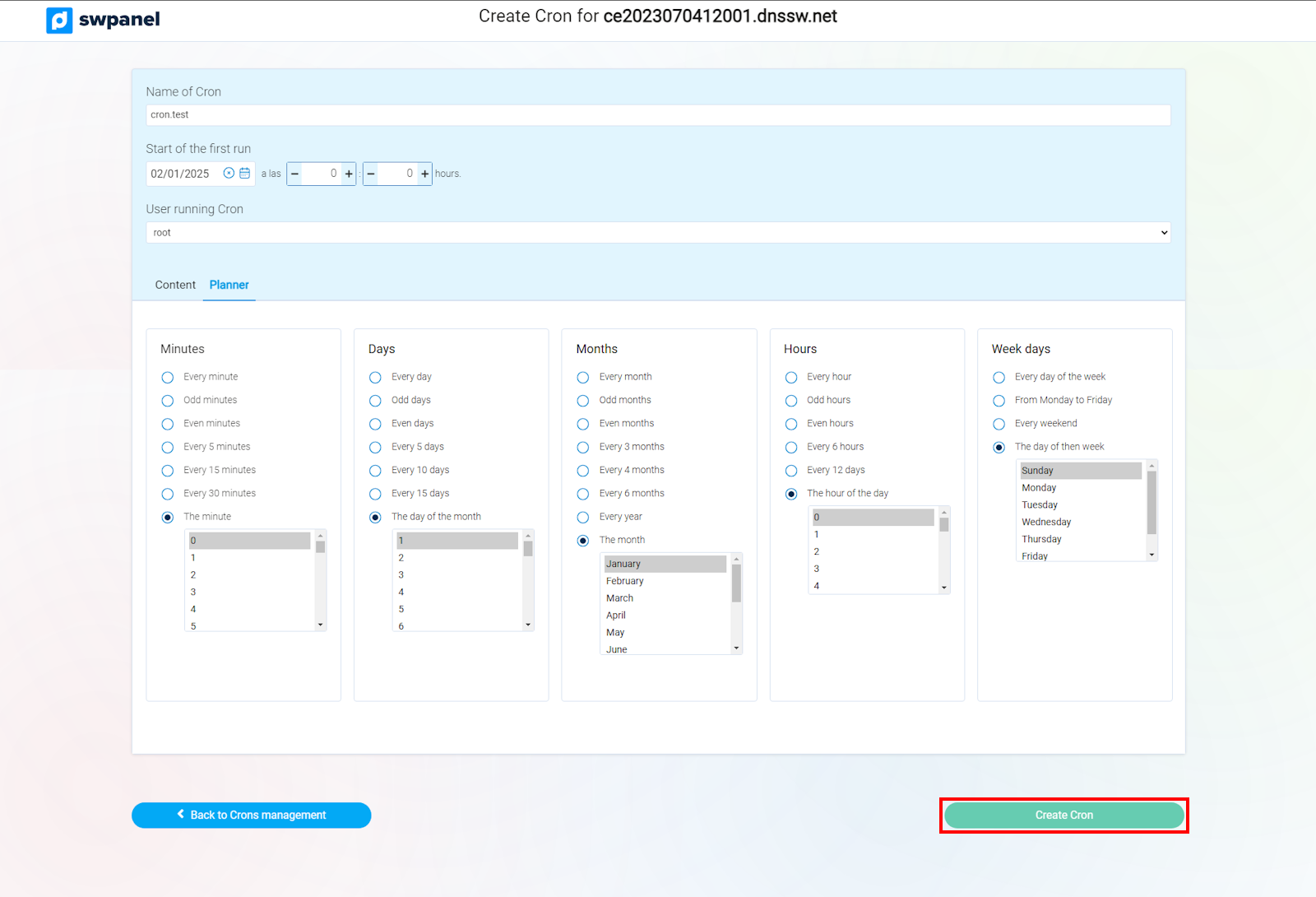
info_capture The screenshot is for guidance purposes. It was taken from version 2026.001.0058 dated 20/05/2026. It may differ from what is shown in the current version of SWPanel.
Manage a CRON
Once the CRON has been created, to manage it, you can go to the management menu [...], on the right of the screen, and a dropdown will appear allowing you to select the desired option (delete or modify).
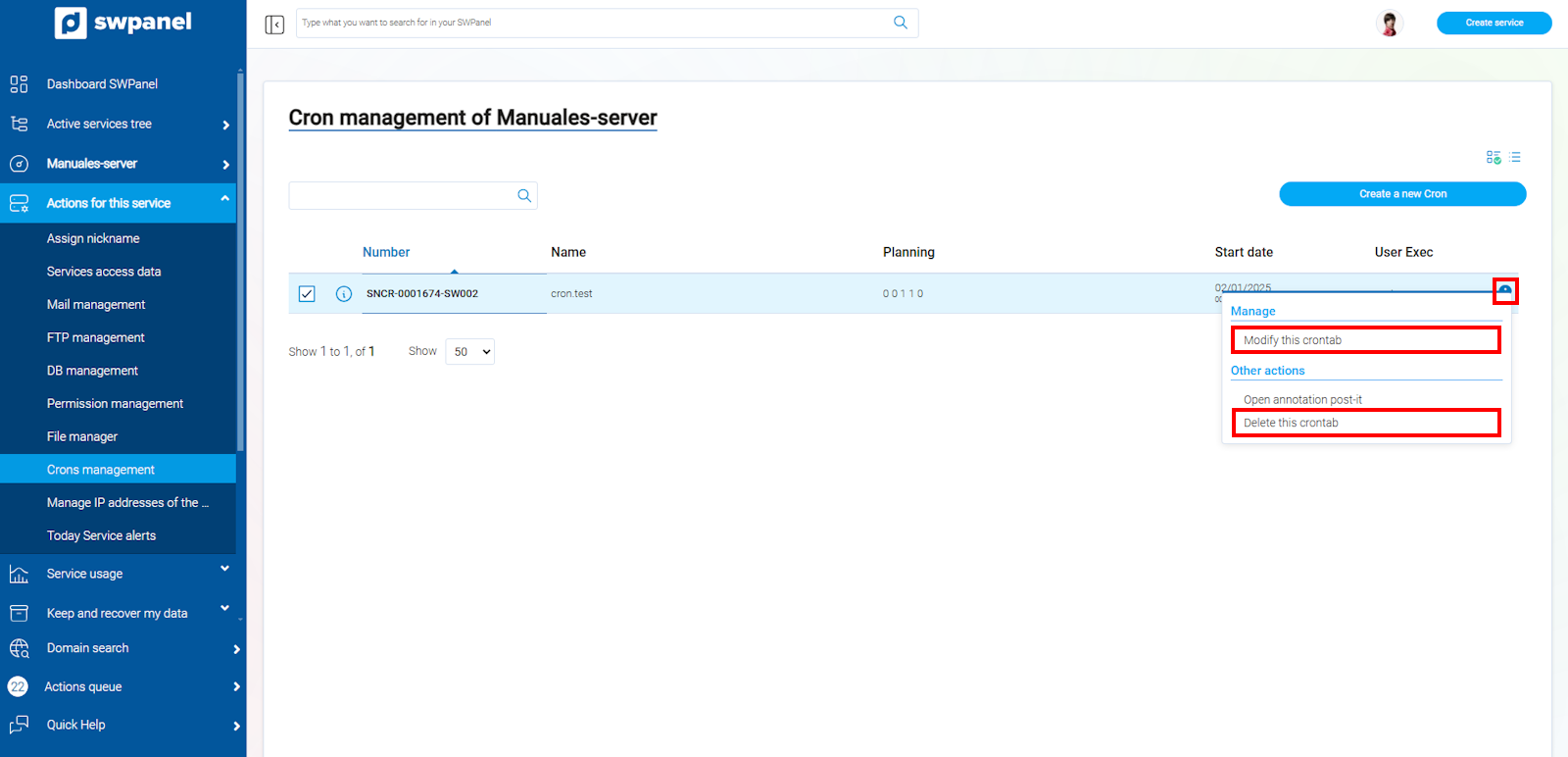
info_capture The screenshot is for guidance purposes. It was taken from version 2026.001.0058 dated 20/05/2026. It may differ from what is shown in the current version of SWPanel.