
How to create new users in linux from the command line
Don't have a Cloud Linux server yet? No problem! With just one click, you can easily deploy it using SW Hosting.
Below, we will show you the steps to create new users in Linux directly from the command line.
How to create a new user in GNU/Linux
Before starting, you need SSH or terminal access to an account with superuser permissions. For example, the root account.
To create a new user, we will use the useradd command. The general syntax is:
useradd [options] username
In this manual, we will focus on the -m option, which allows creating a Home directory for the user, with the same name as their account.
Practical examples
- Create a user with a
homedirectory:
useradd -m newuser
- Create a user without a
homedirectory:
useradd newuser
How to assign a password to the new user
Assigning or changing a user's password is simple, as long as you do it as a superuser. The command is:
passwd username
When running it, you will be asked to:
- Enter the desired password and press
ENTER. - Repeat it again to confirm it for security reasons.
Important: During this process, the characters you type will not be displayed on the screen. This is normal; simply type the password carefully and press
ENTERwhen you have finished.
How to assign or change a user's Home directory
If a home directory was not specified during user creation, or if you wish to modify the directory of an existing user, you can use the usermod command.
The general syntax is:
usermod -m -d /home/destinationdirectory/ username
-d: Allows setting the path of the newhomedirectory. Important: the directory must not exist previously.-m: Indicates that all content from the current directory should be moved to the new one. This is especially useful when modifying an already existing user.
How to delete a user
To delete a user, you need an account with superuser permissions, such as root.
The main command is userdel, whose general syntax is:
userdel [options] username
A widely used option is:
-r: deletes the user's Home directory and mail spool.
Example:
userdel -r username
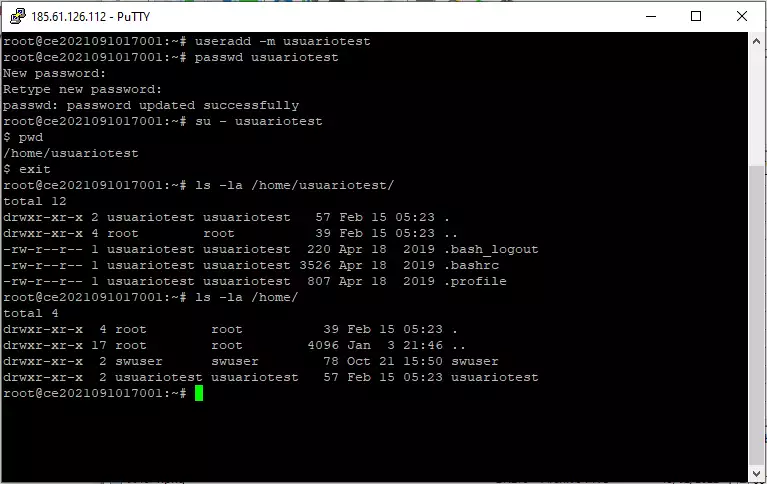
Full user management example
- Create a user with their Home directory:
useradd -m testuser
- Assign a password (characters will not be displayed on the screen):
passwd testuser
- Switch to the user to verify their environment:
su - testuser
- Verify the current directory:
pwd
- List the contents and permissions of their Home:
ls -l
With this, you will be able to verify that the user was created correctly and that the permissions of their Home directory are properly configured.
Note: If you don't have a Cloud Linux server yet, you can easily deploy it with SW Hosting and start applying all these steps.