
How to create an Advanced VPN SSL
Manual for the Creation of an Advanced VPN SSL in SWPanel
1. Introduction and content summary
This manual aims to guide the user step-by-step in the creation of an Advanced VPN SSL from their SWPanel management environment. Throughout the document, the concepts, processes, and configurations necessary to implement this functionality will be explained in detail.
What is a VPN SSL?
A VPN SSL (Virtual Private Network Secure Sockets Layer) is a system that allows the establishment of a secure and encrypted connection between a user and a private network via the Internet, using the SSL protocol. This type of connection is commonly used to access internal services from external locations with complete security.
What is an Advanced VPN SSL?
An Advanced VPN SSL is an extended and more configurable version of a standard VPN SSL. In SWPanel, it enables secure connection via virtual networks (VLAN) to manage one or more Cloud servers securely and efficiently.
Prerequisites
Before creating an Advanced VPN SSL, it is necessary to have created a VLAN with your Cloud servers. You can check how to do it in the following manual:
How to create a VLAN with my Cloud servers
2. Access to SWPanel
To begin, access your account from SWPanel by entering your username and password.
Once inside, you will be in the Dashboard (control panel). From there, click the "Create Service" button, located in the upper right part.
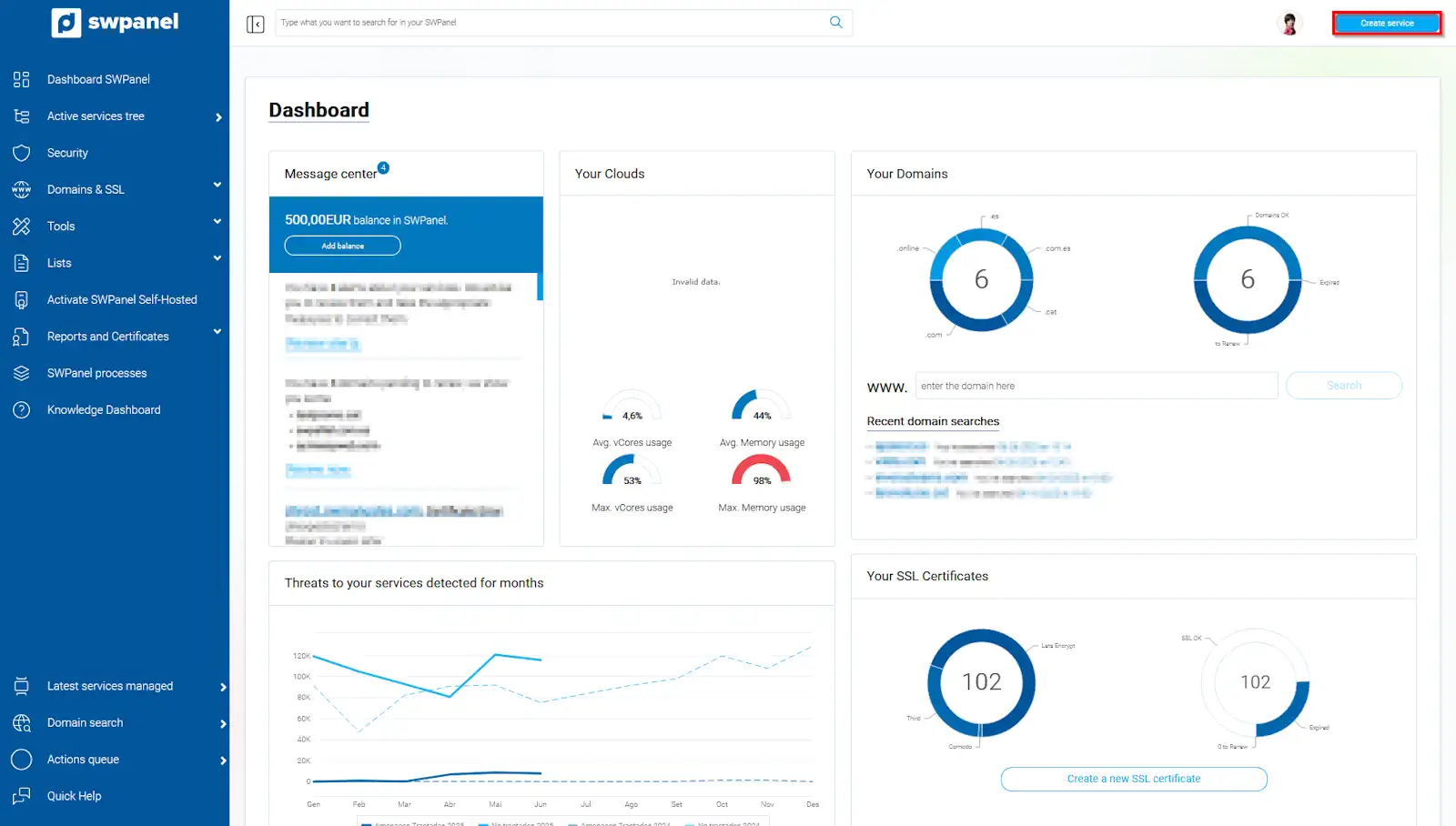
info_capture The screenshot is for illustrative purposes. It was taken using version 2025.004.0002 dated 06/27/2025. It may differ from what the current version of SWPanel shows.
3. Access to the Advanced VPN SSL section
From the service creation menu, go to:
Containers -> Networking -> Advanced VPN SSL
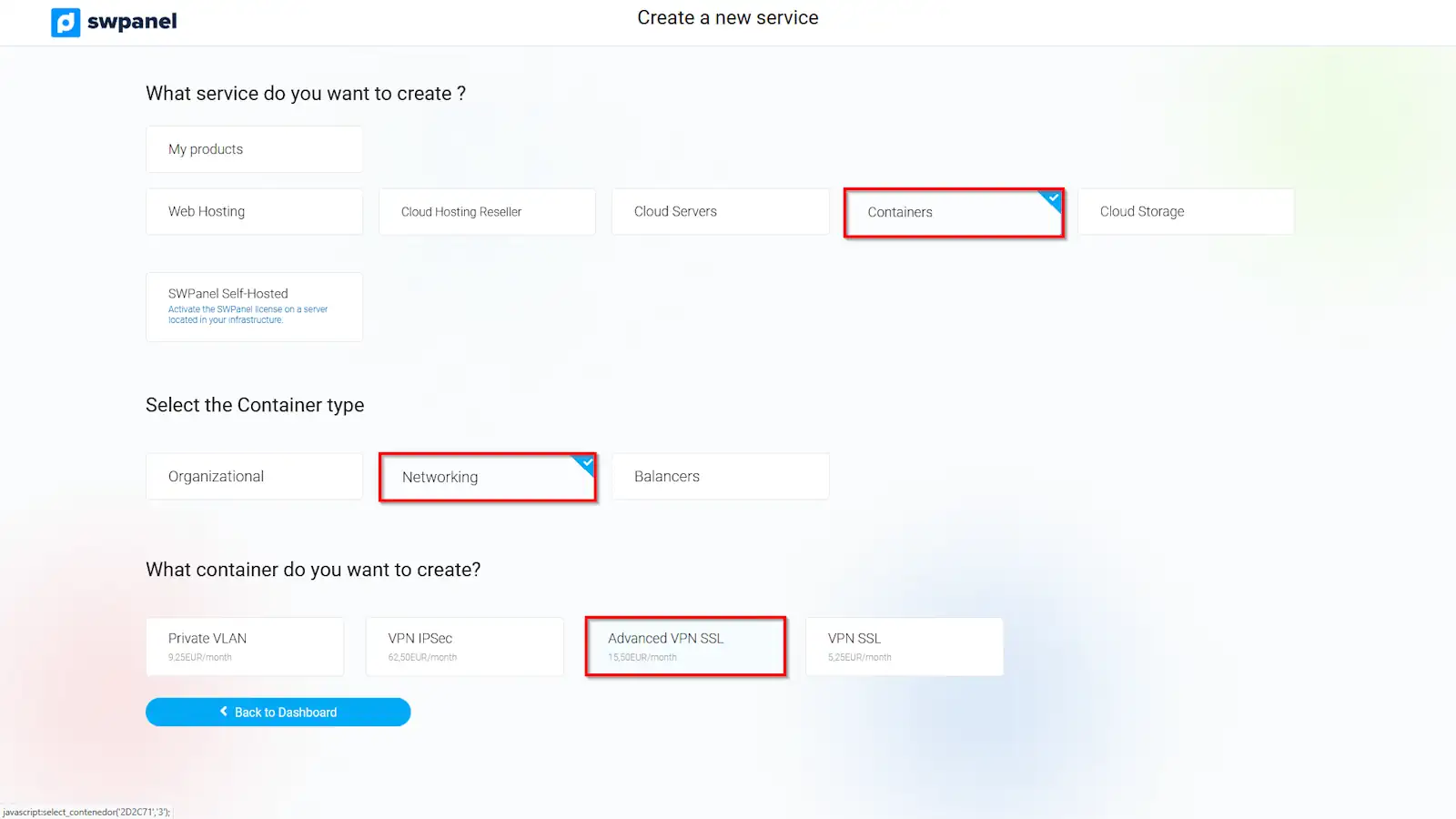
info_capture The screenshot is for illustrative purposes. It was taken using version 2025.004.0002 dated 06/27/2025. It may differ from what the current version of SWPanel shows.
4. Selection of VPN components
On the following screen, select the Cloud servers and network resources that will be part of the new Advanced VPN SSL. Then, click Next.
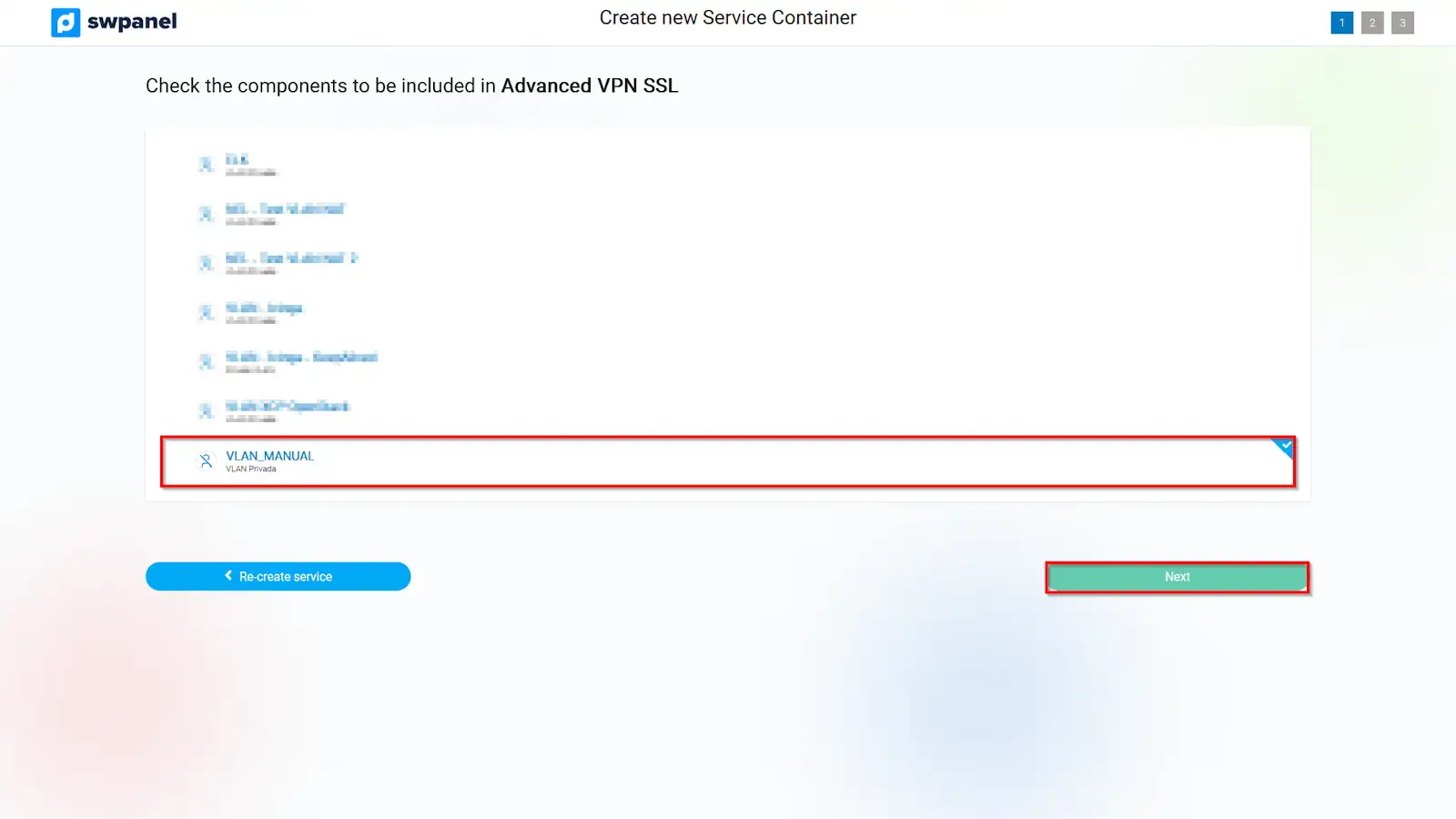
info_capture The screenshot is for illustrative purposes. It was taken using version 2025.004.0002 dated 06/27/2025. It may differ from what the current version of SWPanel shows.
5. Network parameter configuration
Fill in all the mandatory fields appearing in the form, including service name, description, and technical parameters related to the network.
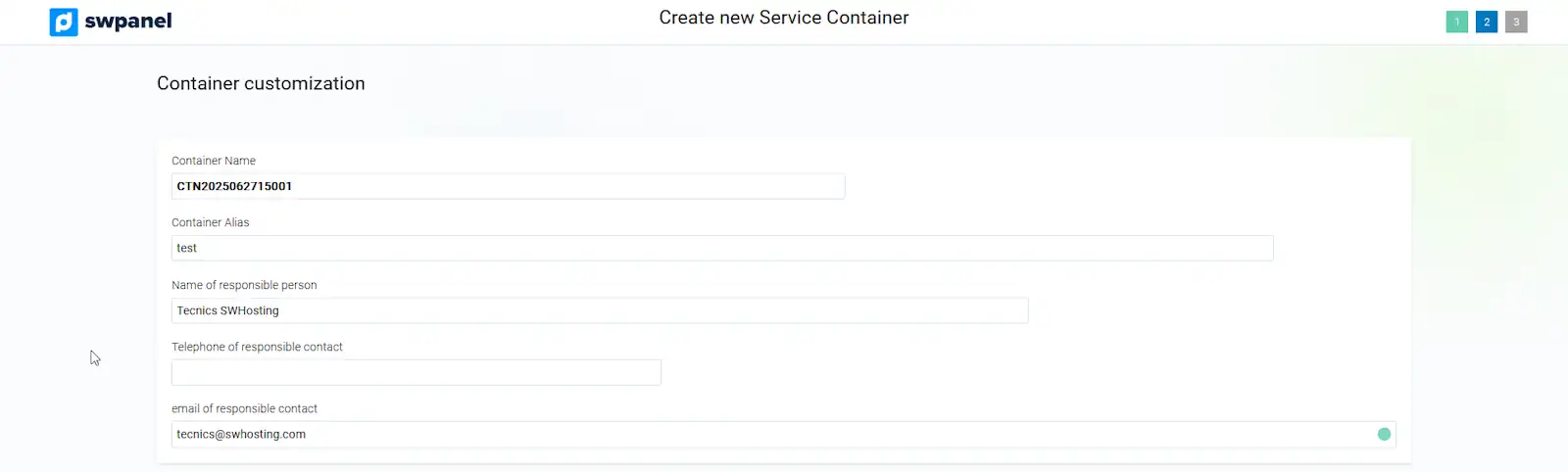
info_capture The screenshot is for illustrative purposes. It was taken using version 2025.004.0002 dated 06/27/2025. It may differ from what the current version of SWPanel shows.
6. Creation of the access user
In this section, you must define the access credentials for the user who will connect to the VPN. You can also enable two-factor authentication for greater security, and select the permissions profile they will have.
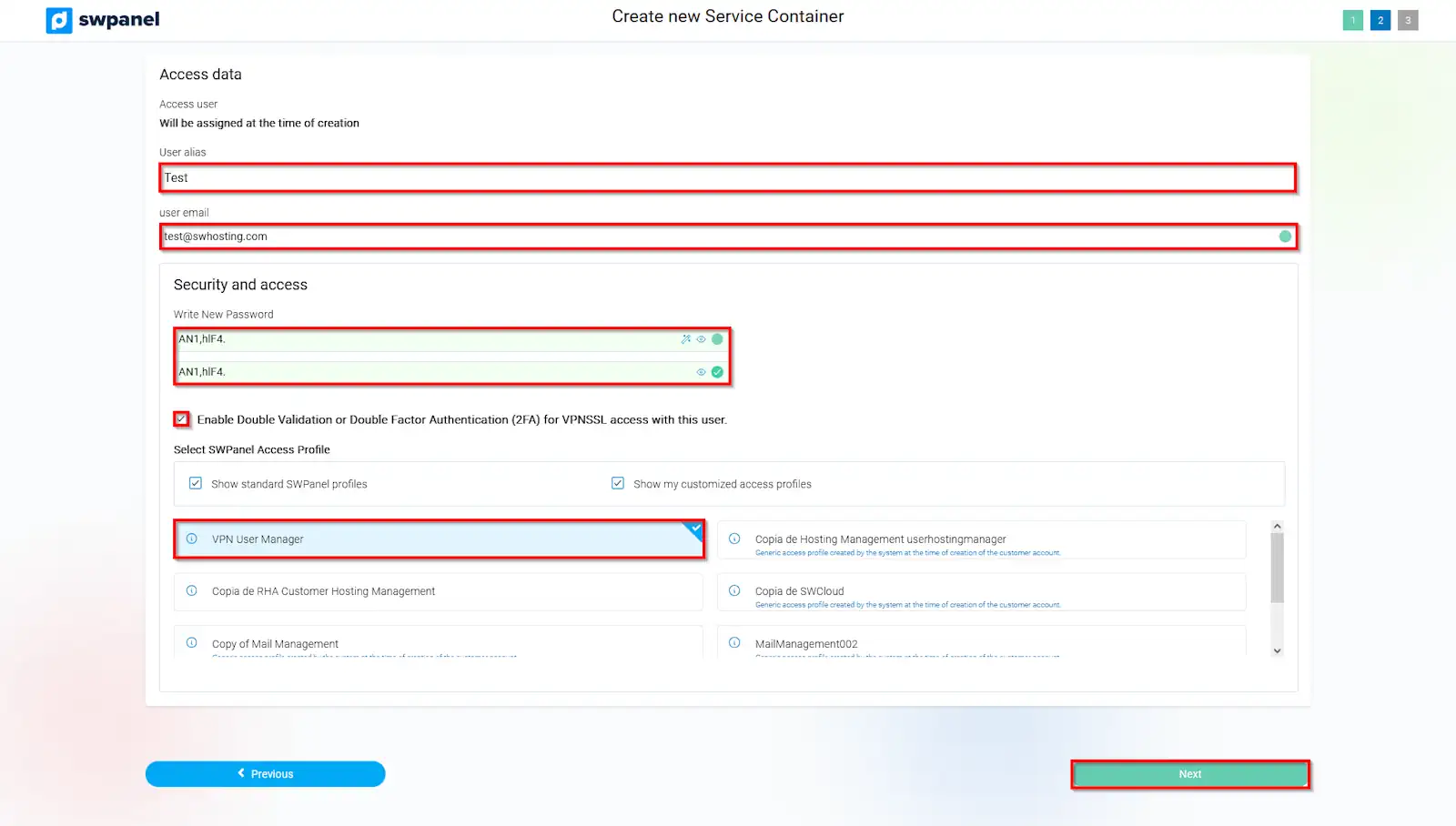
info_capture The screenshot is for illustrative purposes. It was taken using version 2025.004.0002 dated 06/27/2025. It may differ from what the current version of SWPanel shows.
7. Review and completion of the process
Once all data has been validated, click Next to complete the Advanced VPN SSL creation process.
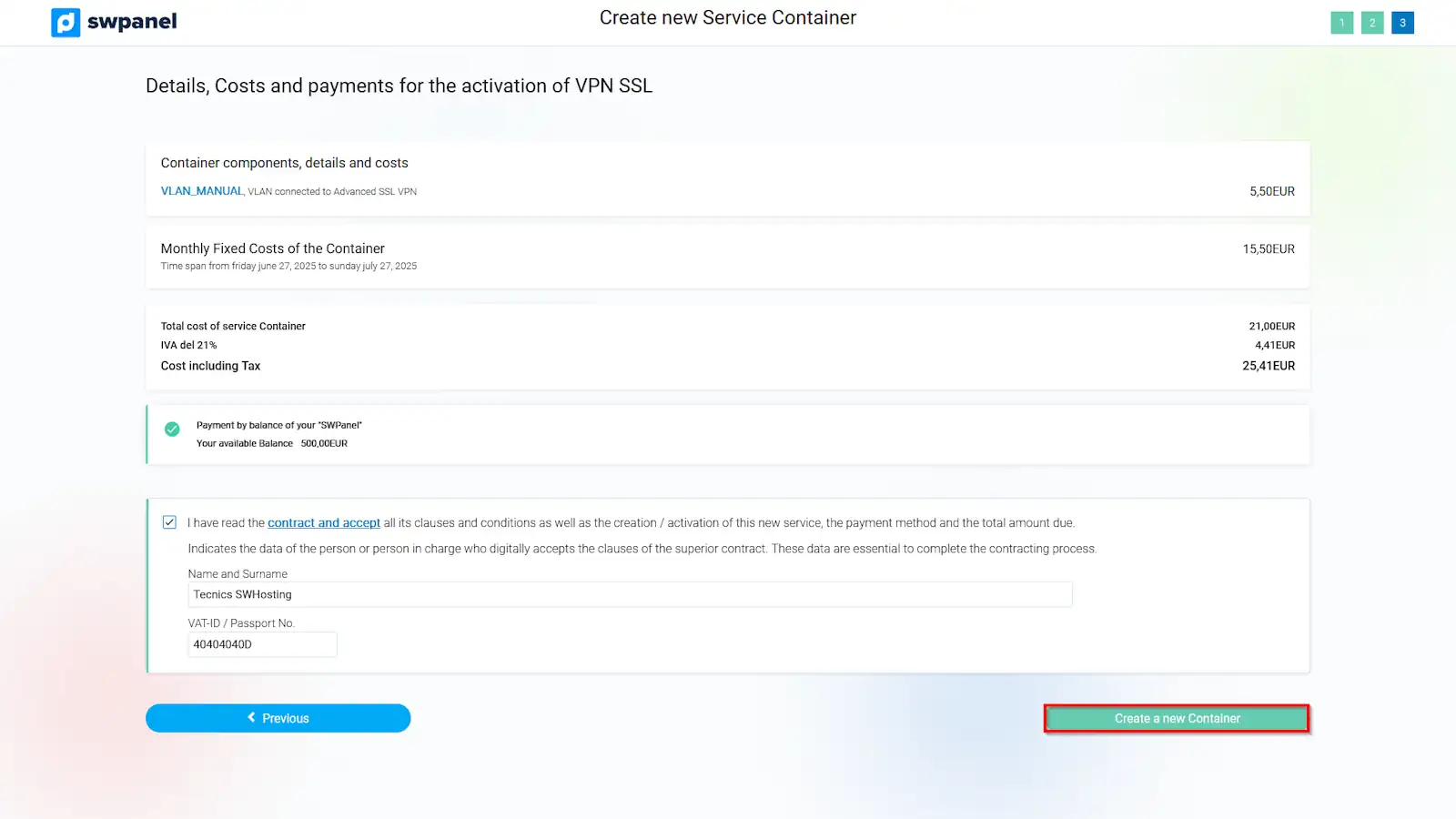
info_capture The screenshot is for illustrative purposes. It was taken using version 2025.004.0002 dated 06/27/2025. It may differ from what the current version of SWPanel shows.
8. Conclusion of the process
Once all the previous steps have been followed, your new Advanced VPN SSL will be active and ready to be used.
Now that you have created your Advanced VPN SSL, you can check the next steps to follow in this manual:
How to configure the OpenVPN client to connect to my Advanced VPN SSL with 2FA