
How to create an email distribution list
An email distribution list allows you to send the same email message to a list of recipients from a previously configured account.
Creation of the Distribution List
To create a distribution list, you must locate the service where you want to configure it from the 'Active Services Tree', or you can use the SWPanel general search to find it:

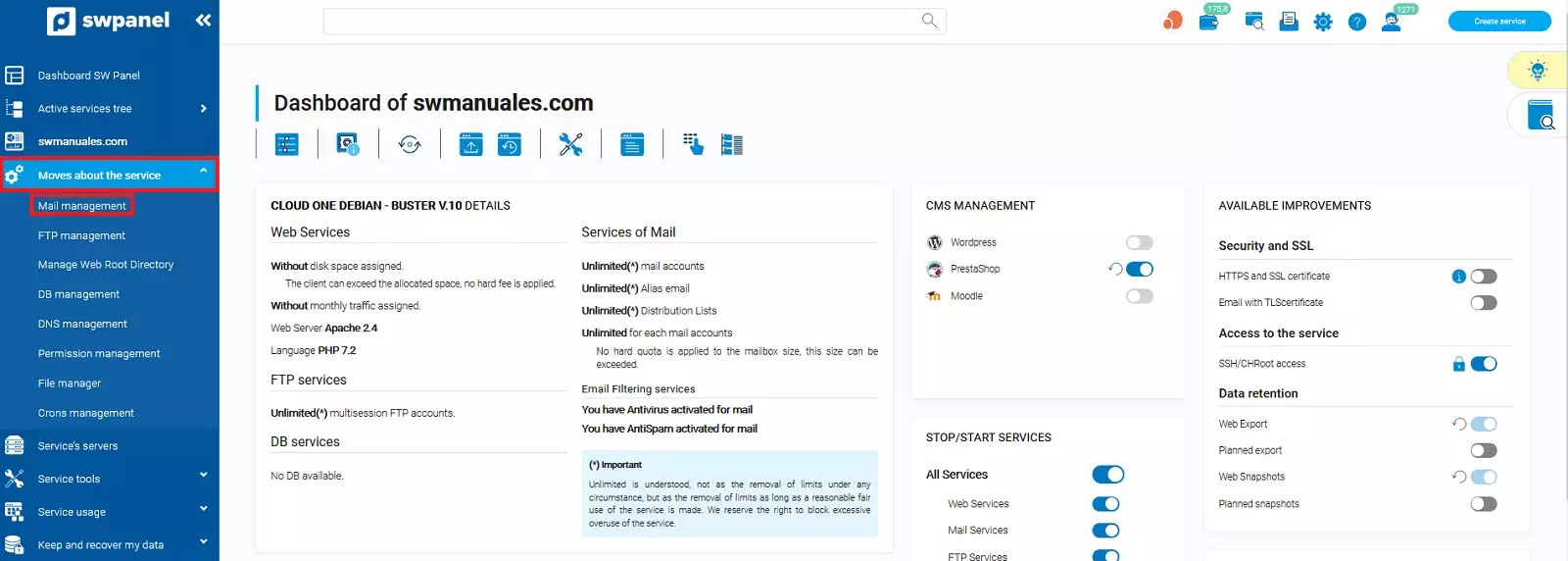
Once in the service Dashboard, you must go to 'Service Management' → 'Email Management' from the blue side menu:
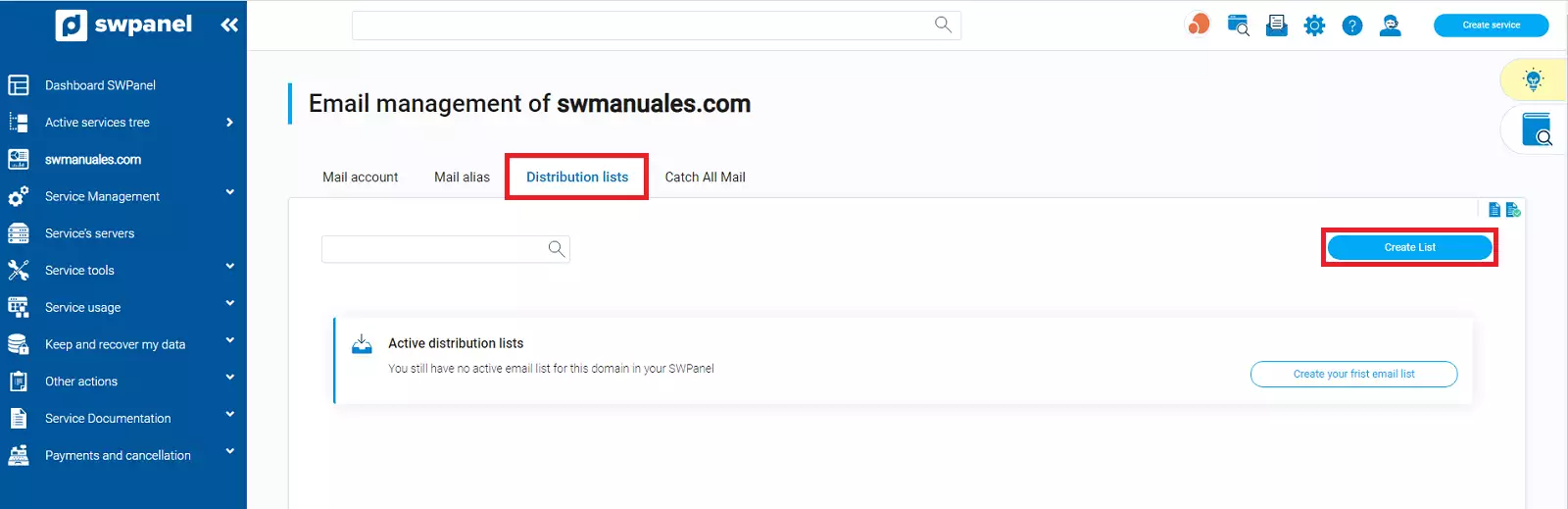
From the 'Email Management of your service', you must go to the top menu 'Distribution Lists' and click on the blue 'Create List' button:
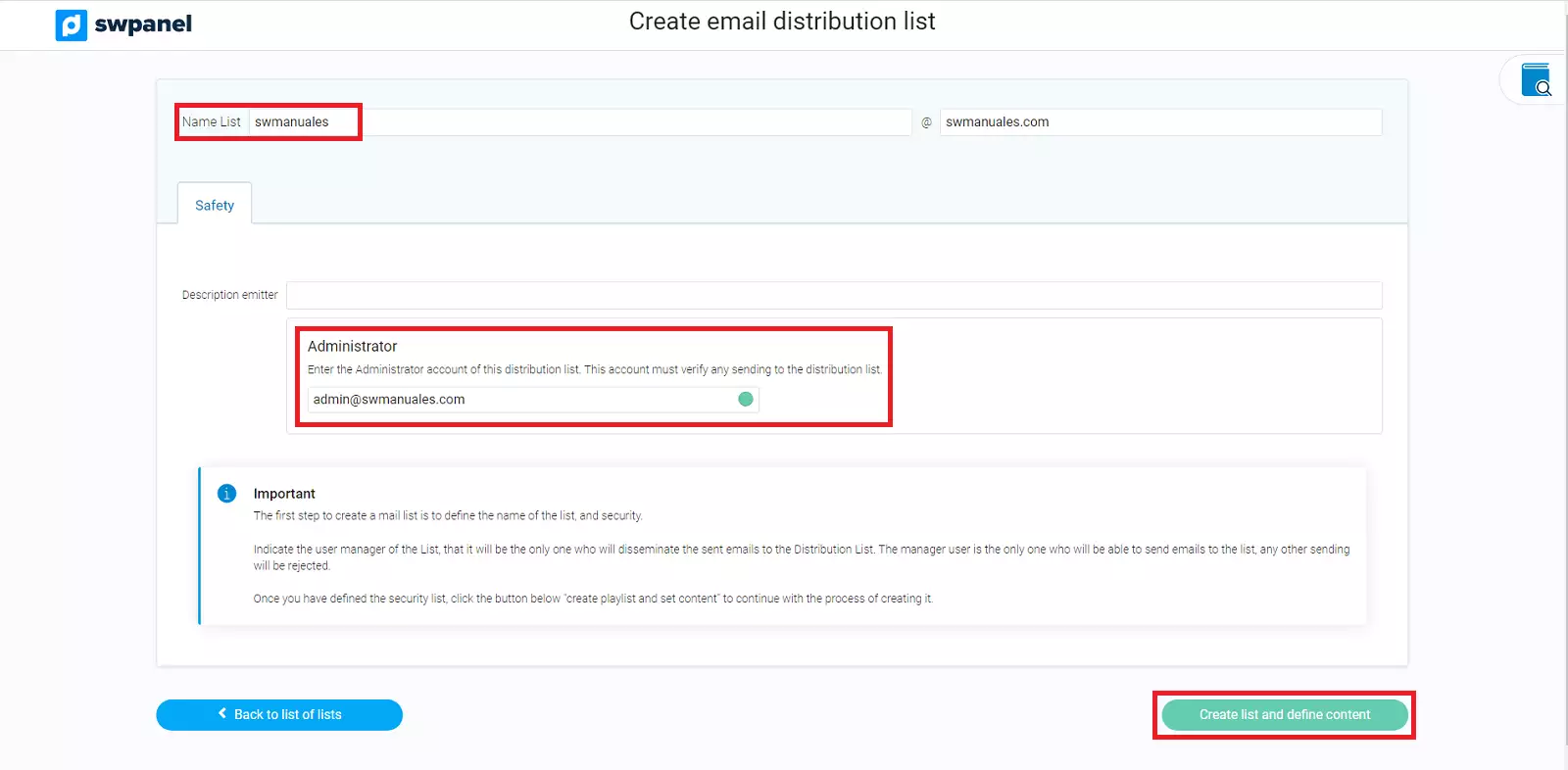
- The 'List Name' field will be the email that distributes the message to the recipients of the list. (This email must not exist)
- The 'Administrator' field will be the email account from which the emails will be sent.
Once the fields are completed, you must click on the 'Create list and define content' button:
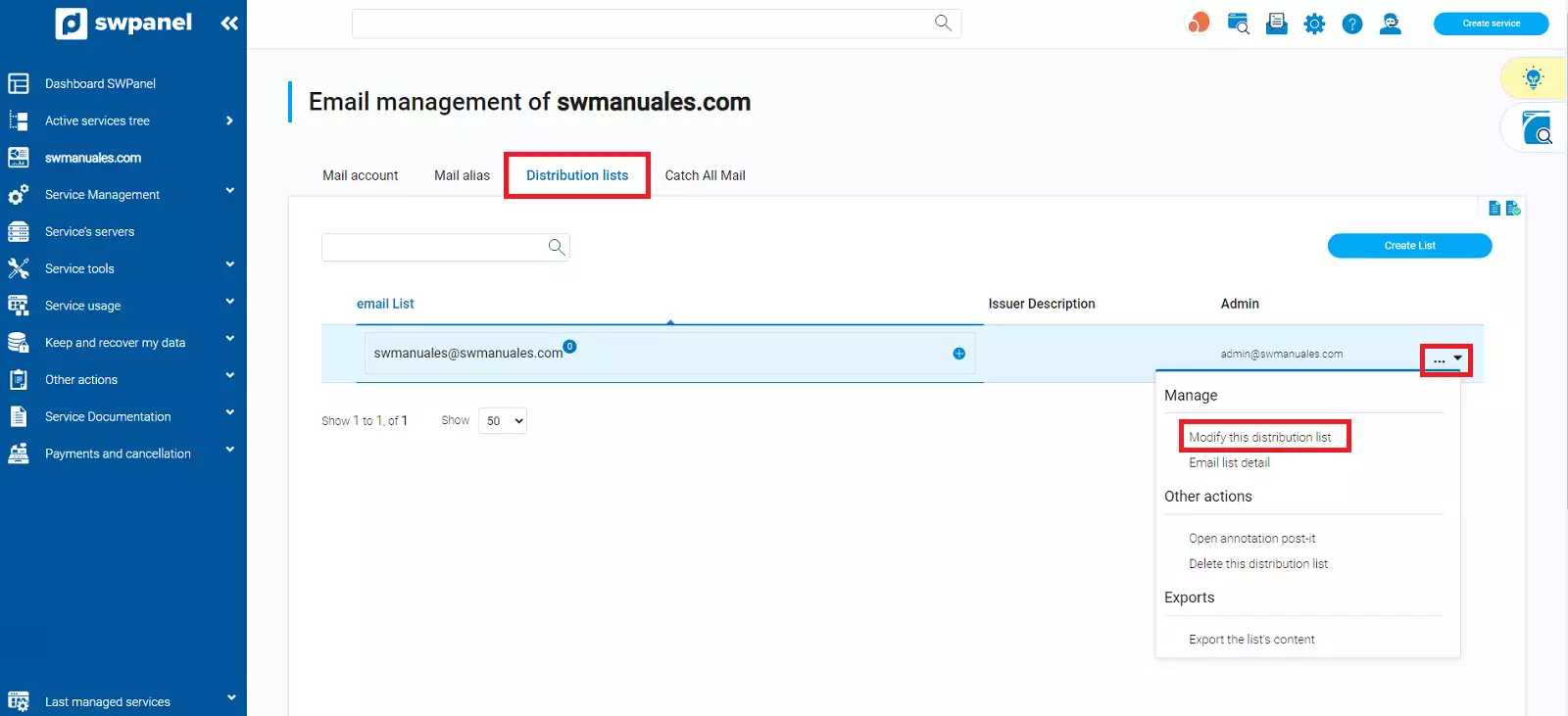
Once created, you must indicate the destination email accounts; to do this, from the 'Distribution Lists' tab of Email Management, you must place the mouse cursor over the [...] menu of the distribution list and click on 'Modify this distribution list':
From the 'List Content' section, click on the blue 'Add Account' button:
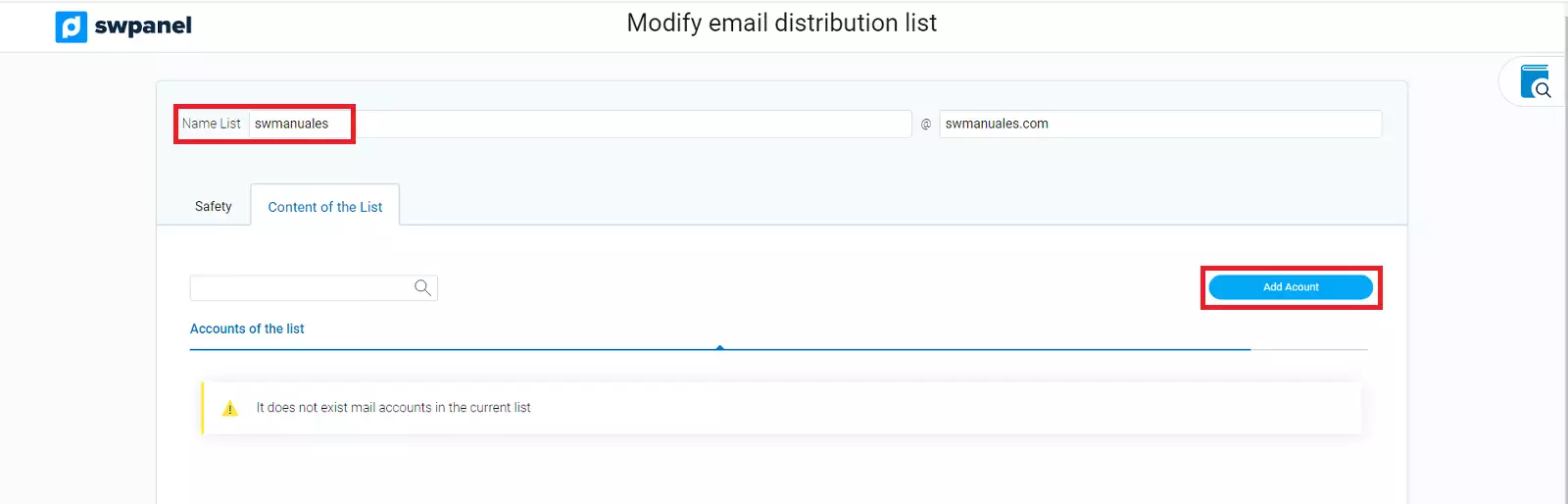
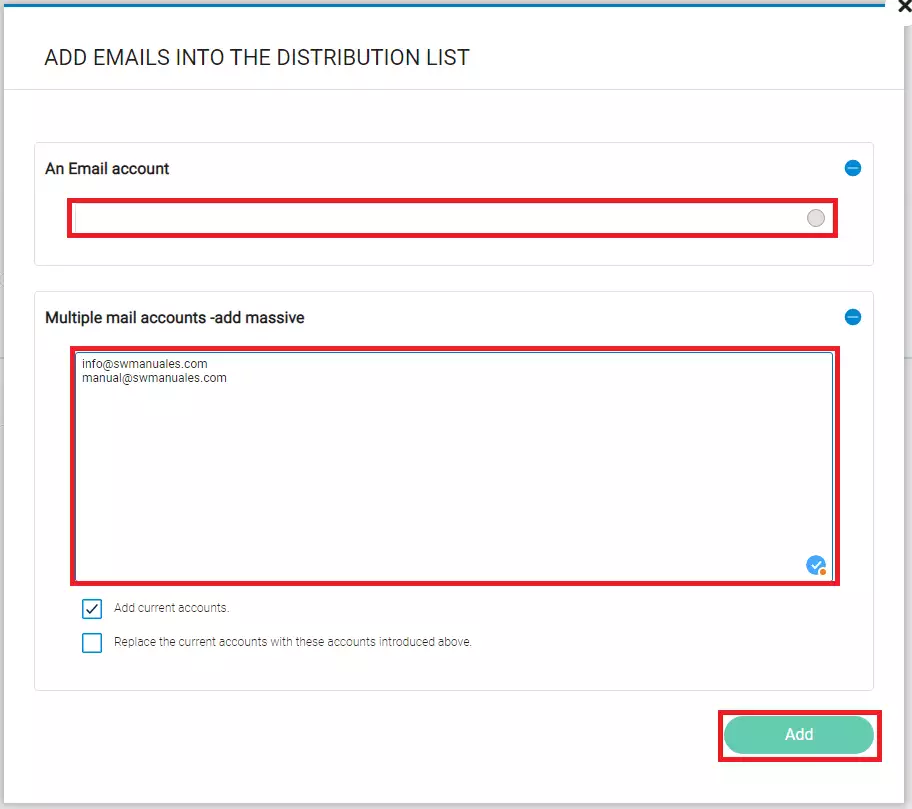
You can add a single email account or add them in bulk. Once completed, click on the 'Add' button:
Operation of a Distribution List
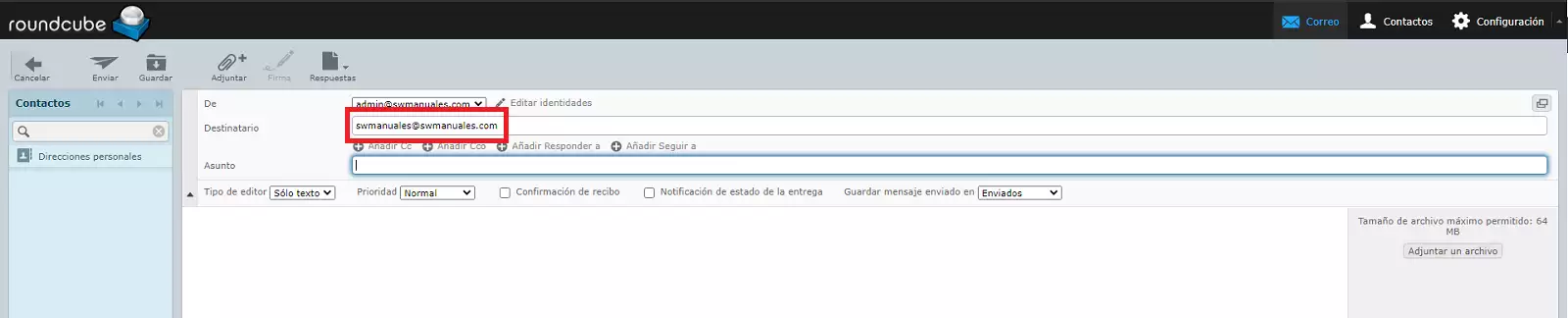
To send messages to the recipients of a distribution list, you must write the message from the administrator account you configured previously and send it to the name of the distribution list:
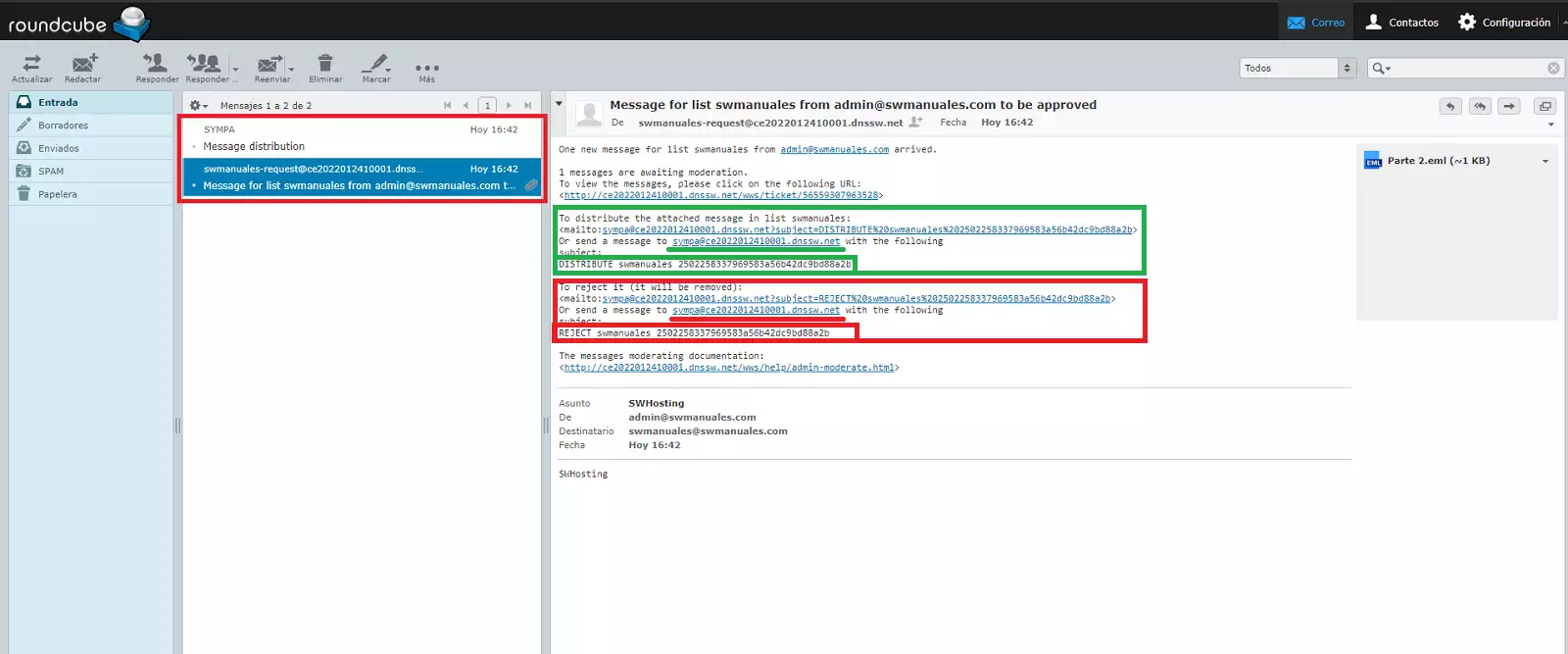
Once sent, you will receive two messages from 'SYMPA'. One indicating that the message has been forwarded to the list moderator for authorization, and another indicating the instructions to follow if you want the message to be sent or not.
If it is to be sent, you must follow the instructions in the 'To distribute the attached message in list swmanuales:' section. In this section, it is indicated that you must write an email to the account specified in the 'Or send a message to' section with the subject indicated in the 'subject' section.
In the case of wanting to reject the sending of the email message, you must follow the instructions in the 'To reject it (it will be removed):' section:
If you have authorized the sending of the email, you should have received two more emails from 'SYMPA' indicating that they have been delivered correctly:
