
How to manage my Cloud IPs
Add additional IPs to my Cloud
By default, a Cloud is delivered with one public IP for its Internet connection. Once a Cloud has been acquired, you can customize it with different options, one of which is the provision of up to a maximum of 7 additional IPs.
These are the steps to customize your Cloud with different additional IPs:
Accessing the Cloud customization
First, you must access your SWPanel and, in the top search window, enter the name of the Cloud service you wish to configure. Once the service is located, you can click on its name to access its Dashboard.
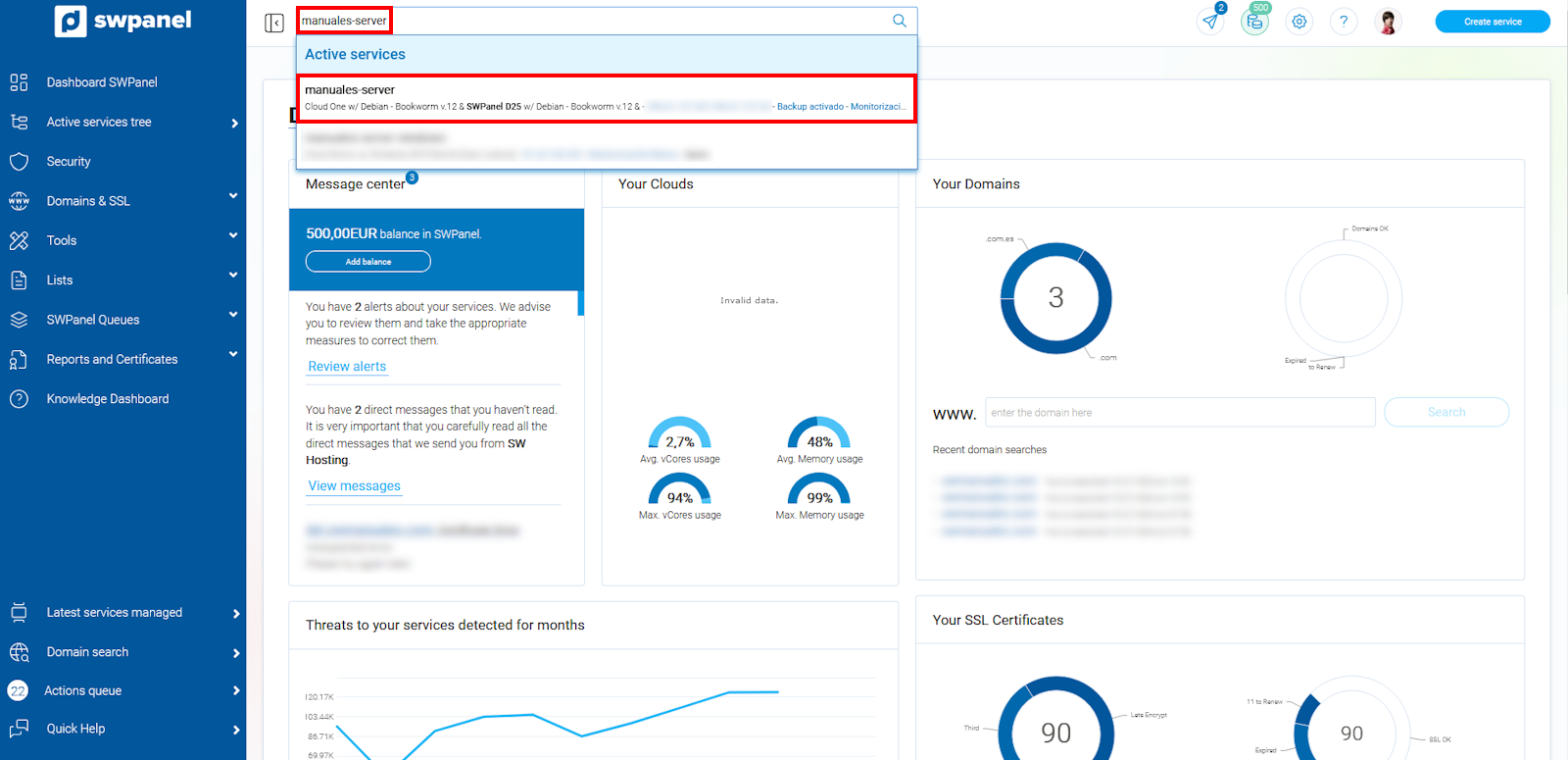
info_capture The screenshot is for guidance purposes. It was taken on version 2025.00.0017 dated 03/01/2025. It may differ from what the current version of SWPanel shows.
Once in the Cloud Dashboard, you must select the icon for 'Customize and adjust the resources and services of this Cloud'.
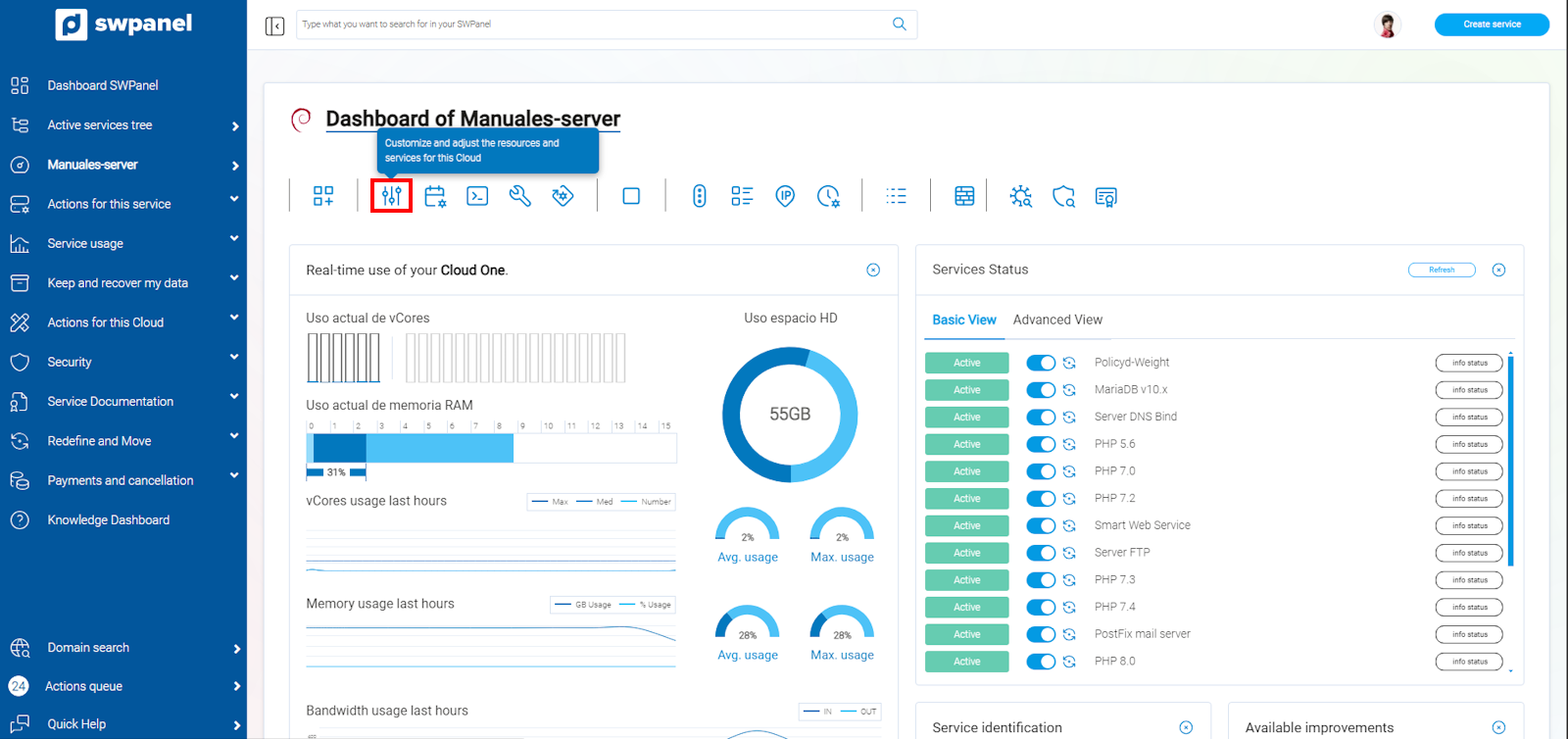
info_capture The screenshot is for guidance purposes. It was taken on version 2025.00.0017 dated 03/01/2025. It may differ from what the current version of SWPanel shows.
Once in the customization of your Cloud, in the section 'Customize service resources', you can increase the 'Public IPs' manually using the buttons [ + ] and [ - ] or by using the slider.
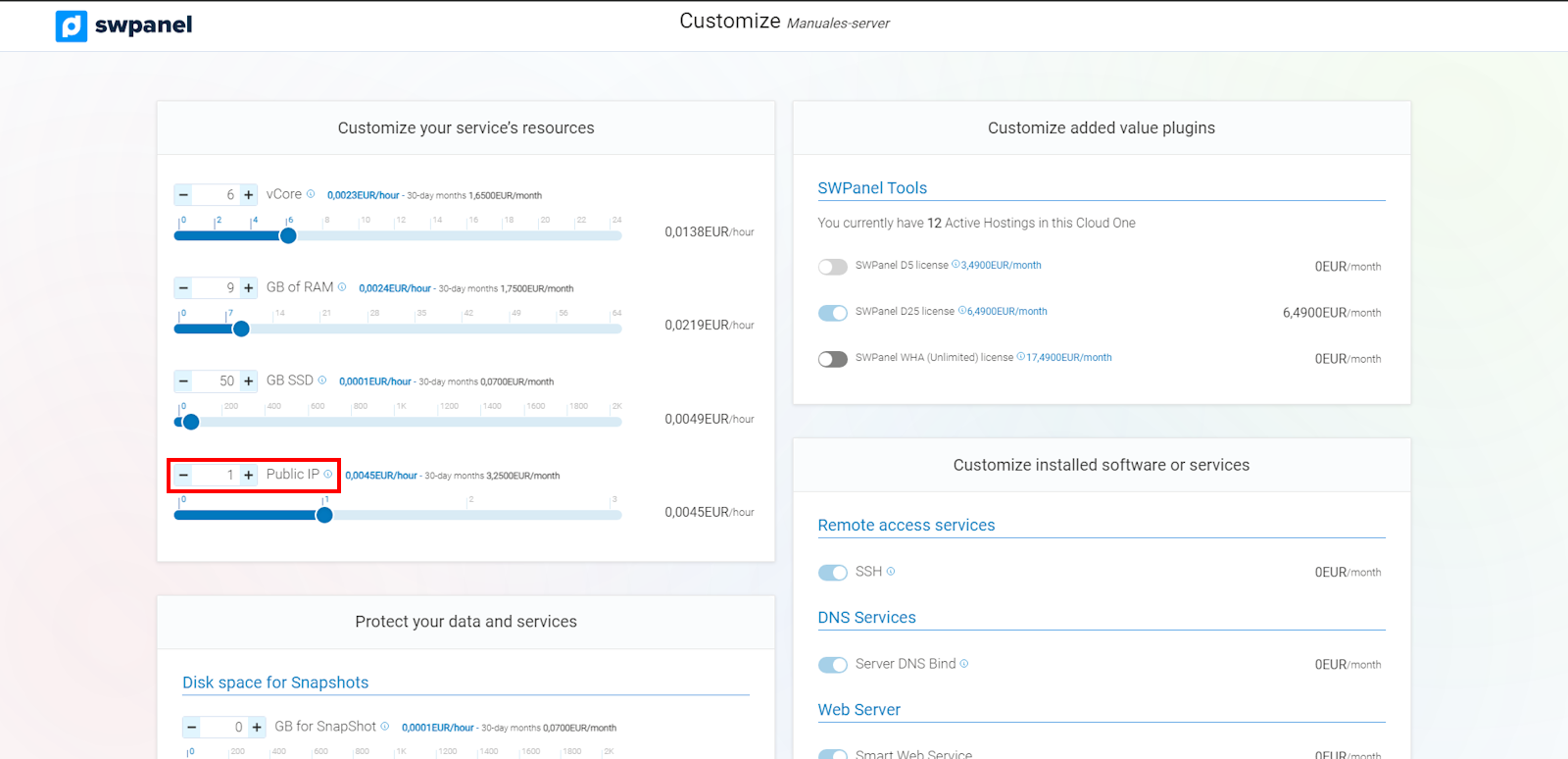
info_capture The screenshot is for guidance purposes. It was taken on version 2025.00.0017 dated 03/01/2025. It may differ from what the current version of SWPanel shows.
Once customized, you must scroll to the bottom of the page.
To finish, you must check the checkbox 'I accept the update/customization of the service and the charge to my account for the costs that may derive from this action.(*)' and then 'Accept and finalize changes'.
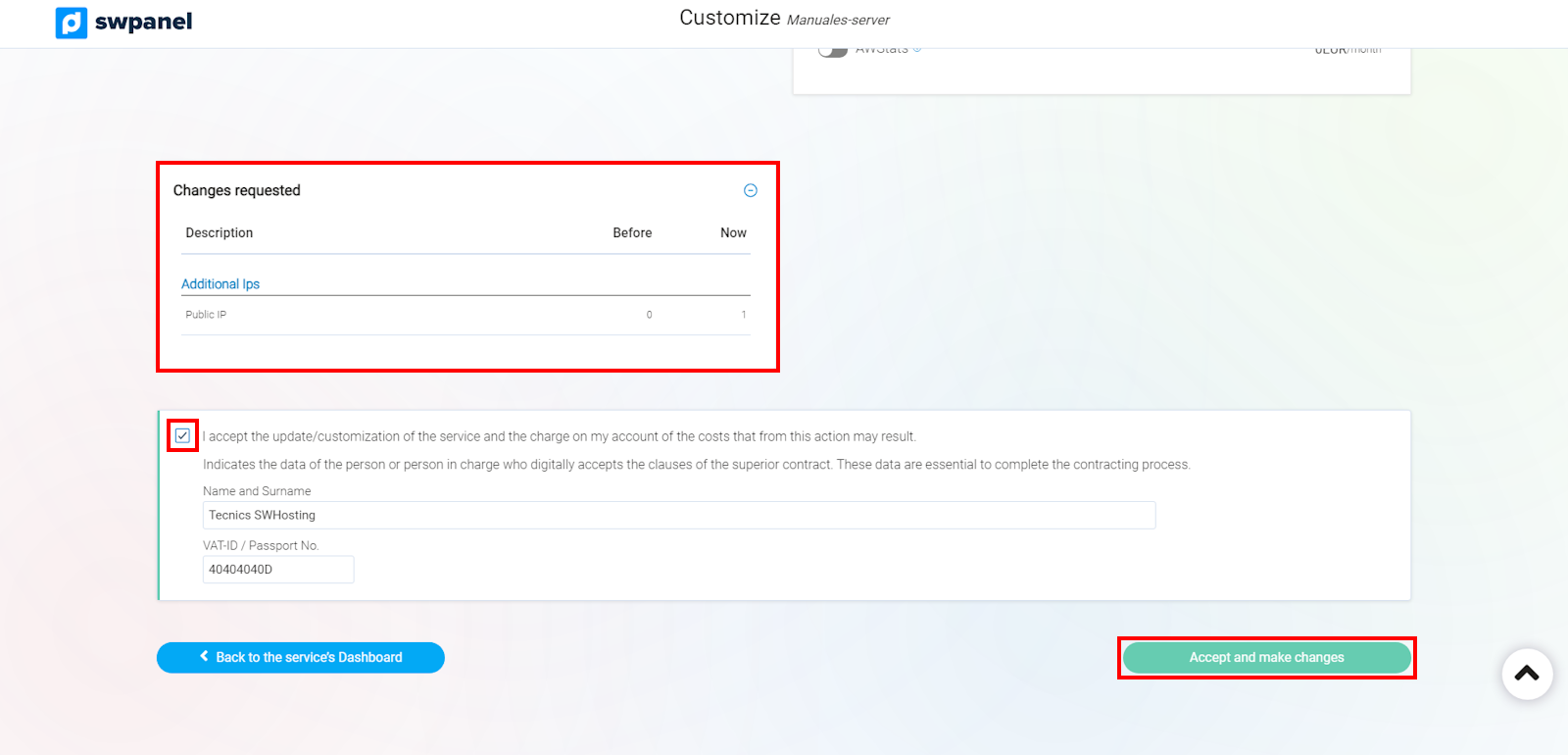
info_capture The screenshot is for guidance purposes. It was taken on version 2025.00.0017 dated 03/01/2025. It may differ from what the current version of SWPanel shows.
Managing additional IPs for my Cloud
First, you must access your SWPanel and, in the top search window, enter the name of the Cloud service you wish to configure. Once the service is located, you can click on its name to access its Dashboard.
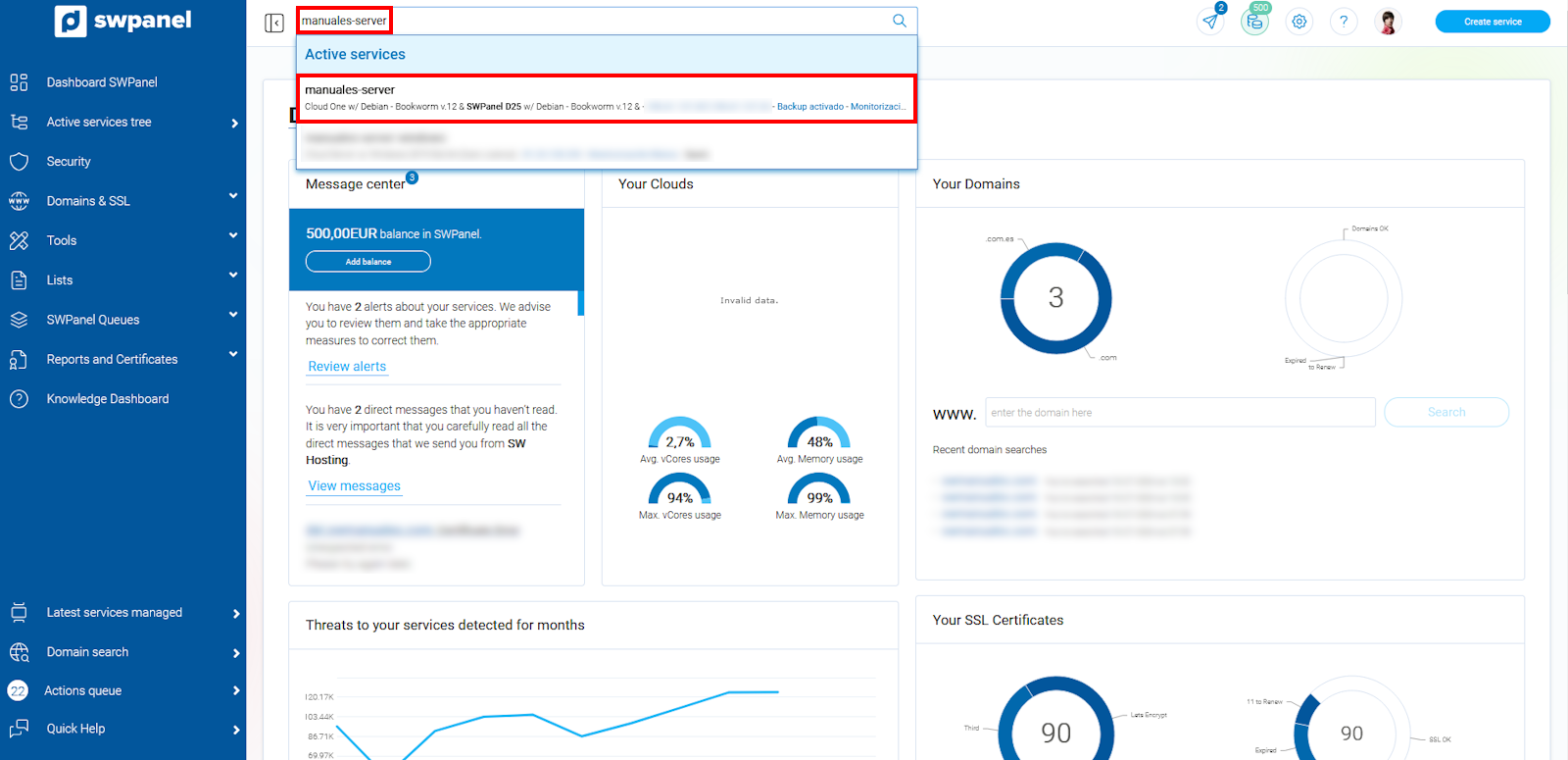
info_capture The screenshot is for guidance purposes. It was taken on version 2025.00.0017 dated 03/01/2025. It may differ from what the current version of SWPanel shows.
Once in the Dashboard of your Cloud, you must go to the blue menu located on the left side, go to 'Actions on this service' and click on the submenu 'Manage service IPs'.
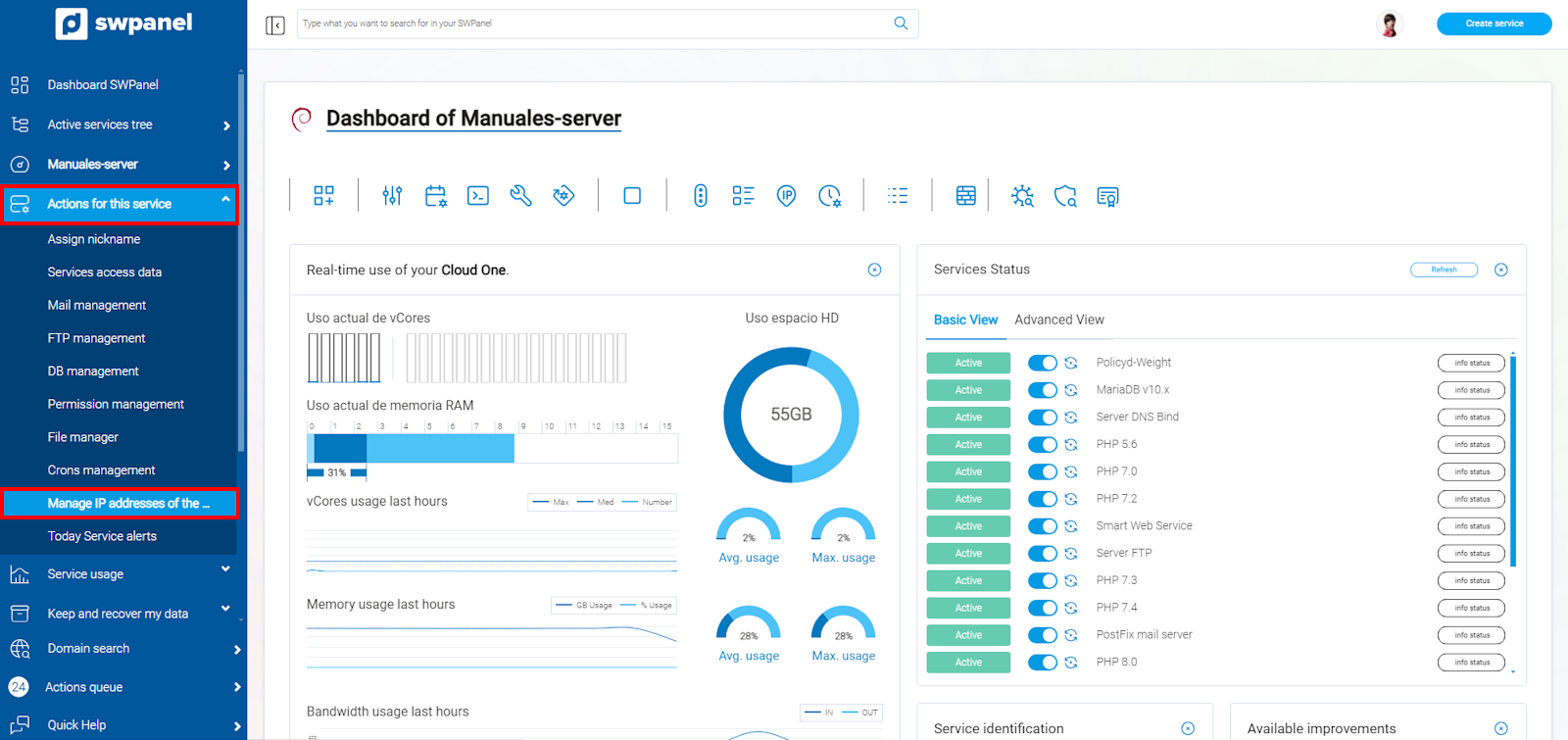
info_capture The screenshot is for guidance purposes. It was taken on version 2025.00.0017 dated 03/01/2025. It may differ from what the current version of SWPanel shows.
In this section, you will find the different 'IPs currently assigned to your Cloud'.
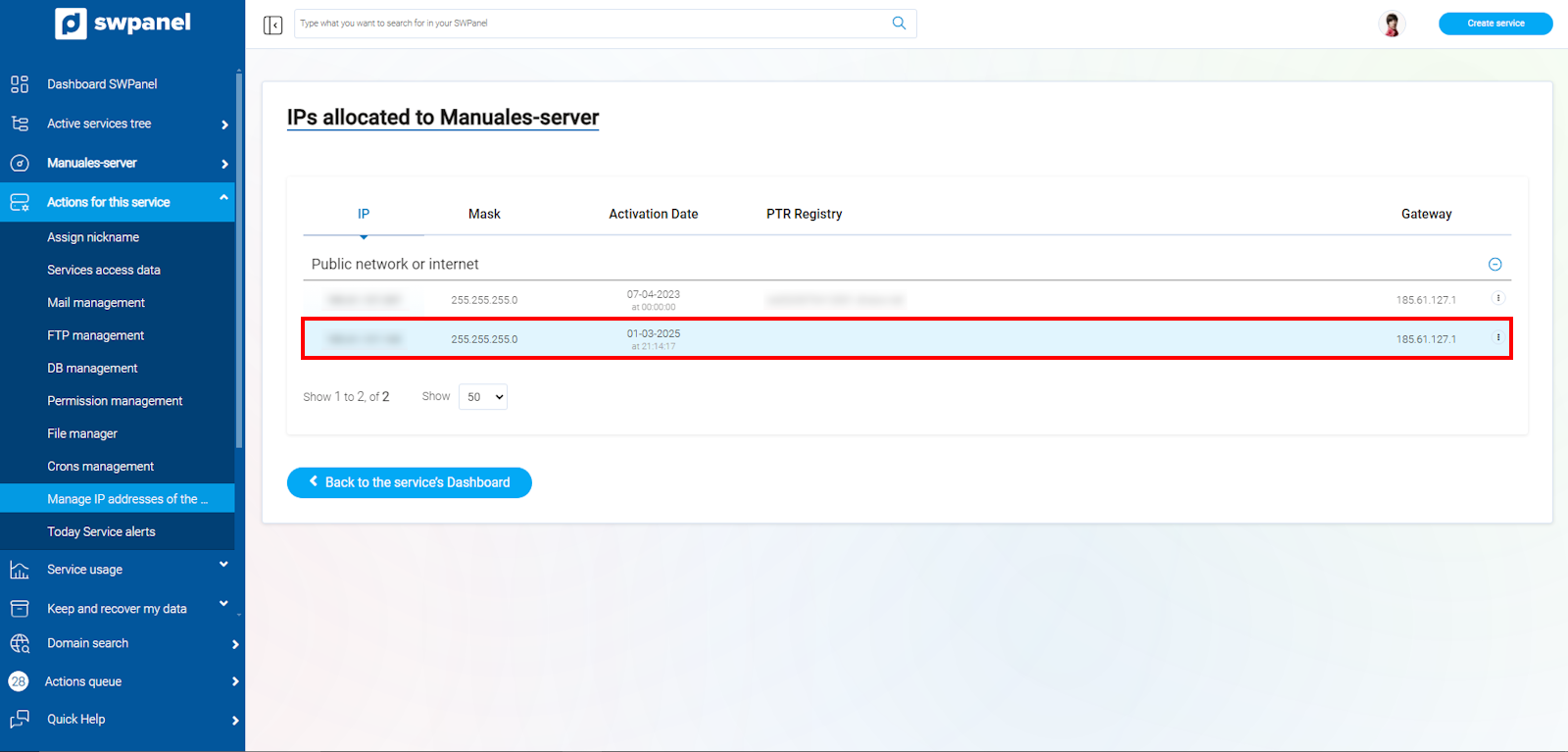
info_capture The screenshot is for guidance purposes. It was taken on version 2025.00.0017 dated 03/01/2025. It may differ from what the current version of SWPanel shows.
To modify the PTR record of an IP, you must go to the right side where you will find the icon [ ··· ]; when you hover over it, a menu with different options will appear, you must select 'Modify the PTR record of this IP' and upon clicking, a window will open where you can define a name for the PTR record.
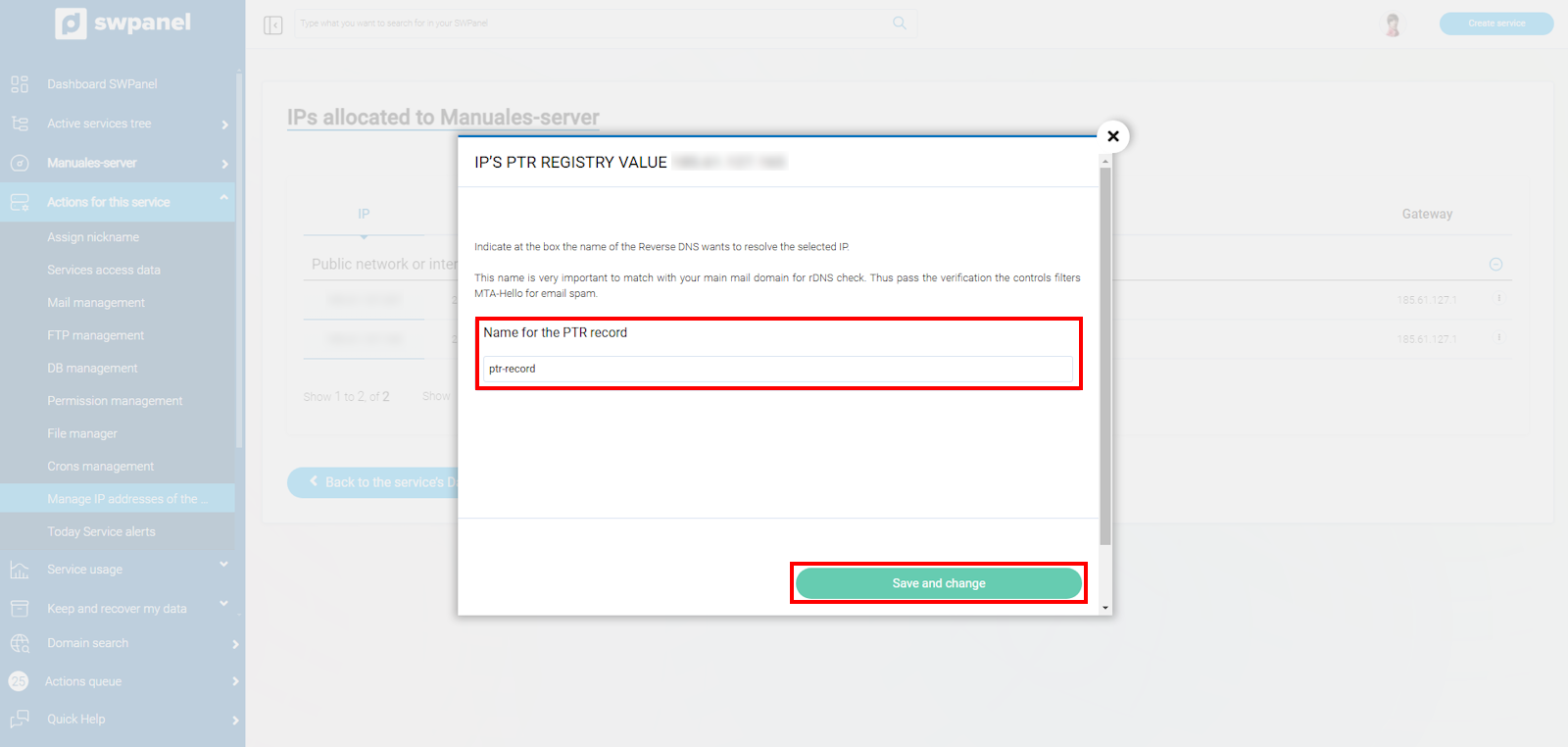
info_capture The screenshot is for guidance purposes. It was taken on version 2025.00.0017 dated 03/01/2025. It may differ from what the current version of SWPanel shows.
Removing additional IPs from my Cloud
First, you must access your SWPanel and, in the top search window, enter the name of the Cloud service you wish to configure. Once the service is located, you can click on its name to access its Dashboard.
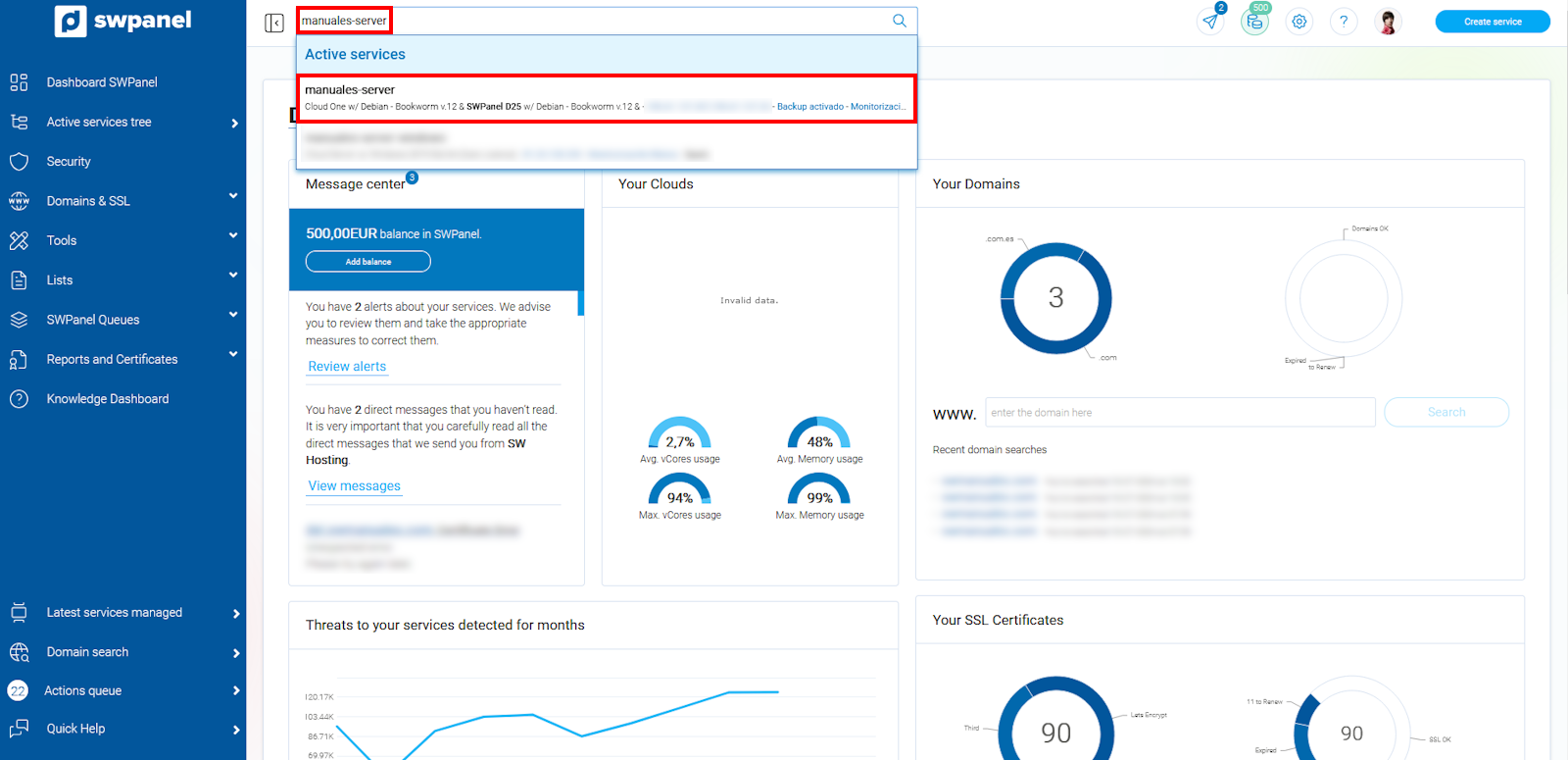
info_capture The screenshot is for guidance purposes. It was taken on version 2025.00.0017 dated 03/01/2025. It may differ from what the current version of SWPanel shows.
Once in the Dashboard of your Cloud, you must go to the blue menu located on the left side, go to 'Actions on this service' and click on 'Manage service IPs'.
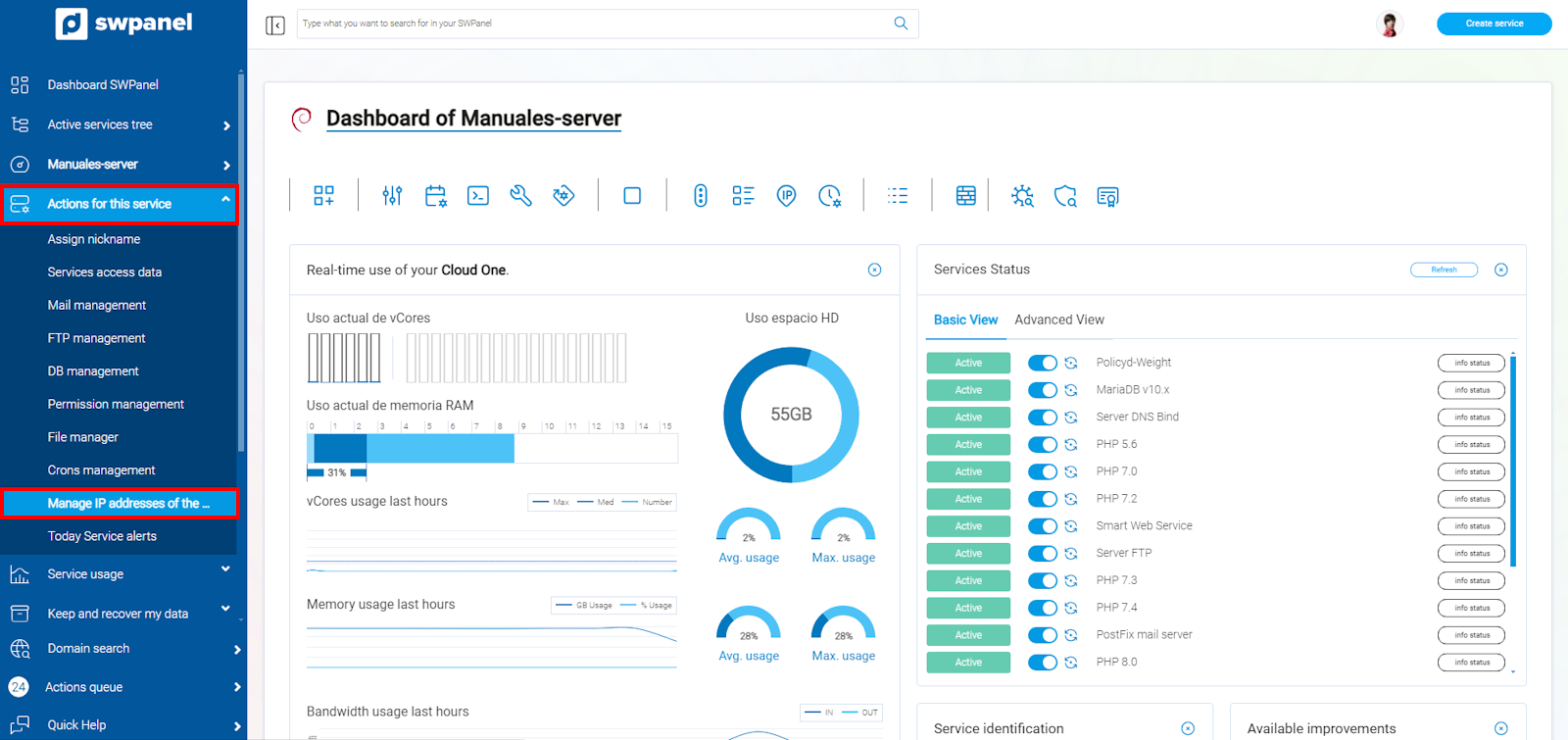
info_capture The screenshot is for guidance purposes. It was taken on version 2025.00.0017 dated 03/01/2025. It may differ from what the current version of SWPanel shows.
In this section, you will find the different 'IPs currently assigned to your Cloud'.
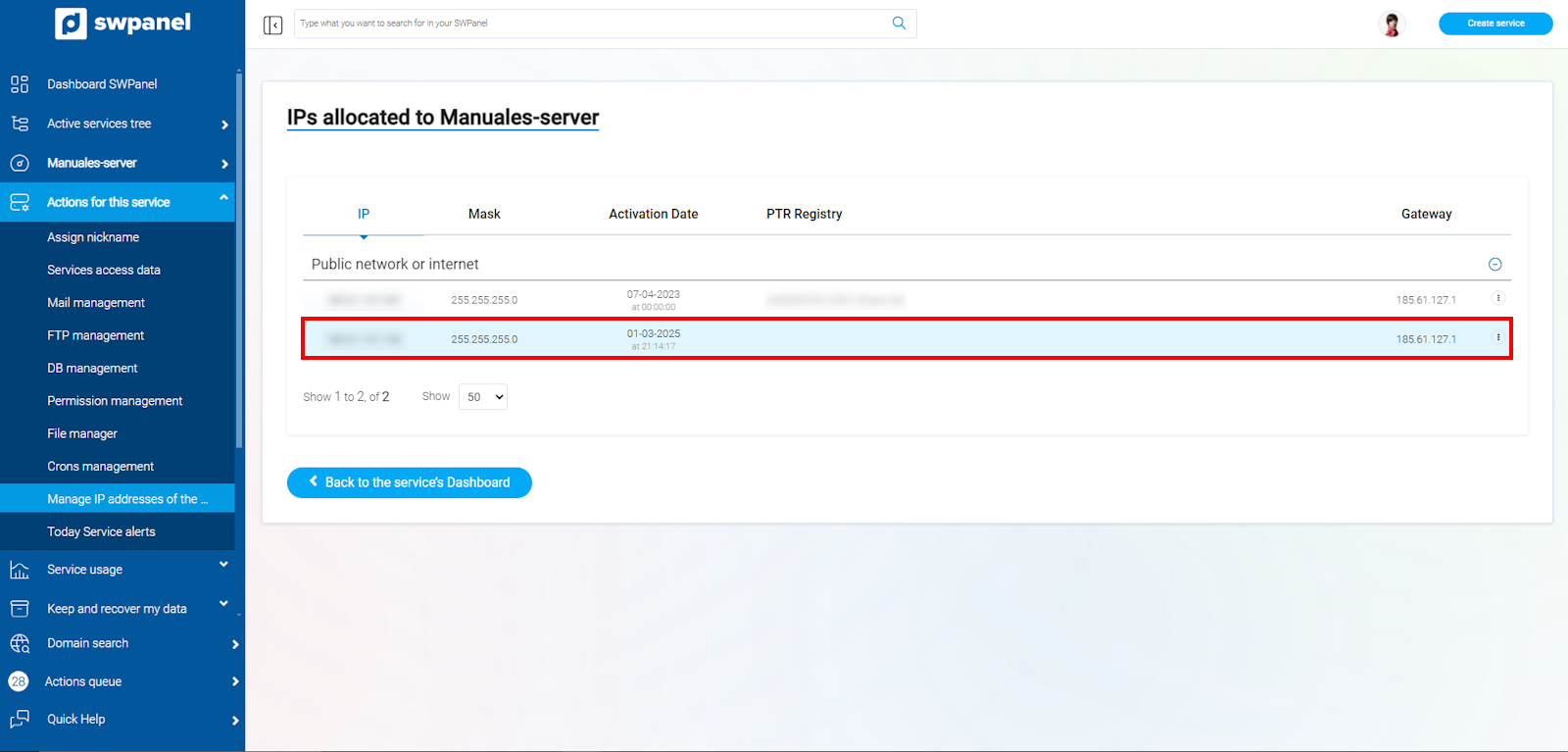
info_capture The screenshot is for guidance purposes. It was taken on version 2025.00.0017 dated 03/01/2025. It may differ from what the current version of SWPanel shows.
To delete an IP, you must go to the right side where you will find the icon [ ··· ]; when you hover over it, a menu with different options will appear. You must select 'Delete fixed IPs assigned to the service' and when you click, a window will open where you can confirm its deletion.
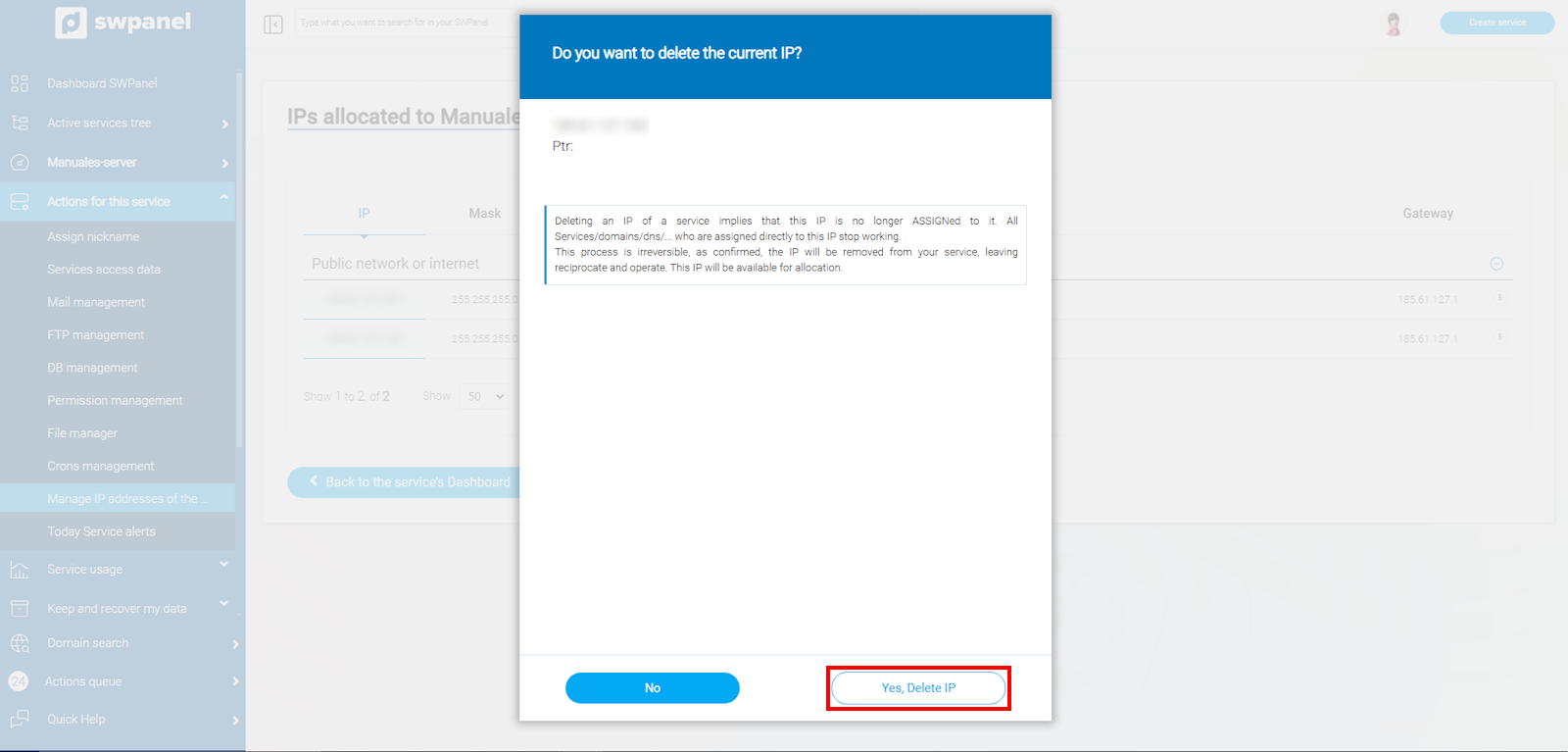
info_capture The screenshot is for guidance purposes. It was taken on version 2025.00.0017 dated 03/01/2025. It may differ from what the current version of SWPanel shows.