
How to install XenTools on a Windows server
Occasionally, we have found that some Windows updates generate incompatibilities with the Hypervisor Drivers.
Impact
Due to the conflict between the operating system updates and the Drivers, we have detected problems related to the network connection: slow network speed or misconfiguration of the network interfaces, slowness when reading or writing to the disk, etc.
In general, a system slowdown caused by the new Drivers installed by Windows compared to the Hypervisor Drivers, which are necessary for the correct functioning of the system.
Therefore, the solution is to reinstall the Hypervisor Drivers, and in all cases where this has been carried out, it has solved the problem.
danger This process involves rebooting the server; therefore, it is recommended to have a Snapshot before starting the steps described below. Manuale: How to create and manage SnapShots of your Cloud Server
Connecting to the server
First of all, you will need to connect to the server via remote desktop. Since it is possible that this problem has affected your server's network, we recommend that you connect through the SWPanel console, as it is a local console to the server.
You can follow the following guide: Manuale: How do I access my Cloud using the console via SWPanel.
Downloading the new Drivers
Once connected to the server, you should go to the following website:
You should scroll to the bottom and download the XenServer VM Tools for Windows package:
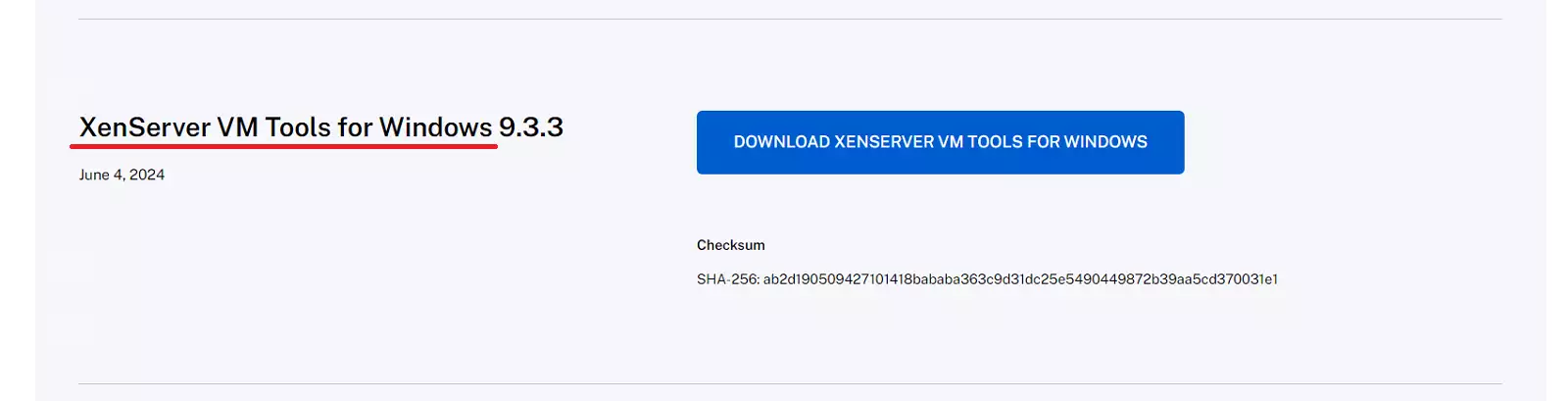
Installation
Once downloaded, run the file:
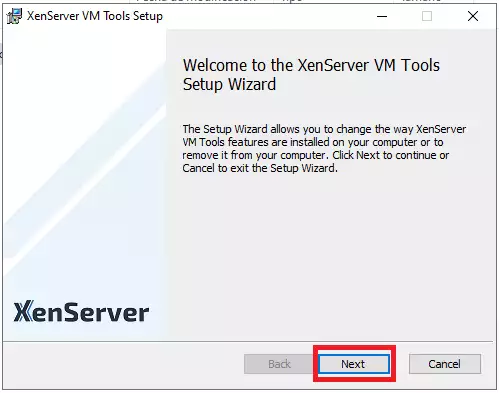
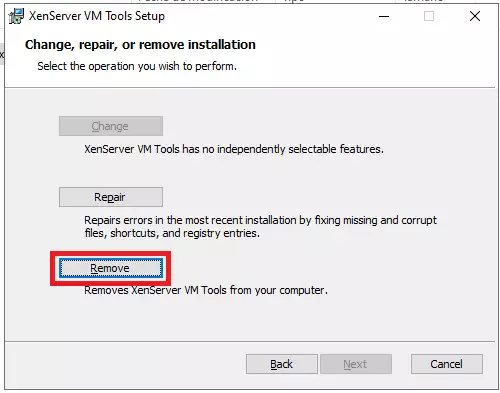
Select Remove:
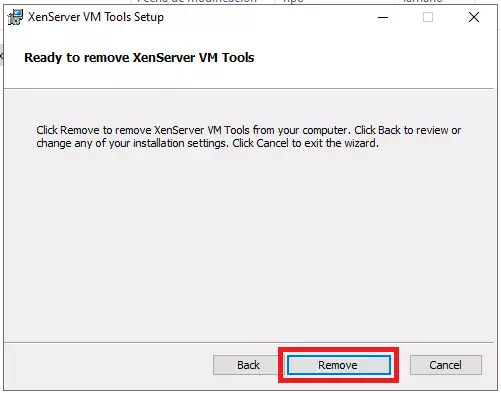
Select Remove again:
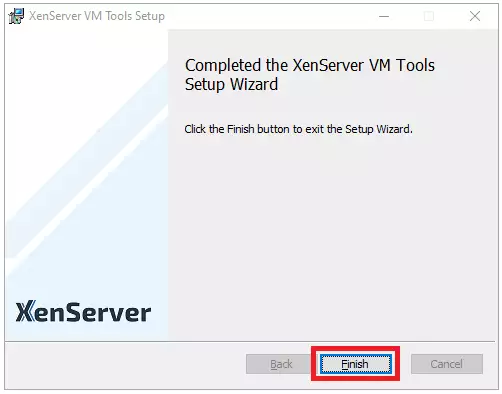
Click on the Finish option:
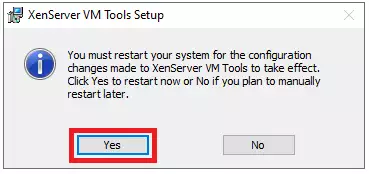
Most likely, the process will ask you to restart the server:
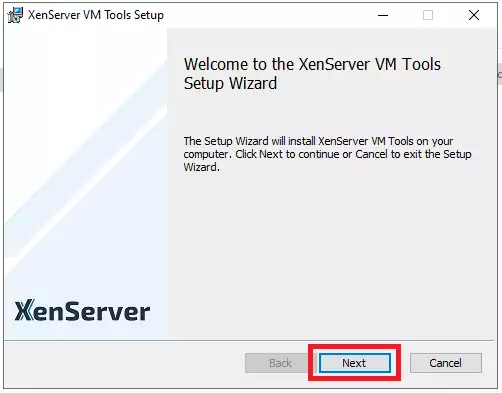
Once the restart has finished, run the downloaded file again:
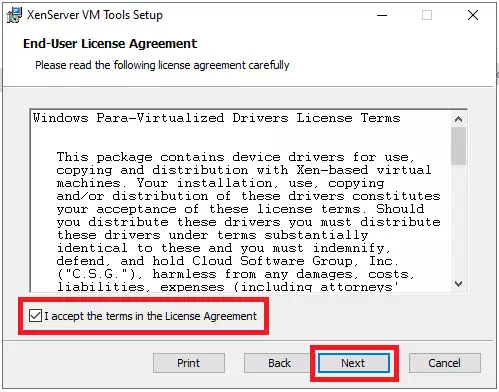
You must accept the agreement and click Next:
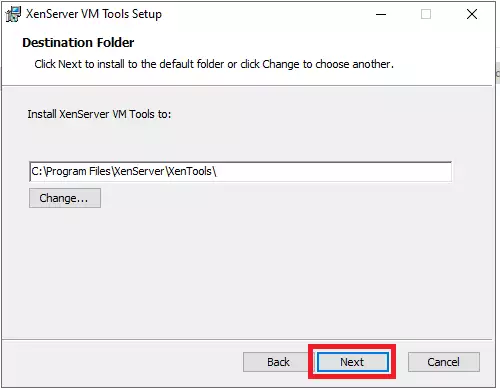
We recommend that you do not modify the installation path:
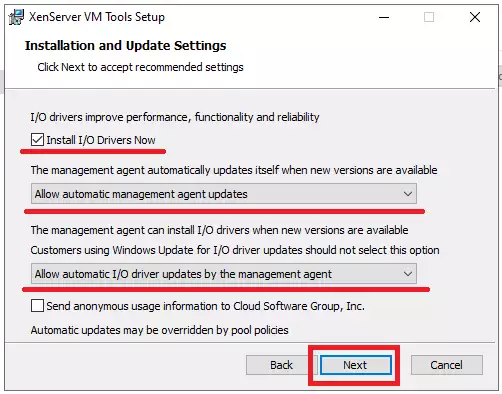
On the next screen, select the same options as the following screenshot:
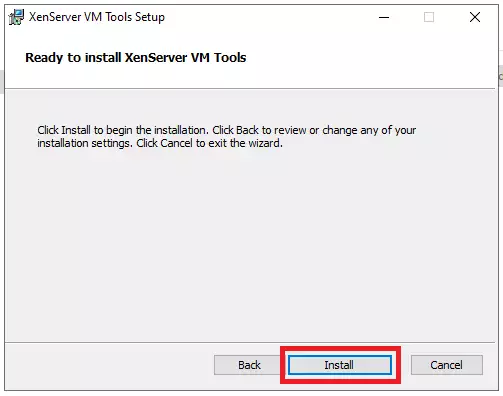
Click Install:
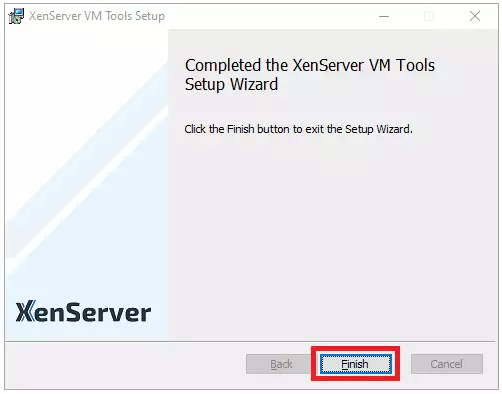
Select Finish
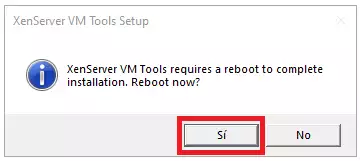
It will ask you to restart the server again:
Final reviews
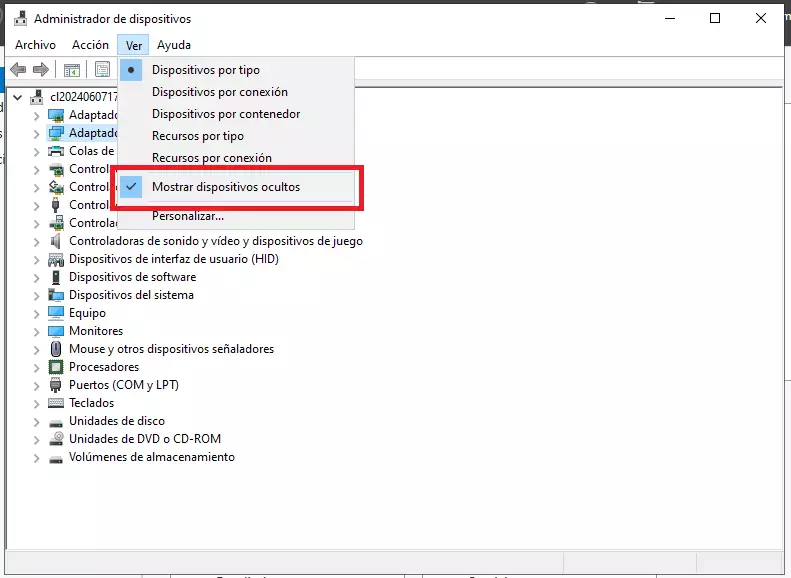
We will access the system's Device Manager. From the View tab, select Show hidden devices:
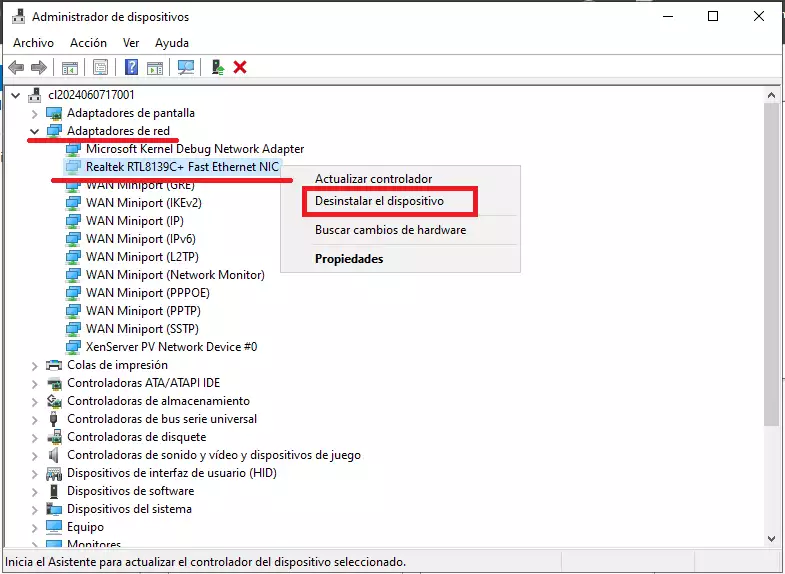
Afterward, expand the Network adapters section. You must uninstall the adapters that appear as hidden:
Network configuration
If you have problems with the network configuration, you can check manual Manuale: How to configure the network of a Windows server with the SWPanel data